Step-by-Step Guide to Managing Tasks and Projects in Your Dashboard
17 mins read · Updated 29 Sep, 2025
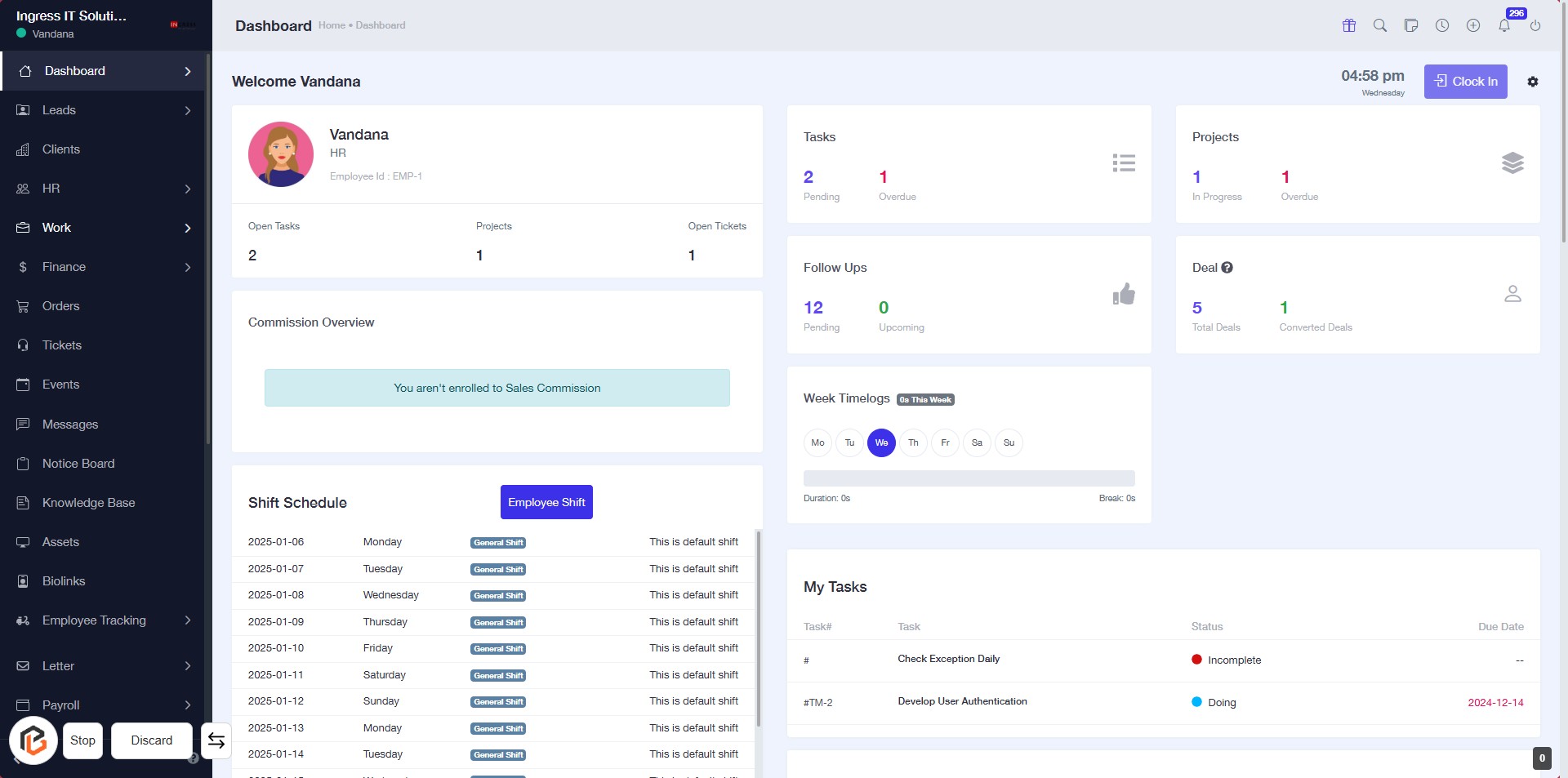
STEP 1: Click on "Work" to Access Your Dashboard
- Navigate to the Dashboard page.
- Locate the Work link in the sidebar.
- Click on the Work link to proceed.
- This will direct you to the relevant section for managing tasks and projects.
STEP 2: Click on "Projects" to Access Project Overview
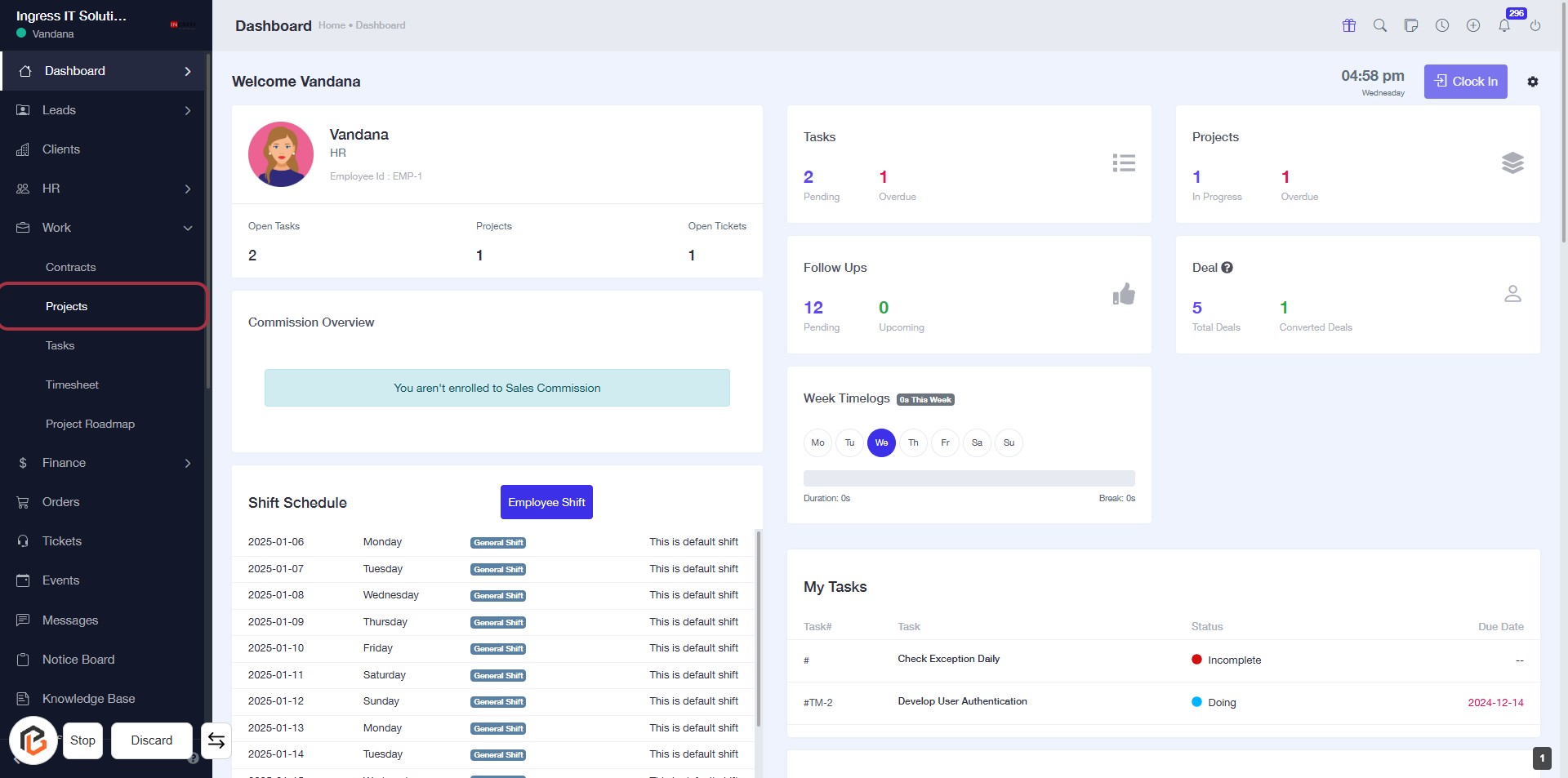
- Navigate to the left sidebar of your dashboard.
- Locate the "Projects" option highlighted in red.
- Click on "Projects" to view your project details and status.
- Ensure you check for any notifications or updates related to your projects.
STEP 3: Select "TaskMaster" Project
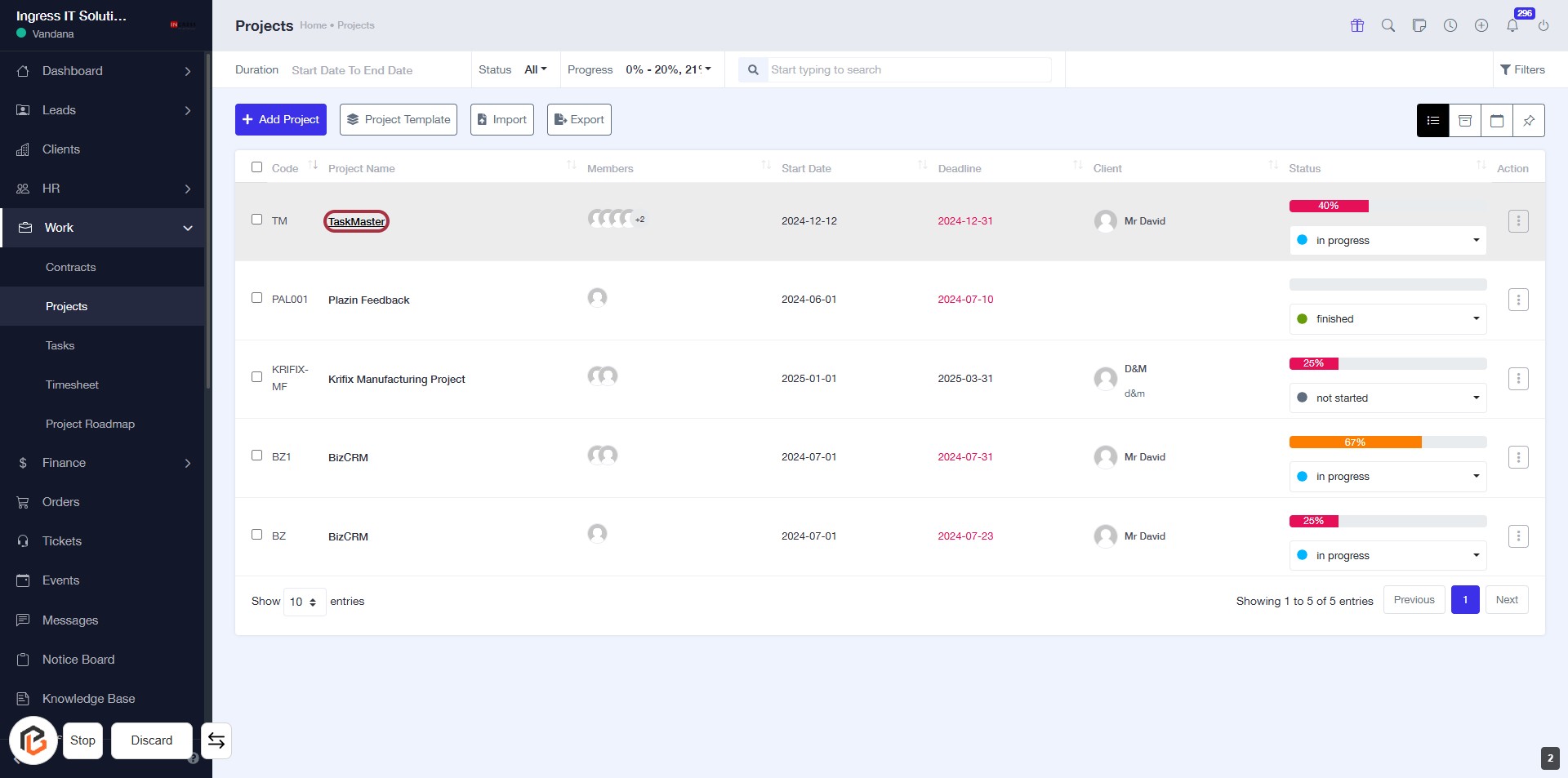
- Click on the TaskMaster link in the Projects table to view project details.
- Ensure you are on the Projects page to access the project list.
- The highlighted area indicates the TaskMaster project for selection.
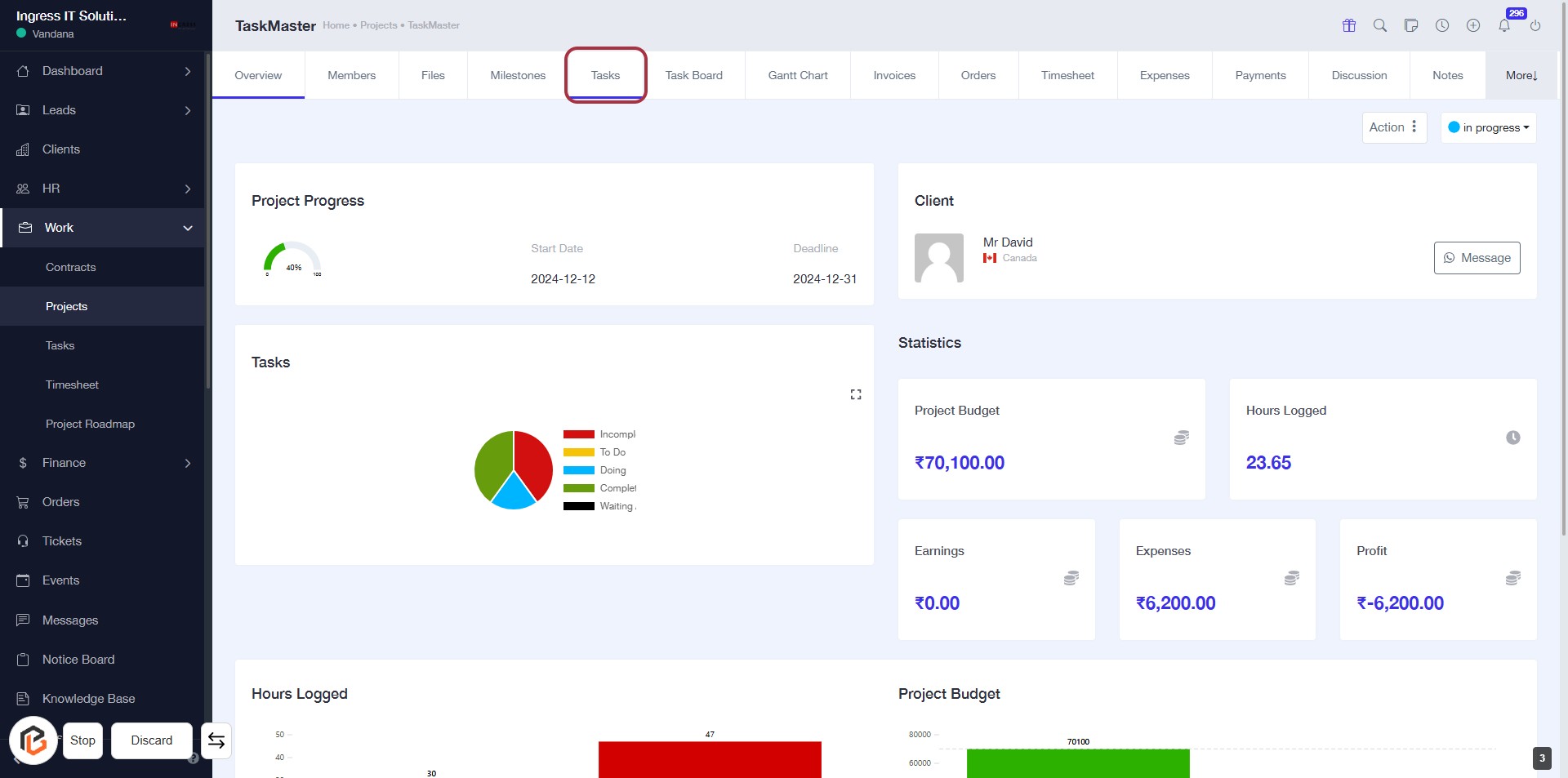
STEP 4: Click on "Tasks"
- Navigate to the "Tasks" section by clicking on the highlighted area.
- This section provides an overview of project tasks, including their status and statistics.
- Ensure to review the project progress and budget information displayed on the page.
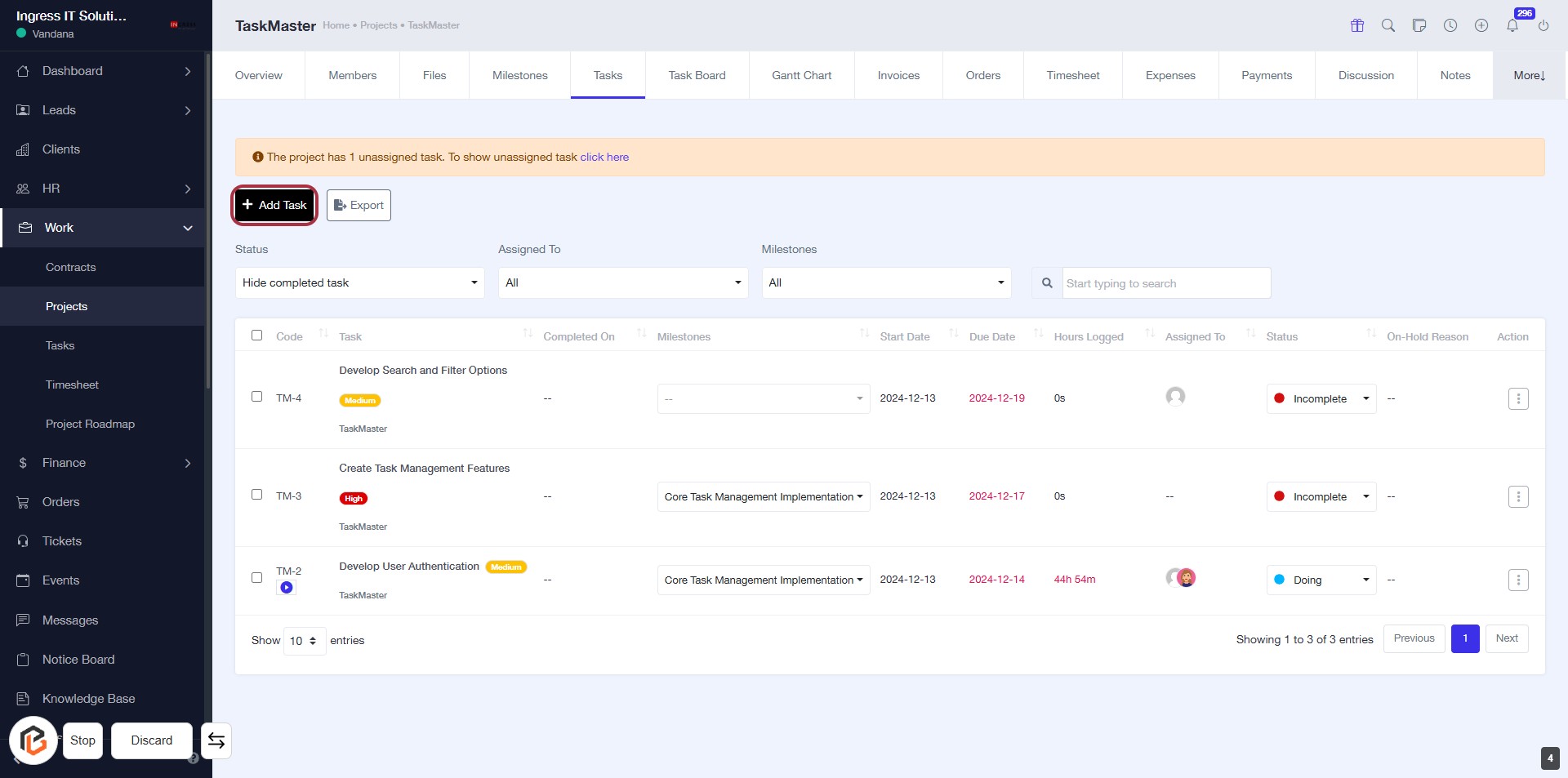
STEP 5: Click on "Add Task"
- Navigate to the "Tasks" section.
- Click on the Add Task button located in the highlighted area.
- This will open a form for entering task details.
- Ensure to fill in all required fields marked with an asterisk (*).
- Proceed to the next step to fill out the "Title" of the task.
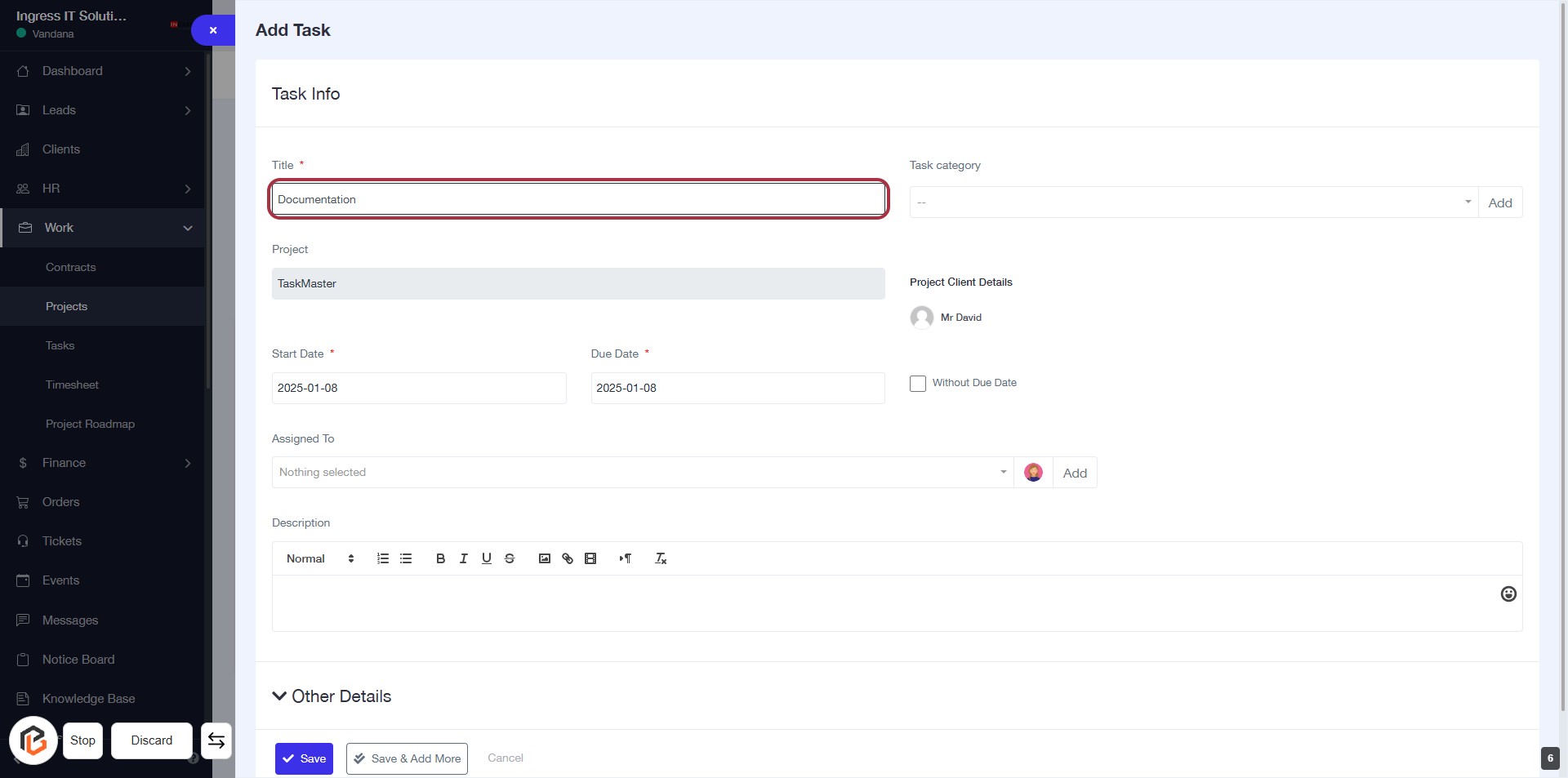
STEP 6: Fill Out the Title Field
- Locate the "Title" input field in the "Task Info" section.
- Enter the task title (e.g., "Documentation") in the highlighted area.
- Ensure the title is descriptive and relevant to the task.
- Proceed to the next step by selecting the "Task category" field.
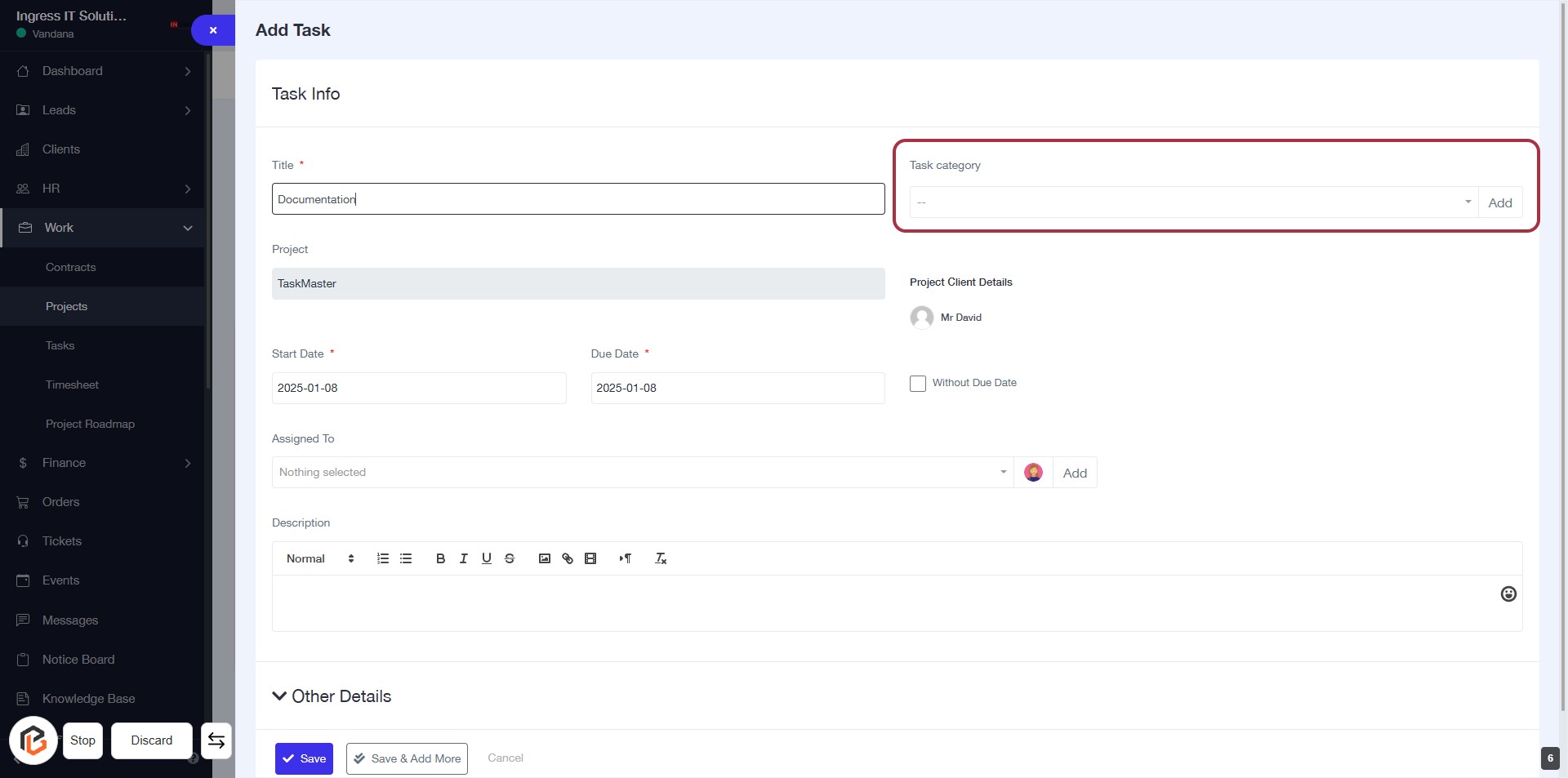
STEP 7: Select "Task category"
- Click on the "Task category" field highlighted in red.
- Choose the appropriate category from the dropdown list.
- Ensure to fill in any required fields marked with an asterisk (*).
- Review your selection before proceeding to the next step.
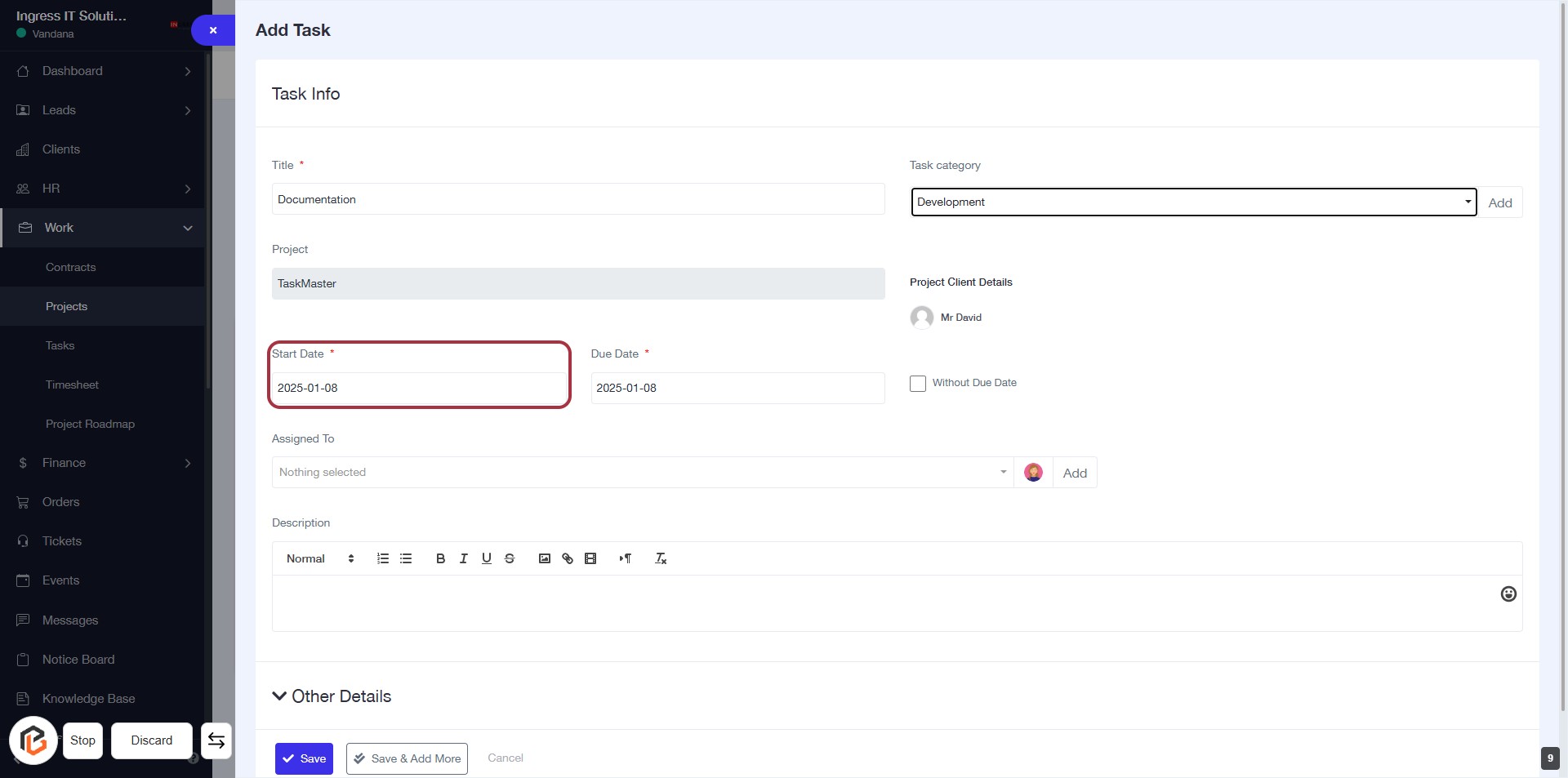
STEP 8: Select "Start Date"
- Click on the "Start Date" field (marked with an asterisk) to initiate date selection.
- Ensure to input a valid start date as it is a required field.
- Review other fields such as "Due Date" and "Assigned To" for completeness.
- Proceed to the next step by selecting "Due Date."
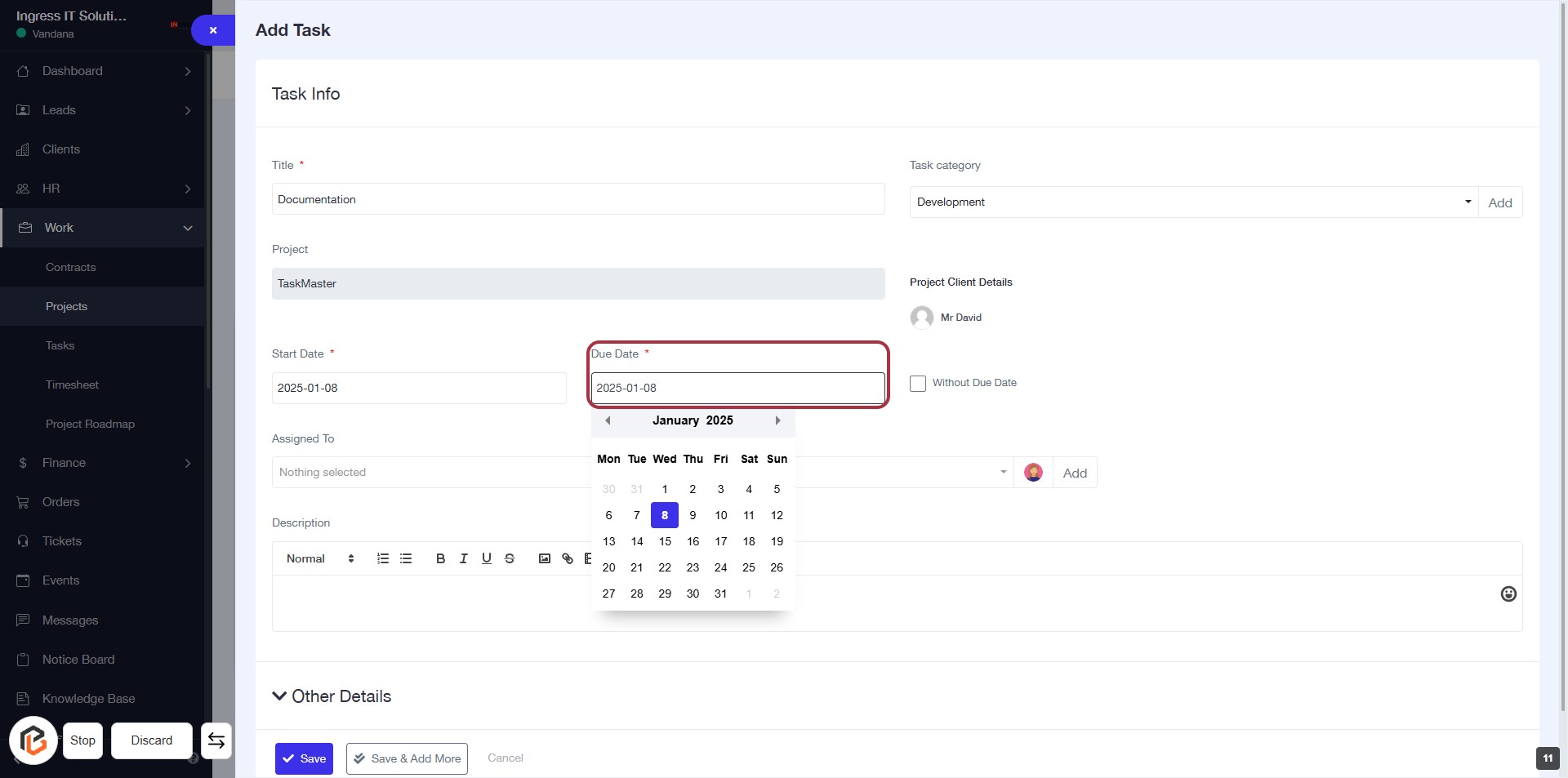
STEP 9: Select "Due Date"
- Click on the "Due Date" field (marked with an asterisk * for required input).
- A calendar will appear; select the desired date.
- Ensure the date is correctly displayed in the format YYYY-MM-DD.
- Proceed to the next step by selecting an employee from the "Assigned To" dropdown.
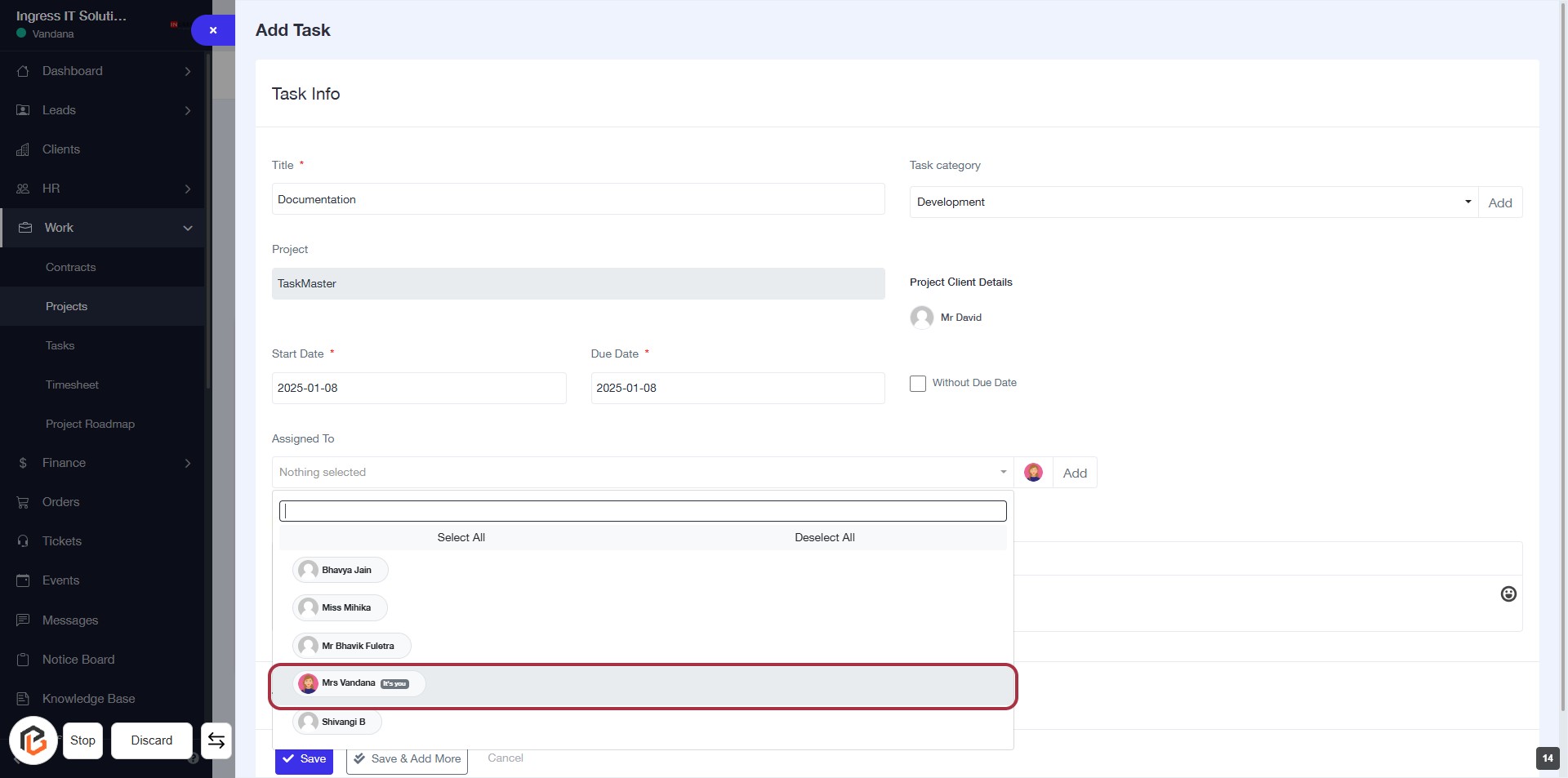
STEP 10: Select Employee from "Assigned to"
- Click on the "Assigned To" dropdown.
- Choose "Mrs Vandana It's you" from the list.
- Ensure all required fields marked with * are filled out.
- Review your selections before proceeding to the next step.
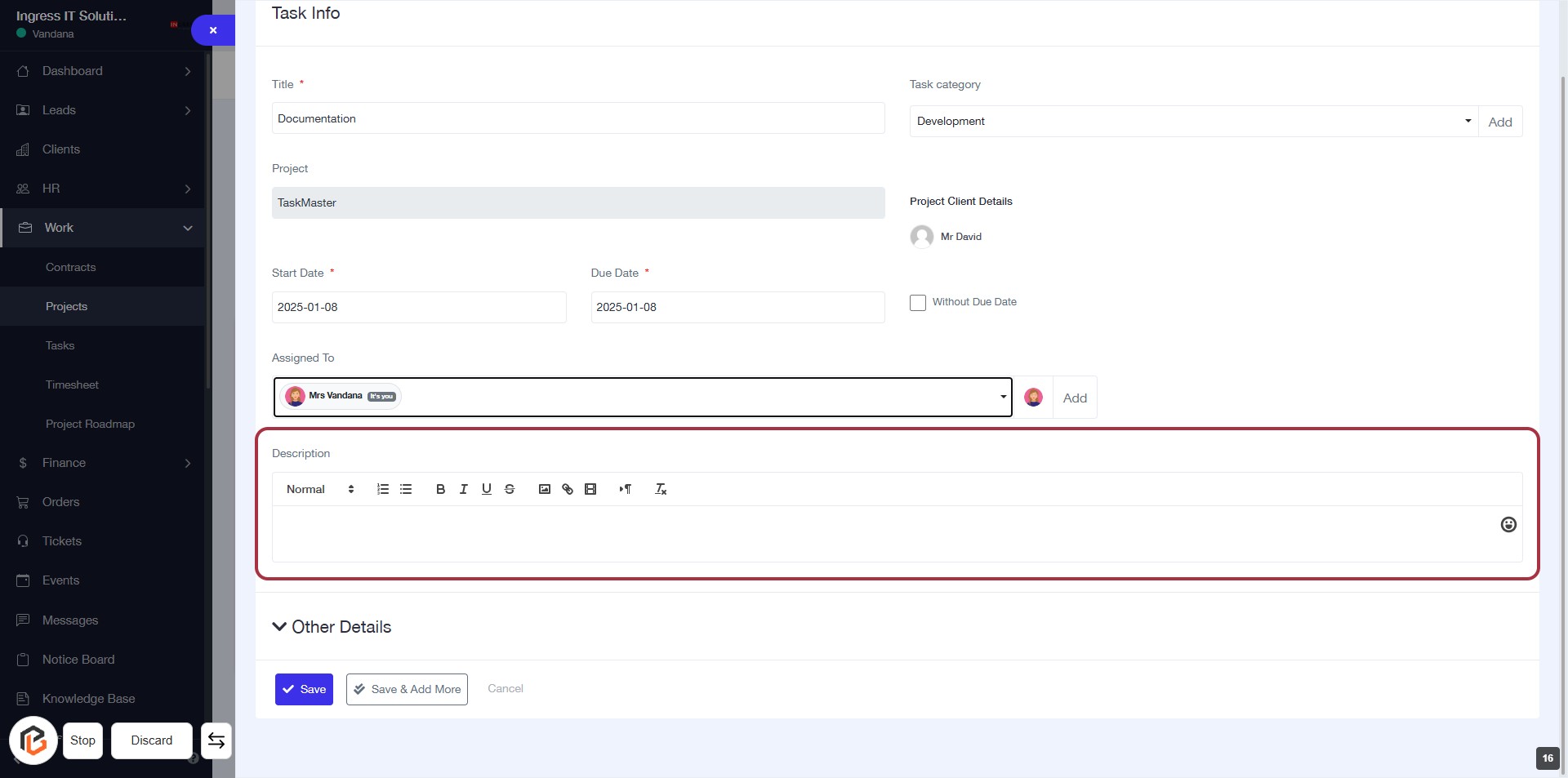
STEP 11: Click on "Description" to Add Task Details
- Locate the "Description" section highlighted in red.
- Click on the area to activate the text editor.
- Enter relevant details about the task.
- Use formatting options (bold, italics, etc.) as needed.
- Ensure all required fields are completed before proceeding.
STEP 12: Click on "Other Details" to Access Additional Task Information
- Click on the "Other Details" link to expand and view more options related to the task.
- Ensure all required fields marked with an asterisk (*) are filled out before proceeding.
- Review any additional information that may be necessary for task completion.
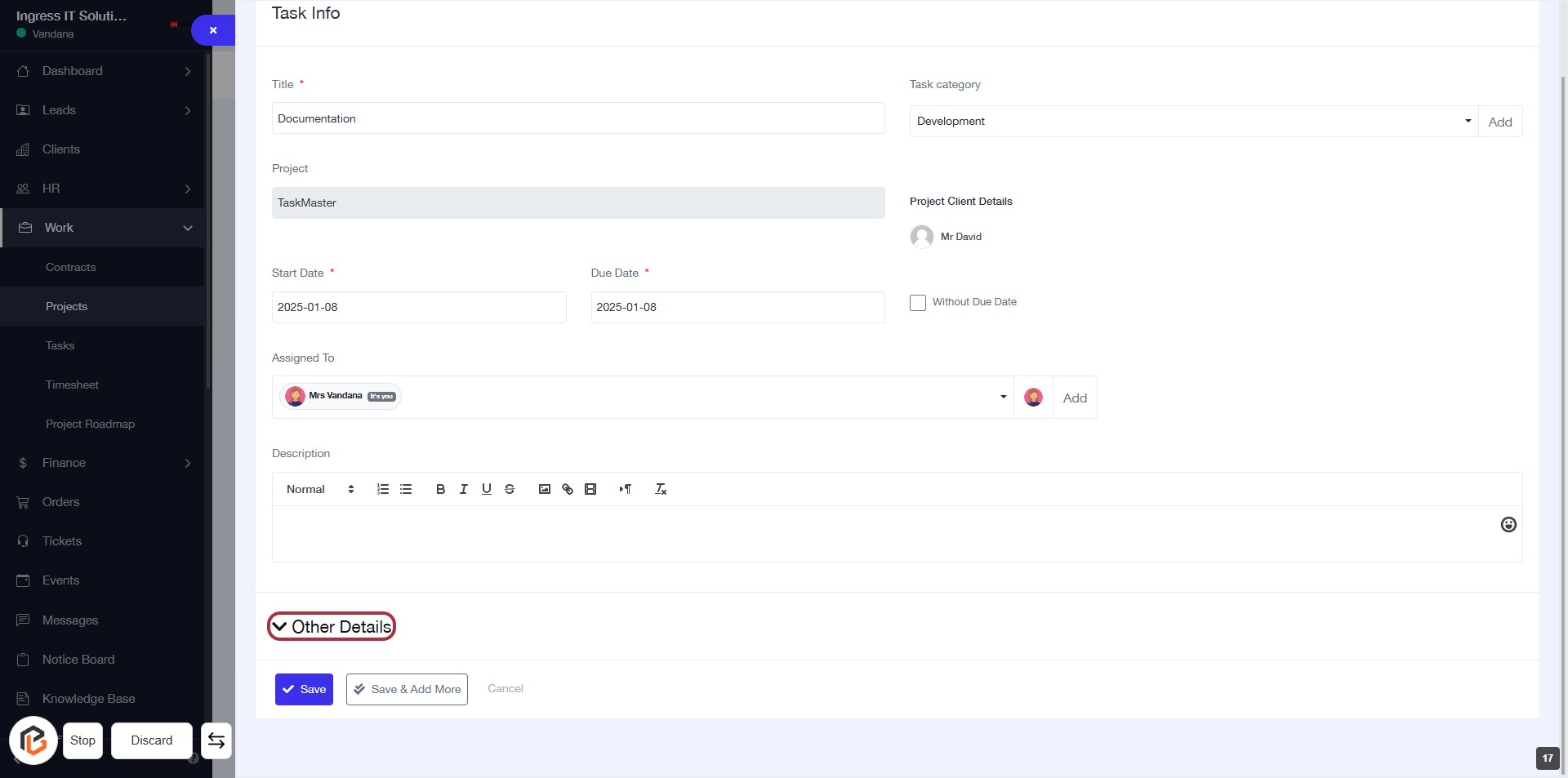
STEP 13: Select "Documentation" from Milestones
- Click on the "Milestones" dropdown.
- Choose "Documentation" from the list of options.
- Ensure that the selected milestone is displayed correctly.
- Proceed to the next step by selecting the "Status" option.
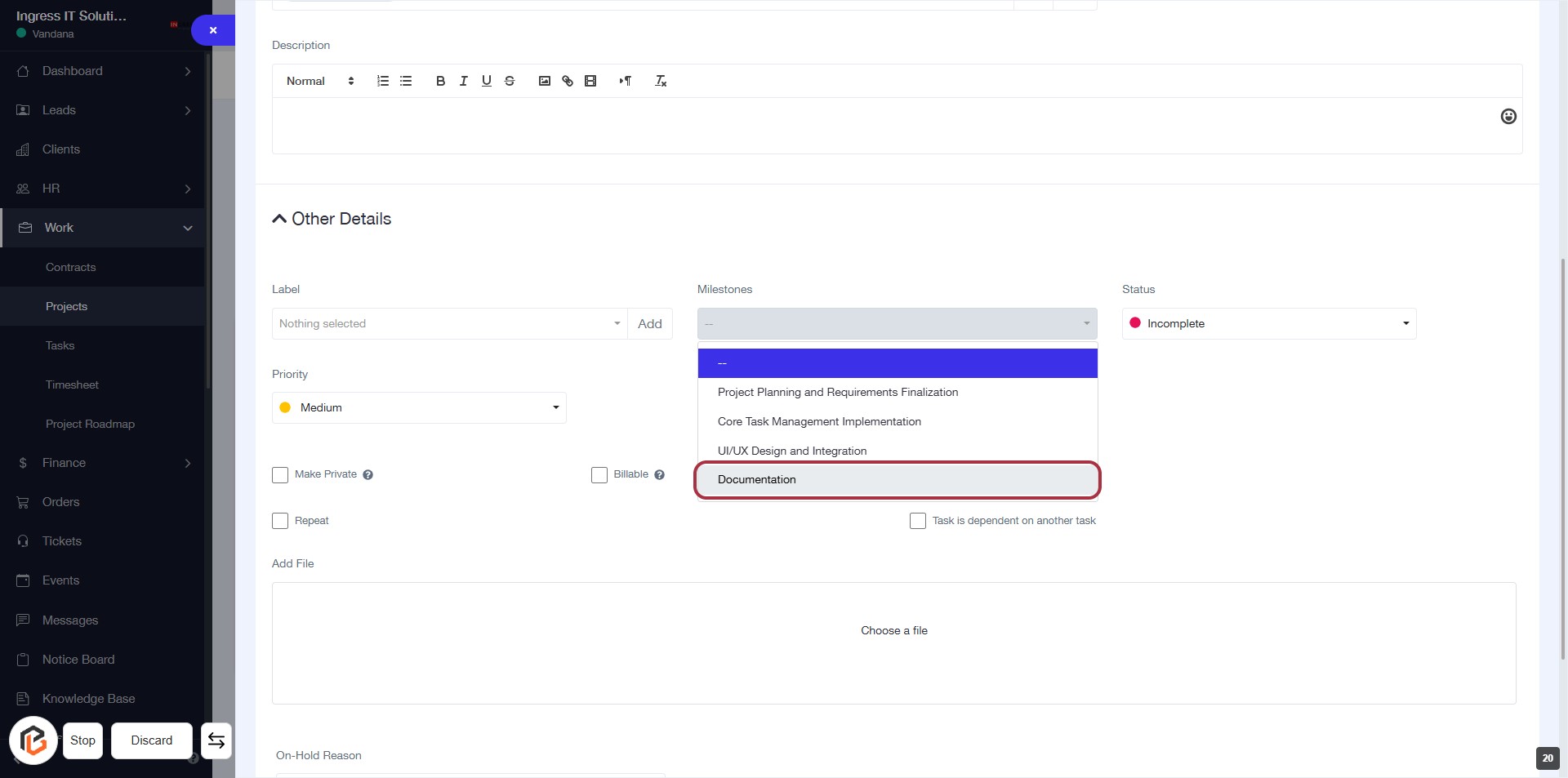
STEP 14: Select "Status"
- Click on the "Status" dropdown menu.
- Choose the appropriate status from the available options (e.g., Incomplete).
- Ensure that the selected status aligns with the task's current progress.
- Review other fields like "Label" and "Milestones" for completeness before proceeding.
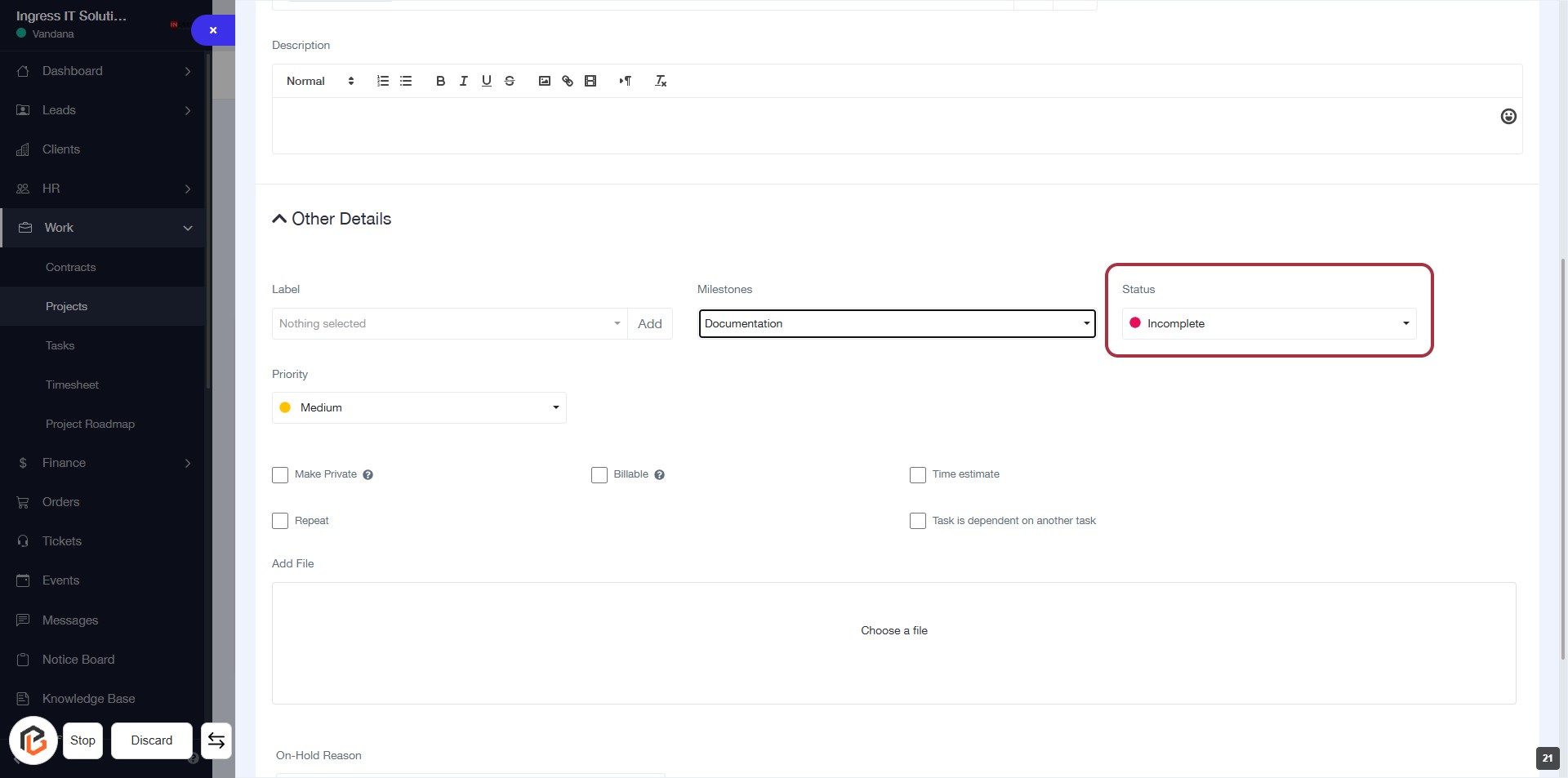
STEP 15: Select "Priority"
- Click on the Priority dropdown menu.
- Choose the desired priority level (e.g., High, Medium, Low).
- Ensure all required fields marked with an asterisk (*) are filled out.
- Review your selections before proceeding to the next step.
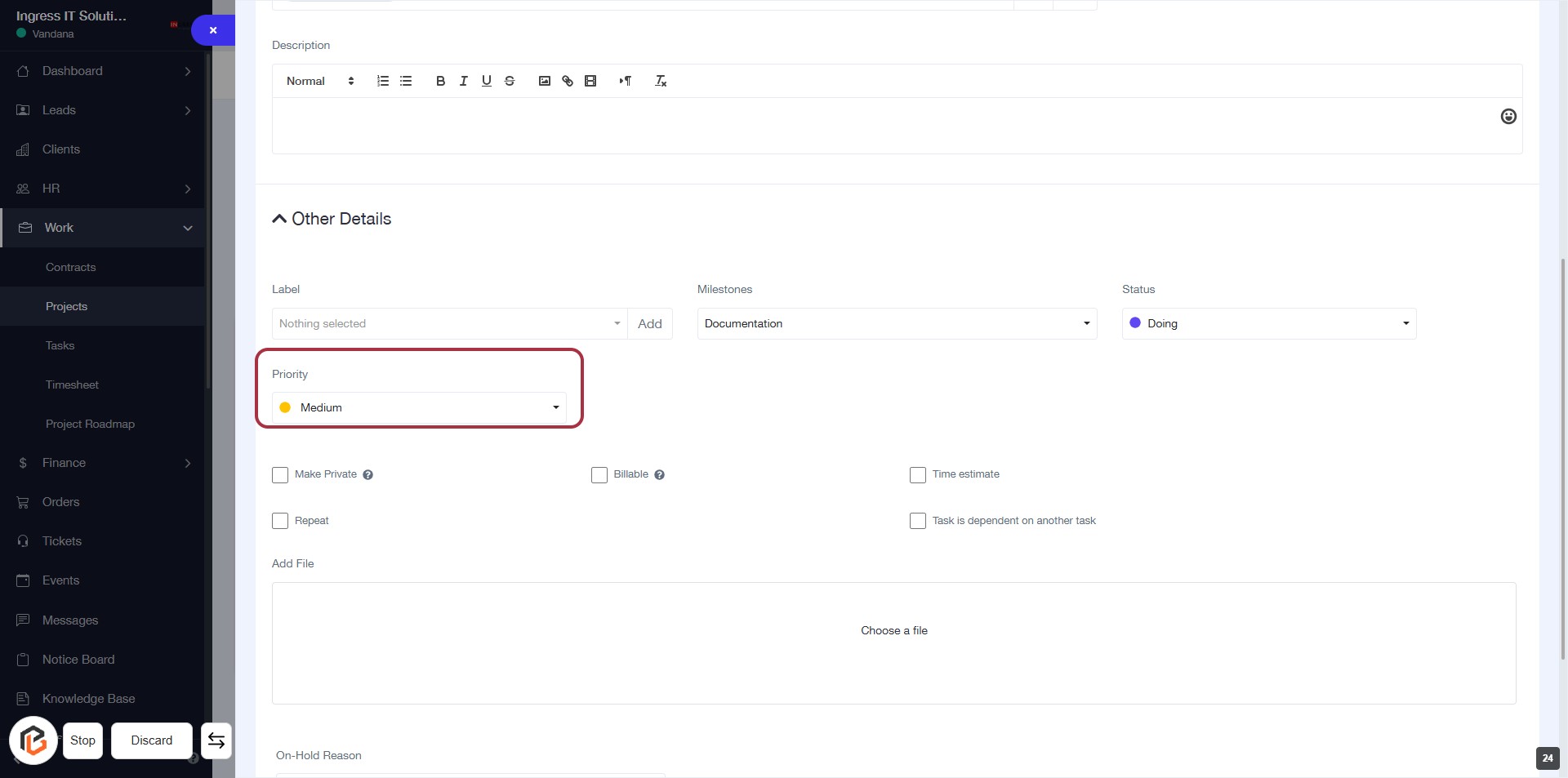
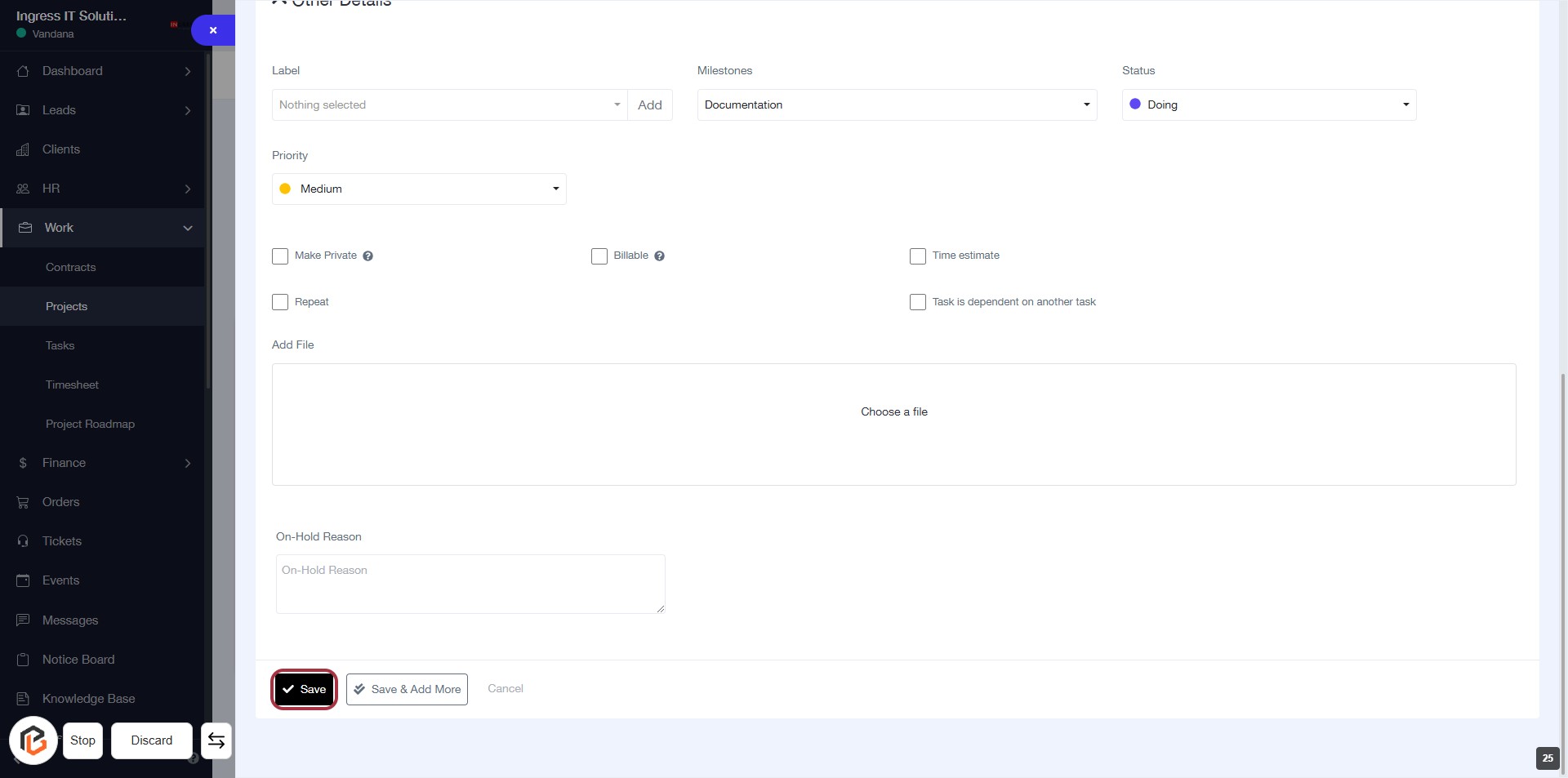
STEP 16: Click on "Save" to Finalize Task Creation
- Ensure all required fields are filled (marked with *).
- Review optional inputs like "Make Private" and "Billable".
- Click the Save button to save your task.
- After saving, you can proceed to view the Task Dashboard.
STEP 17: View Task Dashboard
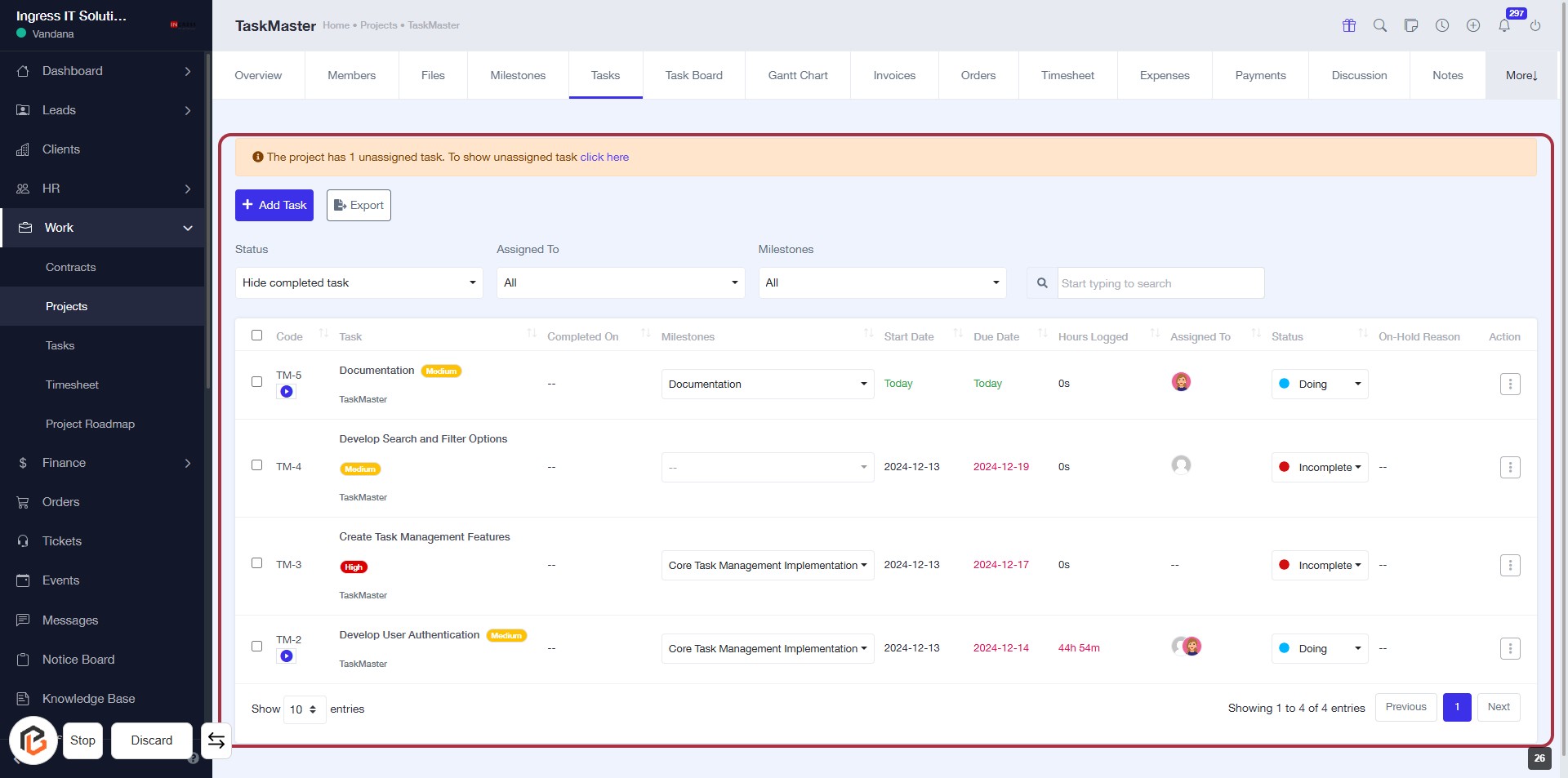
- Click on the highlighted area to view details about unassigned tasks.
- The dashboard indicates there is 1 unassigned task.
- Review the task list for any tasks that need assignment.
- Use filters to manage task visibility and status as needed.