Step-by-Step Guide to Completing Employee Statutory Details: A Dashboard Navigation Manual
8 mins read · Updated 29 Sep, 2025
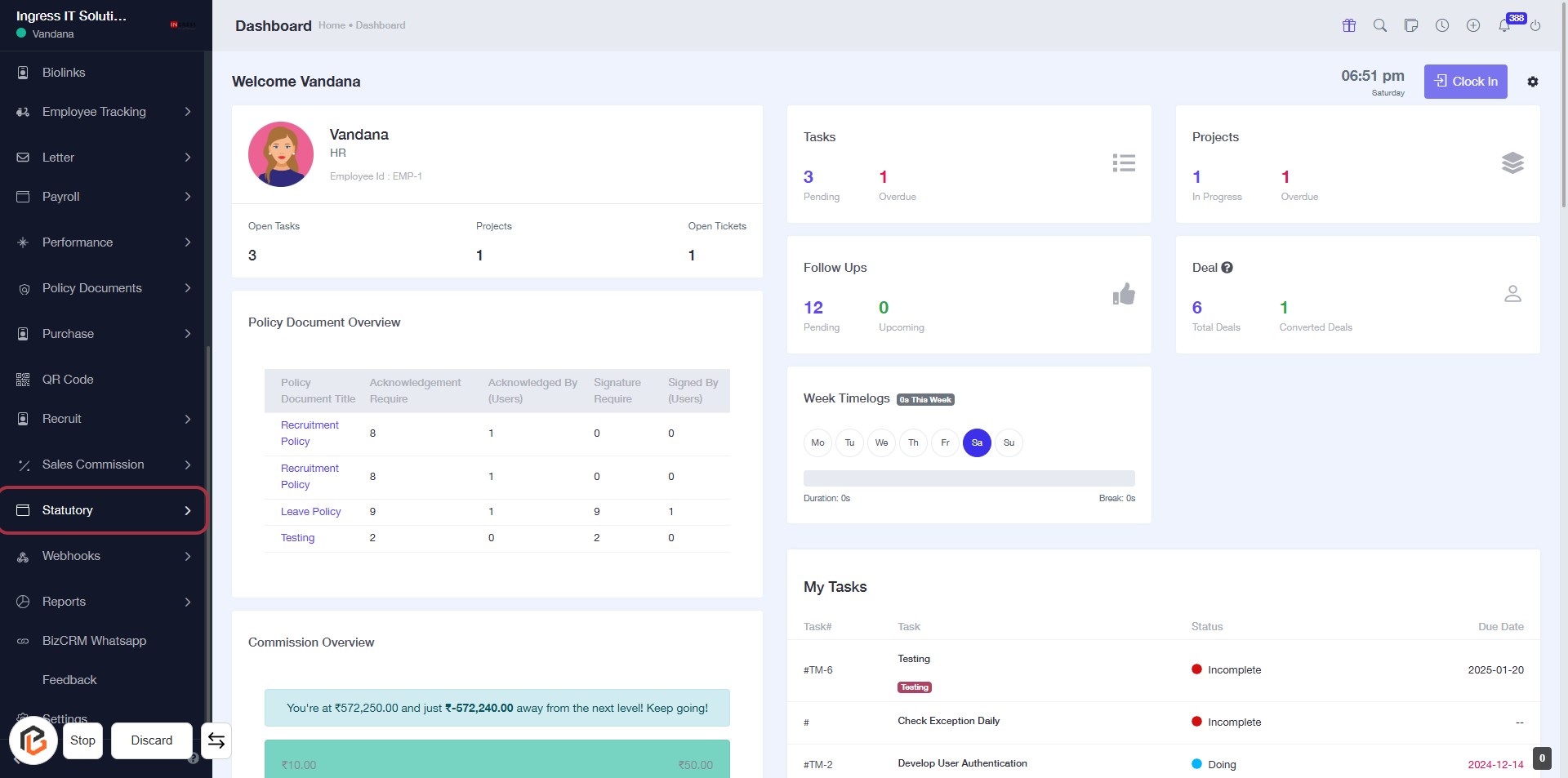
STEP 1: Click on "Statutory" in the Dashboard
- Navigate to the left sidebar of the dashboard.
- Click on the "Statutory" link highlighted in red.
- This action will take you to the Statutory section for further details.
- Ensure you are logged in to access the dashboard.
STEP 2: Click on "Employee Statutory"
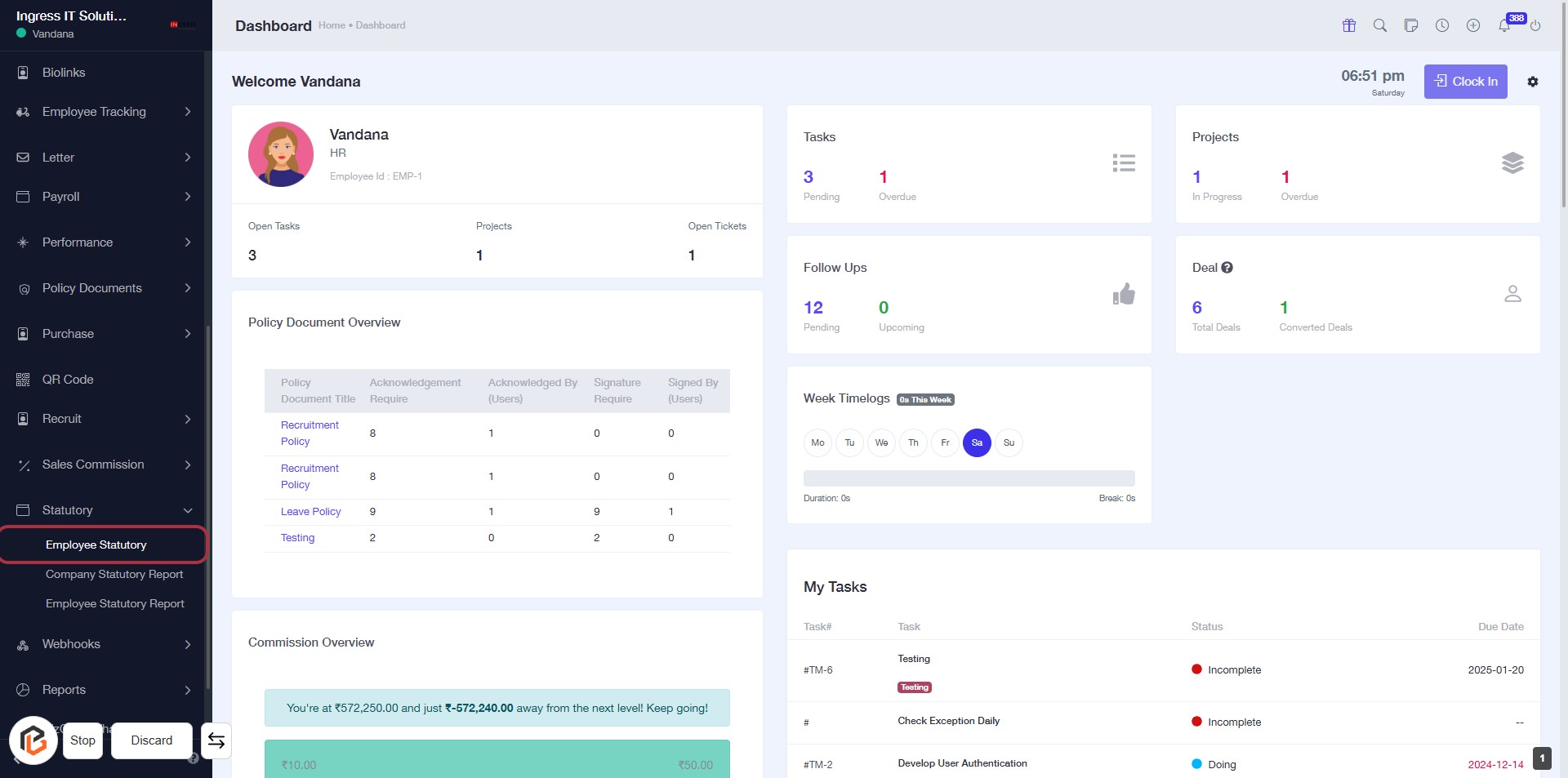
- Navigate to the "Employee Statutory" section in the dashboard.
- Click on the highlighted link to access employee statutory details.
- Ensure you are on the correct page before proceeding to the next step.
- Look for any required fields marked with an asterisk (*) for further actions.
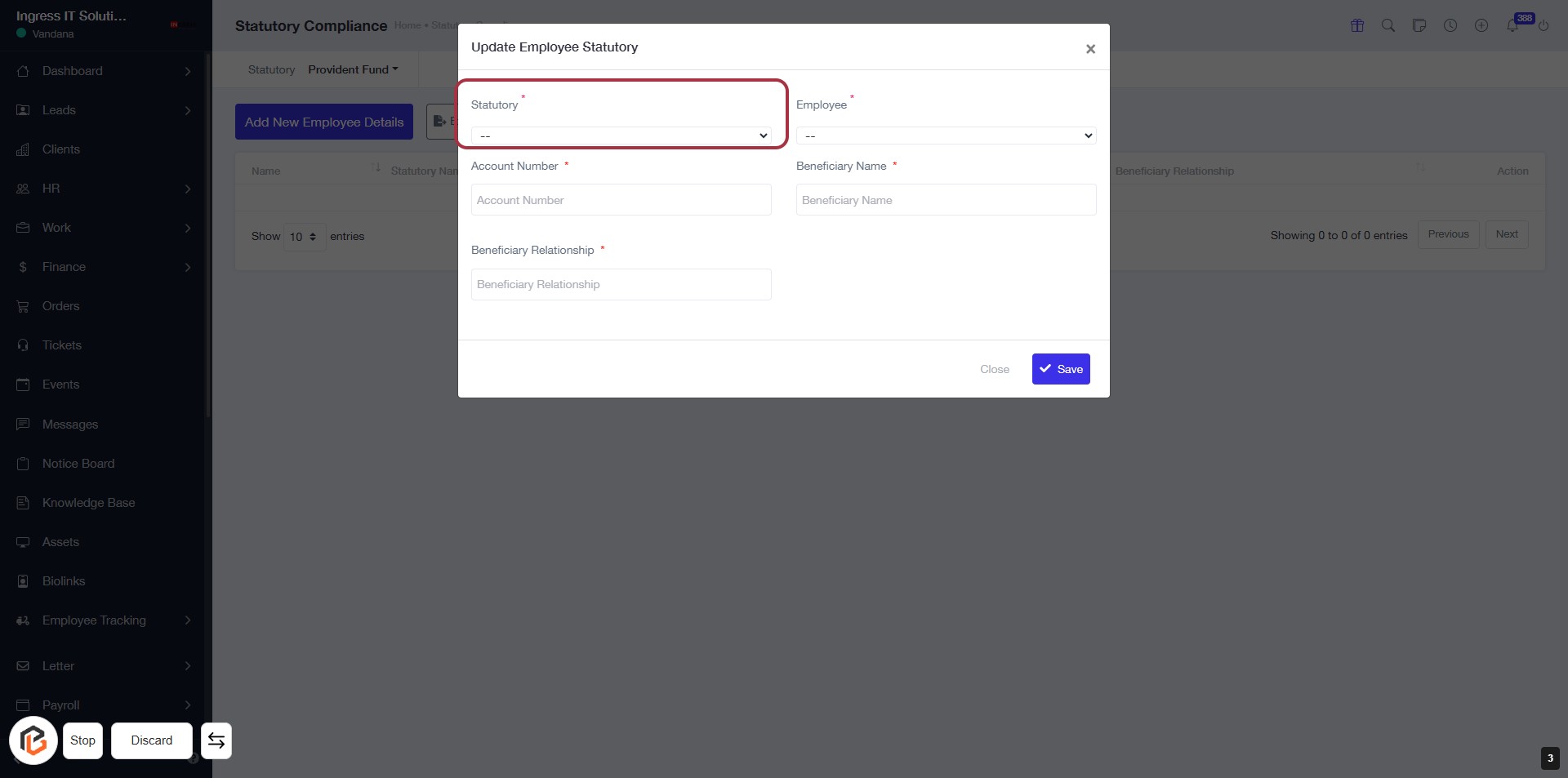
STEP 3: Select "Statutory"
- Click on the "Statutory" field (marked with an asterisk) to initiate the selection process.
- Ensure to choose the appropriate statutory option from the dropdown menu.
- This field is mandatory, so make sure to fill it before proceeding.
- After selecting, move on to the next step to select "Employee."
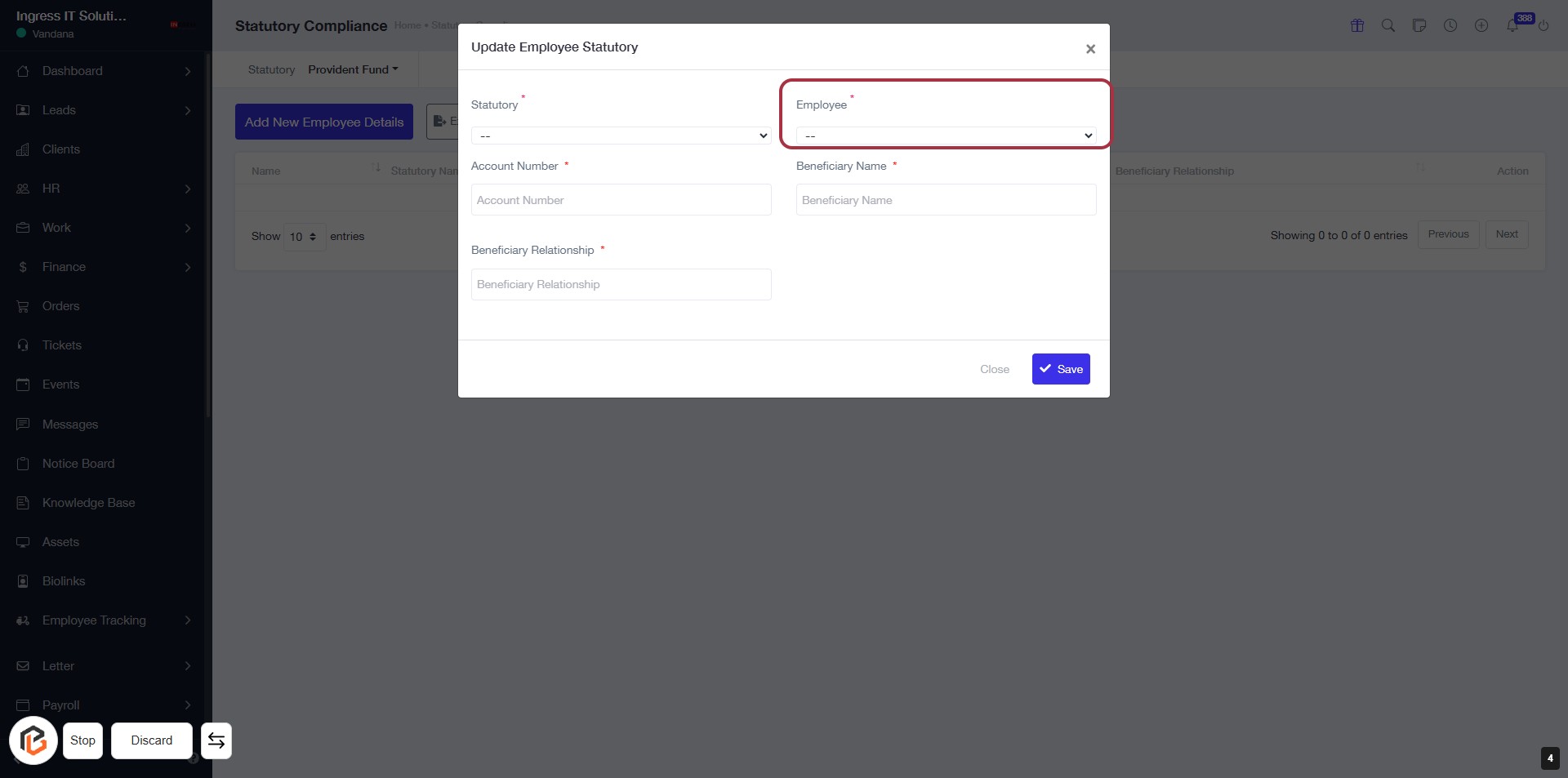
STEP 4: Select "Employee" for Statutory Compliance
- Click on the "Employee" dropdown in the highlighted area.
- Ensure that the field marked with an asterisk (*) is filled, as it is required.
- Review other fields: "Account Number," "Beneficiary Name," and "Beneficiary Relationship," which also have asterisks indicating they are mandatory.
- Proceed to the next step by entering the "Account Number."
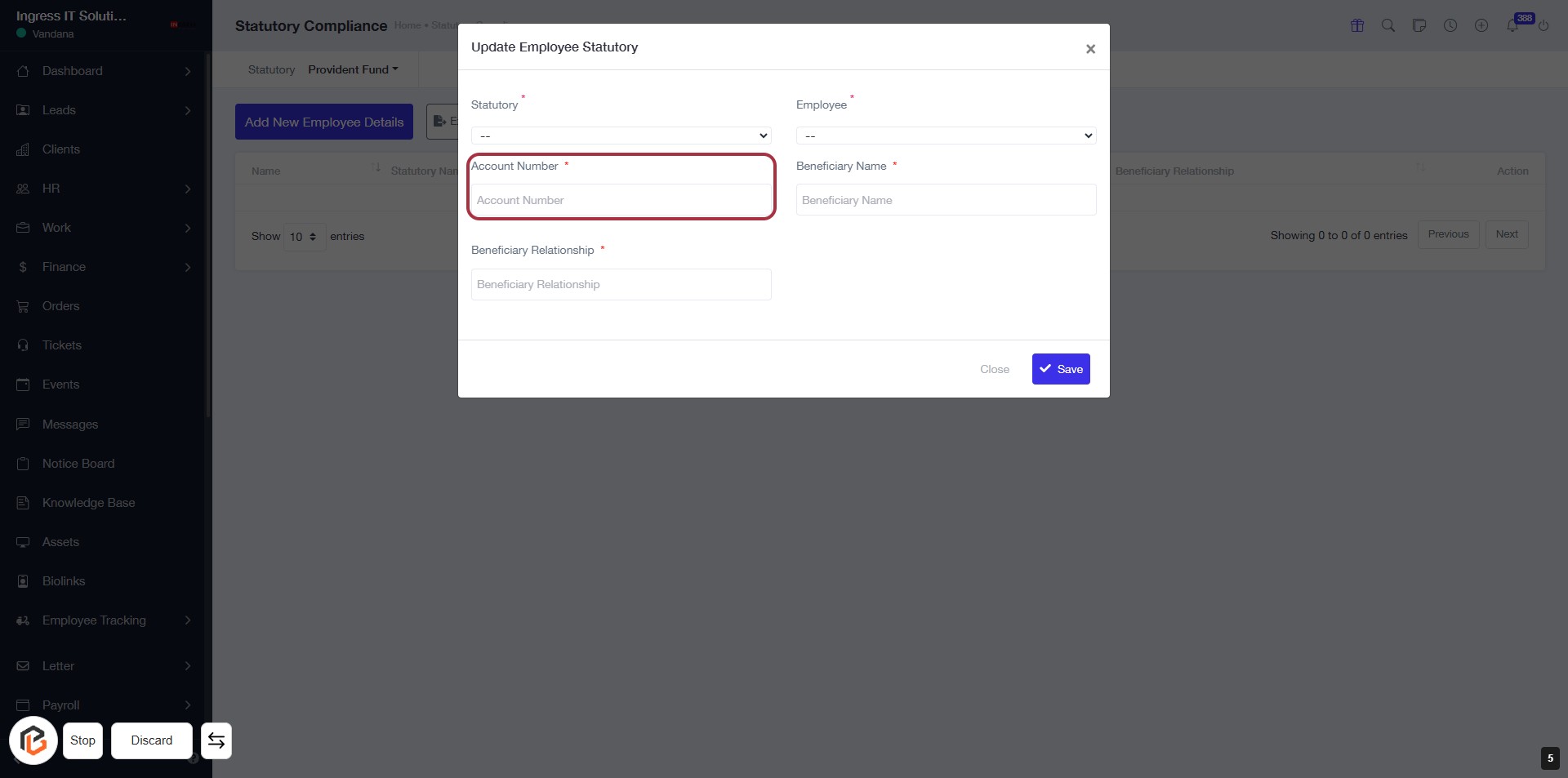
STEP 5: Enter Account Number
- Click on the "Account Number" field highlighted in red.
- Ensure to fill in the required information marked with an asterisk (*).
- Review other fields like "Statutory," "Employee," and "Beneficiary Name" for completeness.
- Proceed to the next step by entering the "Beneficiary Name."
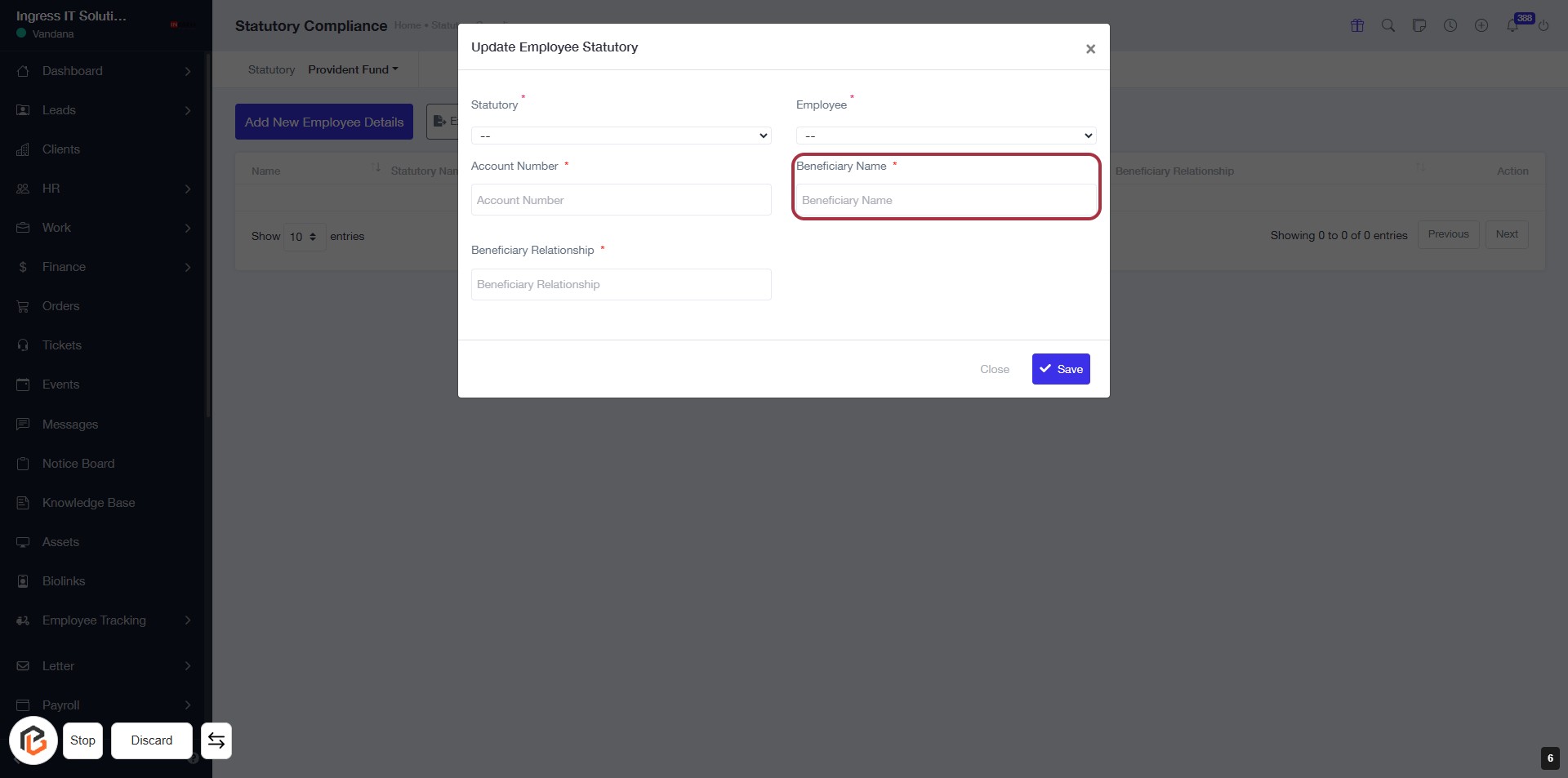
STEP 6: Enter Beneficiary Name
- Click on the "Beneficiary Name" field (marked with an asterisk * indicating it's required).
- Ensure you have entered the correct name as this information is crucial for the statutory compliance.
- Proceed to the next step by entering the "Beneficiary Relationship" after this.
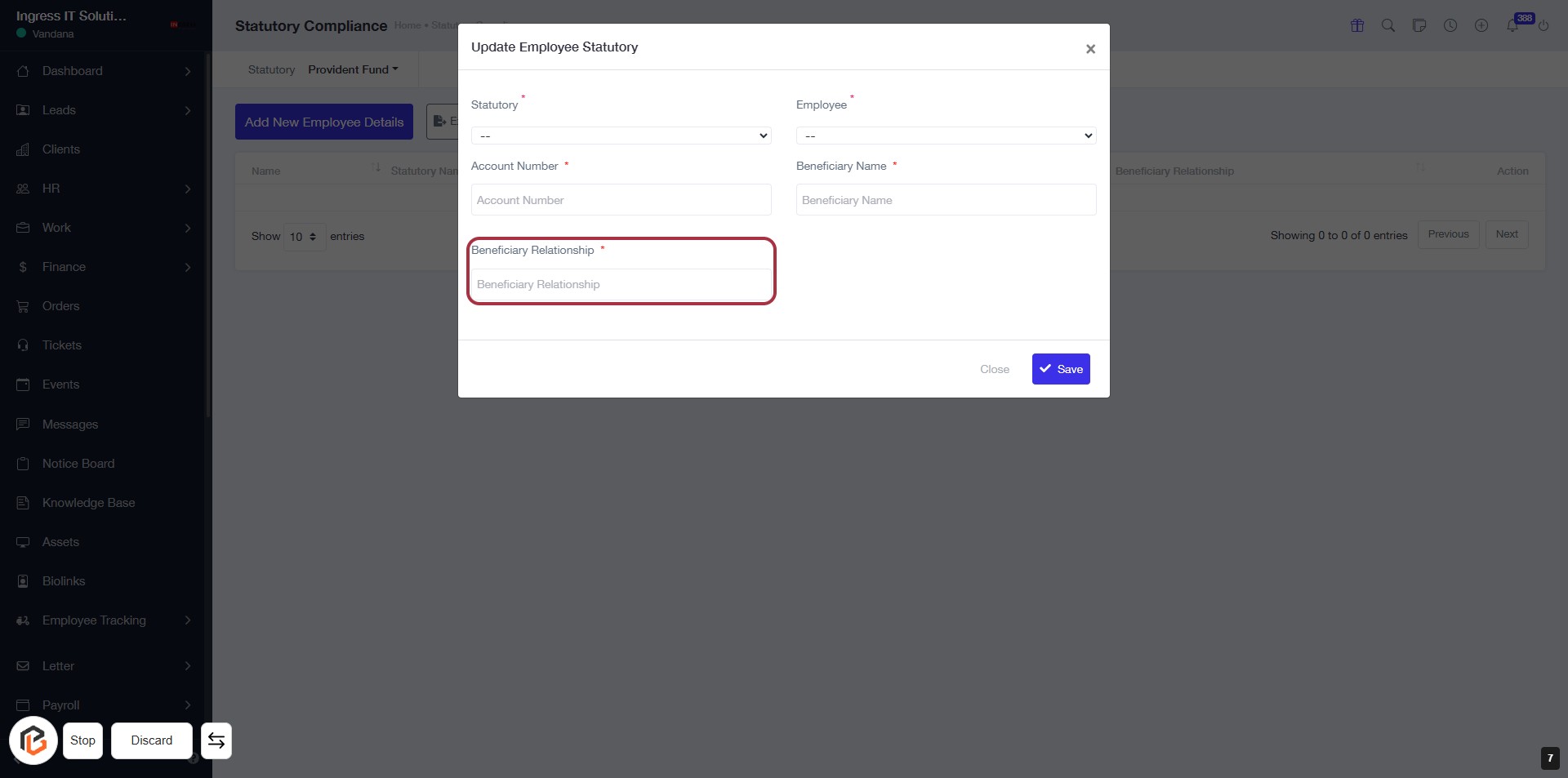
STEP 7: Enter Beneficiary Relationship
- Click on the "Beneficiary Relationship" field to input the relationship of the beneficiary.
- Ensure that all required fields marked with an asterisk (*) are filled out.
- Review the information before proceeding to the next step.
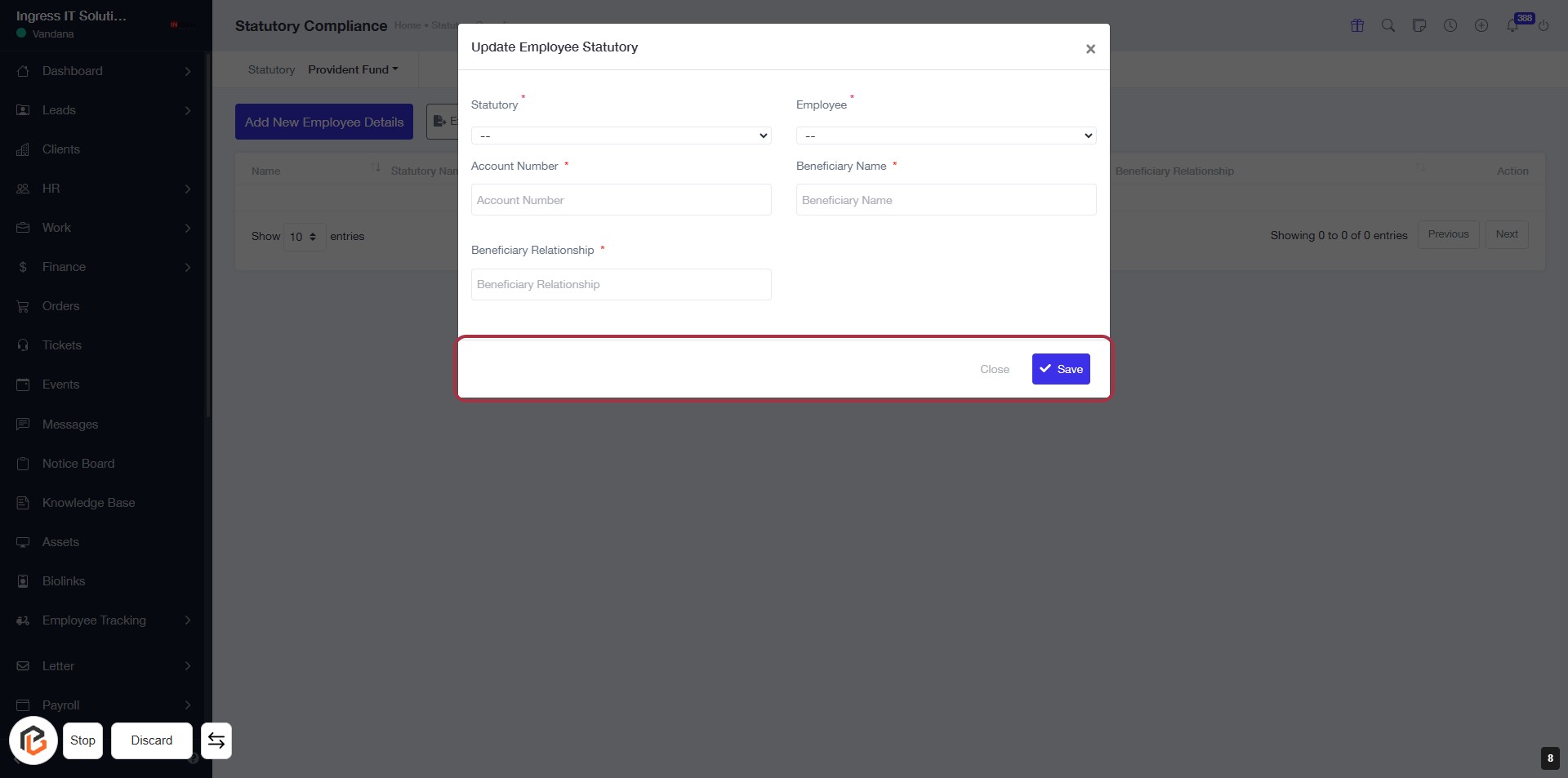
STEP 8: Click on "Save" to Update Employee Statutory
- Ensure all required fields are filled: Statutory, Employee, Account Number, Beneficiary Name, and Beneficiary Relationship (marked with *).
- Click the Save button located at the bottom right of the dialog box to save your entries.
- If you wish to exit without saving, click the Close button.