Step-by-Step Guide to Accessing and Reviewing Employee Statutory Reports in BizCRM
5 mins read · Updated 29 Sep, 2025
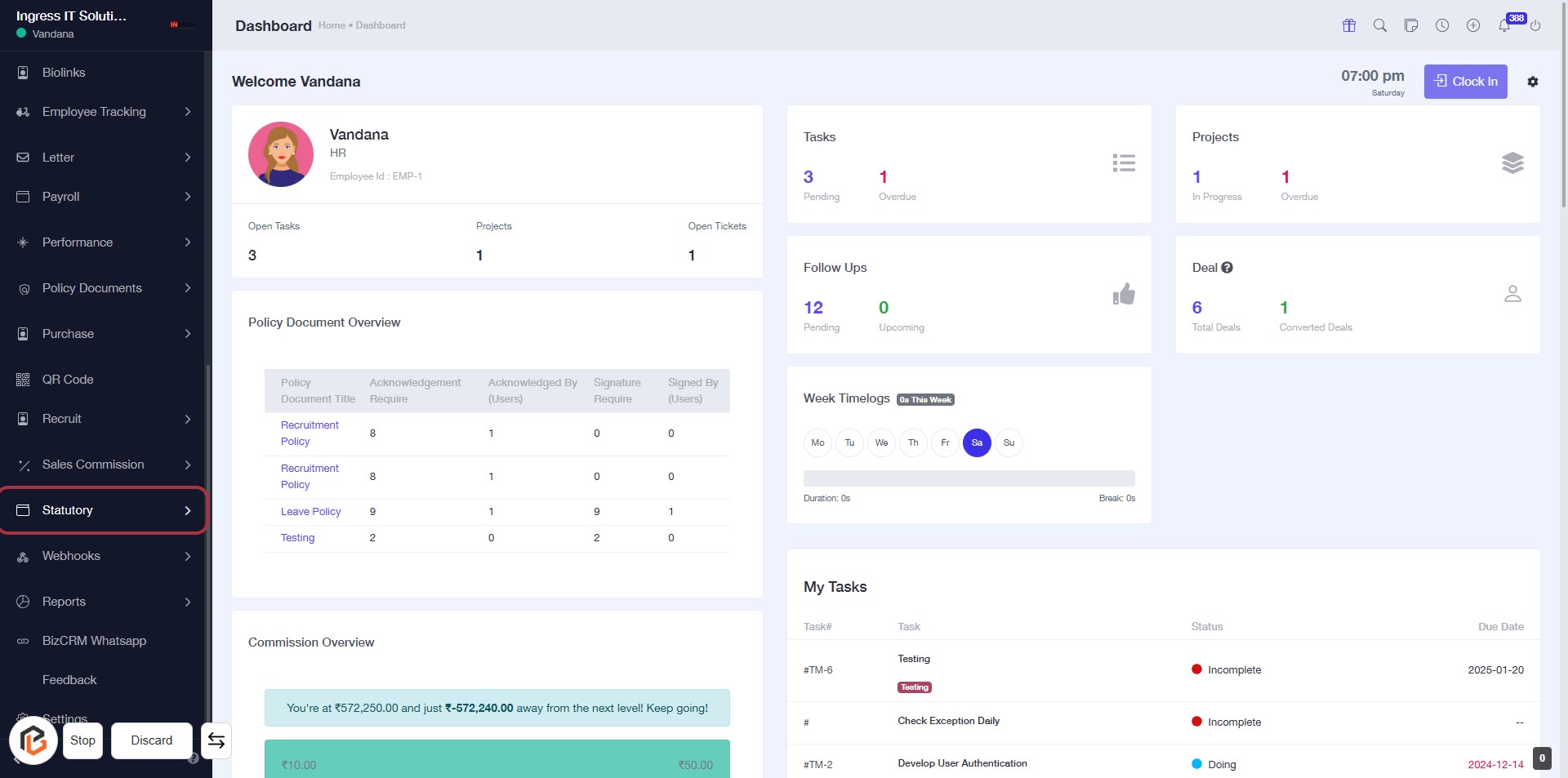
STEP 1: Click on "Statutory" in the Dashboard
- Navigate to the Dashboard at bizcrmapp.com.
- Locate the Statutory option in the sidebar menu.
- Click on Statutory to access the relevant section.
- Ensure you check for any required fields marked with an asterisk (*) in the upcoming forms.
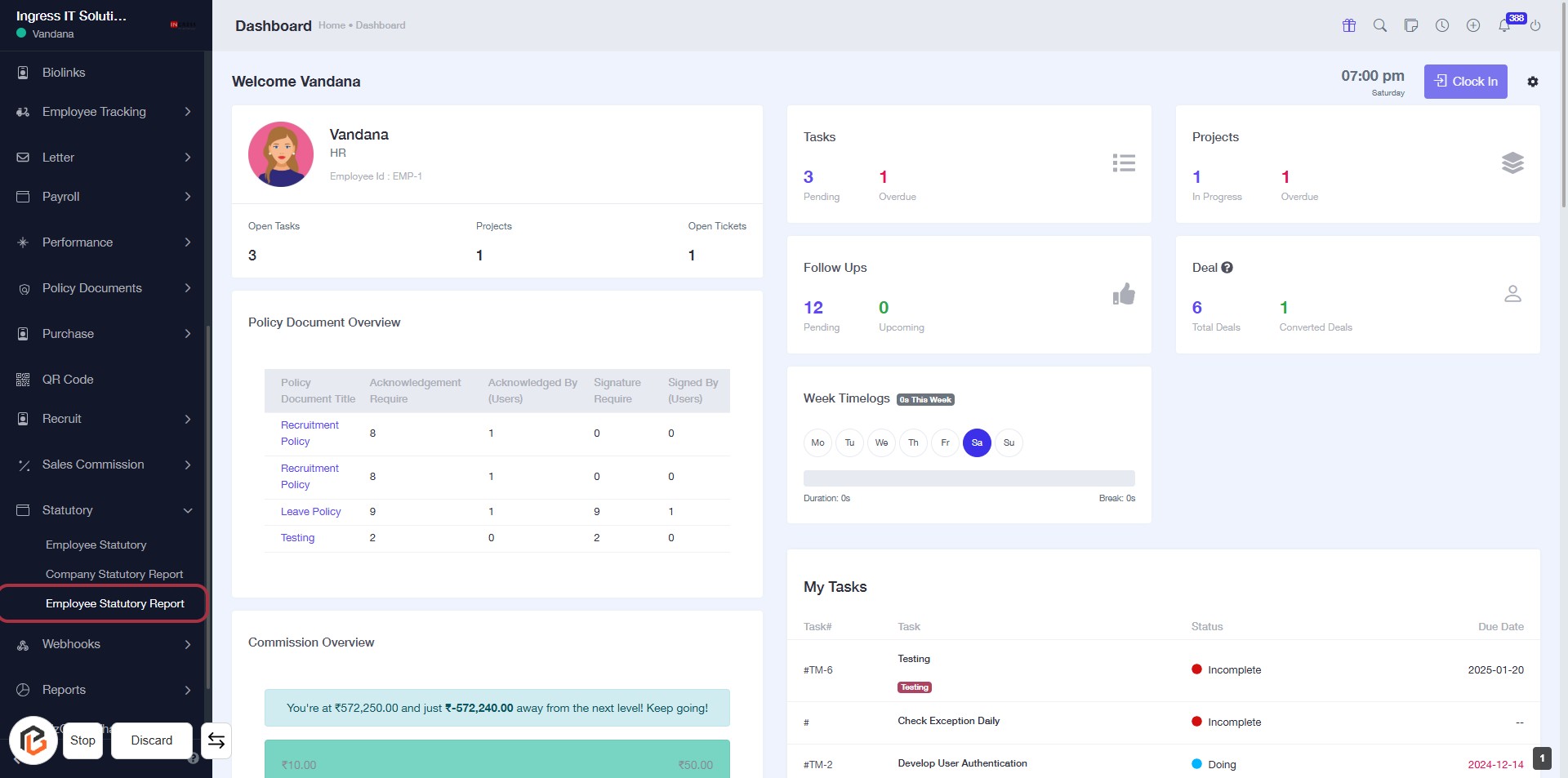
STEP 2: Click on "Employee Statutory Report"
- Navigate to the left sidebar menu.
- Locate and click on Employee Statutory Report.
- Ensure to check for any required fields marked with an asterisk (*).
- Review the information displayed in the report for accuracy.
- Proceed to the next step by selecting "Statutory".
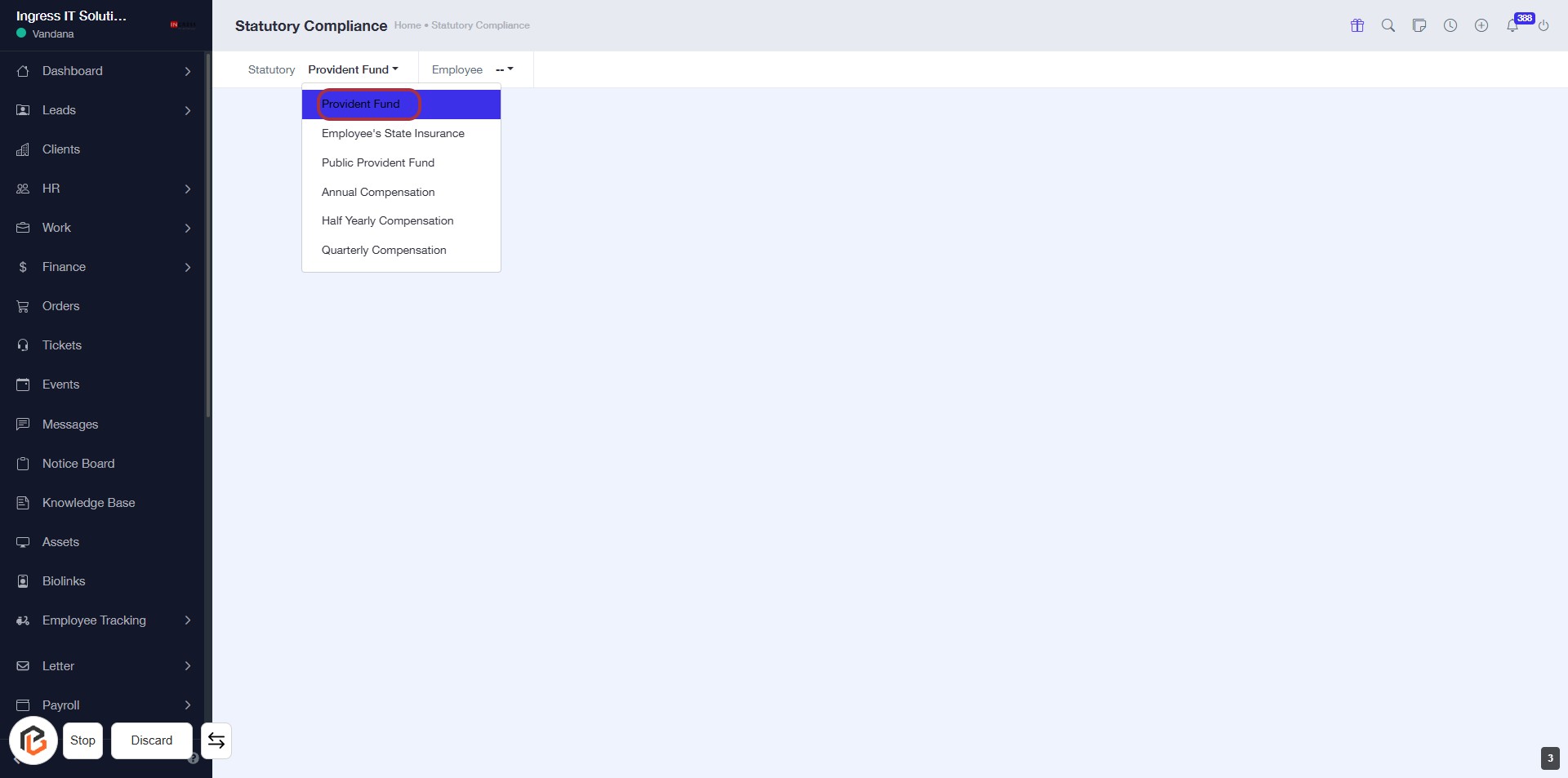
STEP 3: Select "Provident Fund"
- Click on the "Provident Fund" option in the dropdown menu.
- Ensure you are on the Statutory Compliance page.
- This action will direct you to the relevant section for managing Provident Fund details.
- Proceed to the next step by selecting "Employee" after this action.
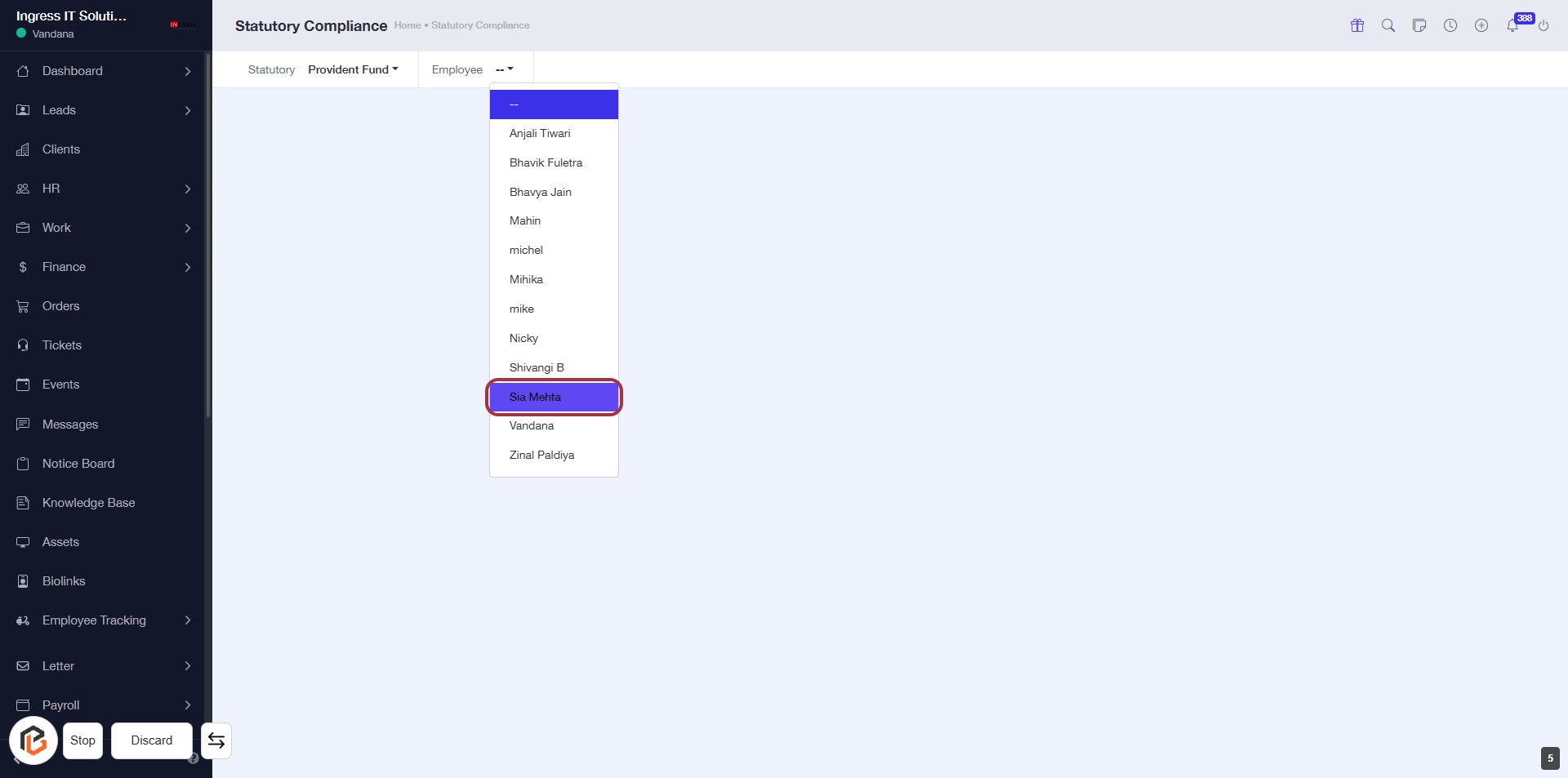
STEP 4: Select "Sia Mehta" from Employee List
- Click on the dropdown menu labeled "Employee."
- Locate and select "Sia Mehta" from the list of employees.
- Ensure that the selection is highlighted to confirm your choice.
- Proceed to the next step to view the page related to the selected employee.
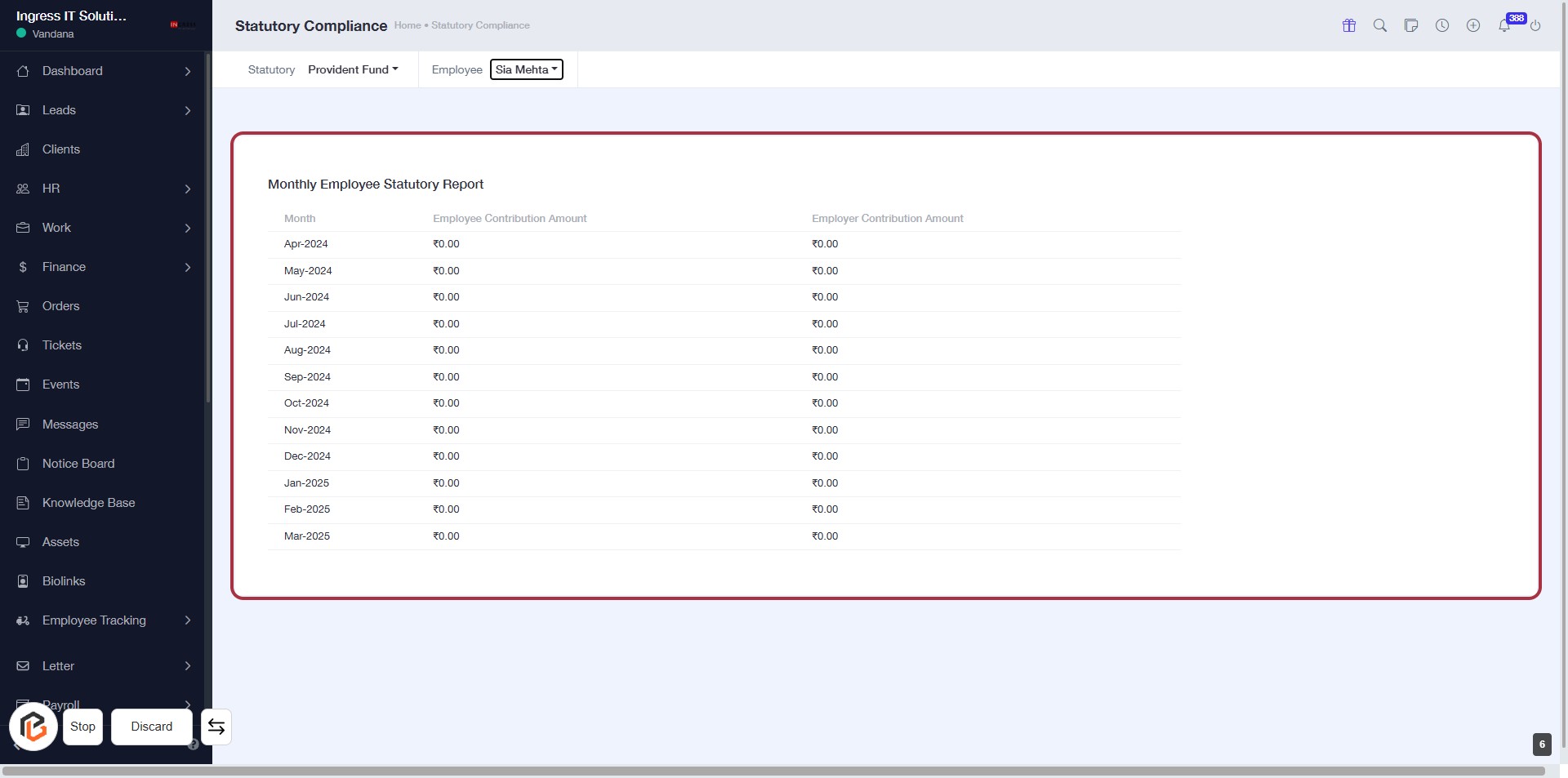
STEP 5: Click on "Monthly Employee Statutory Report"
- Navigate to the highlighted area and click on the "Monthly Employee Statutory Report" section.
- Review the displayed table containing the monthly employee contribution amounts and employer contribution amounts.
- Ensure all data is accurate for the selected employee, "Sia Mehta."
- No additional inputs are required at this step.