Step-by-Step Guide to Accessing and Completing Statutory Compliance Reports
5 mins read · Updated 29 Sep, 2025
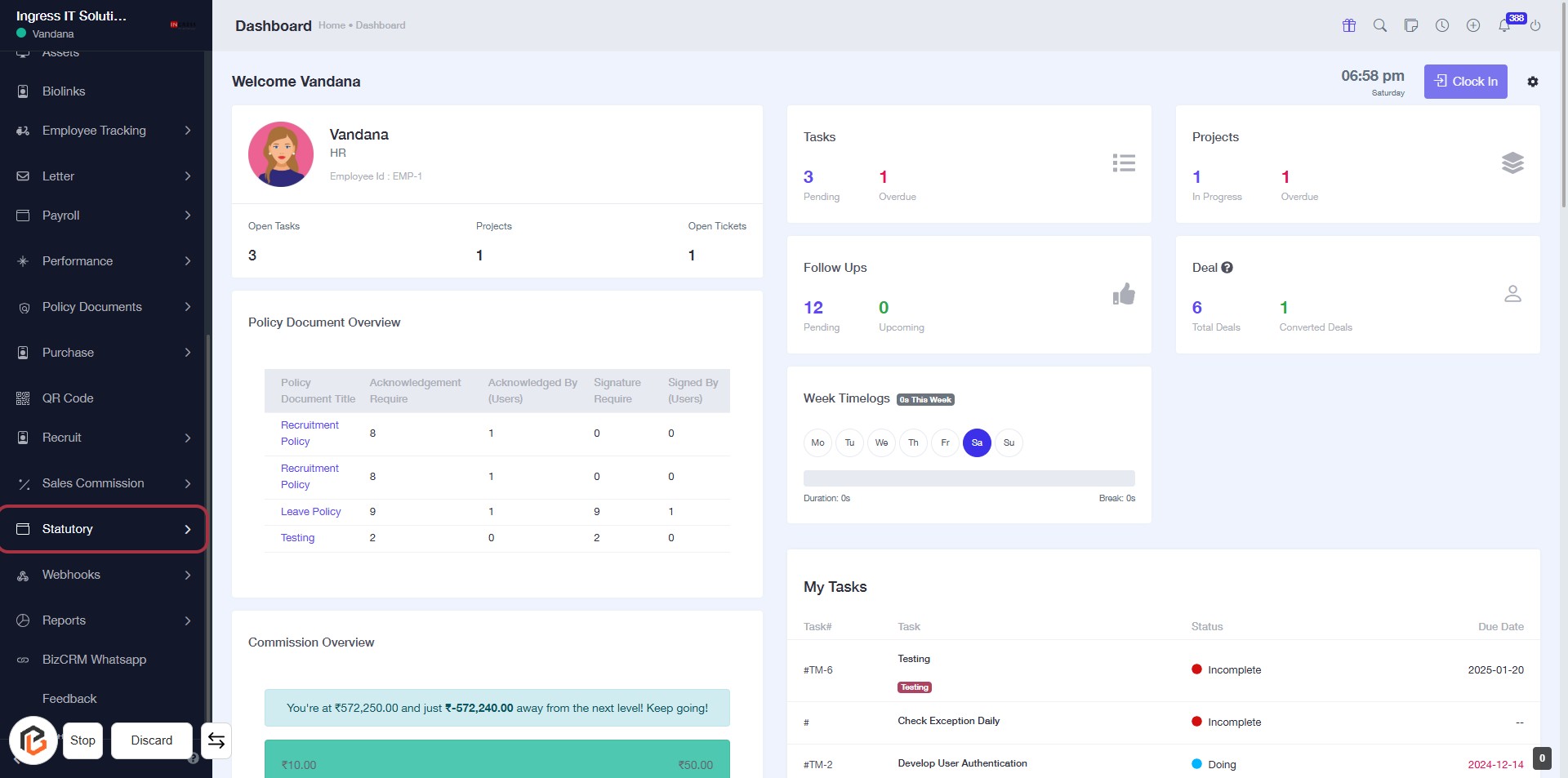
STEP 1: Click on "Statutory" in the Dashboard
- Navigate to the left sidebar of the dashboard.
- Locate and click on the "Statutory" link.
- This action will direct you to the relevant statutory information.
- Ensure you are on the correct page before proceeding to the next step.
STEP 2: Click on "Company Statutory Report"
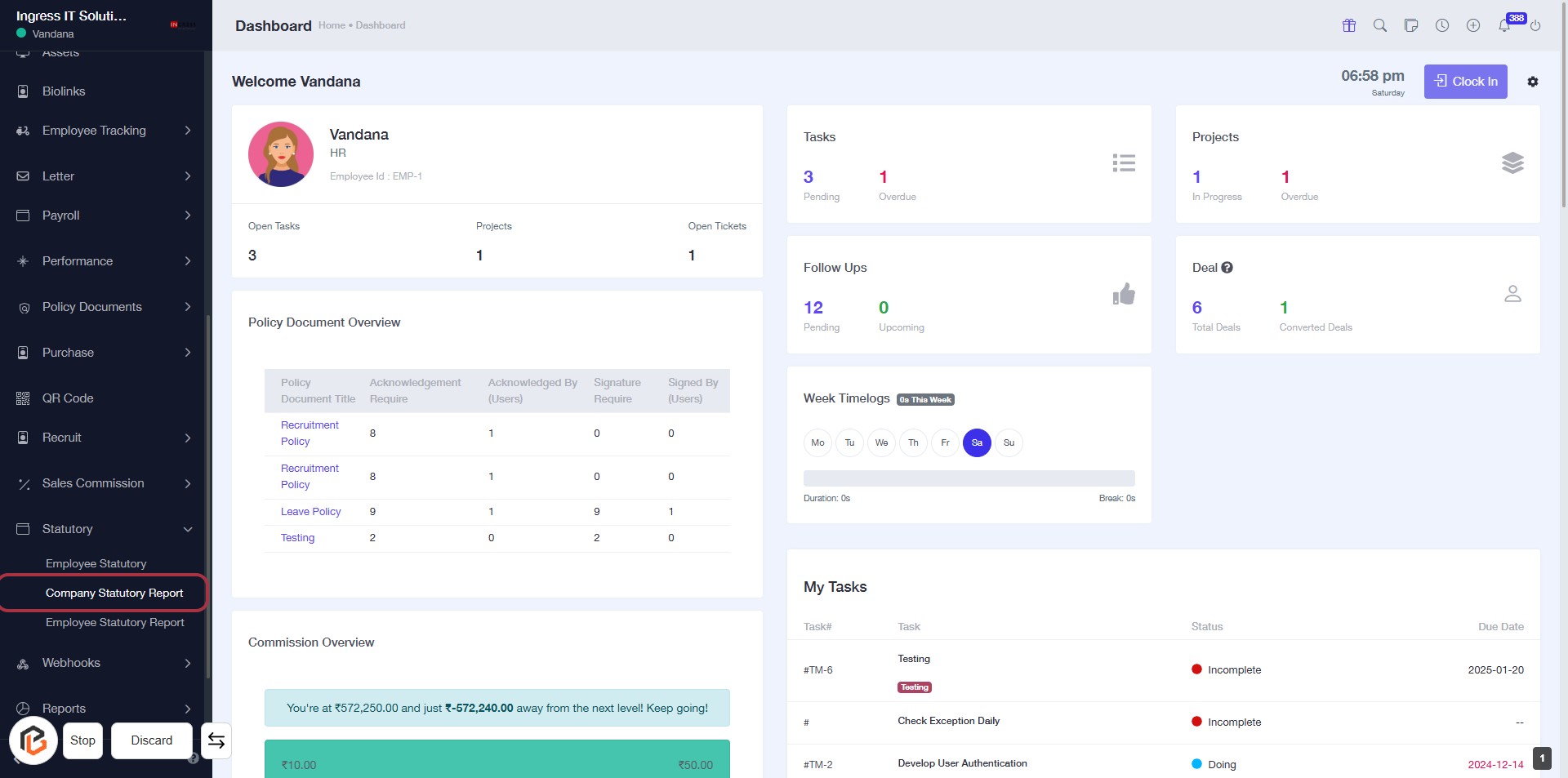
- Navigate to the left sidebar menu.
- Locate and click on the Company Statutory Report link.
- Ensure you are on the Dashboard page before proceeding.
- This action will direct you to the relevant statutory reporting section.
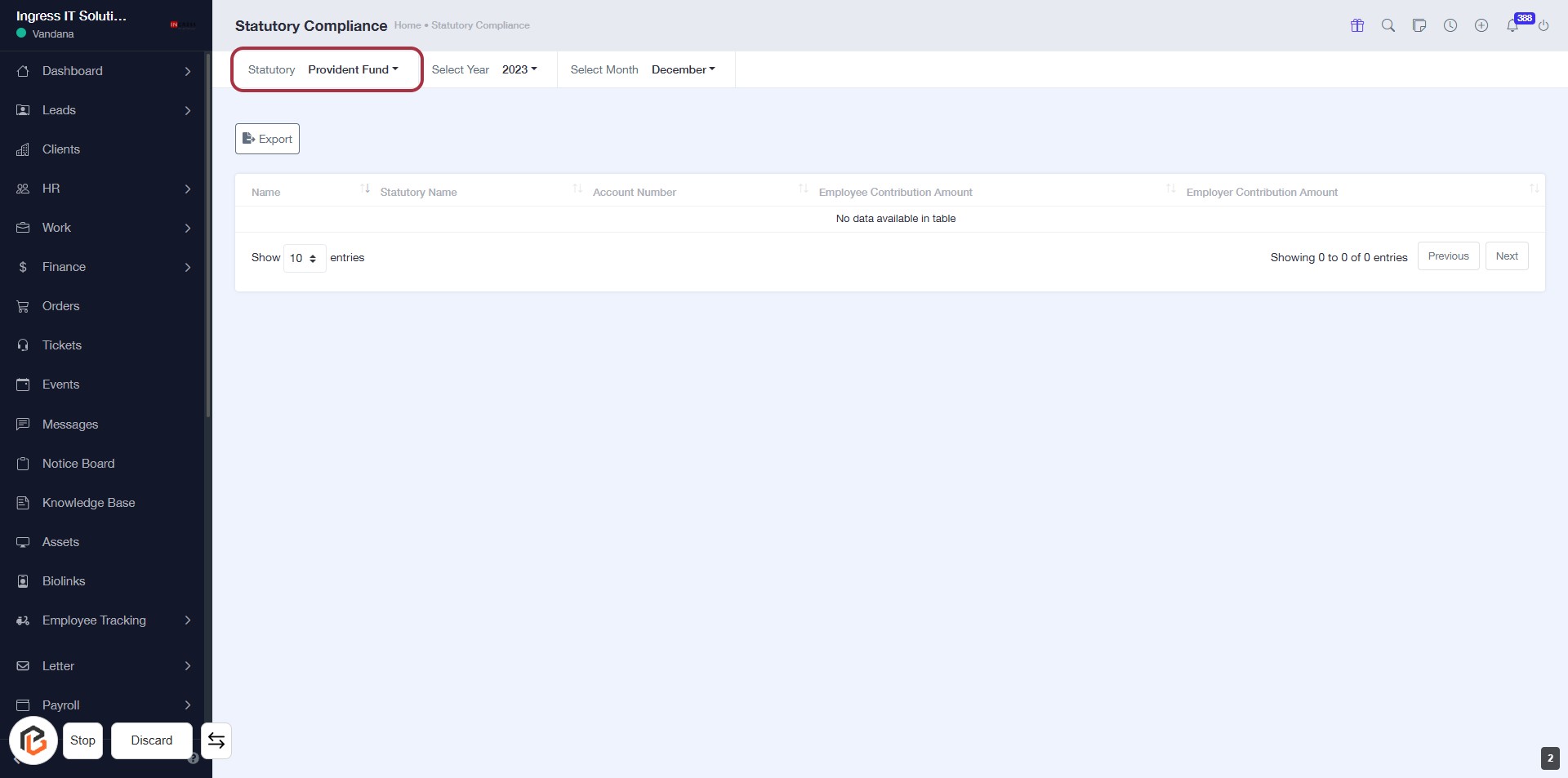
STEP 3: Select "Statutory"
- Click on the "Statutory" option in the header to access statutory compliance details.
- Ensure you are on the Statutory Compliance page.
- After selecting, proceed to the next step by clicking on "Select Year."
- Look for any additional input fields marked with an asterisk (*) for required information.
STEP 4: Click on "Select Year"
- Navigate to the "Select Year" option in the Statutory Compliance section.
- Click on the highlighted area to open the year selection dropdown.
- Choose the desired year from the available options.
- Ensure to complete this step before proceeding to the next action.
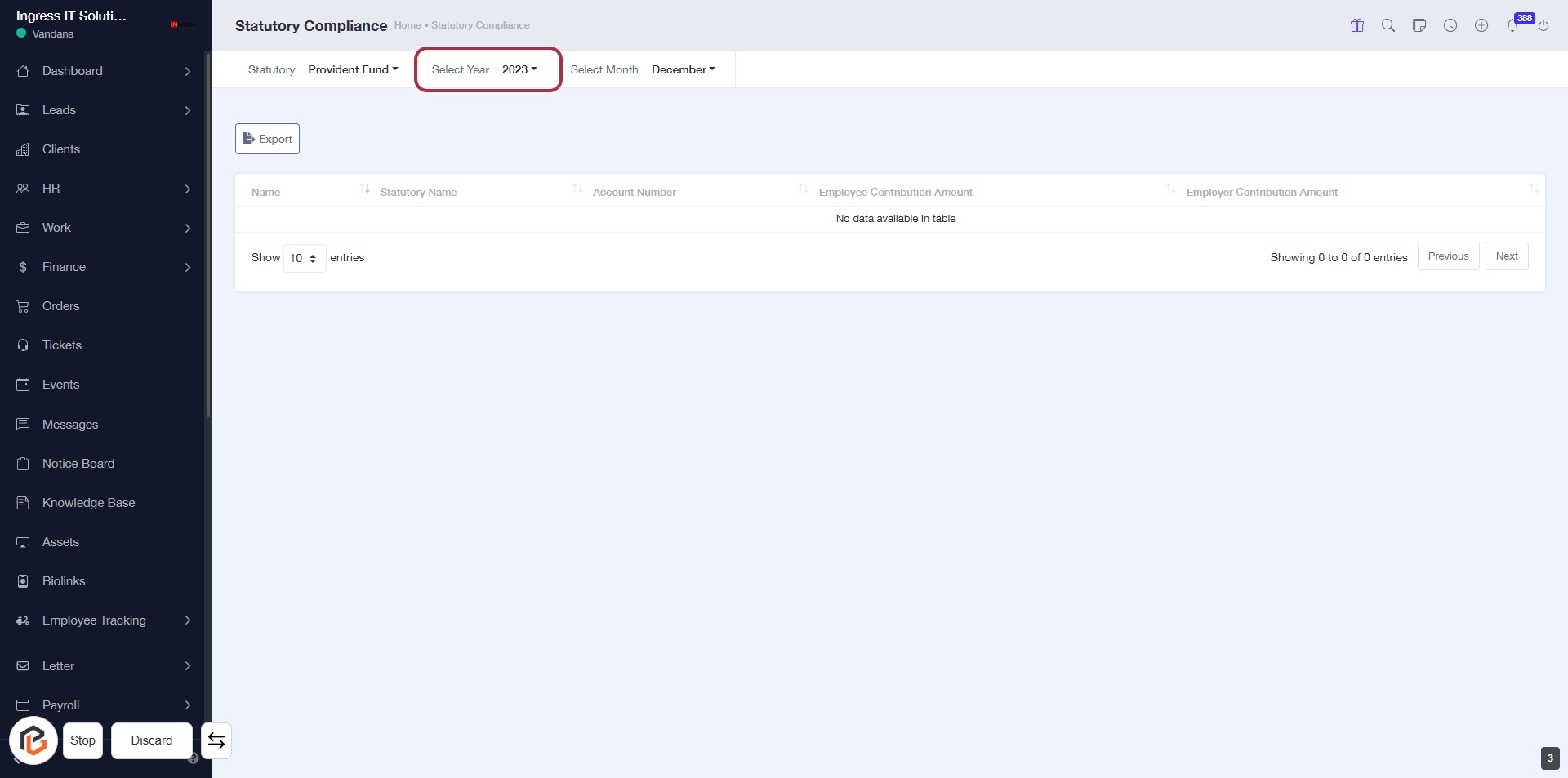
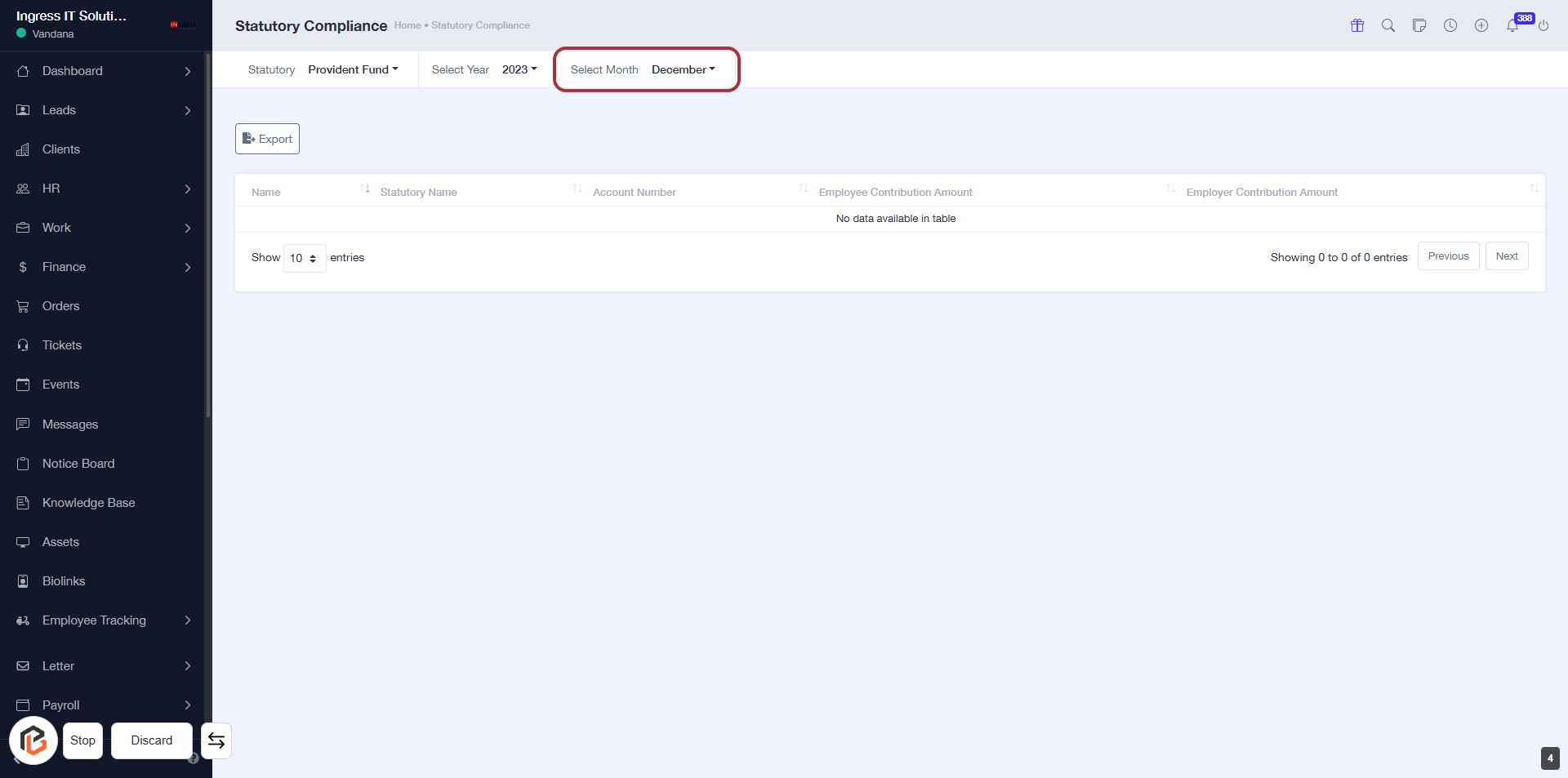
STEP 5: Click on "Select Month"
- Navigate to the highlighted area labeled "Select Month."
- Click on the "Select Month" dropdown to view available options.
- Choose the desired month from the dropdown list.
- Ensure that the selected month aligns with the previously chosen year (2023).