Step-by-Step Guide to Manage Your Dashboard Settings and MSME Registration
7 mins read · Updated 29 Sep, 2025
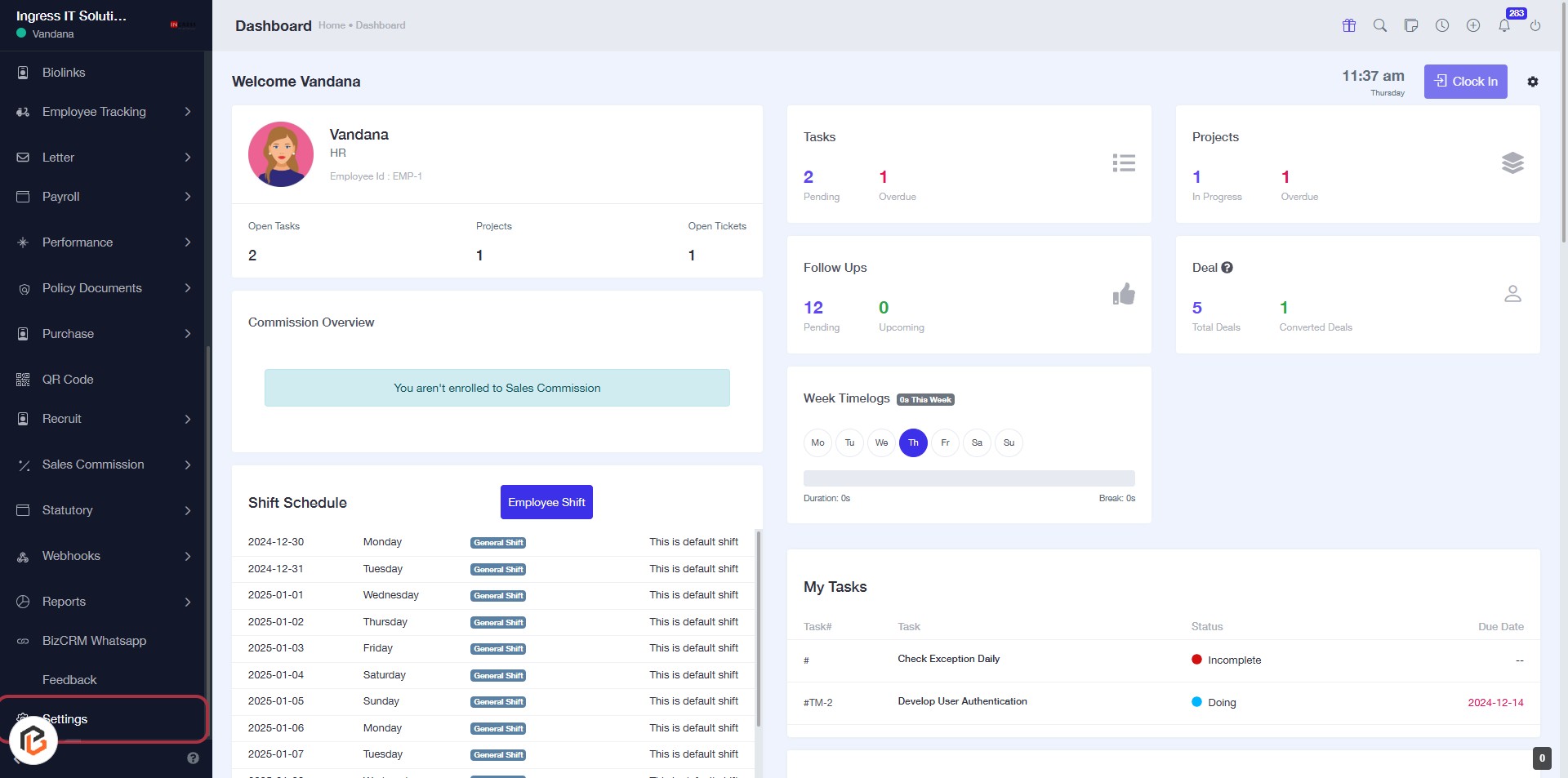
STEP 1: Click on "Settings" to Access Configuration Options
- Navigate to the left sidebar of the dashboard.
- Click on the "Settings" link highlighted in red.
- This will direct you to the settings page where you can manage various configurations.
- Ensure to explore all available options once on the settings page.
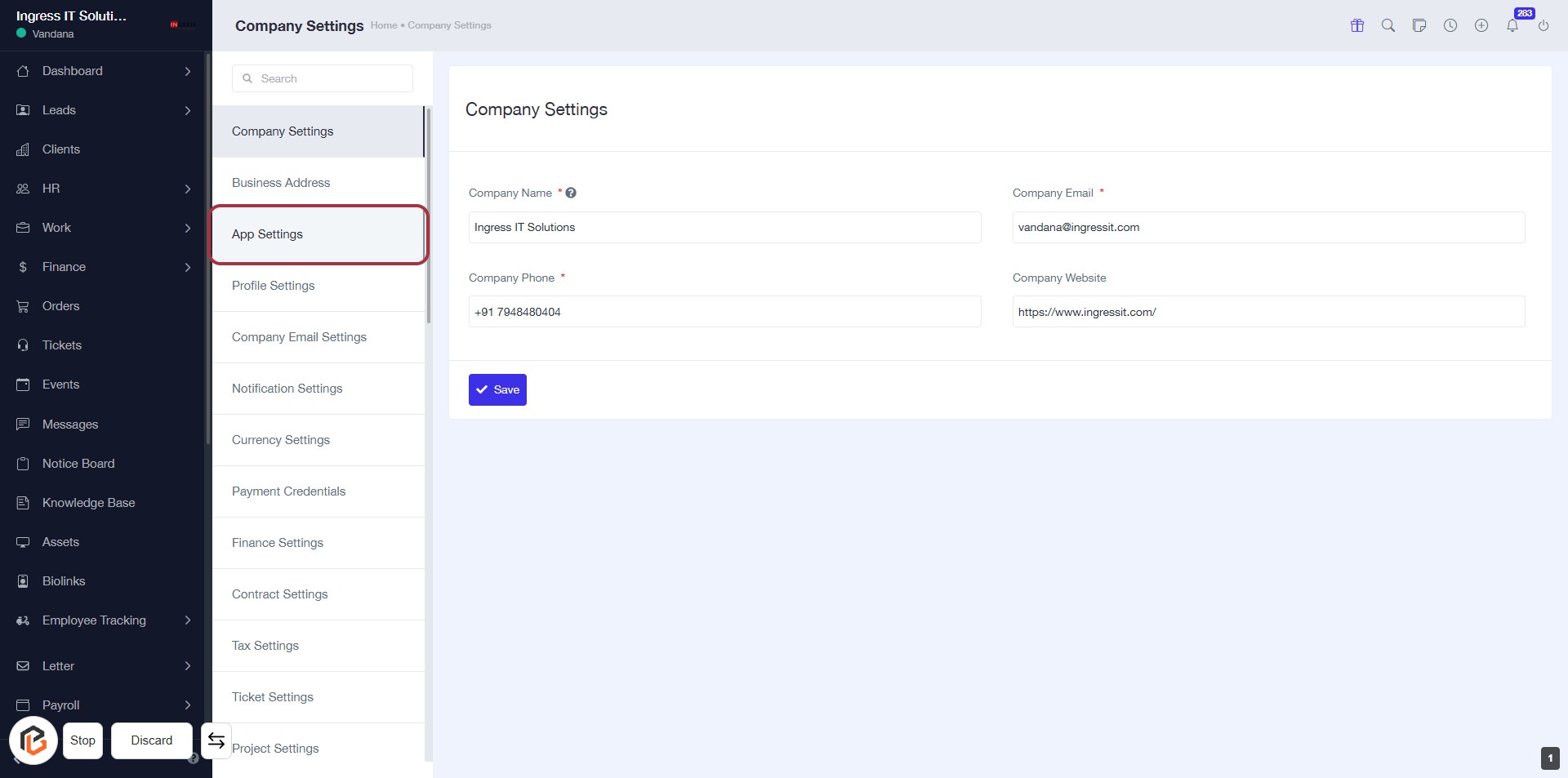
STEP 2: Click on "App Settings" to Access Company Configuration
- Click on the App Settings link in the sidebar to navigate to the app configuration options.
- Ensure to fill in the required fields marked with an asterisk (*) in the Company Settings form.
- Review the existing company information and make necessary updates.
- Click Save to apply any changes made.
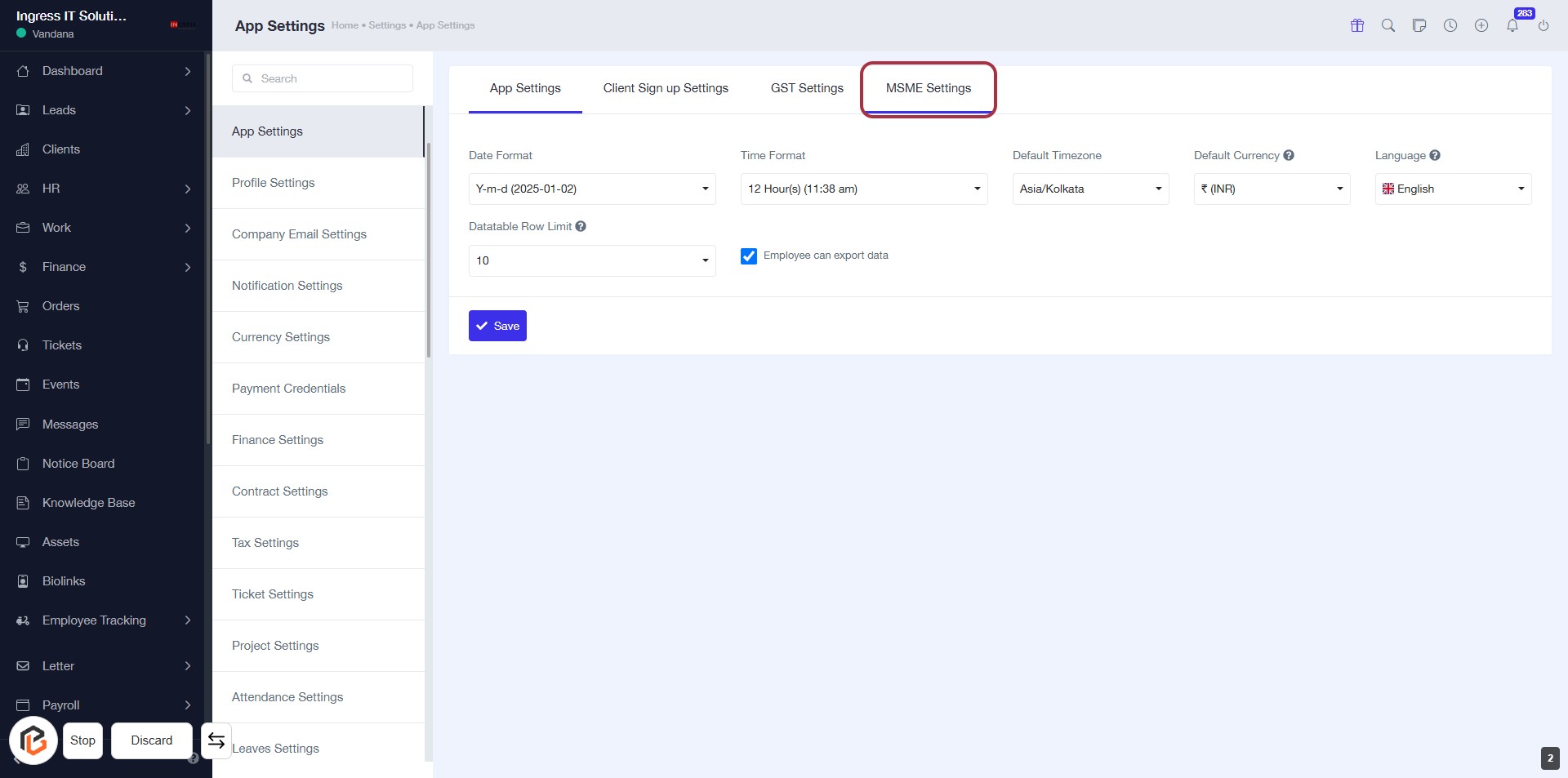
STEP 3: Click on "MSME Settings"
- Navigate to the "MSME Settings" tab in the App Settings.
- Ensure you are on the correct settings page.
- Look for the highlighted area to confirm your selection.
- Proceed to the next step by selecting "Is your business MSME registered?"
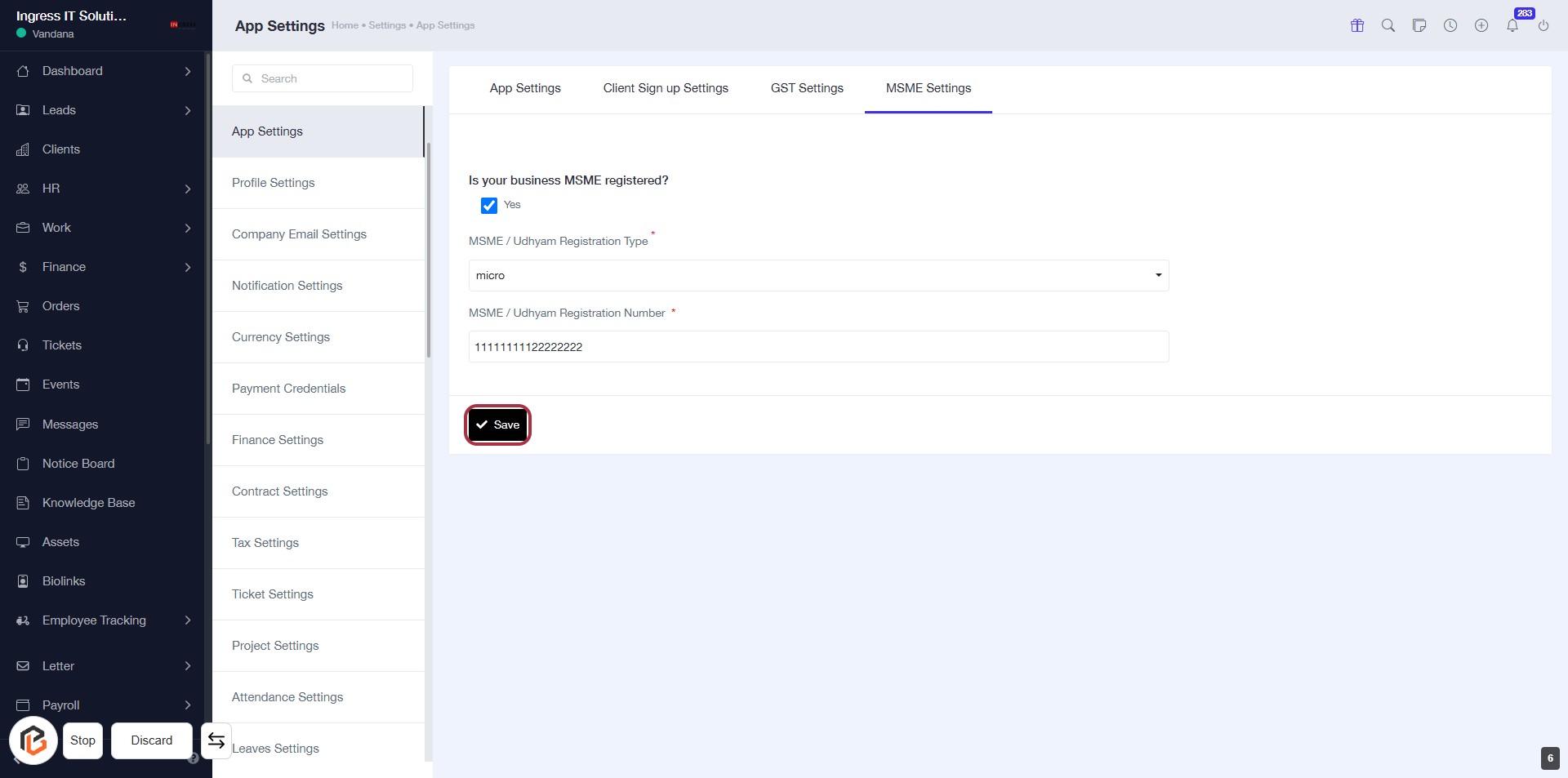
STEP 4: Select "Is your business MSME registered?"
- Click on the option "Is your business MSME registered?" in the form.
- Ensure to select either "Yes" or "No" based on your business registration status.
- The selection is mandatory as indicated by the asterisk (*) next to the label.
- Proceed to the next step to enter the "MSME / Udhyam Registration Type."
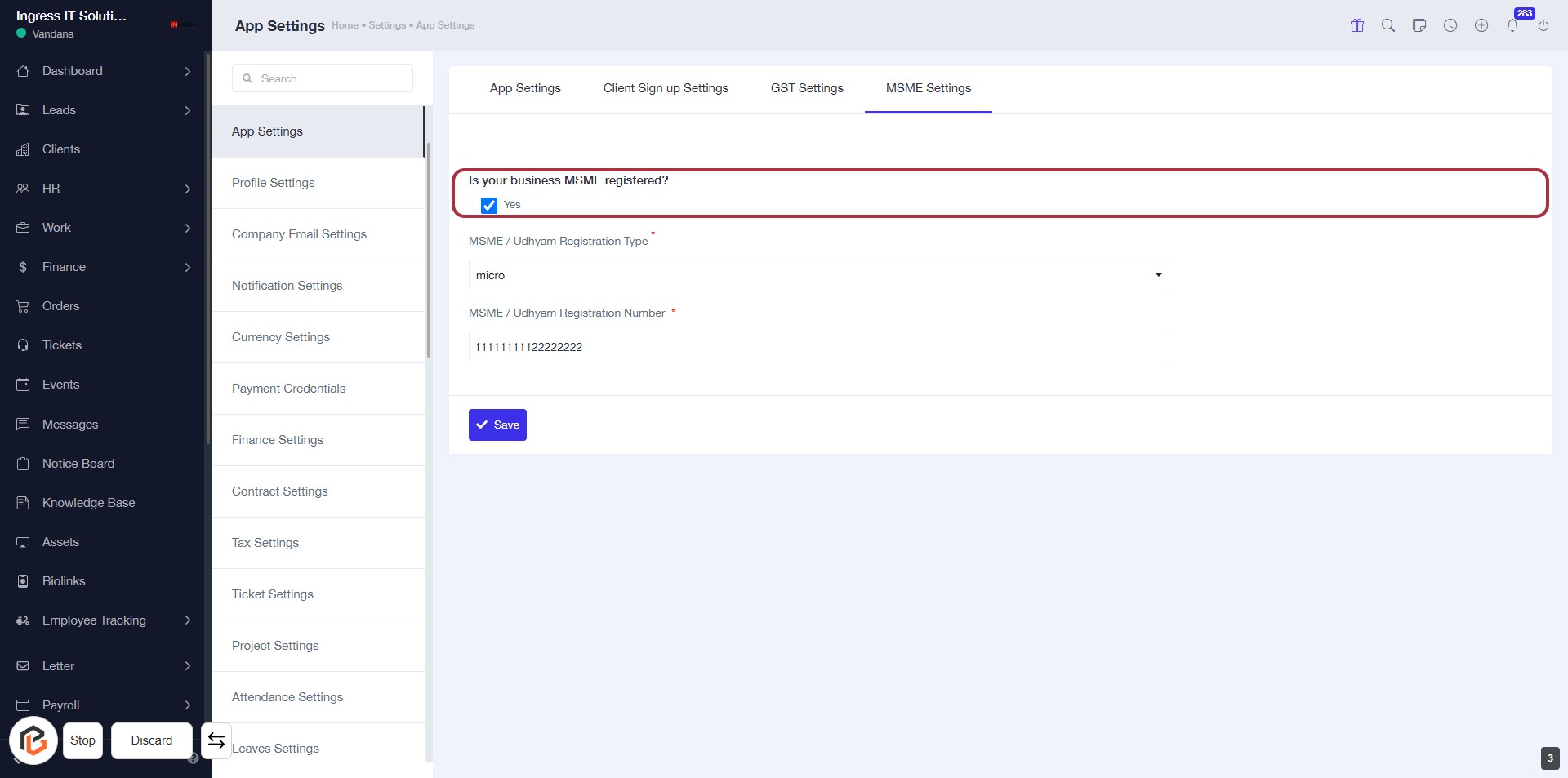
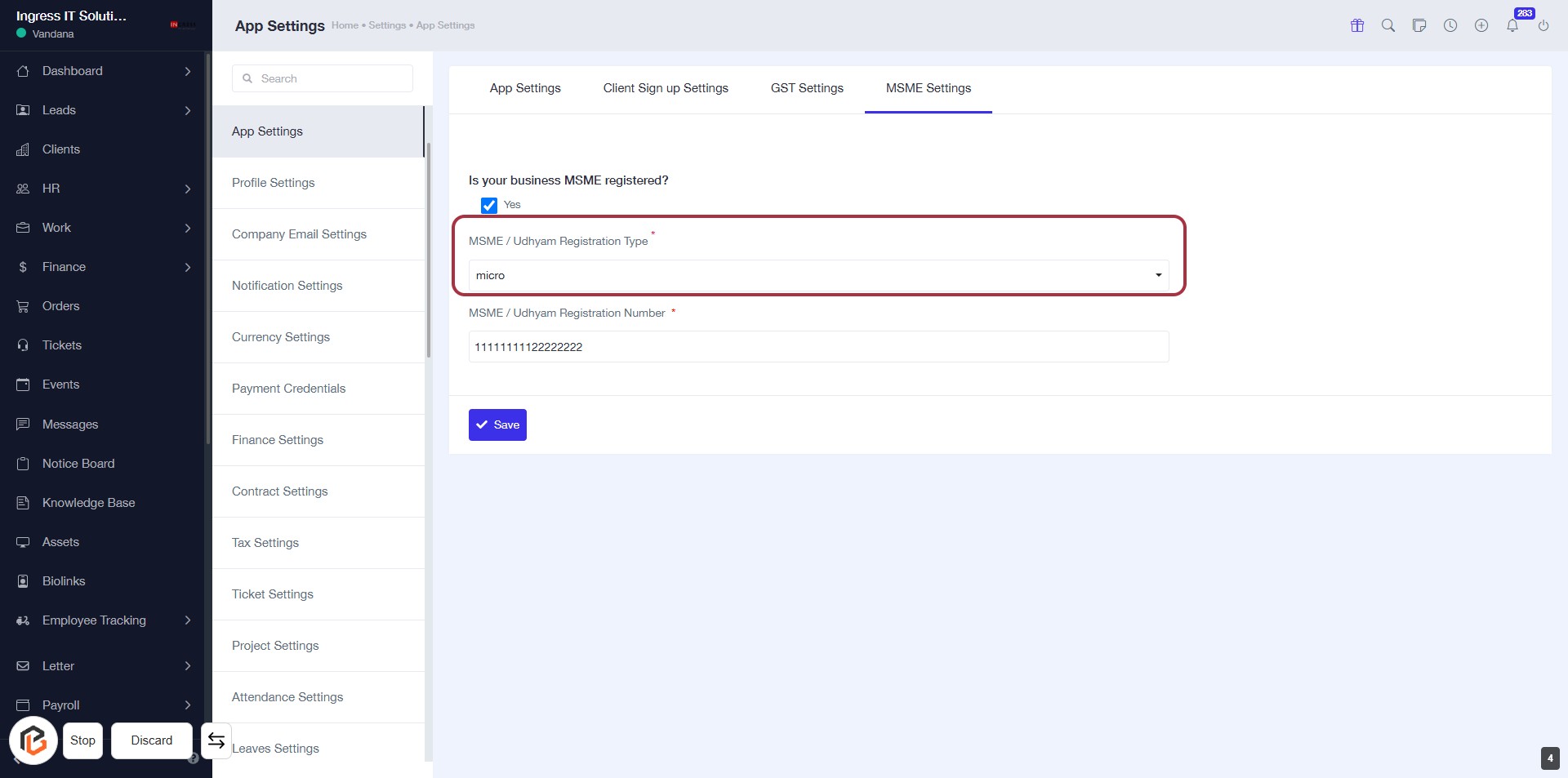
STEP 5: Enter "MSME / Udhyam Registration Type"
- Click on the "MSME / Udhyam Registration Type" dropdown.
- Select the appropriate registration type from the options available.
- Ensure that the field marked with an asterisk (*) is filled, as it is mandatory.
- Proceed to the next step by entering the "MSME / Udhyam Registration Number."
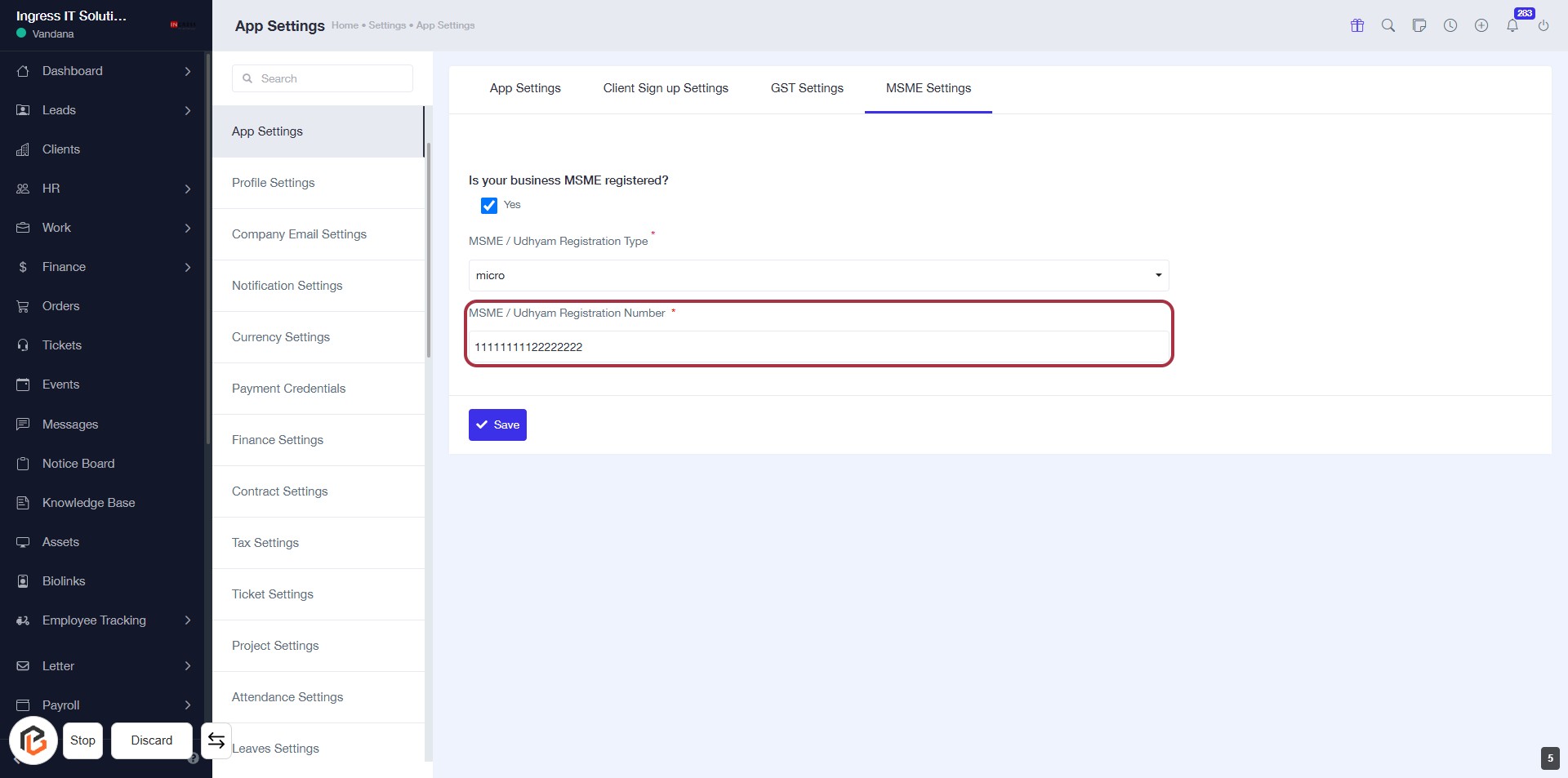
STEP 6: Enter "MSME / Udhyam Registration Number *"
- Click on the highlighted area to input your MSME / Udhyam Registration Number.
- Ensure the field marked with an asterisk (*) is filled, as it is mandatory.
- After entering the number, proceed to the next step by clicking the "Save" button.
STEP 7: Click on "Save" to Finalize MSME Settings
- Ensure all required fields are filled:
- MSME / Udhyam Registration Type
- MSME / Udhyam Registration Number*
- Click the Save button at the bottom of the form to save your settings.
- Confirm that the settings have been saved successfully.