Step-by-Step Guide to Configuring Your Company Settings in BizCRM
6 mins read · Updated 29 Sep, 2025
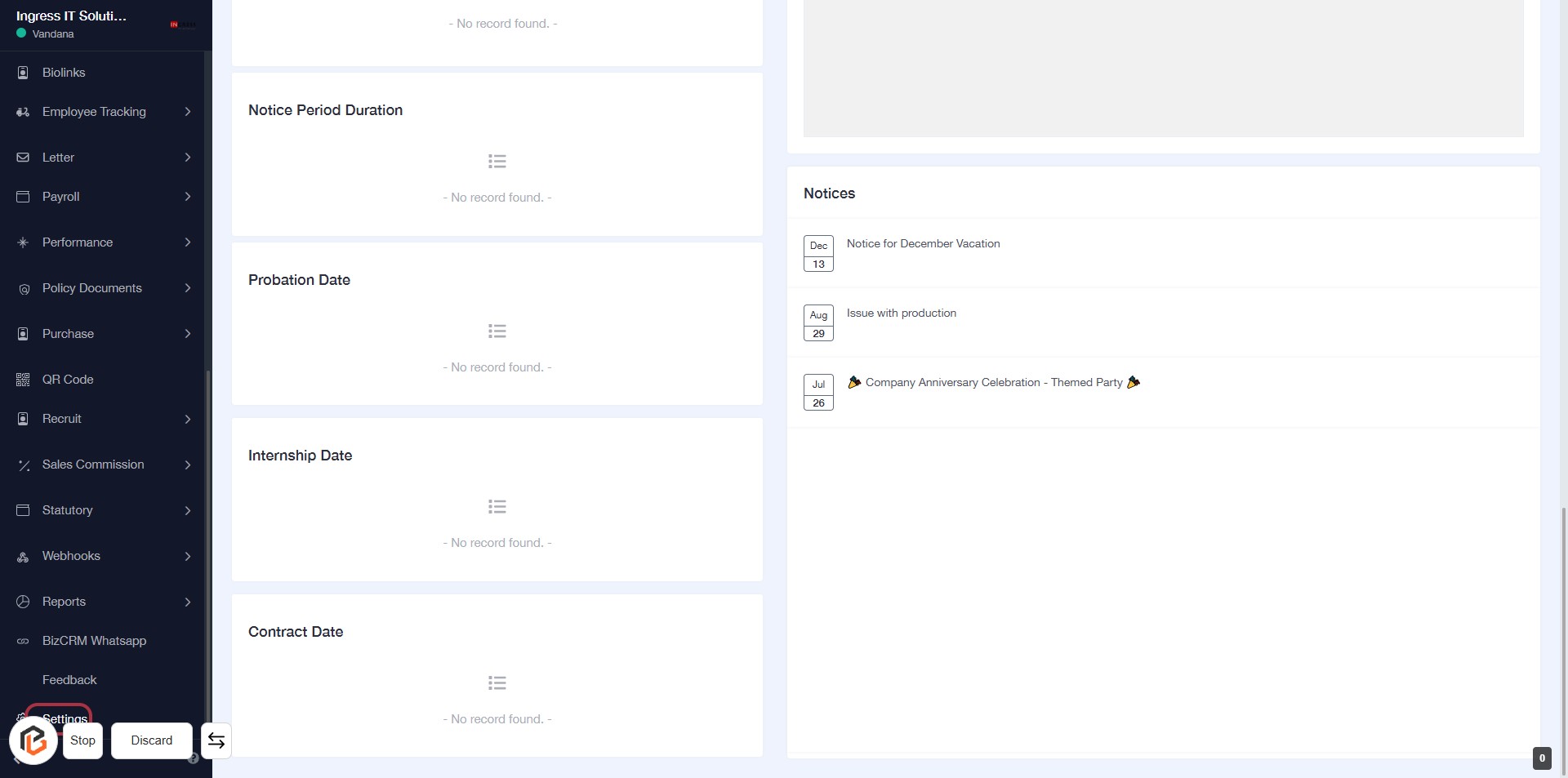
STEP 1: Click on "Settings" in the BizCRM Application
- Navigate to the left sidebar of the BizCRM application.
- Locate the "Settings" option highlighted in the sidebar.
- Click on "Settings" to access the settings menu for further configuration
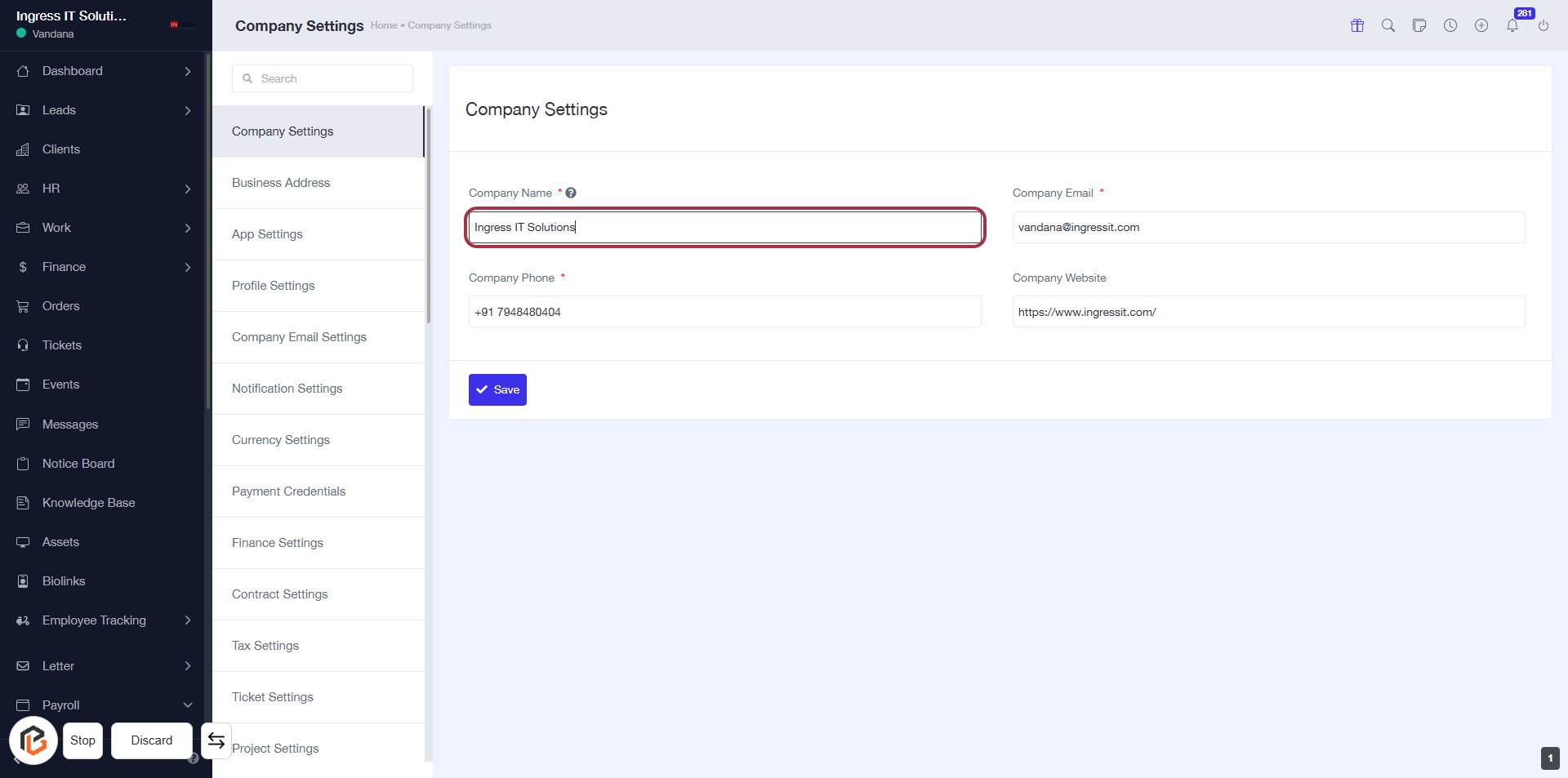
STEP 2: Click on "Company Name" to Update
- Navigate to the Company Settings section.
- Click on the Company Name input field (highlighted in red).
- Enter the desired company name (required field marked with *).
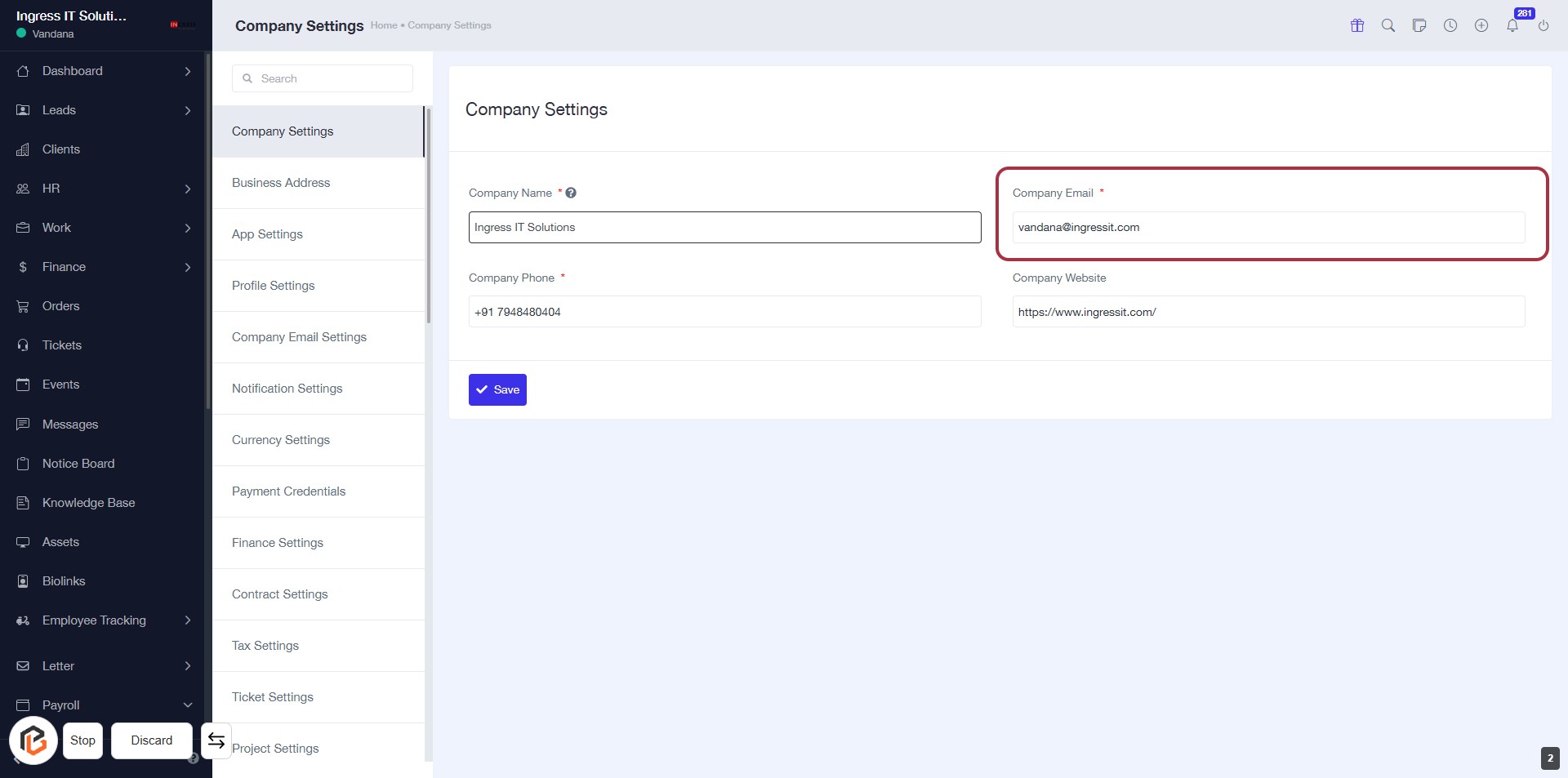
STEP 3: Click on "Company Email"
- Navigate to the Company Settings section.
- Locate the Company Email field highlighted in red.
- Click on the Company Email label to activate the input field.
- Ensure that the email
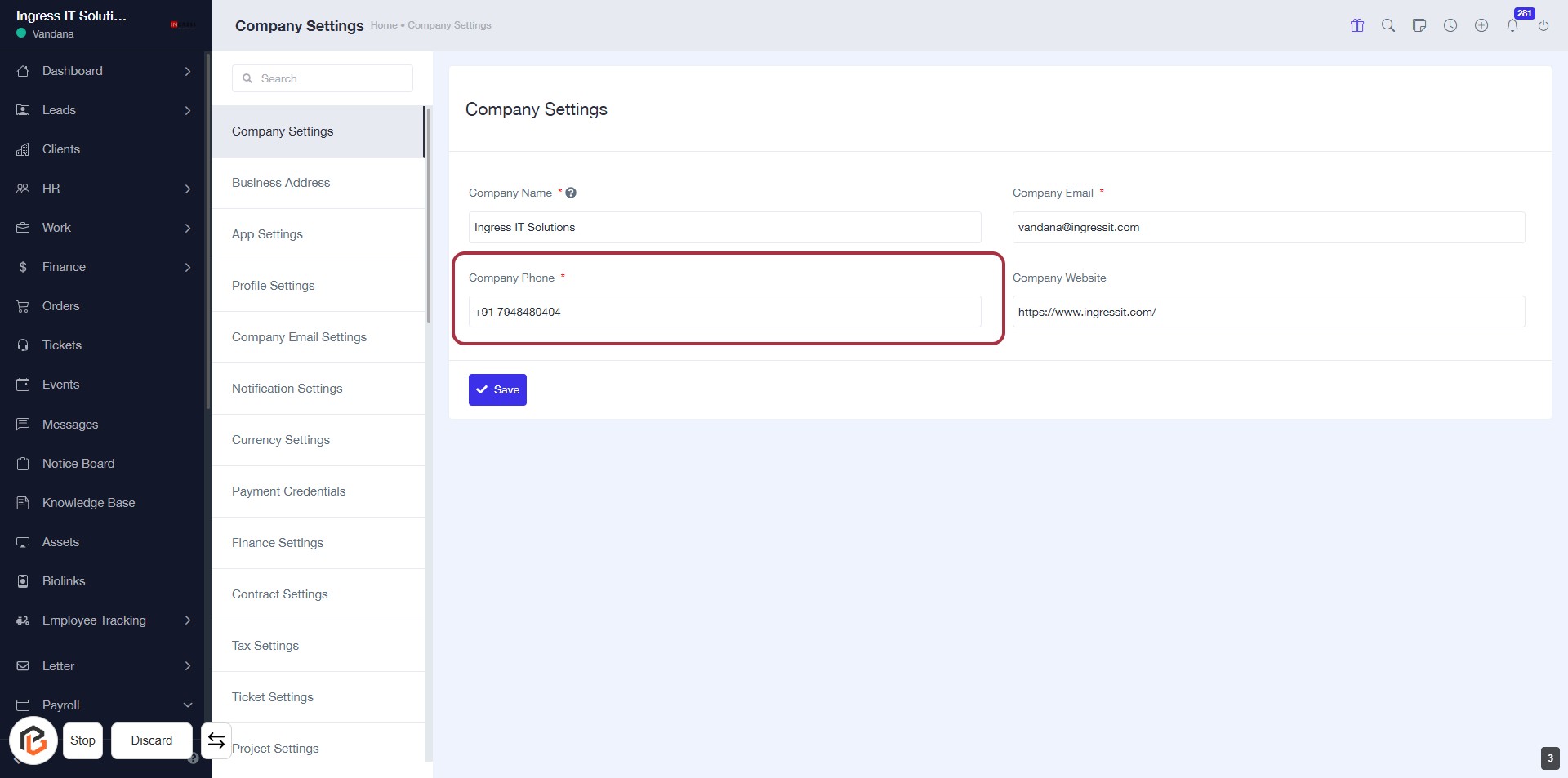
STEP 4: Click on "Company Phone"
- Navigate to the Company Settings page.
- Locate the Company Phone field, which is marked with an asterisk (*) indicating it's a required input.
- Click on the Company Phone area
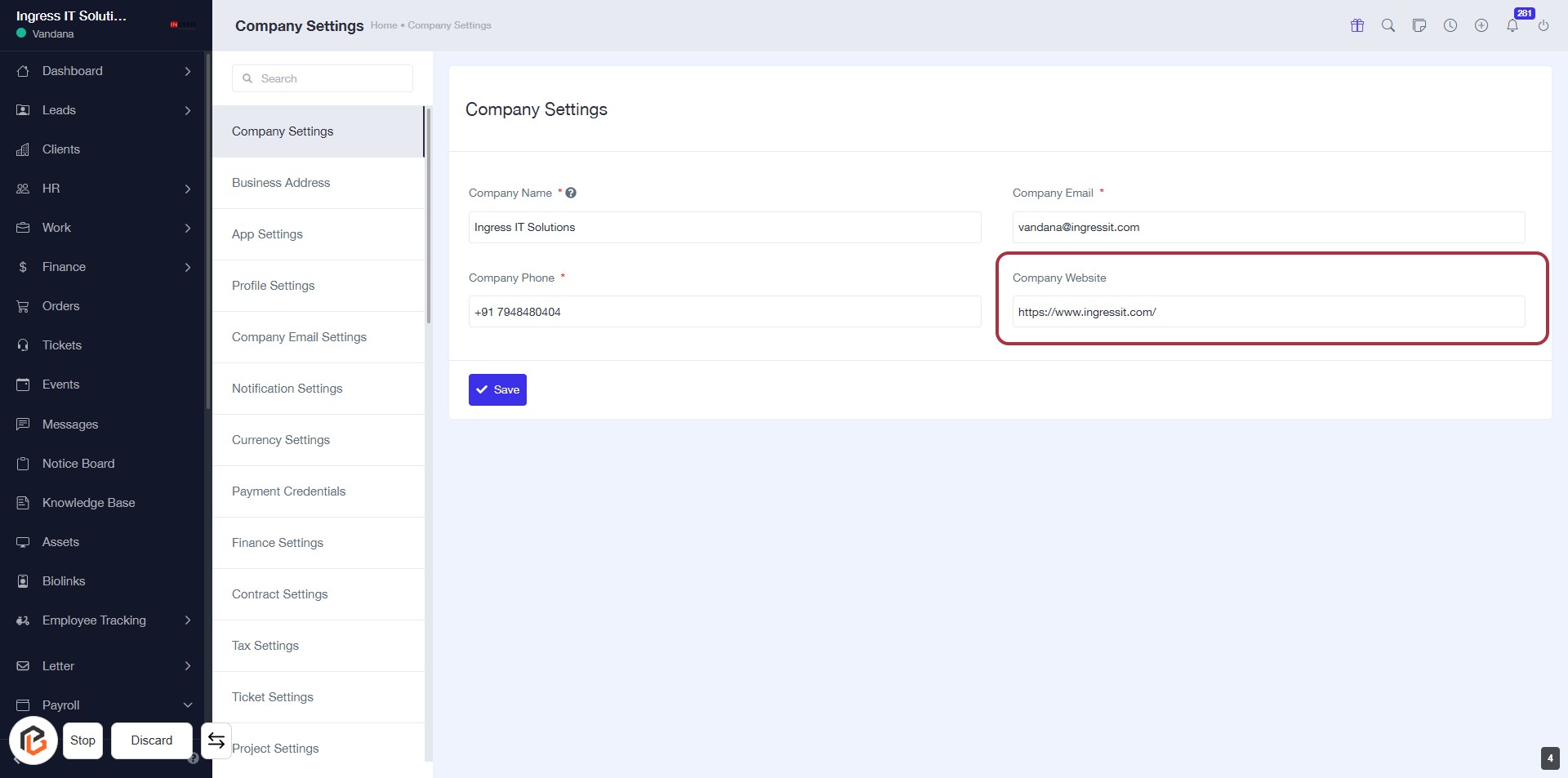
STEP 5: Click on "Company Website"
- Locate the "Company Website" field in the Company Settings form.
- Click on the "Company Website" area to enter or edit the website URL.
- Ensure the field is filled correctly; it is not marked
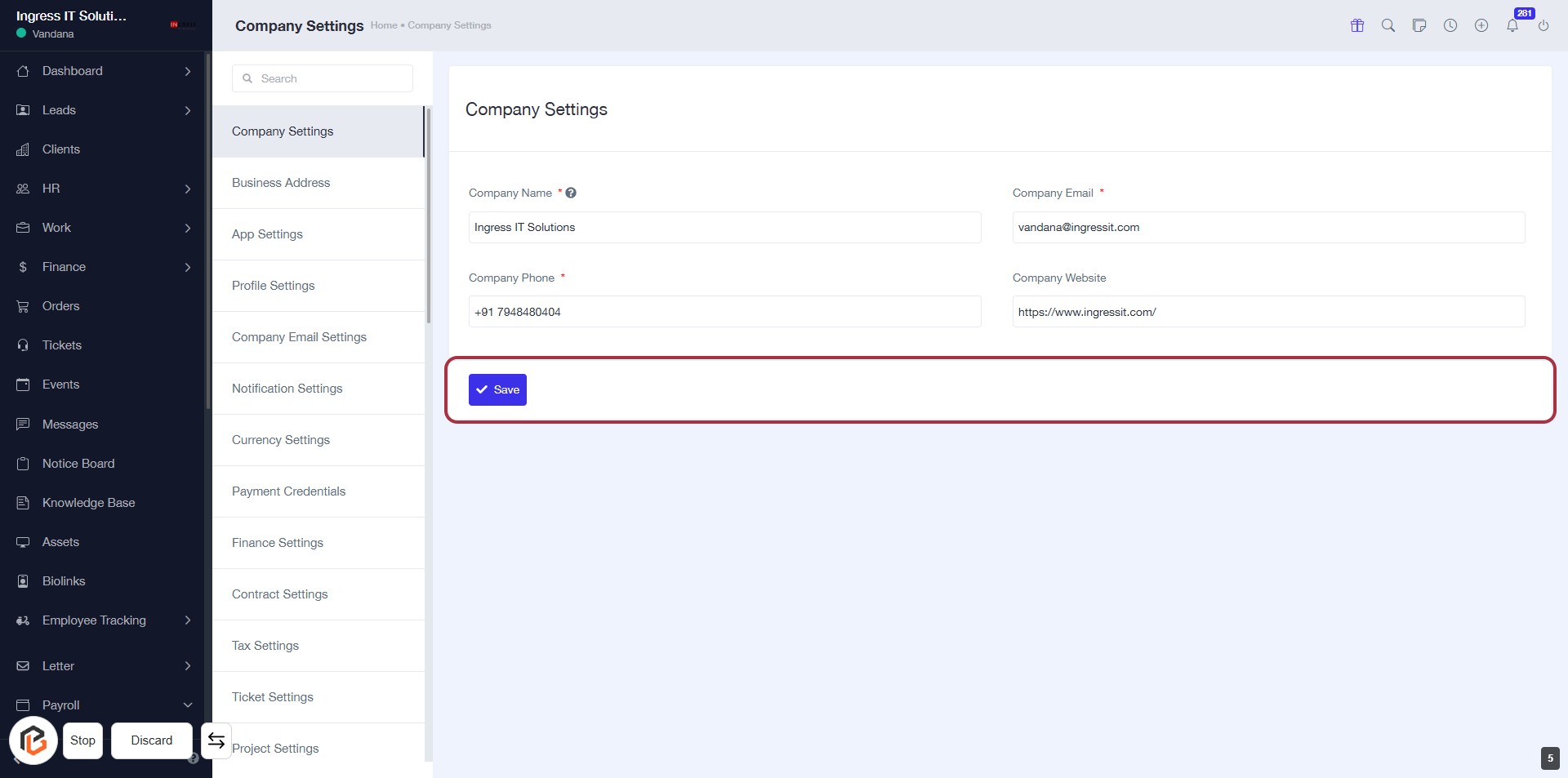
STEP 6: Click on "Save" to Confirm Company Settings
- Ensure all required fields (marked with *) are filled out: Company Name, Company Phone, Company Email.
- Review the information entered for accuracy.
- Click on the Save button located