Step-by-Step Guide to Configuring Salary TDS in Payroll Settings
13 mins read · Updated 29 Sep, 2025
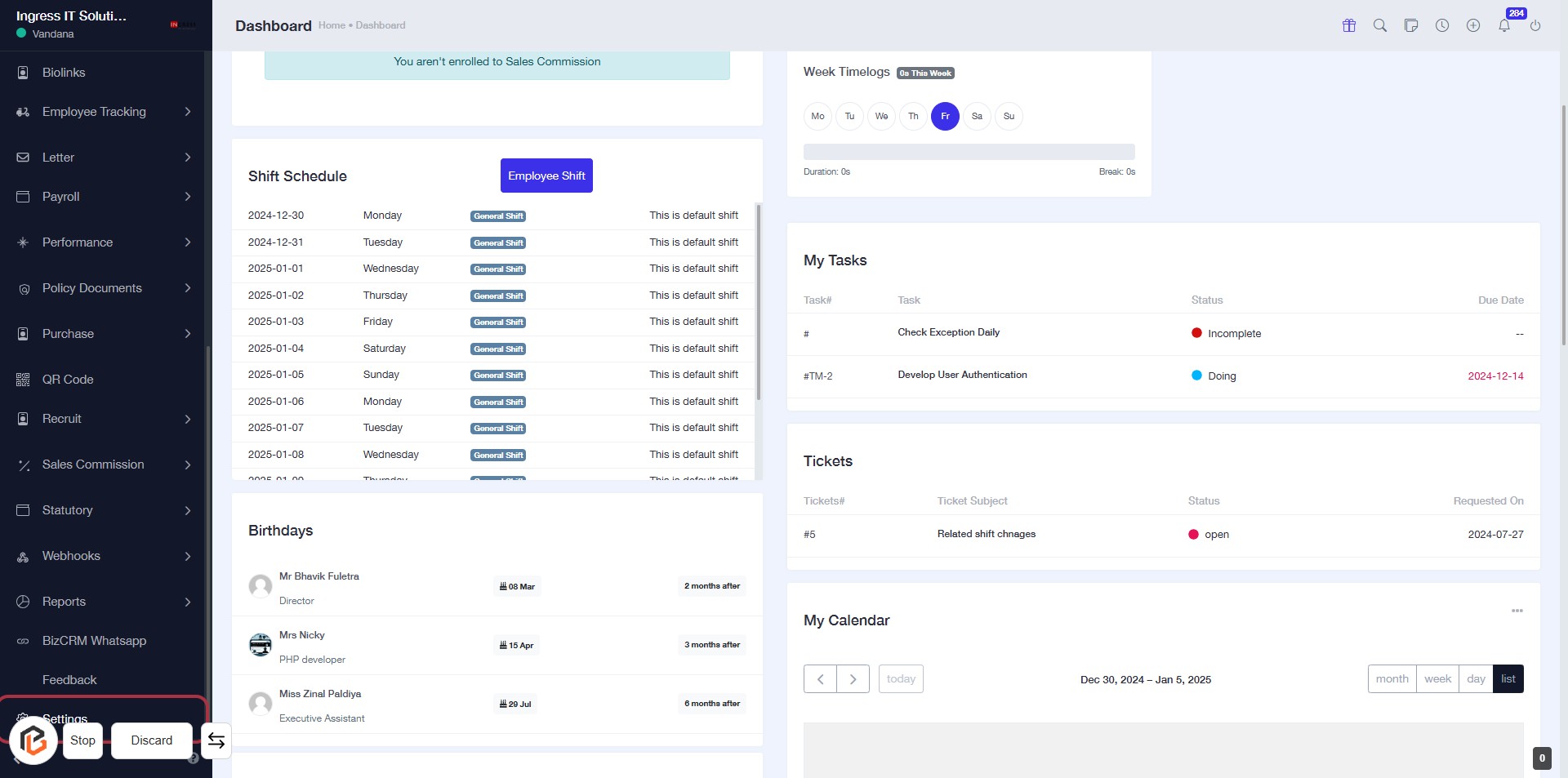
STEP 1: Click on "Settings" to Access Configuration Options
- Navigate to the left sidebar of the dashboard.
- Locate and click on the "Settings" option highlighted in red.
- This will direct you to the settings page where you can manage various configurations.
- Ensure you are ready to proceed to the next step for "Payroll Settings."
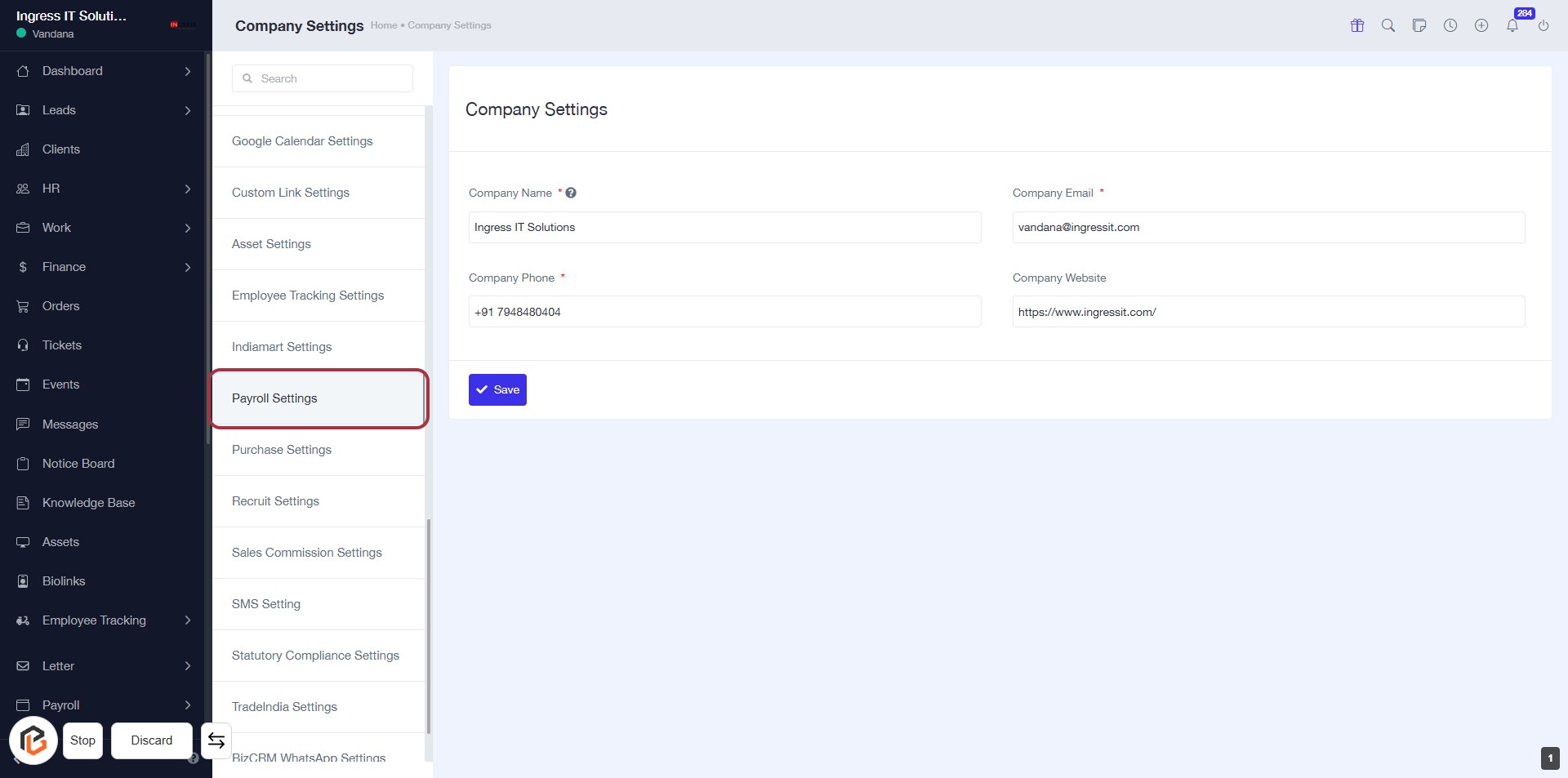
STEP 2: Click on "Payroll Settings"
- Navigate to the Payroll Settings option in the sidebar menu.
- Click on the Payroll Settings link to access the payroll configuration options.
- Ensure you have the necessary permissions to modify payroll settings.
- After clicking, you will be directed to the payroll settings page for further adjustments.
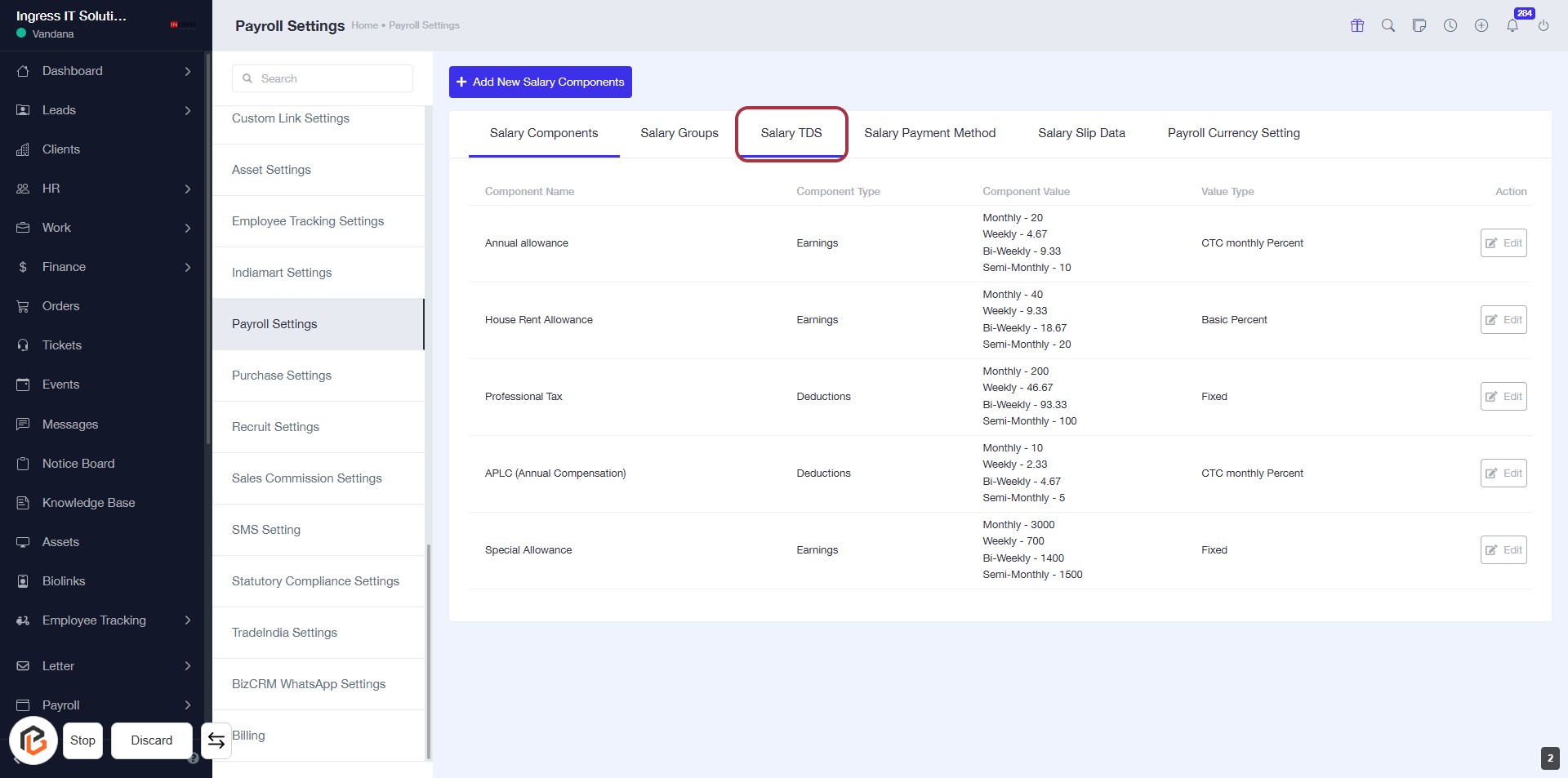
STEP 3: Select "Salary TDS"
- Click on the "Salary TDS" tab in the Payroll Settings section.
- This will display the relevant salary components related to TDS.
- Ensure to review the listed components for accuracy before proceeding.
- Next, you can click on "Add New Salary TDS" to continue.
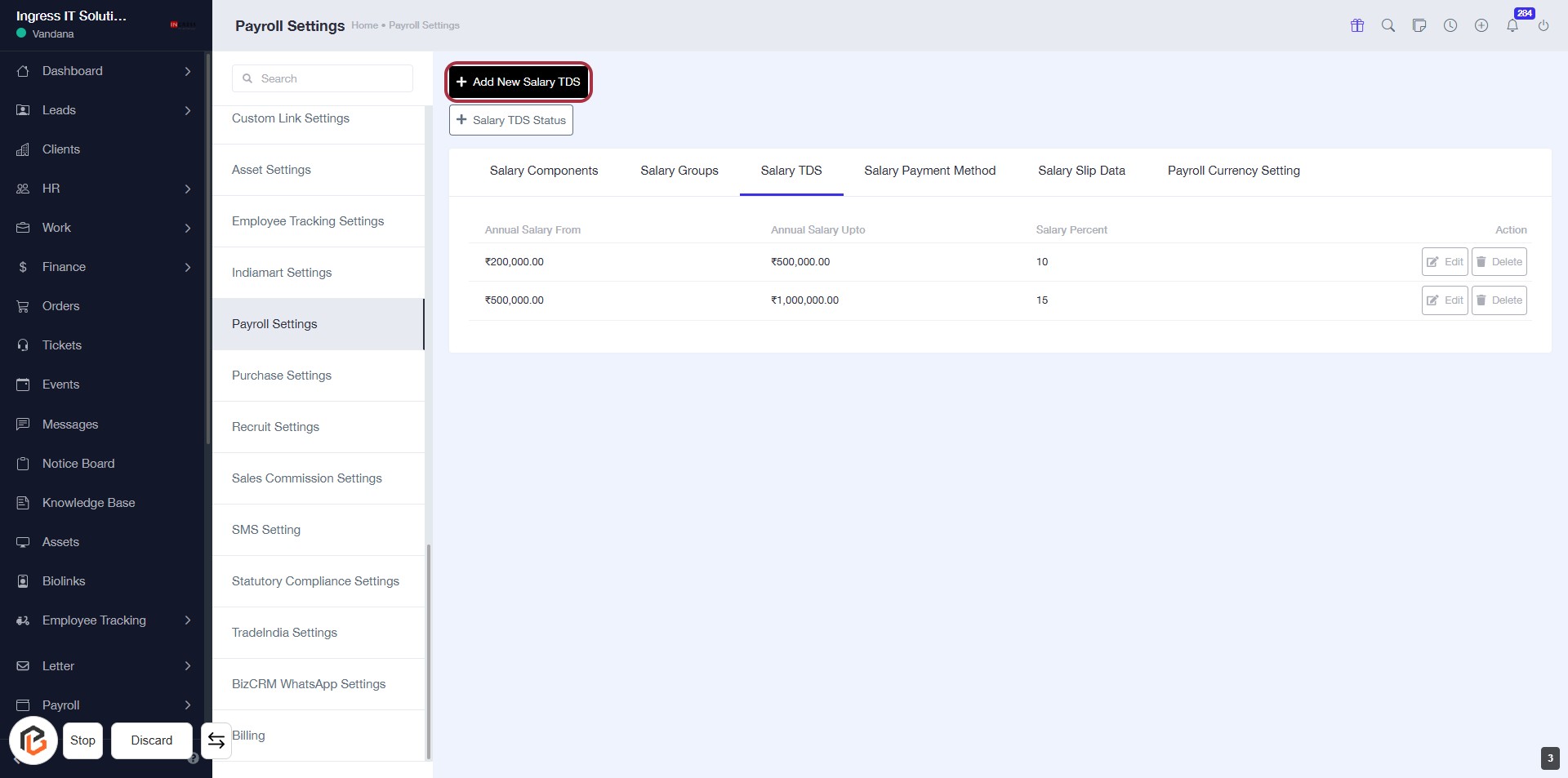
STEP 4: Click on "Add New Salary TDS"
- Navigate to the Payroll Settings page.
- Locate the Add New Salary TDS button highlighted in red.
- Click on the button to proceed to the next step.
- Ensure you have the necessary information ready for the upcoming fields, especially Annual Salary From.
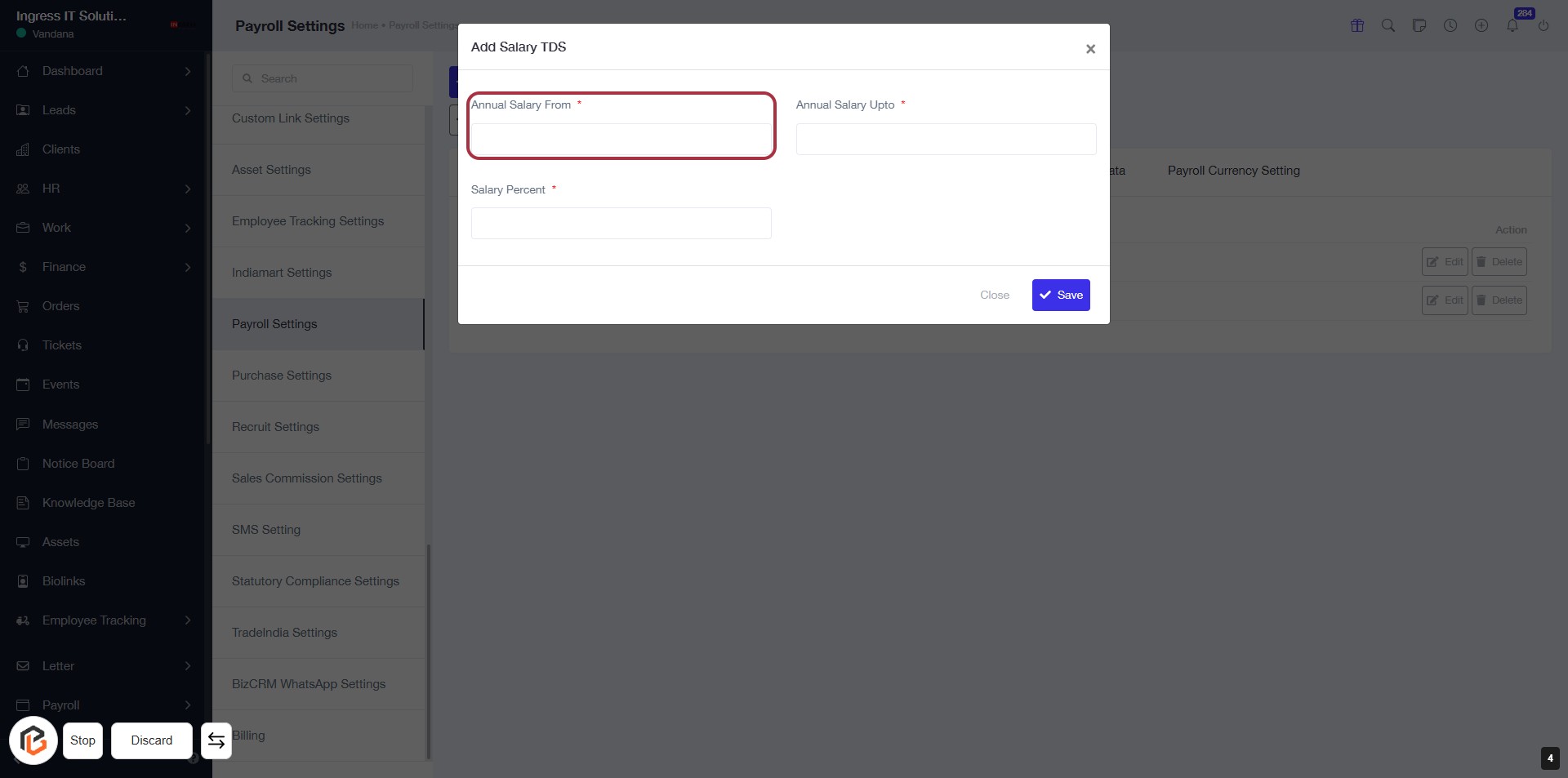
STEP 5: Enter "Annual Salary From"
- Click on the "Annual Salary From" field to input your data.
- Ensure to fill this field as it is marked with an asterisk (*), indicating it is required.
- After entering the value, proceed to the next field, "Annual Salary Upto."
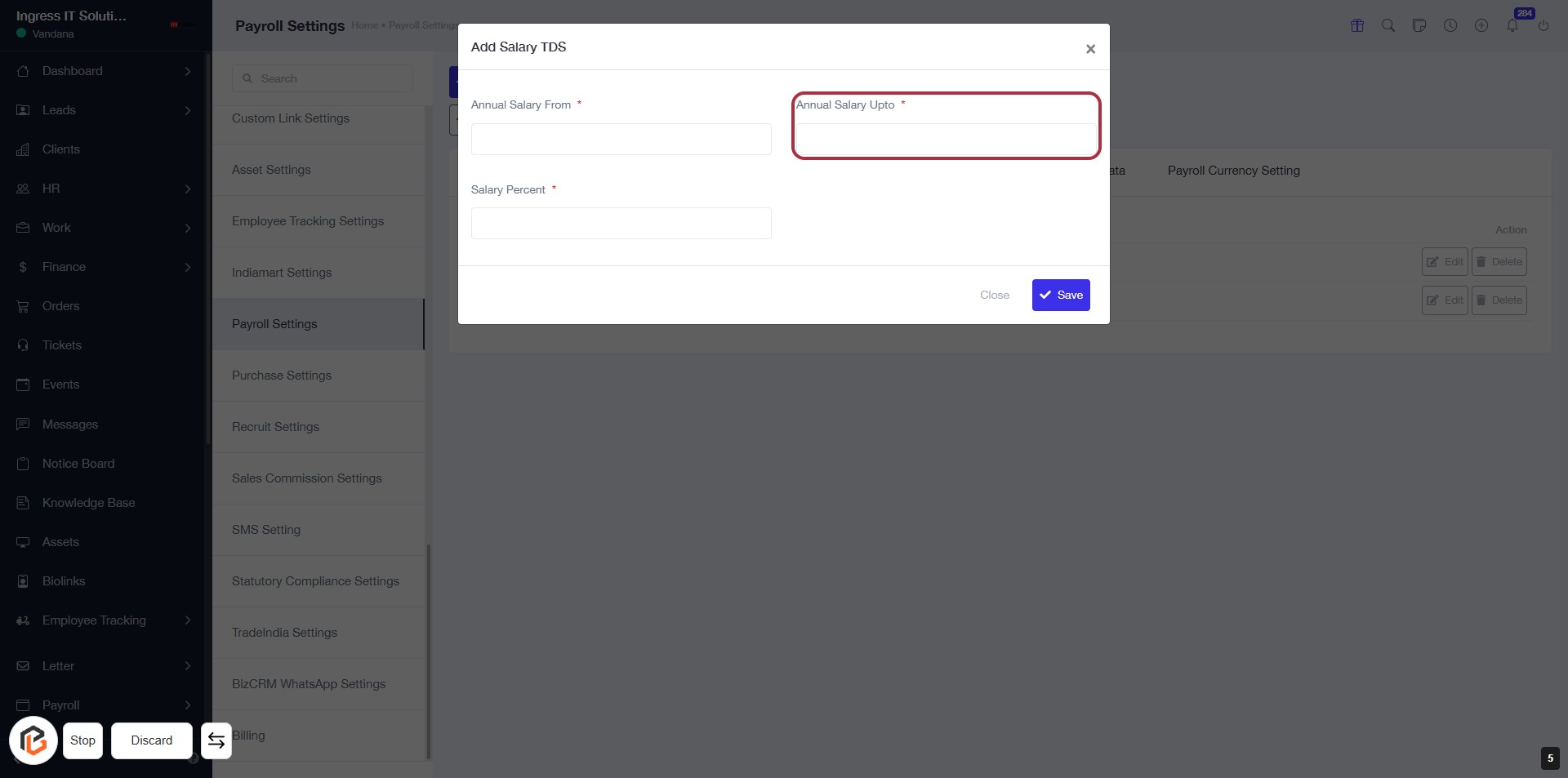
STEP 6: Enter "Annual Salary Upto"
- Click on the "Annual Salary Upto" field (marked with a red border).
- This field is mandatory (indicated by the asterisk '*').
- Ensure you have entered a valid salary amount before proceeding.
- After filling in, continue to the next step by entering "Salary Percent".
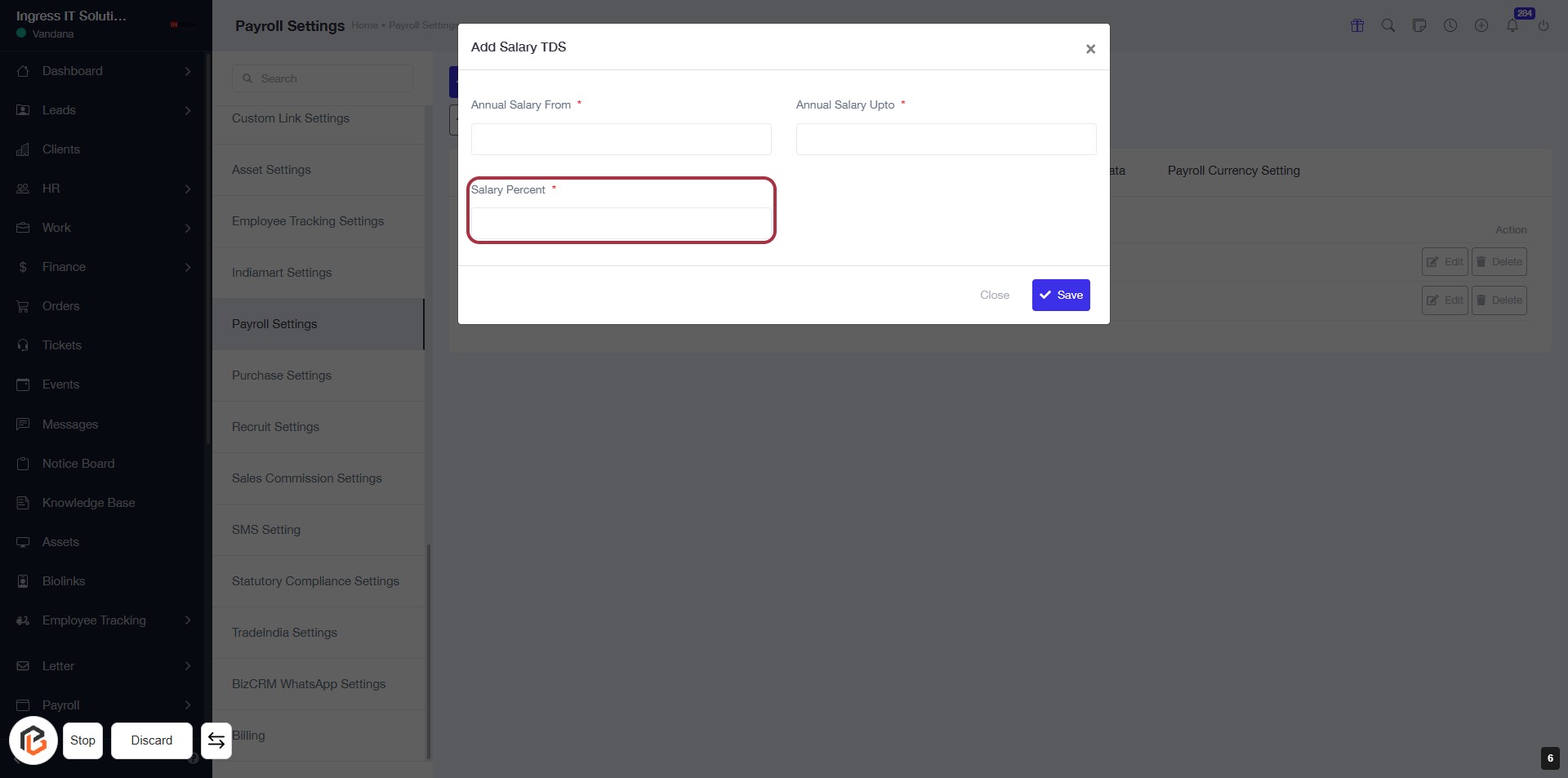
STEP 7: Enter "Salary Percent"
- Click on the "Salary Percent" field (marked with an asterisk) to input the percentage.
- Ensure to fill in this field as it is mandatory.
- Review the previous entry for "Annual Salary Upto" to ensure accuracy.
- After entering the percentage, proceed to the next step by clicking the "Save" button.
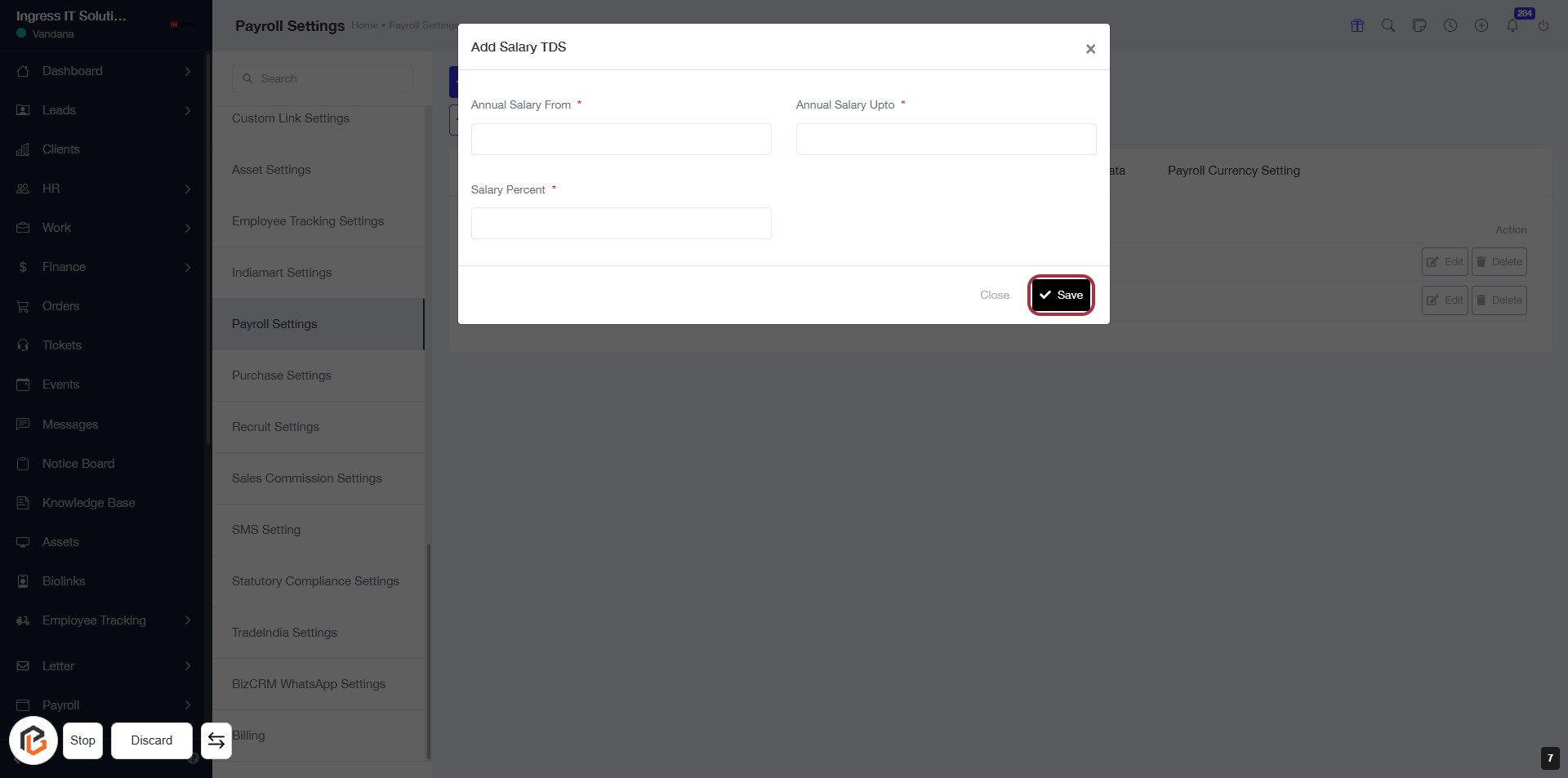
STEP 8: Click on "Save" to Finalize Salary TDS Settings
- Ensure all required fields are filled:
- Annual Salary From (mandatory)
- Annual Salary Upto (mandatory)
- Salary Percent (mandatory)
- Click the Save button at the bottom right to save your entries.
- After saving, proceed to the next step by clicking on Salary TDS Status.
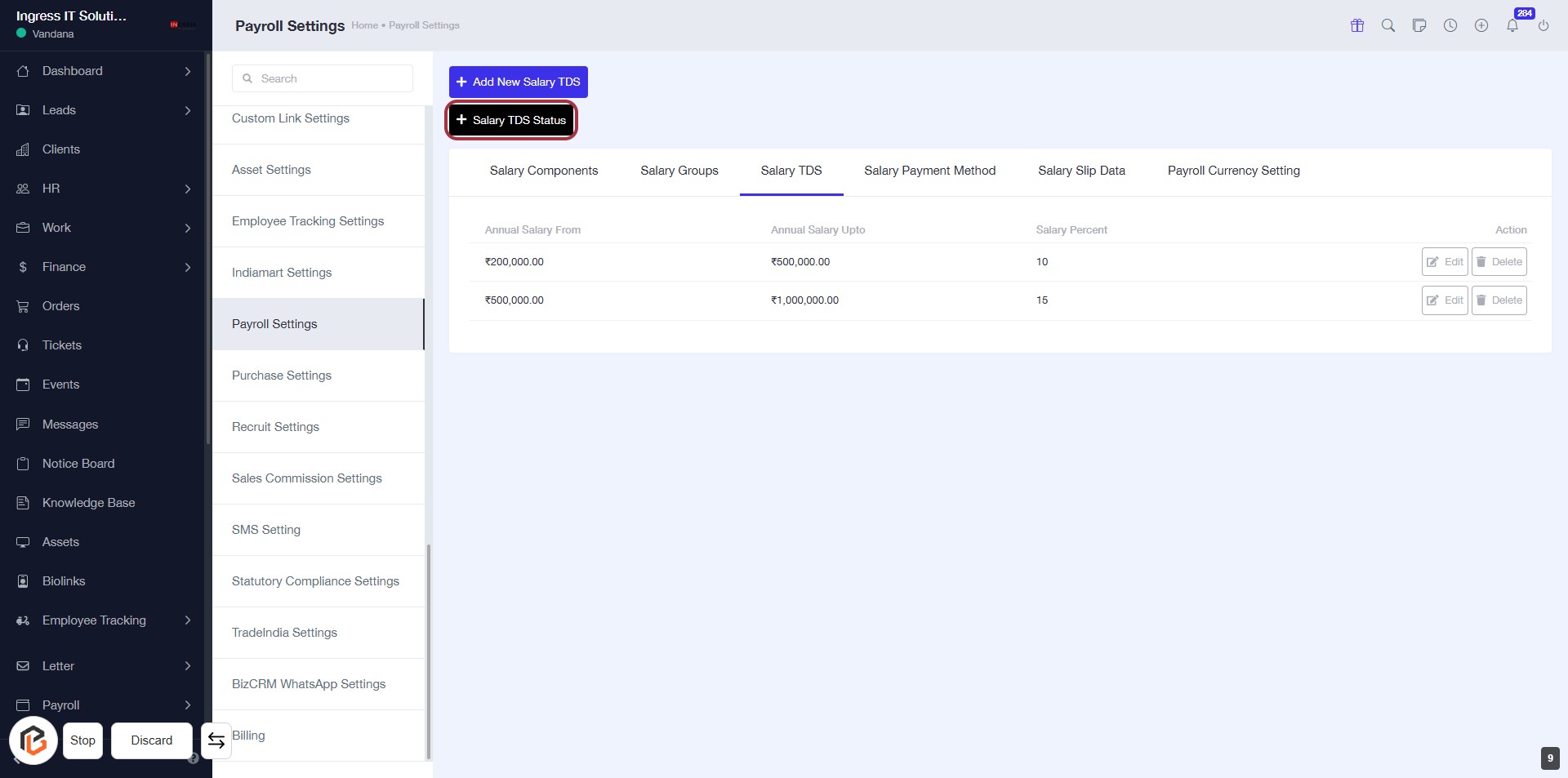
STEP 9: Click on "Salary TDS Status"
- Navigate to the Payroll Settings page.
- Locate and click the "Salary TDS Status" button to access TDS settings.
- Ensure all required fields marked with an asterisk (*) are filled out.
- Review the Salary TDS table for existing entries before proceeding.
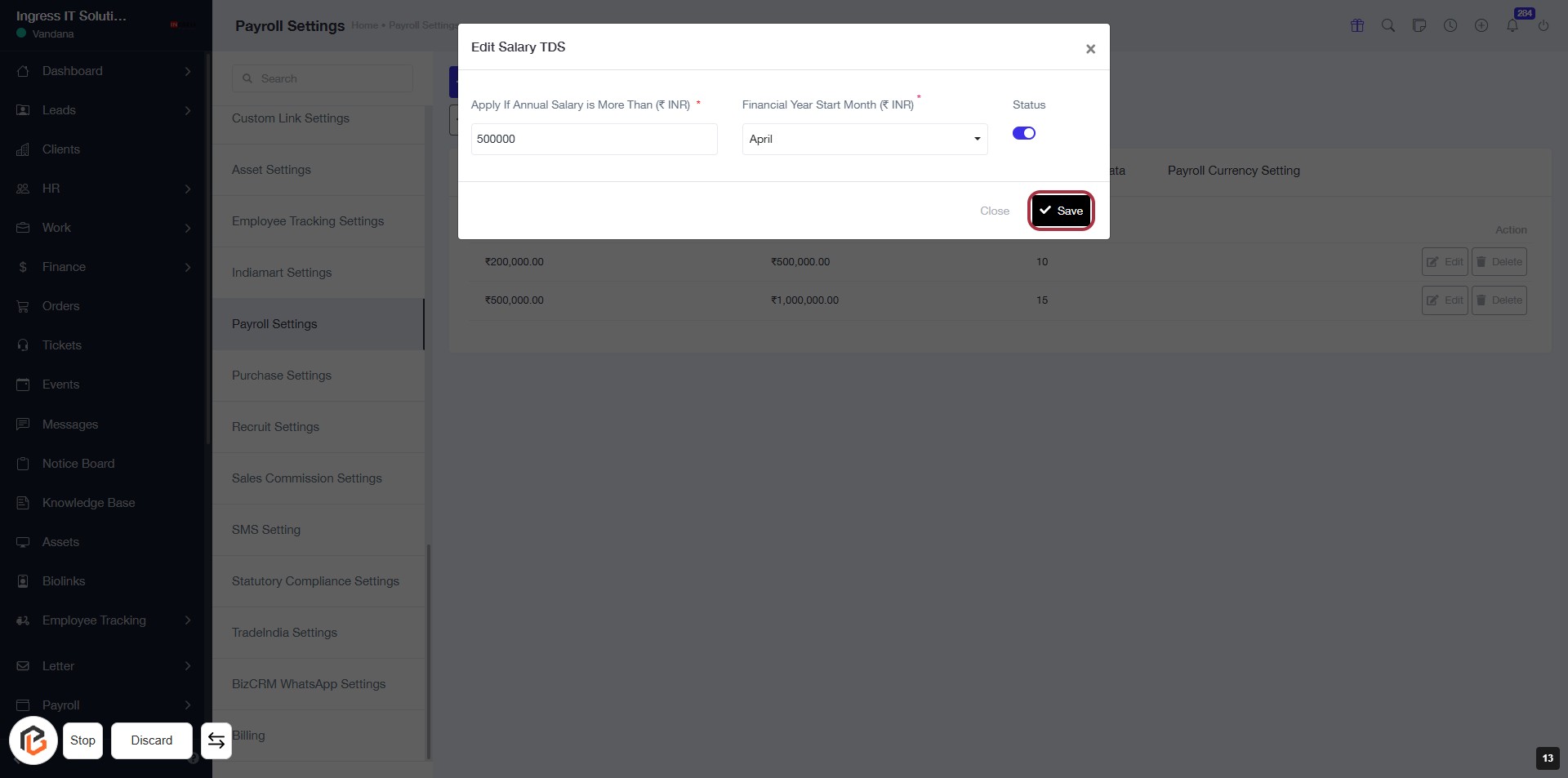
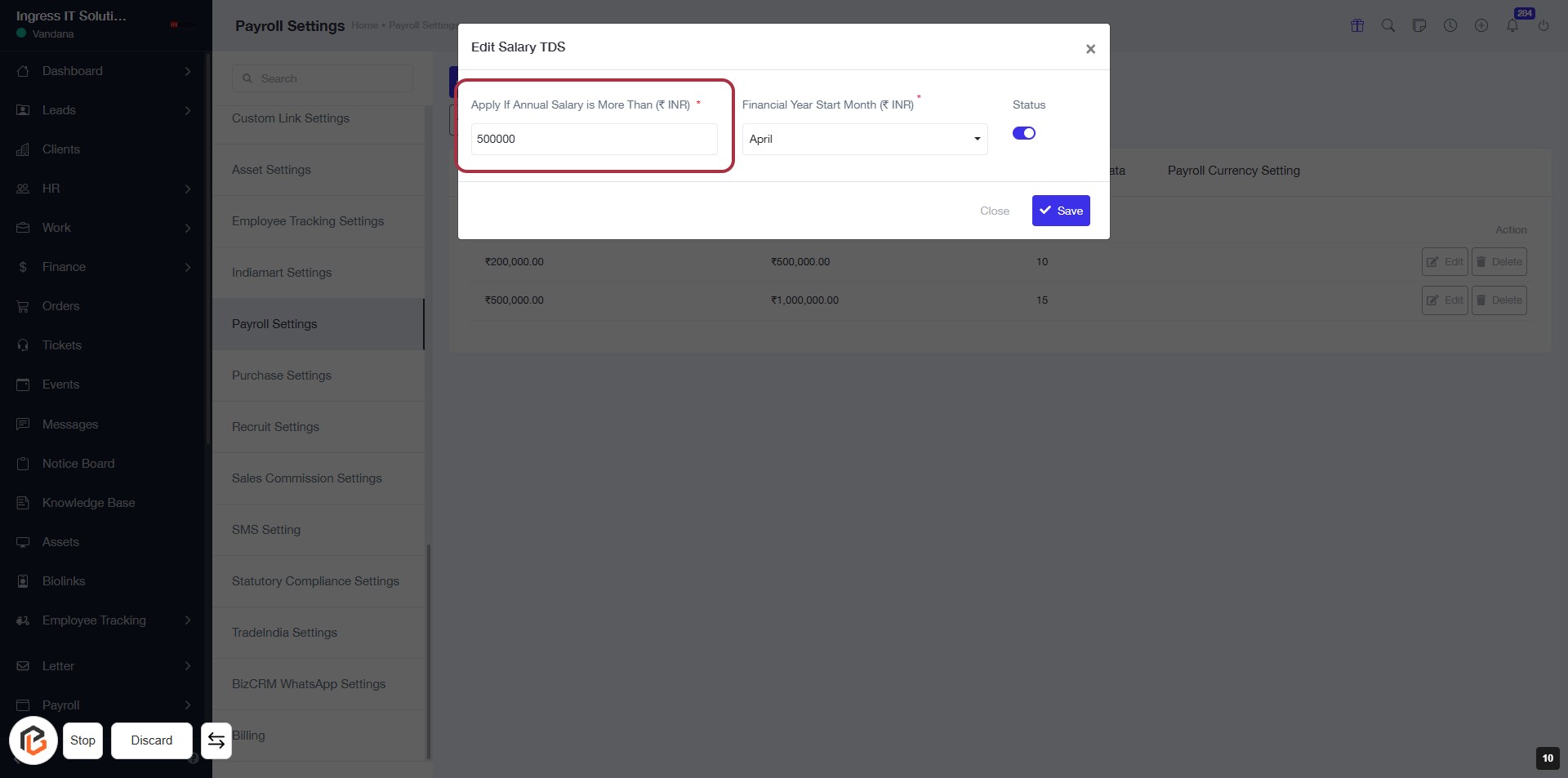
STEP 10: Click on "Apply If Annual Salary is More Than (₹ INR)"
- Locate the highlighted area labeled "Apply If Annual Salary is More Than (₹ INR)".
- Click on the field to enter the desired annual salary amount.
- Ensure that the field marked with an asterisk (*) is filled, as it is required.
- After entering the value, proceed to the next step by selecting "Financial Year Start Month (₹ INR)".
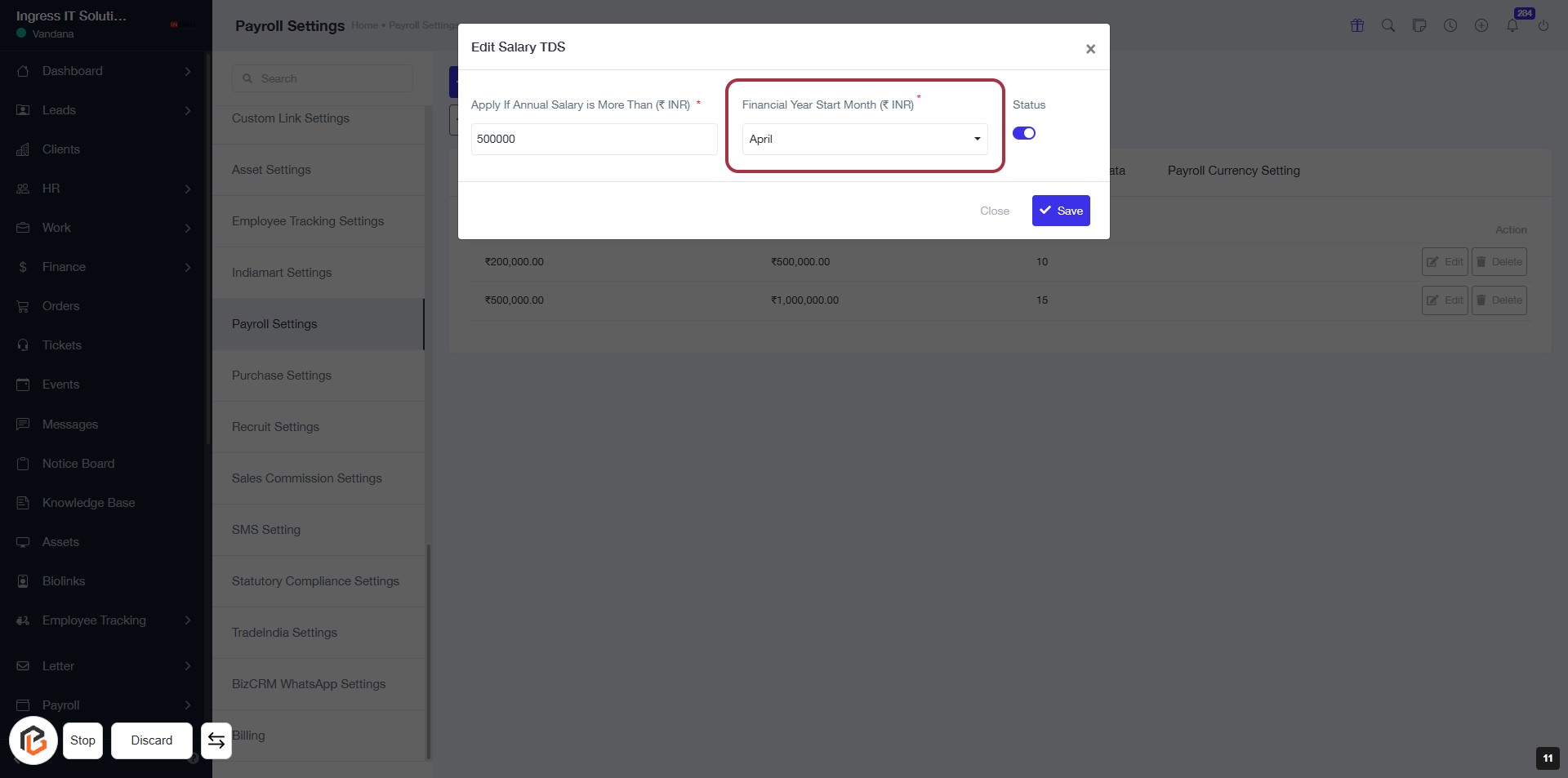
STEP 11: Select "Financial Year Start Month (₹ INR)"
- Click on the "Financial Year Start Month (₹ INR)" field.
- Choose the appropriate month from the dropdown menu.
- Ensure the field is marked with an asterisk (*) indicating it is required.
- Proceed to the next step by turning on the "Status" toggle.
STEP 12: Click on "Status" to Enable or Disable
- Locate the "Status" toggle in the "Edit Salary TDS" dialog.
- Click on the toggle to switch it on or off.
- Ensure that the toggle reflects your desired status before proceeding.
- Review other fields:
- Apply If Annual Salary Is More Than (₹ INR)*
- Financial Year Start Month (₹ INR)*
- After adjusting, proceed to the next step by clicking the "Save" button.
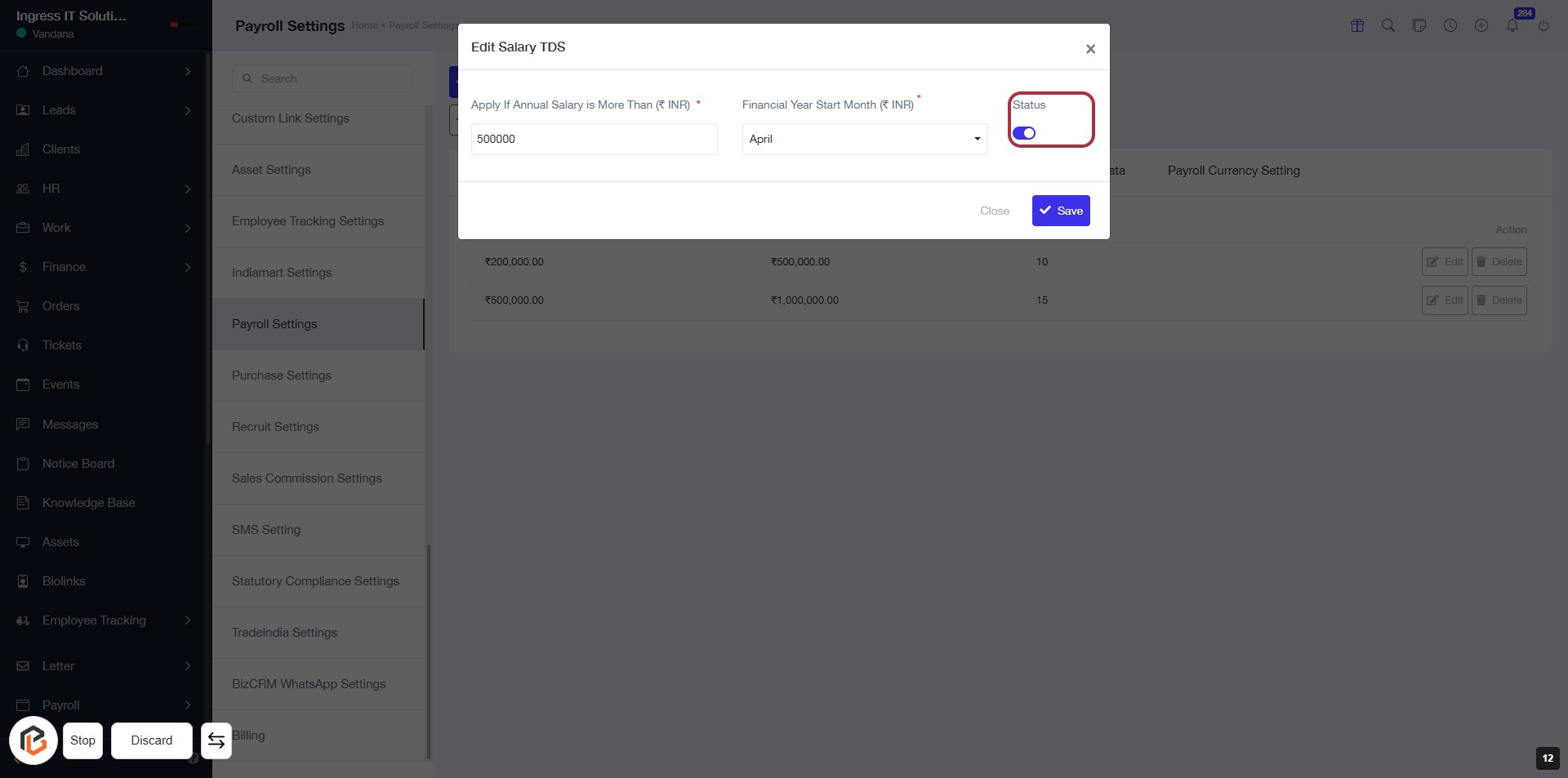
STEP 13: CLICK on "Save Button"