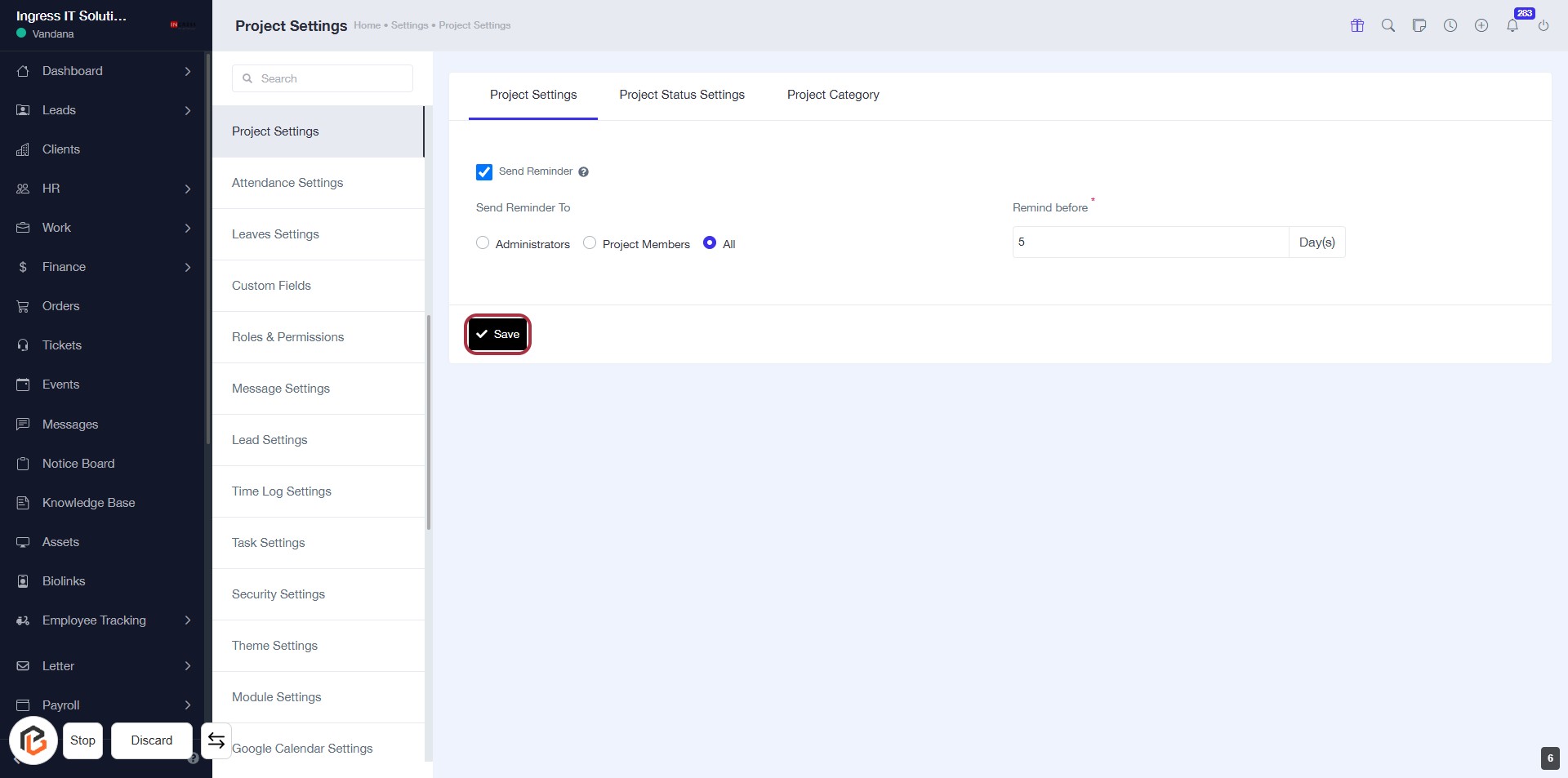
Step-by-Step Guide to Configuring Project Reminder Settings on Your Dashboard
7 mins read · Updated 29 Sep, 2025
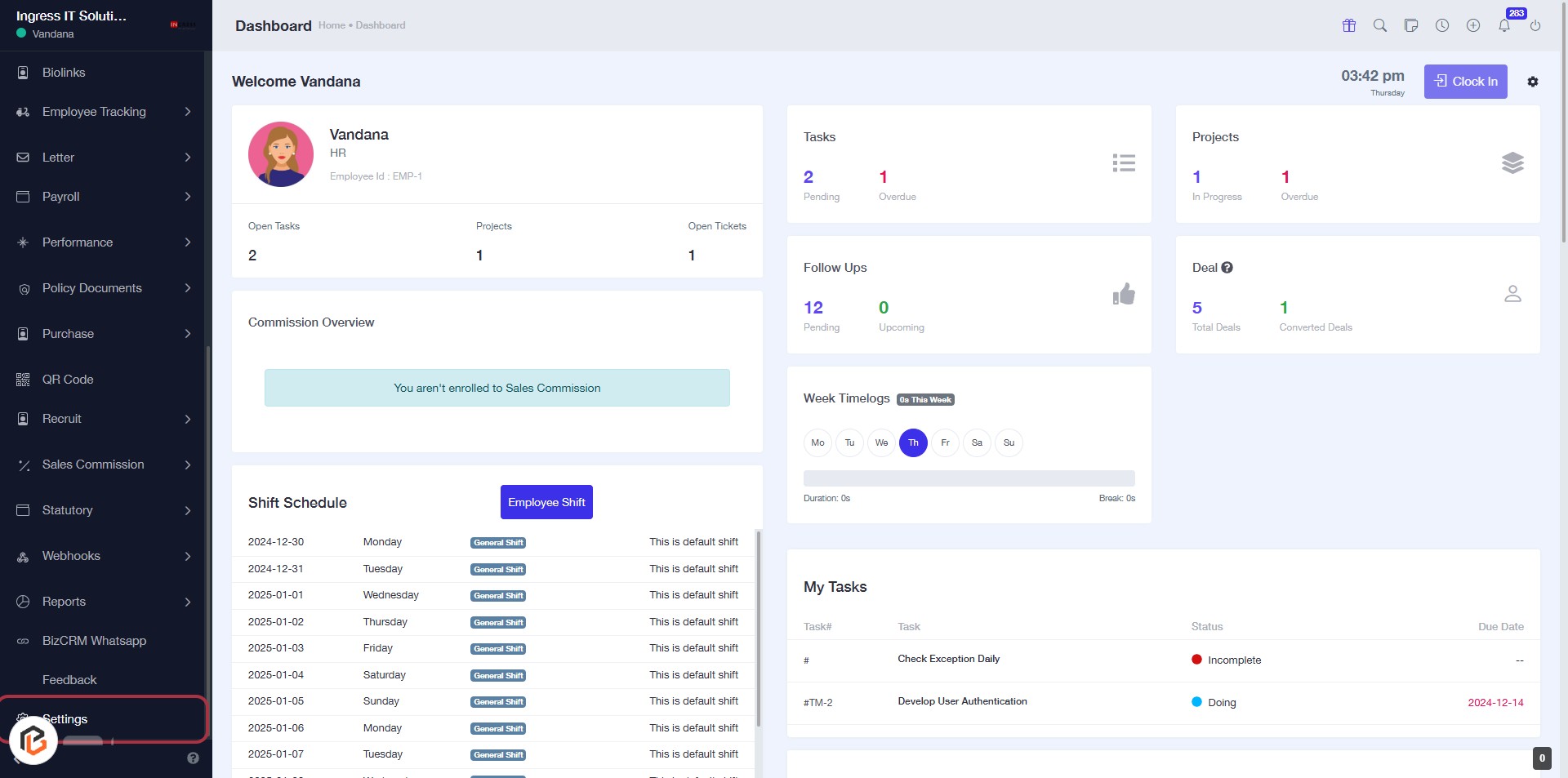
STEP 1: Click on "Settings" in the Dashboard
- Navigate to the left sidebar of the Dashboard.
- Locate and click on the Settings option highlighted in red.
- This will direct you to the settings page for further configuration.
- Ensure you are logged in to access the settings.
STEP 2: Click on "Project Settings"
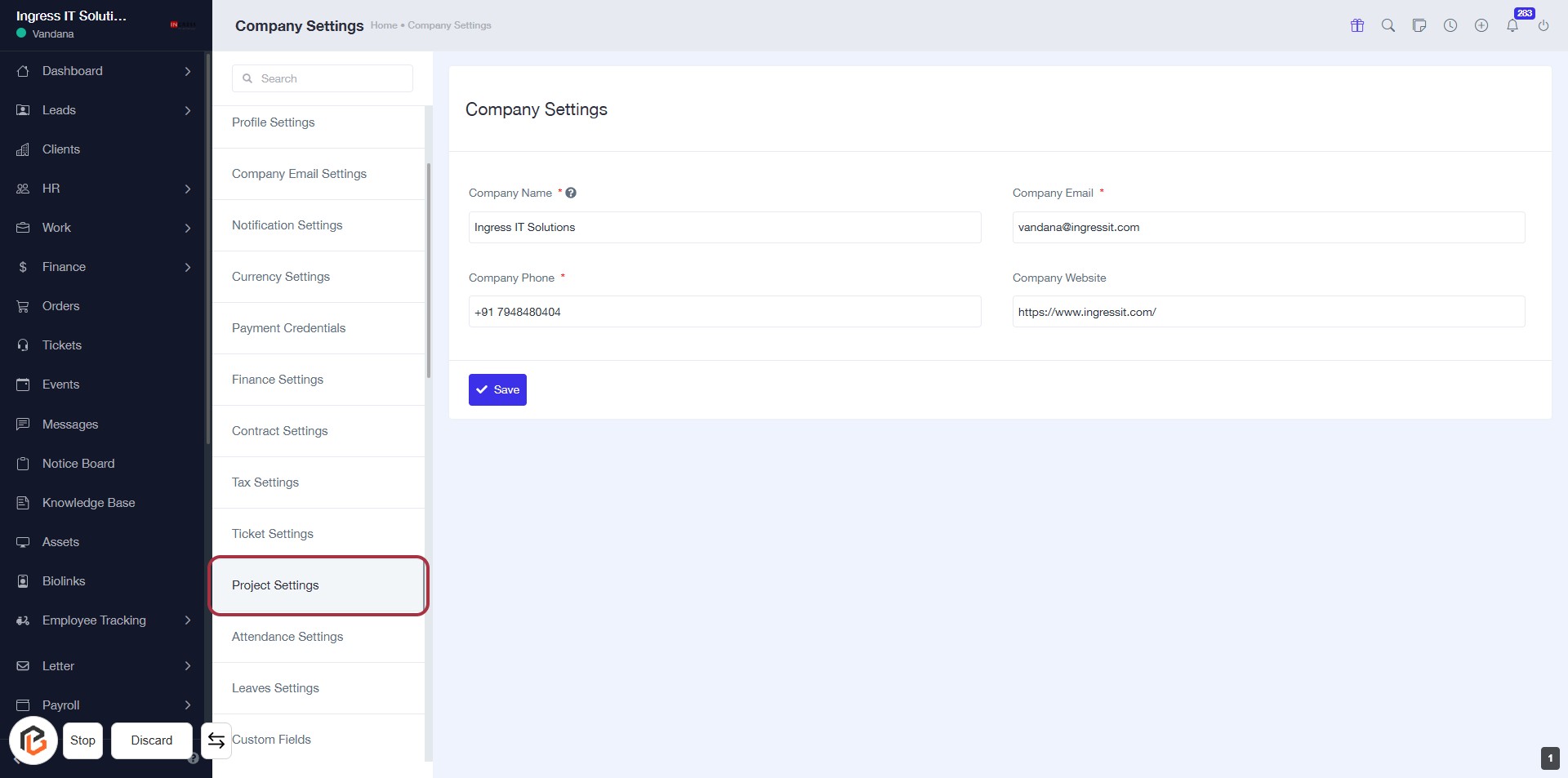
- Navigate to the left sidebar menu.
- Locate and click on Project Settings.
- This will take you to the Company Settings page where you can manage various company details.
- Ensure to fill in all required fields marked with an asterisk (*).
STEP 3: Select "Project Settings"
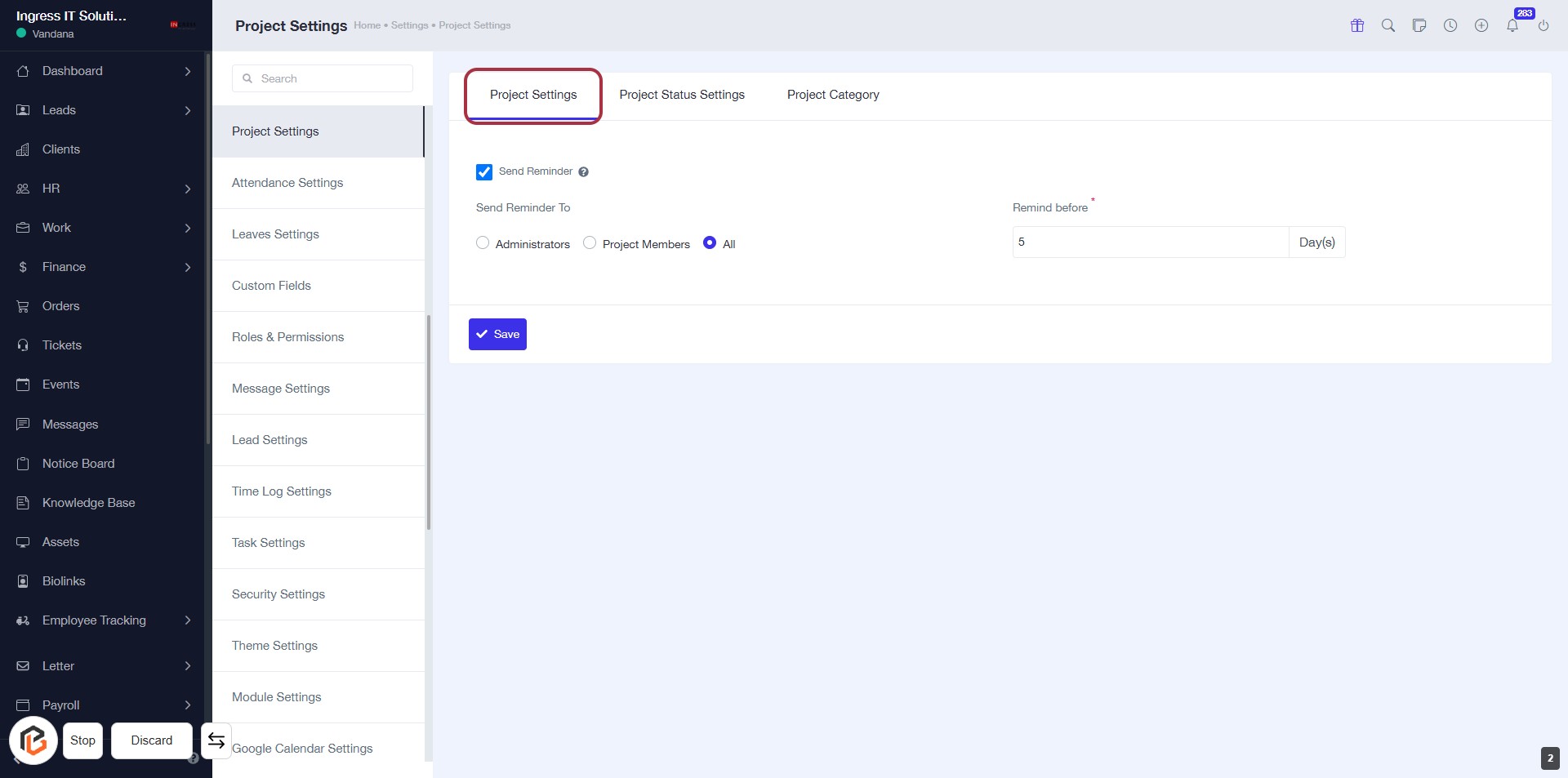
- Click on the Project Settings tab to access the project configuration options.
- Ensure the following inputs are available:
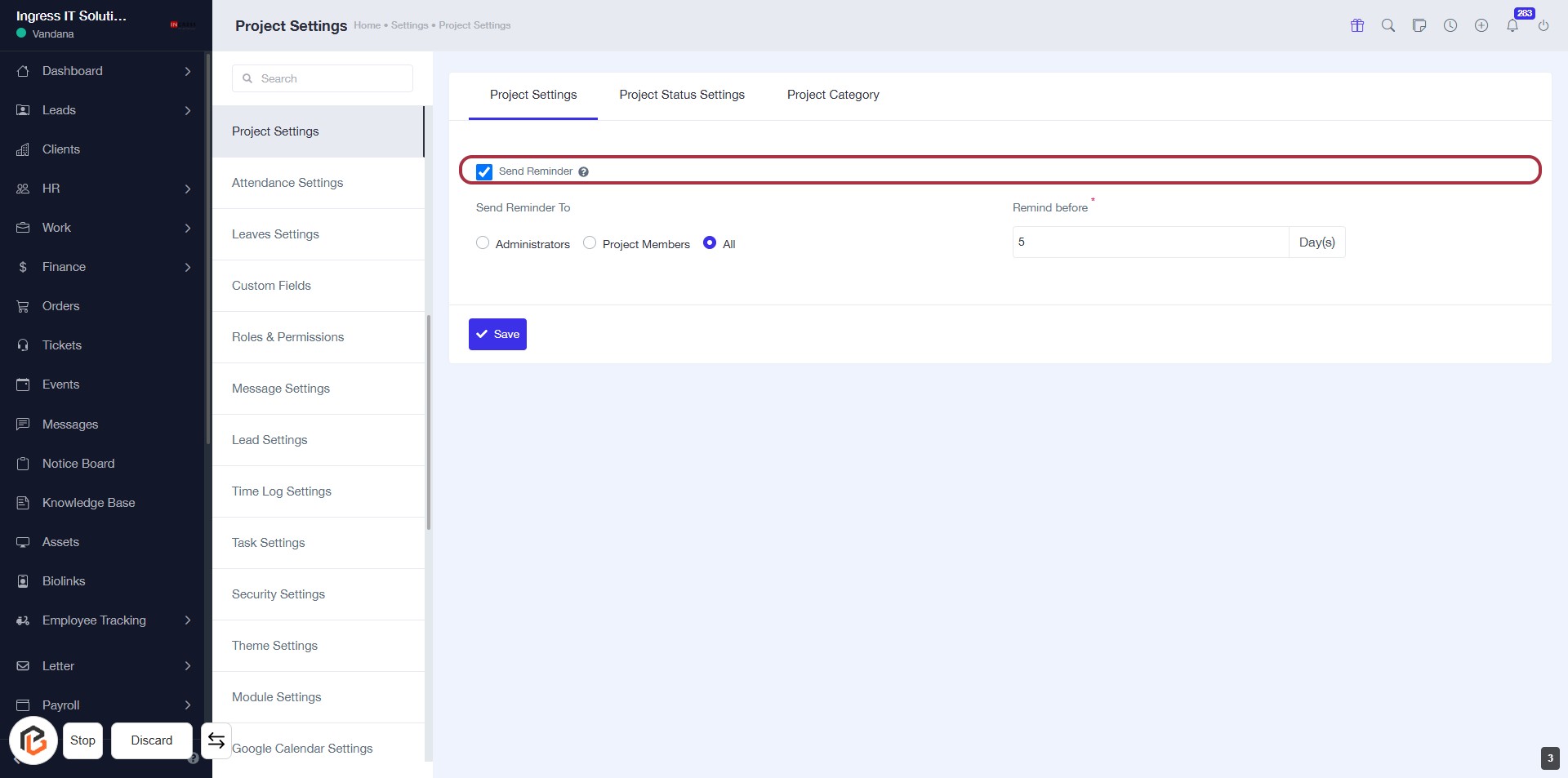
- Send Reminder: Check this option to enable reminders.
- Send Reminder To: Choose between Administrators, Project Members, or All.
- Remind before: Enter the number of days for the reminder (required field marked with *).
- After making your selections, proceed to the next step.
STEP 4: Select "Send Reminder"
- Click on the Send Reminder option in the Project Settings.
- Ensure the checkbox is selected.
- Fill in the Remind before field (marked with *), specifying the number of days.
- Choose the recipient type under Send Reminder To (Administrators, Project Members, or All).
- Click Save to apply changes.
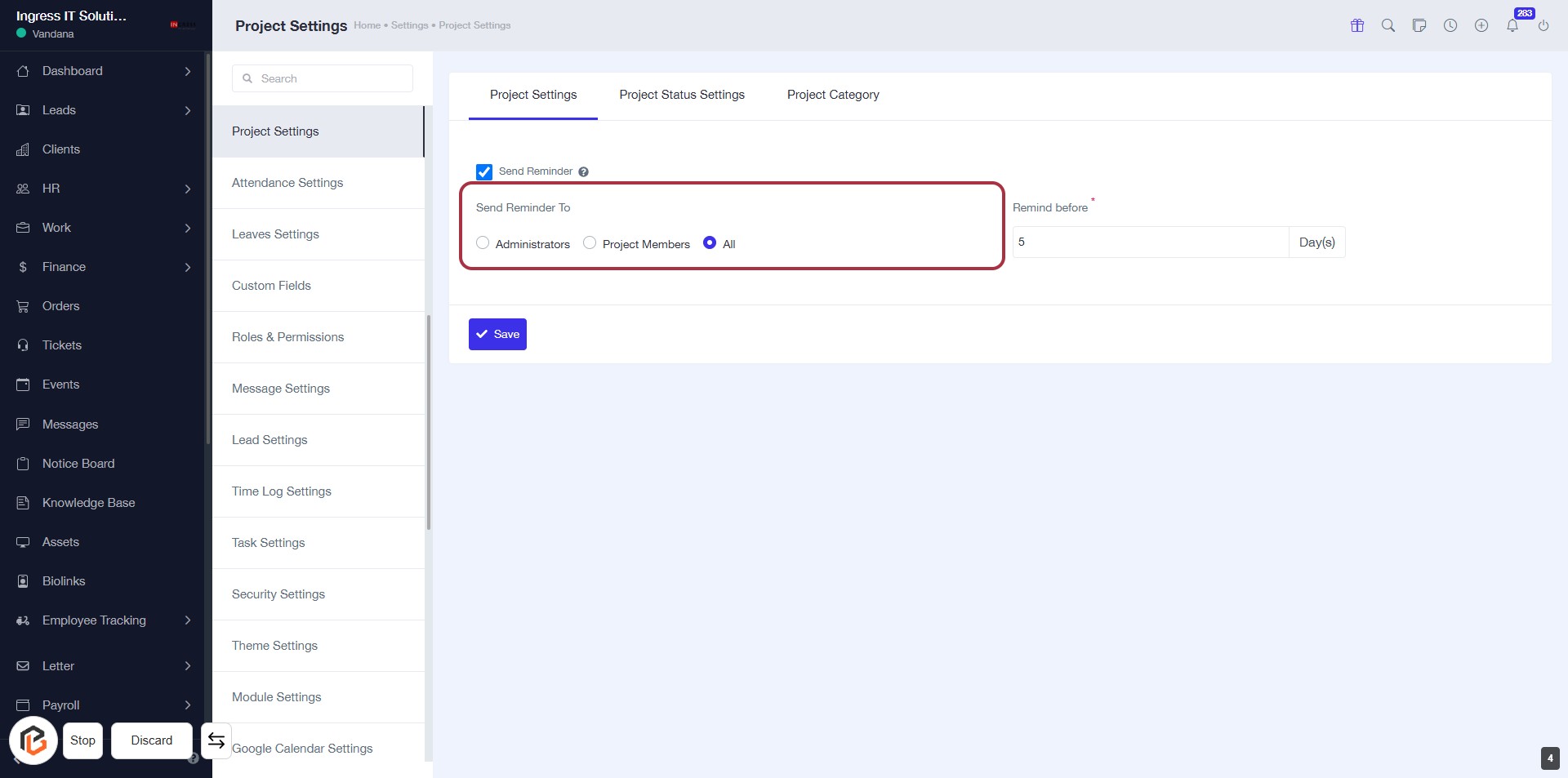
STEP 5: Select "Send Reminder To"
- Click on the "Send Reminder To" section.
- Choose one of the options:
- Administrators
- Project Members
- All
- Ensure to fill in any required fields marked with an asterisk (*).
- Proceed to the next step to enter "Remind before".
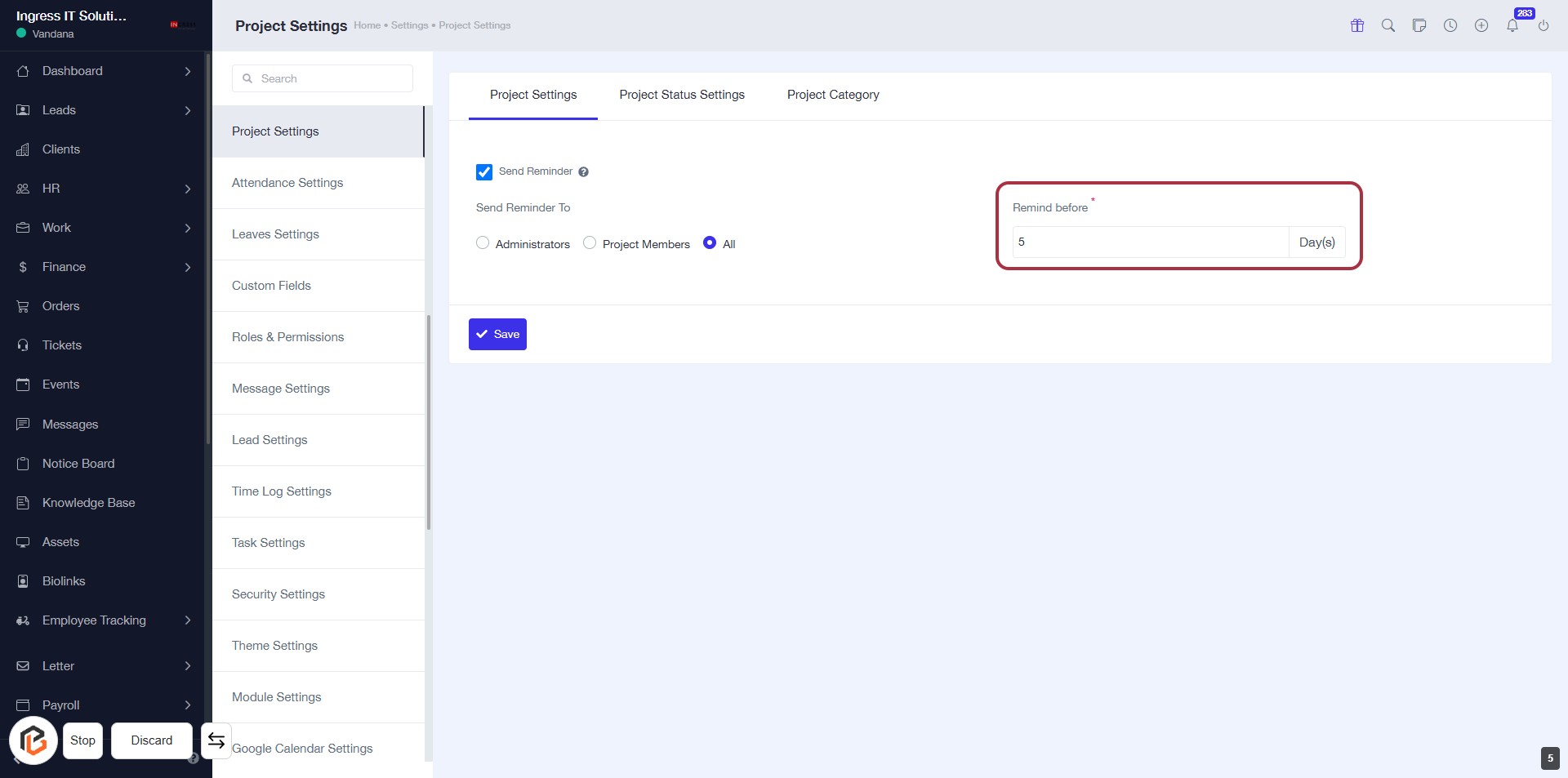
STEP 6: Enter "Remind before" Value
- Click on the "Remind before" field.
- Input the number of days for the reminder (required).
- Ensure the field is filled as it is marked with an asterisk (*).
- Proceed to the next step by clicking the "Save" button to confirm your settings.
STEP 7: Click on "Save" to Confirm Project Settings
- Ensure all required fields are filled, including "Remind before" value.
- Click the Save button located at the bottom right of the form to apply your settings.
- Review the confirmation message to ensure settings are saved successfully.