Step-by-Step Guide to Configuring Payroll Settings and Adding Salary Components in Your Dashboard
12 mins read · Updated 29 Sep, 2025
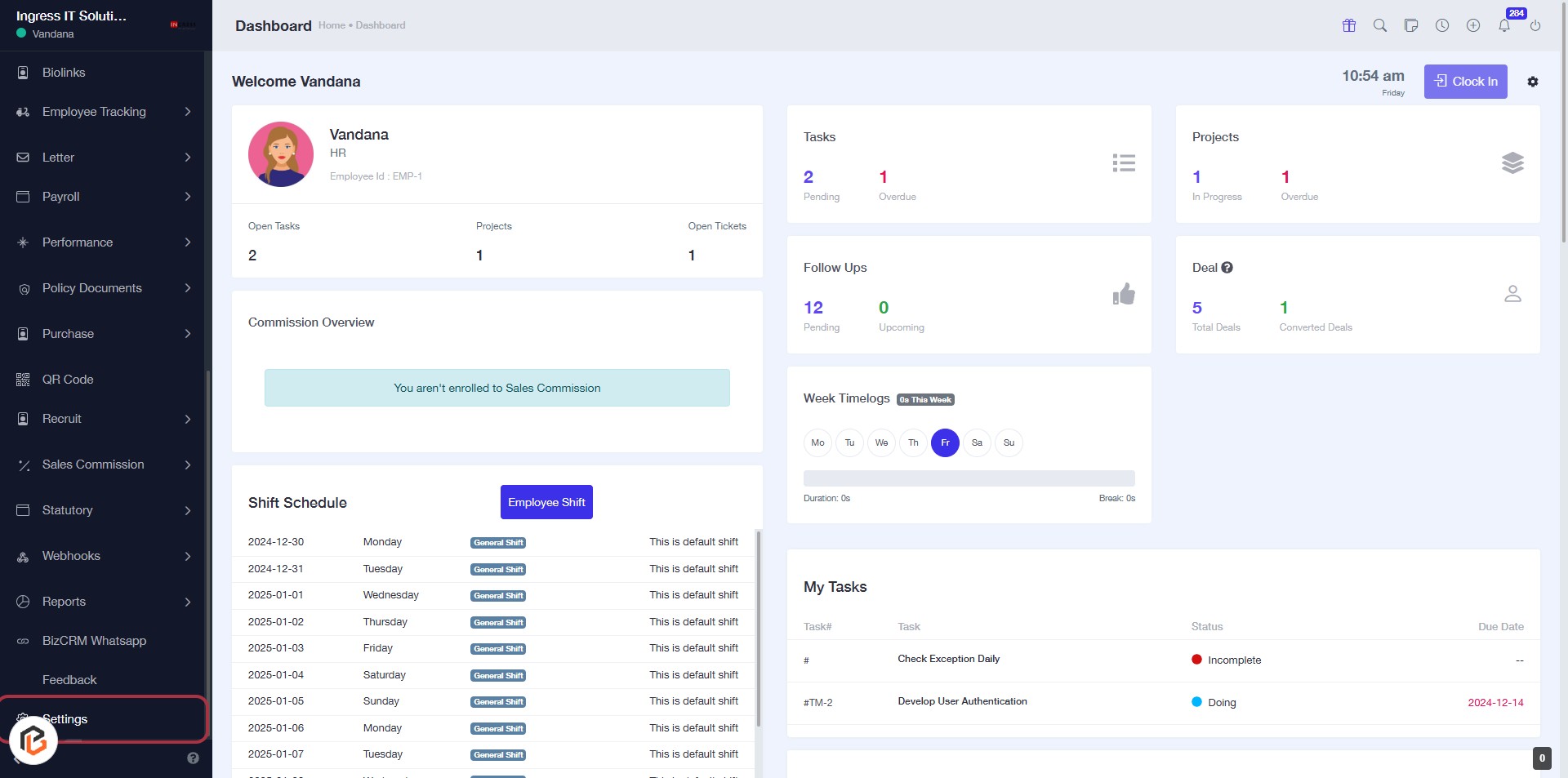
STEP 1: Click on "Settings" to Access Configuration Options
- Navigate to the left sidebar of the dashboard.
- Locate and click on the "Settings" option highlighted in red.
- This will direct you to the settings page where you can manage various configurations.
- Ensure you are logged in to access the settings.
STEP 2: Click on "Payroll Settings"
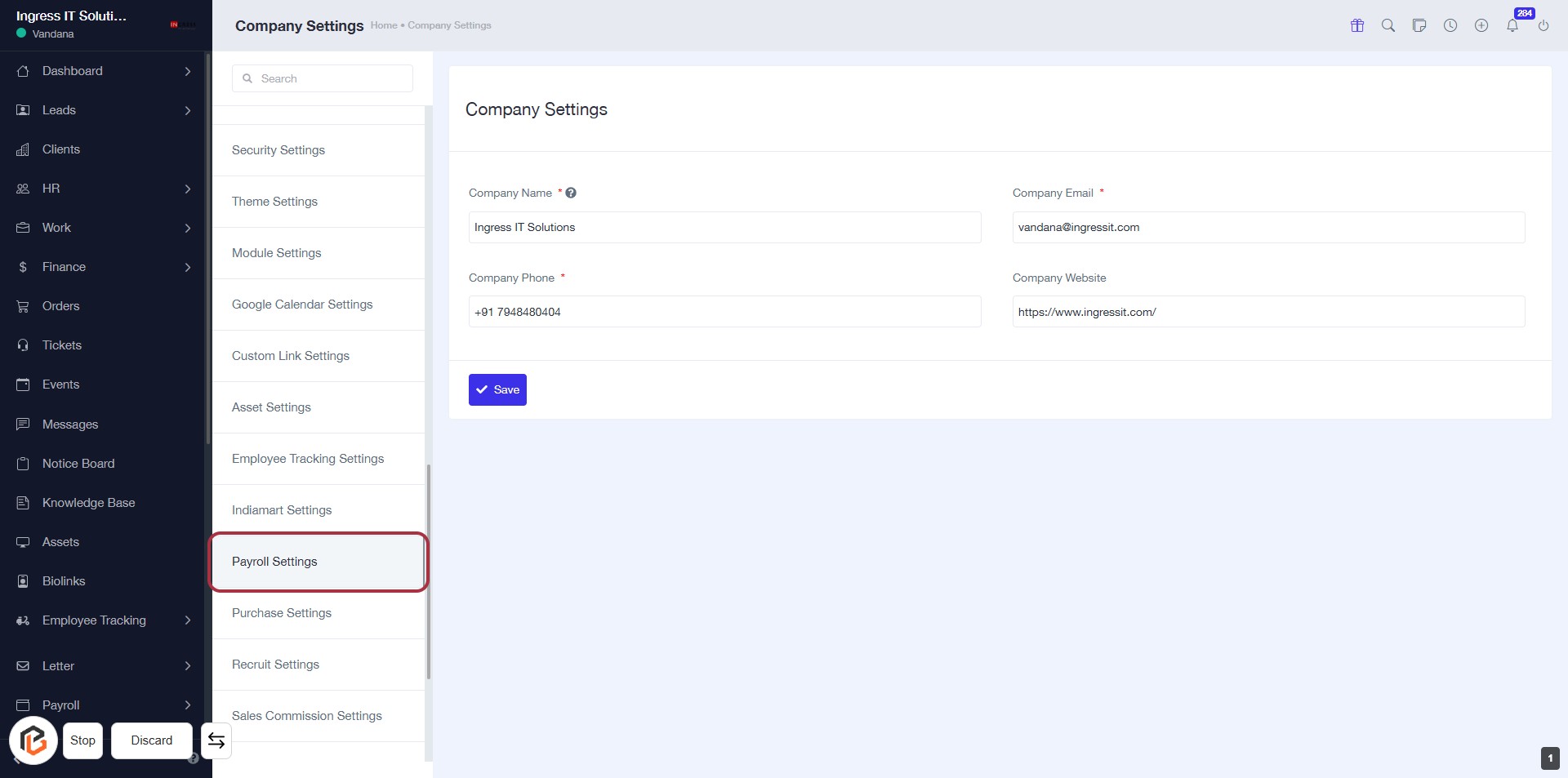
- Navigate to the "Payroll Settings" option in the sidebar menu.
- Click on the "Payroll Settings" link to access the payroll configuration options.
- Ensure you have the necessary permissions to modify payroll settings.
- After clicking, you will be directed to the payroll settings page for further configurations.
STEP 3: Select "Salary Components"
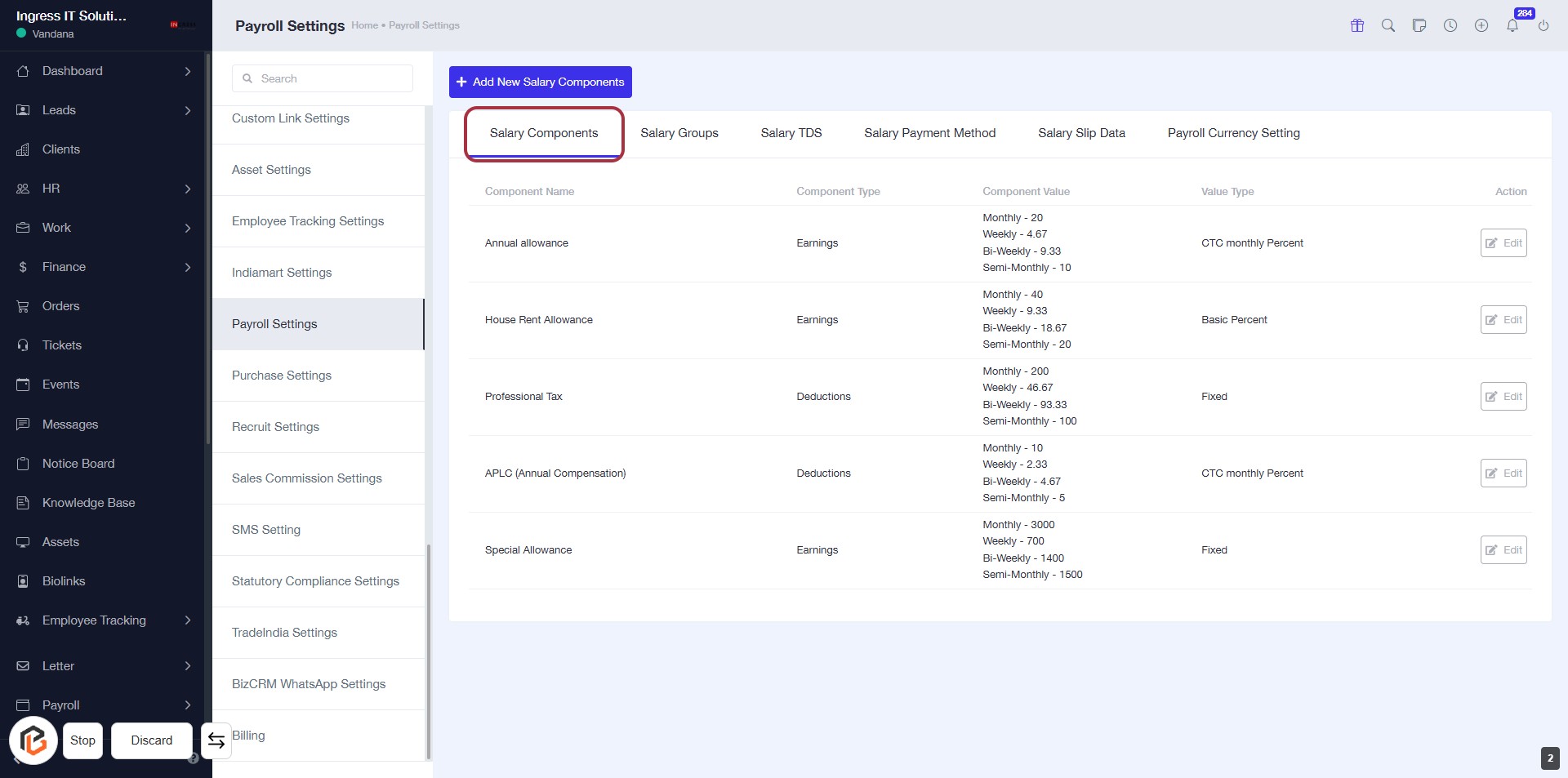
- Click on the "Salary Components" tab to view the list of salary components.
- Ensure you are on the Payroll Settings page.
- Review the components listed, including Annual Allowance, House Rent Allowance, and others.
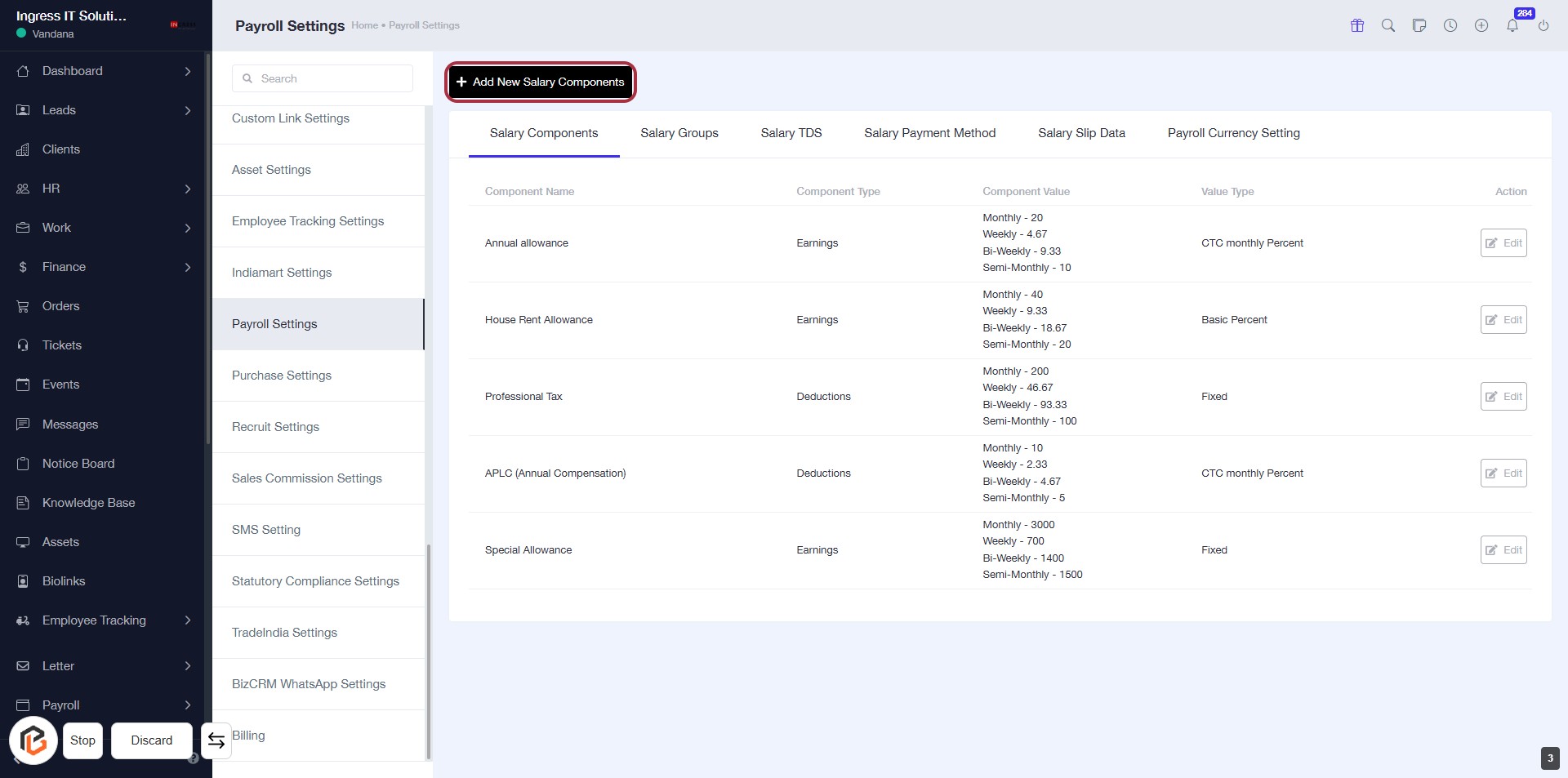
- Next, proceed by clicking on "Add New Salary Components" to create or modify salary entries.
STEP 4: Click on "Add New Salary Components"
- Navigate to the Payroll Settings page.
- Locate the Add New Salary Components button highlighted in red.
- Click on the button to initiate adding new salary components.
- Ensure to fill in all required fields in the subsequent form that appears.
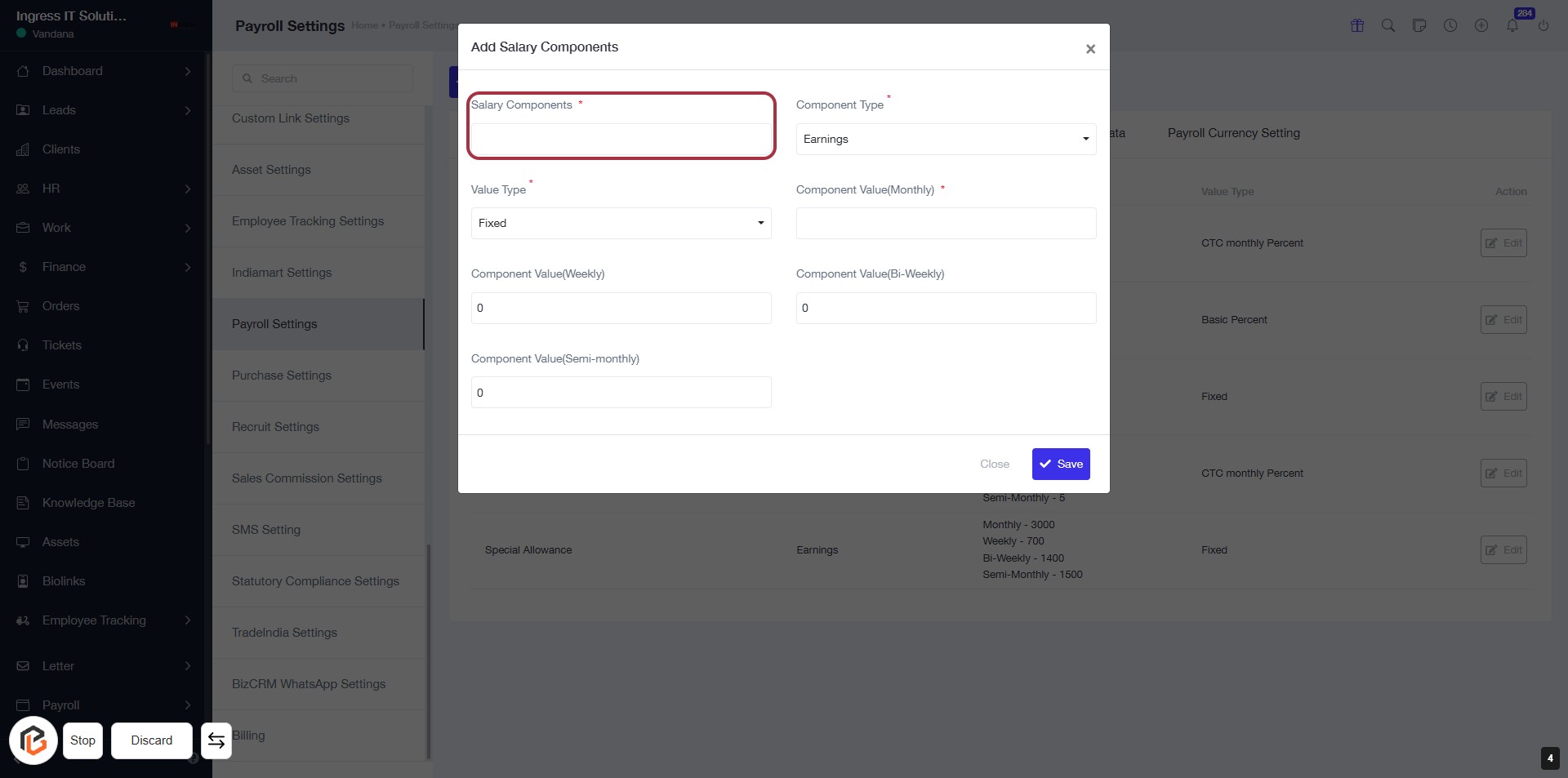
STEP 5: Enter Salary Components
- Click on the highlighted area labeled "Salary Components" (marked with a red border).
- Ensure to fill in this field as it is mandatory (indicated by the asterisk '*').
- Proceed to the next step by selecting the "Value Type" option.
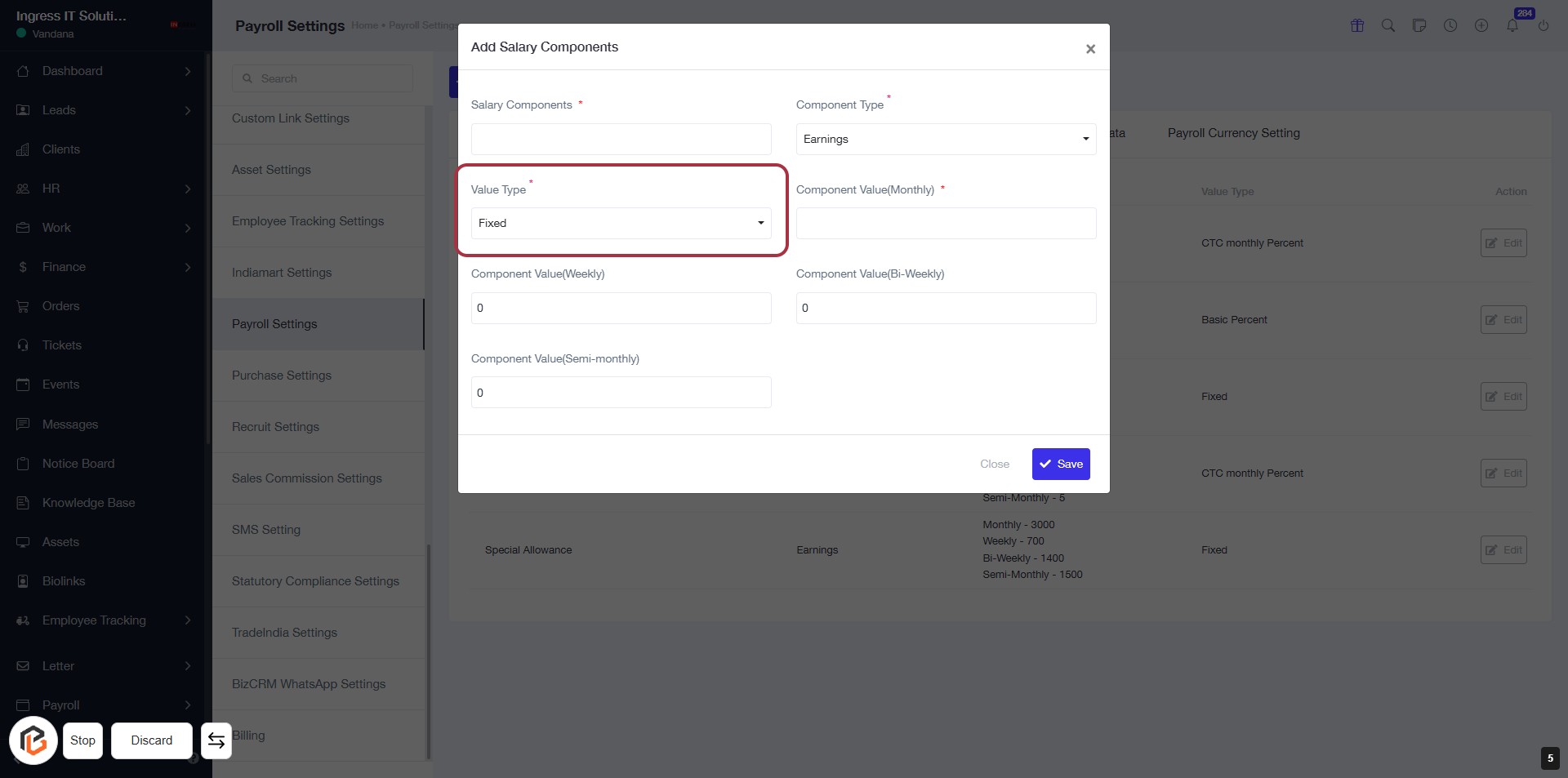
STEP 6: Select "Value Type"
- Click on the "Value Type" dropdown menu.
- Choose the appropriate value type (e.g., Fixed, Variable).
- Ensure that the field marked with an asterisk (*) is filled, as it is required.
- Review other fields for any additional information needed for salary components.
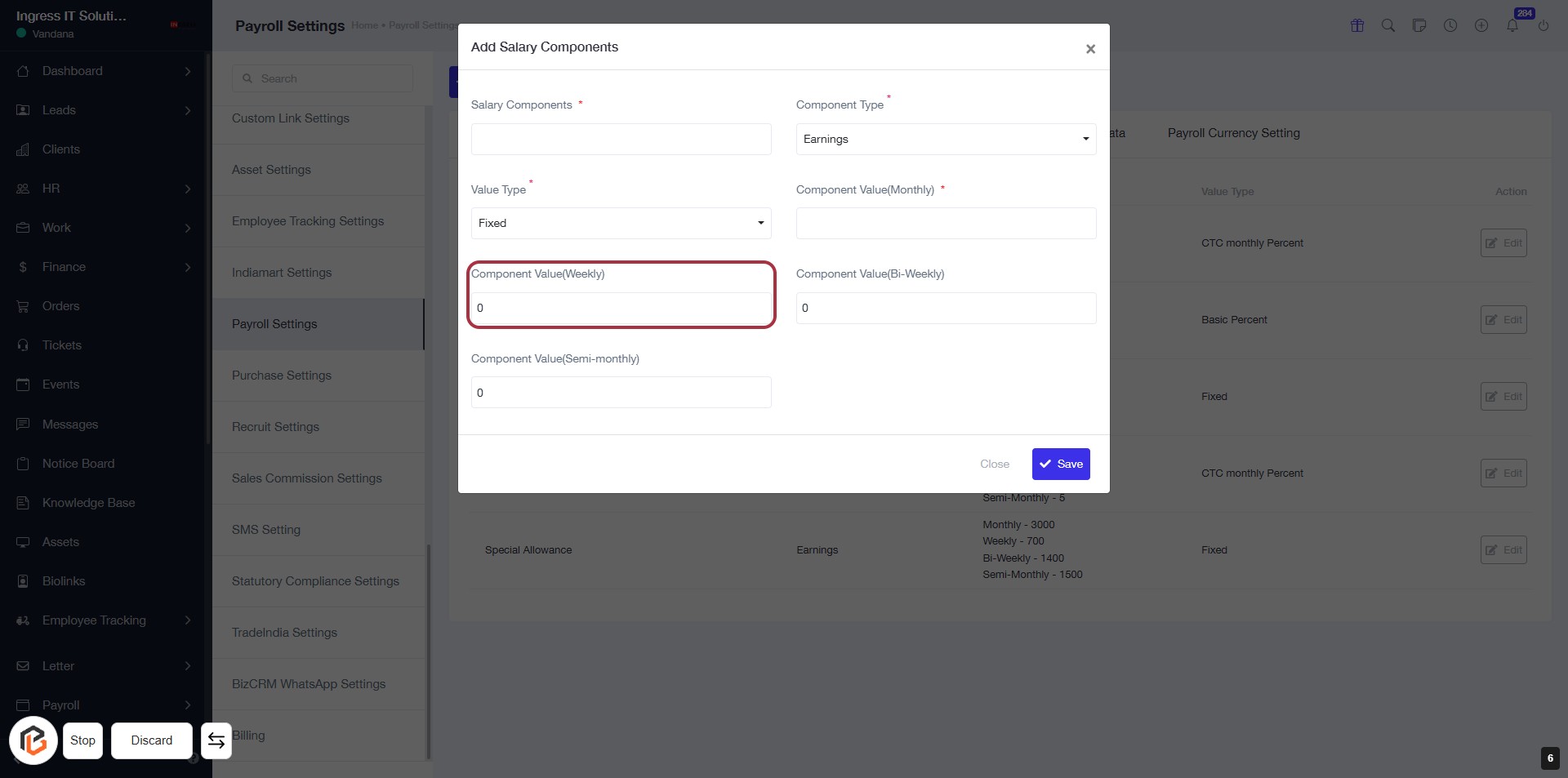
STEP 7: Enter "Component Value(Weekly)"
- Click on the "Component Value(Weekly)" field to input the desired value.
- Ensure to fill in any required fields marked with an asterisk (*).
- Review other fields for accuracy before proceeding.
- After entering the value, continue to the next step to input "Component Value(Semi-monthly)".
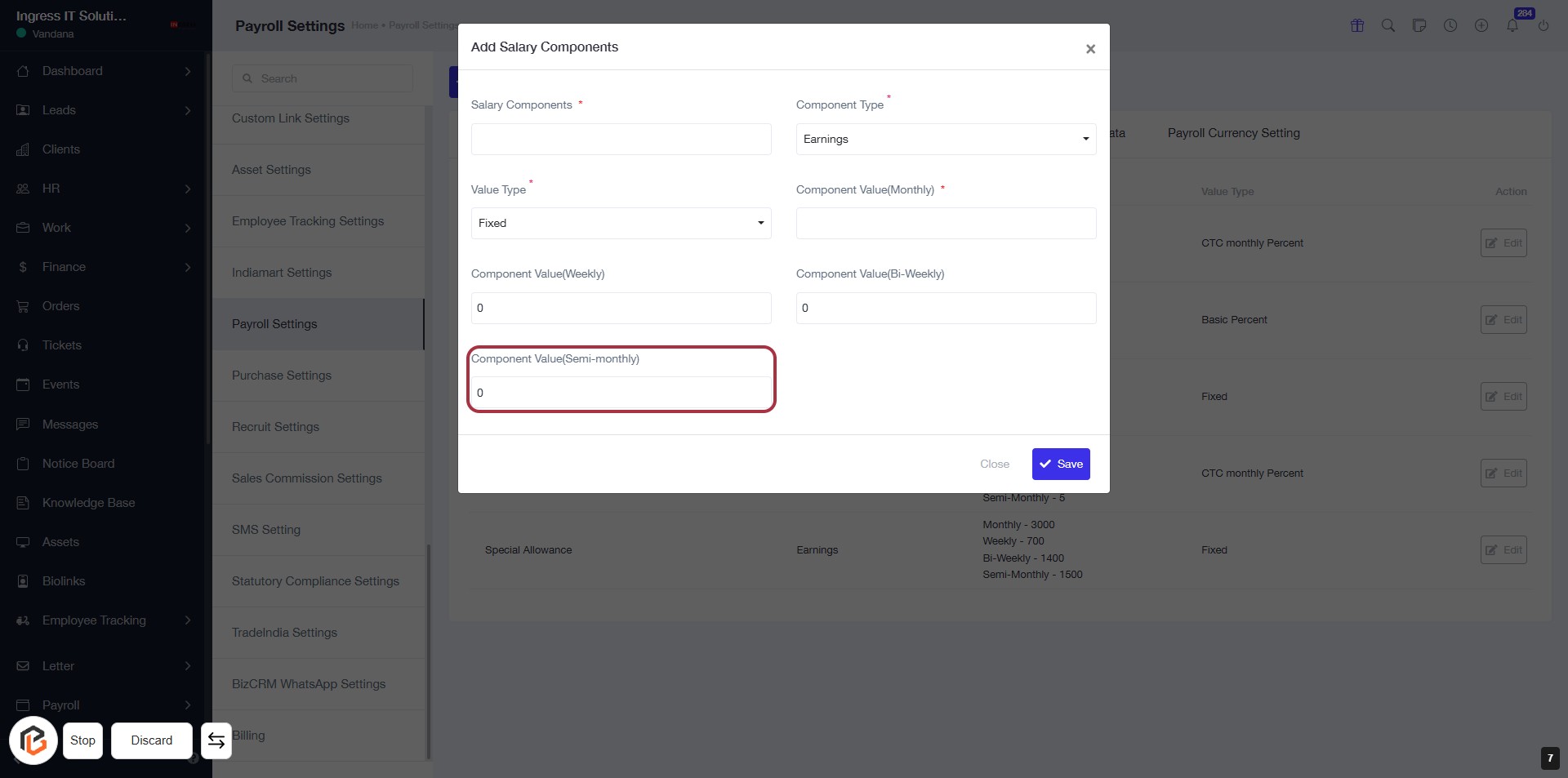
STEP 8: Enter "Component Value(Semi-monthly)"
- Click on the highlighted area labeled "Component Value(Semi-monthly)".
- Ensure to enter the appropriate value in the input field.
- Review other required fields marked with an asterisk (*) for completion.
- Proceed to the next step by selecting "Component Type".
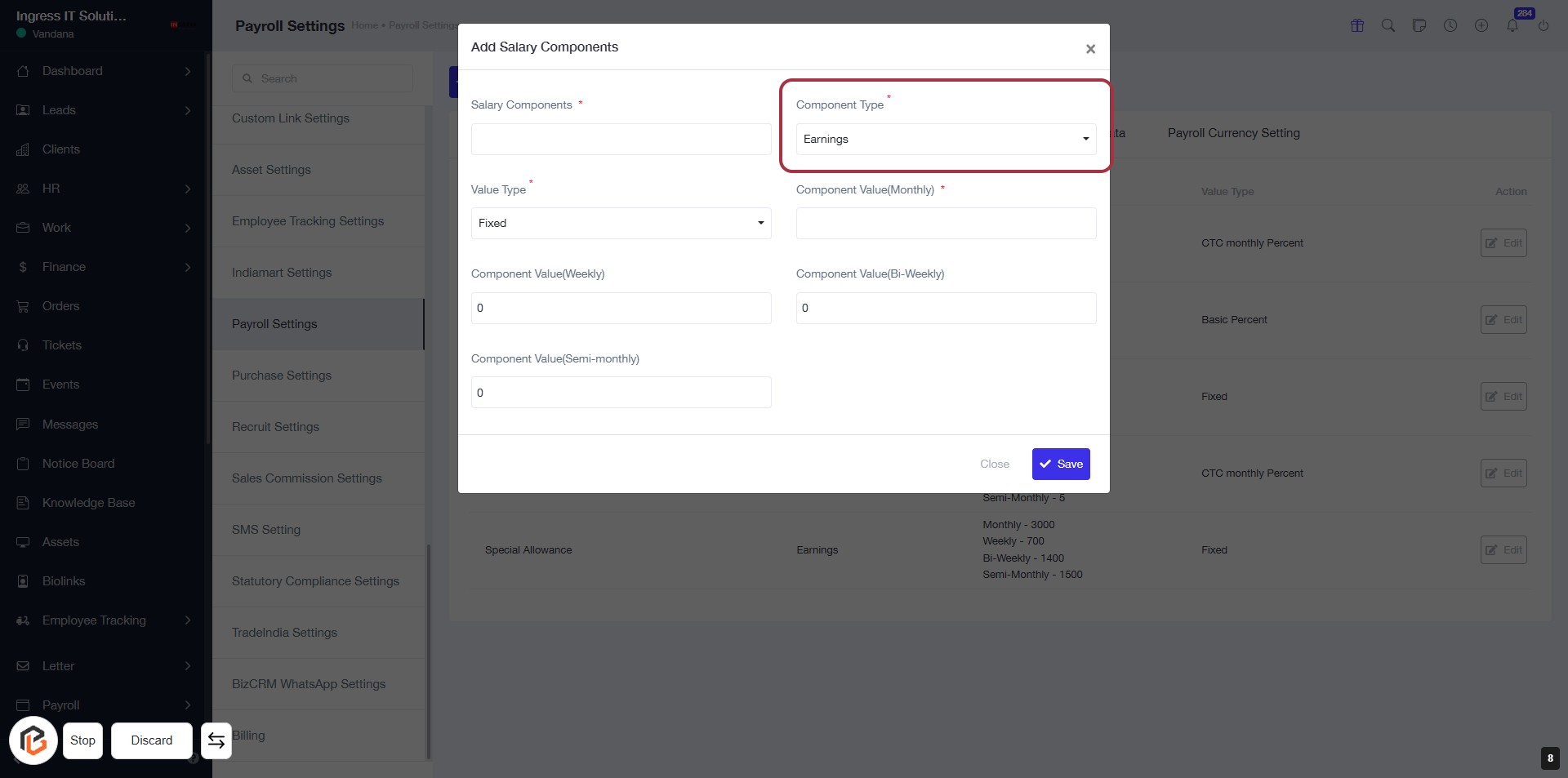
STEP 9: Select "Component Type"
- Click on the "Component Type" dropdown.
- Choose the appropriate type from the list (e.g., Earnings).
- Ensure the field is marked with an asterisk (*) indicating it's required.
- Review other fields for additional inputs needed, such as "Salary Components" and "Value Type."
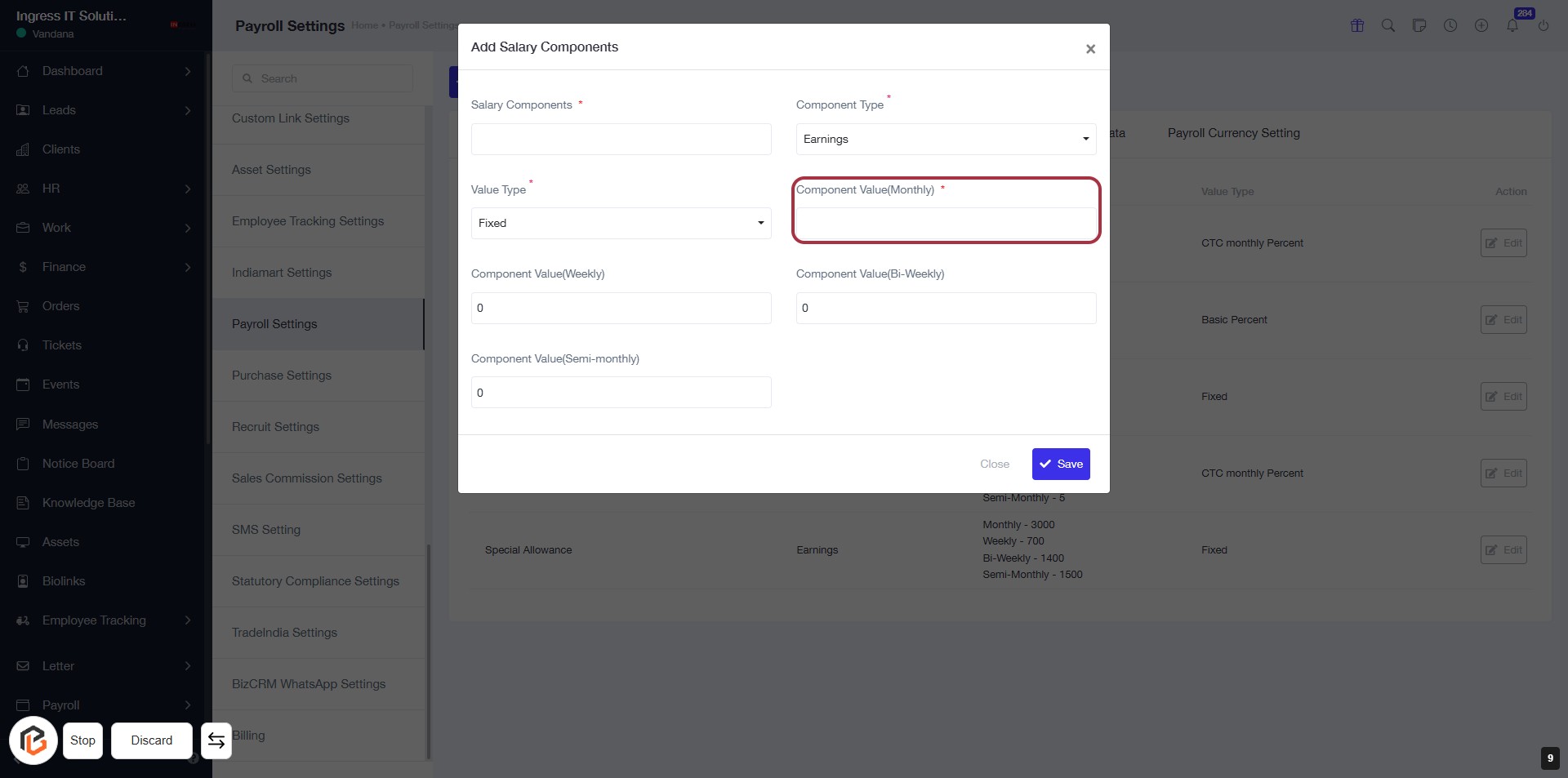
STEP 10: Enter "Component Value(Monthly)"
- Click on the highlighted area labeled "Component Value(Monthly)".
- Ensure to fill in the required field marked with an asterisk (*).
- This field is essential for defining the monthly salary component.
- After entering the value, proceed to the next step to enter "Component Value(Bi-Weekly)".
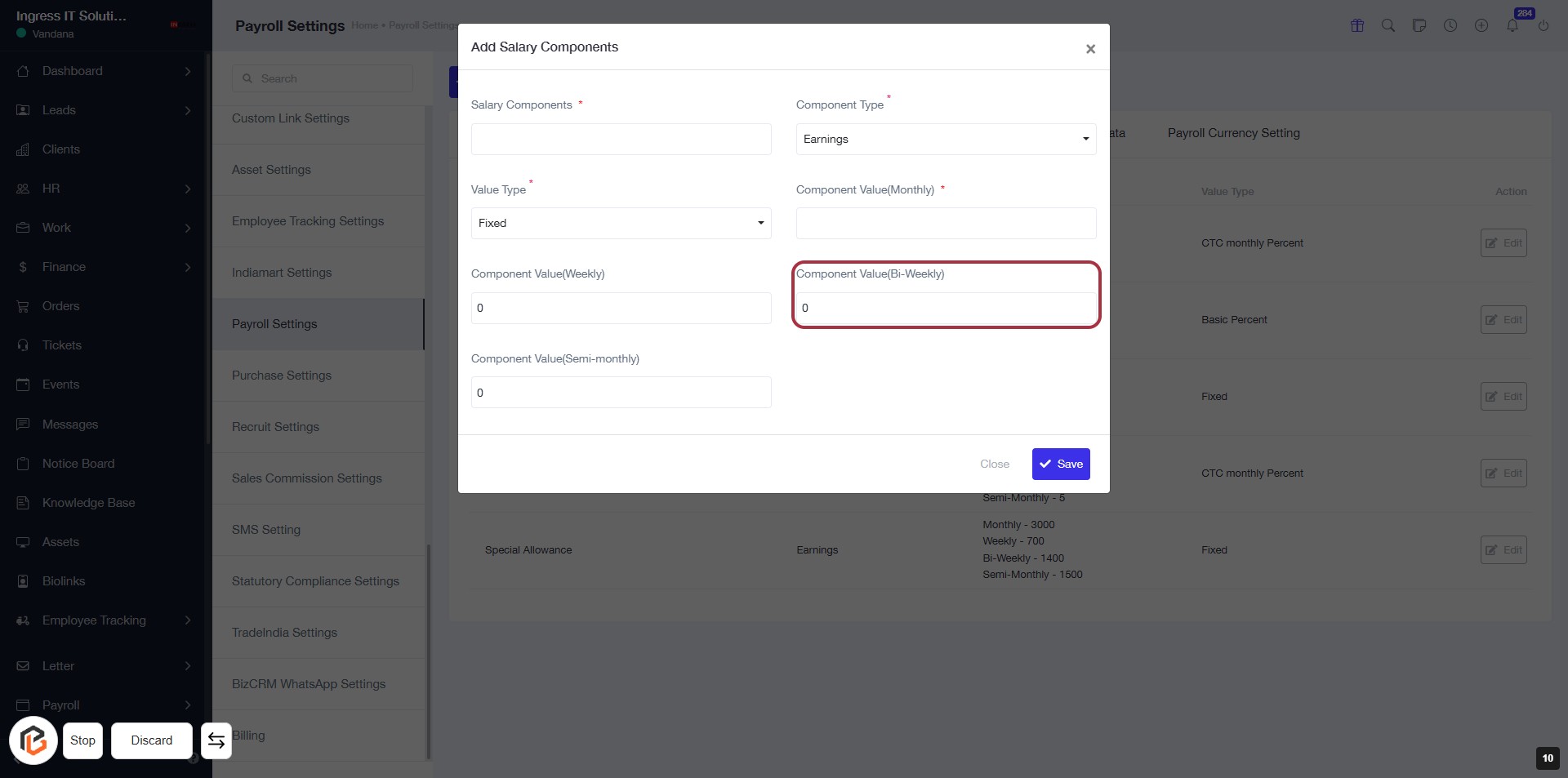
STEP 11: Enter "Component Value(Bi-Weekly)"
- Click on the highlighted area labeled "Component Value(Bi-Weekly)" to input the value.
- Ensure all required fields marked with an asterisk (*) are filled out.
- Review the values entered in other components (Weekly, Semi-monthly).
- Proceed to the next step by clicking the "Save" button.
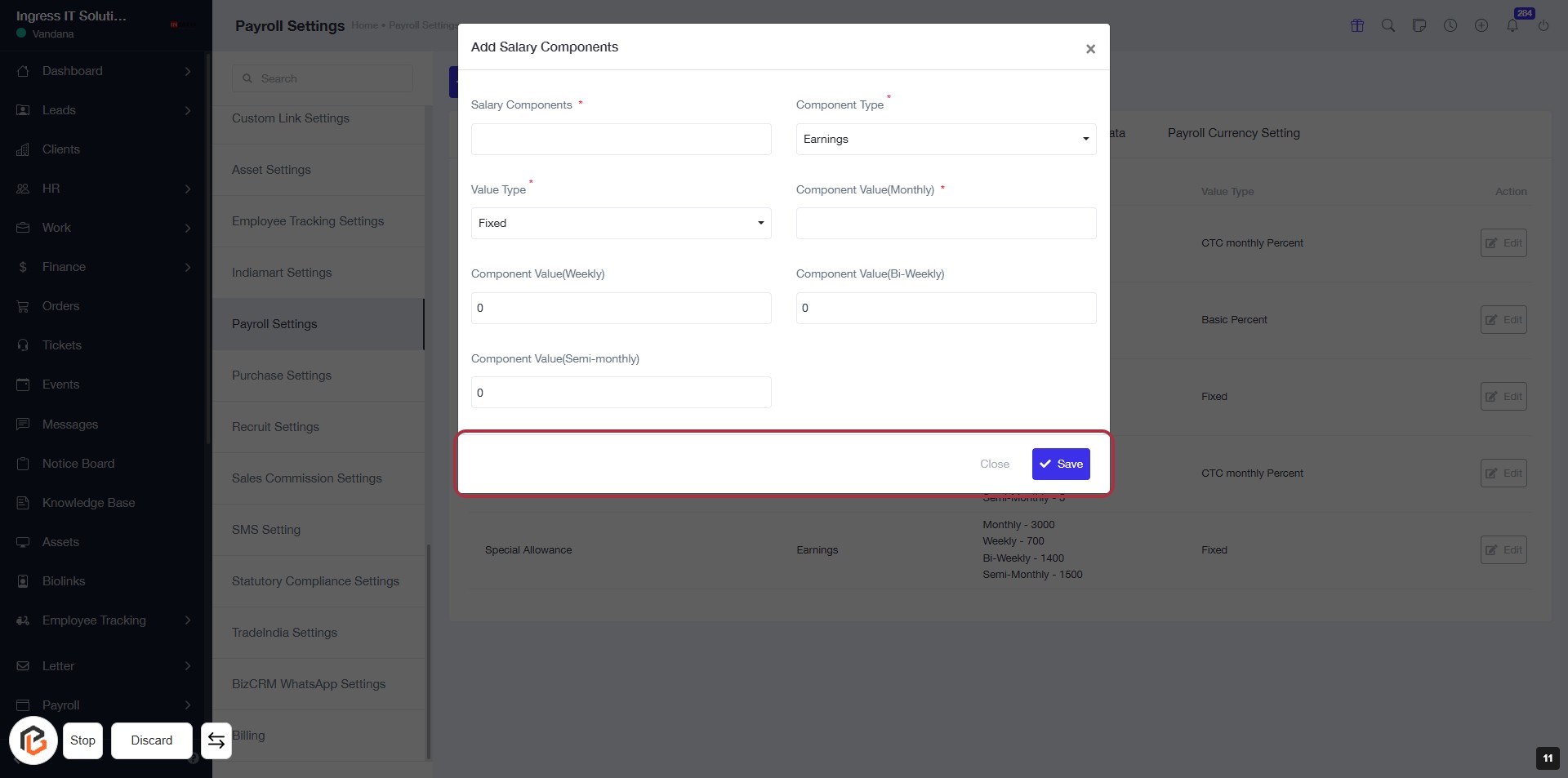
STEP 12: Click on "Save" to Confirm Salary Component
- Ensure all required fields are filled, including Salary Components, Value Type, and Component Values.
- Review the entries for accuracy before proceeding.
- Click the Save button located at the bottom right of the dialog box to finalize your changes.