Step-by-Step Guide to Configuring Lead Sources in Your Dashboard Settings
6 mins read · Updated 29 Sep, 2025
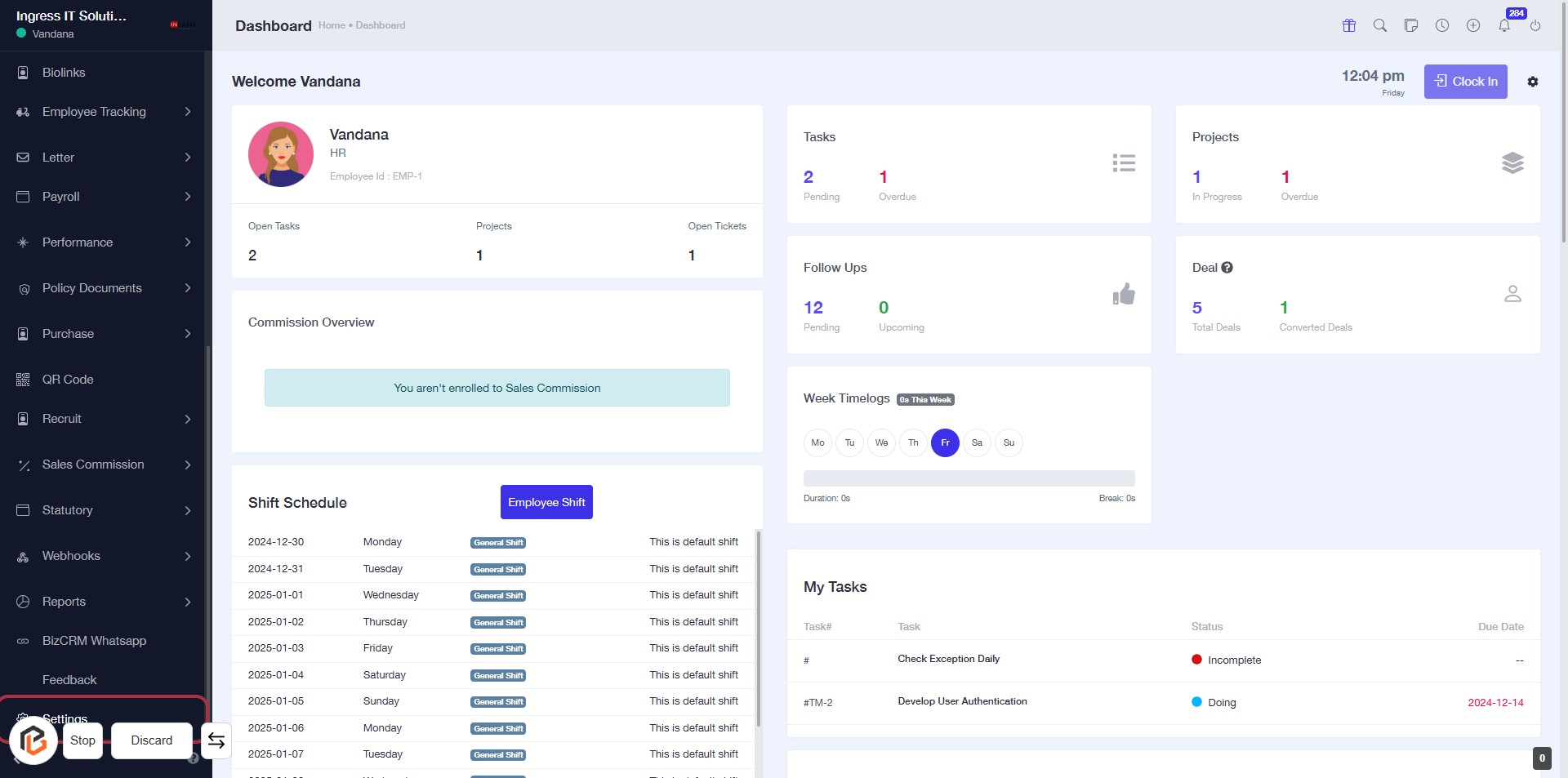
STEP 1: Click on "Settings" to Access Configuration Options
- Navigate to the left sidebar of the dashboard.
- Click on the Settings link to open the settings menu.
- Ensure you are on the correct page before proceeding to the next step.
This action will prepare you for further configurations in the system.
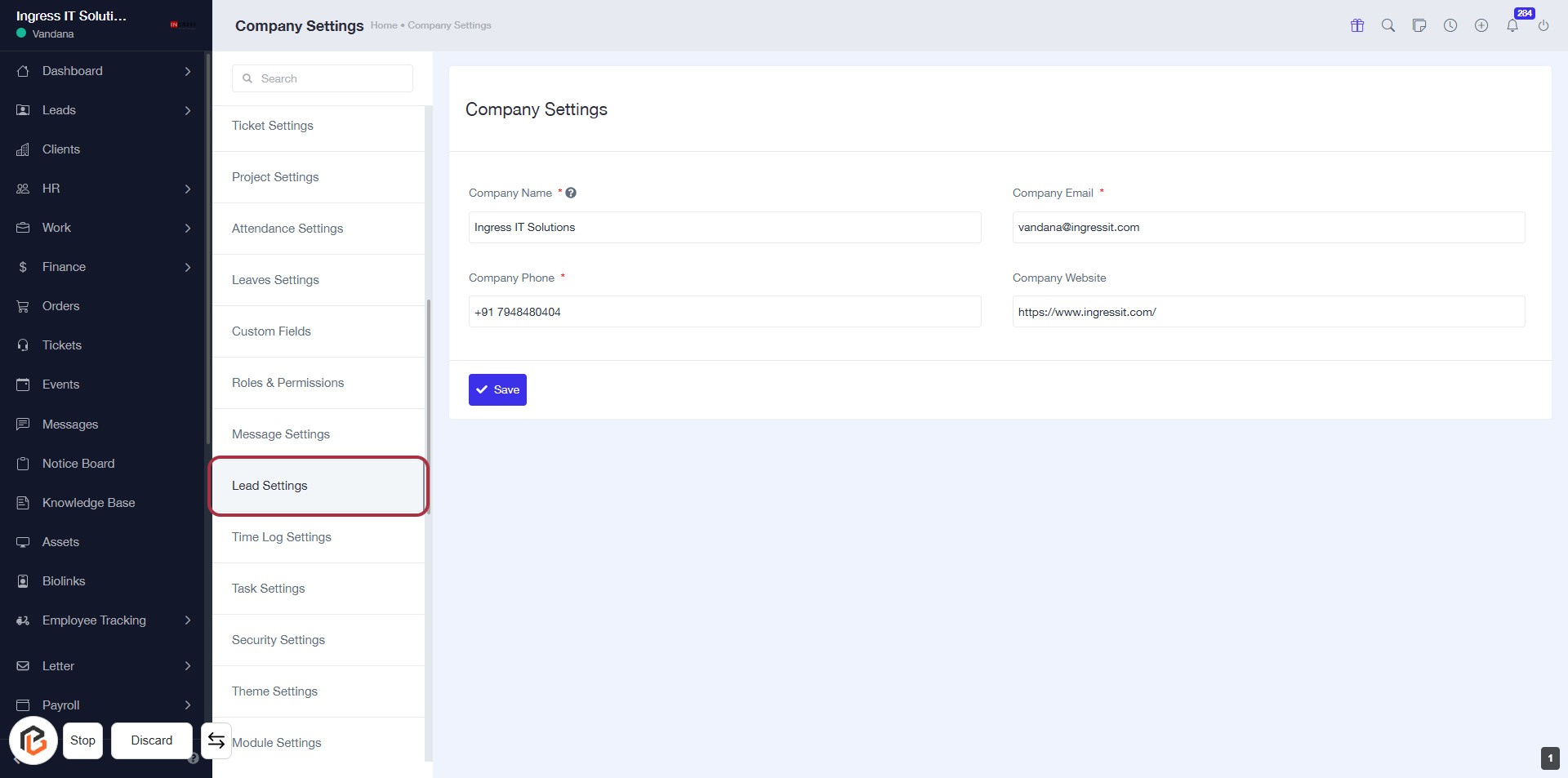
STEP 2: Click on "Lead Settings" to Access Lead Configuration
- Navigate to the "Lead Settings" option in the sidebar menu.
- Click on the "Lead Settings" link to open the lead configuration settings.
- Ensure you have the necessary permissions to access this section.
- After clicking, you will be directed to the lead settings page for further configurations.
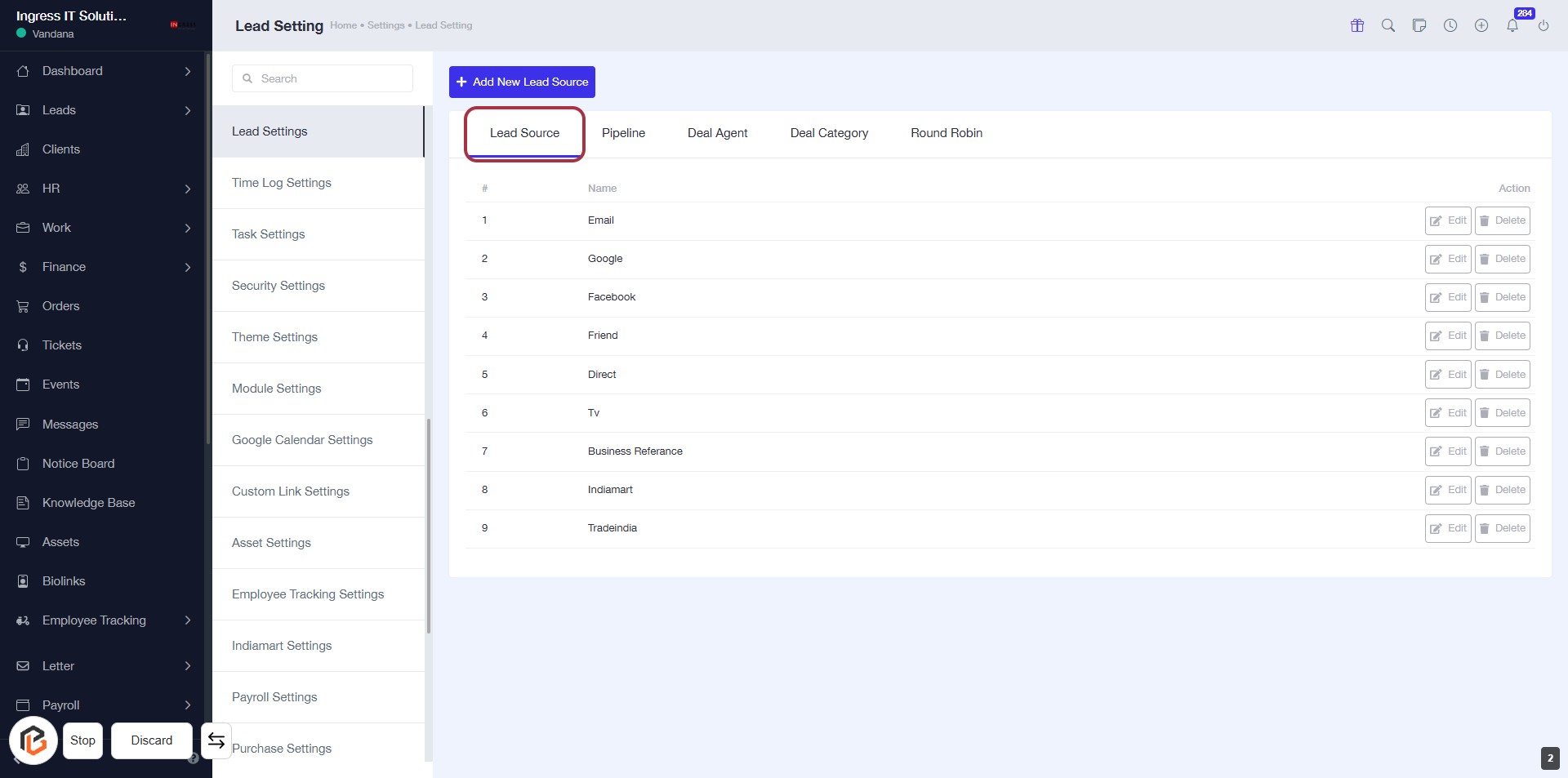
STEP 3: Select "Lead Source"
- Click on the "Lead Source" tab to view the available lead sources.
- Review the list of existing lead sources displayed in the table.
- Ensure to check the columns: Pipeline, Deal Agent, Deal Category, and Round Robin for relevant details.
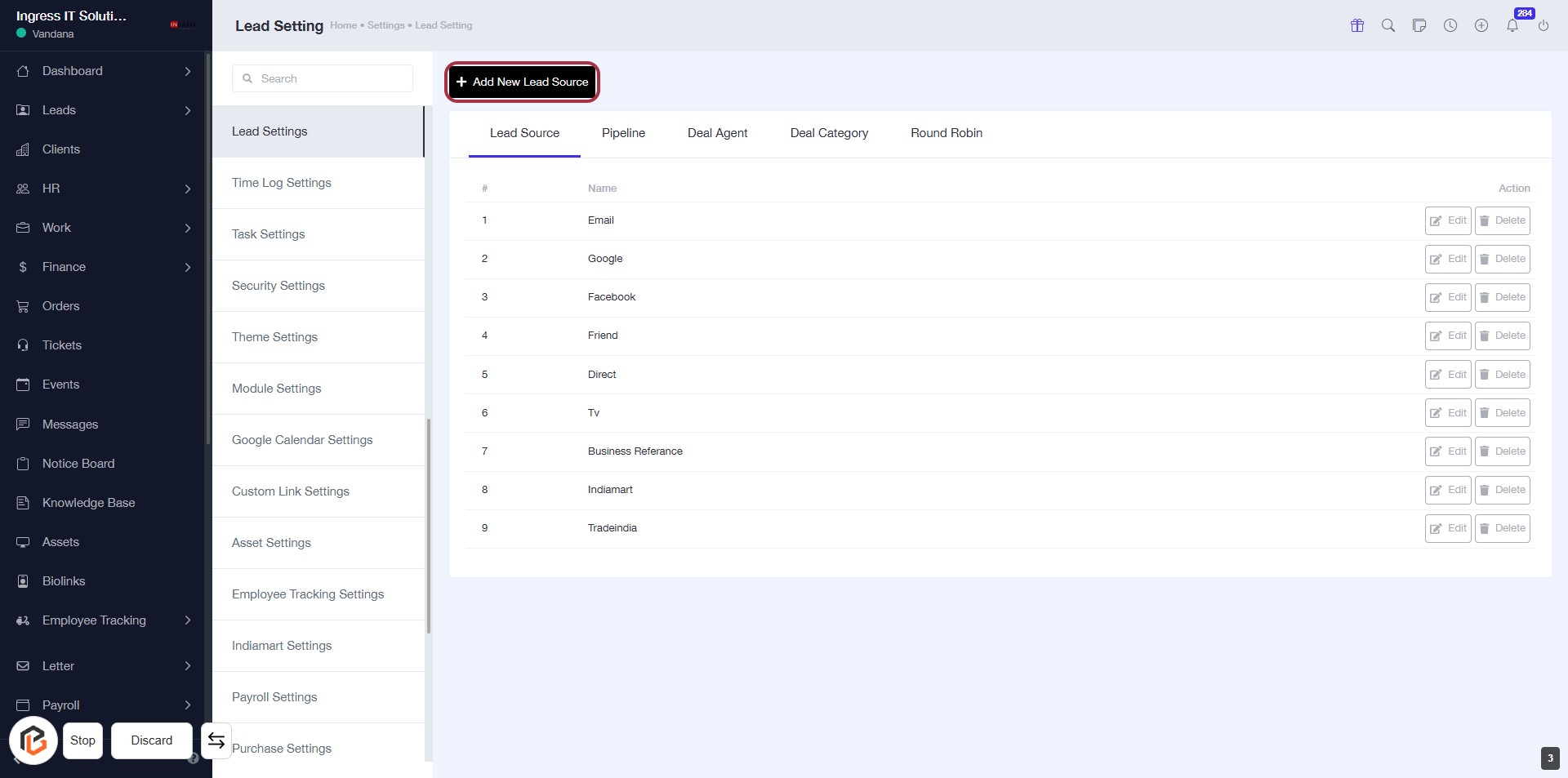
- Proceed to the next step by clicking on "Add New Lead Source" to create a new entry.
STEP 4: Click "Add New Lead Source"
- Navigate to the Lead Settings page.
- Locate the Add New Lead Source button highlighted in red.
- Click on the button to initiate adding a new lead source.
- Ensure all required fields are filled in the subsequent form.
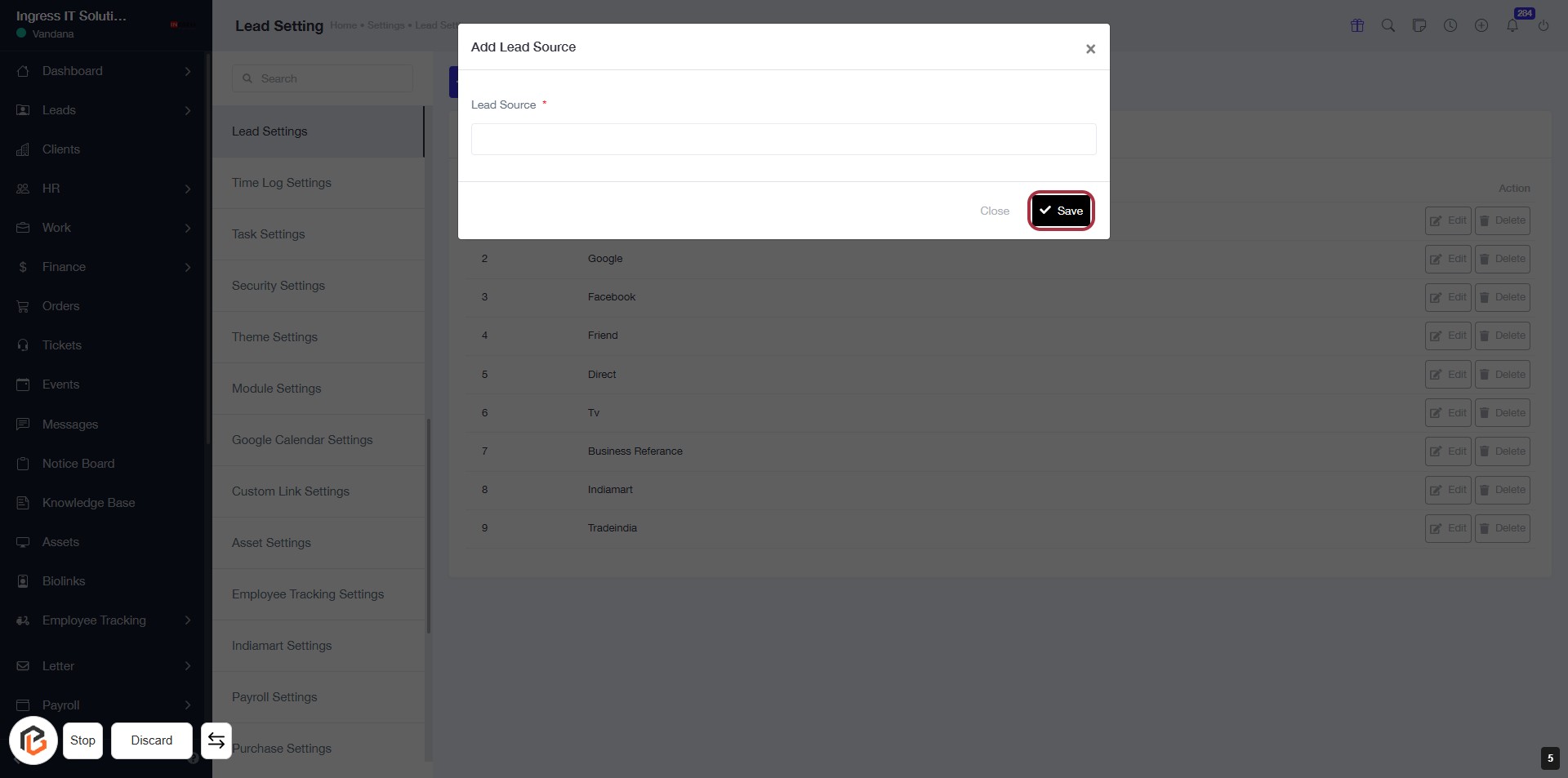
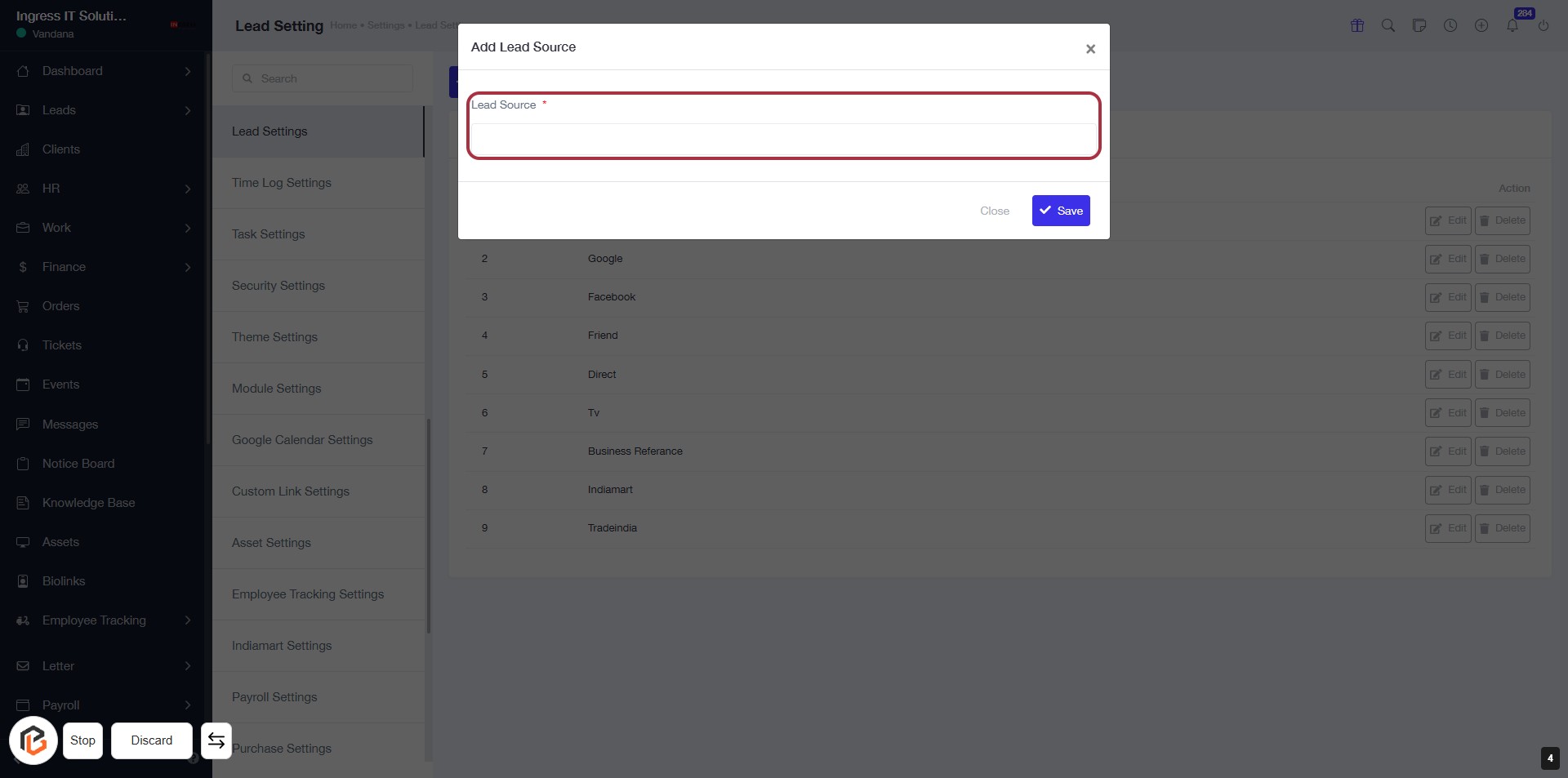
STEP 5: Enter "Lead Source"
- Click on the highlighted area labeled "Lead Source" to input your desired lead source.
- Ensure the field marked with an asterisk (*) is filled, as it is required.
- After entering the information, proceed to the next step by clicking the "Save" button.
STEP 6: Click on "Save" to Finalize Lead Source
- Ensure all required fields, marked with an asterisk (*), are filled out.
- Locate the "Save" button in the dialog box.
- Click the "Save" button to save your lead source settings.
- Review any confirmation messages to ensure successful saving.