Step-by-Step Guide to Configuring Lead Settings and Round Robin Distribution
4 mins read · Updated 29 Sep, 2025
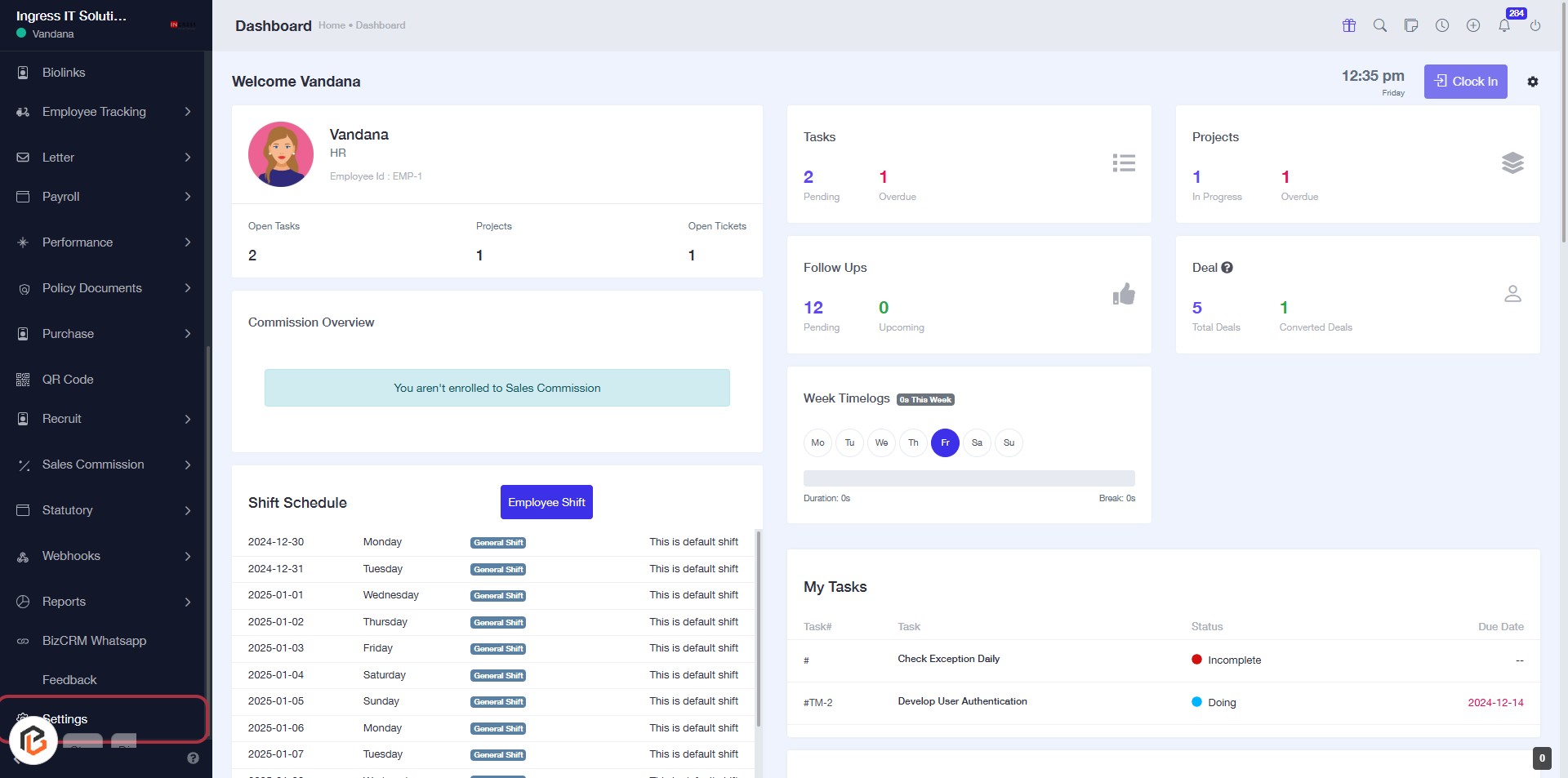
STEP 1: Click on "Settings" to Access Configuration Options
- Navigate to the left sidebar of the dashboard.
- Click on the Settings link highlighted in red.
- This will direct you to the settings configuration page for further adjustments.
Make sure to follow the next step to access "Lead Settings" for more specific configurations.
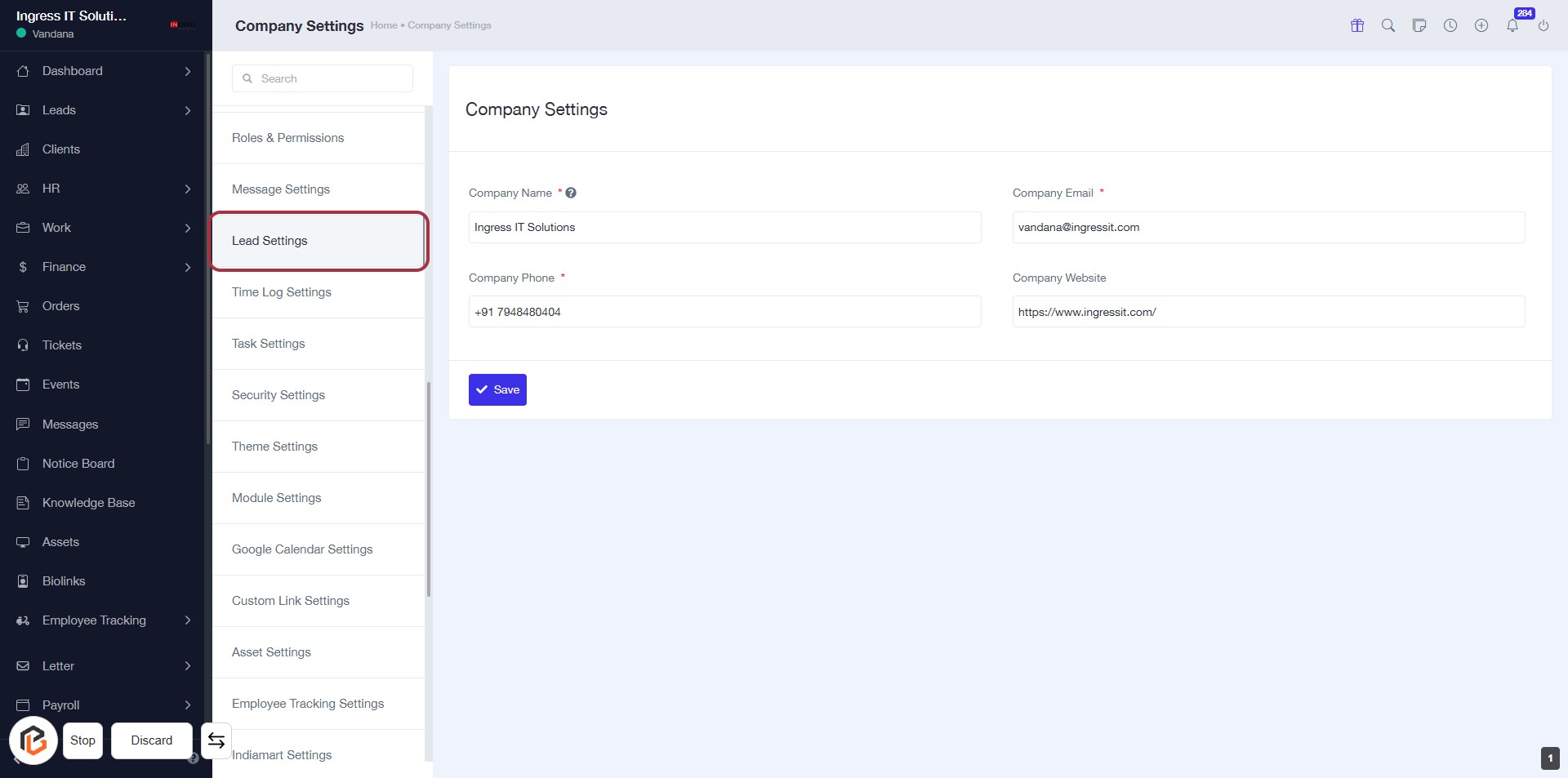
STEP 2: Click on "Lead Settings" to Access Company Configuration
- Navigate to the "Lead Settings" section in the sidebar.
- Ensure you are on the Company Settings page.
- Review the following input fields:
- Company Name (*required)
- Company Phone (*required)
- Company Email (*required)
- Company Website (optional)
- Click "Save" after entering the necessary information.
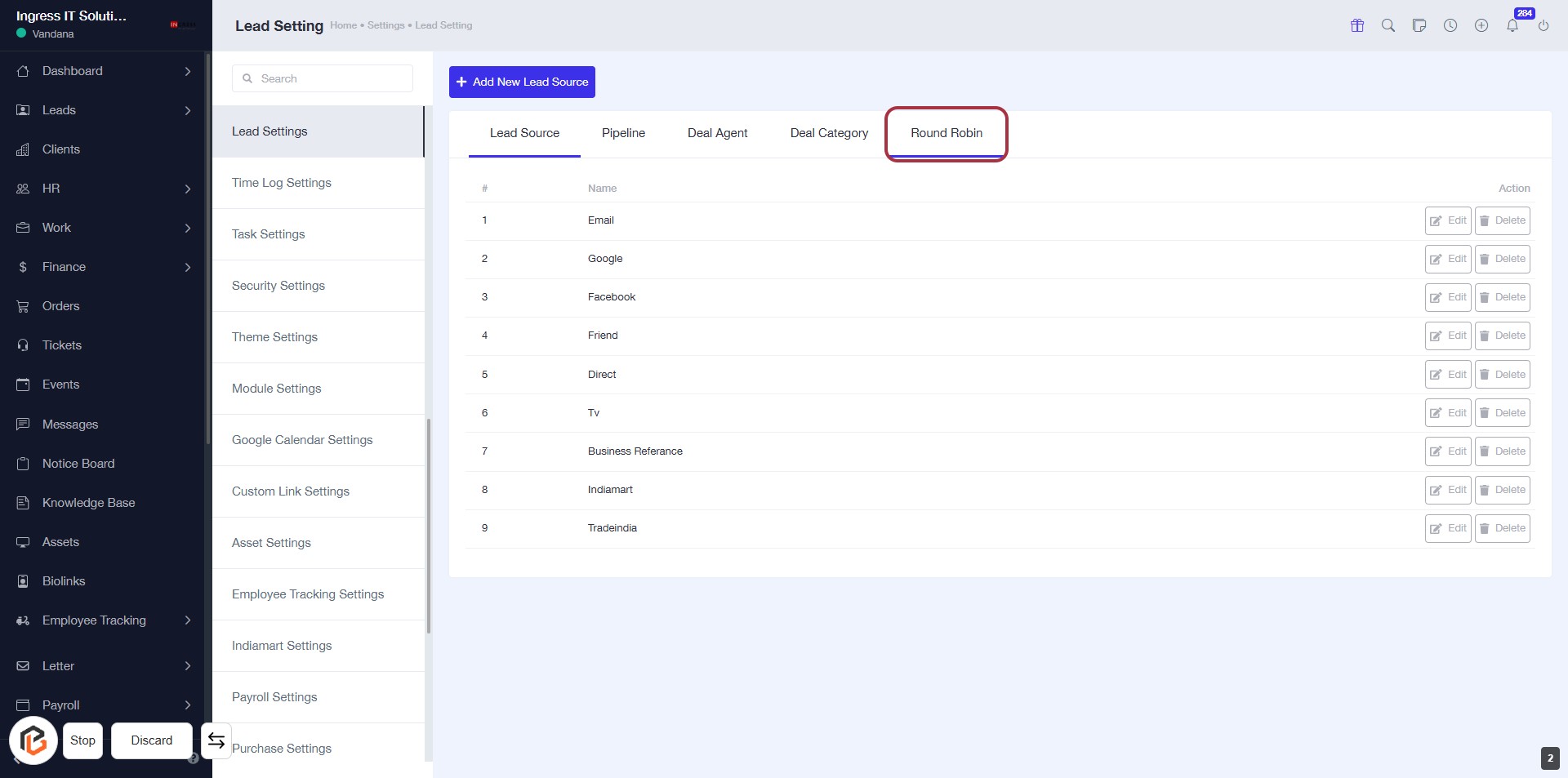
STEP 3: Select "Round Robin"
- Click on the "Round Robin" tab in the Lead Settings section.
- Ensure you are on the Lead Settings page.
- This action will allow you to configure the Round Robin settings for lead distribution.
- Look for any additional options or settings that may appear after selecting this tab.
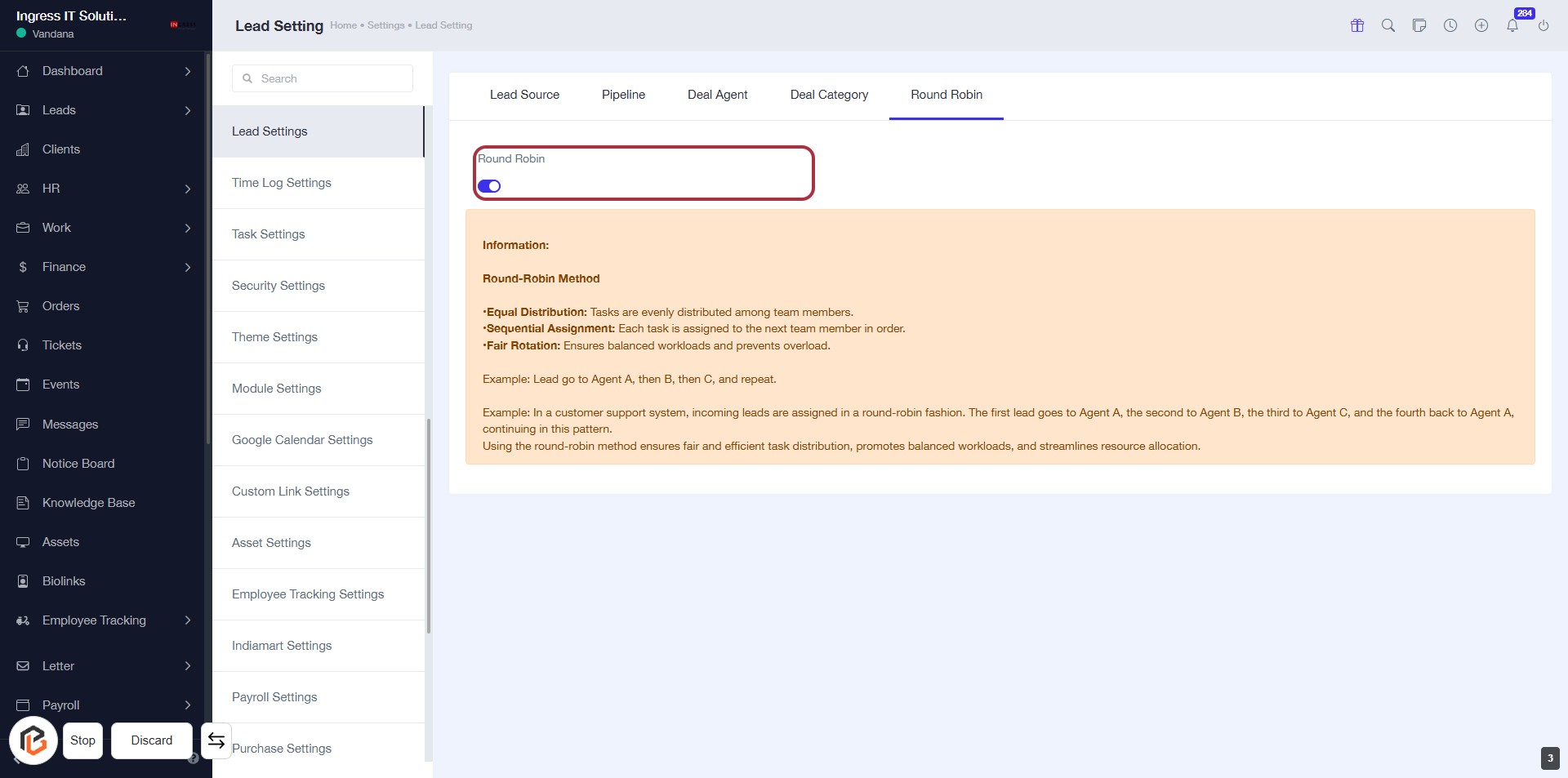
STEP 4: Click to Enable "Round Robin" Feature
- Locate the "Round Robin" toggle switch in the settings.
- Click on the toggle to enable the Round Robin method for lead distribution.
- Review the information provided about the Round Robin method to understand its benefits:
- Equal Distribution: Tasks are evenly shared among team members.
- Sequential Assignment: Each task is assigned to the next team member in line.
- Fair Rotation: Ensures balanced workloads and prevents overload.