Comprehensive Guide to Configuring Finance and Prefix Settings in Your Dashboard
21 mins read · Updated 29 Sep, 2025
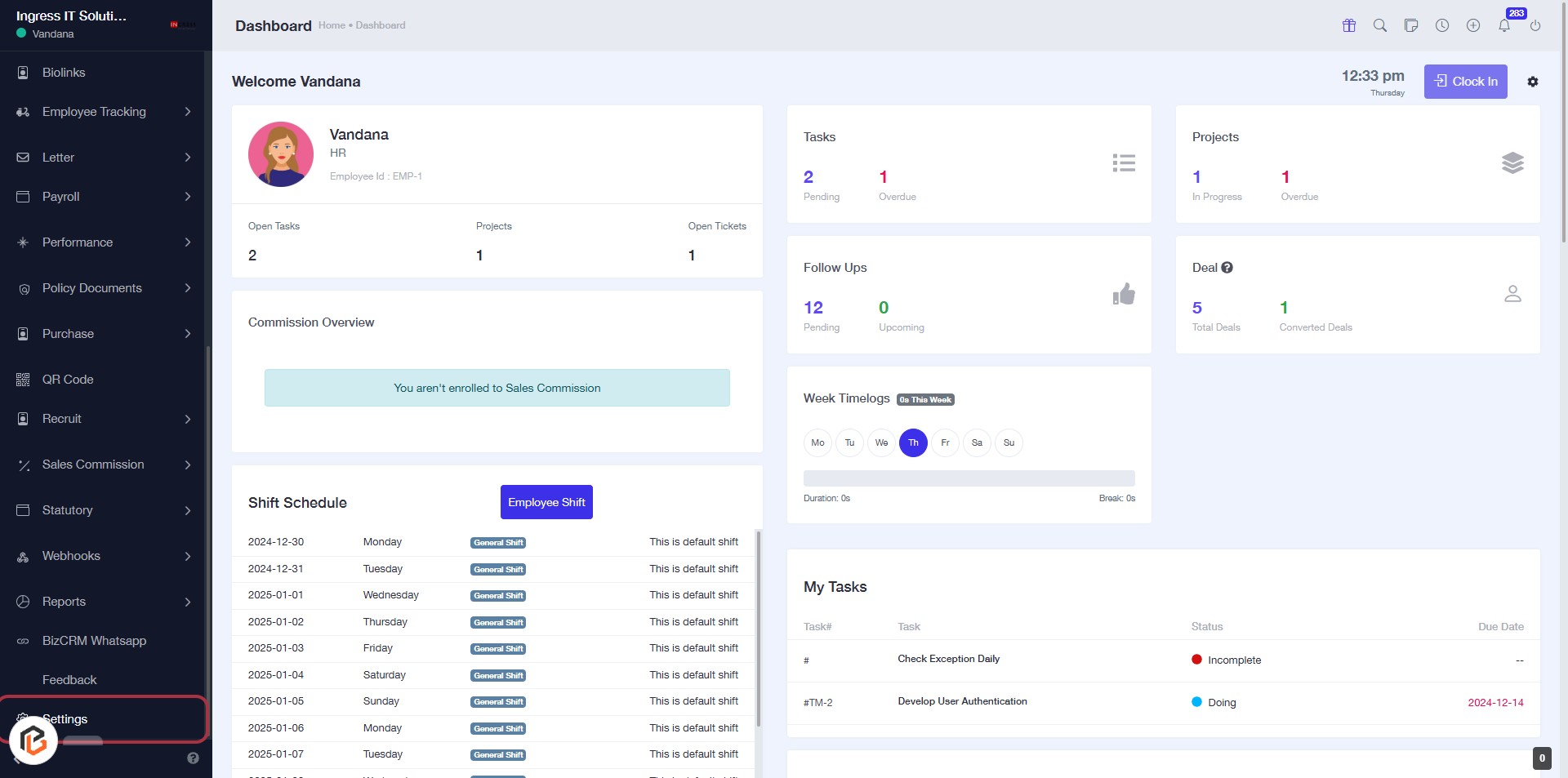
STEP 1: Click on "Settings" in the Dashboard
- Navigate to the left sidebar of the Dashboard.
- Locate and click on the Settings link.
- This action will redirect you to the settings page for further configurations.
- Ensure you are ready to proceed to the next step, which involves clicking on Finance Settings.
STEP 2: Click on "Finance Settings"
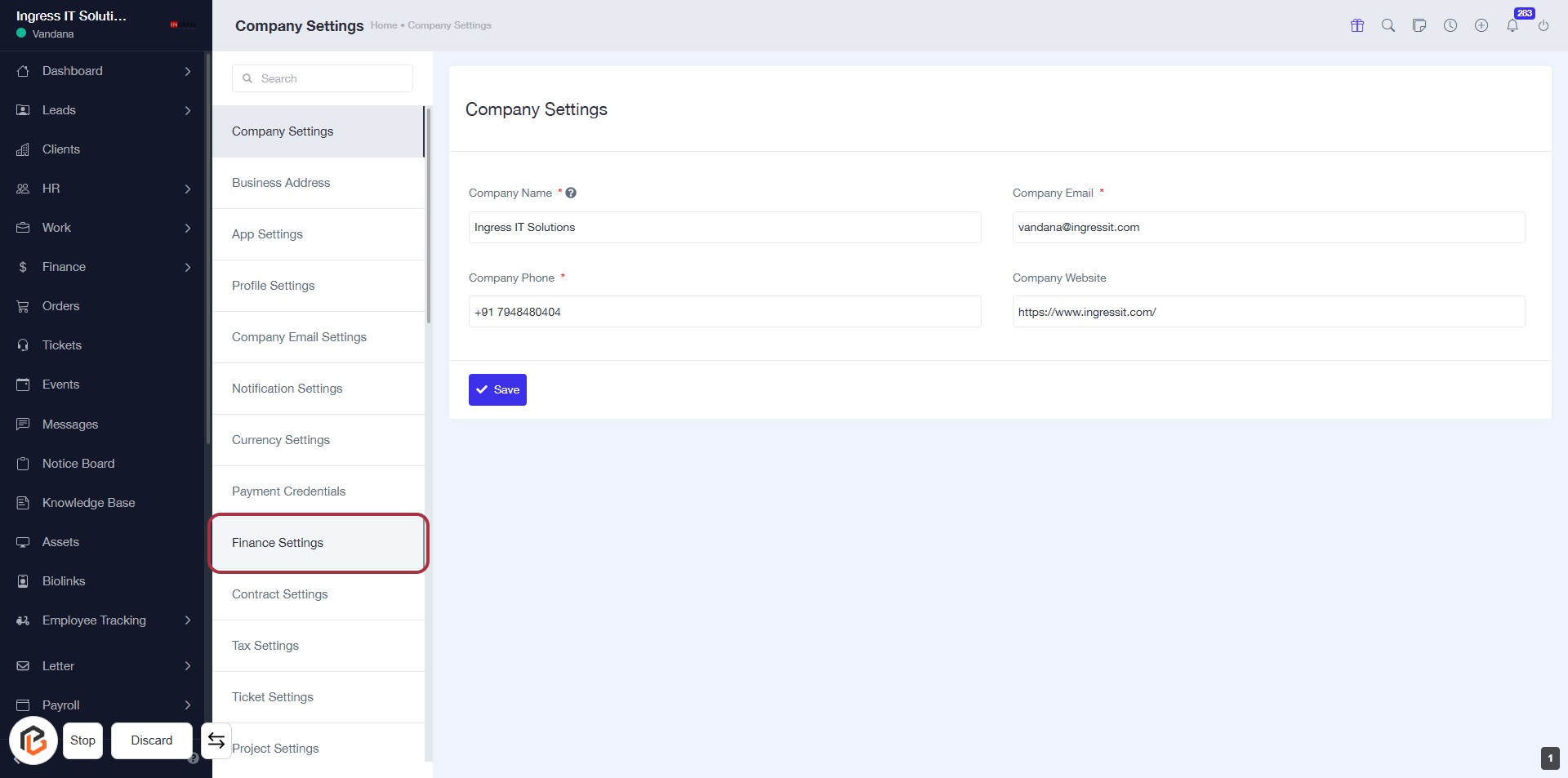
- Navigate to the "Finance Settings" option in the sidebar.
- Click on it to access the finance configuration settings.
- Ensure you have the following fields ready to fill:
- Company Name (*required)
- Company Phone (*required)
- Company Email (*required)
- Company Website (optional)
- After entering the necessary information, click "Save" to apply changes.
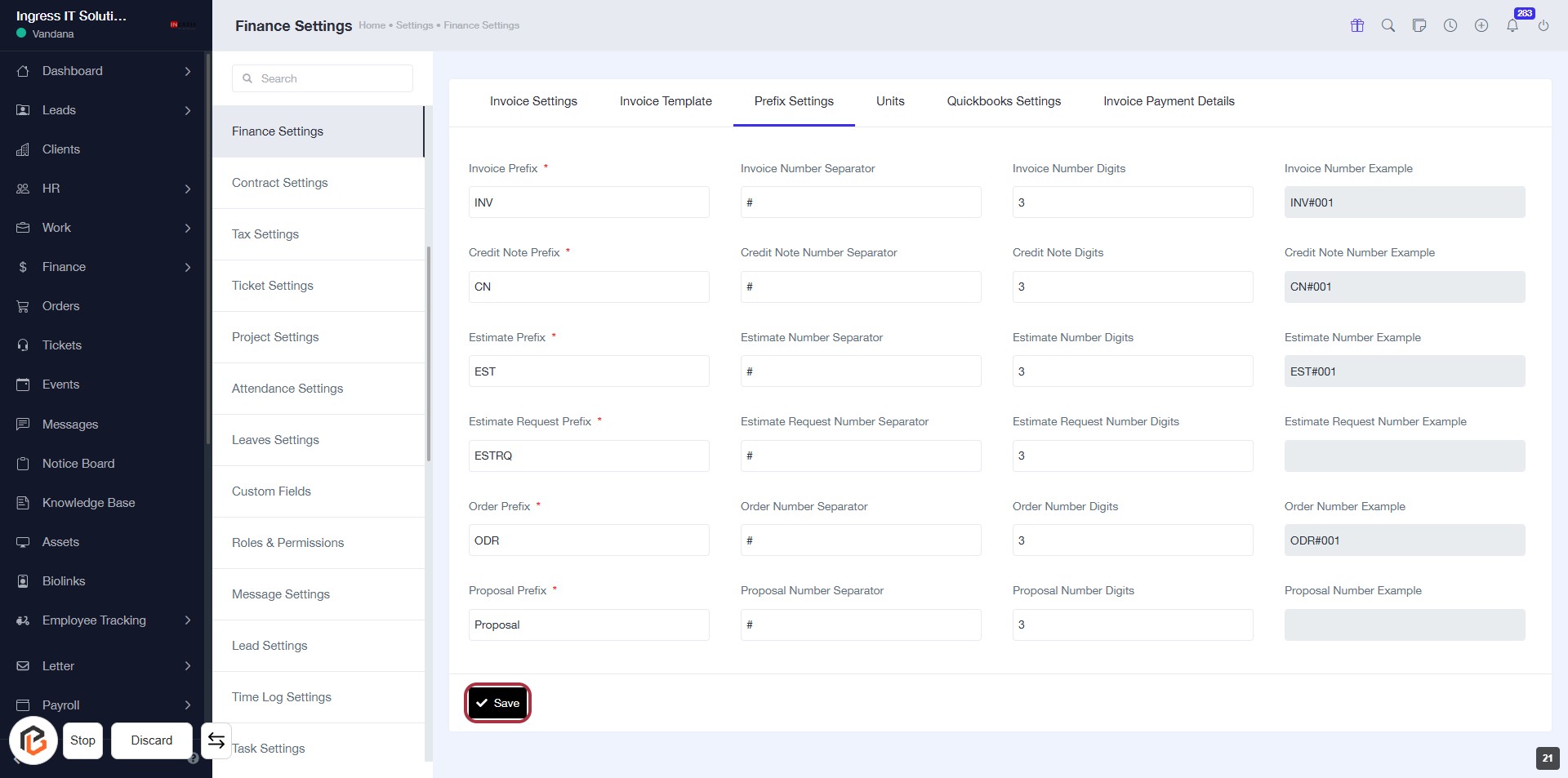
STEP 3: Select "Prefix Settings"
- Click on the "Prefix Settings" tab to access the relevant configuration options.
- Ensure you fill in the required fields marked with an asterisk (*), such as "Due after" and any other necessary settings.
- Review optional settings like "Show Tax number on invoice" and "Client info to show on invoice" as needed.
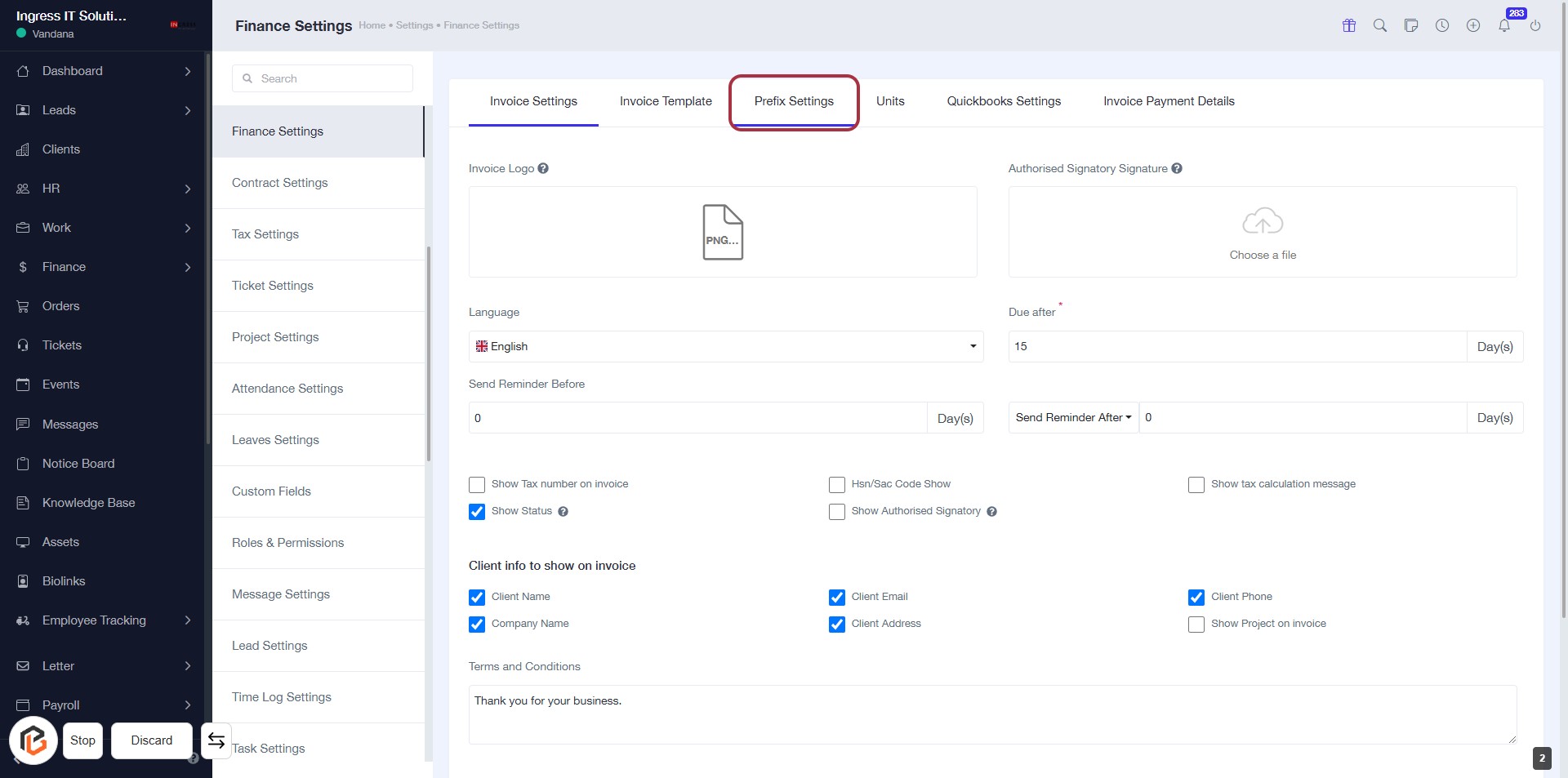
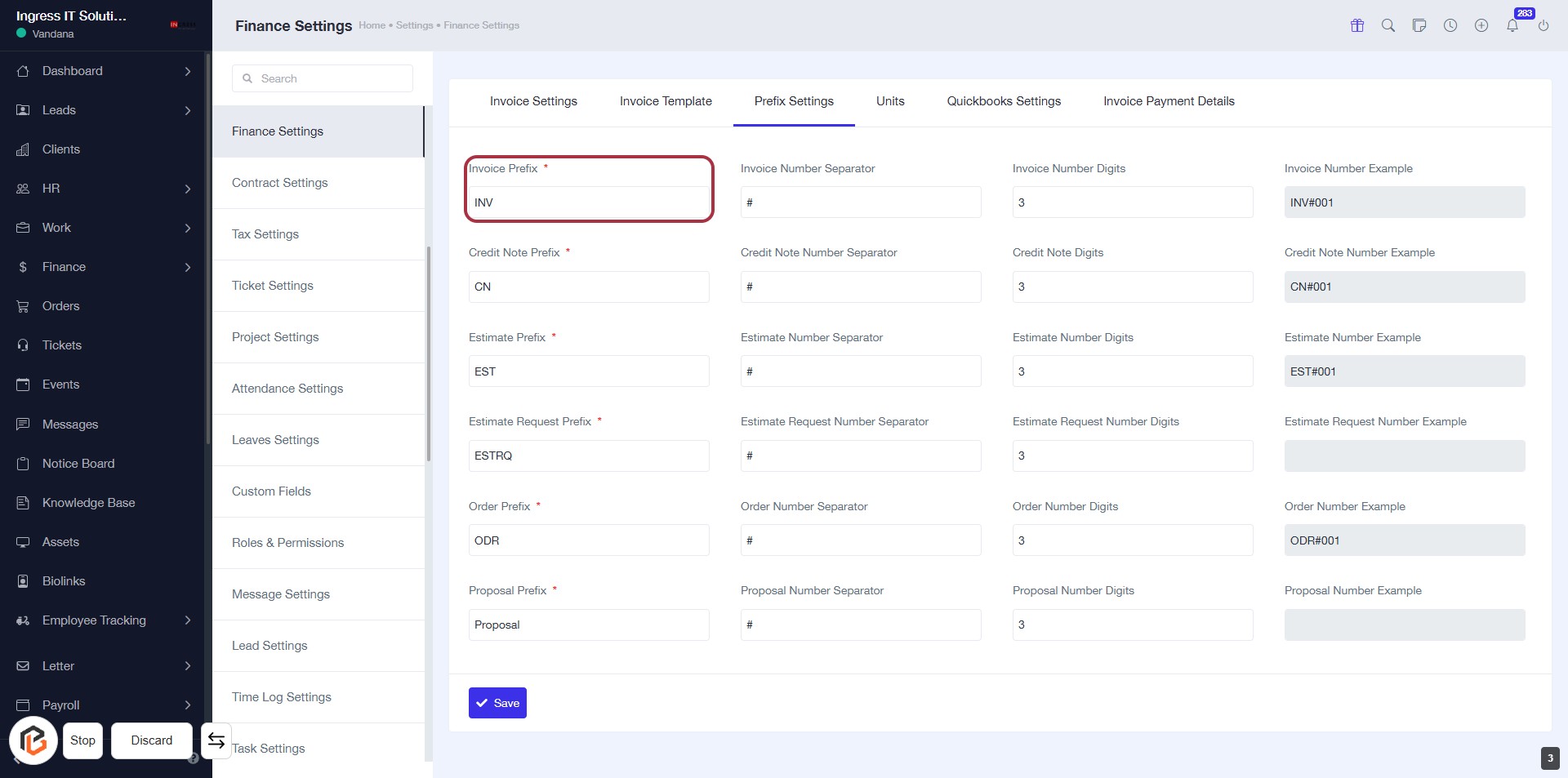
STEP 4: Enter "Invoice Prefix"
- Click on the "Invoice Prefix" field (marked with an asterisk) to input your desired prefix.
- Ensure the prefix is unique and relevant to your invoicing system.
- Review other fields for optional inputs, such as "Invoice Number Separator" and "Invoice Number Digits."
- After entering the prefix, proceed to the next step by entering the "Credit Note Prefix."
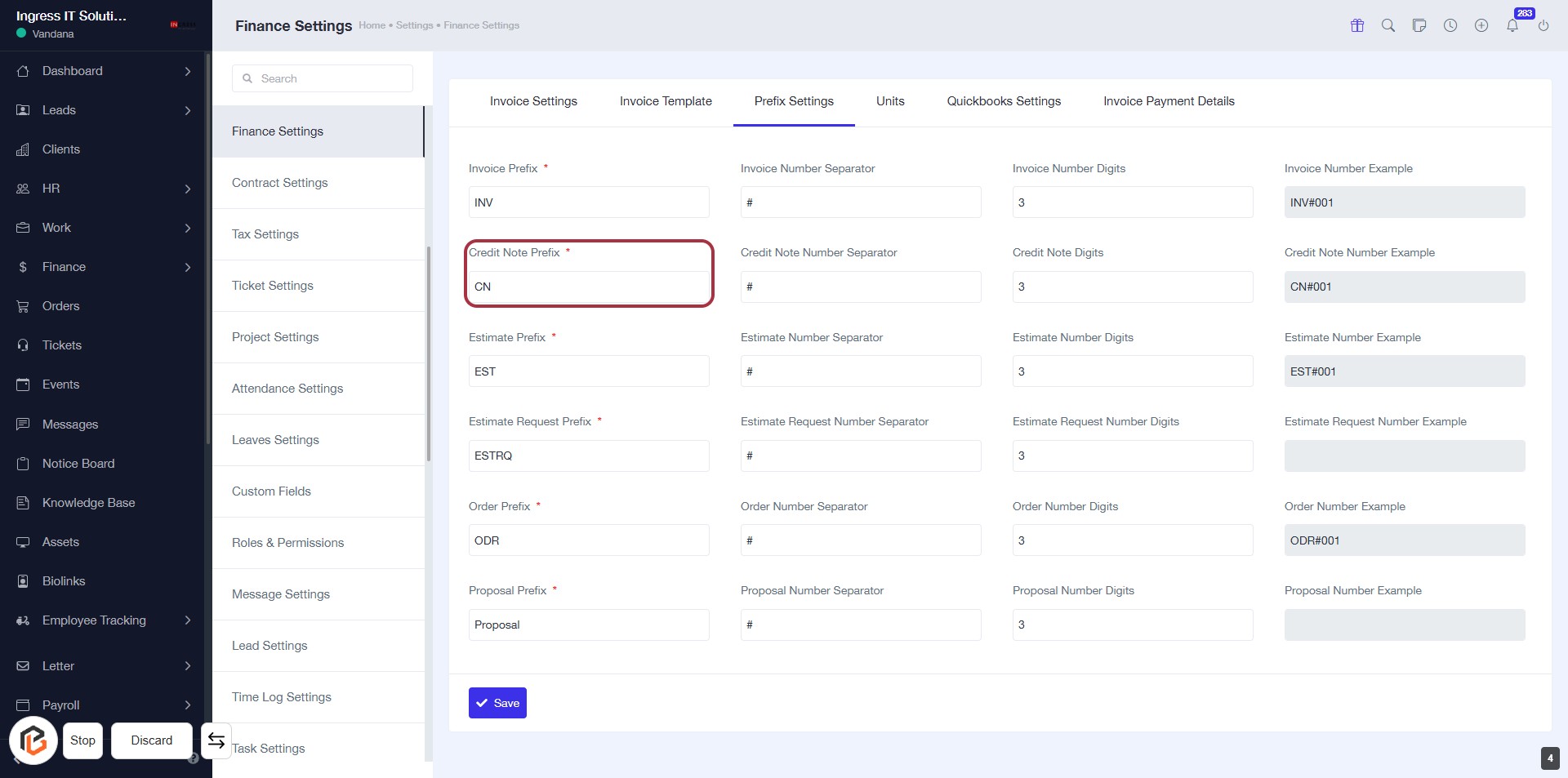
STEP 5: Enter "Credit Note Prefix"
- Click on the "Credit Note Prefix" field highlighted in red.
- Enter the desired prefix (e.g., "CN").
- Ensure the field marked with an asterisk (*) is filled, as it is required.
- Proceed to the next step by entering the "Estimate Prefix."
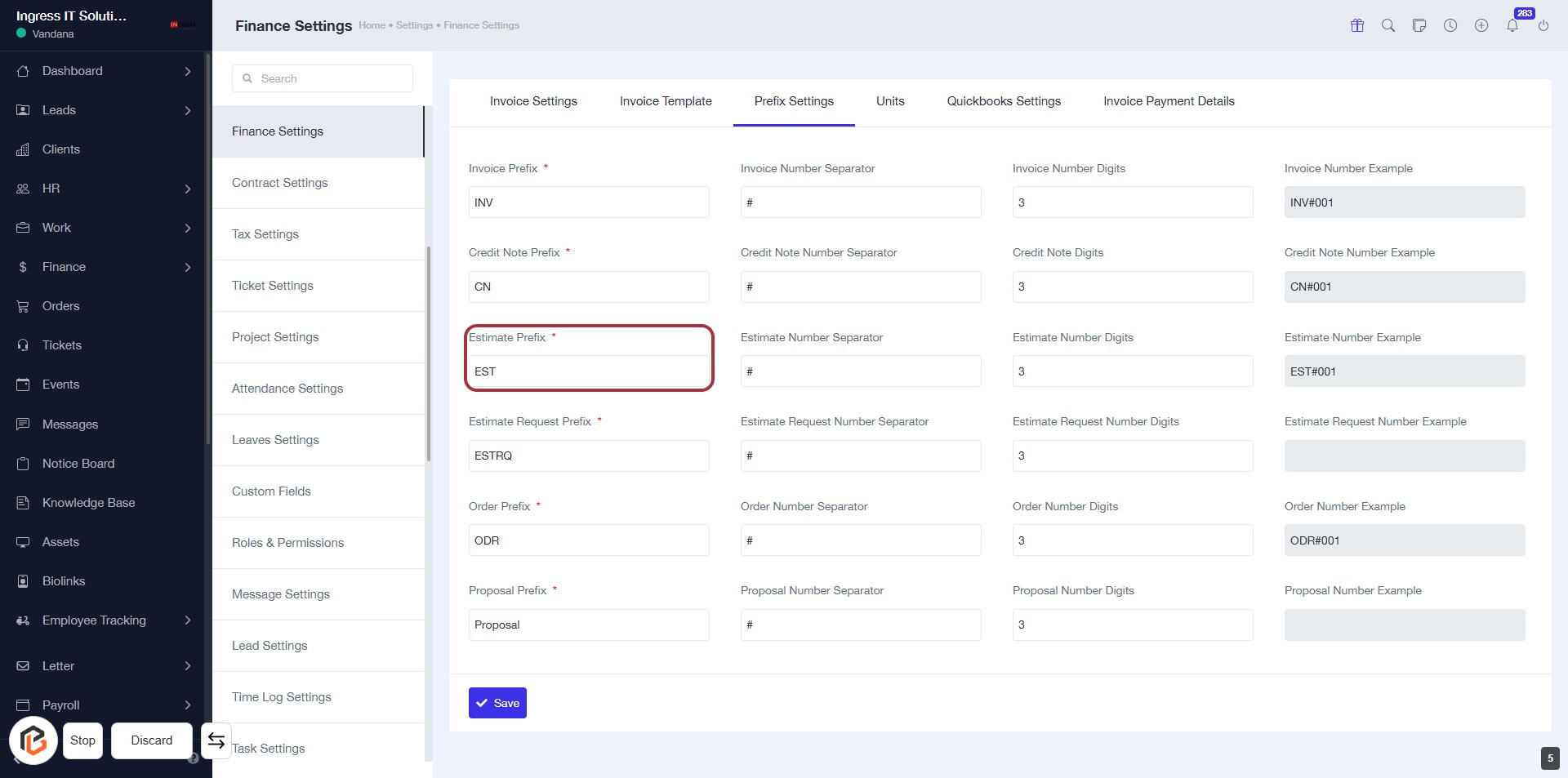
STEP 6: Enter "Estimate Prefix"
- Click on the "Estimate Prefix" field (marked with a red border).
- Enter the desired prefix for estimates (mandatory field).
- Ensure the prefix follows any specified format or guidelines.
- Review other related fields for consistency, such as "Estimate Number Separator" and "Estimate Number Digits".
- Proceed to the next step by clicking on "Estimate Request Prefix".
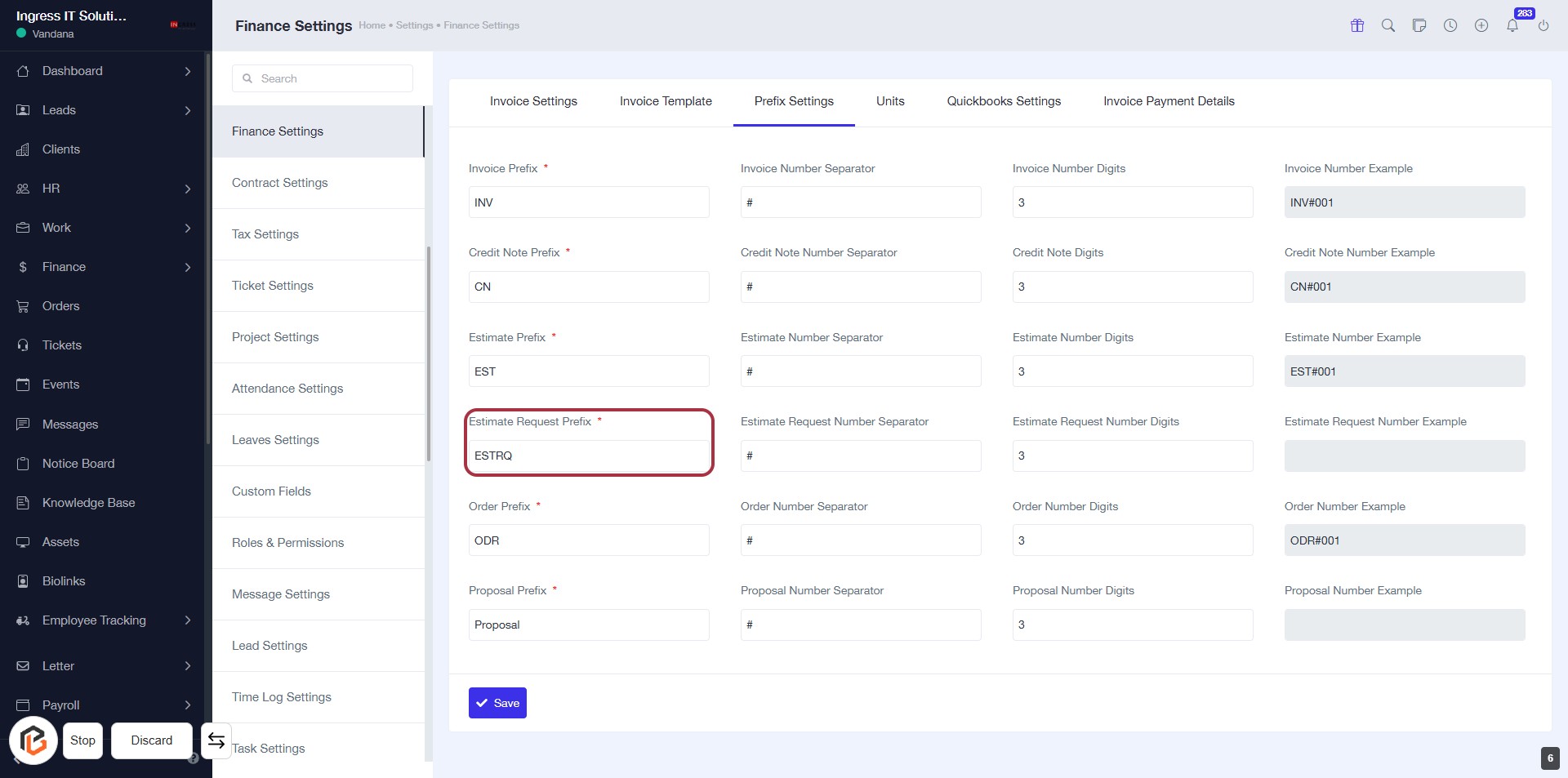
STEP 7: Click Estimate Request Prefix
- Navigate to the "Estimate Request Prefix" field in the Prefix Settings.
- Click on the highlighted area to activate the input.
- Ensure the field is marked with an asterisk (*) indicating it's required.
- Proceed to enter the desired prefix value for estimate requests.
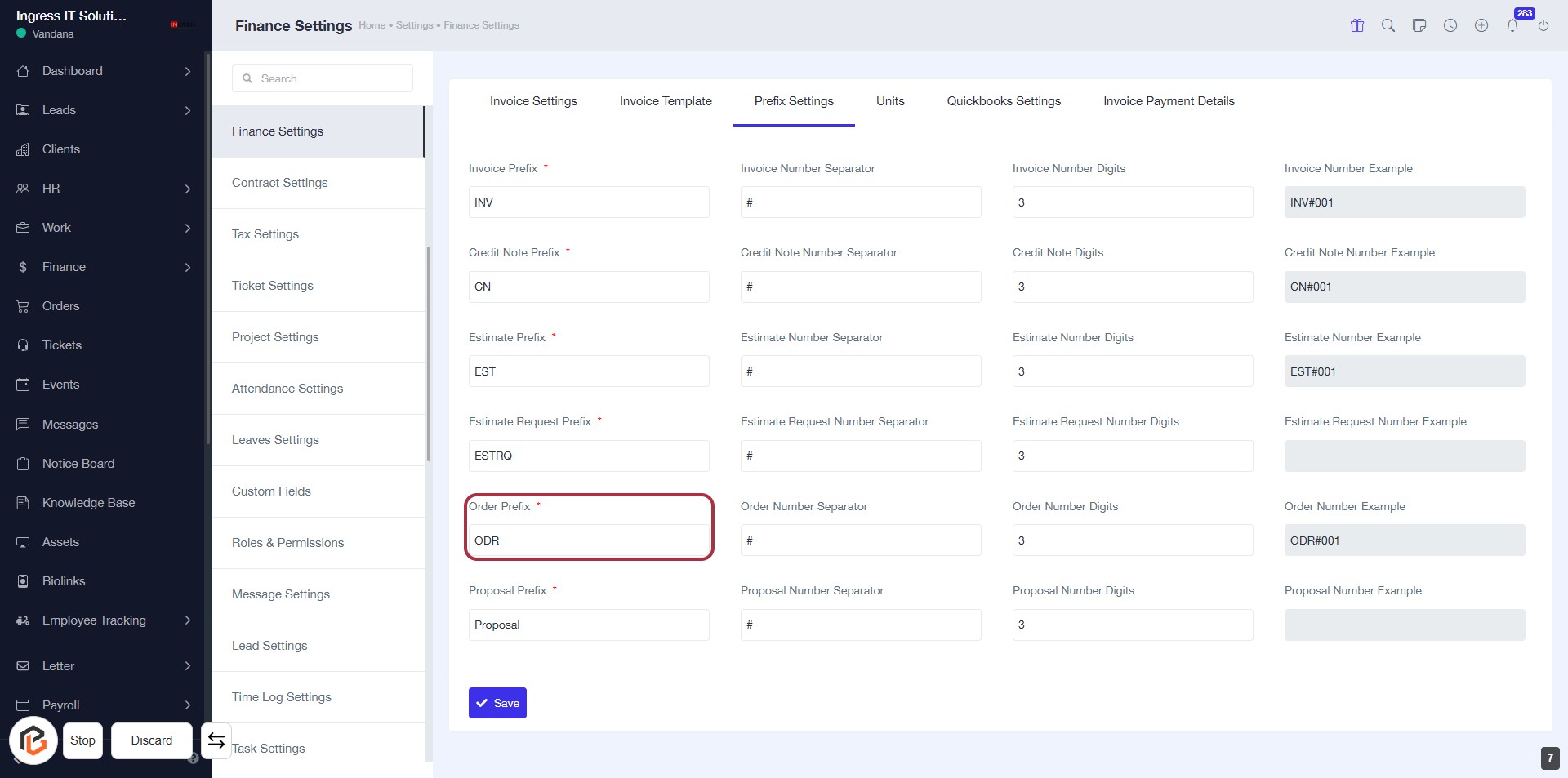
STEP 8: Enter Order Prefix
- Click on the Order Prefix field (marked with an asterisk * for required input).
- Input the desired prefix for your orders (e.g., "ODR").
- Ensure to fill in any other required fields in the form.
- After entering the prefix, proceed to the next step by clicking on the Save button.
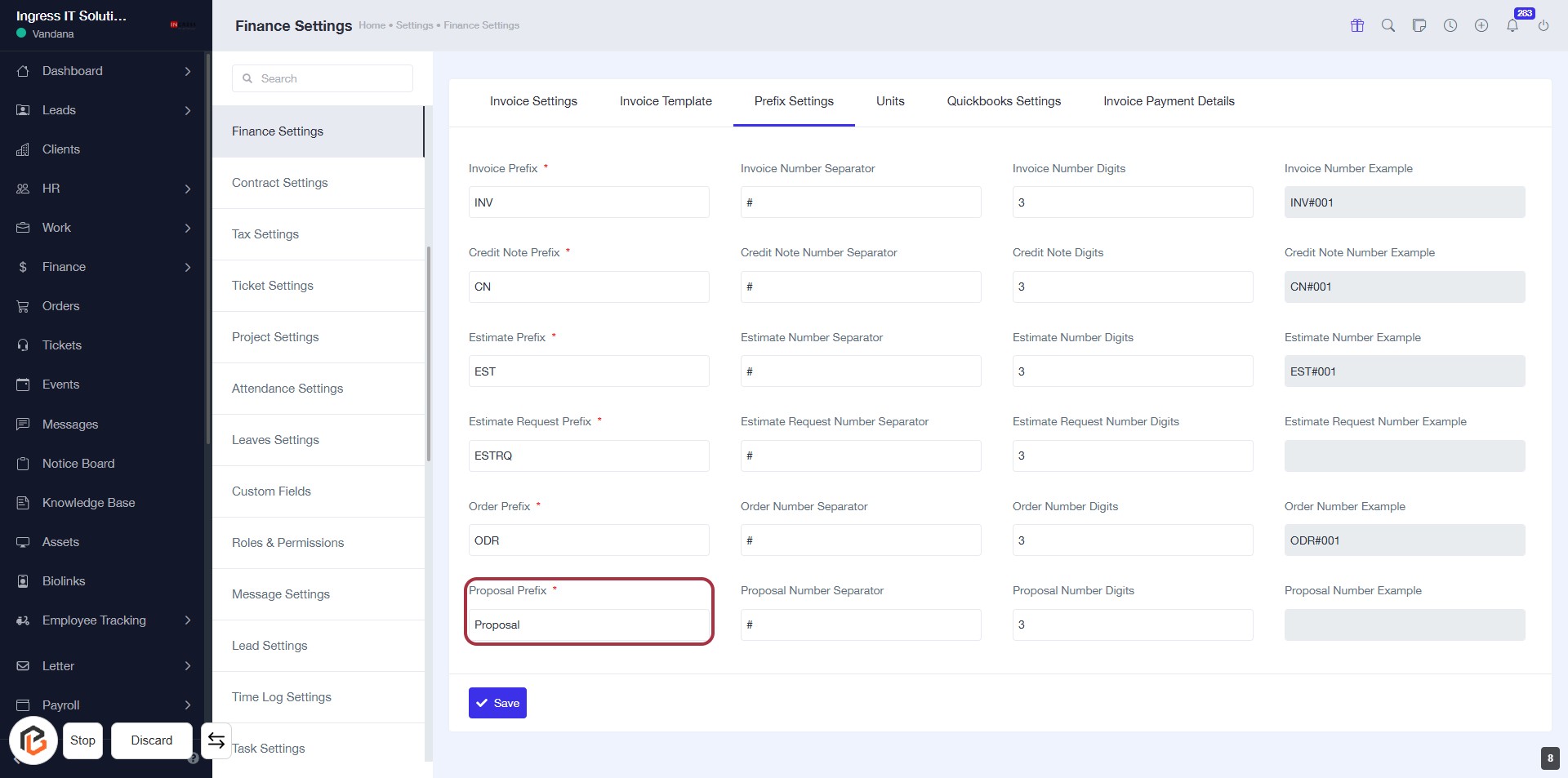
STEP 9: Enter Proposal Prefix
- Click on the Proposal Prefix field (marked with an asterisk) to input your desired prefix.
- Ensure the prefix is relevant to your proposals for easy identification.
- Review other fields like Proposal Number Separator and Proposal Number Digits for consistency.
- After entering, proceed to the next step by clicking on Invoice Number Separator.
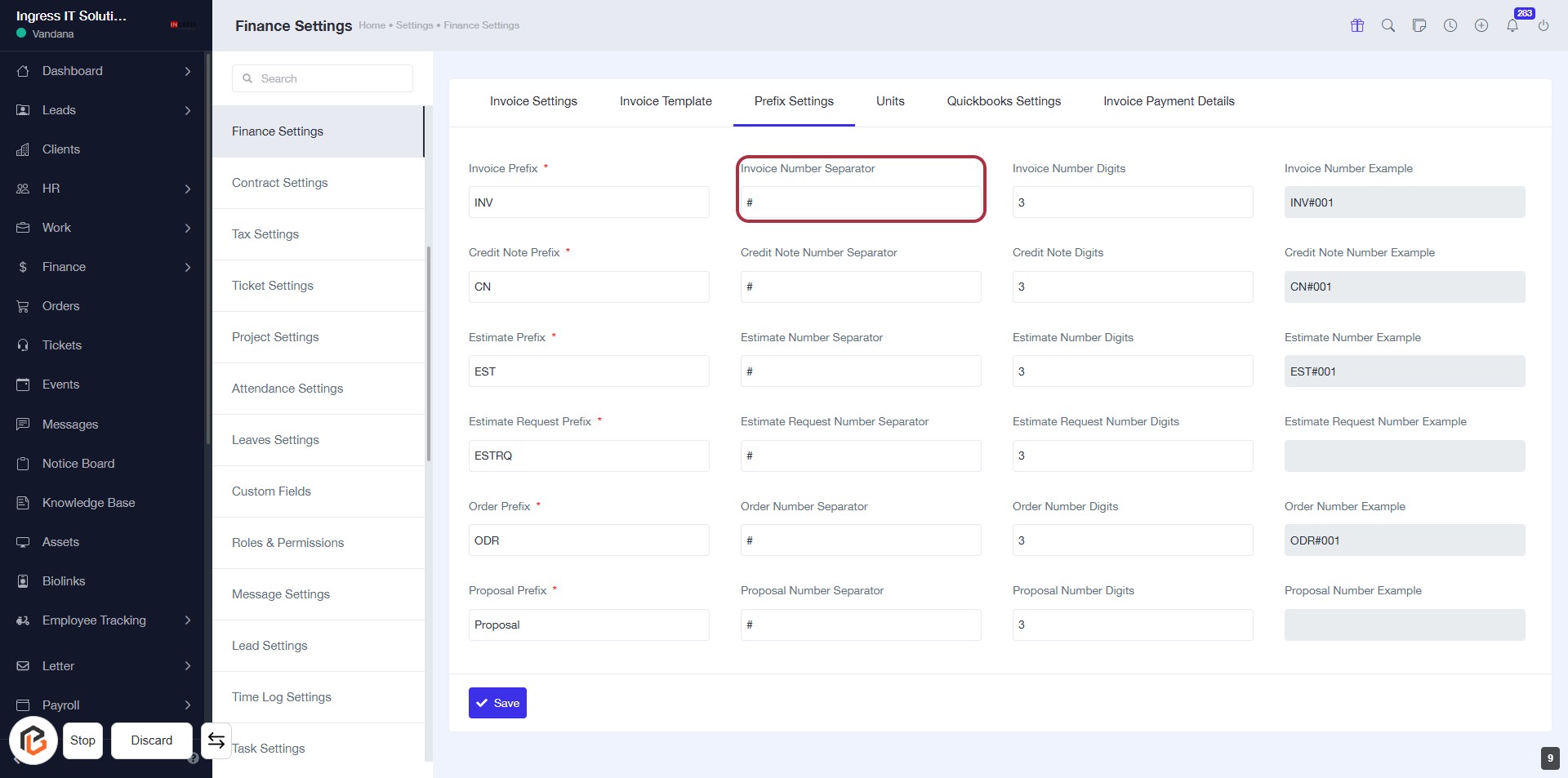
STEP 10: Click on "Invoice Number Separator"
- Locate the "Invoice Number Separator" field highlighted in red.
- Click on the field to set or modify the separator character for invoice numbers.
- Ensure that the separator character is appropriate for your invoicing format.
- After making changes, proceed to the next step by clicking on "Estimate Number Separator".
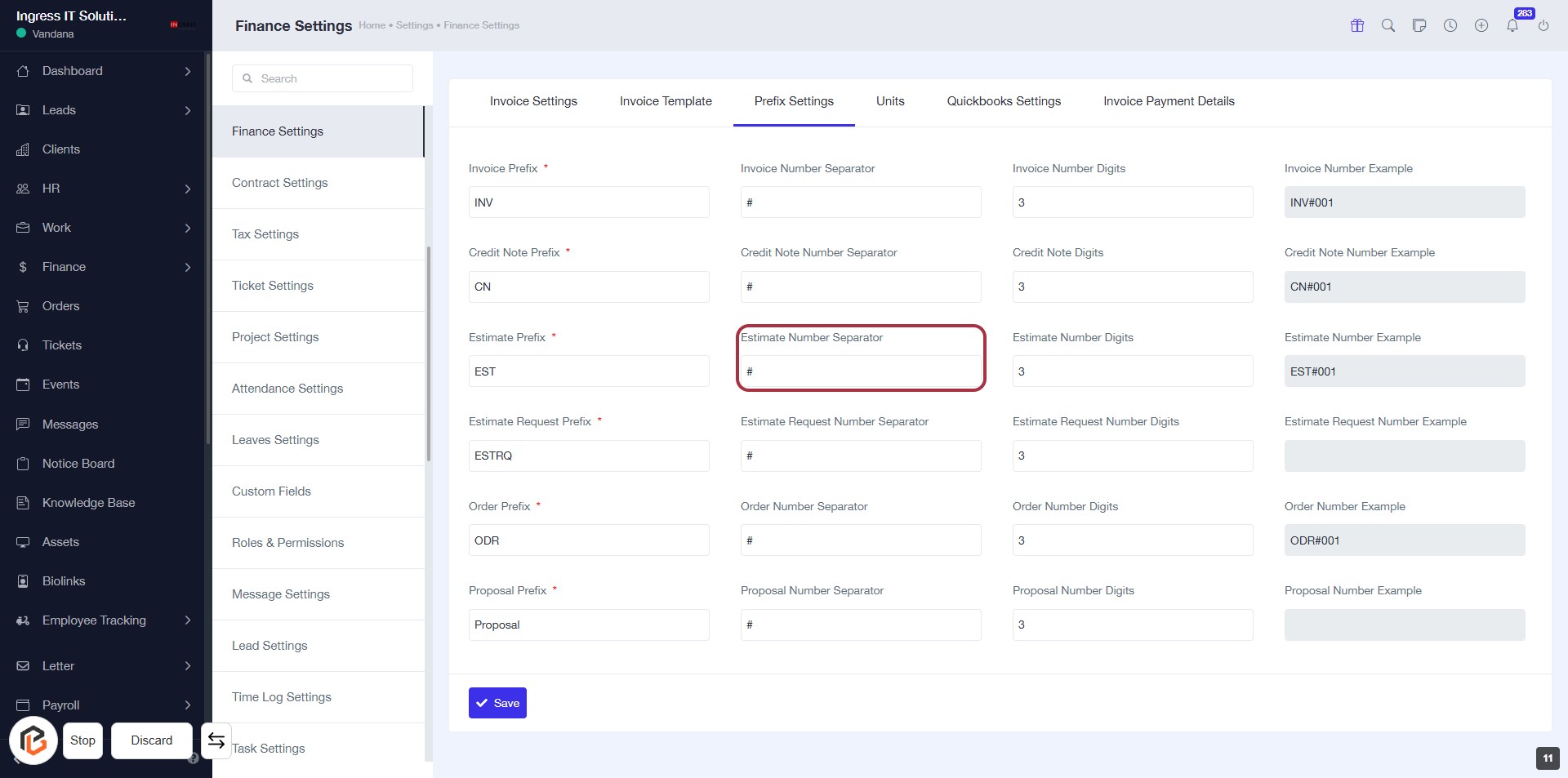
STEP 12: Click on "Estimate Number Separator"
- Navigate to the Prefix Settings section.
- Click on the Estimate Number Separator field highlighted in red.
- Ensure the separator character (e.g.,
#) is correctly set. - Proceed to the next step to Enter "Estimate Request Number Separator".
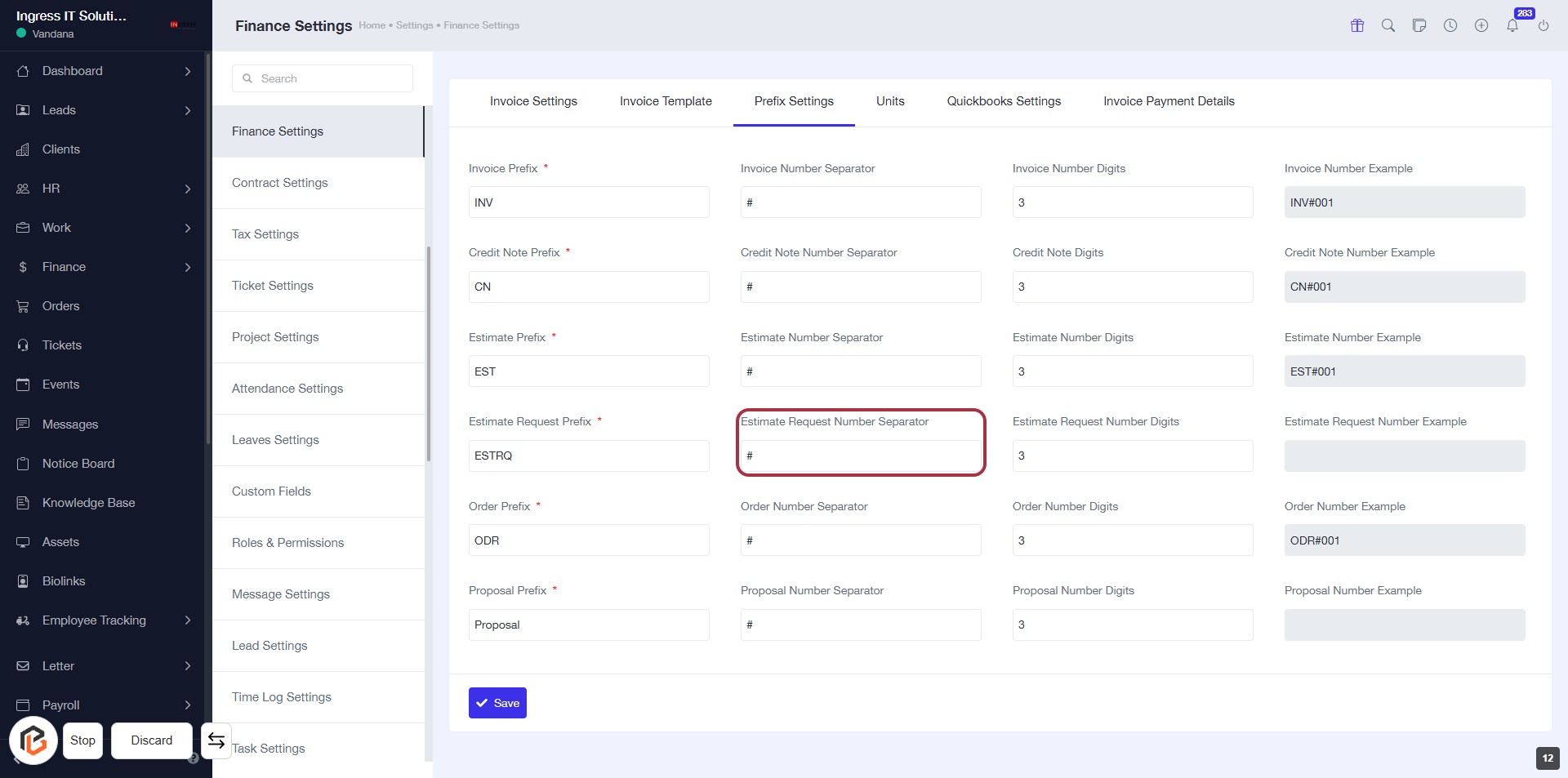
STEP 13: Click on "Estimate Request Number Separator"
- Navigate to the "Prefix Settings" section.
- Click on the "Estimate Request Number Separator" field highlighted in red.
- Ensure the field is ready for input.
- Fill in the required separator value (indicated by the asterisk).
- Review other fields for optional inputs as needed.
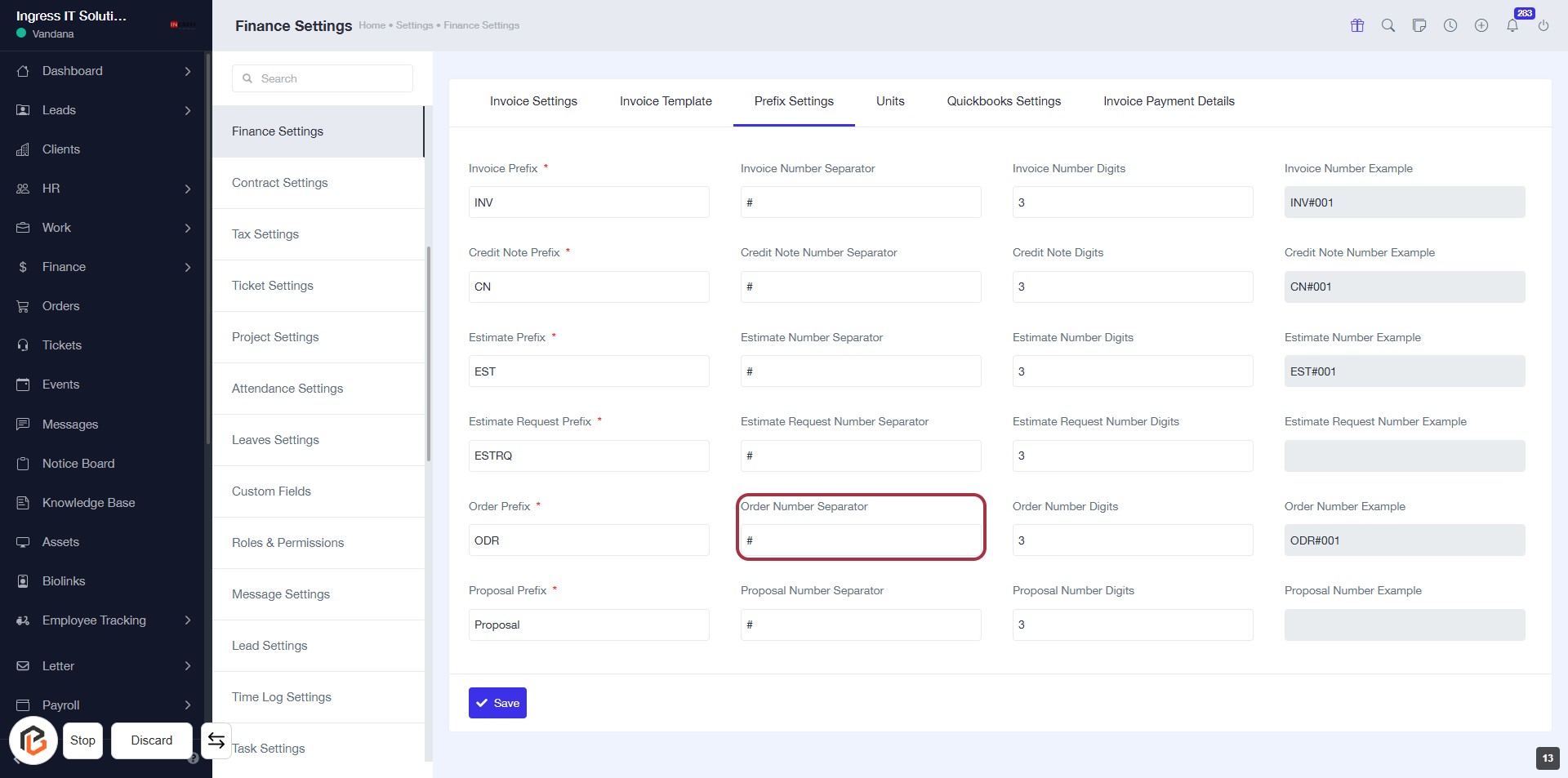
STEP 14: Click on "Order Number Separator"
- Navigate to the Prefix Settings section.
- Click on the Order Number Separator field highlighted in red.
- Ensure to enter the desired separator (e.g.,
#). - Review other fields such as Order Number Digits (default is 3).
- Proceed to the next step by entering the Proposal Number Separator.
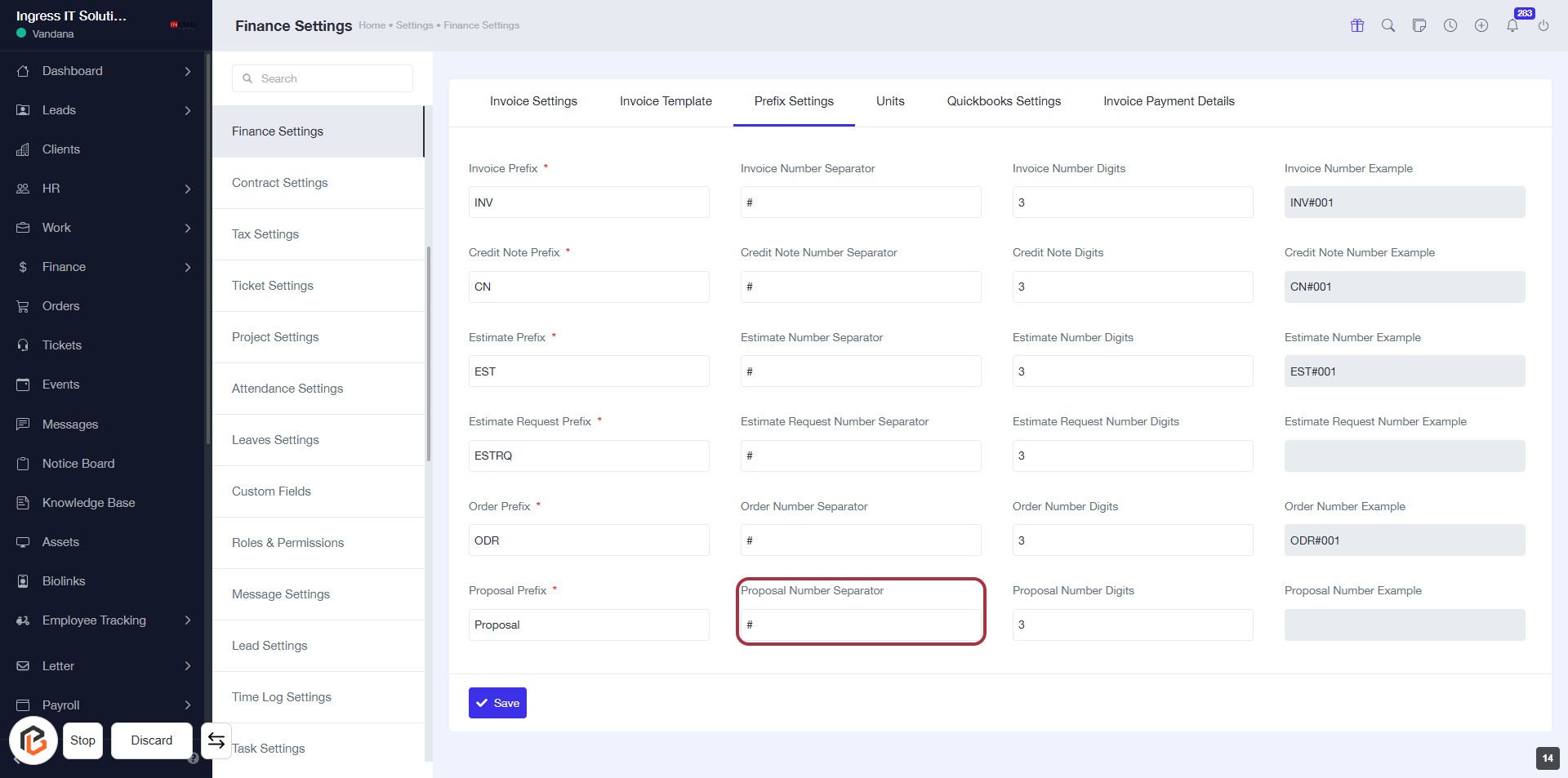
STEP 15: Click on "Proposal Number Separator"
- Navigate to the Prefix Settings section.
- Click on the Proposal Number Separator field.
- Ensure the field is highlighted for editing.
- Fill in the separator character (e.g.,
#). - Review other fields like Proposal Number Digits for completeness.
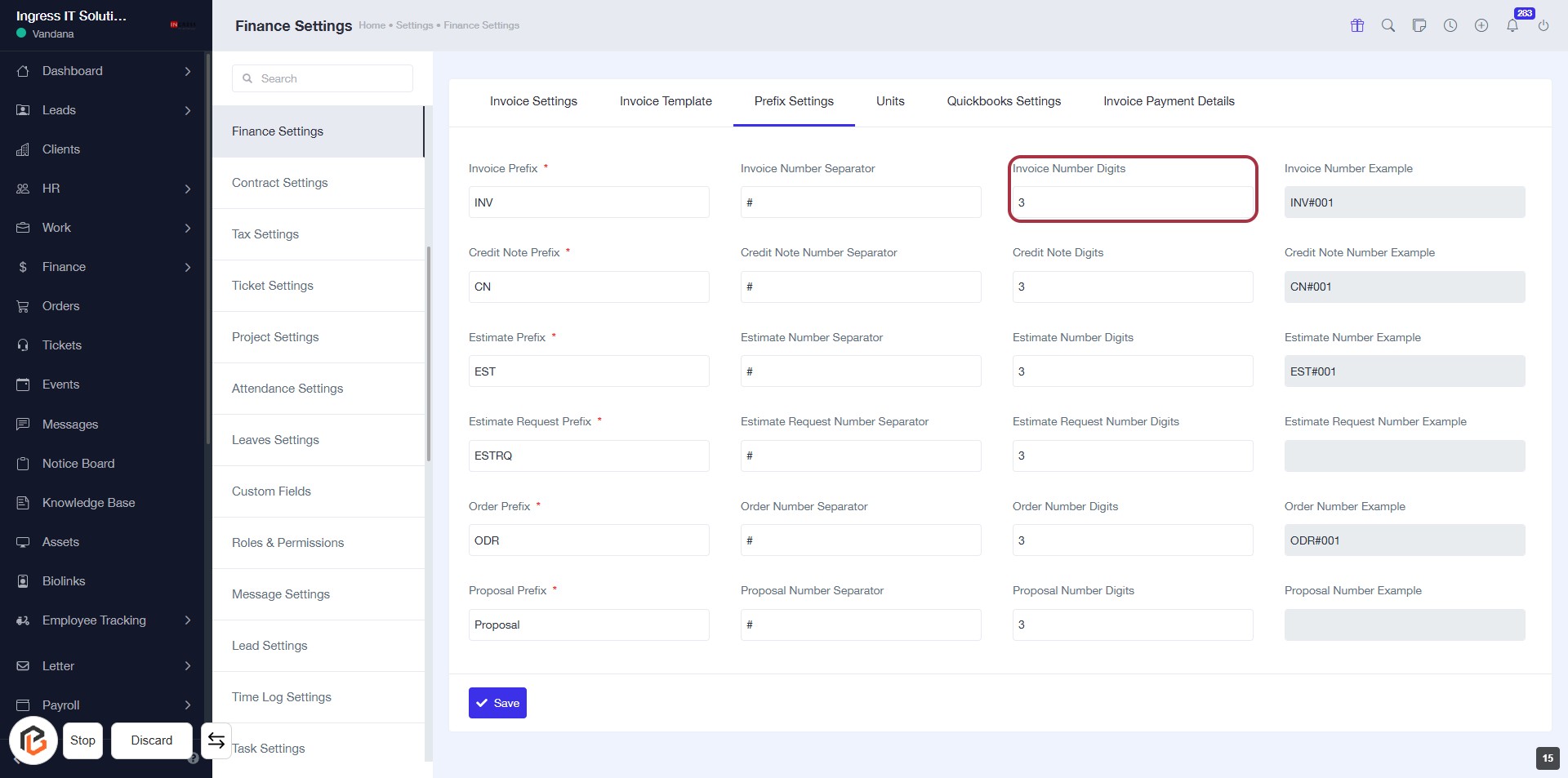
STEP 16: Enter Invoice Number Digits
- Click on the "Invoice Number Digits" field highlighted in red.
- Input the desired number of digits for the invoice number.
- Ensure that the field is filled according to your invoicing requirements.
- Review other related fields for consistency, such as "Invoice Prefix" and "Invoice Number Separator."
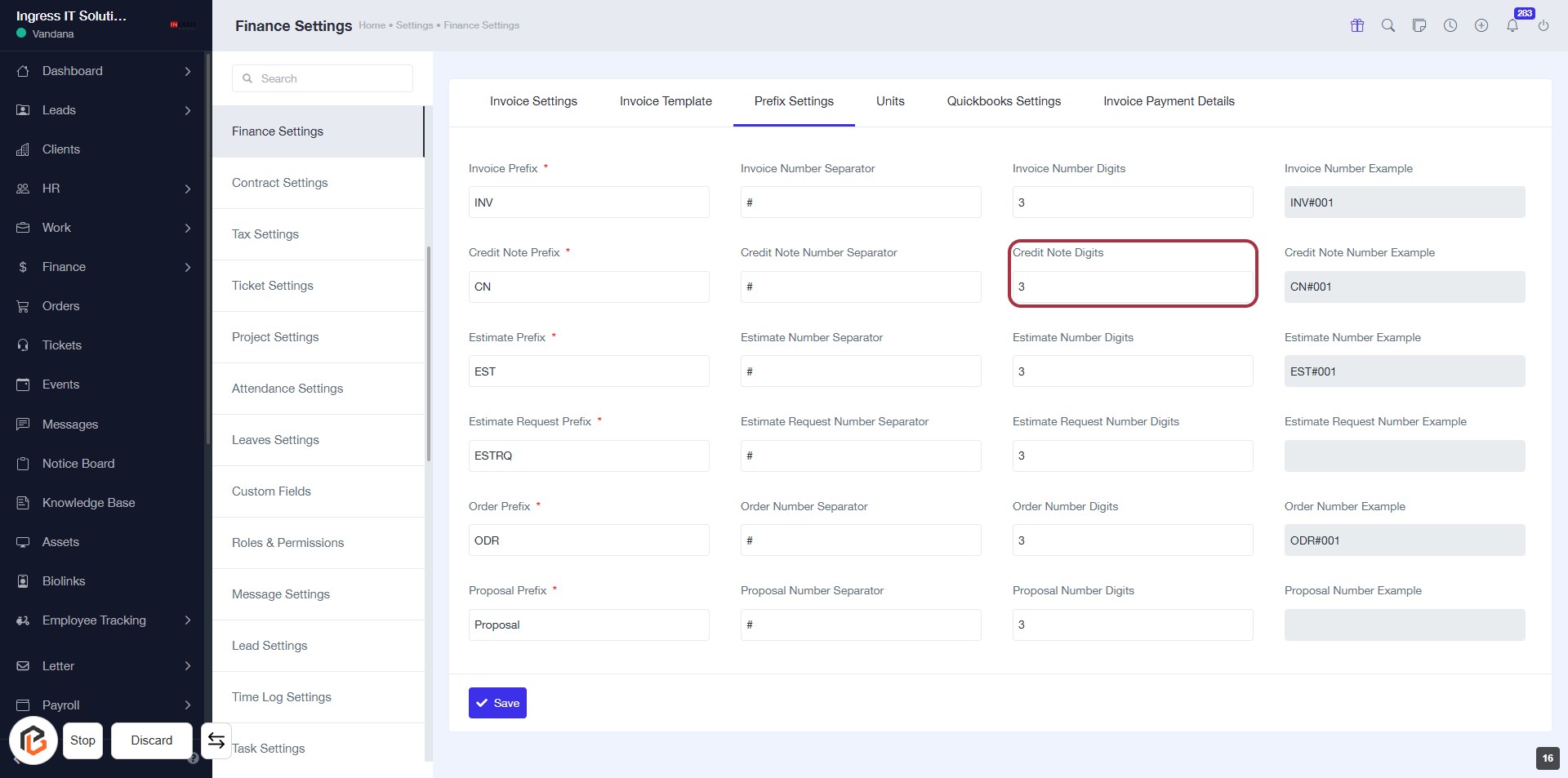
STEP 17: Enter Credit Note Digits
- Click on the "Credit Note Digits" field in the form.
- Ensure to enter the desired number of digits for credit notes.
- The field is mandatory, indicated by the asterisk (*).
- Review other related fields for consistency before saving.
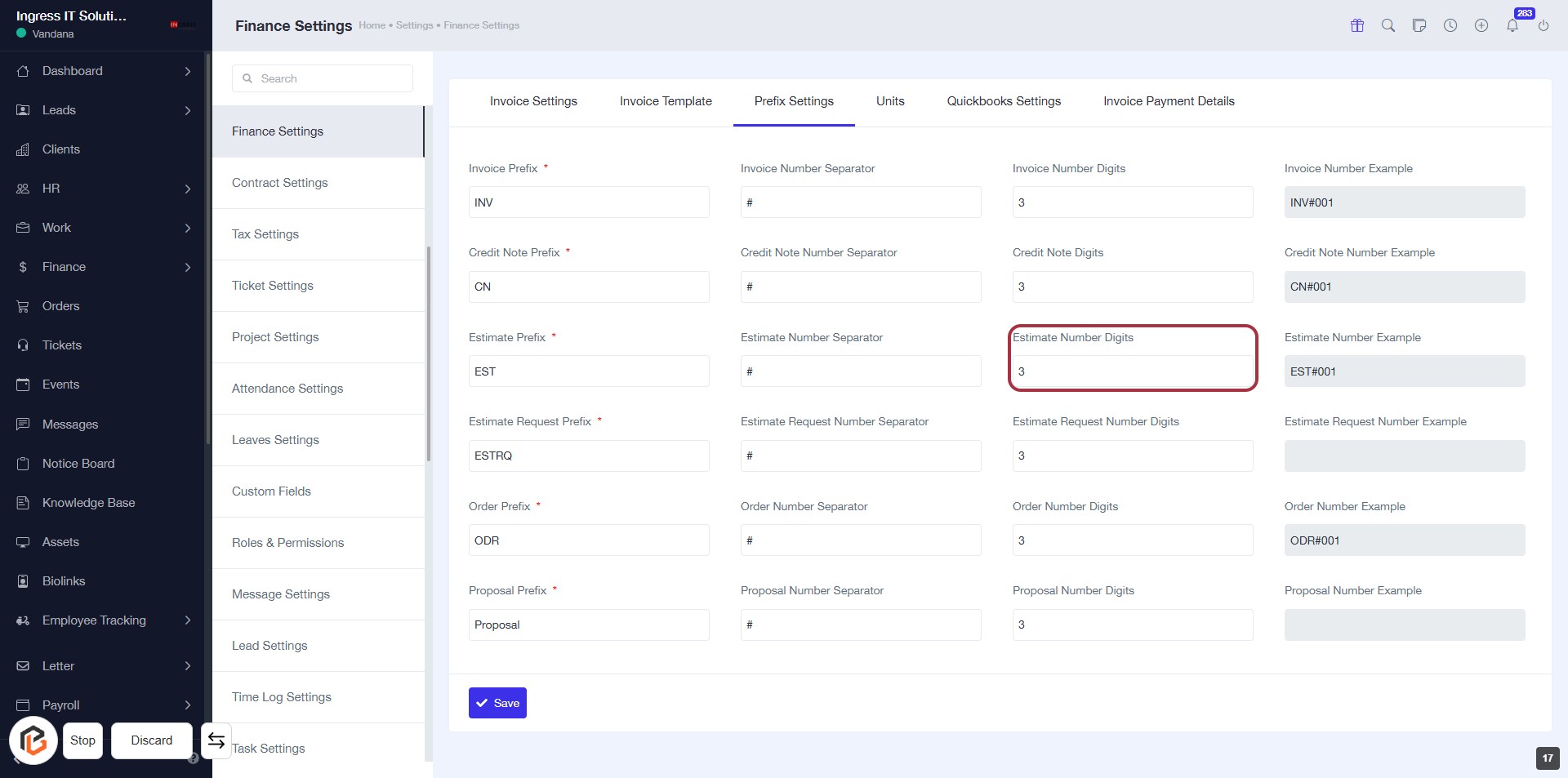
STEP 18: Click on "Estimate Number Digits"
- Navigate to the Finance Settings page.
- Locate the Estimate Number Digits section highlighted in red.
- Click on the Estimate Number Digits field to proceed.
- Ensure all required fields marked with an asterisk (*) are filled out.
- Review the information before moving to the next step.
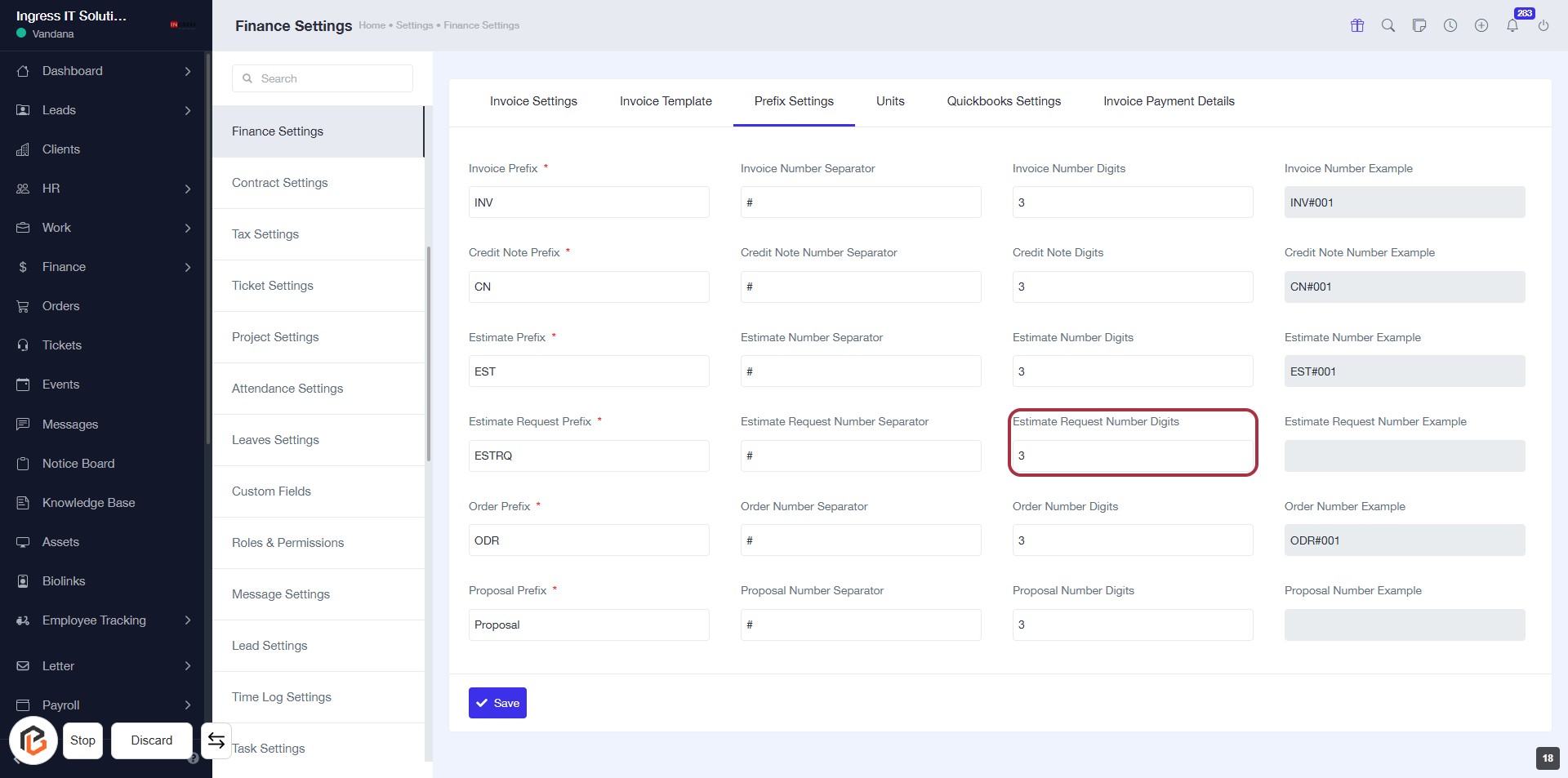
STEP 19: Click on "Estimate Request Number Digits"
- Navigate to the Prefix Settings section.
- Locate the Estimate Request Number Digits field highlighted in red.
- Click on the field to enter the desired number of digits.
- Ensure to fill in any required fields marked with an asterisk (*).
- Proceed to the next step by entering Order Number Digits.
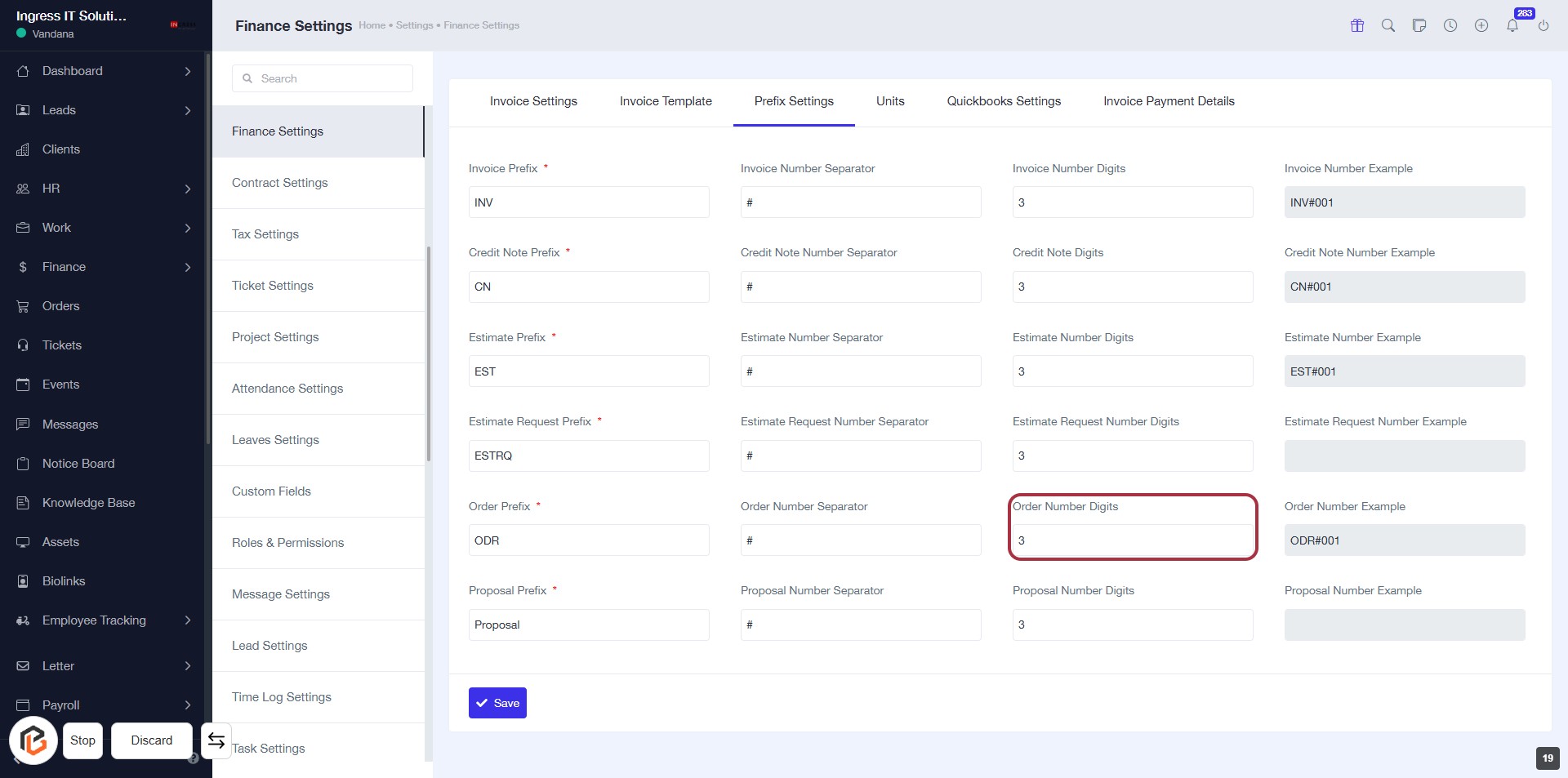
STEP 20: Enter "Order Number Digits"
STEP 21: Enter Proposal Number Digits
- Click on the "Proposal Number Digits" field to input the desired number of digits.
- Ensure to fill in the field marked with an asterisk (*) as it is required.
- Review other fields for any additional inputs needed.
- Proceed to the next step by clicking the "Save" button.
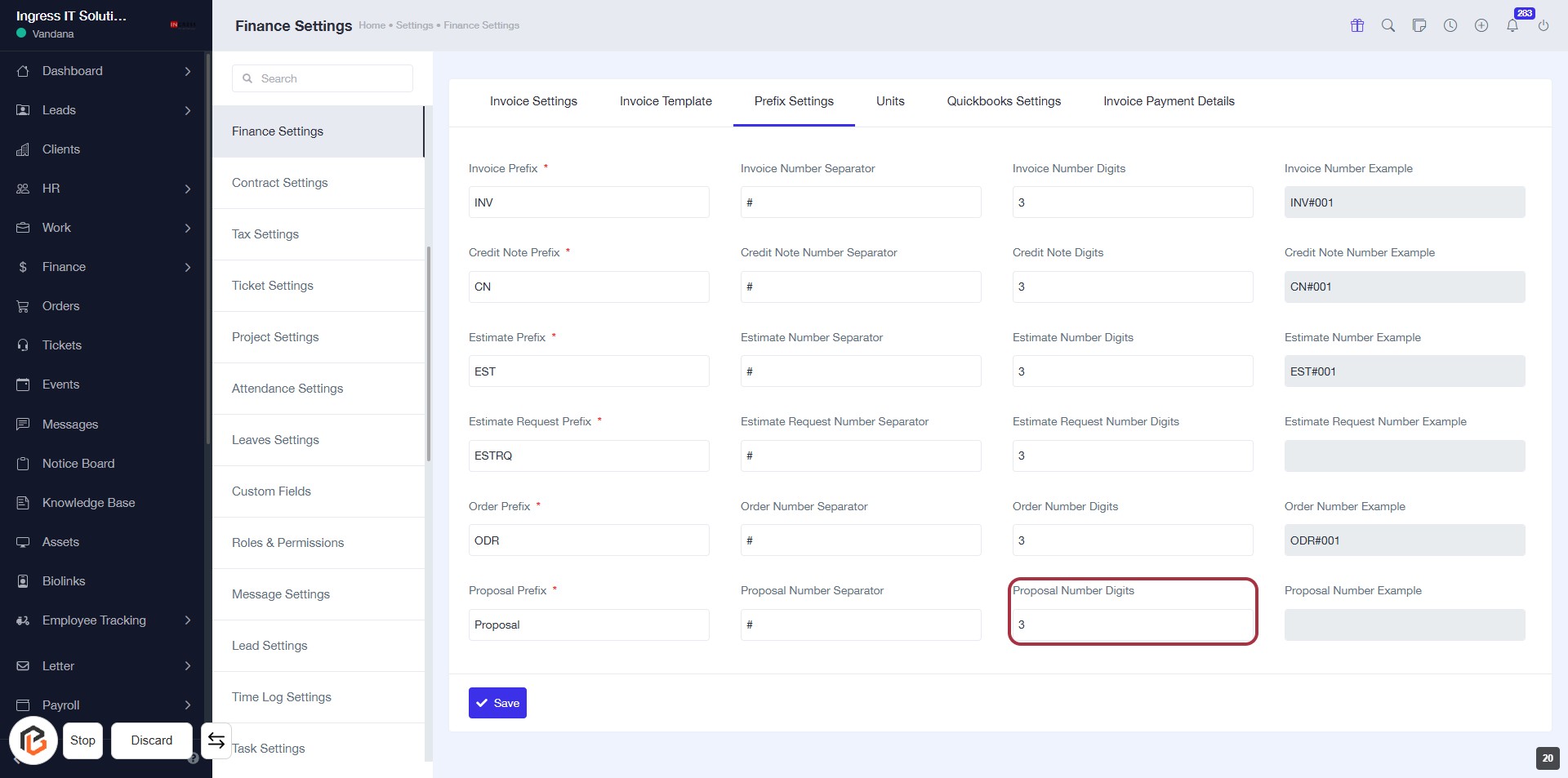
STEP 22: Click on "Save" to Finalize Settings
- Ensure all required fields are filled in the Prefix Settings form.
- Locate the "Save" button at the bottom of the form.
- Click the "Save" button to save your changes.
- Confirm that a success message appears, indicating the settings have been saved.