Step-by-Step Guide to Navigating and Calculating Sales Commission on the Dashboard
7 mins read · Updated 29 Sep, 2025
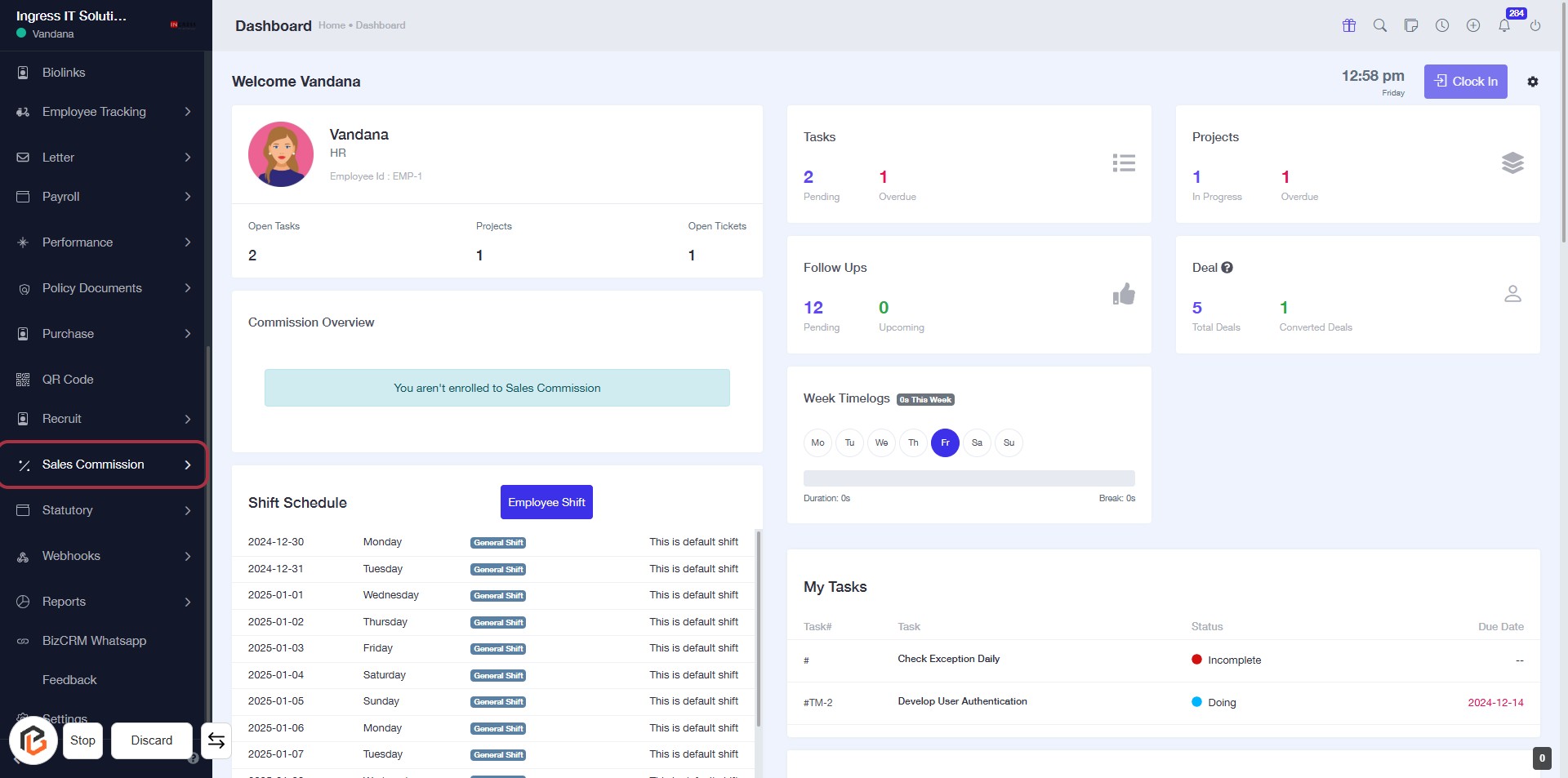
STEP 1: Click on "Sales Commission"
- Navigate to the left sidebar of the dashboard.
- Locate the "Sales Commission" option.
- Click on it to access the Sales Commission section.
- Ensure you are enrolled to view the Commission Overview.
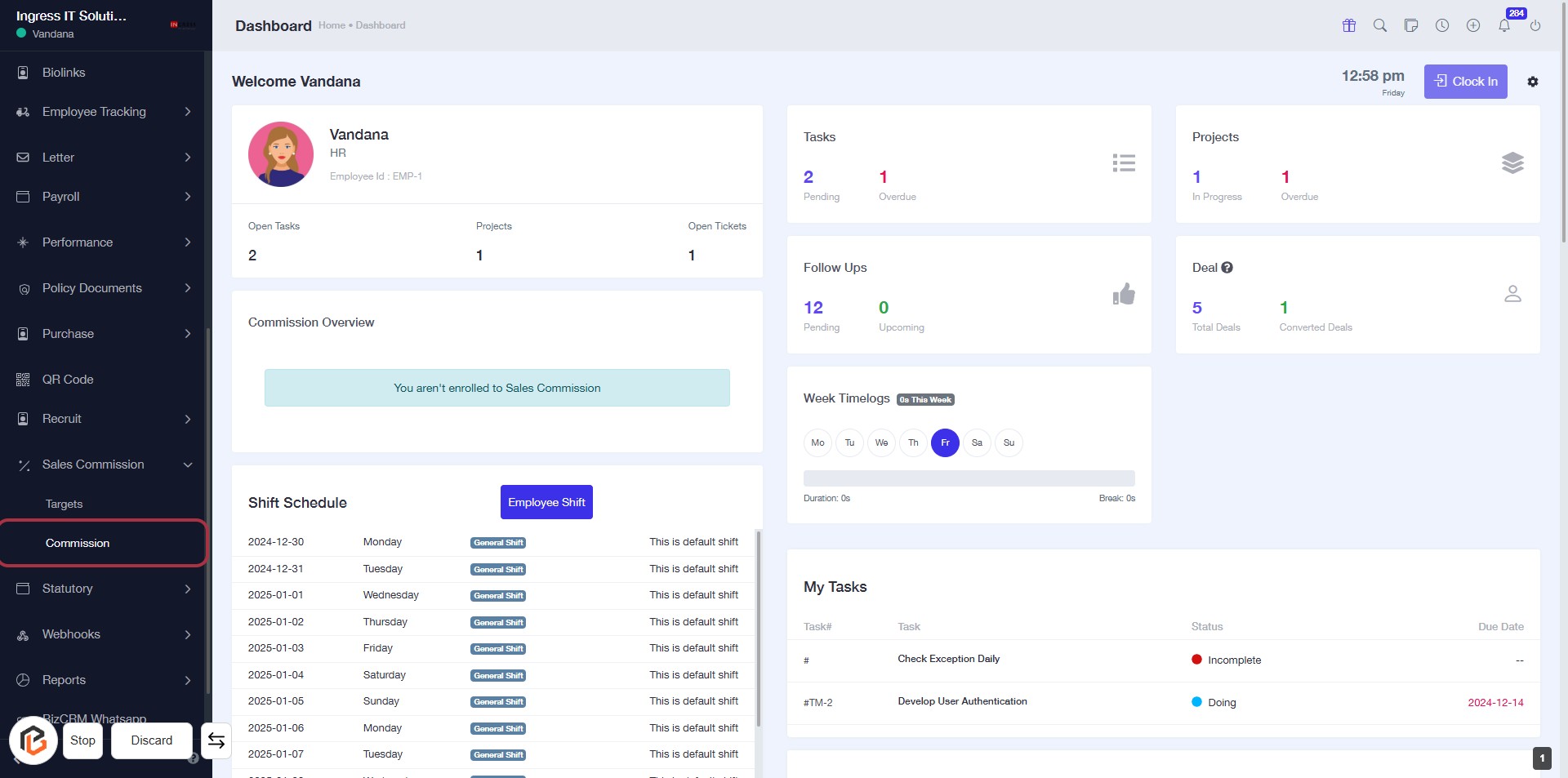
STEP 2: Select "Commission"
- Click on the "Commission" link in the sidebar menu.
- Ensure you are on the "Sales Commission" section of the dashboard.
- Review the "Commission Overview" for relevant information.
- Proceed to the next step by clicking on "Select Year."
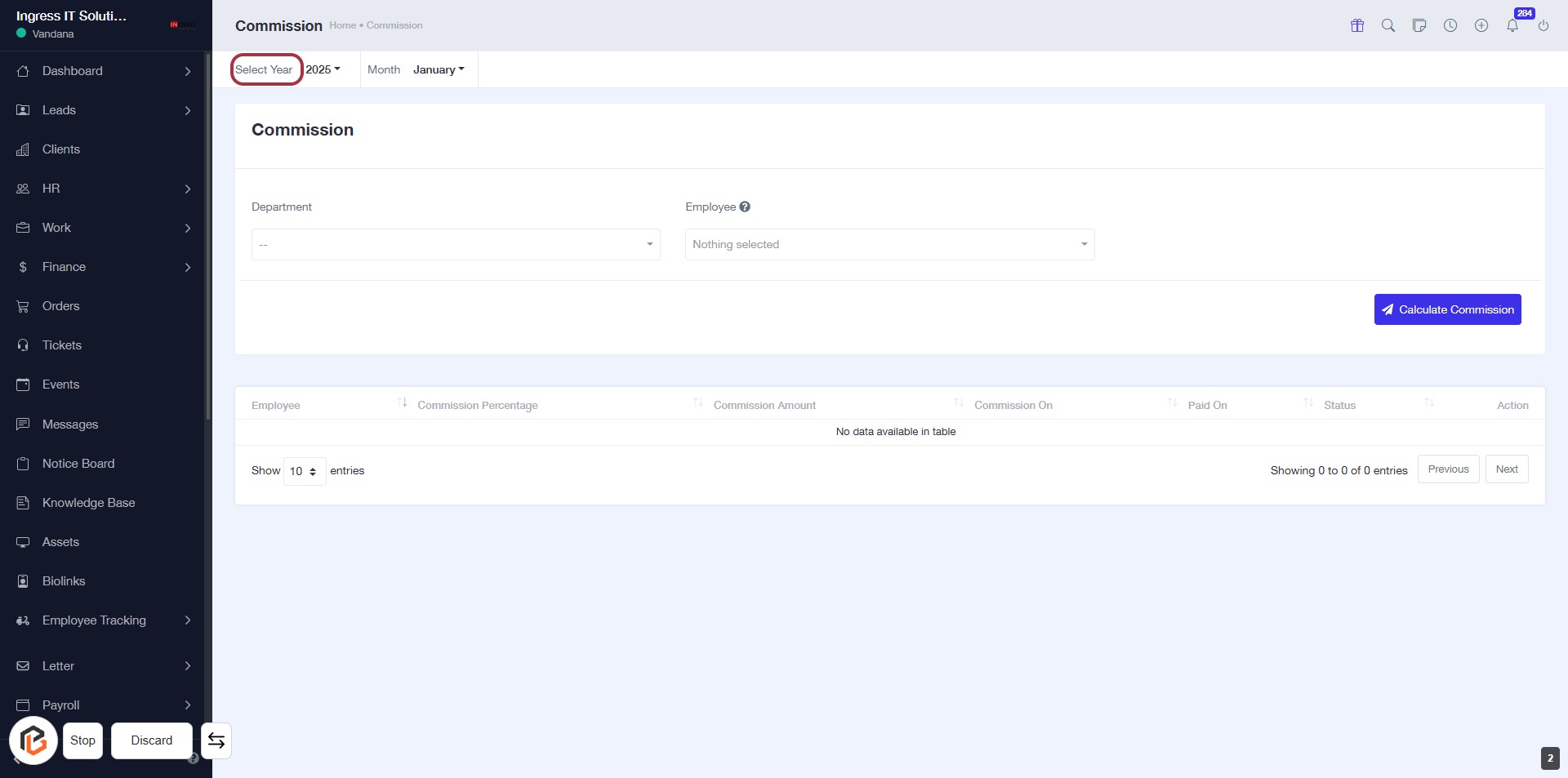
STEP 3: Click on "Select Year"
- Locate the "Select Year" option in the Commission section.
- Click on it to open the year selection dropdown.
- Choose the desired year from the list that appears.
- Ensure the year is correctly selected before proceeding to the next step.
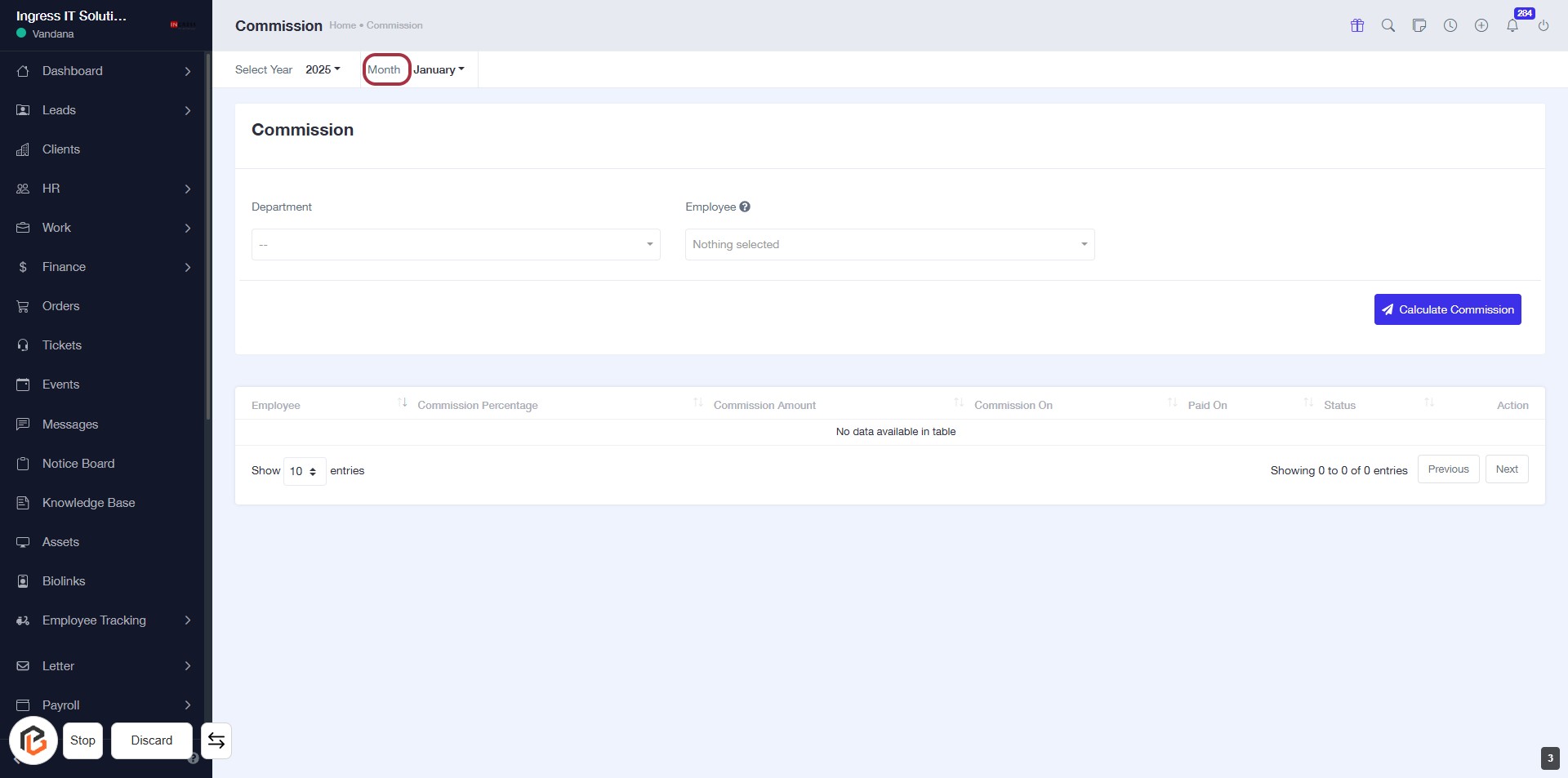
STEP 4: Select "Month"
- Click on the highlighted "Month" option in the form.
- Ensure the year is set to 2025 before selecting the month.
- After selecting, proceed to the next step to choose the "Department."
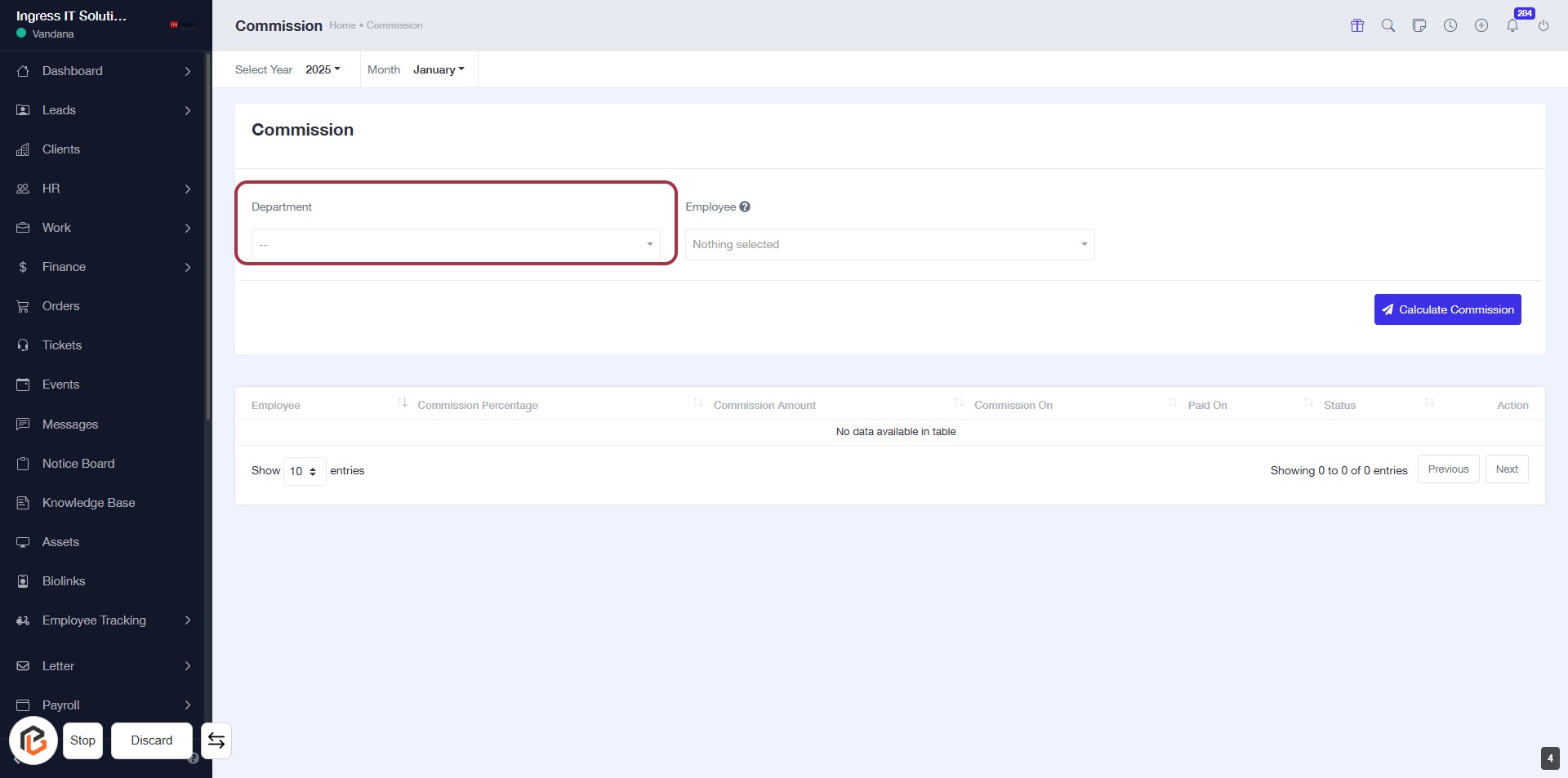
STEP 5: Select "Department"
- Click on the "Department" field highlighted in red.
- A dropdown will appear; select the appropriate department from the list.
- Ensure that the selection is made before proceeding to the next step.
- The "Employee" field will be available for selection afterward.
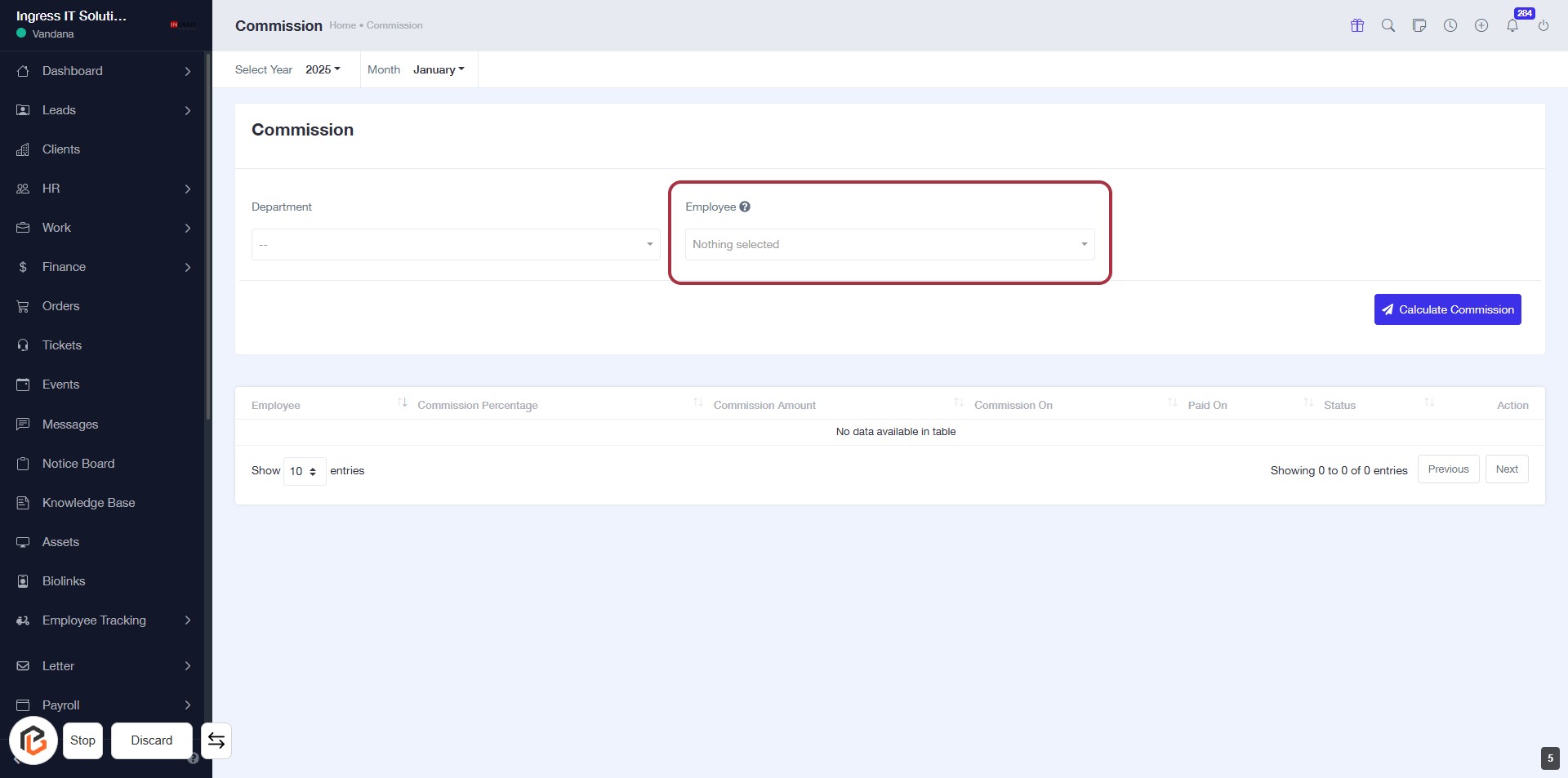
STEP 6: Select "Employee"
- Click on the "Employee" dropdown to choose an employee for the commission calculation.
- Ensure the "Department" field is filled out prior to this step.
- The dropdown will display a list of employees; select the appropriate one.
- After selection, proceed to the next step by clicking "Calculate Commission."
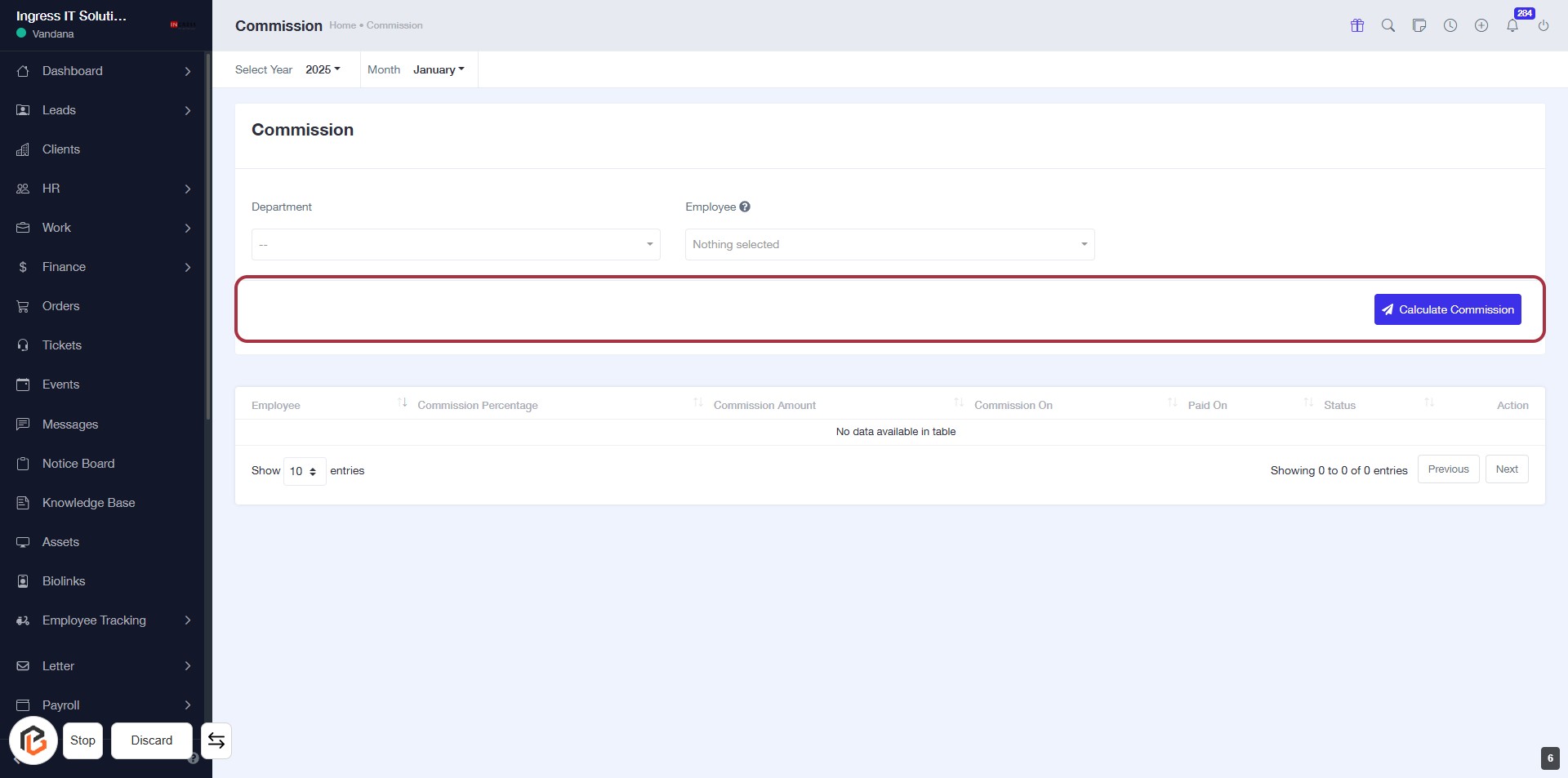
STEP 7: Click "Calculate Commission" to Finalize Your Commission Calculation
- Ensure the "Employee" field is filled.
- Click on the Calculate Commission button located in the highlighted area.
- Review the commission details displayed in the table below after calculation.
- No additional steps are required after this action.