Step-by-Step Guide to Creating Sales Targets and Commission Entries
8 mins read · Updated 29 Sep, 2025
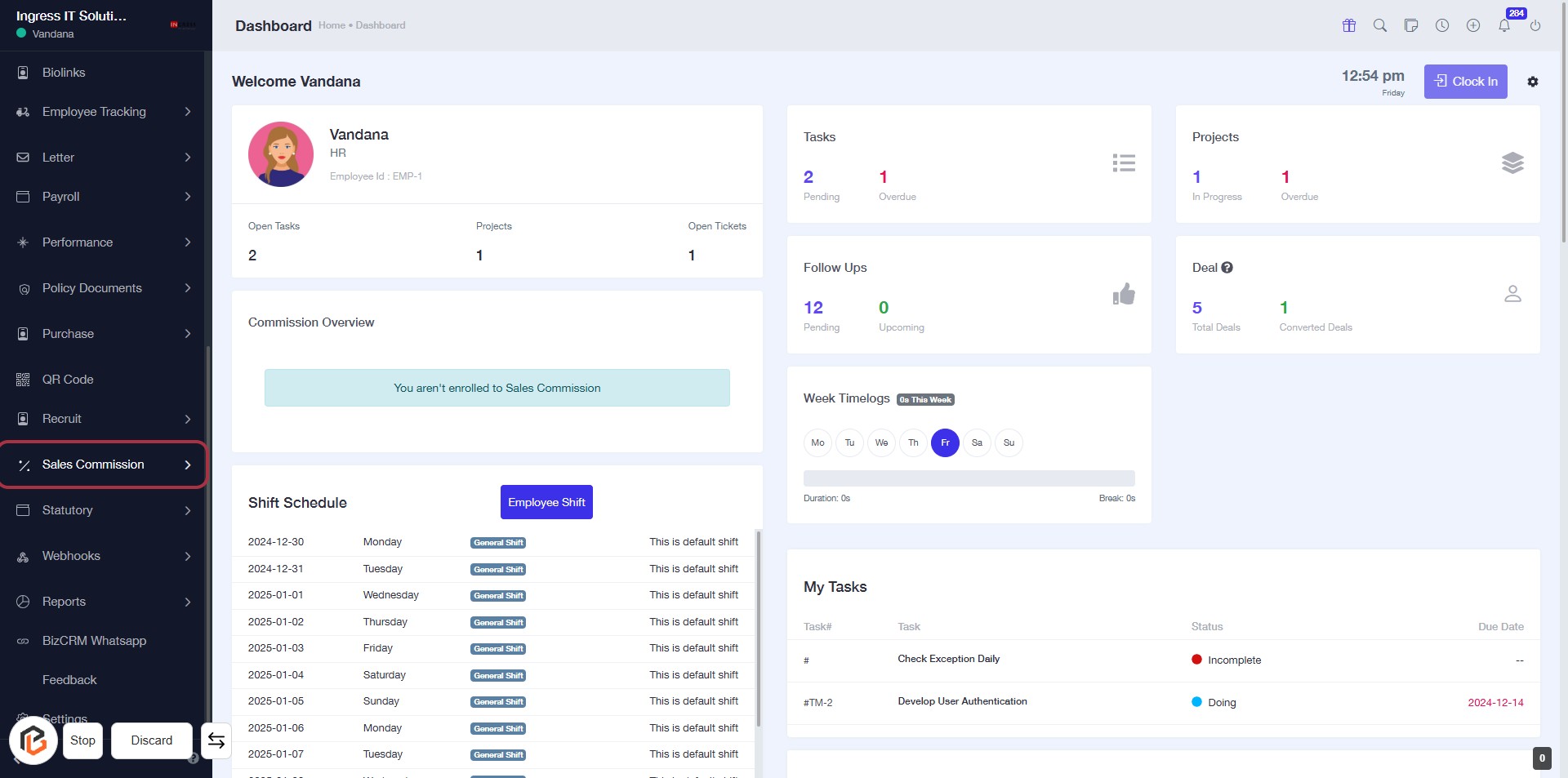
STEP 1: Click on "Sales Commission" to Access Commission Overview
- Navigate to the sidebar menu on the left.
- Locate and click on the Sales Commission link.
- This will take you to the Commission Overview section.
- Ensure you check for any notifications regarding enrollment in Sales Commission.
Next, you will select "Targets" to proceed.
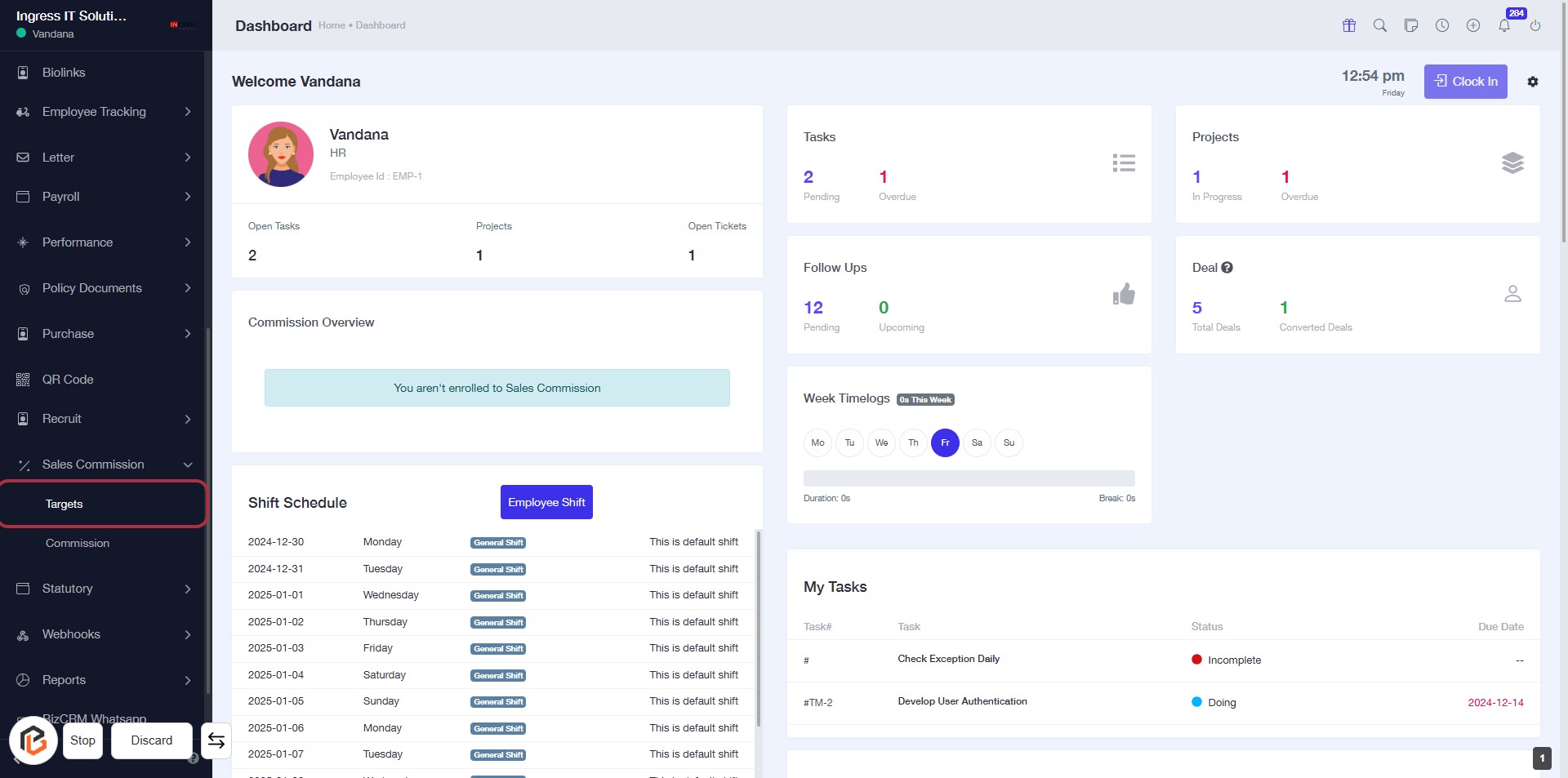
STEP 2: Select "Targets"
- Click on the "Targets" link in the sidebar to access the Targets section.
- Ensure you are on the Dashboard page.
- Look for the highlighted area to proceed with creating a target.
- After selecting, you will be directed to the relevant target management options.
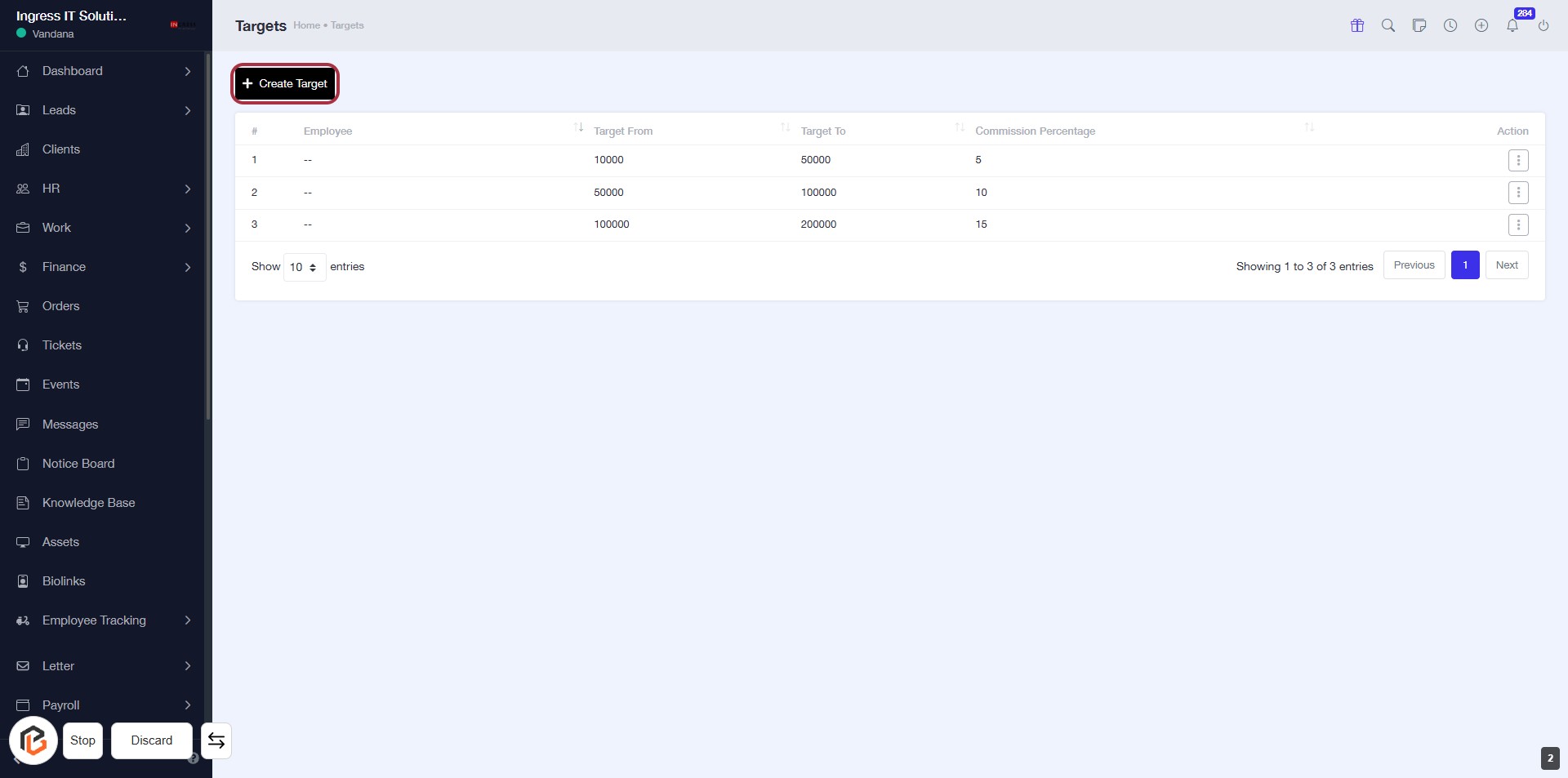
STEP 3: Click on "Create Target"
- Navigate to the "Targets" section.
- Click on the Create Target button located at the top of the page.
- This action will allow you to start creating a new target entry.
- Ensure all required fields are filled in the subsequent form that appears.
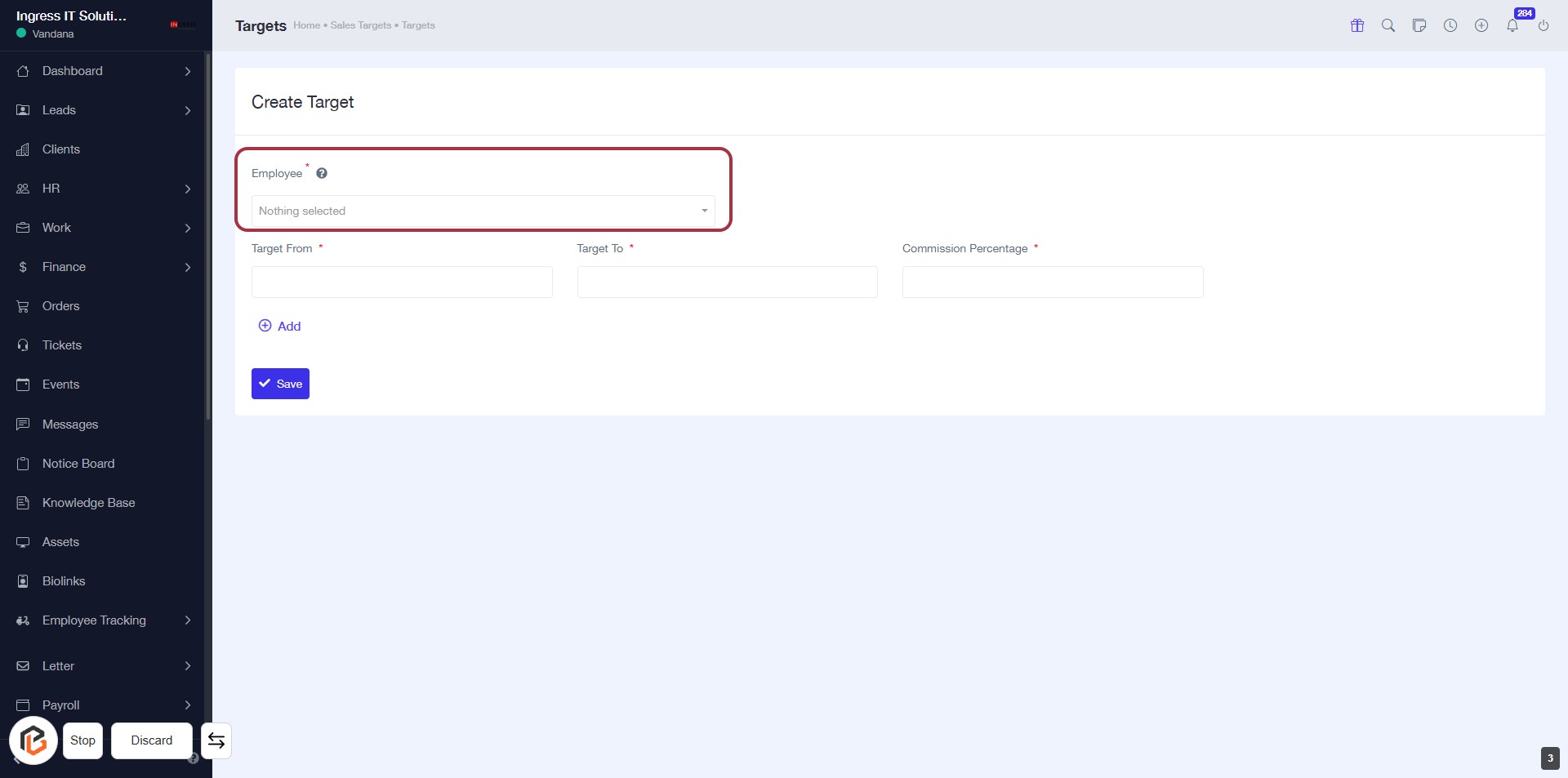
STEP 4: Select "Employee"
- Click on the "Employee" dropdown to choose an employee for the target.
- Ensure the field is marked with an asterisk (*) indicating it's a required input.
- After selection, proceed to the next step to enter "Target From".
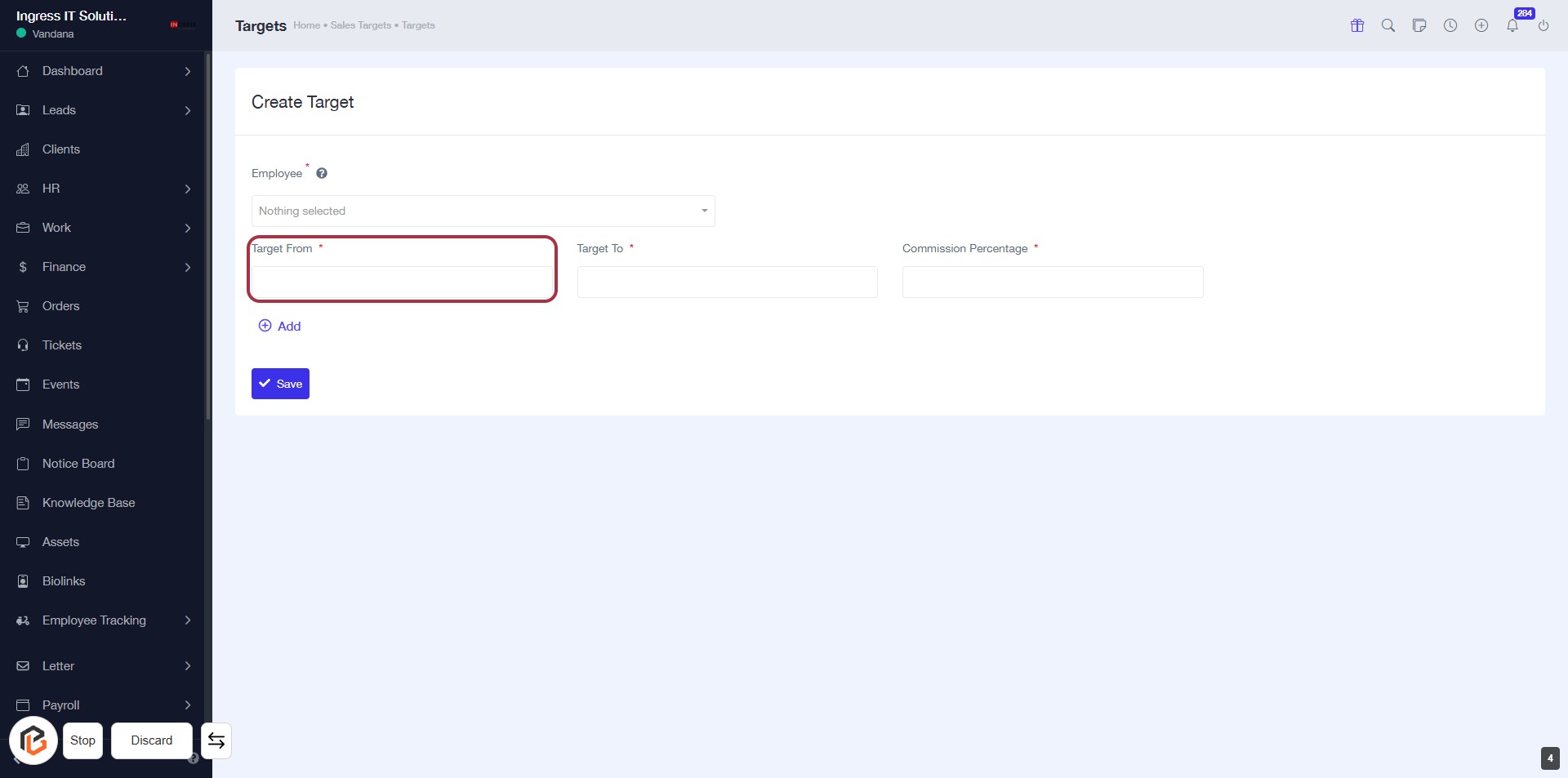
STEP 5: Enter "Target From"
- Click on the "Target From" field to activate it.
- This field is mandatory (indicated by the asterisk '*').
- Ensure to input the appropriate starting target value.
- After entering, proceed to the next step by filling in the "Target To" field.
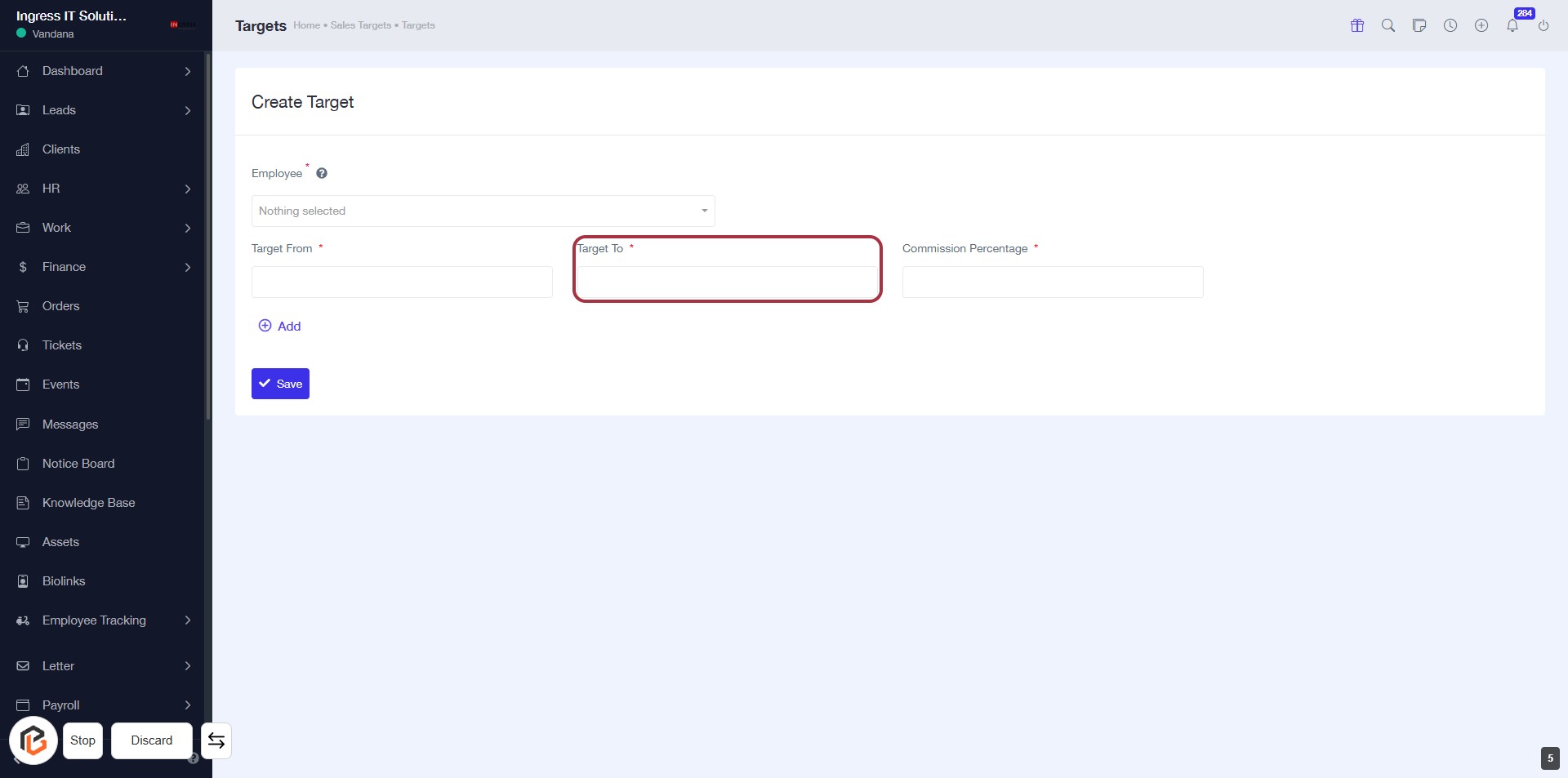
STEP 6: Enter "Target To"
- Click on the "Target To" field to input the desired value.
- Ensure that you fill in this field as it is marked with an asterisk (*), indicating it is required.
- Review other fields such as "Employee" and "Target From" to ensure all necessary information is complete before proceeding.
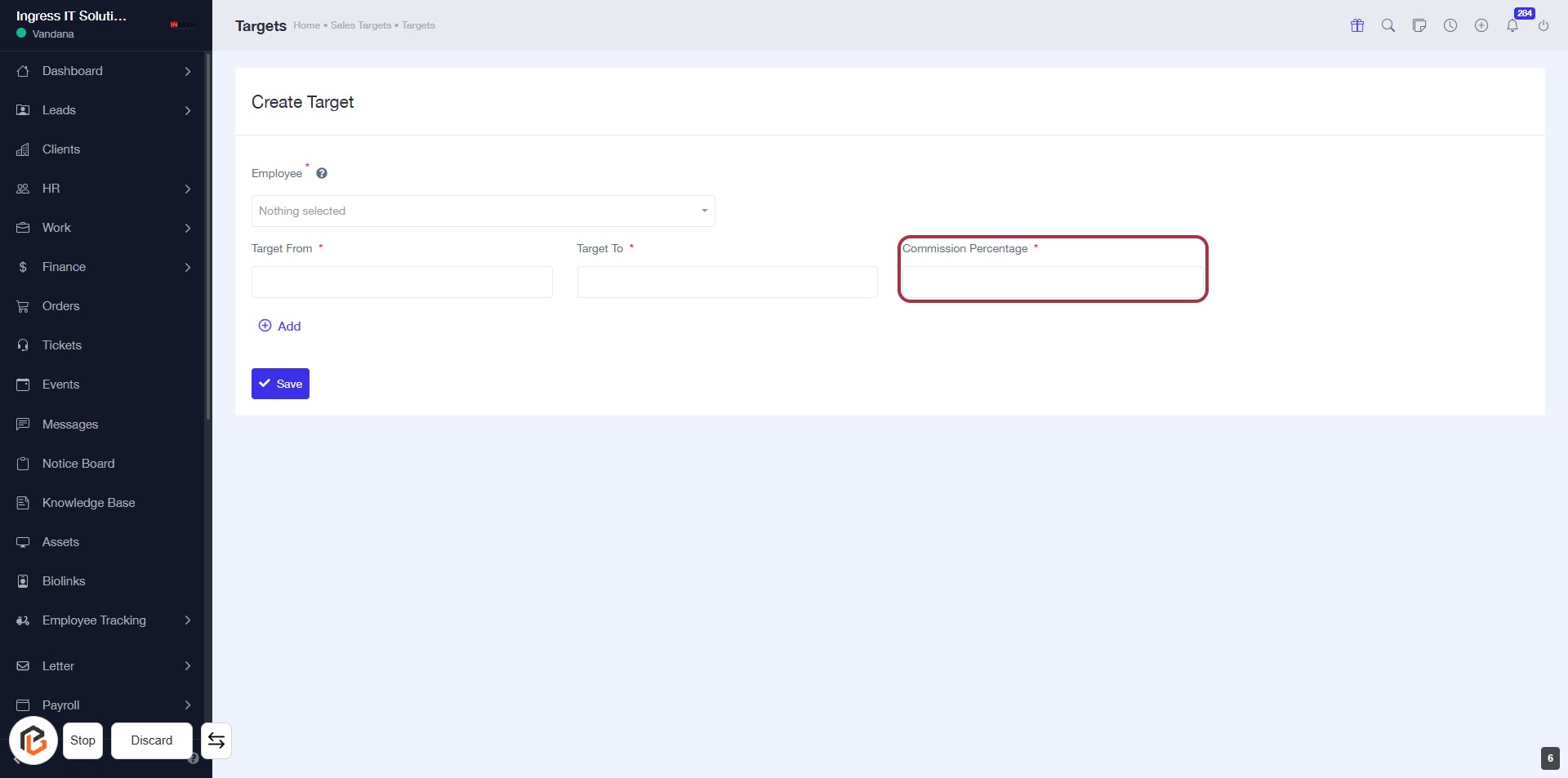
STEP 7: Enter "Commission Percentage"
- Click on the "Commission Percentage" field highlighted in red.
- Enter the desired commission percentage value (mandatory field).
- Ensure all required fields marked with an asterisk (*) are filled out before proceeding.
- After entering the percentage, continue to the next step by clicking the "Save" button.
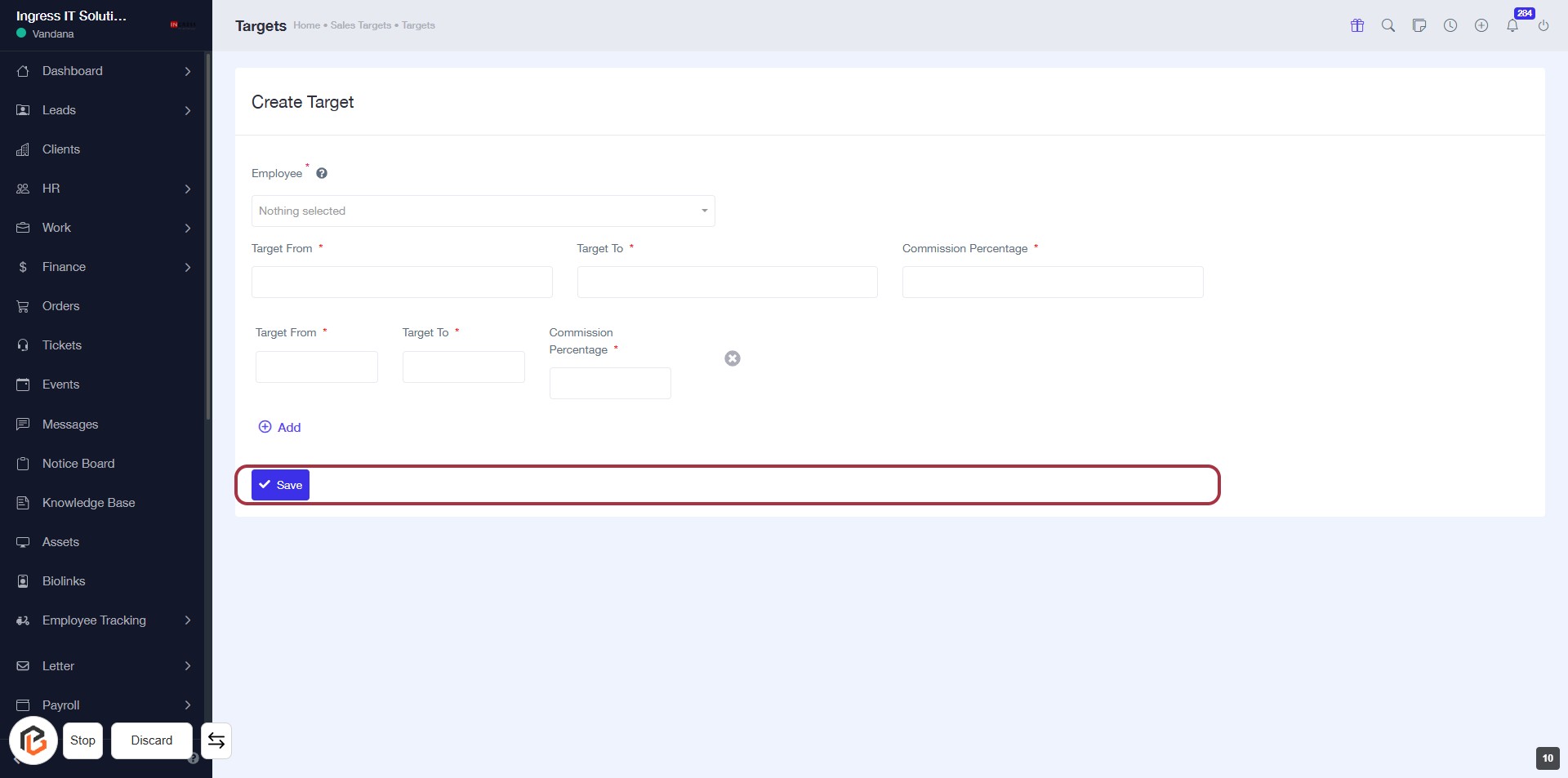
STEP 8: Click on "Save" to Finalize Your Target Creation
- Ensure all required fields (marked with *) are filled: Employee, Target From, Target To, and Commission Percentage.
- Click the Save button at the bottom of the form to submit your entries.
- Review any confirmation messages to ensure successful submission.