Step-by-Step Guide to Accessing and Exporting Candidate Information from the Dashboard
4 mins read · Updated 29 Sep, 2025
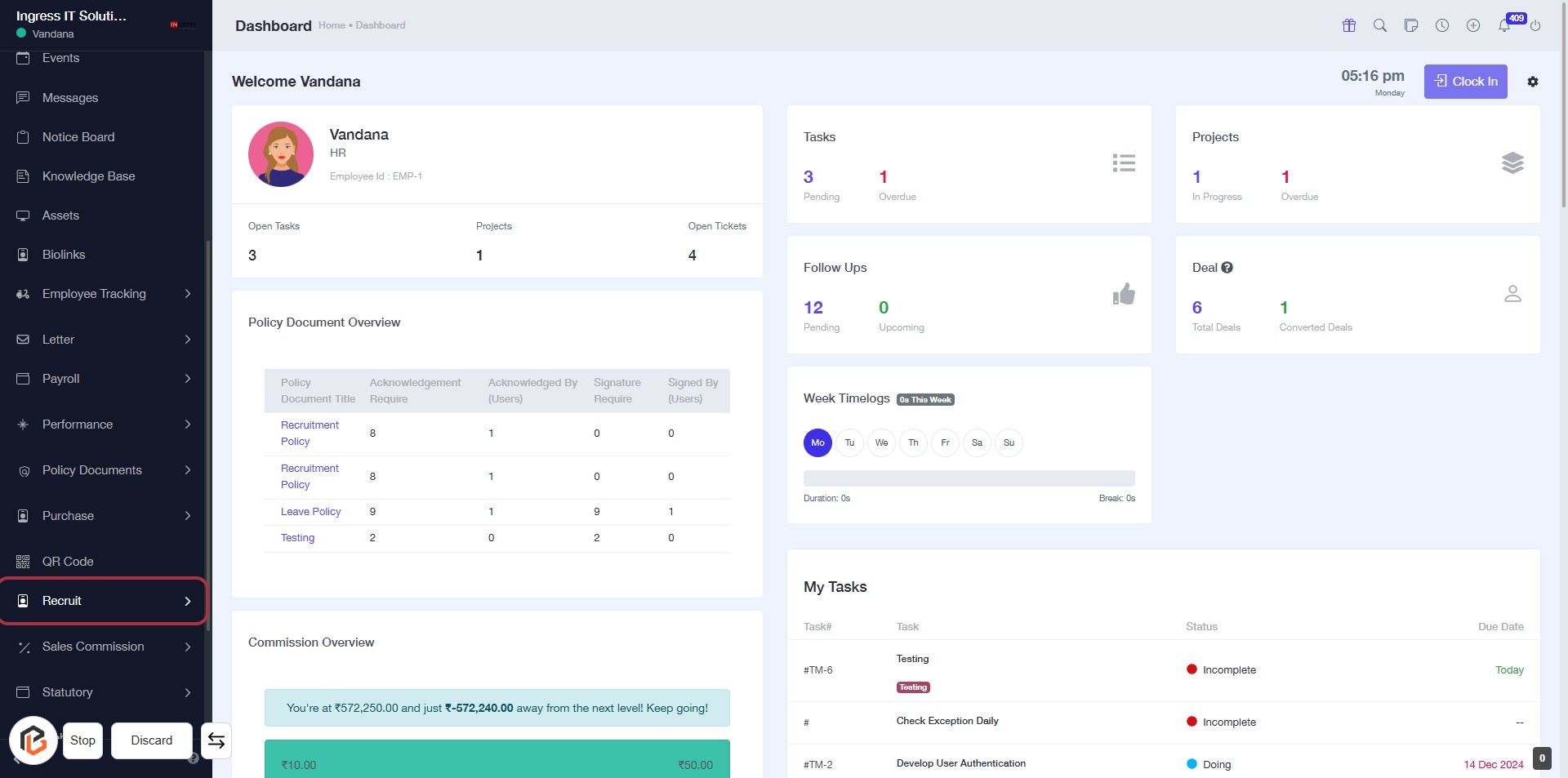
STEP 1: Click on "Recruit" in the Dashboard
- Navigate to the left sidebar of the dashboard.
- Locate the "Recruit" option highlighted with a red border.
- Click on the "Recruit" link to proceed to the next section.
- Ensure you are on the correct page before moving to "Candidate Database."
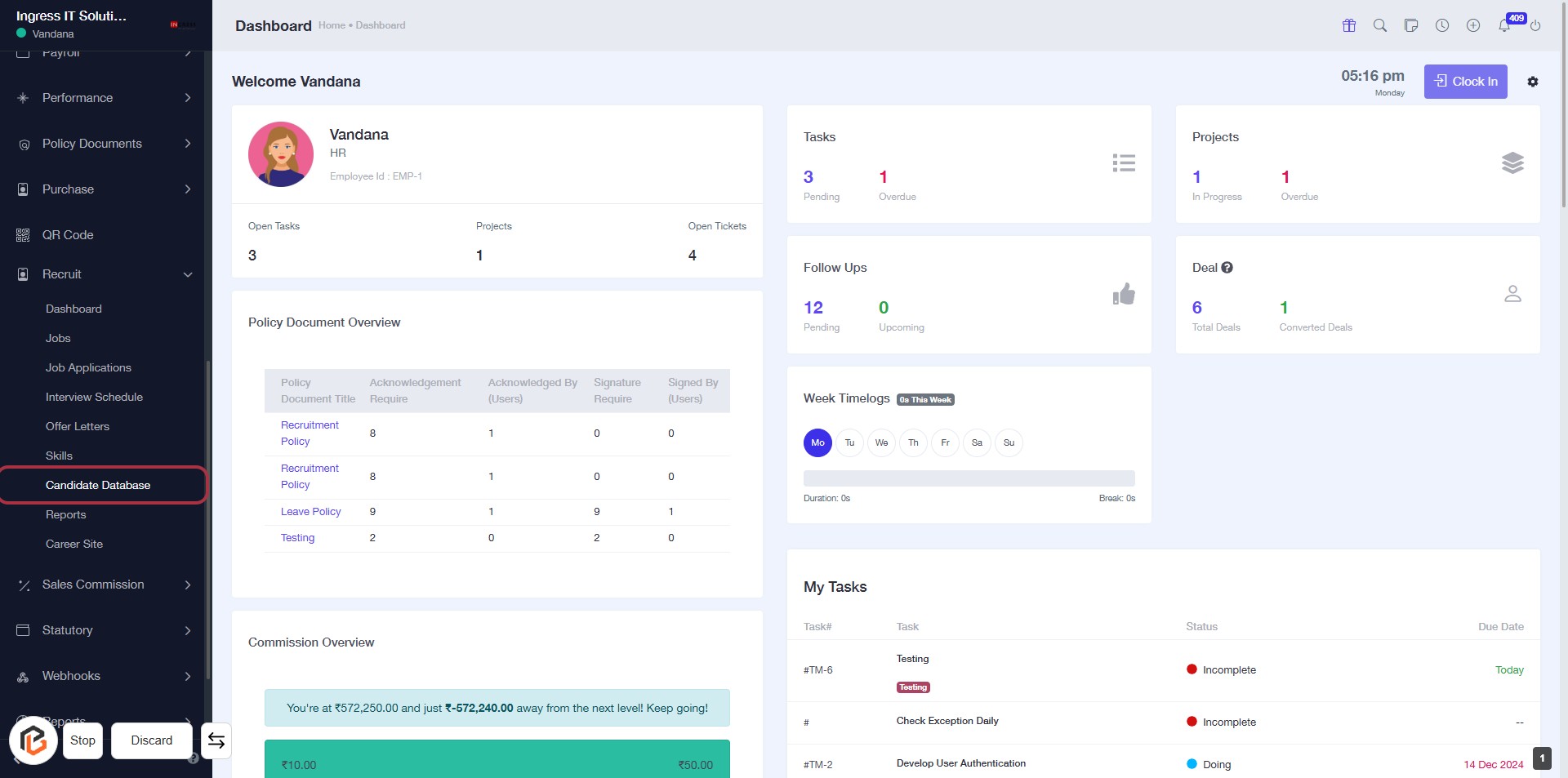
STEP 2: Click on "Candidate Database"
- Navigate to the left sidebar and locate the "Candidate Database" option.
- Click on the "Candidate Database" link to access the candidate information.
- Ensure you are on the Dashboard page before proceeding.
- This action will lead you to the next step of viewing candidate details.
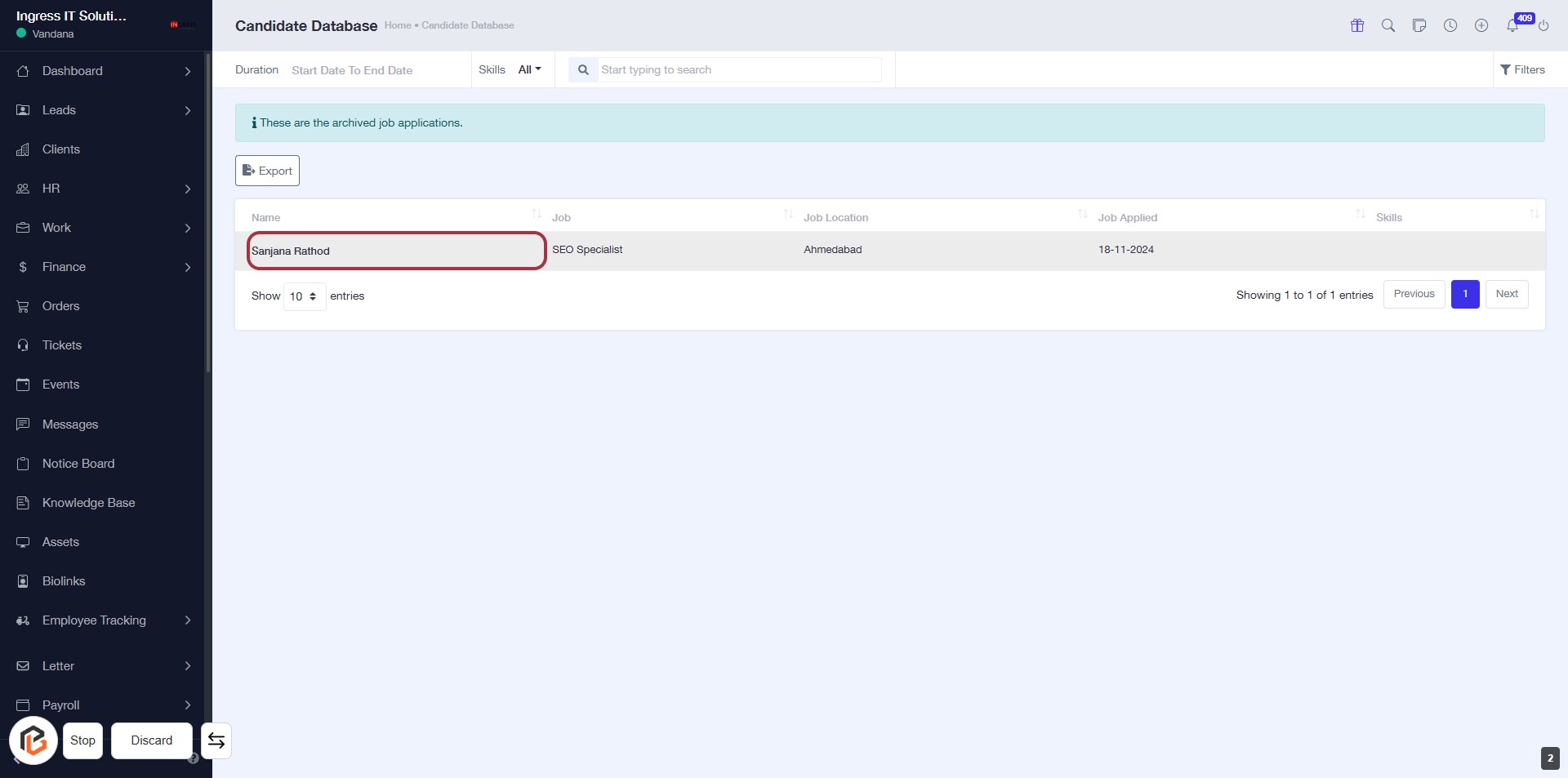
STEP 3: Click on "Sanjana Rathod" to View Candidate Details
- Navigate to the Candidate Database section.
- Locate the candidate's name, Sanjana Rathod, highlighted in red.
- Click on the name to access detailed information about the candidate.
- Ensure to review all relevant details displayed on the candidate's profile.
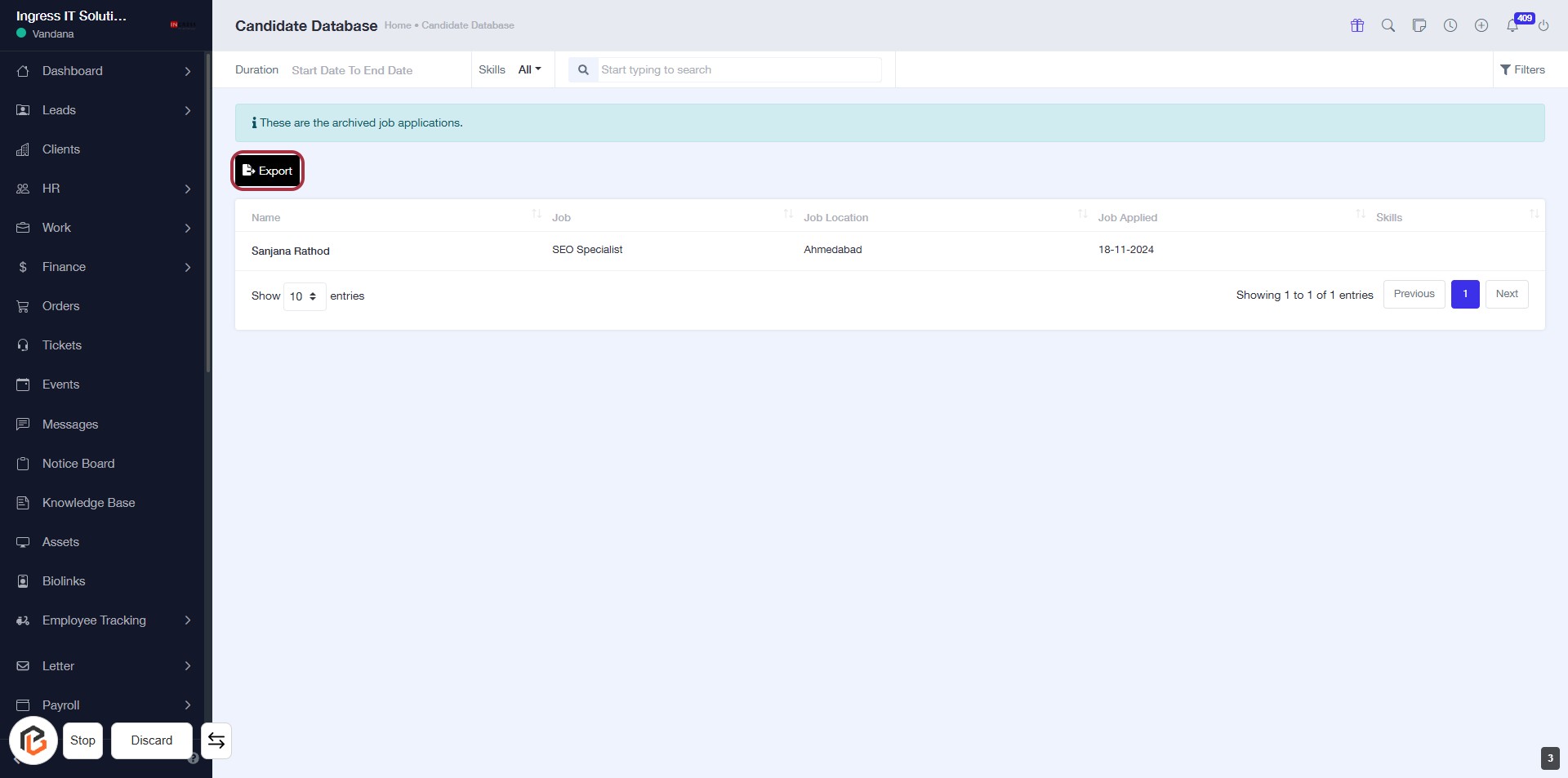
STEP 4: Click on "Export" to Download Candidates Detail
- Locate the "Export" button highlighted in red.
- Click on the "Export" button to initiate the download of candidate details.
- Ensure you have the necessary permissions to download the data.
- Check your downloads folder for the exported file after clicking.