Comprehensive Guide to Managing Offer Letters in the Recruit Section
11 mins read · Updated 29 Sep, 2025
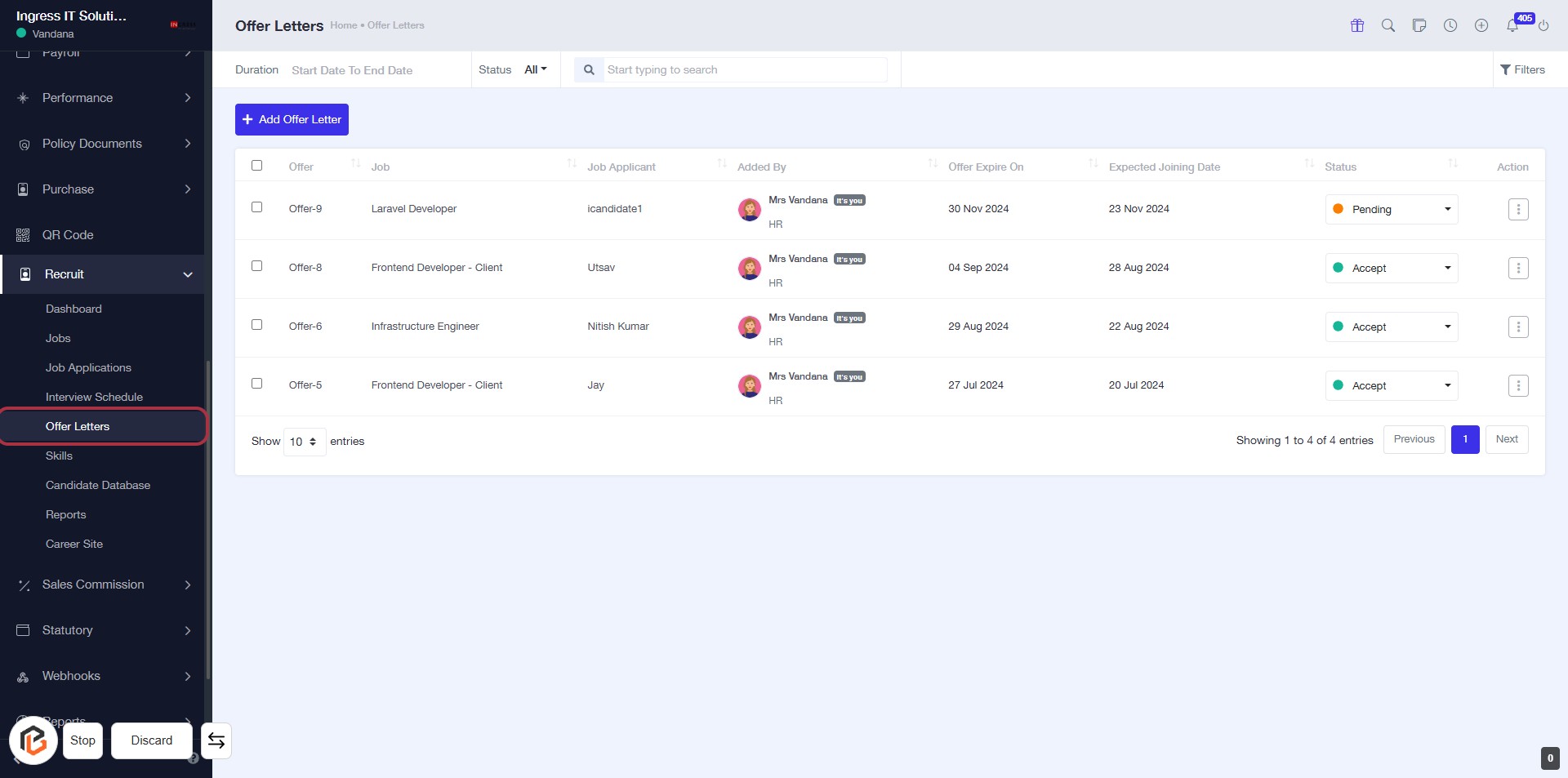
STEP 1: Click on "Offer Letters" to Access Offer Management
- Navigate to the Recruit section on the left sidebar.
- Click on Offer Letters to view the list of offer letters.
- The table displays details such as Job, Job Applicant, Added By, Offer Expire On, Expected Joining Date, and Status.
- You can manage offer letters from this interface.
STEP 2: Click on "Option Menu" to Access Additional Actions
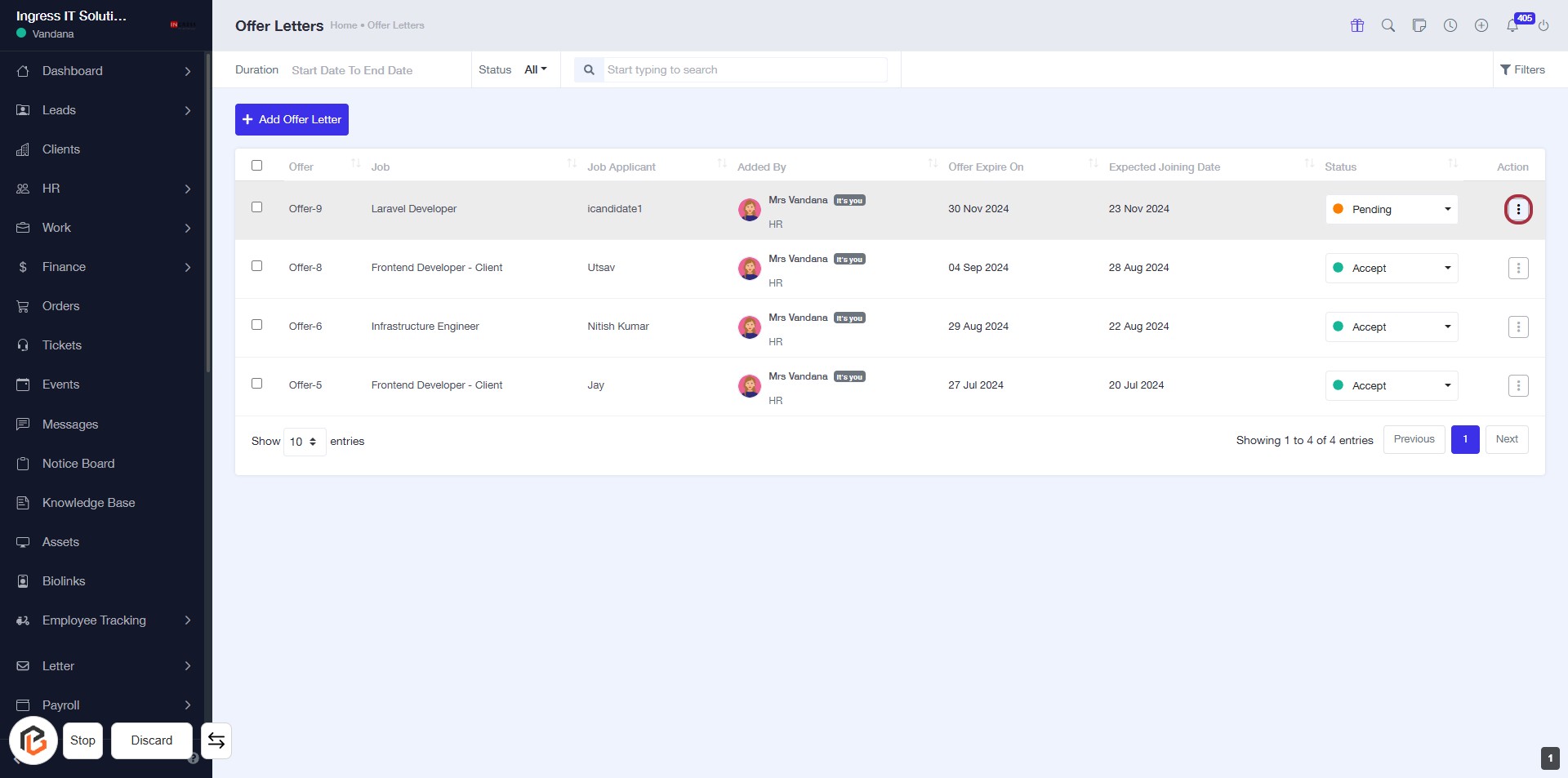
- Locate the highlighted area with the red border.
- Click on the "..." icon to reveal additional options for the selected offer letter.
- Review the available actions that can be performed on the offer letter.
- Ensure to select the appropriate action based on your needs.
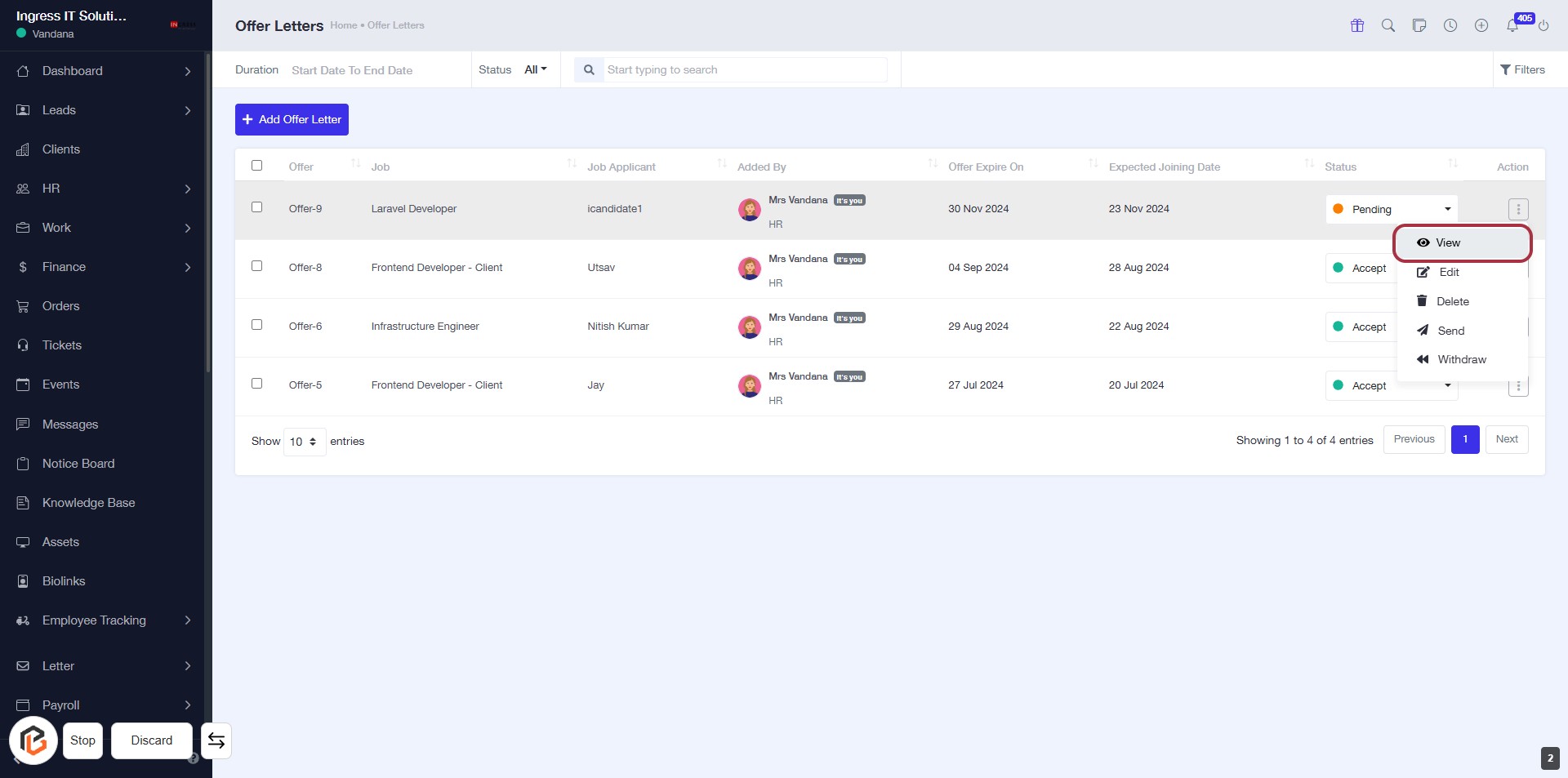
STEP 3: Click on "View" to Access Offer Letter Details
- Locate the "View" option in the action column of the offer letter table.
- Click on "View" to open the details of the selected offer letter.
- Ensure you have the correct offer letter highlighted before clicking.
- Review the information displayed for accuracy and completeness.
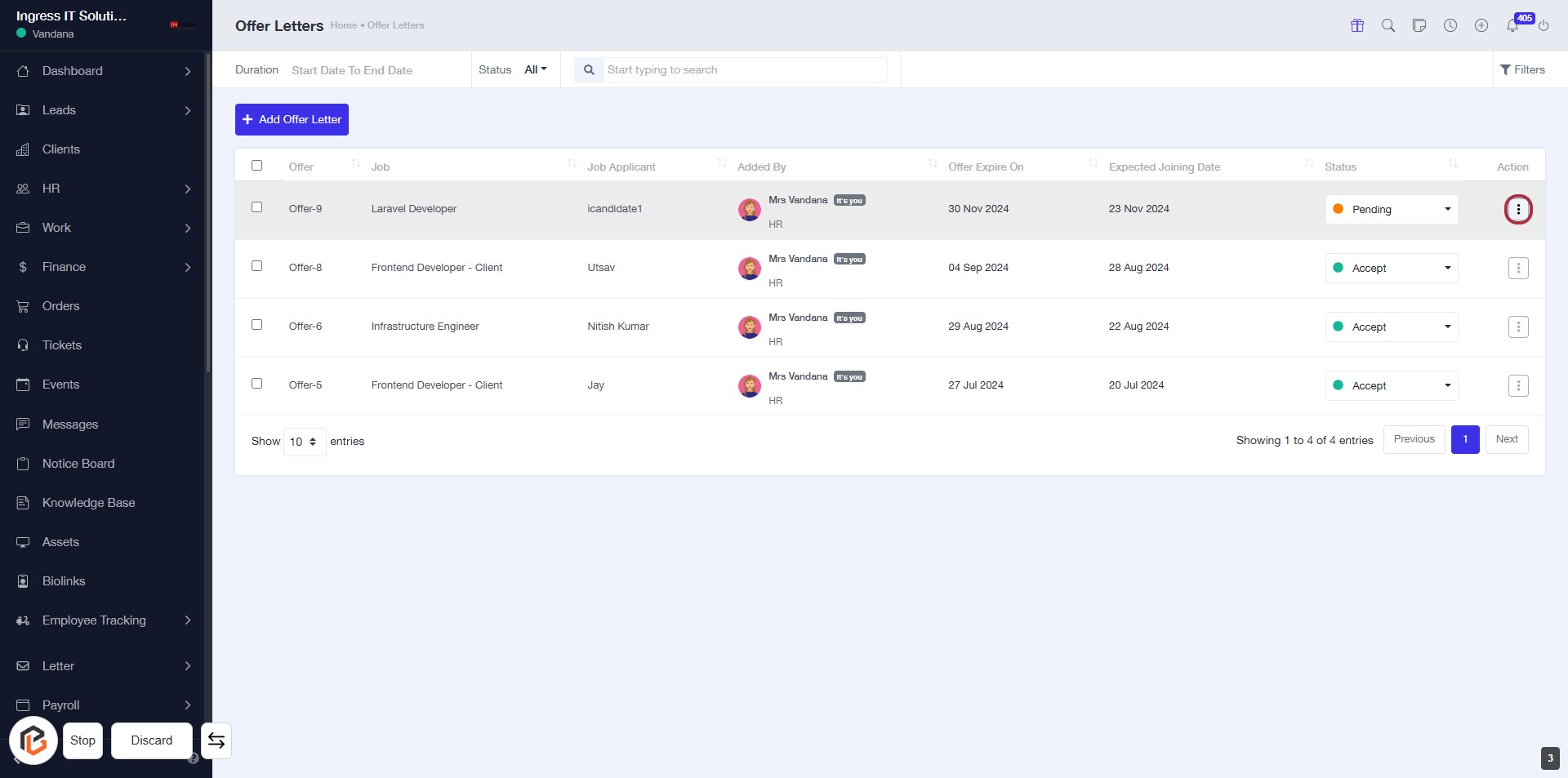
STEP 4: Click on "Option Menu" to Access Additional Actions
- Locate the highlighted area in the "Action" column of the offer letters table.
- Click on the three-dot menu icon to reveal additional options for the selected offer letter.
- Review the available actions such as "Edit," "Accept," or "Discard" as needed.
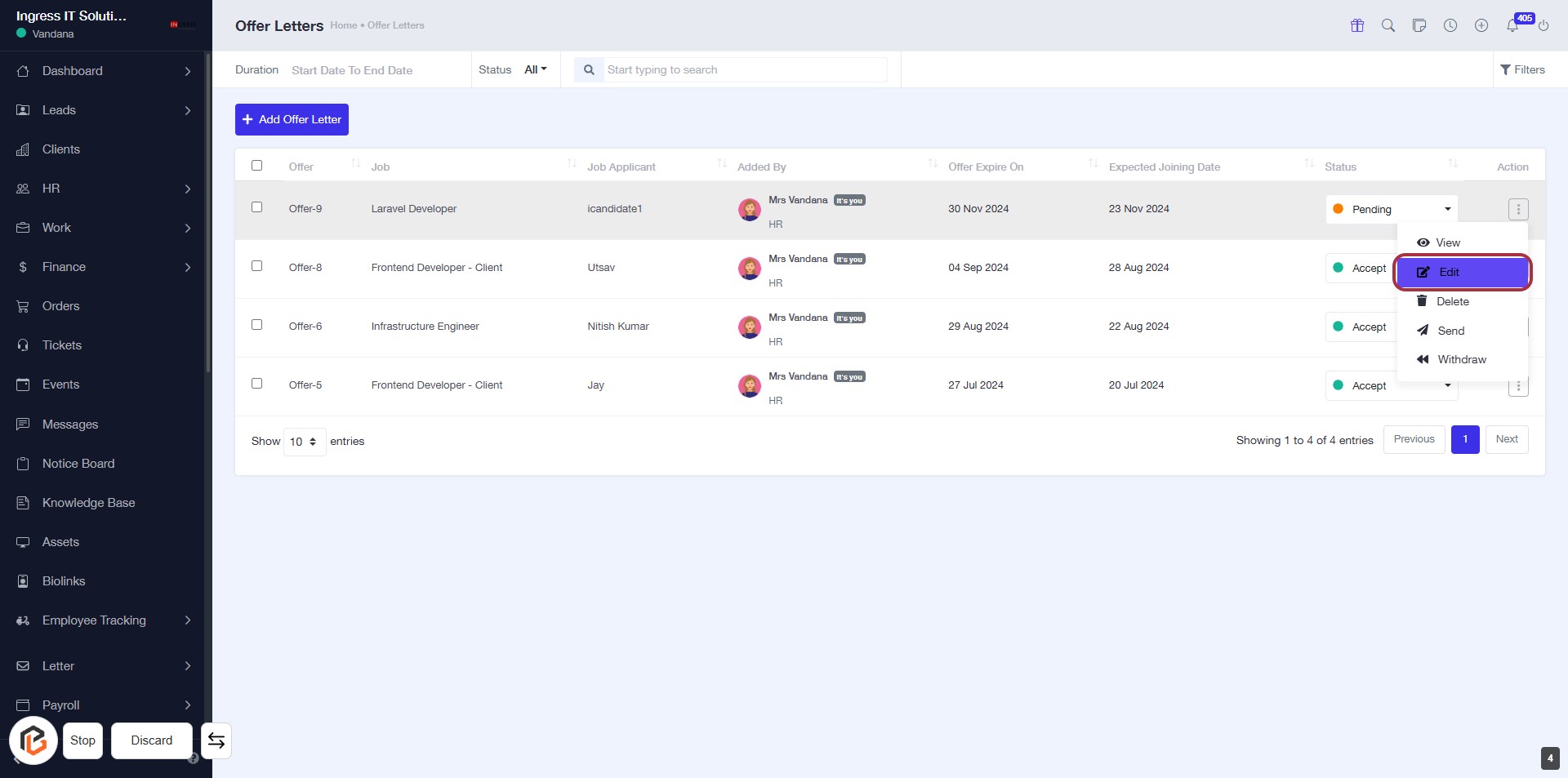
STEP 5: Click on "Edit" to Modify Offer Letter Details
- Locate the "Edit" option in the action column of the offer letter table.
- Click on "Edit" to open the editing interface for the selected offer letter.
- Ensure all required fields marked with '*' are filled out.
- Review and update any necessary information before saving changes.
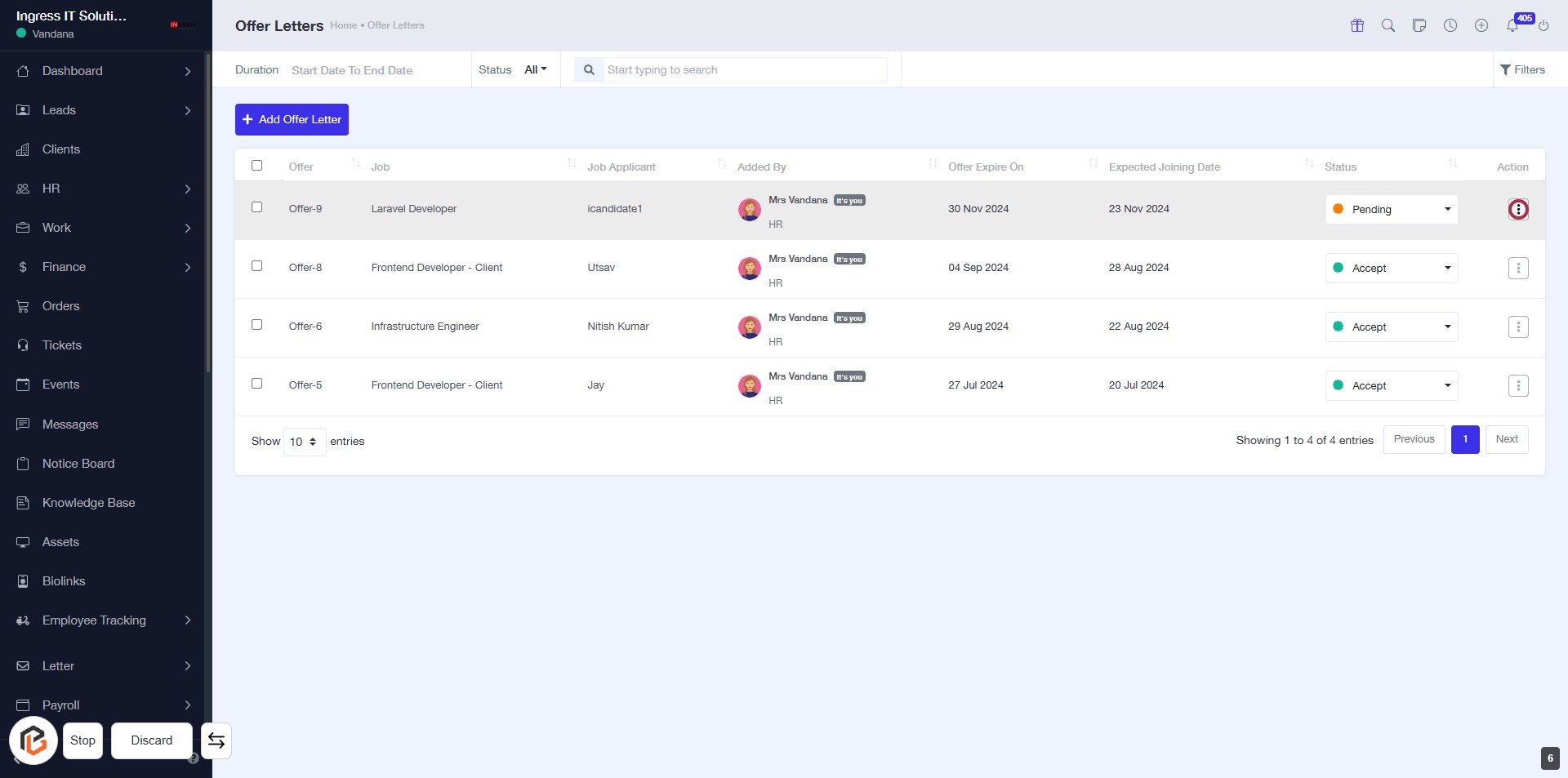
STEP 6: Click on "Option Menu" to Access Further Actions
- Locate the option menu icon in the highlighted area.
- Click on the icon to reveal additional actions related to the offer letters.
- Review the options available for managing the selected offer letter.
- Ensure you have selected the correct offer letter before proceeding with any actions.
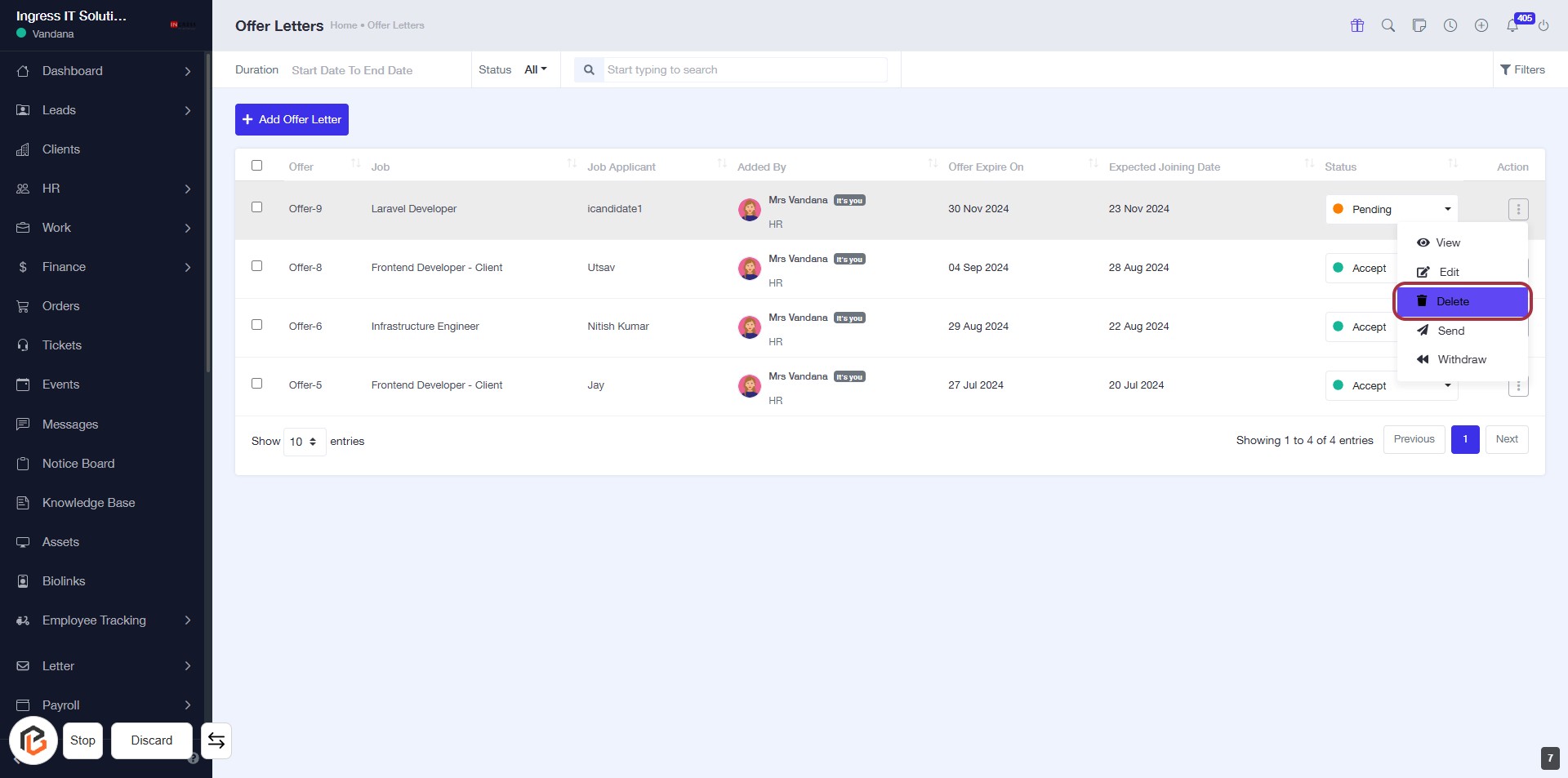
STEP 7: CLICK on "Delete"
STEP 8: CLICK on "Option Menu"
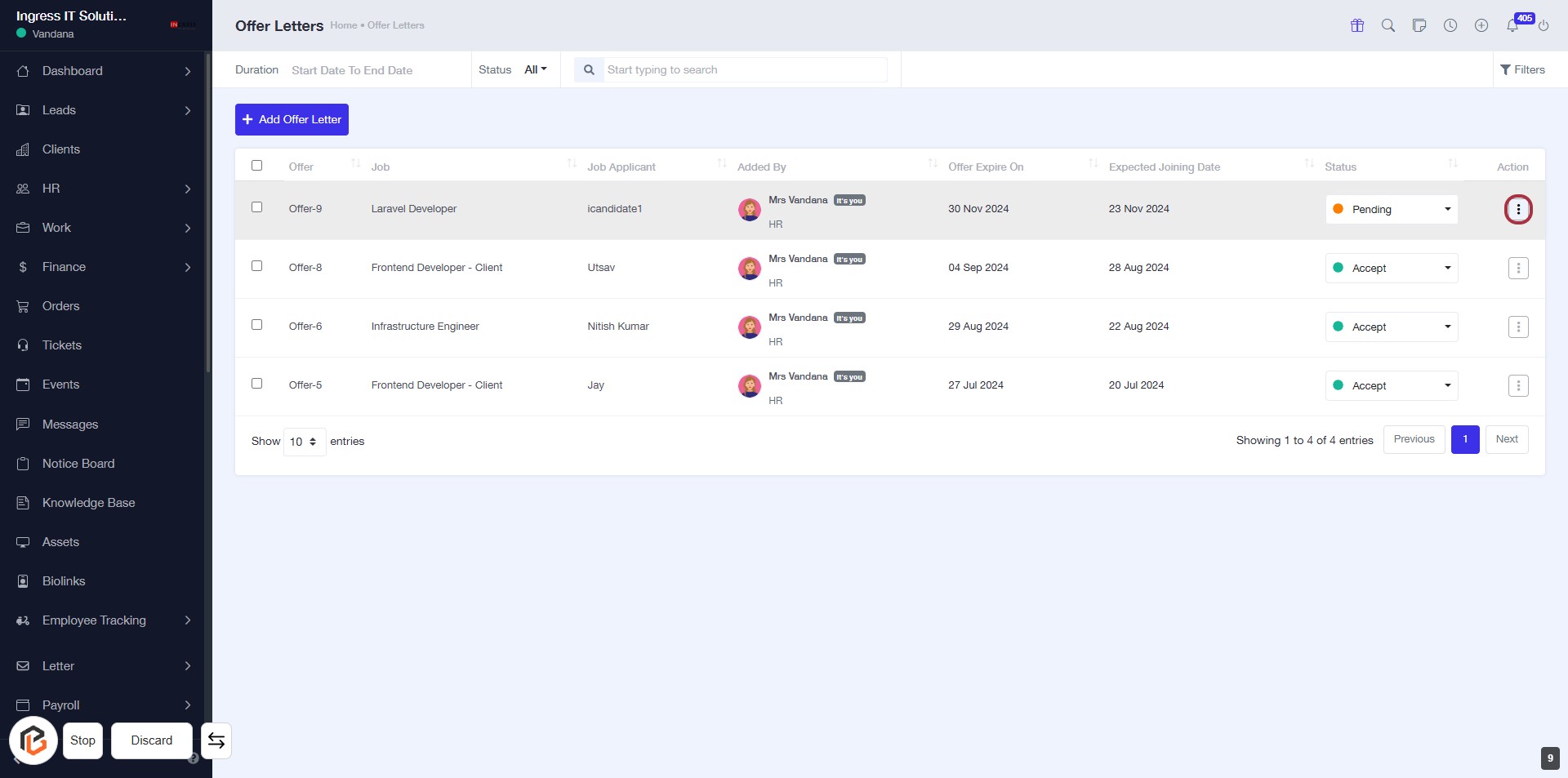
STEP 9: CLICK on "Send"
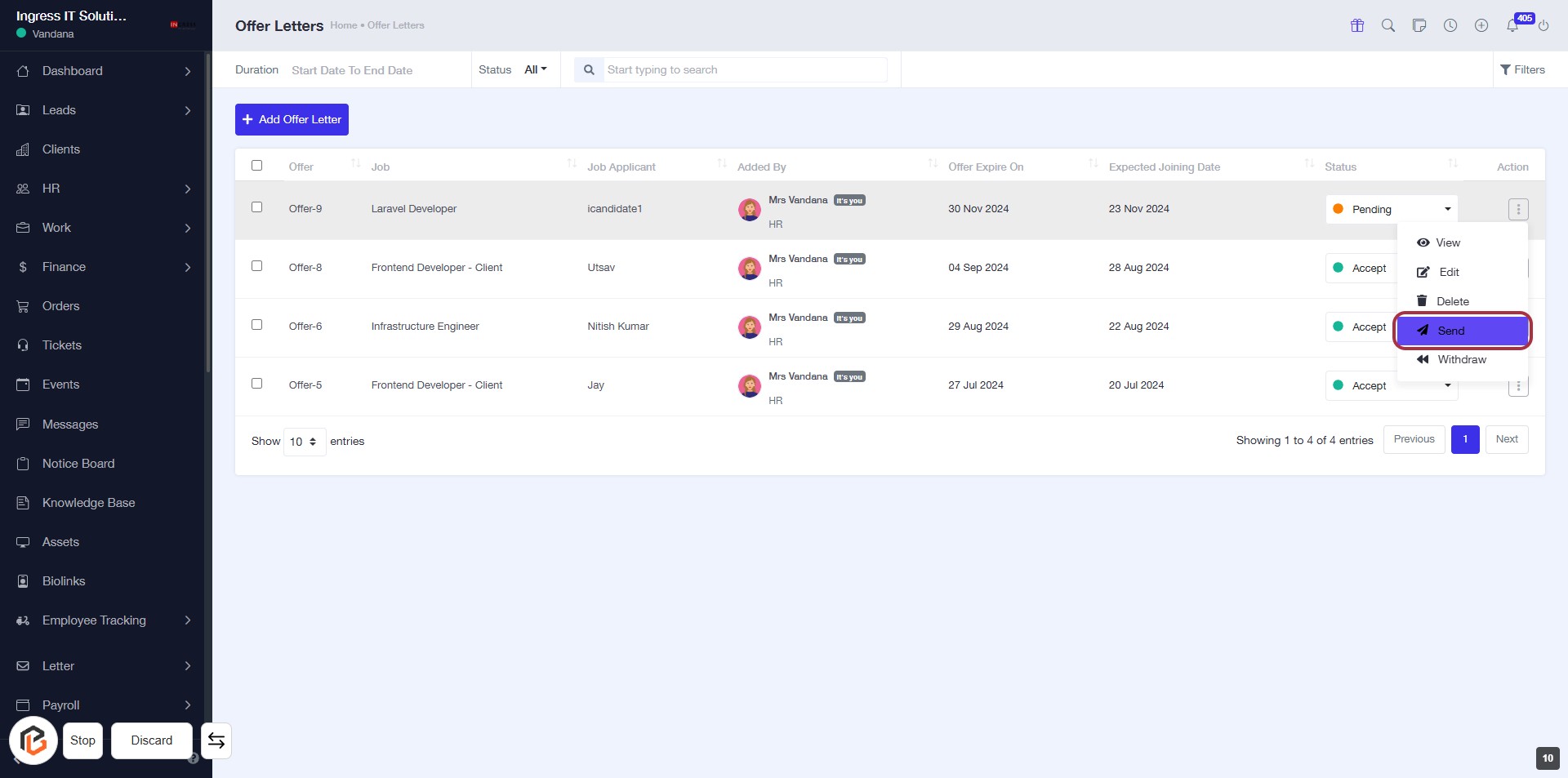
STEP 10: CLICK on "Option Menu"
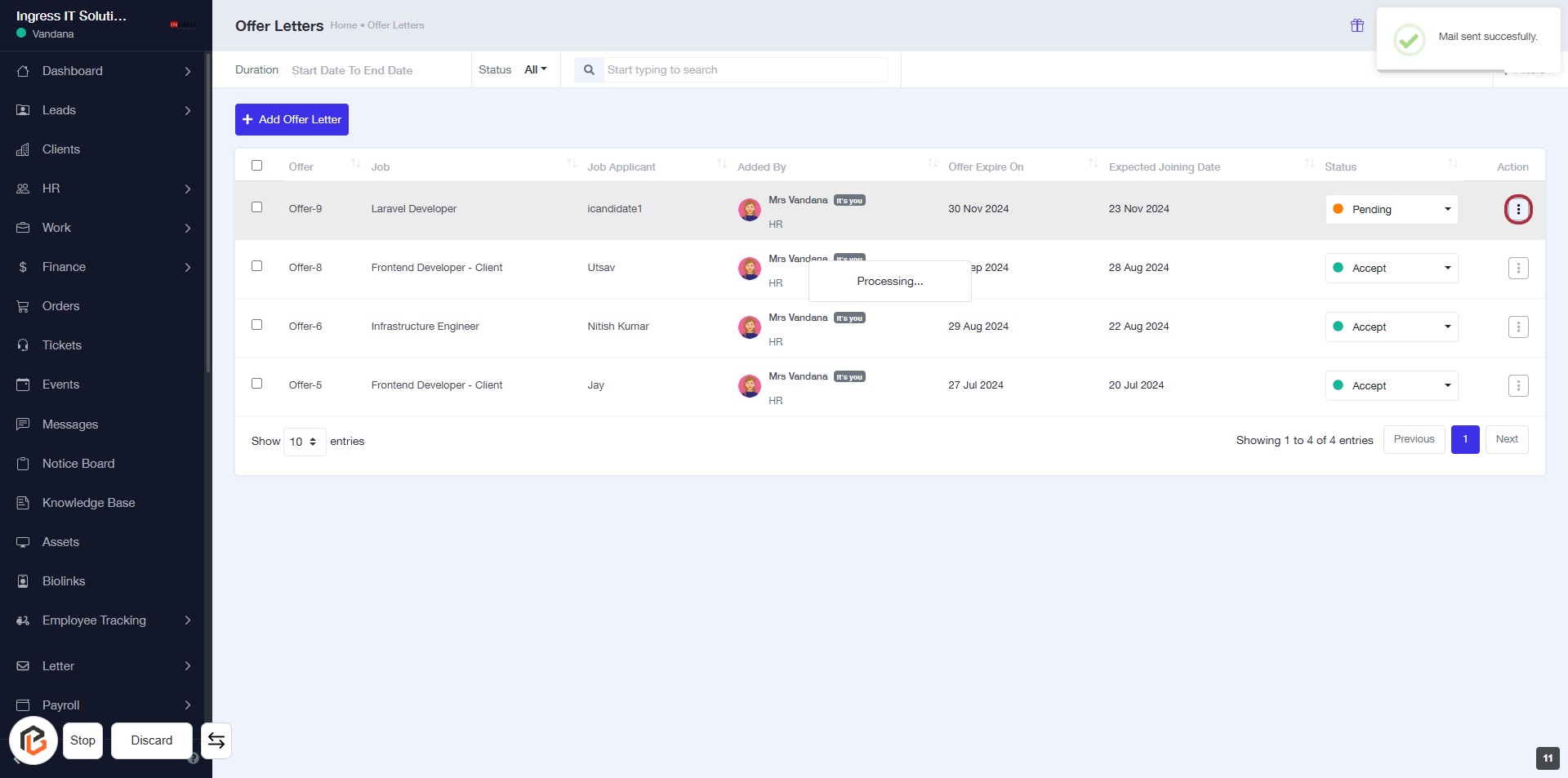
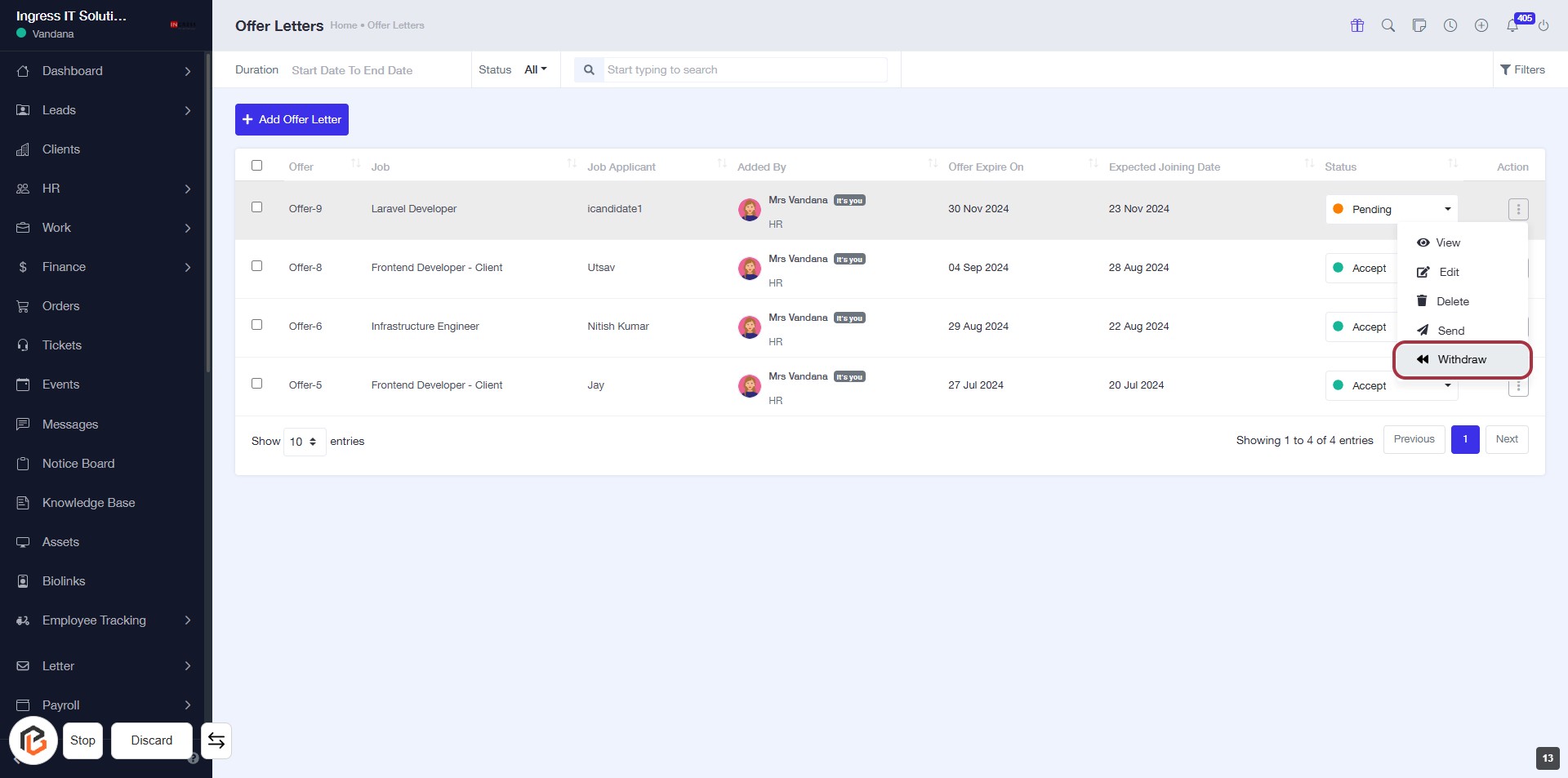
STEP 11: CLICK on "Withdraw"