Step-by-Step Guide to Accessing, Reviewing, and Managing Policy Documents
12 mins read · Updated 29 Sep, 2025
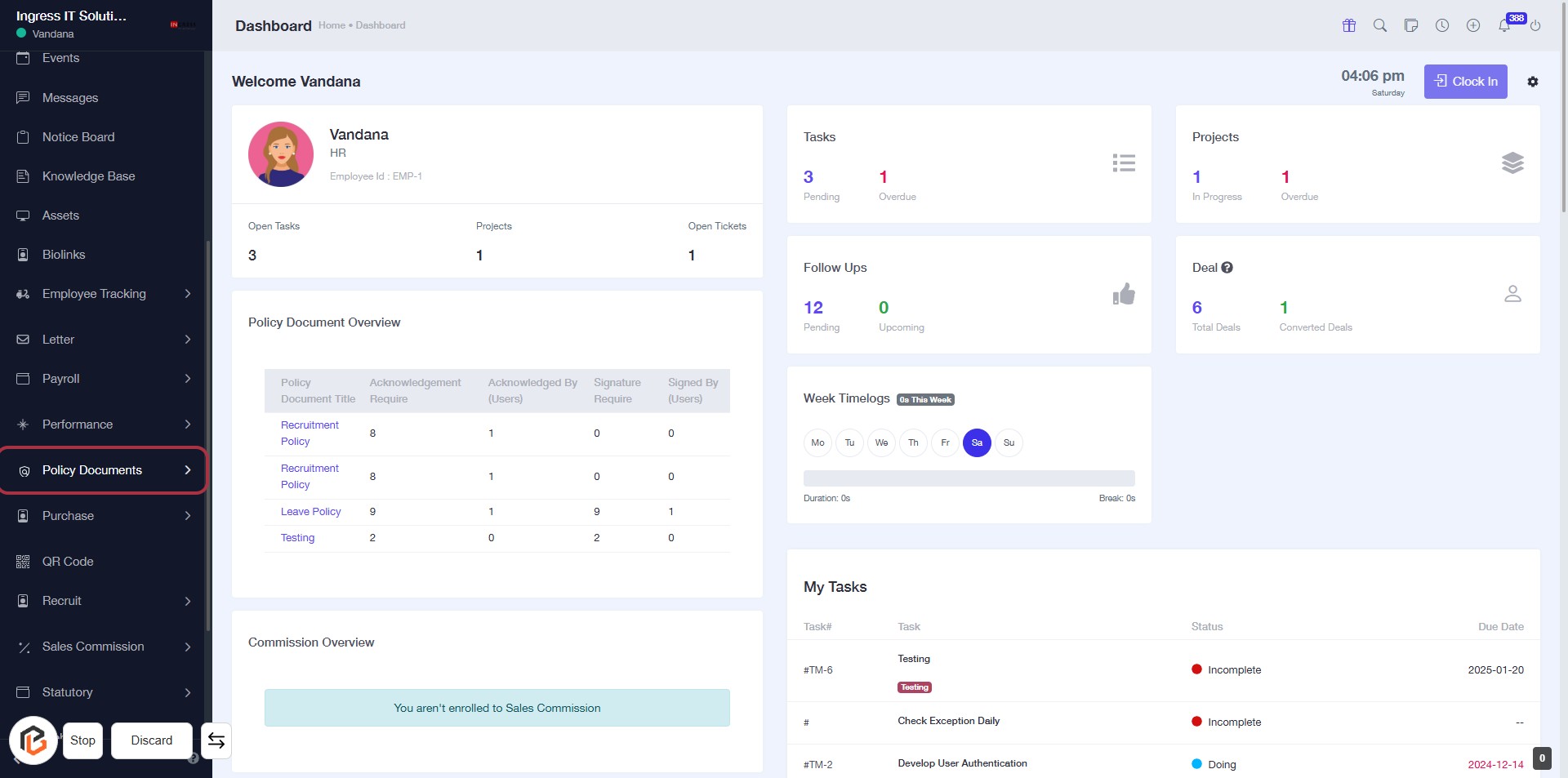
STEP 1: Click on "Policy Documents" to Access Document Overview
- Navigate to the left sidebar and locate the Policy Documents link.
- Click on the Policy Documents link to view the document overview.
- Review the Policy Document Overview section for details on various policies.
- Next, proceed to click on View Policy Documents for further actions.
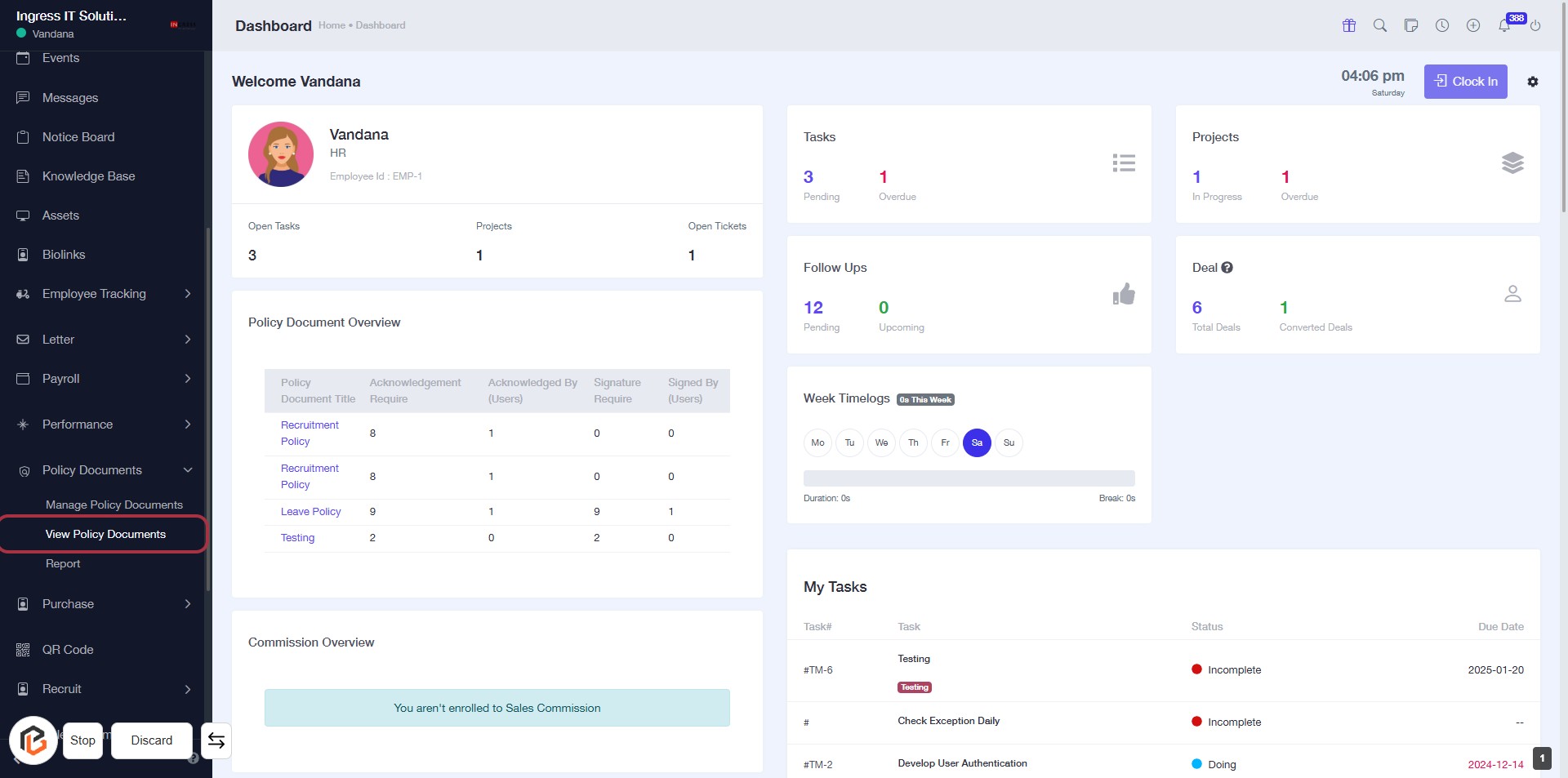
STEP 2: Go to "View Policy Documents"
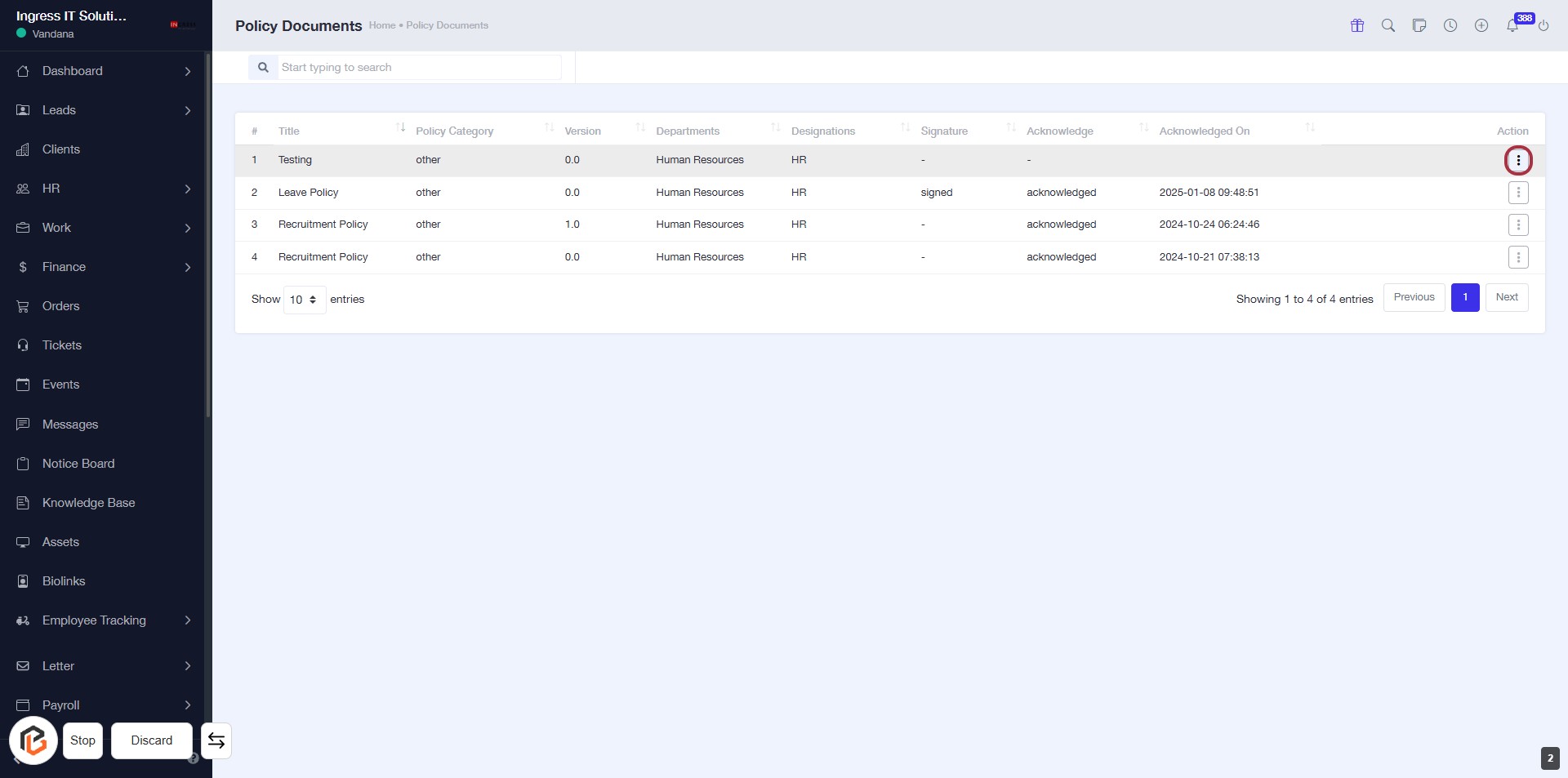
STEP 3: Click on "Option Menu"
- Navigate to the highlighted area in the "Action" column.
- Click on the three-dot menu icon to access additional options.
- Review the available actions for each policy document listed in the table.
- Ensure to check any required fields marked with an asterisk (*) if applicable.
STEP 4: Click on "View" to Access Policy Details
- Locate the "View" link in the highlighted area of the policy documents table.
- Click on "View" to open the details of the selected policy.
- Ensure you have the necessary permissions to access the document.
- Review the policy details displayed on the new page.
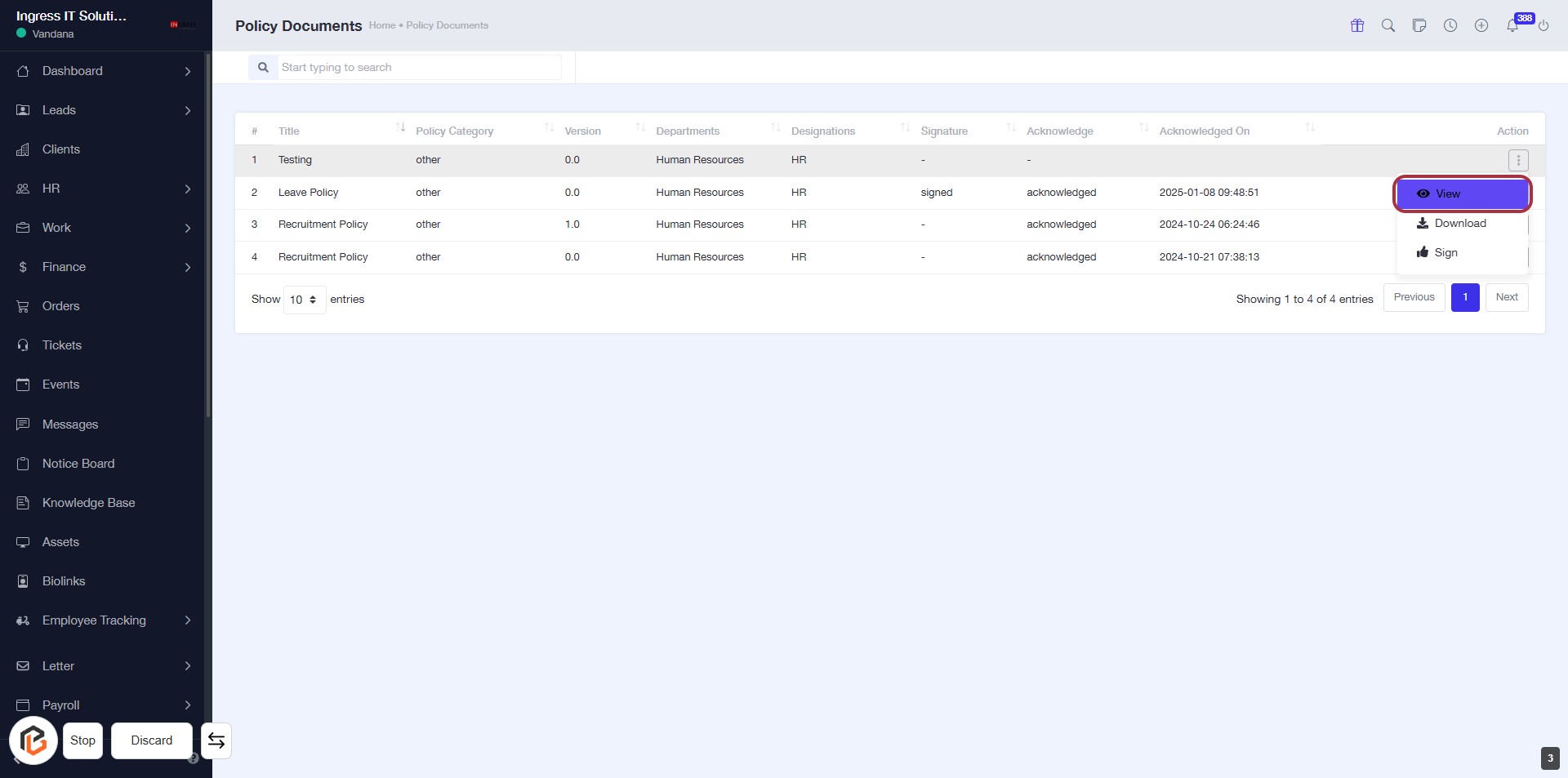
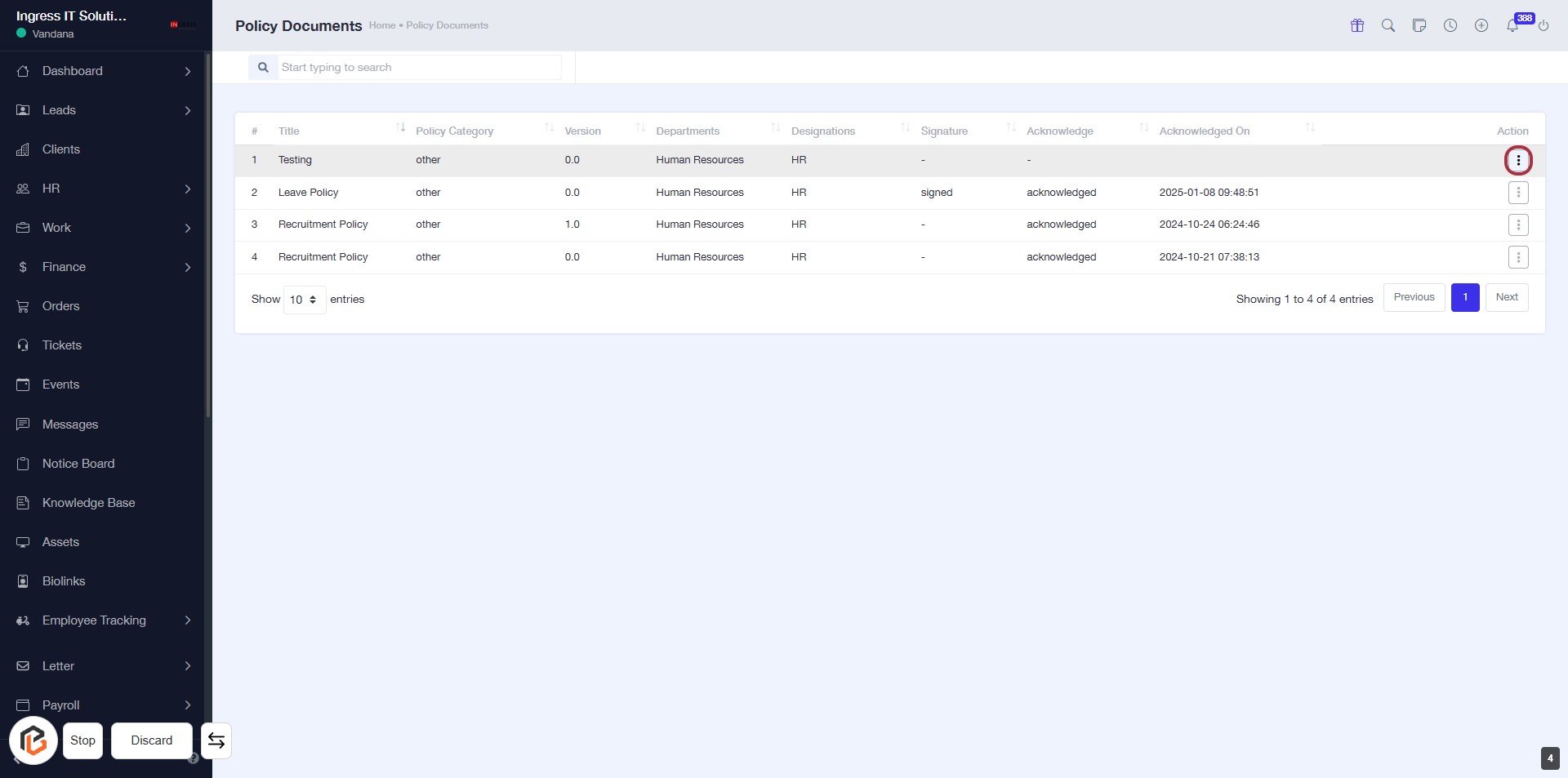
STEP 5: Click on "Option Menu" to Access More Actions
- Locate the "Action" column in the policy documents table.
- Click on the three-dot menu icon highlighted in red.
- This will open a dropdown with additional options related to the selected policy.
- Review the available actions to proceed with your desired task.
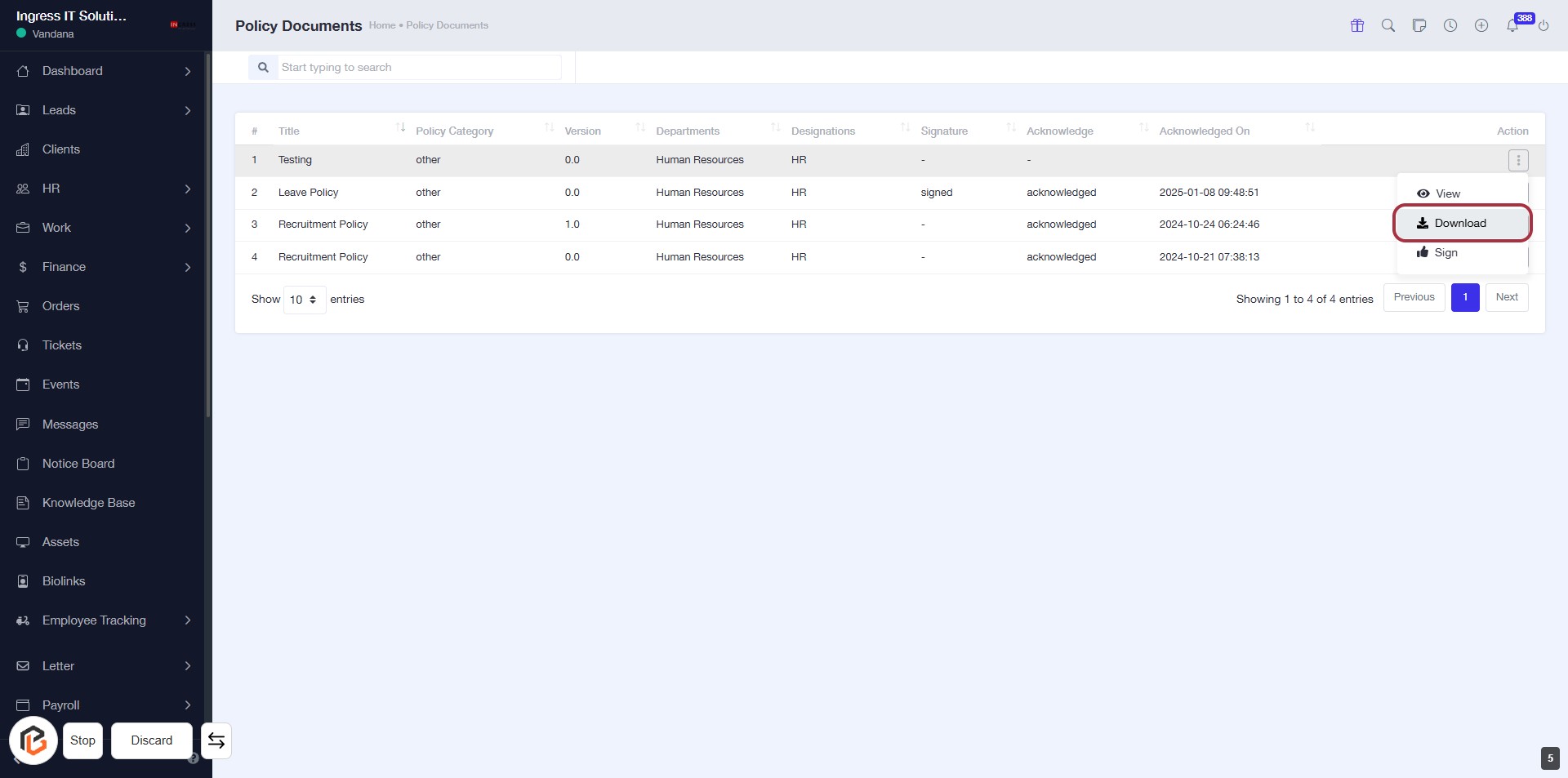
STEP 6: Click on "Download" to Retrieve Document
- Locate the "Download" link in the Actions column of the Policy Documents table.
- Ensure you are on the correct document row before clicking.
- Click the "Download" link to initiate the download process.
- Follow any prompts to save the document to your device.
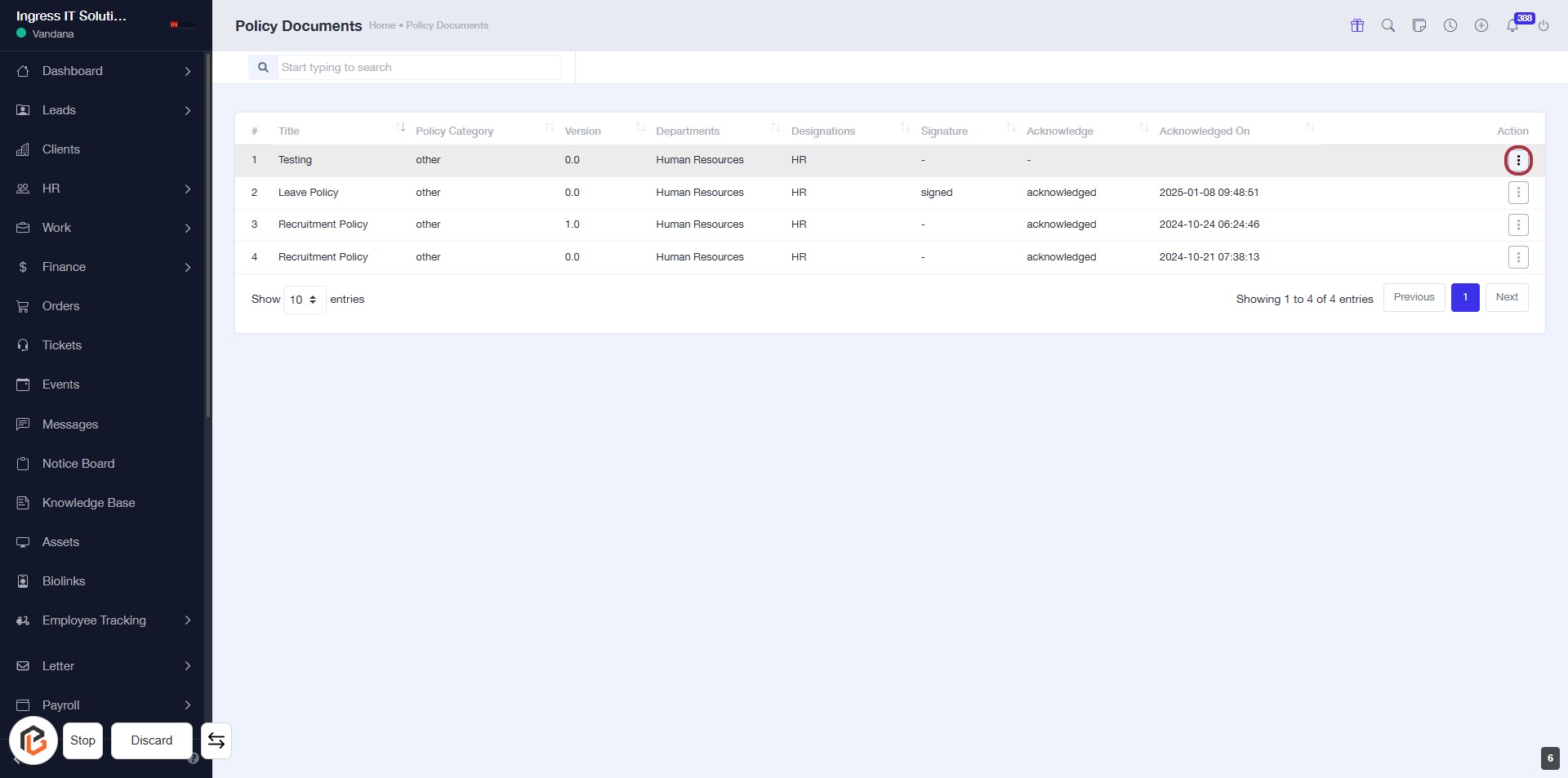
STEP 7: CLICK on "Option Menu"
- Locate the "Action" column in the Policy Documents table.
- Click on the three-dot menu icon in the highlighted area.
- This action will open additional options related to the selected policy document.
- Ensure you have the correct document selected before proceeding.
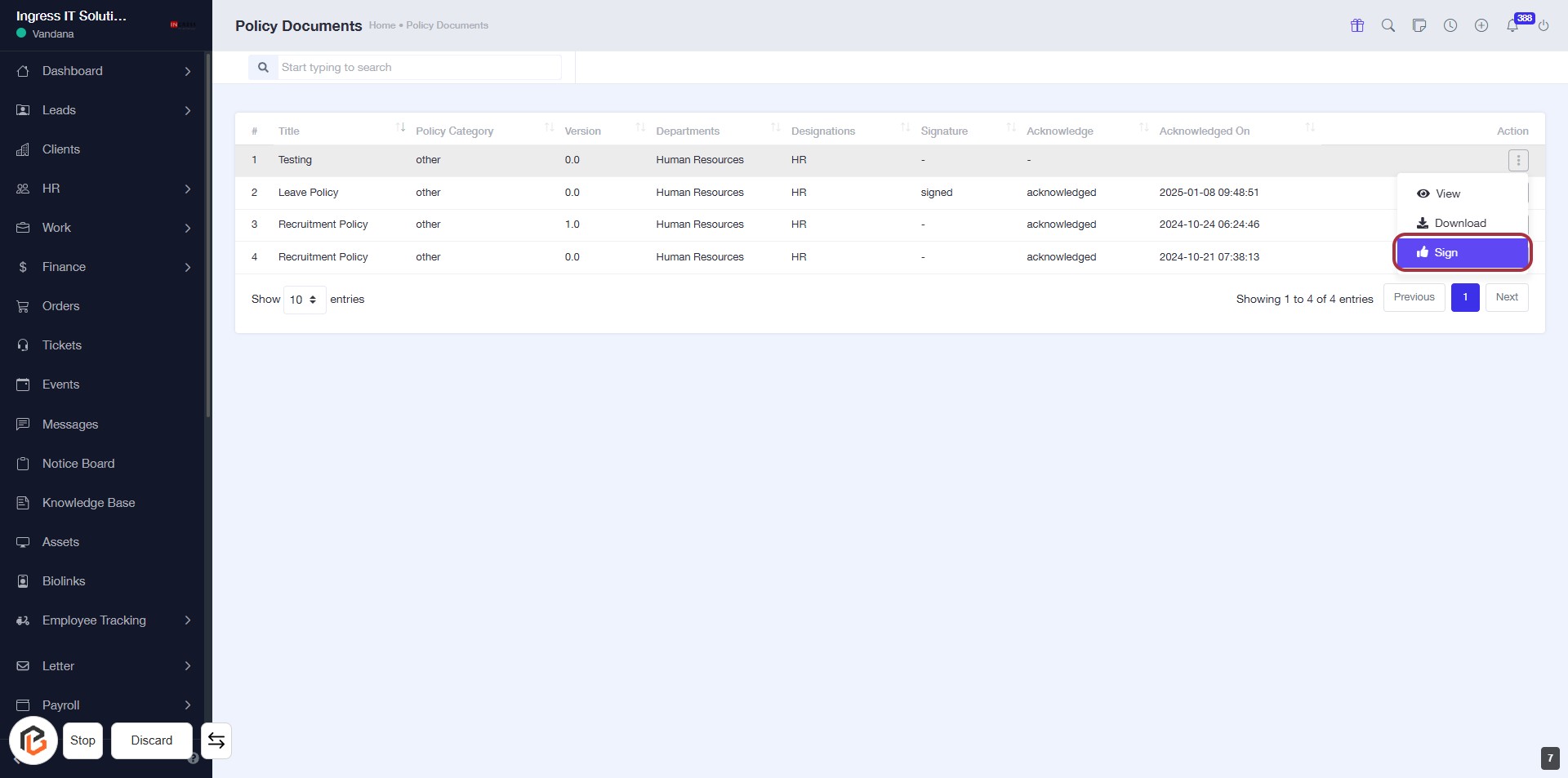
STEP 8: Click on "Sign" to Acknowledge Policy Documents
- Navigate to the "Action" column in the Policy Documents table.
- Locate the "Sign" button highlighted in red.
- Click on the "Sign" button to proceed with signing the document.
- Ensure you have reviewed the document before signing.
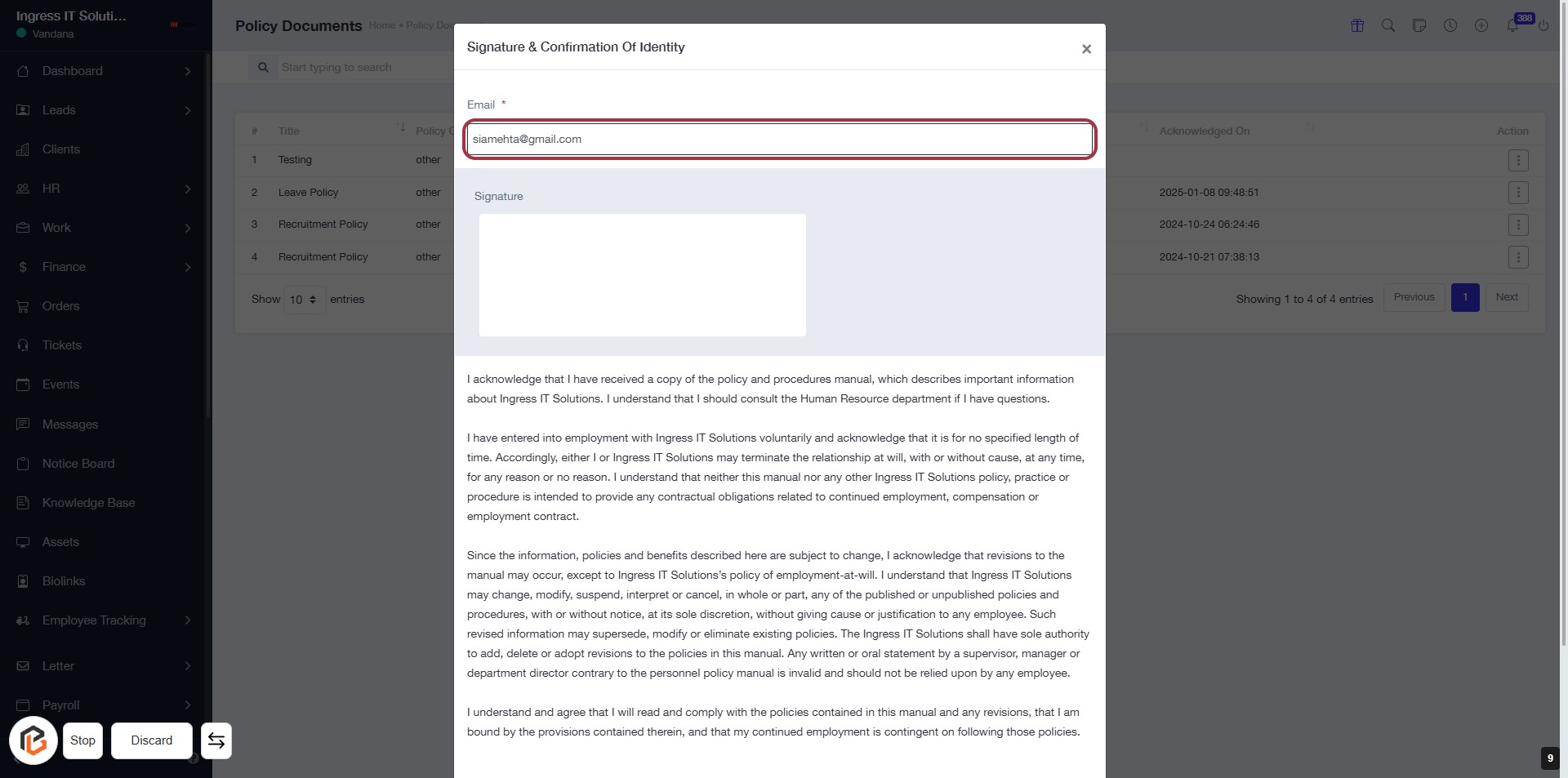
STEP 9: Fill Out Email Address in Policy Acknowledgement Form
- Locate the "Email" input field highlighted in red.
- Enter your email address (required field marked with '*').
- Ensure the email format is correct before proceeding.
- After filling, continue to the next step to fill out the "Signature" field.
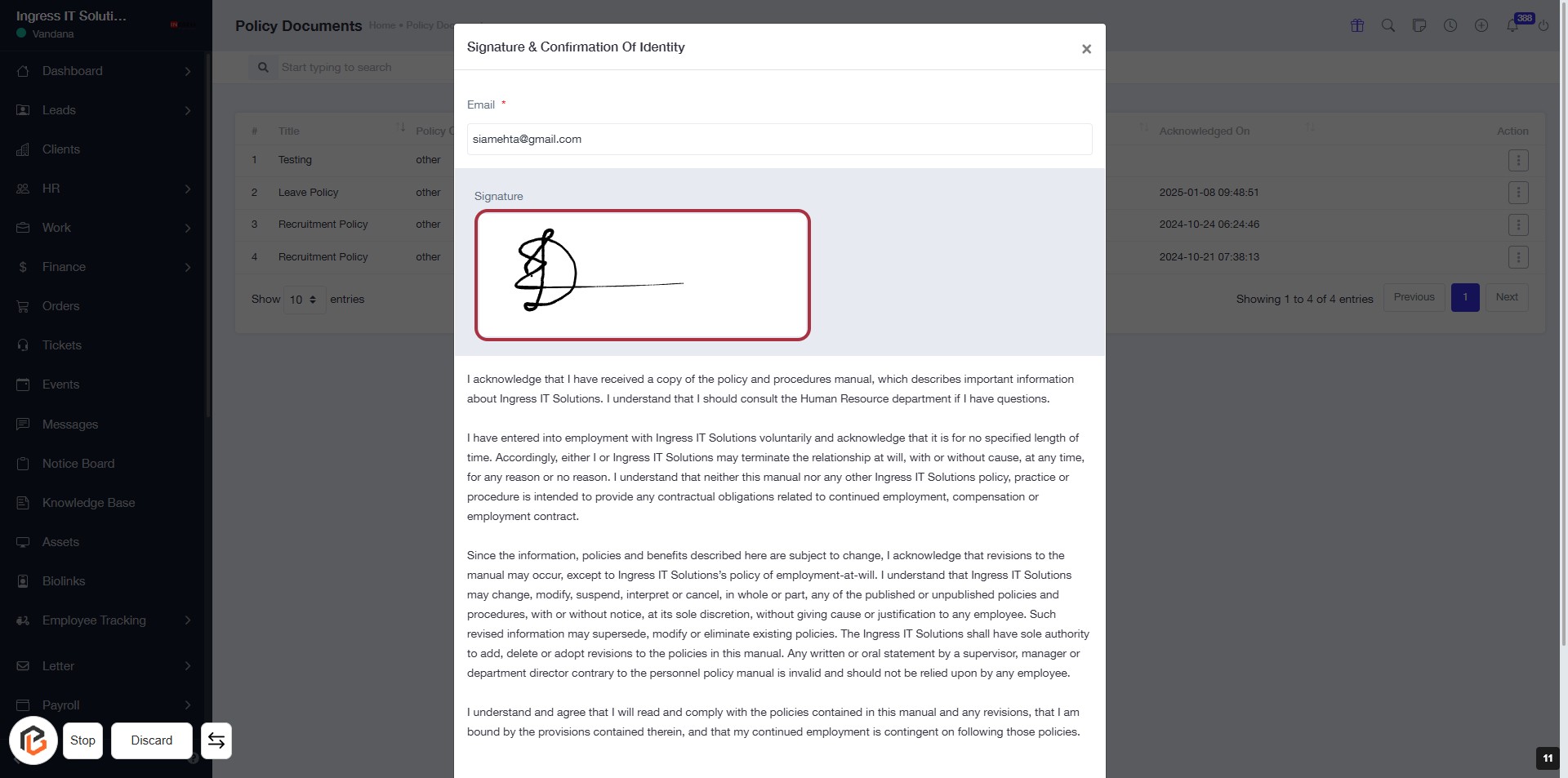
STEP 10: Fill Out Signature in Policy Acknowledgement Form
- Click on the highlighted area labeled "Signature" to provide your signature.
- Ensure the email field is filled out correctly.
- Review the acknowledgment text for any additional information.
- Confirm your signature is clear and legible before proceeding to the next step.
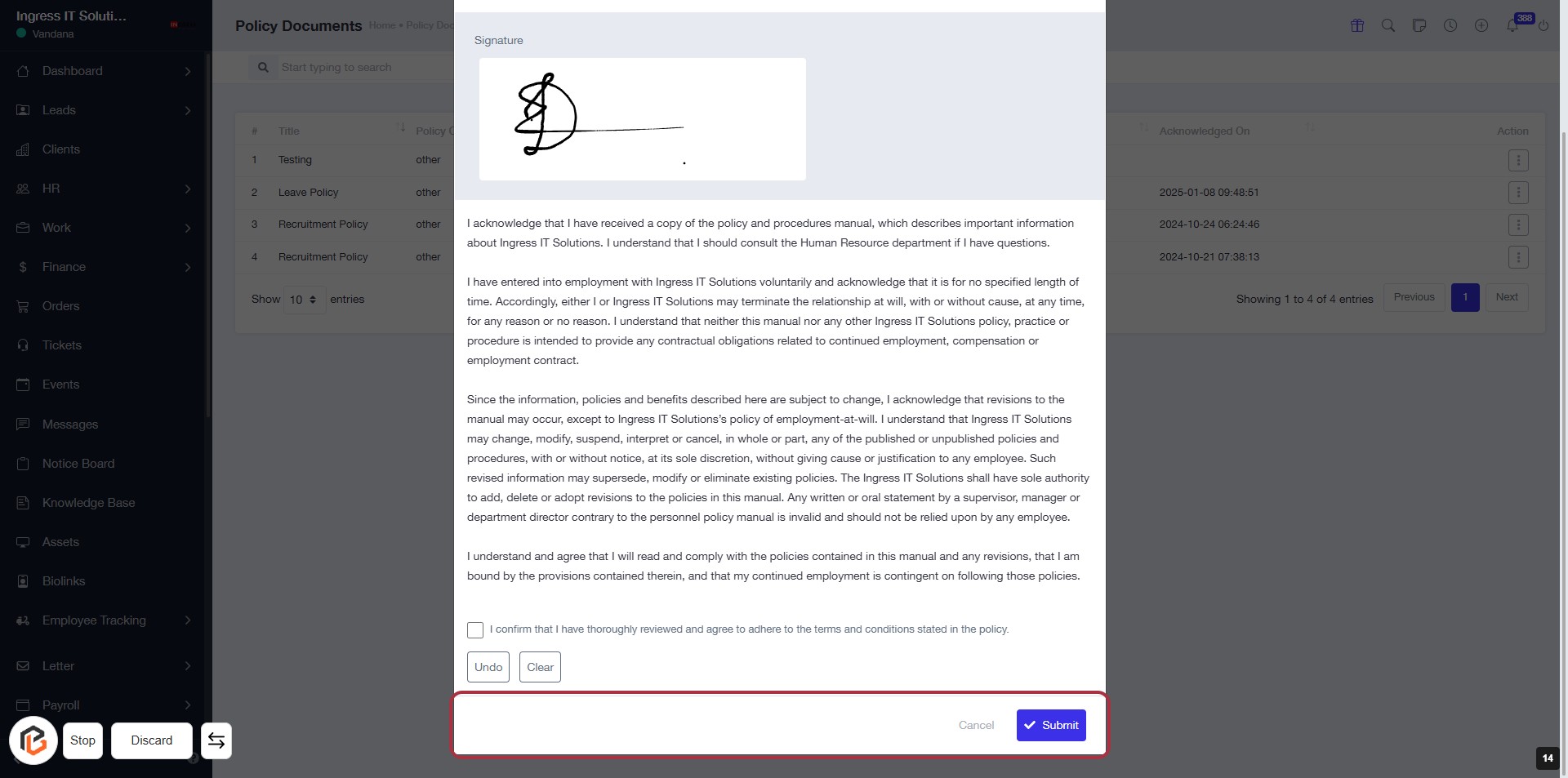
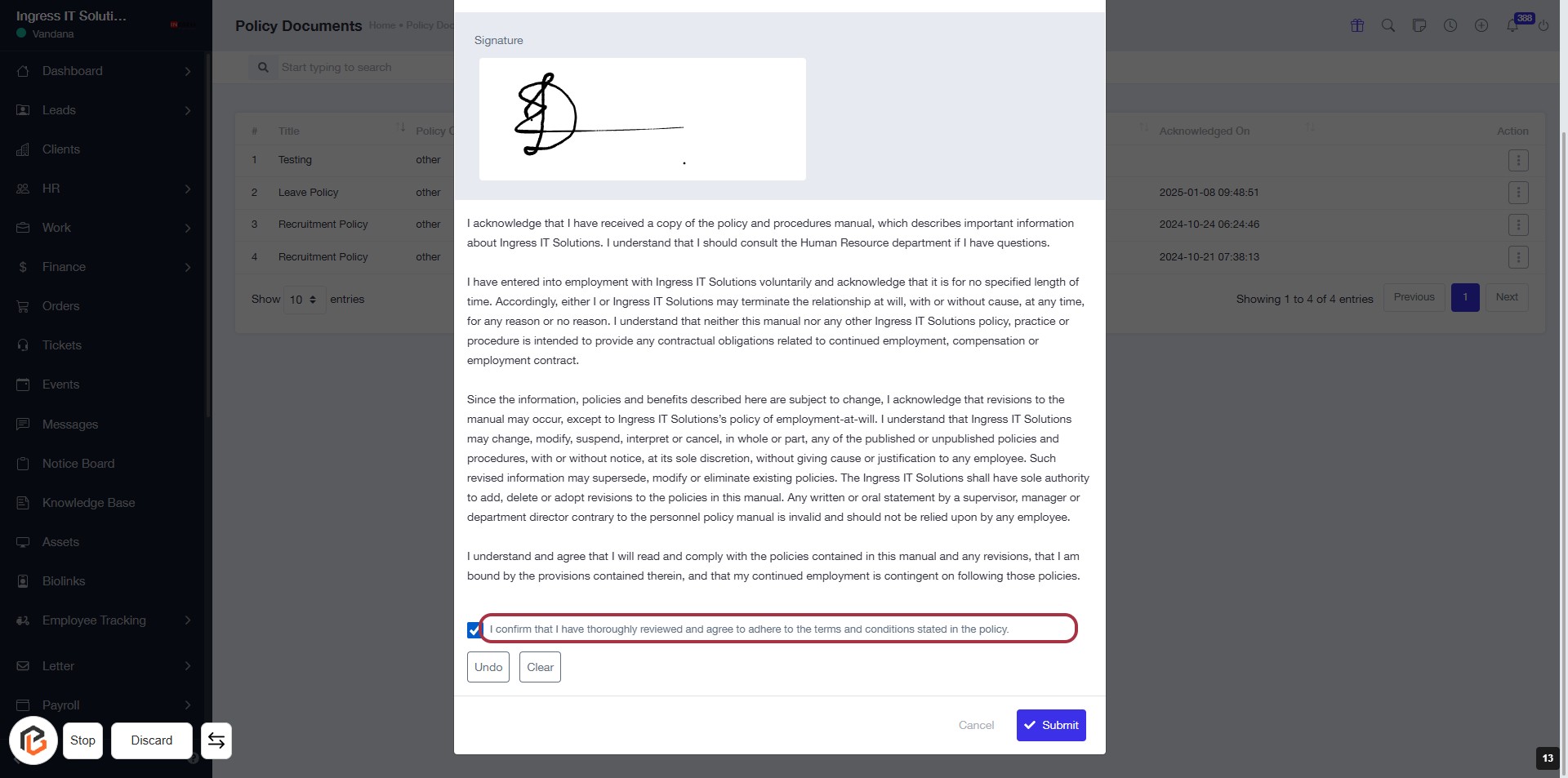
STEP 11: Click "I confirm that I have thoroughly reviewed and agree to adhere to the terms and conditions stated in the policy."
- Locate the checkbox labeled "I confirm that I have thoroughly reviewed and agree to adhere to the terms and conditions stated in the policy."
- Click on the checkbox to confirm your agreement.
- Ensure the checkbox is marked before proceeding to the next step.
STEP 12: Click on "Submit" to Acknowledge Policy
- Ensure you have reviewed the policy thoroughly.
- Confirm your agreement by checking the box.
- Click the Submit button located at the bottom right of the dialog.
- If needed, you can click Cancel to exit without submitting.