Comprehensive Guide to Accessing, Reviewing, and Exporting Policy Documents
4 mins read · Updated 29 Sep, 2025
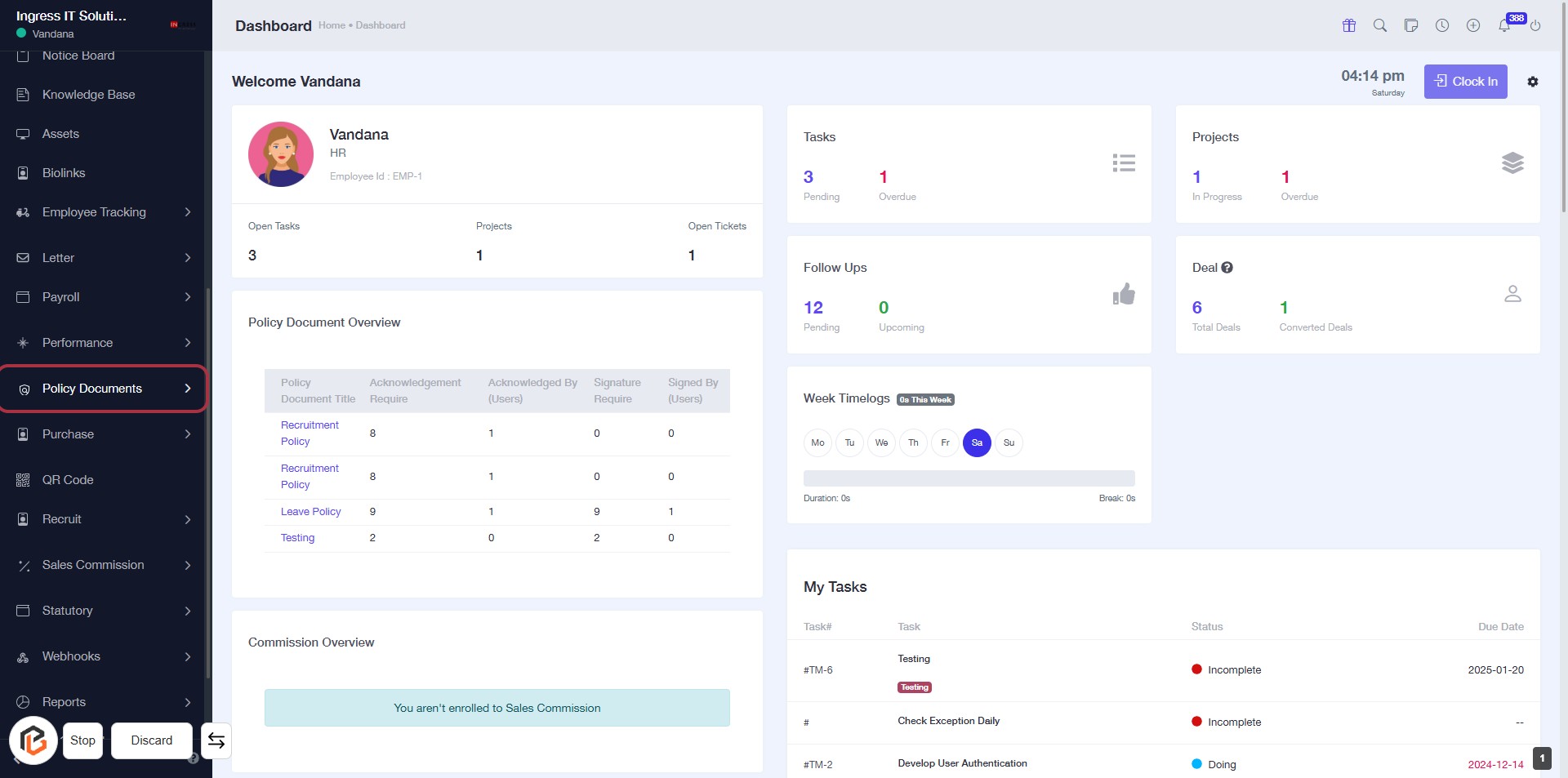
STEP 1: Click on "Policy Documents" to Access Document Overview
- Navigate to the left sidebar and locate the "Policy Documents" section.
- Click on the "Policy Documents" link to view the Policy Document Overview.
- Review the list of documents, including their acknowledgment and signature requirements.
- Ensure to check any highlighted areas for specific actions or information needed.
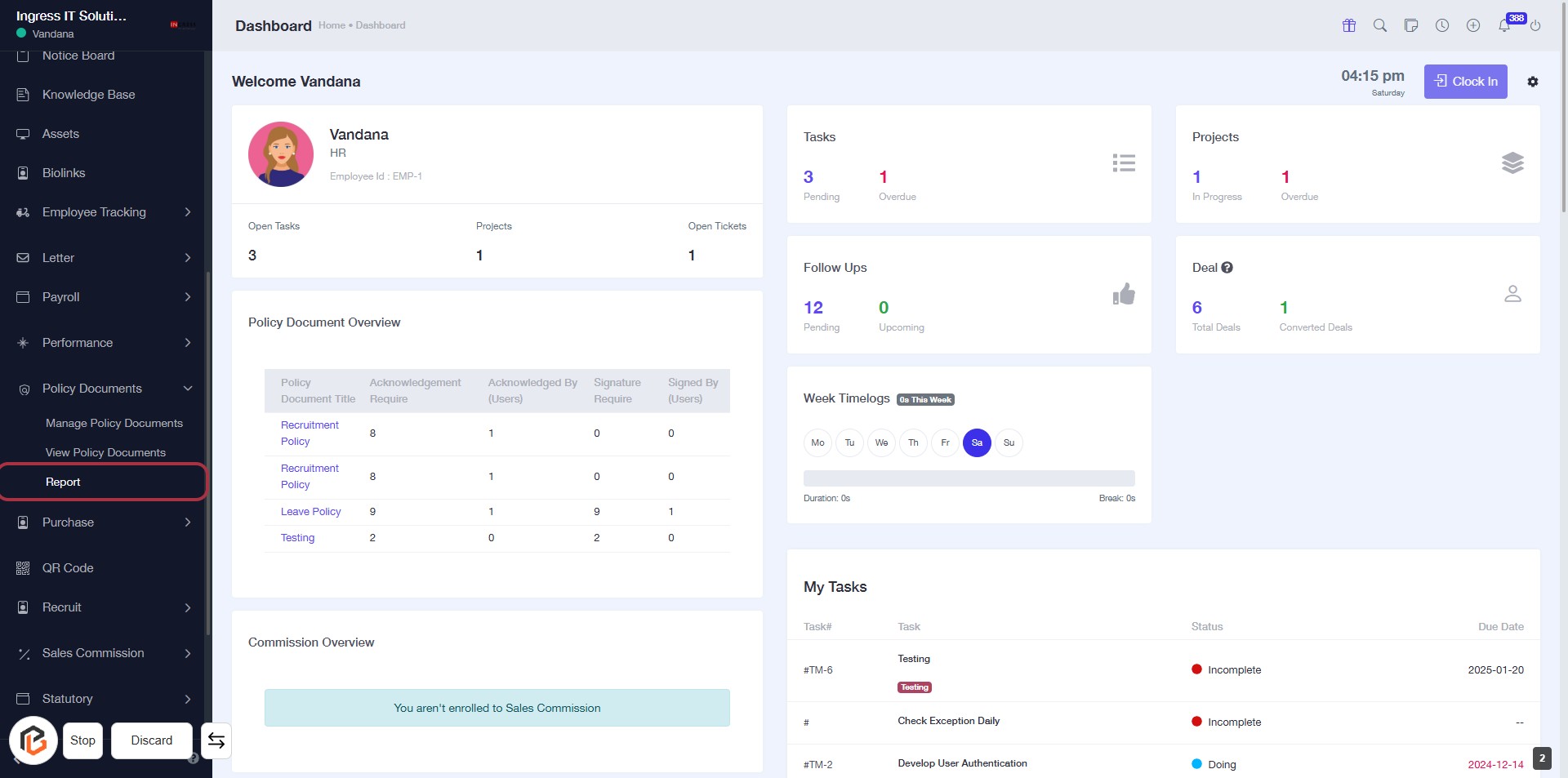
STEP 2: Click on "Report" to Access Document Overview
- Navigate to the left sidebar and locate the "Report" option.
- Click on the "Report" link to view the Policy Document Overview.
- Ensure you check the acknowledgment and signature requirements for each document listed.
- Review the details for each policy document displayed in the overview table.
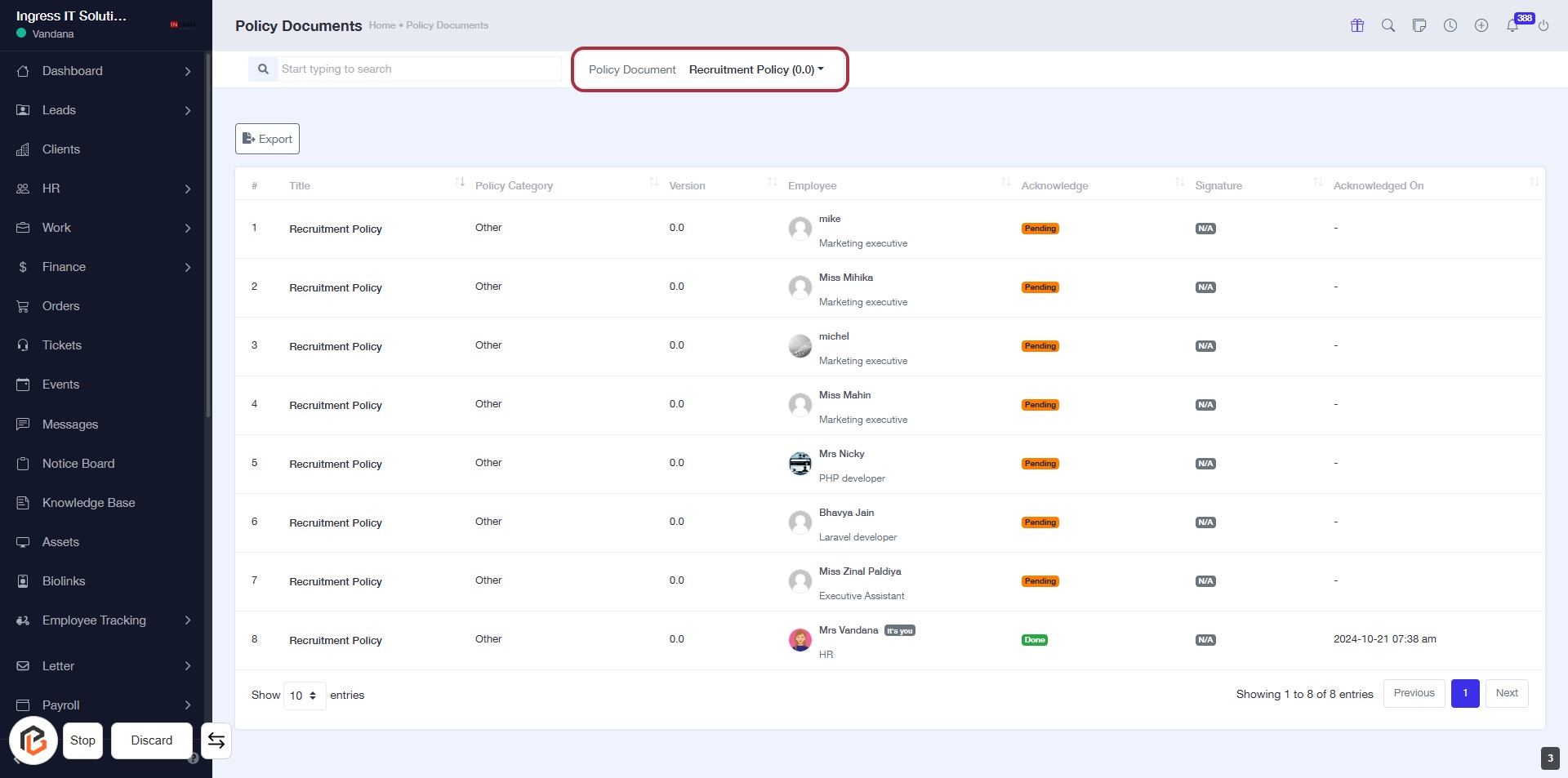
STEP 3: Select "Policy Document"
- Click on the "Policy Document" section to view the relevant documents.
- Ensure you are on the correct page by checking the highlighted area.
- Review the list of policy documents displayed below.
- Look for any specific documents you may need to access or export.
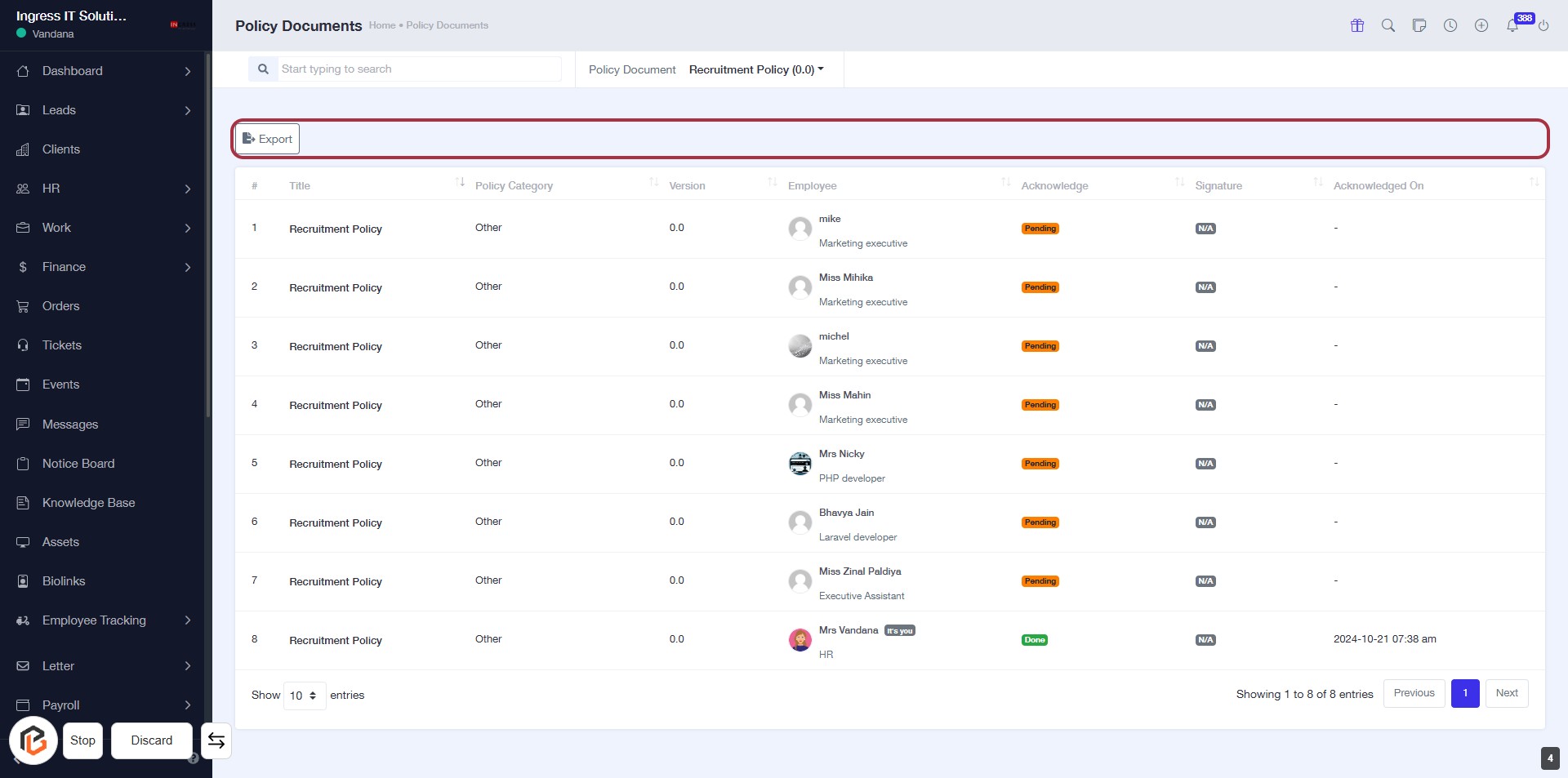
STEP 4: Click on "Export" to Download Policy Document
- Locate the Export button at the top of the policy document table.
- Click on the Export button to initiate the download of the policy document.
- Ensure all necessary data is displayed before exporting.