Step-by-Step Guide to Accessing and Exporting Performance Metrics and Key Result Reports
6 mins read · Updated 29 Sep, 2025
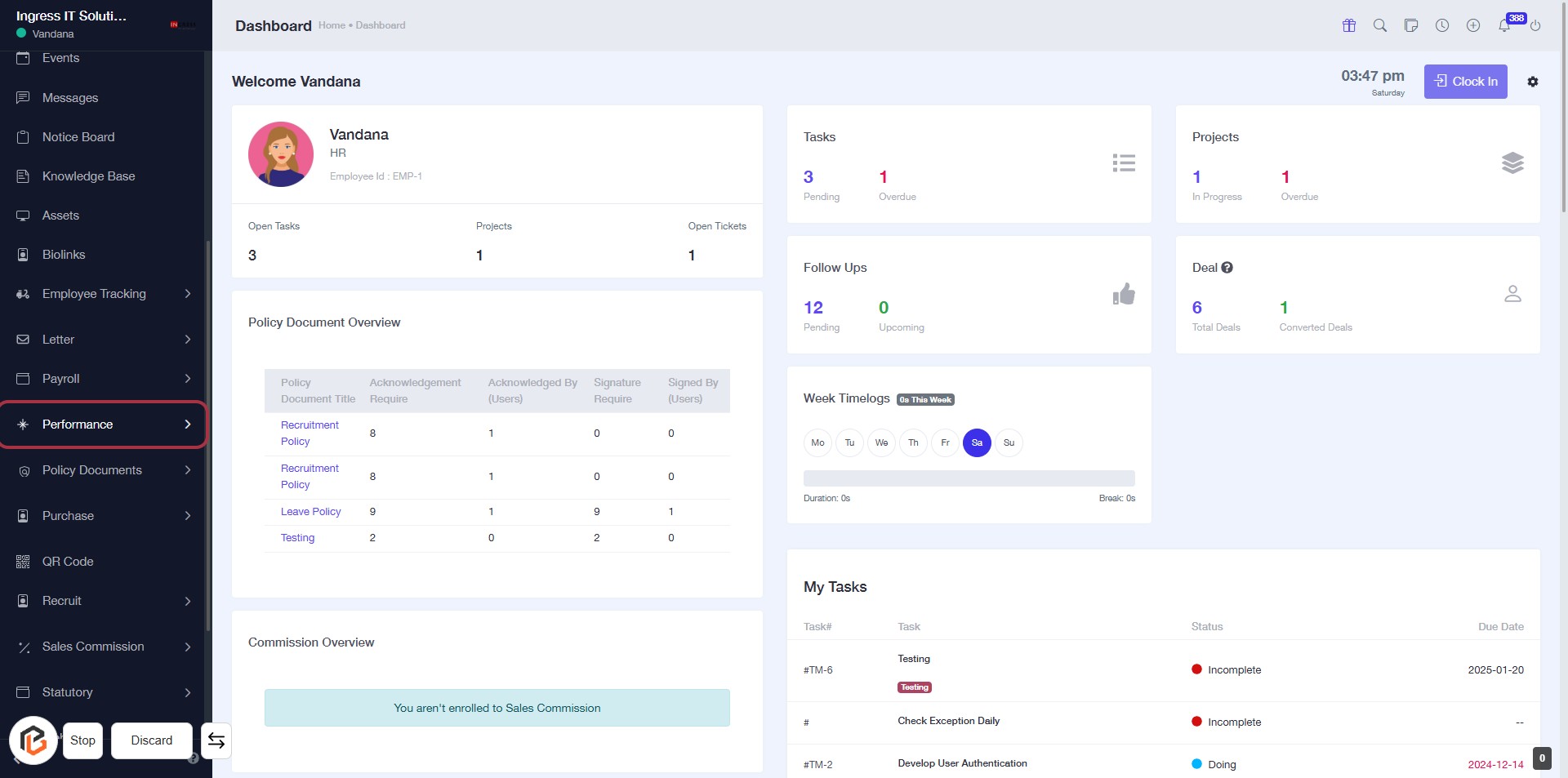
STEP 1: Click on "Performance" to Access Dashboard Features
- Navigate to the left sidebar and locate the Performance option.
- Click on the Performance link to view detailed performance metrics.
- Ensure you check the Policy Document Overview and Commission Overview sections for relevant information.
- After reviewing, proceed to the next step to access the Key Result Report.
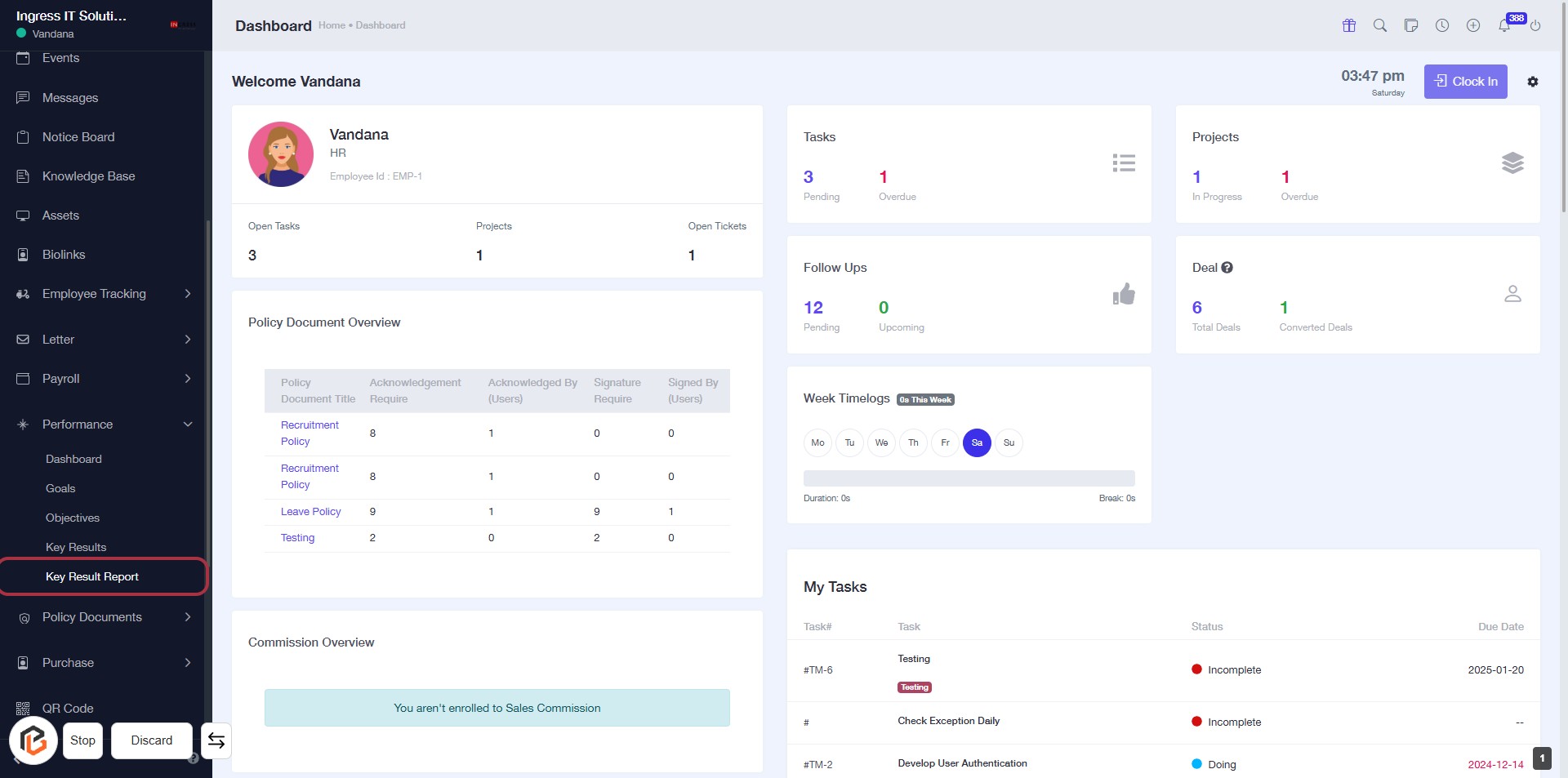
STEP 2: Click on "Key Result Report"
- Navigate to the left sidebar menu.
- Click on the Key Result Report link highlighted in red.
- This will take you to the detailed report section.
- Ensure you check any required fields marked with an asterisk (*) for further actions.
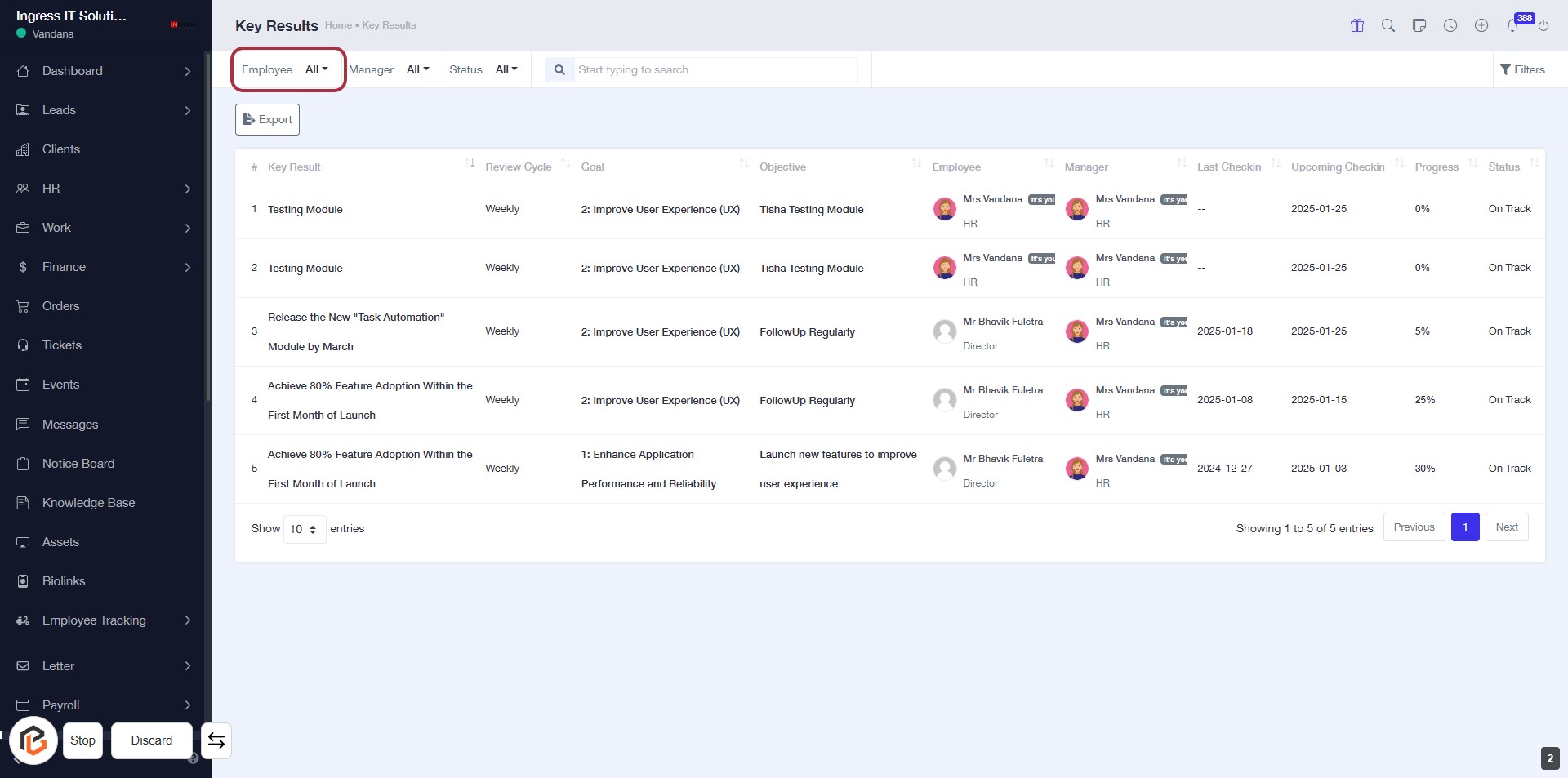
STEP 3: Select "Employee" from Key Results
- Click on the Employee dropdown in the Key Results section.
- This will allow you to filter results based on specific employees.
- Ensure to check for any additional options or filters available in the dropdown.
- After selecting, proceed to the next step to filter by Manager.
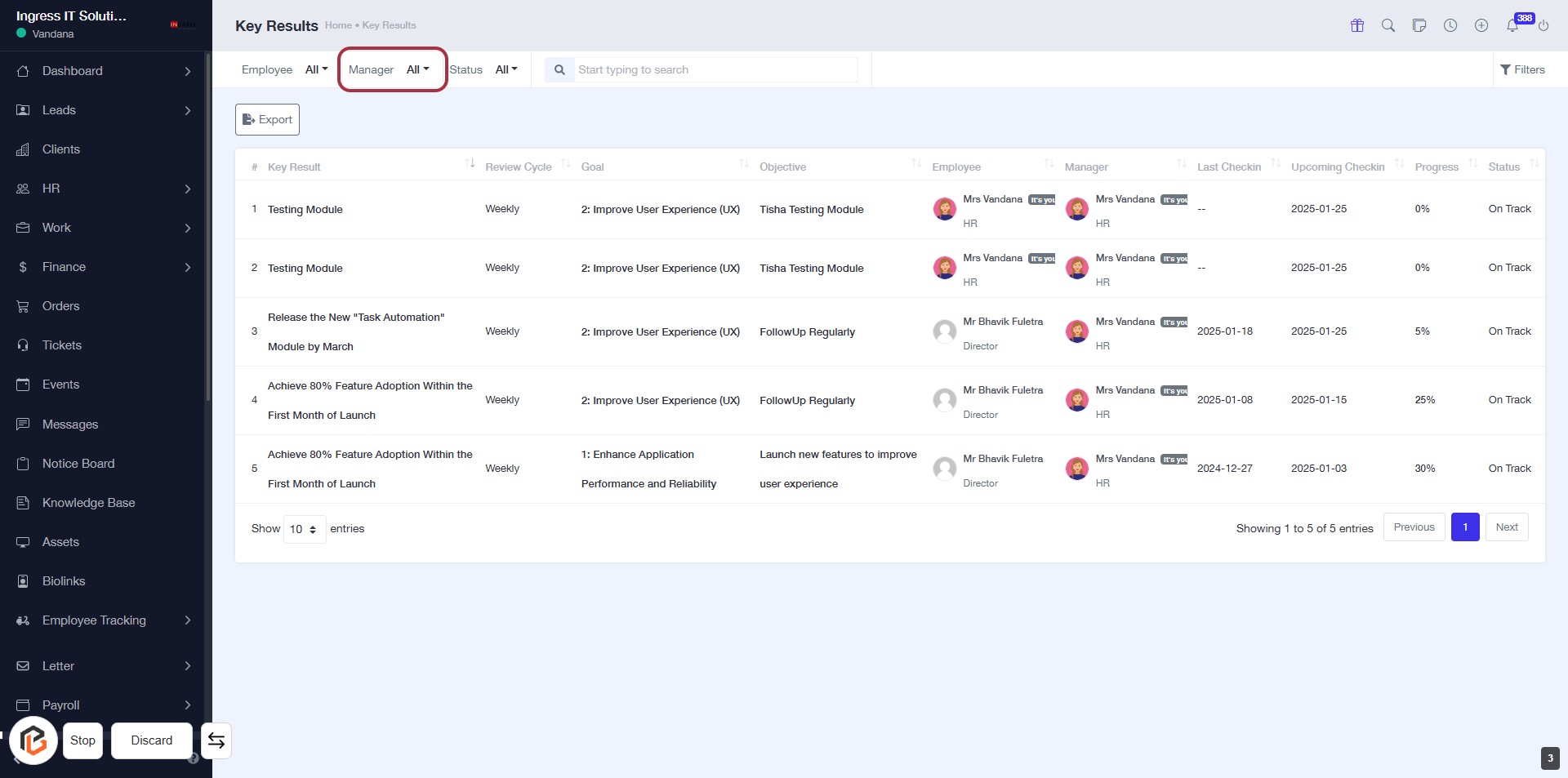
STEP 4: Select "Manager" from Key Results
- Click on the "Manager" dropdown located at the top of the Key Results section.
- This will allow you to filter the results based on the selected manager.
- Ensure to review the available options to make an appropriate selection.
- After making your selection, proceed to the next step to filter by "Status".
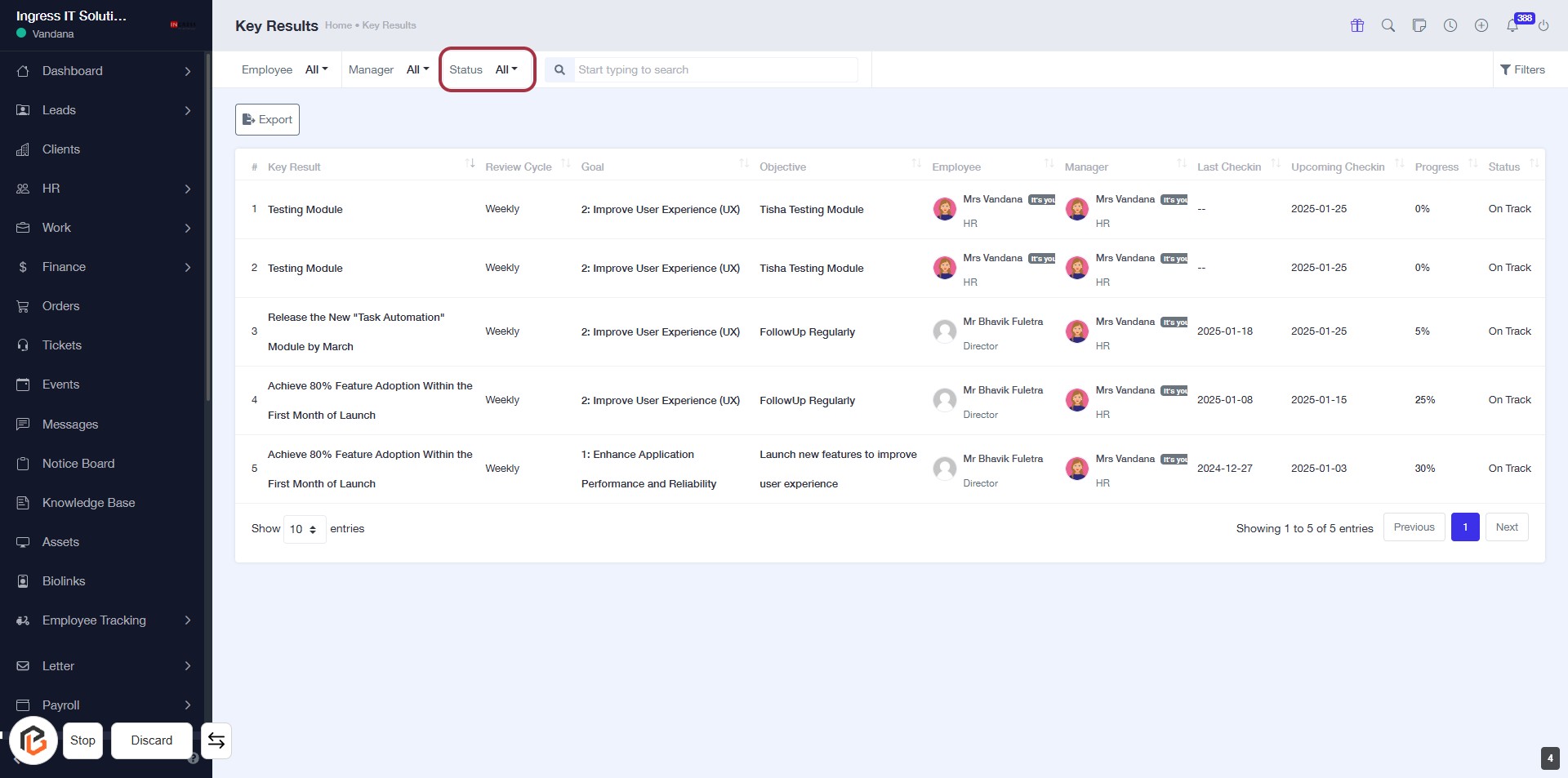
STEP 5: Select "Status"
- Click on the "Status" dropdown located in the Key Results section.
- Review the available options to filter the results.
- Ensure to select the desired status from the dropdown list.
- The highlighted area indicates where to perform this action.
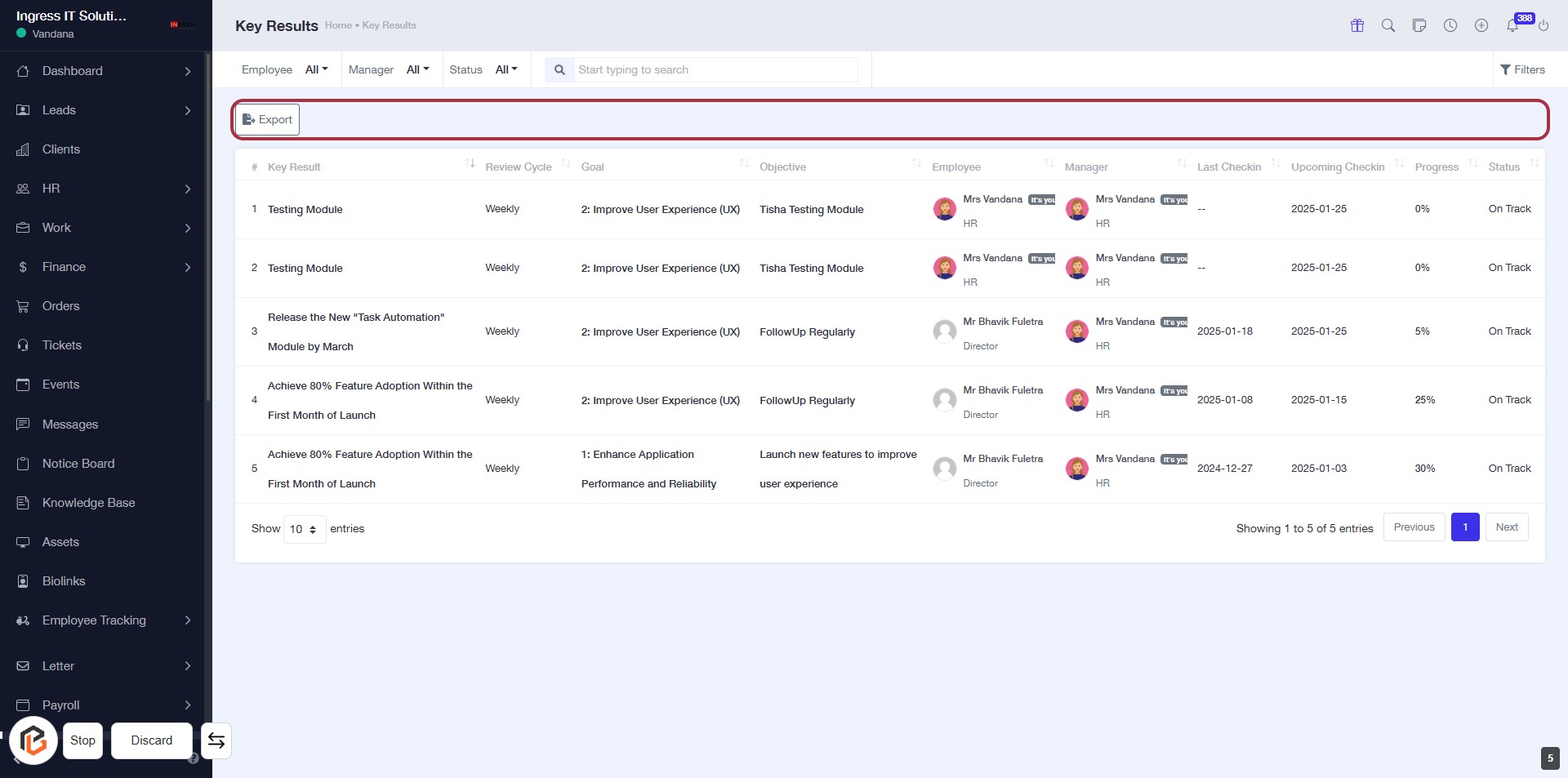
STEP 6: Click on "Export" Button
- Locate the "Export" button highlighted in red.
- Click on the "Export" button to initiate the export process.
- Ensure that any necessary filters or selections are made prior to clicking.
- Review the export options that may appear after clicking.