Comprehensive Guide to Navigating and Managing Performance and Key Results in Your Dashboard
10 mins read · Updated 29 Sep, 2025
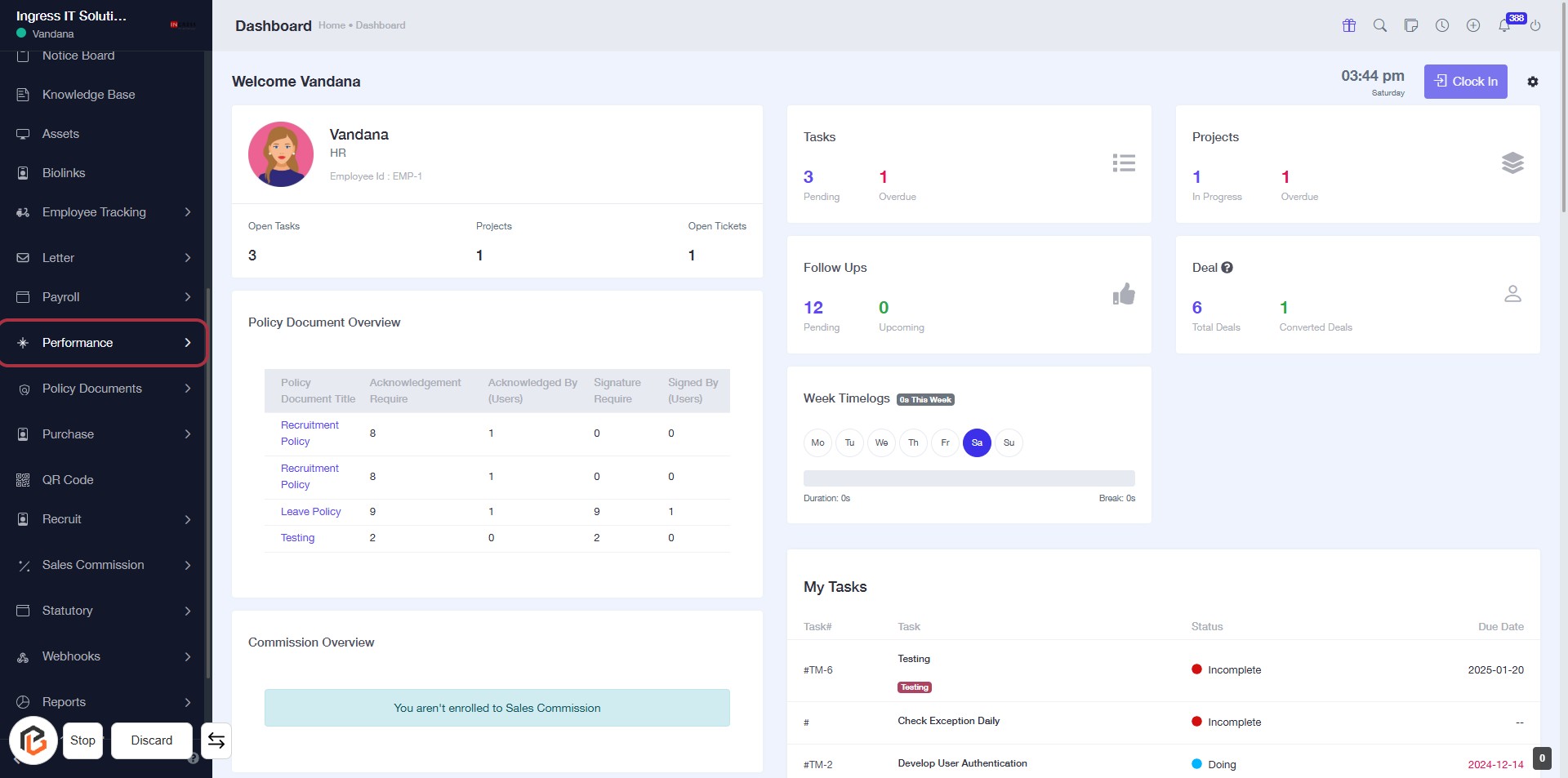
STEP 1: Click on "Performance" in the Dashboard
- Navigate to the left sidebar of the dashboard.
- Locate the "Performance" option highlighted in red.
- Click on "Performance" to access performance-related data and insights.
- Ensure you are on the correct page before proceeding to the next step.
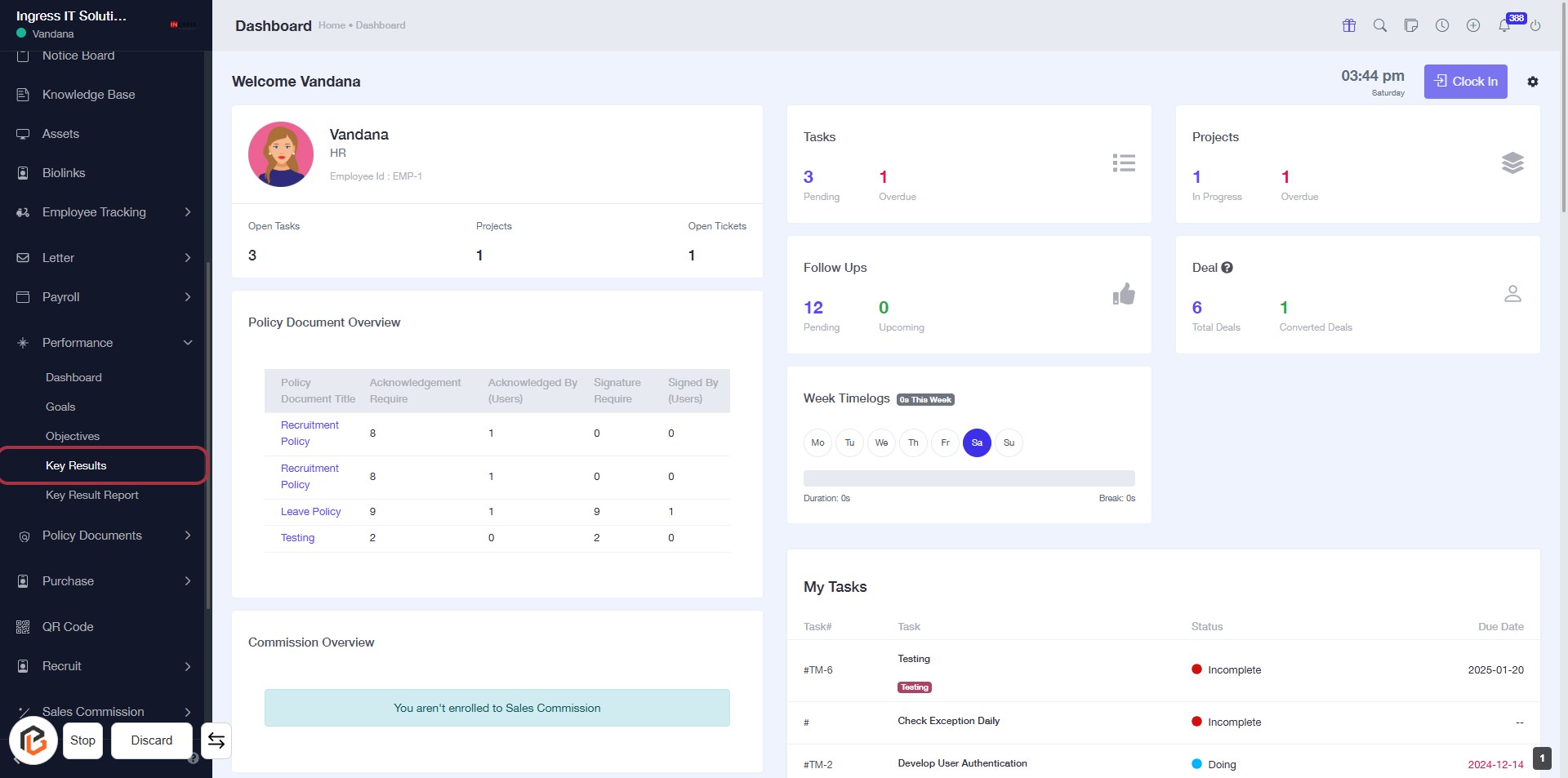
STEP 2: Click on "Key Results"
- Navigate to the left sidebar and locate the "Key Results" option.
- Click on the "Key Results" link to access the relevant section.
- Review the displayed information, including the Policy Document Overview and Commission Overview.
- Ensure to check for any required actions or updates in the sections presented.
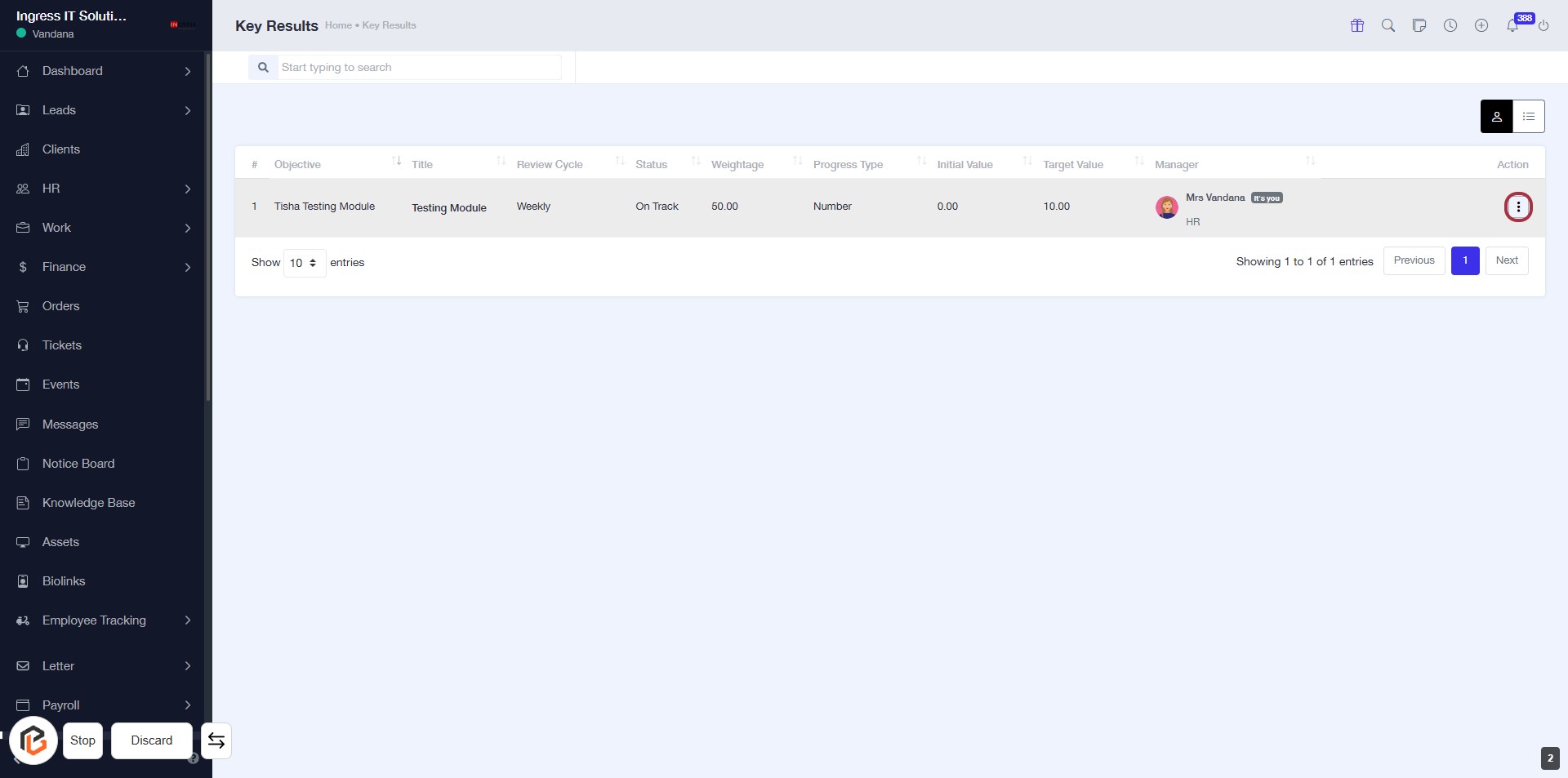
STEP 3: Click on "Option Menu"
- Navigate to the "Key Results" section.
- Locate the highlighted area with the pointer.
- Click on the "Option Menu" (indicated by the red border).
- This will open additional options related to the selected key result.
- Ensure to review the options available for further actions.
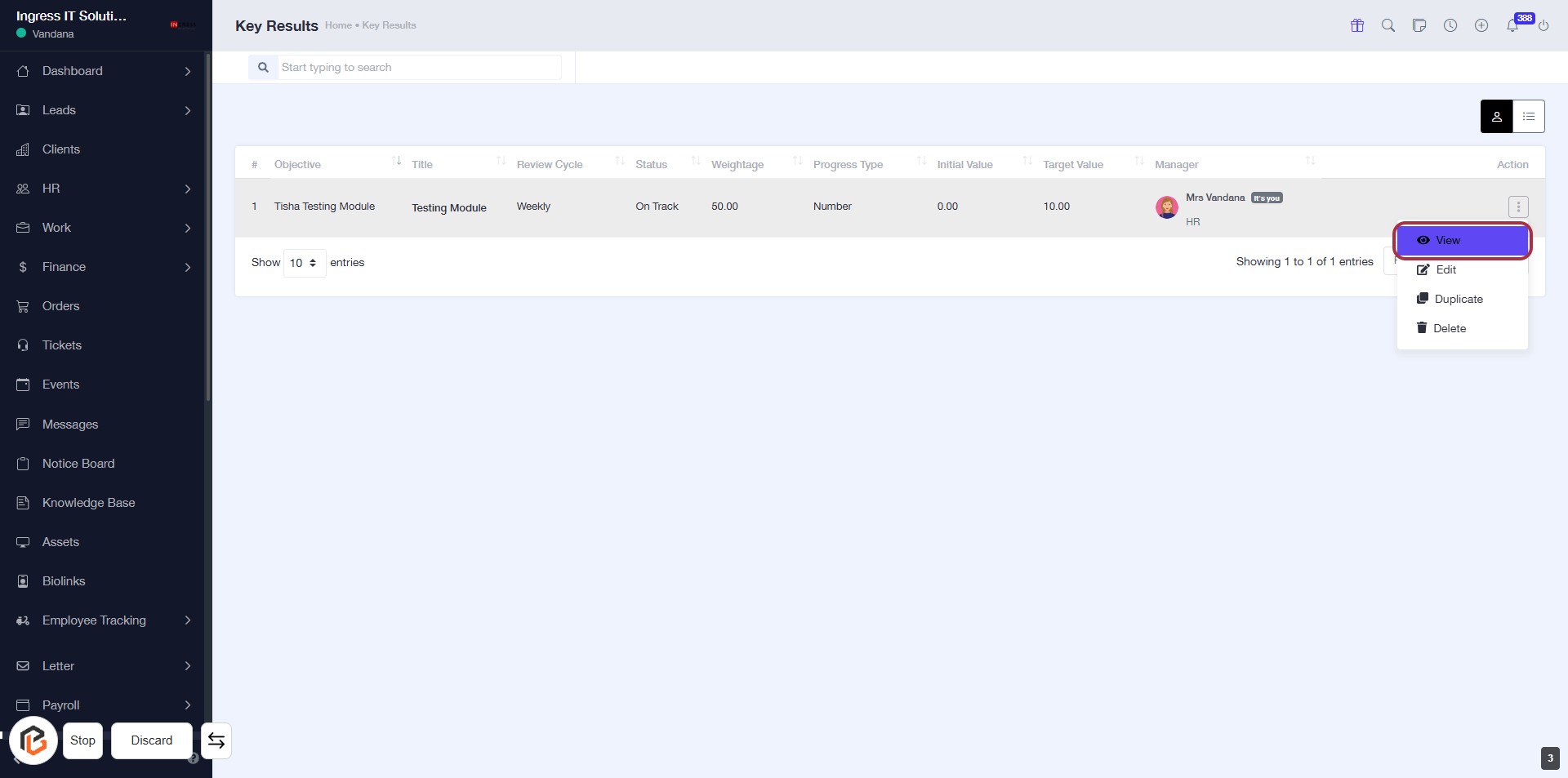
STEP 4: CLICK on "View" to view the key result
- Navigate to the "Key Results" section.
- Locate the "View" link in the highlighted area.
- Click on "View" to access detailed information about the selected key result.
- Ensure you have the necessary permissions to view the details.
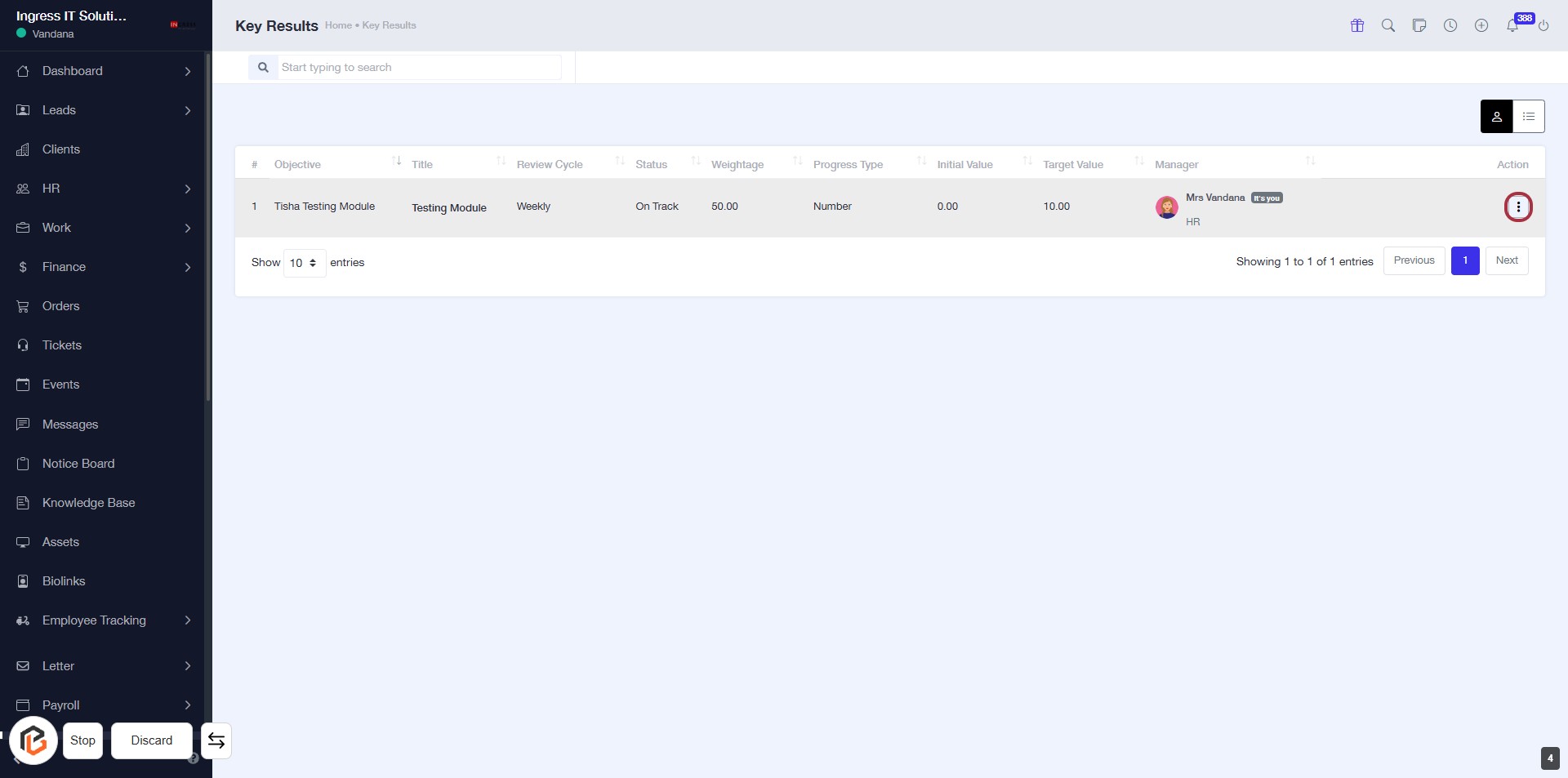
STEP 5: Click on "Option Menu" to Access More Actions
- Locate the "Option Menu" in the highlighted area.
- Click on the menu to reveal additional options related to the key result.
- Ensure you have the necessary permissions to access these options.
- Proceed to the next step by clicking "Edit" to modify the key result.
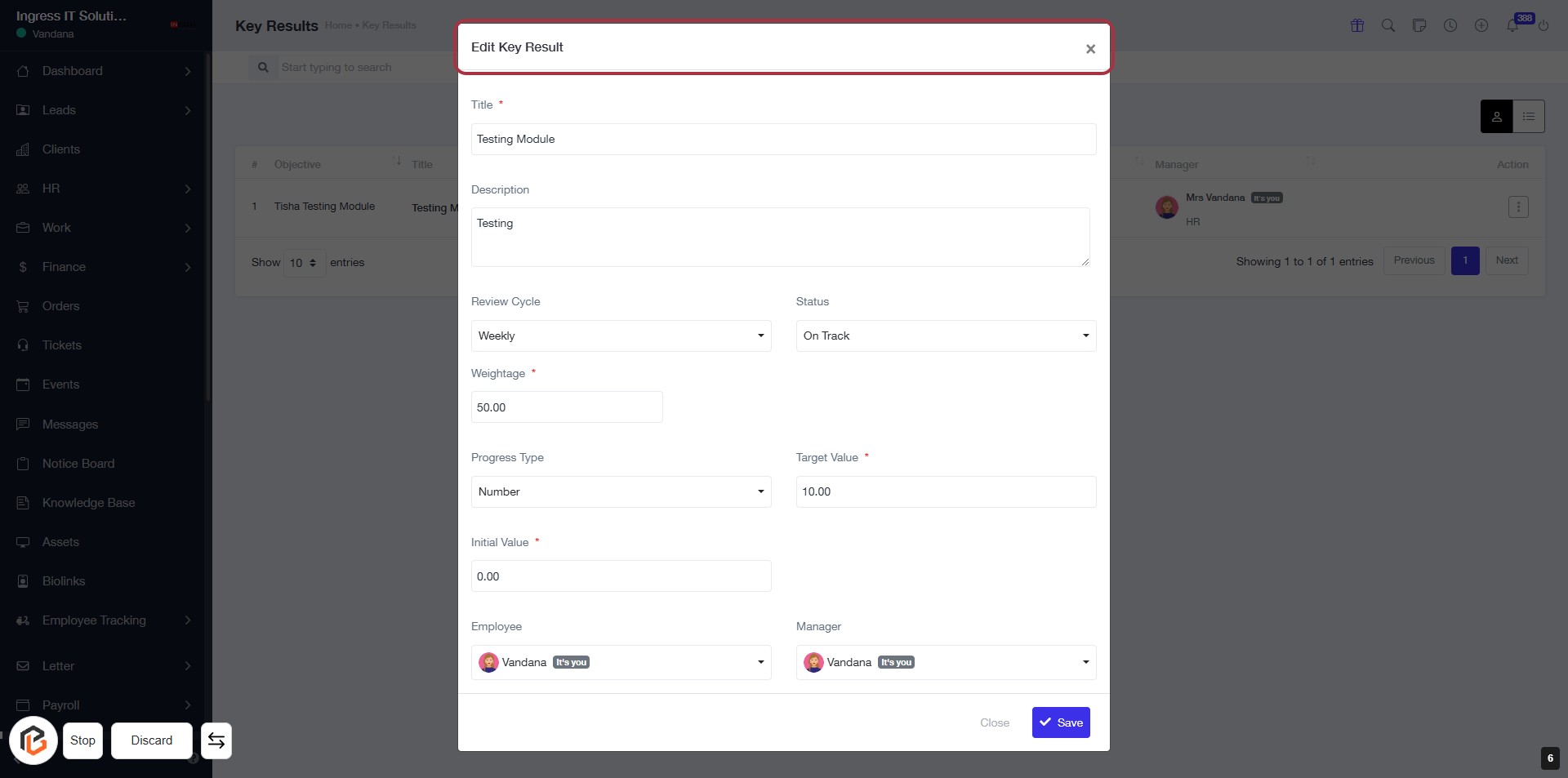
STEP 6: Click on "Edit" to Update Password
- Locate the "PASSWORD" input field in the dialog.
- Click on the input area to activate it.
- Enter the new password as required.
- Ensure all mandatory fields marked with an asterisk (*) are filled out.
- Review your entries before saving changes.
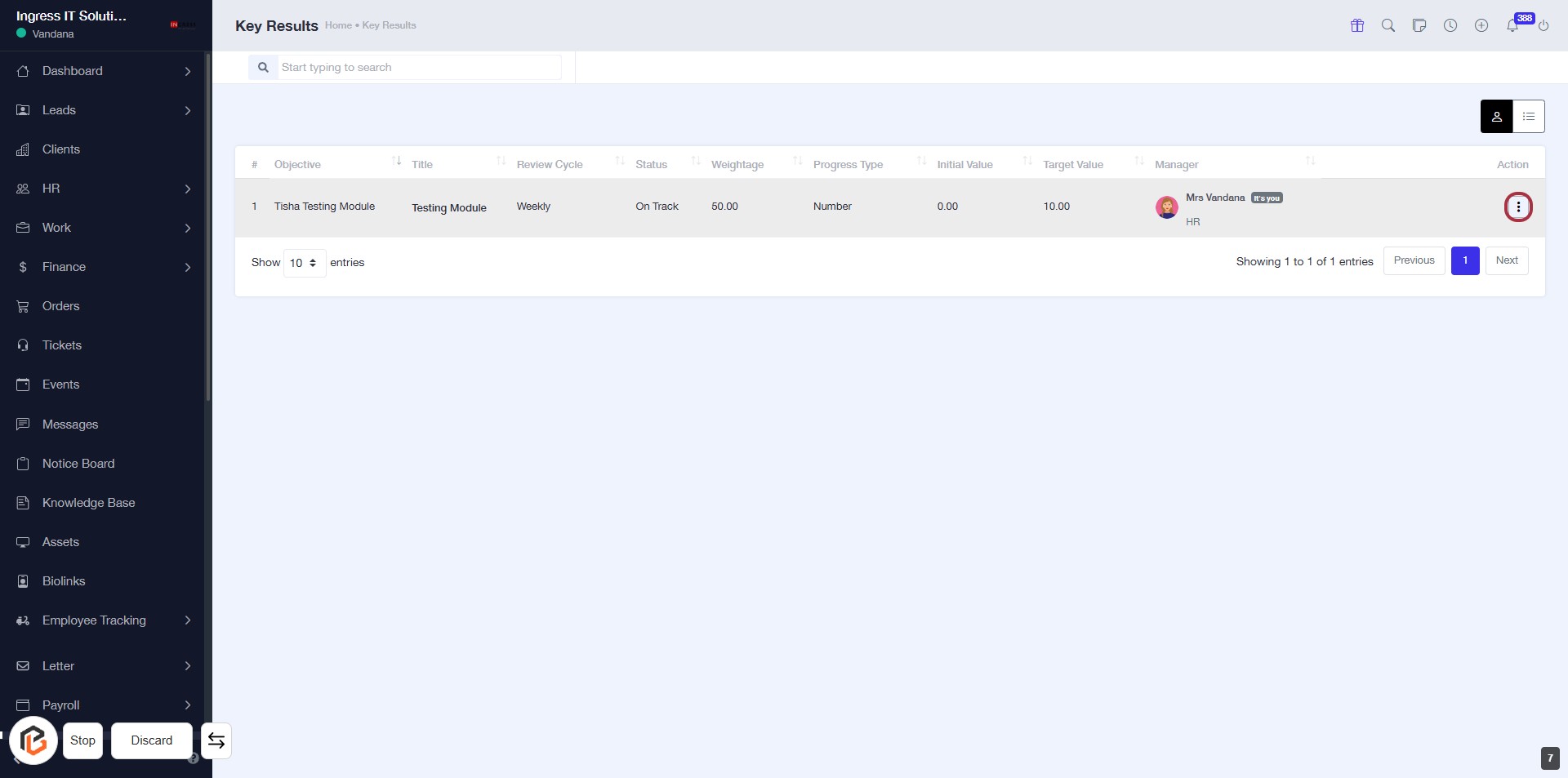
STEP 7: Click on "Option Menu" to Access More Actions
- Locate the highlighted area in the "Action" column of the Key Results table.
- Click on the icon to reveal additional options.
- Review available actions, including "Duplicate" for adding a duplicate key result.
- Ensure to check any required fields marked with an asterisk (*) in subsequent steps.
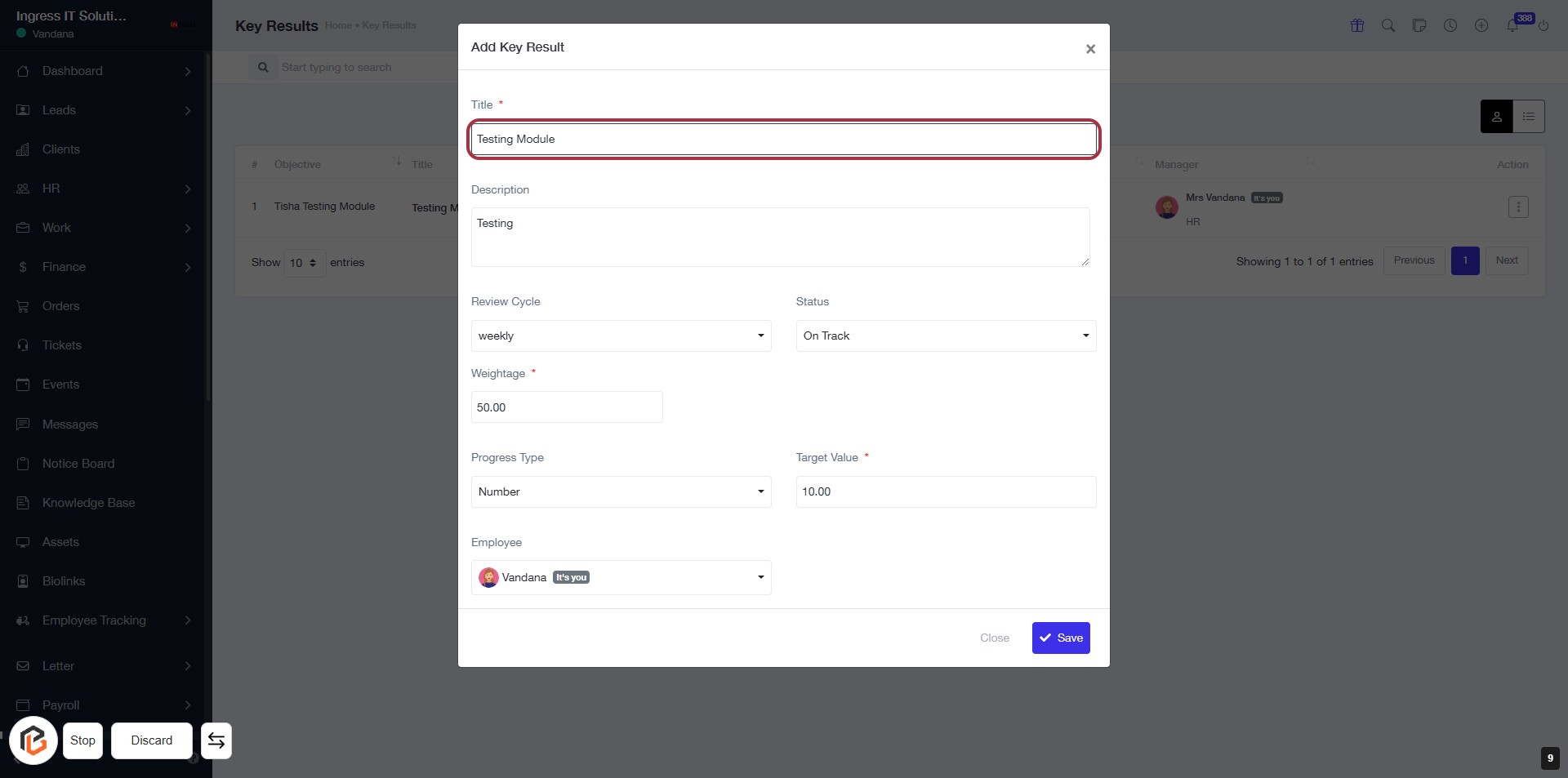
STEP 8: Click on "Duplicate" to Add Duplicate Key Result
- Locate the "PASSWORD" input field in the dialog box.
- Fill out the "PASSWORD" field with the required information.
- Ensure all mandatory fields marked with an asterisk (*) are completed.
- Review your entries before proceeding to the next step.
STEP 9: Click on "Option Menu" to Access Key Result Actions
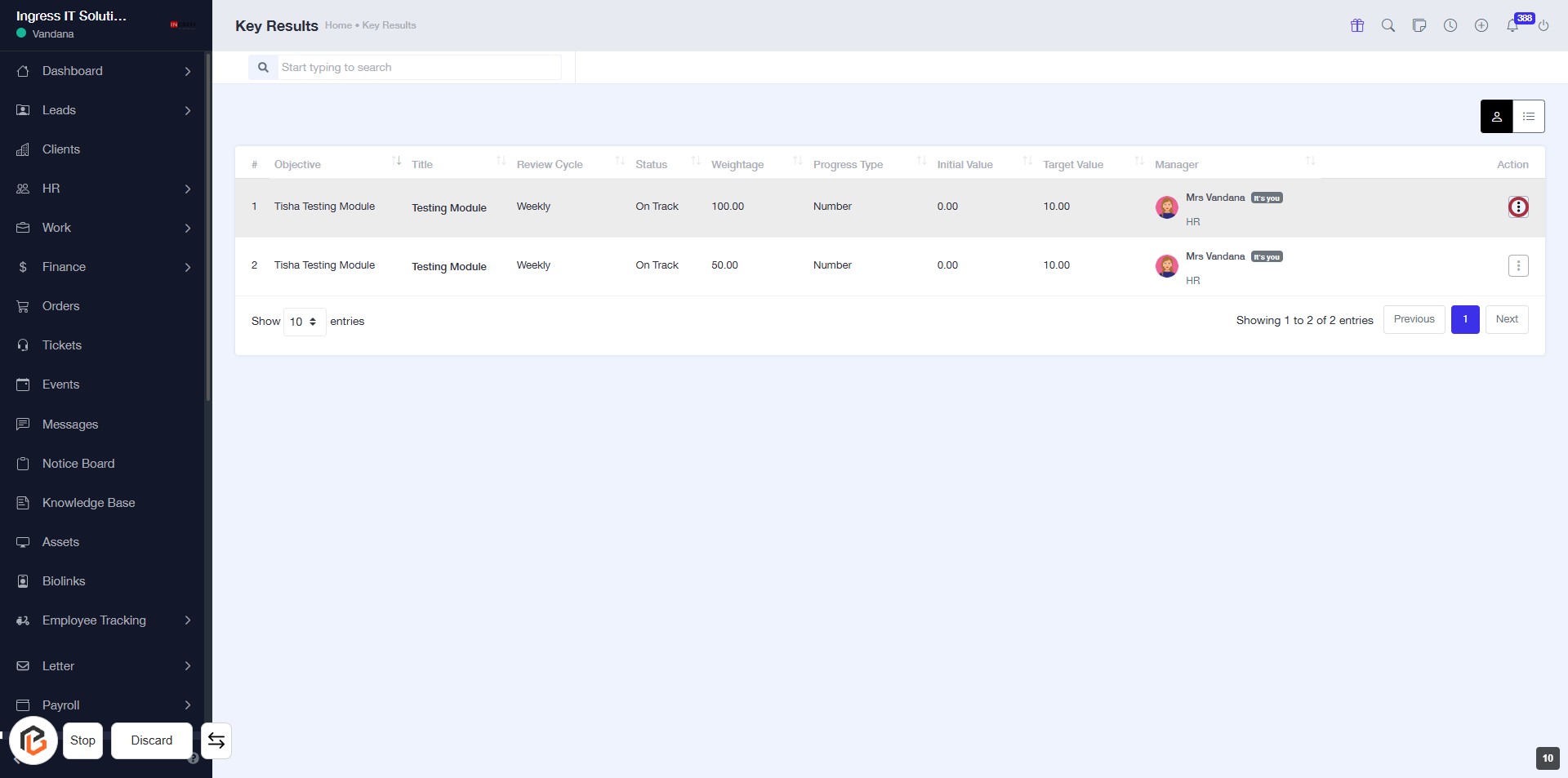
- Locate the "Action" column in the Key Results table.
- Click on the icon in the highlighted area to open the options menu.
- Review available actions such as Edit, Delete, or Duplicate.
- Select the desired action to proceed with managing your Key Results.
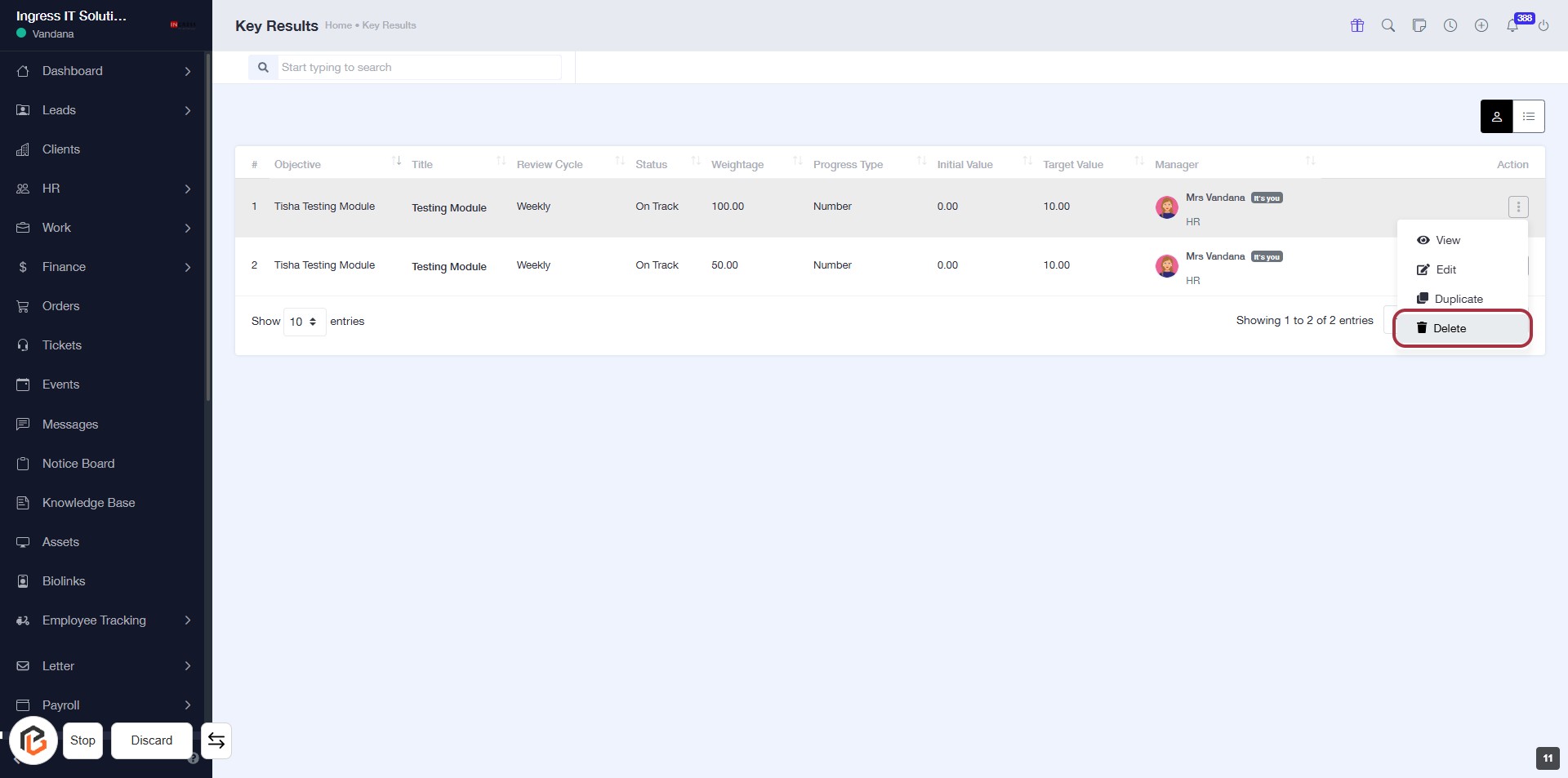
STEP 10: CLICK on "Delete" to Remove Key Result
- Navigate to the "Key Results" section.
- Locate the specific key result you wish to delete.
- Click on the "Delete" option highlighted in red.
- Confirm the deletion if prompted to ensure the key result is removed.