Step-by-Step Guide to Managing Payroll and Employee Salaries on Your Dashboard
8 mins read · Updated 29 Sep, 2025
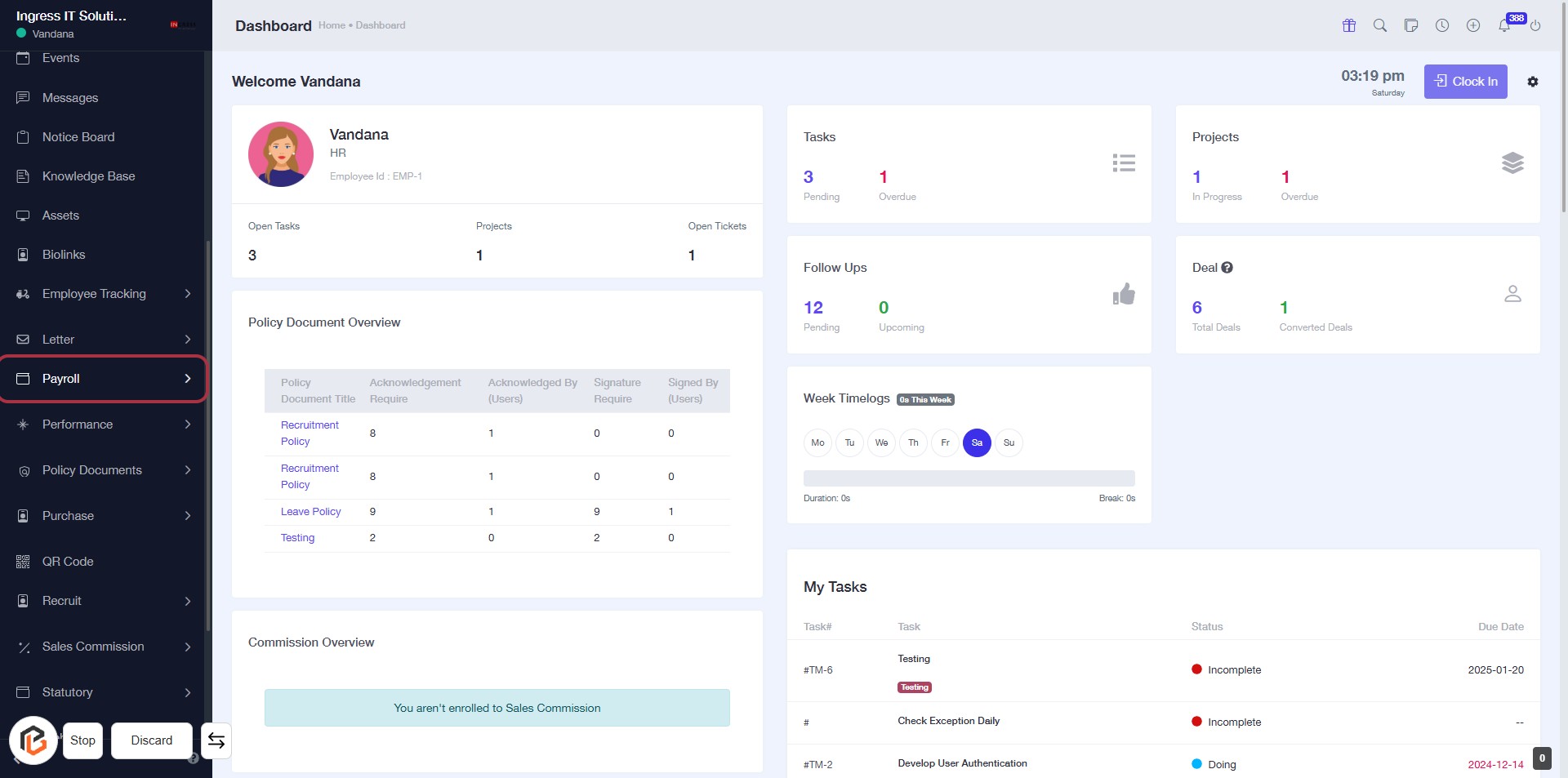
STEP 1: Click on "Payroll" to Access Payroll Information
- Navigate to the left sidebar of the dashboard.
- Locate and click on the "Payroll" link highlighted in red.
- This action will direct you to the Payroll section for further management and review.
- Ensure you have the necessary permissions to access payroll details.
Next, proceed to the "Employee Salary" section for further actions.
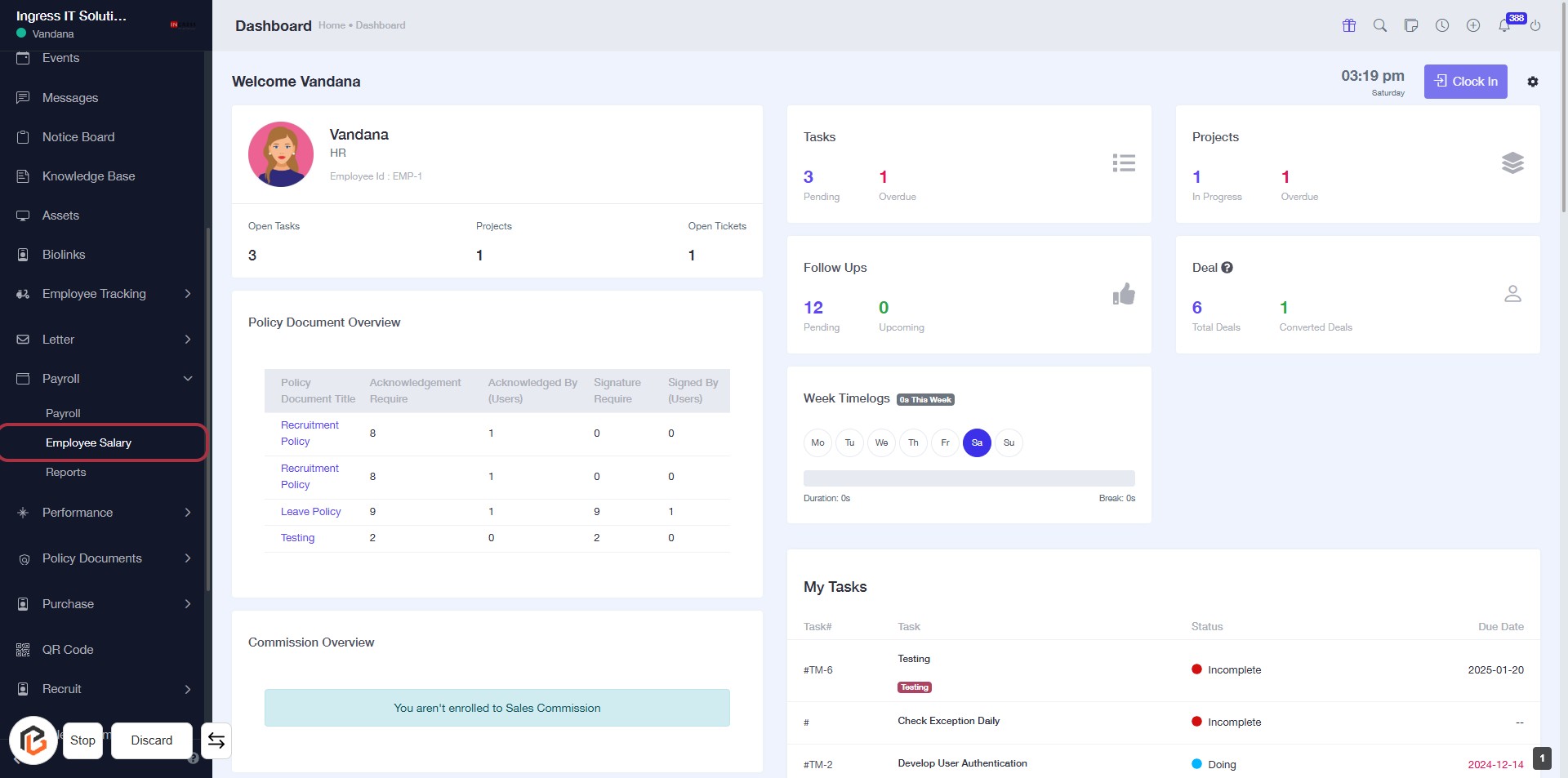
STEP 2: Click on "Employee Salary" to Access Salary Information
- Click on the "Employee Salary" link in the sidebar menu.
- This will direct you to the Employee Salary section.
- Ensure you are logged in to access this feature.
- Look for any required fields marked with an asterisk (*) in the upcoming forms.
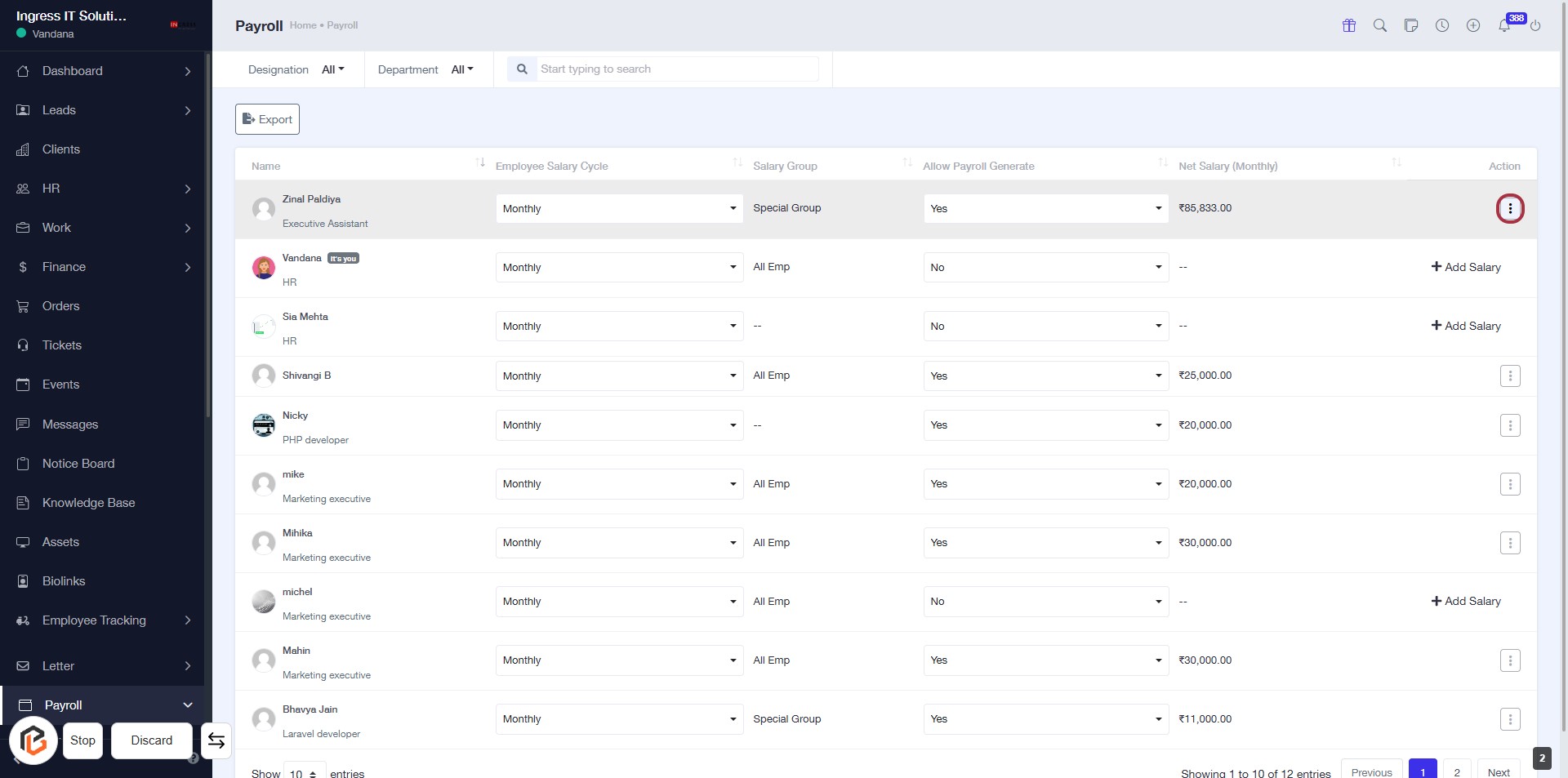
STEP 3: Click on "Option Menu" to Access More Actions
- Locate the highlighted area on the right side of the table.
- Click on the three-dot menu icon to reveal additional options.
- Review available actions such as "Edit" or "Add Salary" for the selected employee.
- Ensure all necessary fields are filled out as indicated by asterisks (*) for required inputs.
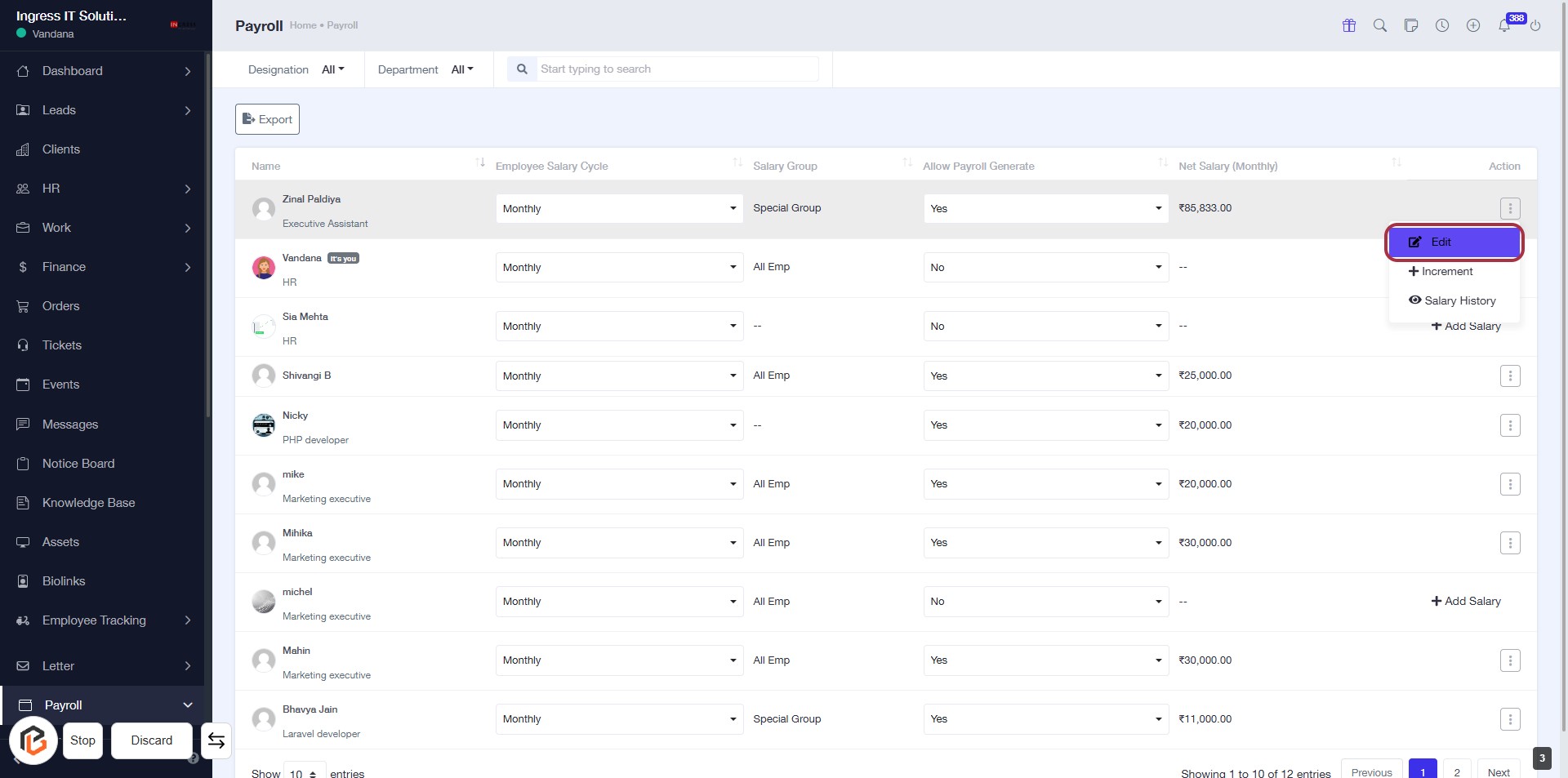
STEP 4: Click on "Edit" to Modify Employee Salary Details
- Locate the "Edit" link in the Actions column of the employee salary table.
- Click on "Edit" to access the salary modification form.
- Ensure all required fields marked with '*' are filled out.
- Review optional fields for additional information if necessary.
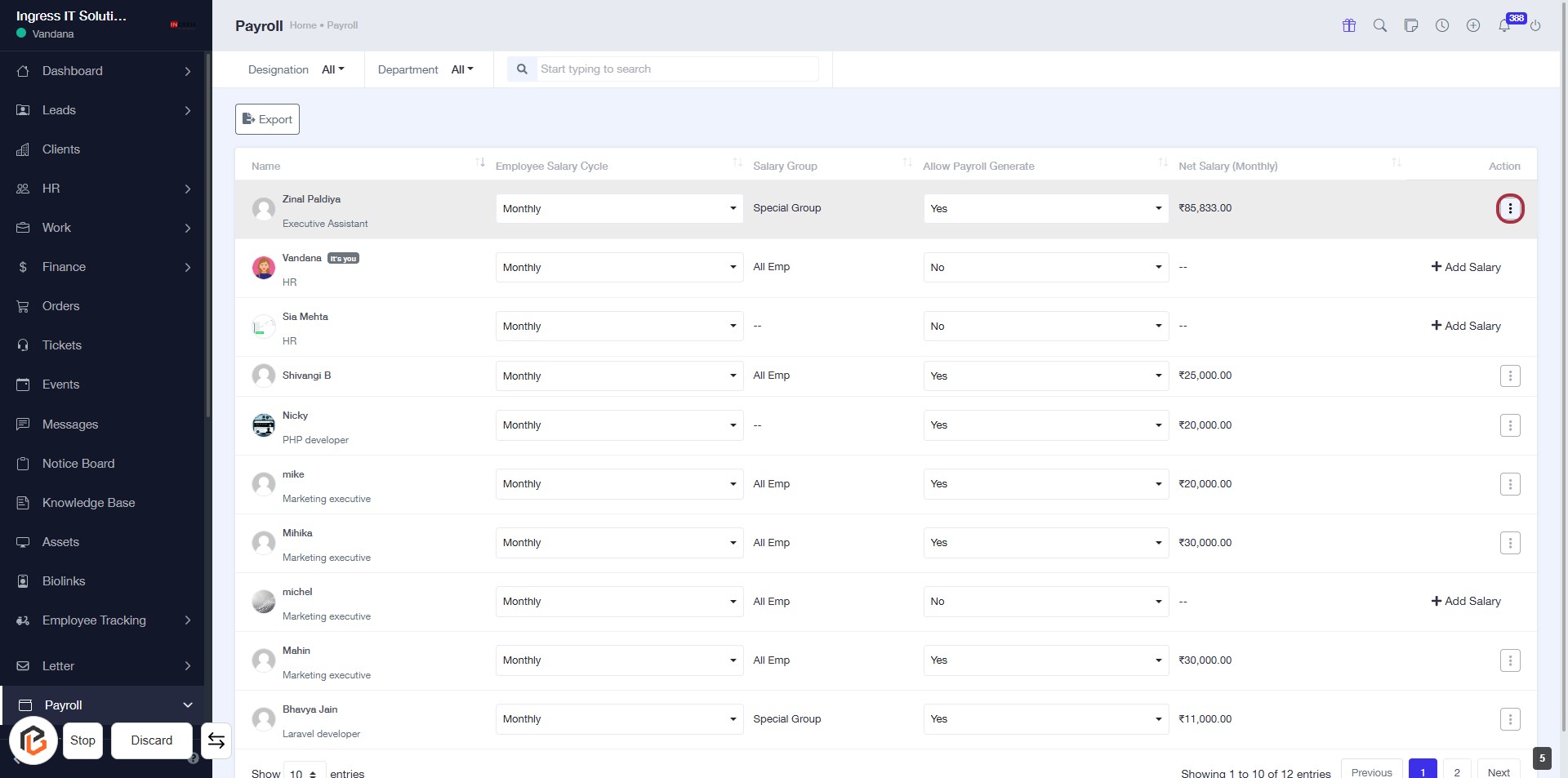
STEP 5: Click on "Option Menu" to Access Salary Actions
- Locate the highlighted area in the "Action" column.
- Click on the three-dot menu to reveal options.
- Review available actions such as "Increment" or "Add Salary."
- Ensure you have the correct employee selected before proceeding.
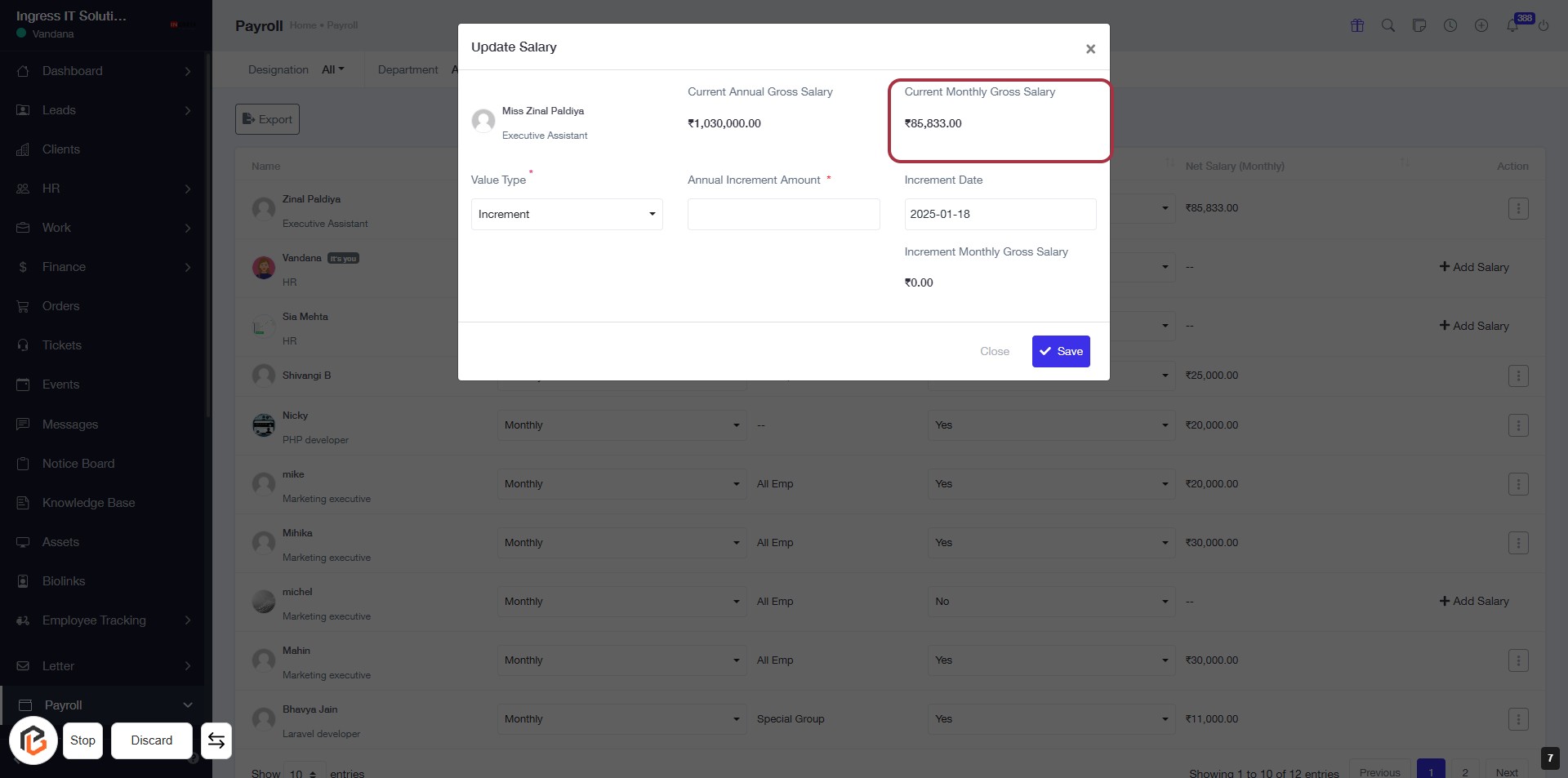
STEP 6: Click on "Increment" to Update Salary
- Locate the Password Input Field: Find the field labeled "PASSWORD" in the dialog box.
- Fill Out the Password: Enter the required password in the highlighted input area.
- Review Other Fields: Ensure all mandatory fields marked with an asterisk (*) are completed.
- Proceed: After filling in the password, continue to the next step as needed.
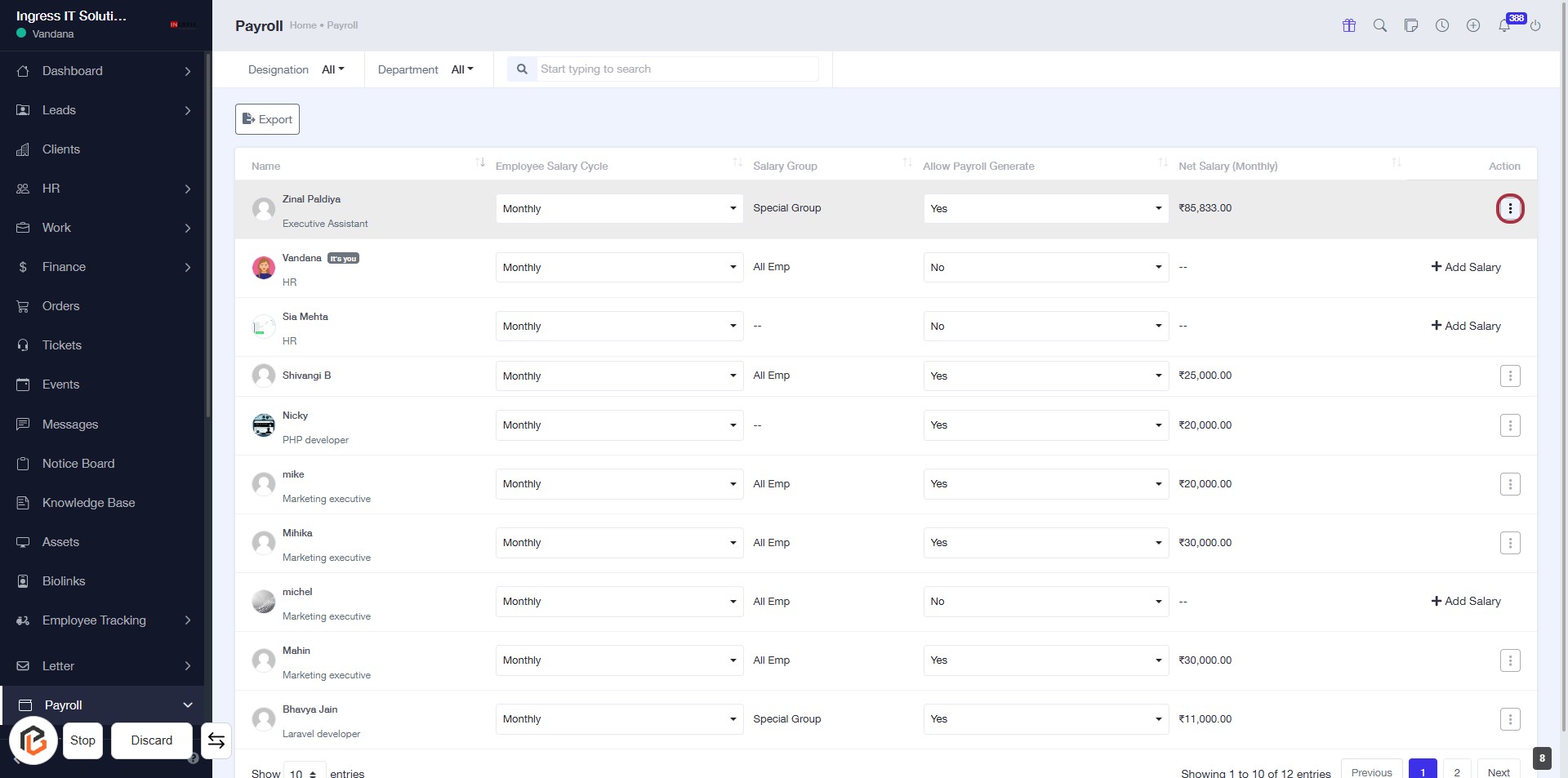
STEP 7: Click on "Option Menu" to Access Additional Actions
- Locate the highlighted area on the right side of the employee salary table.
- Click on the three-dot menu icon to reveal additional options.
- Review the available actions for managing employee salaries.
- Ensure you have selected the correct employee before proceeding.
STEP 8: Click on "Salary History" to View Employee Salary Records
- Navigate to the "Payroll" section.
- Locate the "Salary History" link highlighted in purple.
- Click on the "Salary History" link to access detailed salary records for the selected employee.
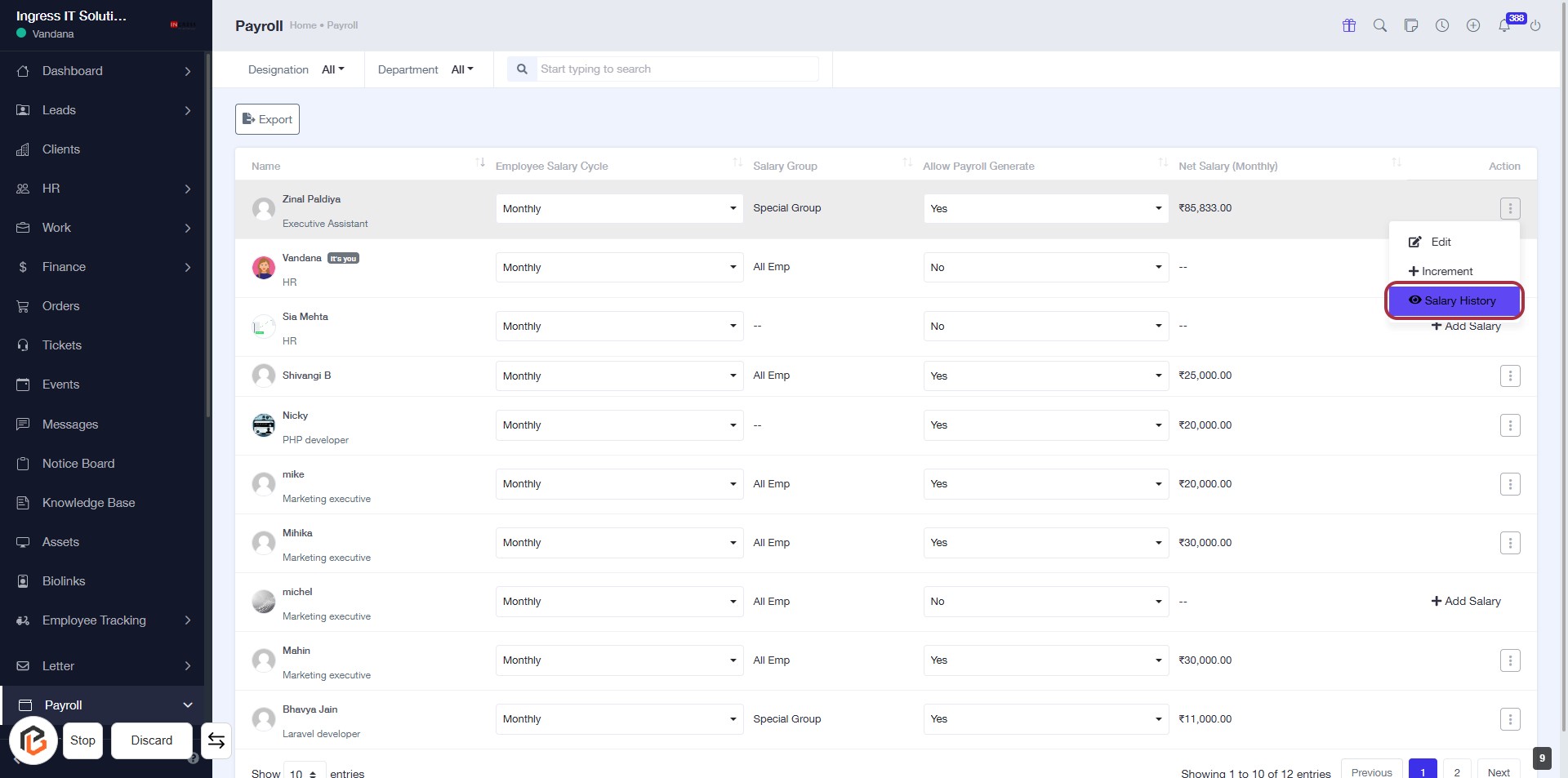
- Ensure you have the necessary permissions to view this information.