Step-by-Step Guide to Accessing and Reviewing Payroll and TDS Reports: A Comprehensive Walkthrough
7 mins read · Updated 29 Sep, 2025
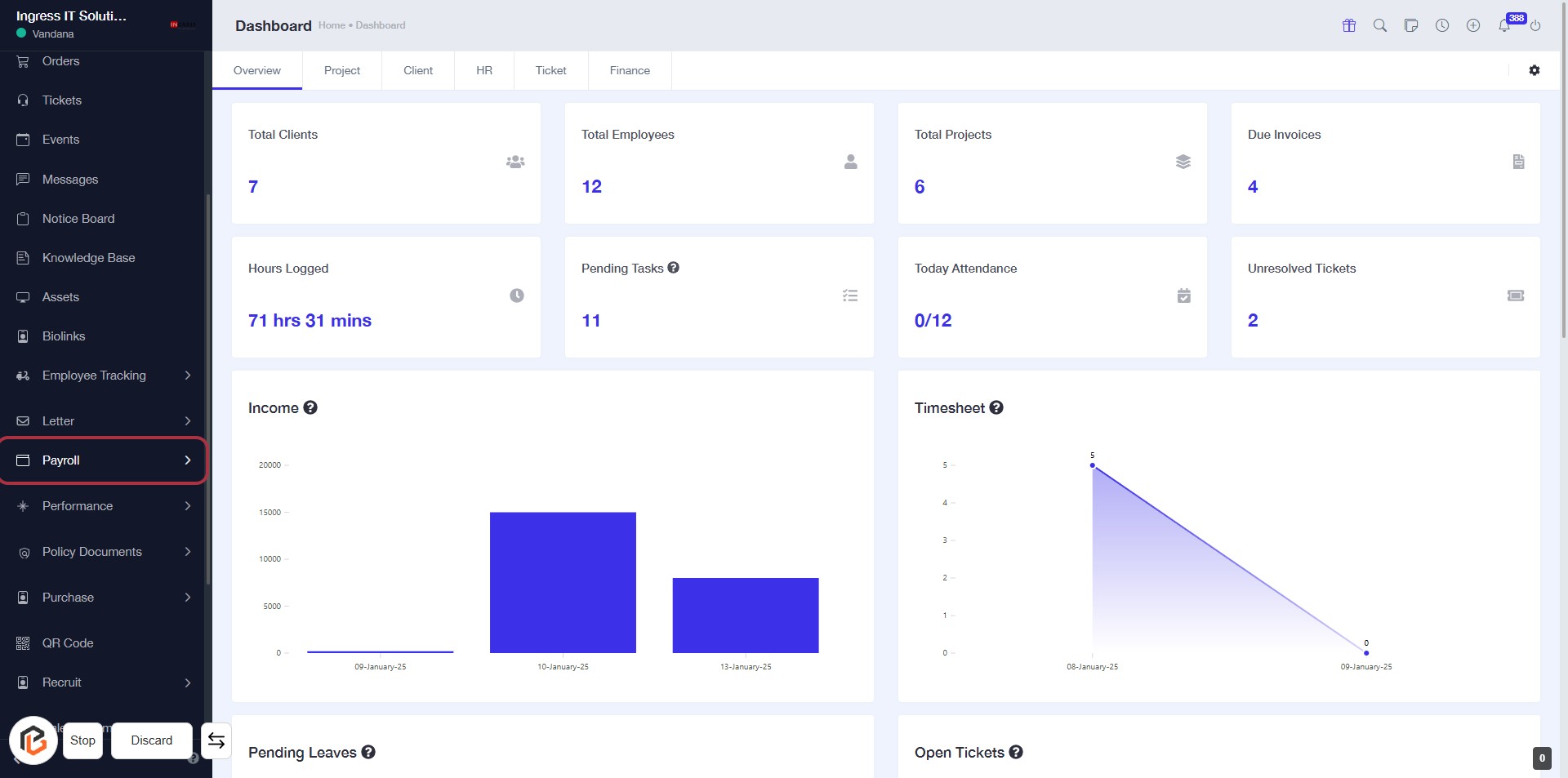
STEP 1: Click on "Payroll" to Access Payroll Dashboard
- Navigate to the sidebar menu.
- Click on the Payroll option highlighted in red.
- This will direct you to the Payroll Dashboard for further actions.
- Ensure you have the necessary permissions to access payroll-related features.
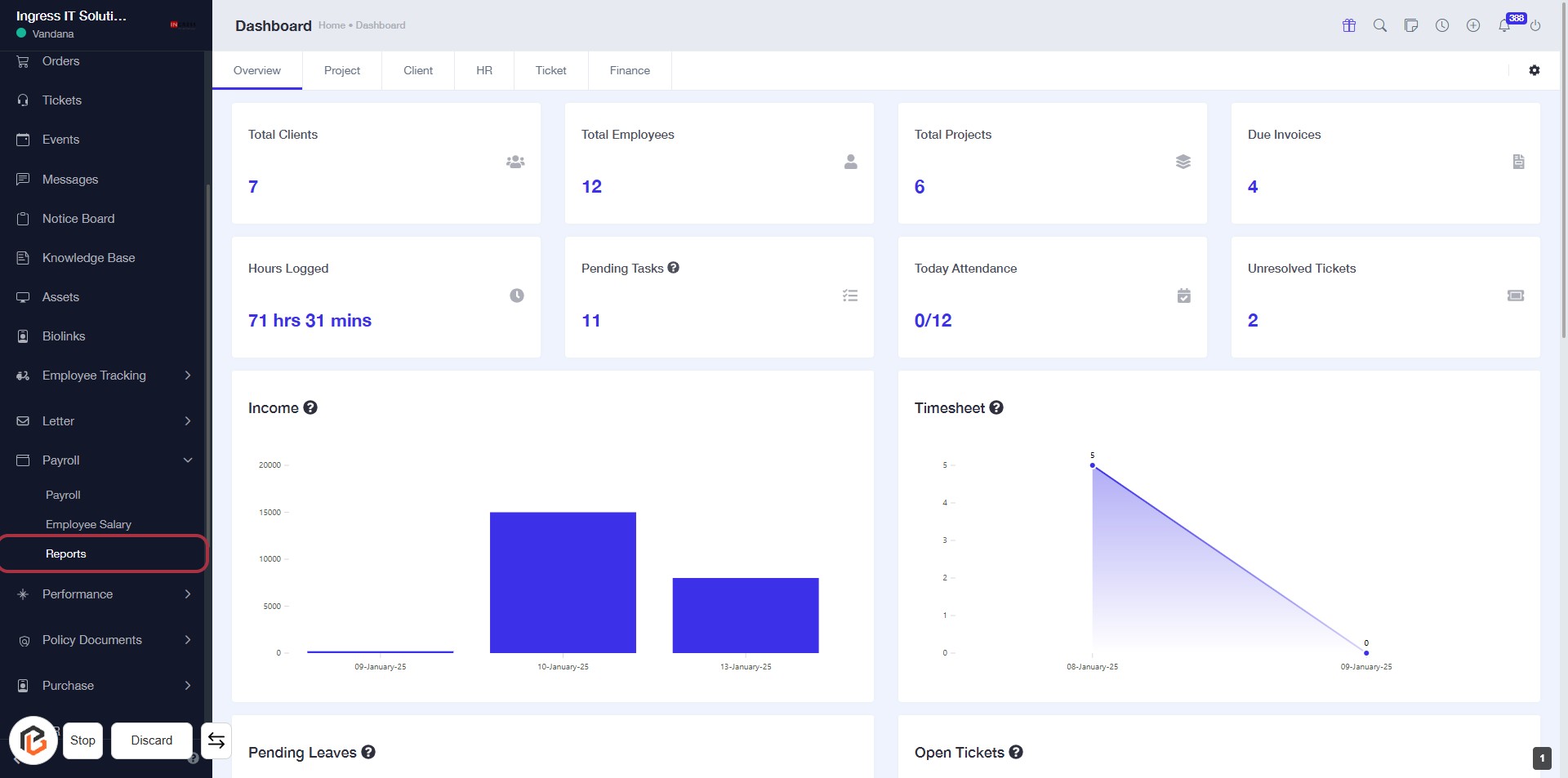
STEP 2: Click on "Reports" to Access Reporting Section
- Locate the "Reports" option in the sidebar menu.
- Click on the "Reports" link to navigate to the reporting section.
- Ensure you are on the correct dashboard page before proceeding.
- After clicking, look for the next options available for report generation.
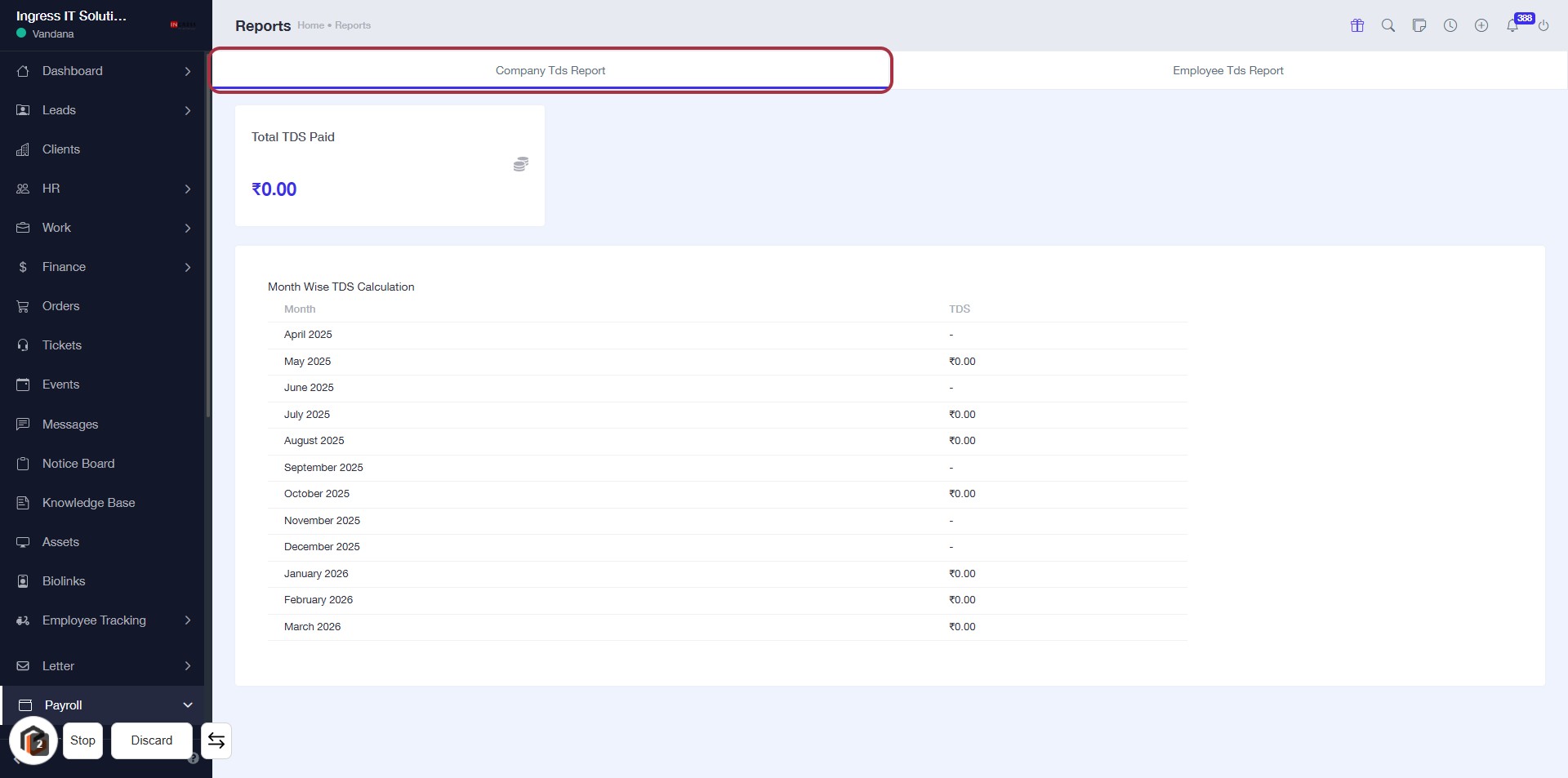
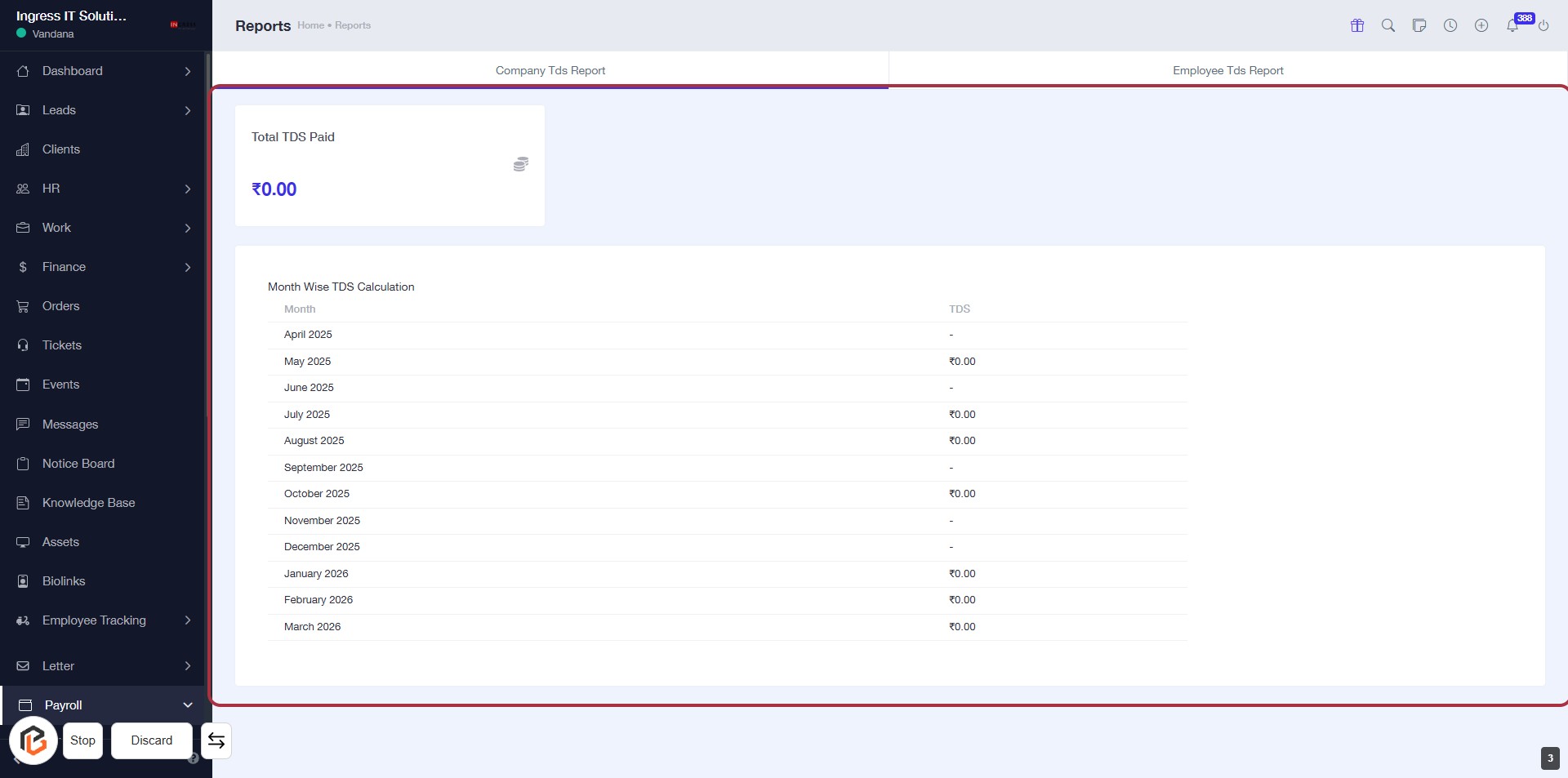
STEP 3: Click on "Company Tds Report"
- Navigate to the "Reports" section.
- Click on the Company Tds Report highlighted in the navigation.
- Review the Total TDS Paid and the Month Wise TDS Calculation table below.
- Ensure to check the TDS values for each month listed.
STEP 4: Click on "Total TDS Paid" to View Report
- Navigate to the "Total TDS Paid" section.
- Click on the displayed amount to view detailed TDS calculations.
- Review the month-wise TDS calculation table below for specific months.
- Ensure to check for any additional details or notes provided in the report.
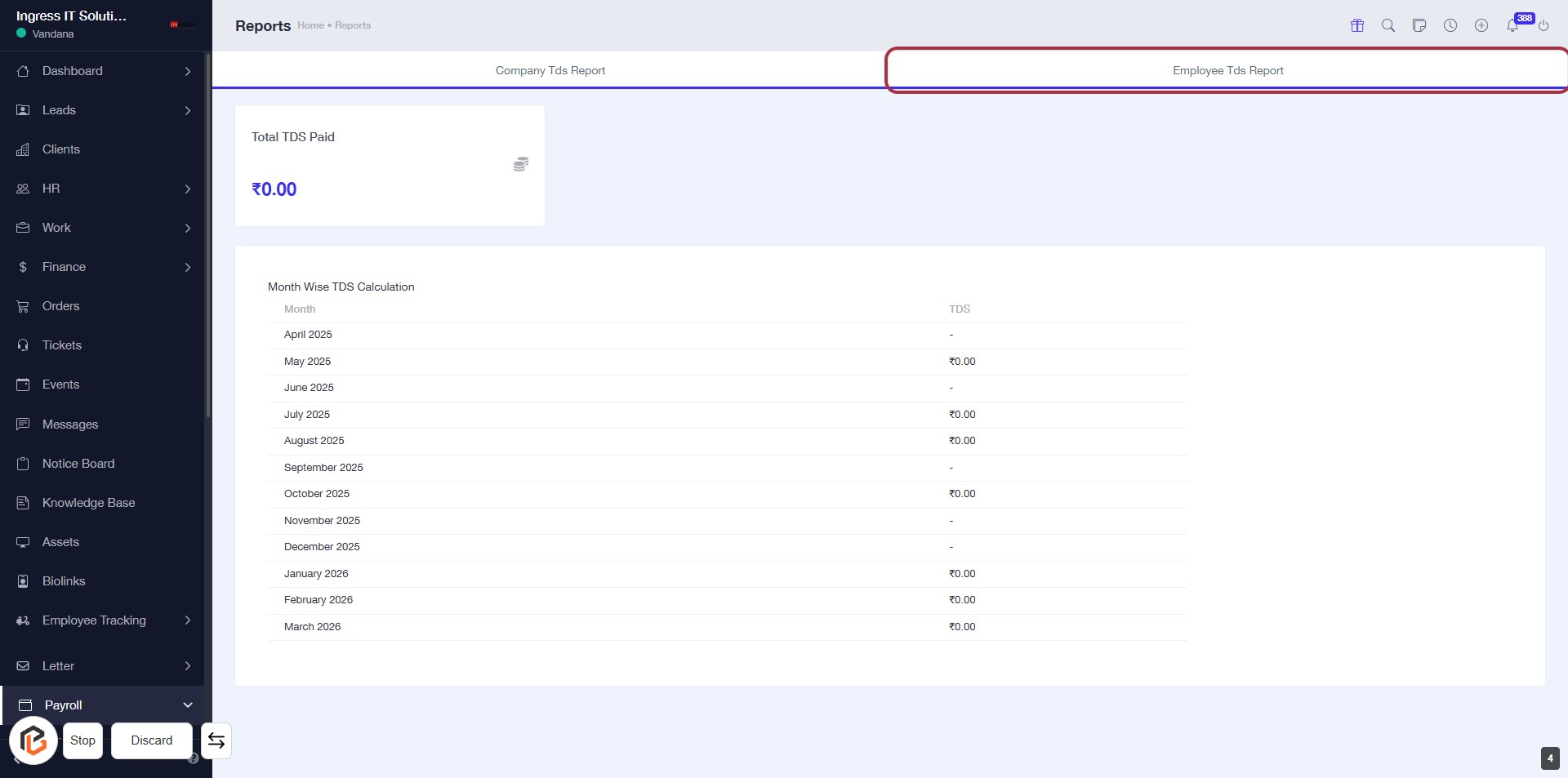
STEP 5: Click on "Employee Tds Report"
- Navigate to the highlighted area labeled "Employee Tds Report."
- Click on the "Employee Tds Report" to access detailed TDS information for employees.
- Ensure you have completed the previous step by viewing the "Total TDS Paid."
- Review the month-wise TDS calculation displayed below for further insights.
STEP 6: Click on "Choose Member"
- Click on the "Choose Member" dropdown to select a member.
- Ensure to review any required fields marked with an asterisk (*).
- After selection, proceed to view the "TDS Charged" information.
- Verify that all necessary inputs are filled before moving to the next step.
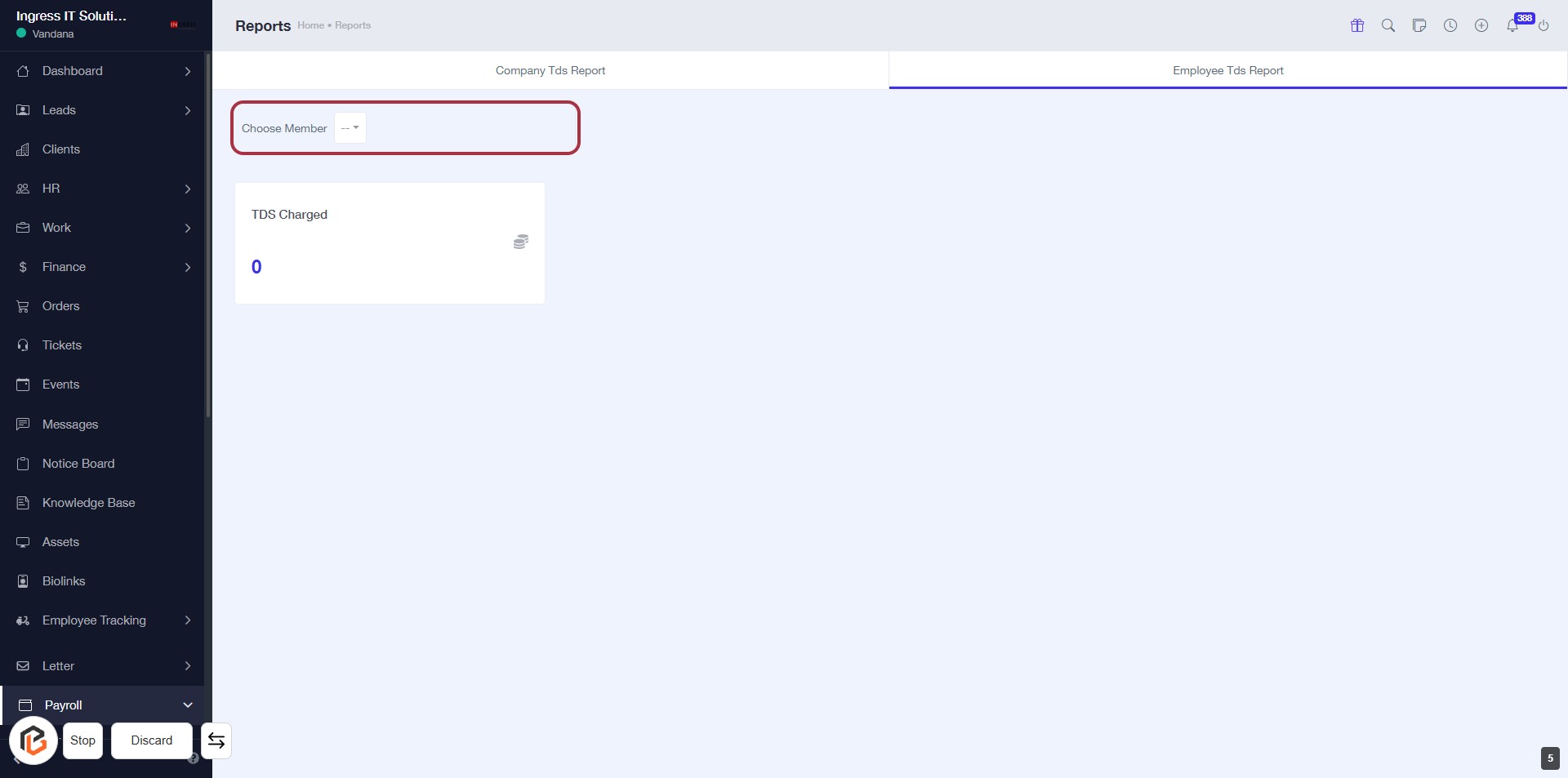
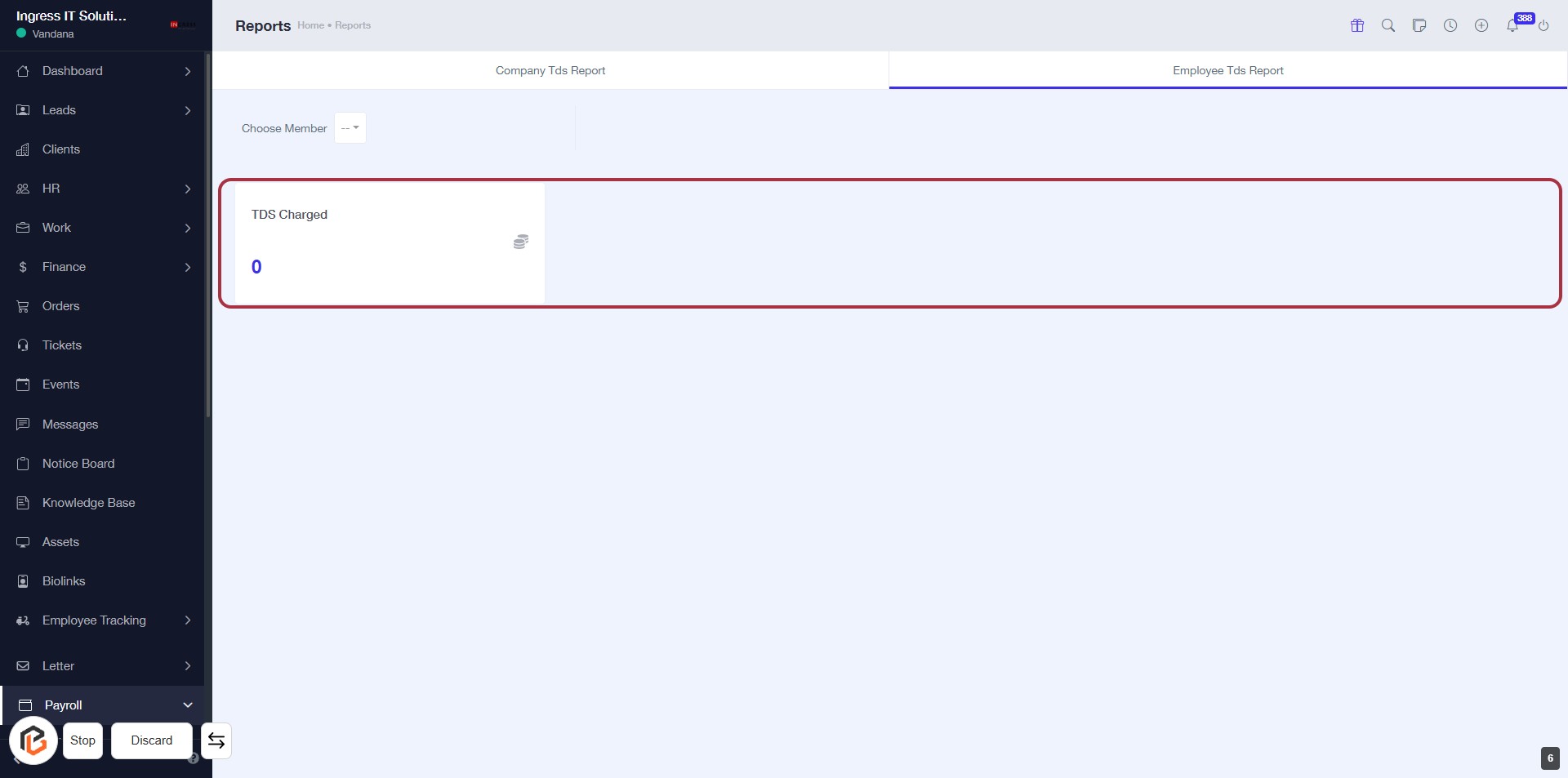
STEP 7: Click on "TDS Charged" to View Details
- Navigate to the highlighted area labeled "TDS Charged."
- Click on the "TDS Charged" section to view the relevant details.
- Ensure you have selected a member from the "Choose Member" dropdown prior to this step.
- The current value displayed is "0," indicating no TDS has been charged yet.