How to Effectively Manage and Add Notices on the Notice Board: A Step-by-Step Guide
9 mins read · Updated 29 Sep, 2025
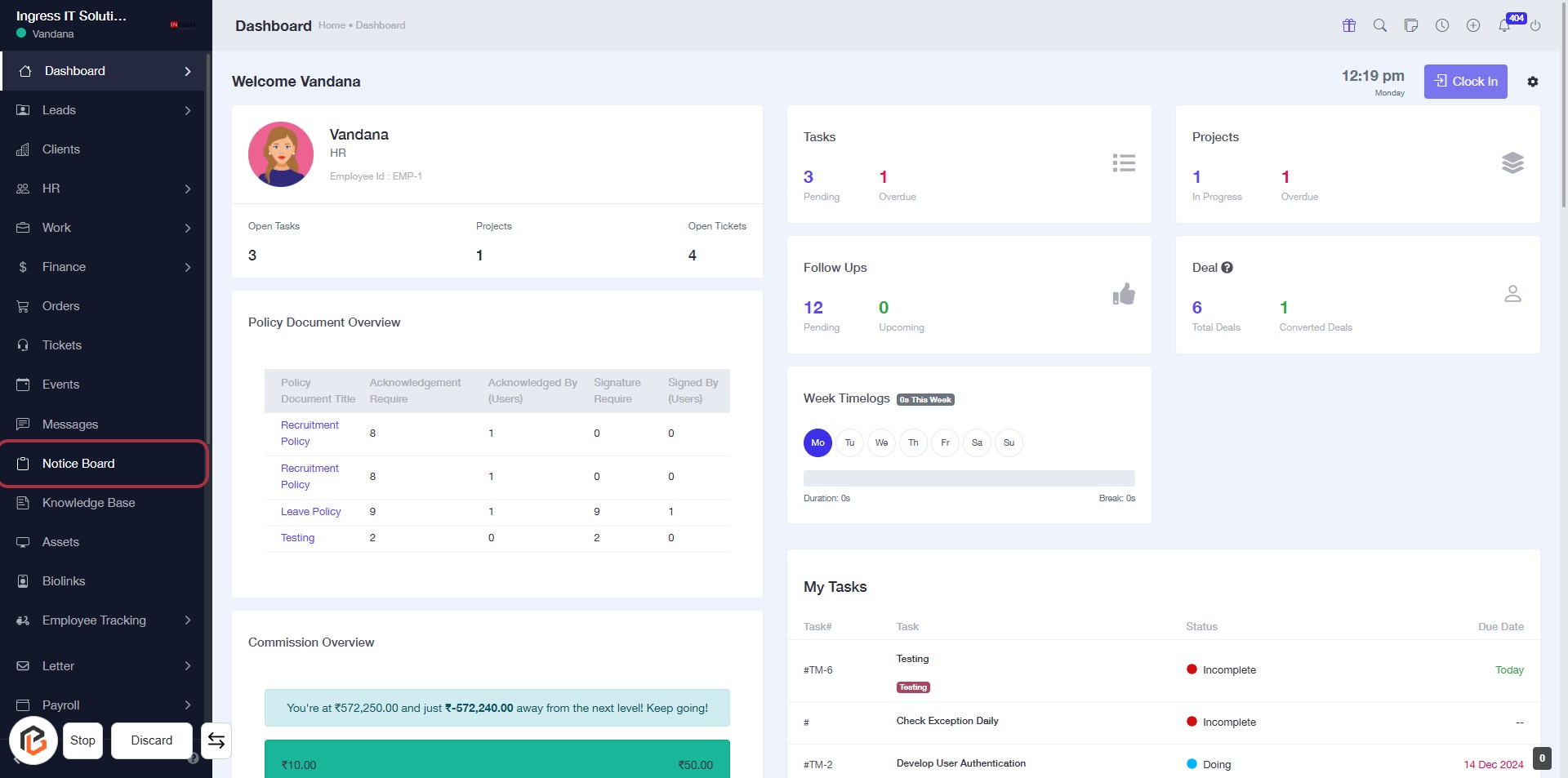
STEP 1: Click on "Notice Board"
- Navigate to the left sidebar and locate the "Notice Board" option.
- Click on "Notice Board" to access the relevant section.
- This will allow you to view important notices and updates.
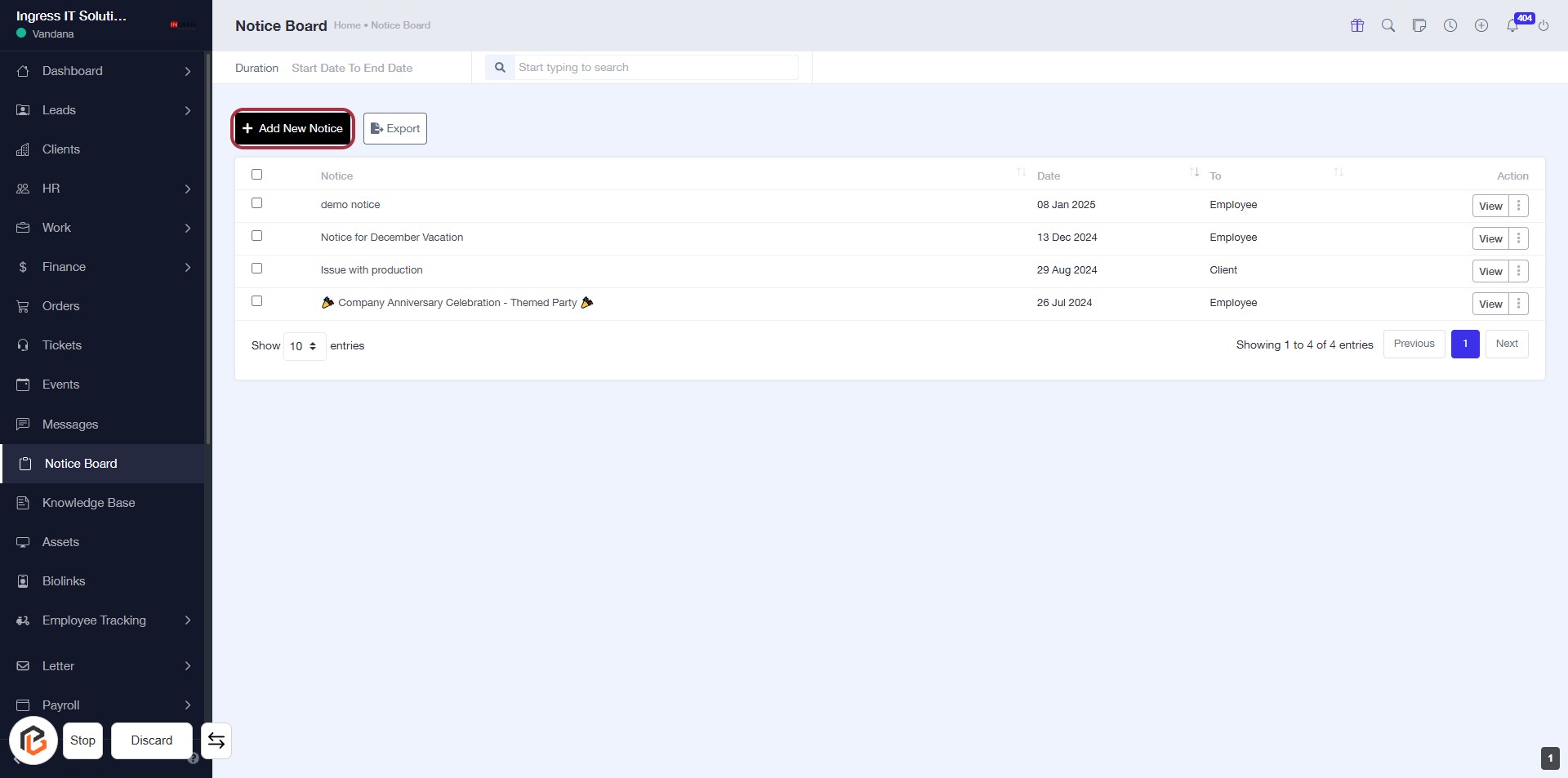
- Next, proceed to click on "Add New Notice" for further actions.
STEP 2: Click on "Add New Notice"
- Navigate to the Notice Board section.
- Click on the Add New Notice link highlighted in red.
- Ensure you fill in all required fields marked with an asterisk (*).
- After adding the notice, proceed to select the recipient type (To Employees/To Client) in the next step.
STEP 3: Select "To Employees" or "To Clients"
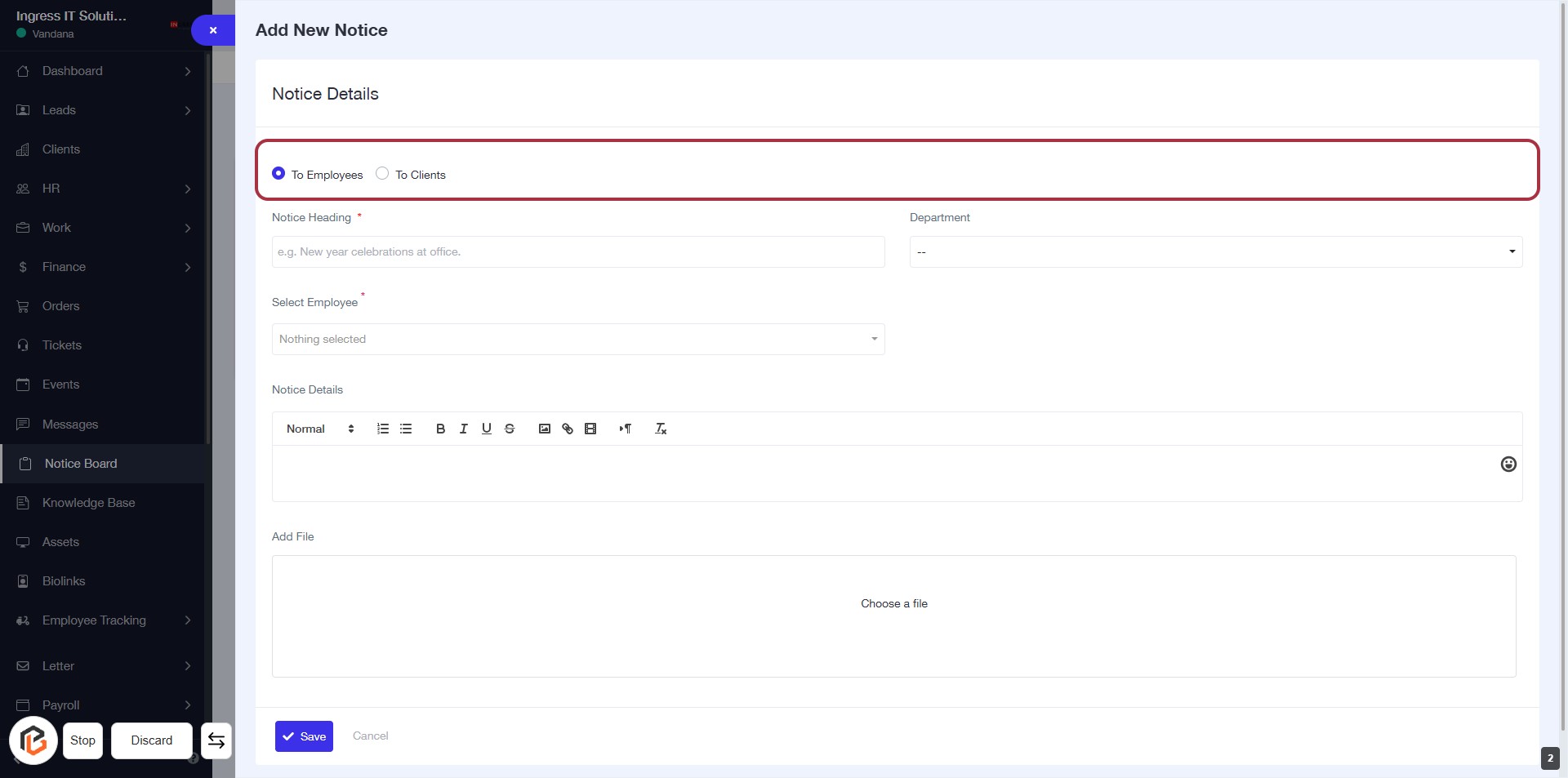
- Click on the radio button for "To Employees" or "To Clients" to specify the audience for the notice.
- Ensure that the selected option is highlighted.
- Proceed to the next step by entering the "Notice Heading" in the designated field.
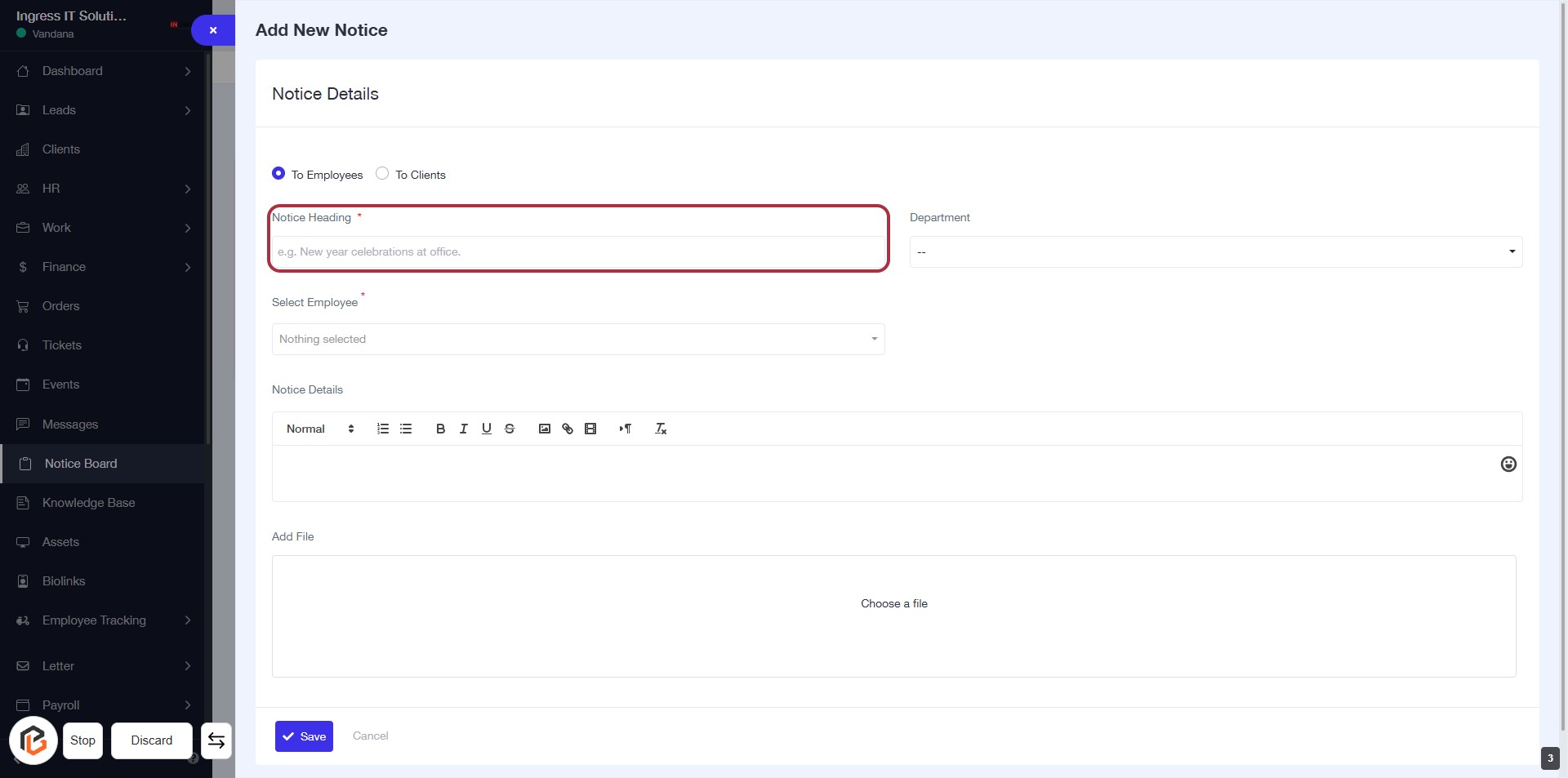
STEP 4: Enter "Notice Heading"
- Click on the "Notice Heading" field (marked with a red border).
- This field is mandatory (indicated by the asterisk *).
- Provide a brief title for the notice, e.g., "New Year Celebrations at Office."
- Ensure the heading is clear and relevant to the notice content.
- After entering the heading, proceed to the next step by selecting the "Department."
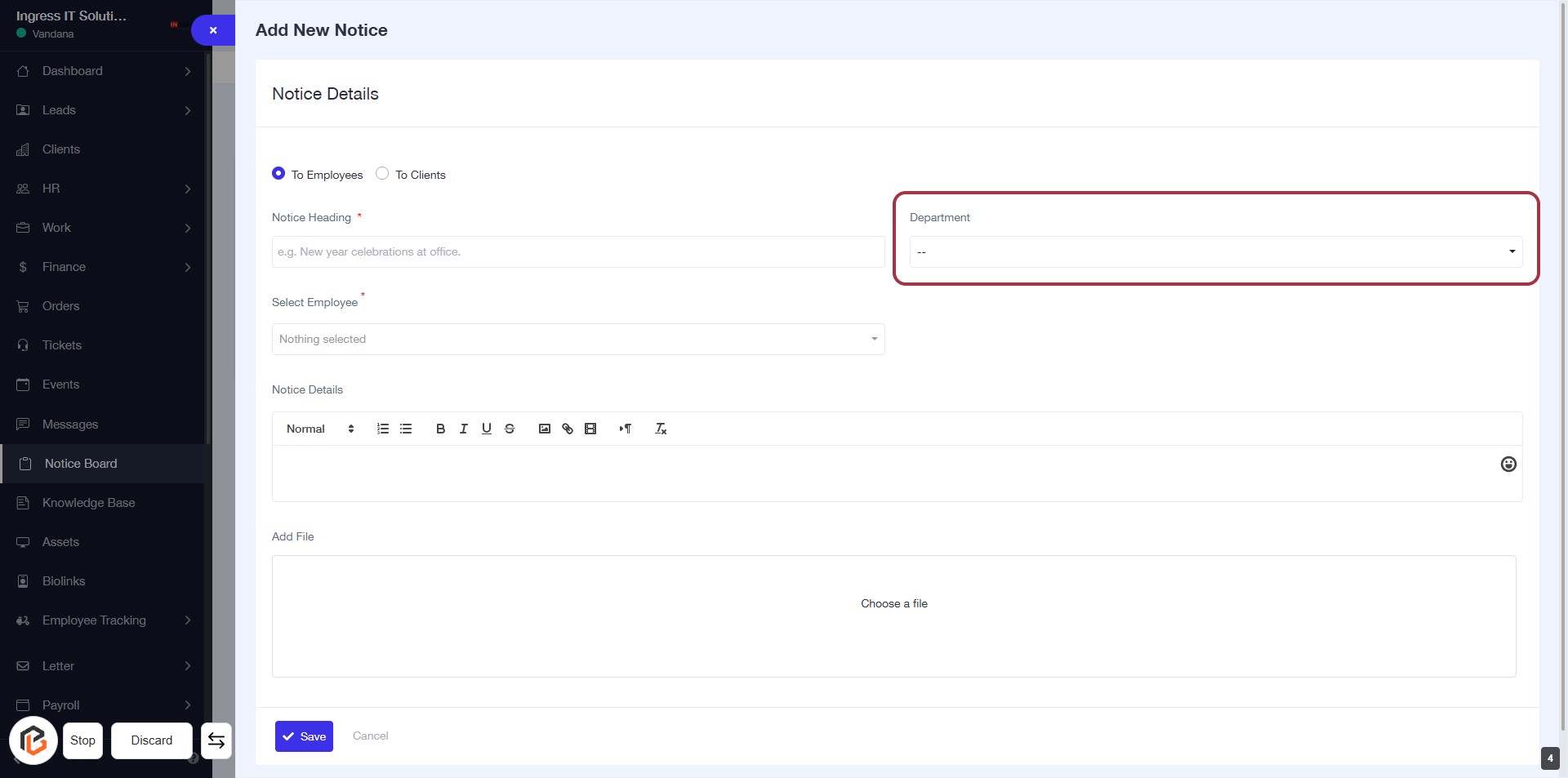
STEP 5: Select "Department"
- Click on the "Department" field highlighted in red.
- A dropdown will appear; select the appropriate department from the list.
- Ensure that the department is relevant to the notice being created.
- Proceed to the next step by clicking on "Select Employee" after filling this field.
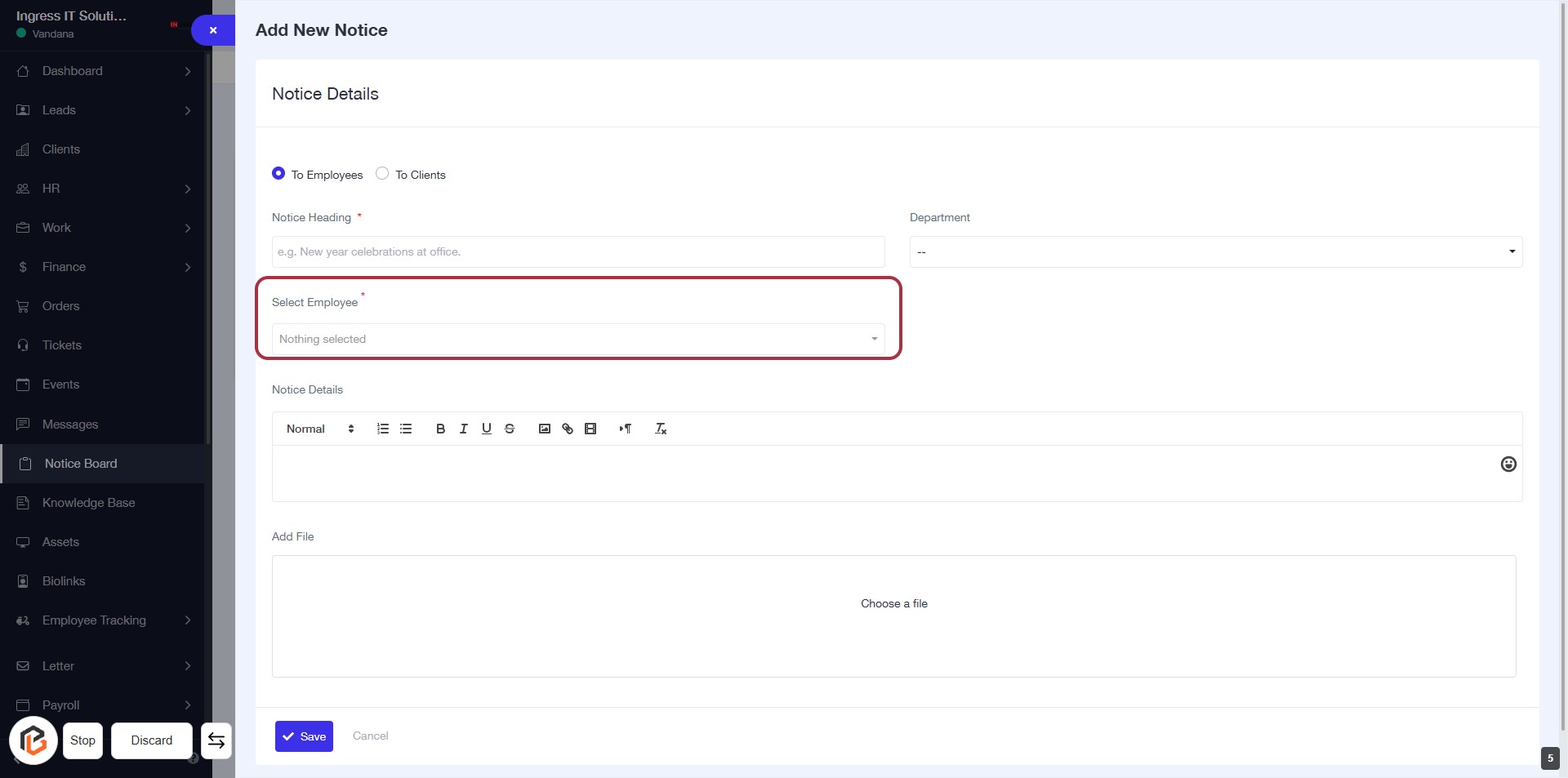
STEP 6: Click on "Select Employee"
- Navigate to the "Select Employee" field in the form.
- Click on the dropdown to view available employees.
- Choose the desired employee from the list.
- Ensure the field is marked with an asterisk (*) indicating it's required.
- Proceed to the next step to enter "Notice Details".
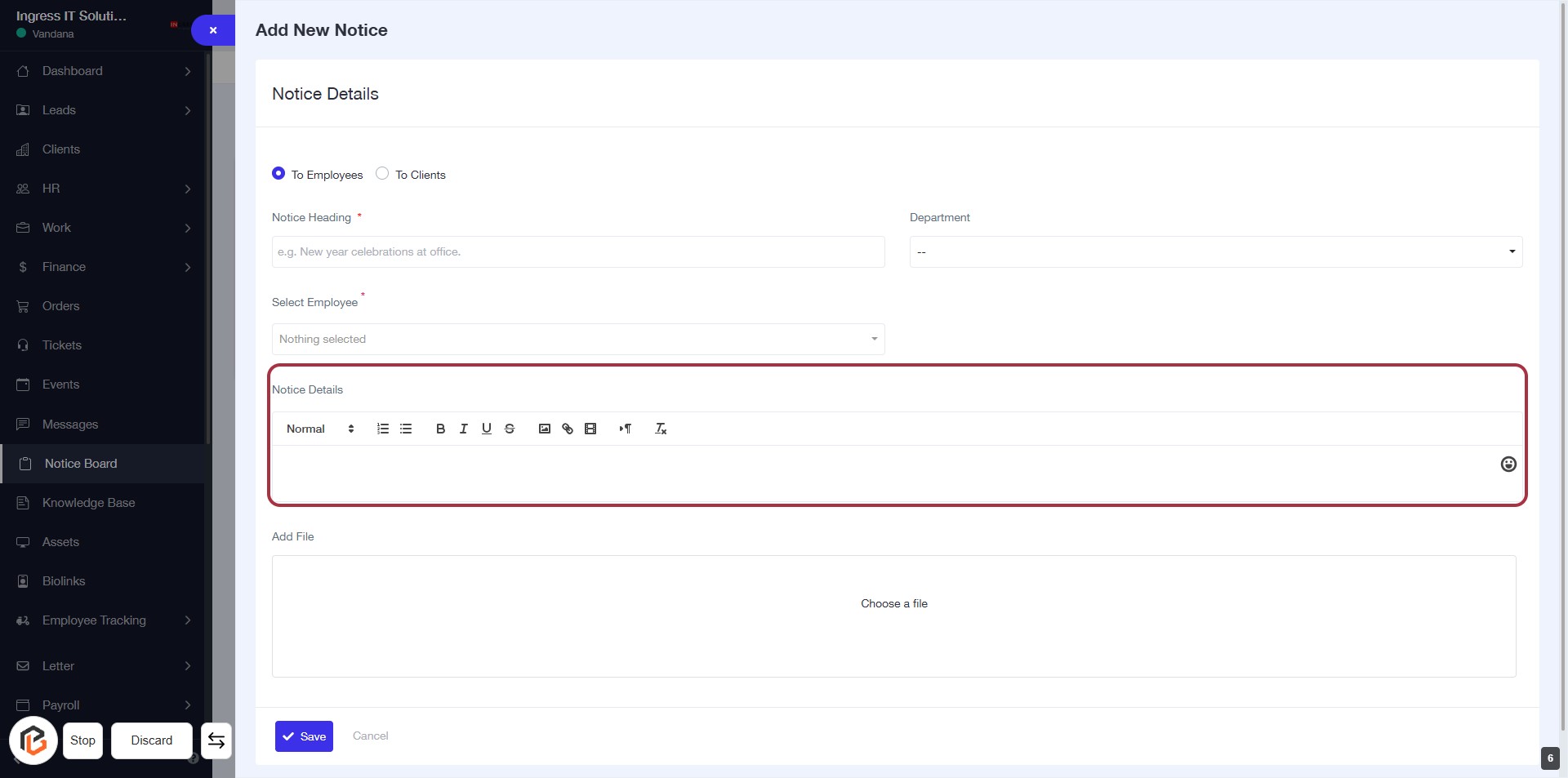
STEP 7: Enter Notice Details
- Click on the "Notice Details" section to begin entering your notice content.
- Fill in the text area provided; this is where you will write the details of the notice.
- Use formatting options available (e.g., bold, italics) to enhance your text.
- Ensure all required fields marked with an asterisk (*) are completed before proceeding.
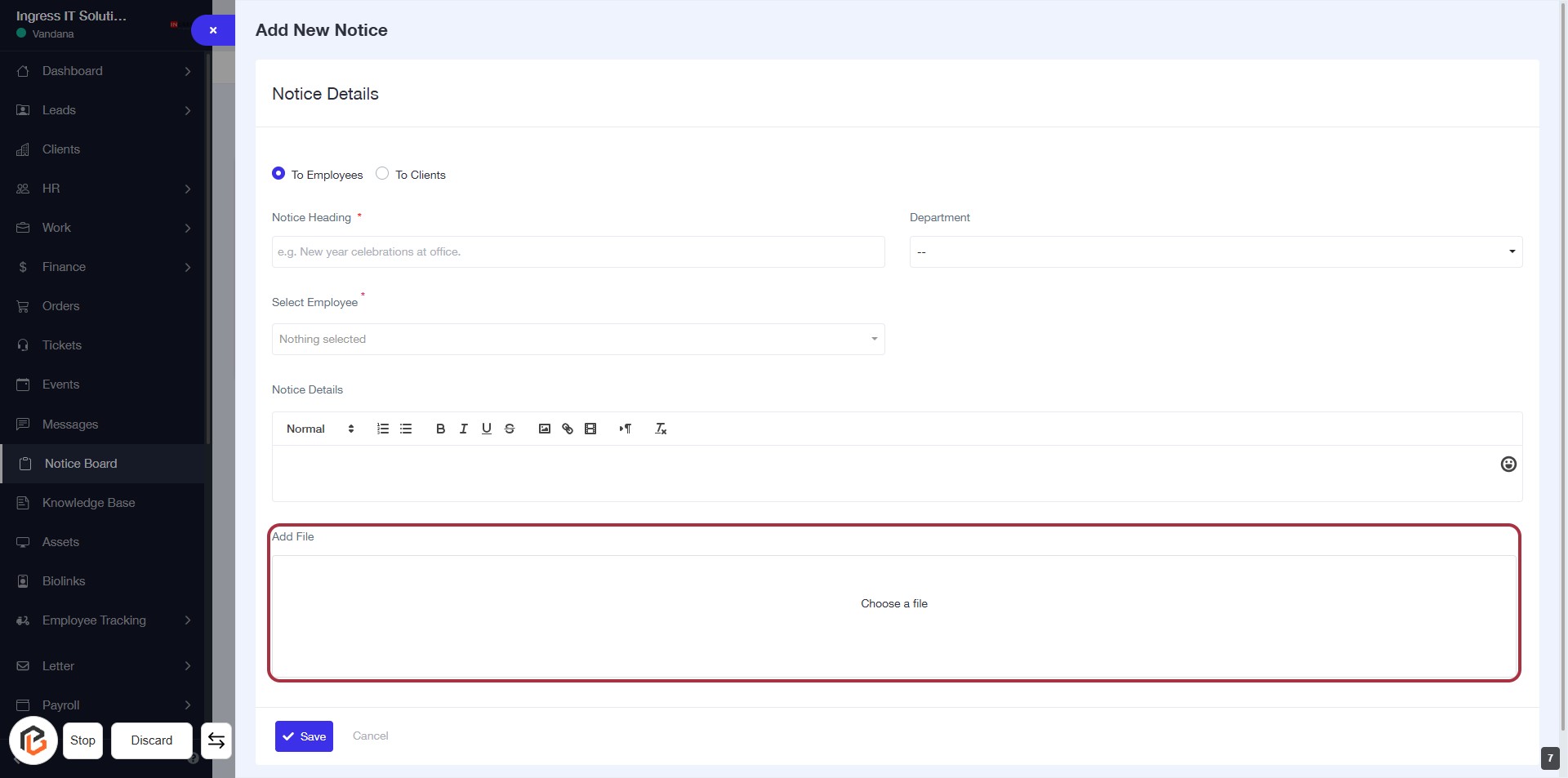
STEP 8: Click on "Add File" to Upload Documents
- Locate the "Add File" section highlighted in red.
- Click on the "Add File" area to open the file selection dialog.
- Choose the file you wish to upload from your device.
- Ensure the file is in an acceptable format as per the guidelines (if any).
- Proceed to the next step by clicking the "Save" button.
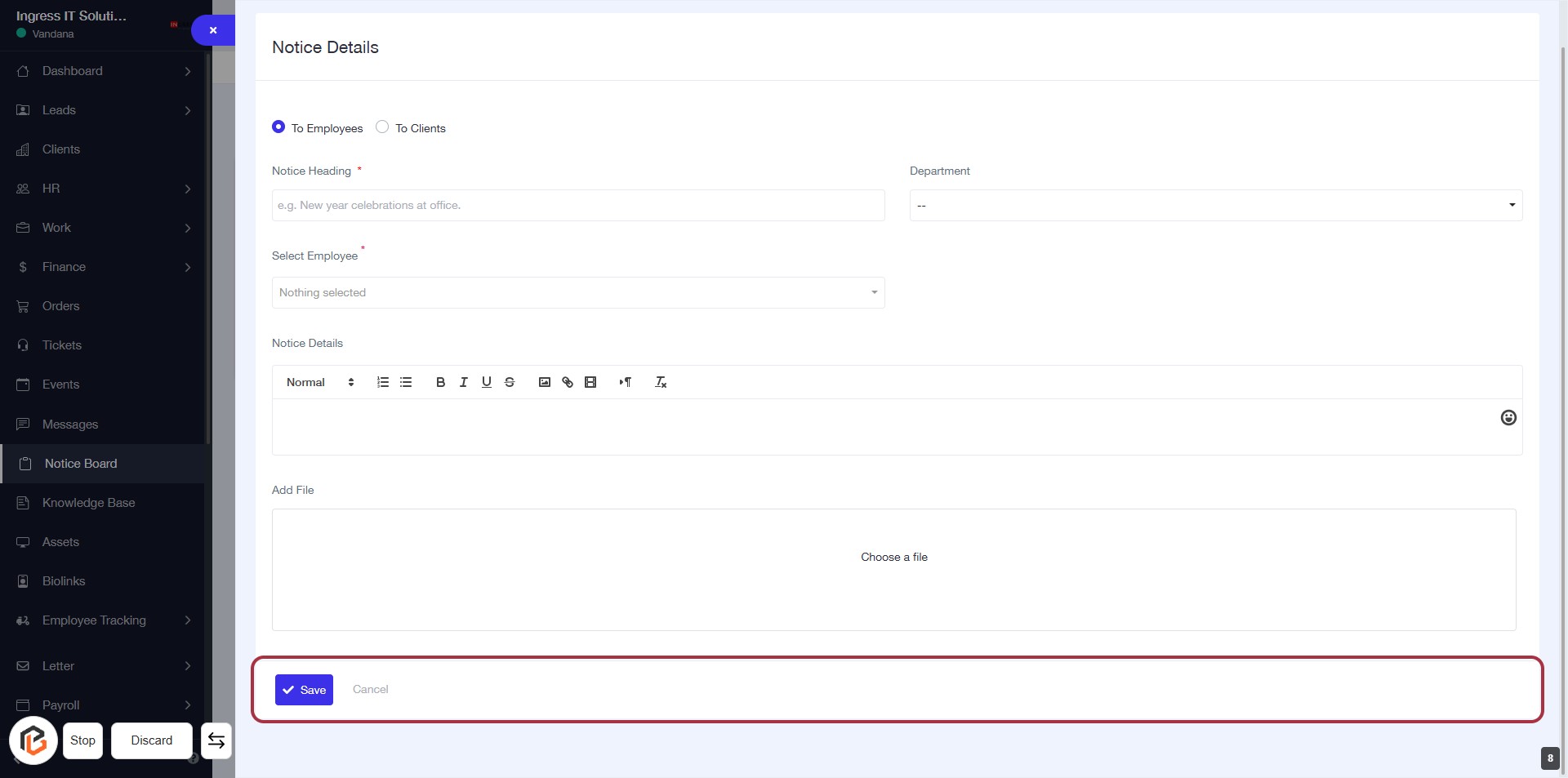
STEP 9: Click on "Save" to Finalize Notice Details
- Ensure all required fields are filled:
- Notice Heading (*)
- Select Employee (*)
- Notice Details (*)
- Review any optional fields as needed.
- Click the Save button to submit your notice.
- If you wish to cancel, click the Cancel button.