Step-by-Step Guide to Sending Messages: Initiate, Select Members, Write, and Send
7 mins read · Updated 29 Sep, 2025
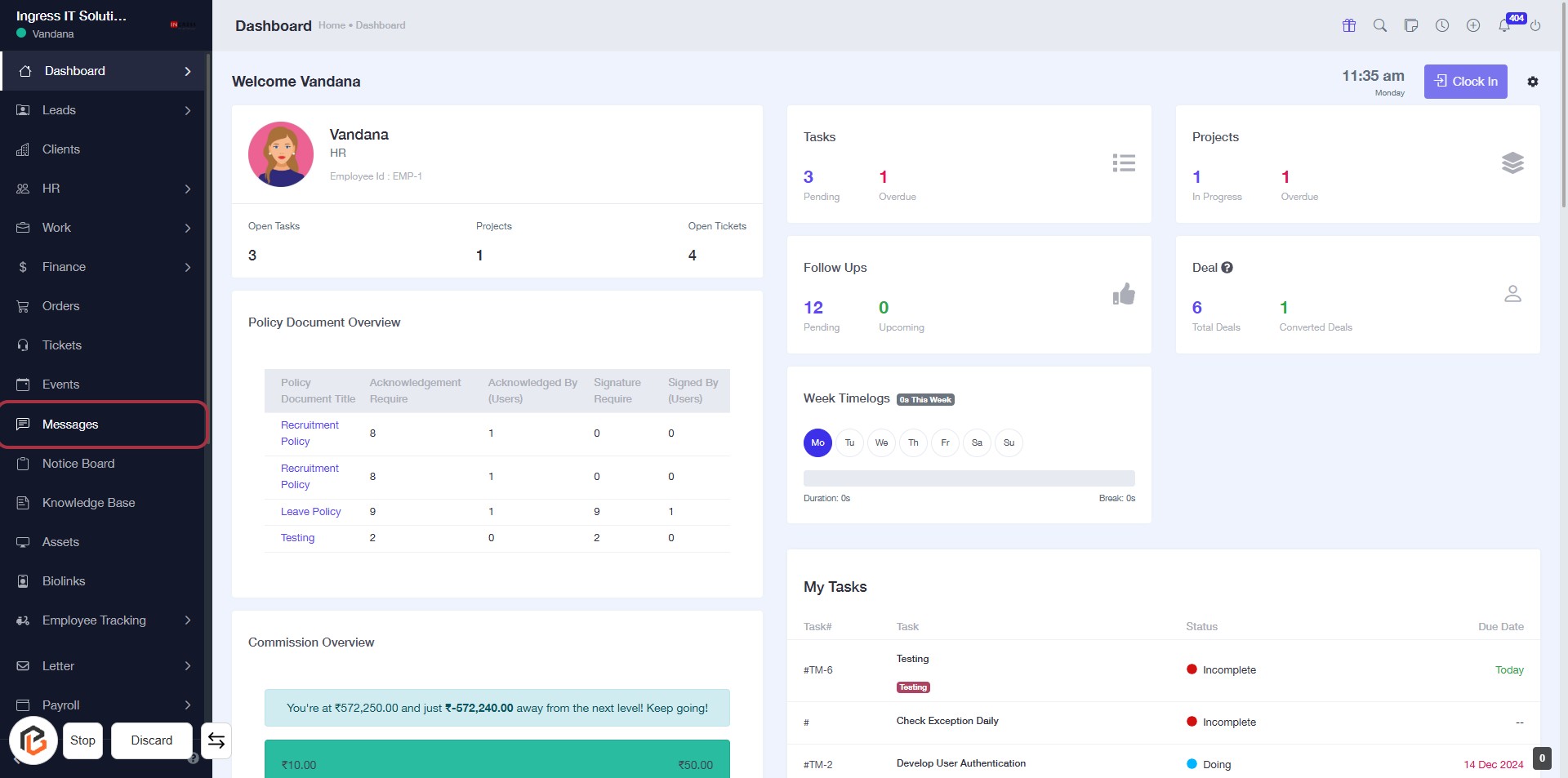
STEP 1: Click on "Messages" in the Dashboard
- Navigate to the left sidebar of the dashboard.
- Locate and click on the "Messages" link highlighted in red.
- This action will direct you to the messages section for further interactions.
Make sure to check for any notifications or updates in this area before proceeding to the next step.
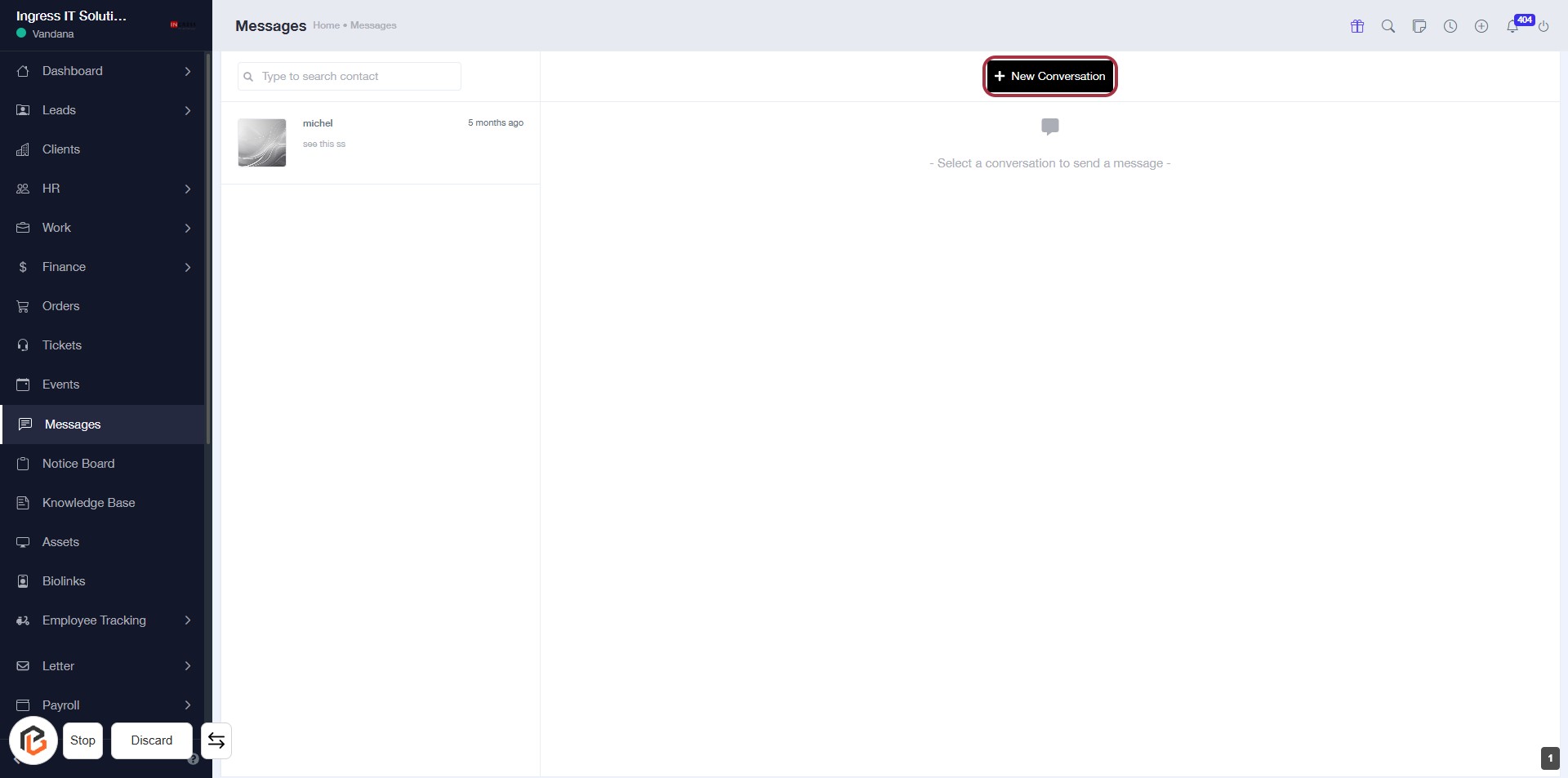
STEP 2: Click on "New Conversation"
- Navigate to the "Messages" section.
- Locate the New Conversation button at the top right.
- Click on the New Conversation button to initiate a new chat.
- Ensure to follow the prompts to select a conversation type in the next step.
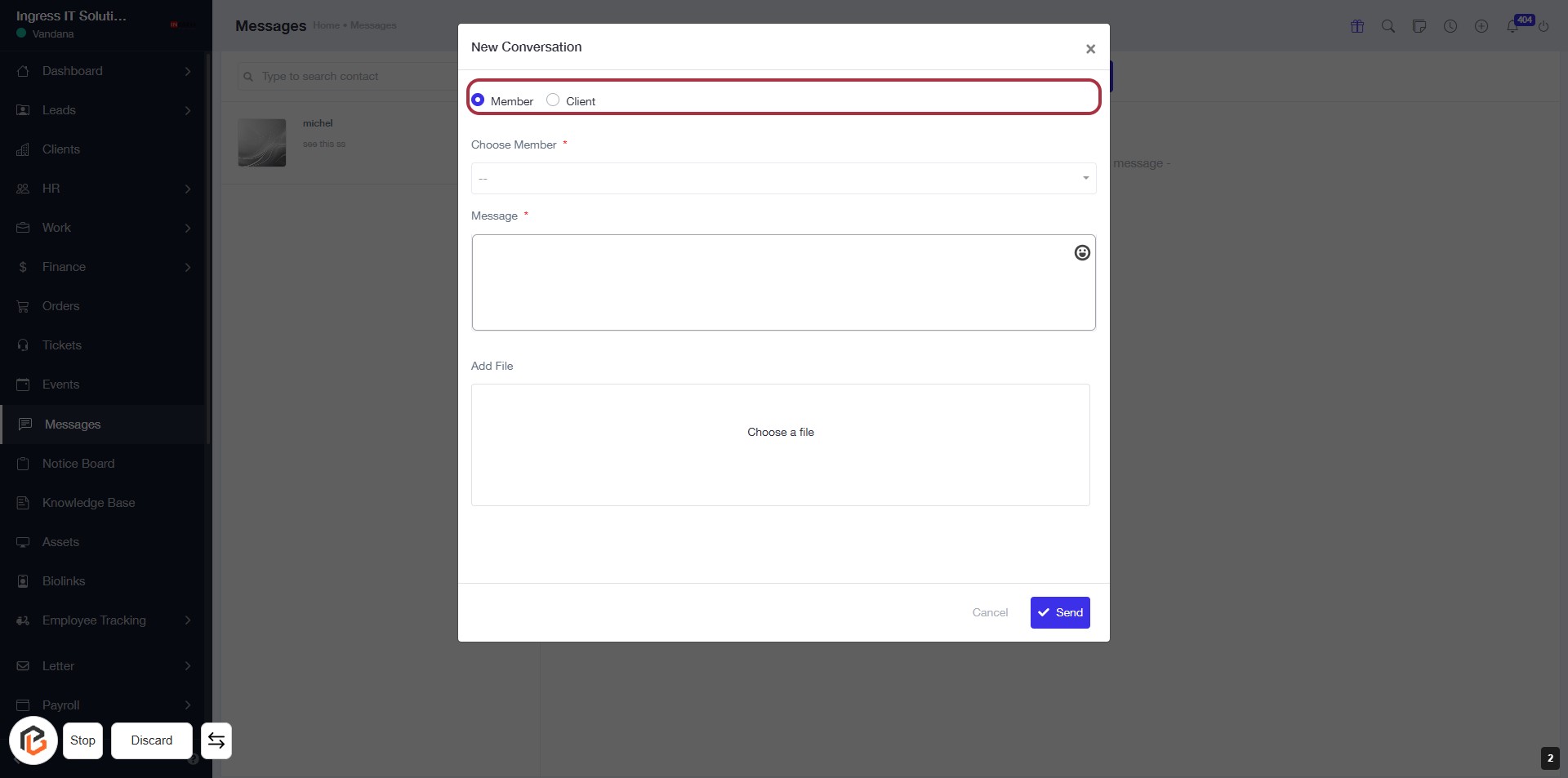
STEP 3: Select "Member"
- Click on the "Member" option to specify the type of conversation.
- Ensure to fill in the required fields marked with an asterisk (*).
- Next, proceed to click on "Choose Member" to select a specific member for the conversation.
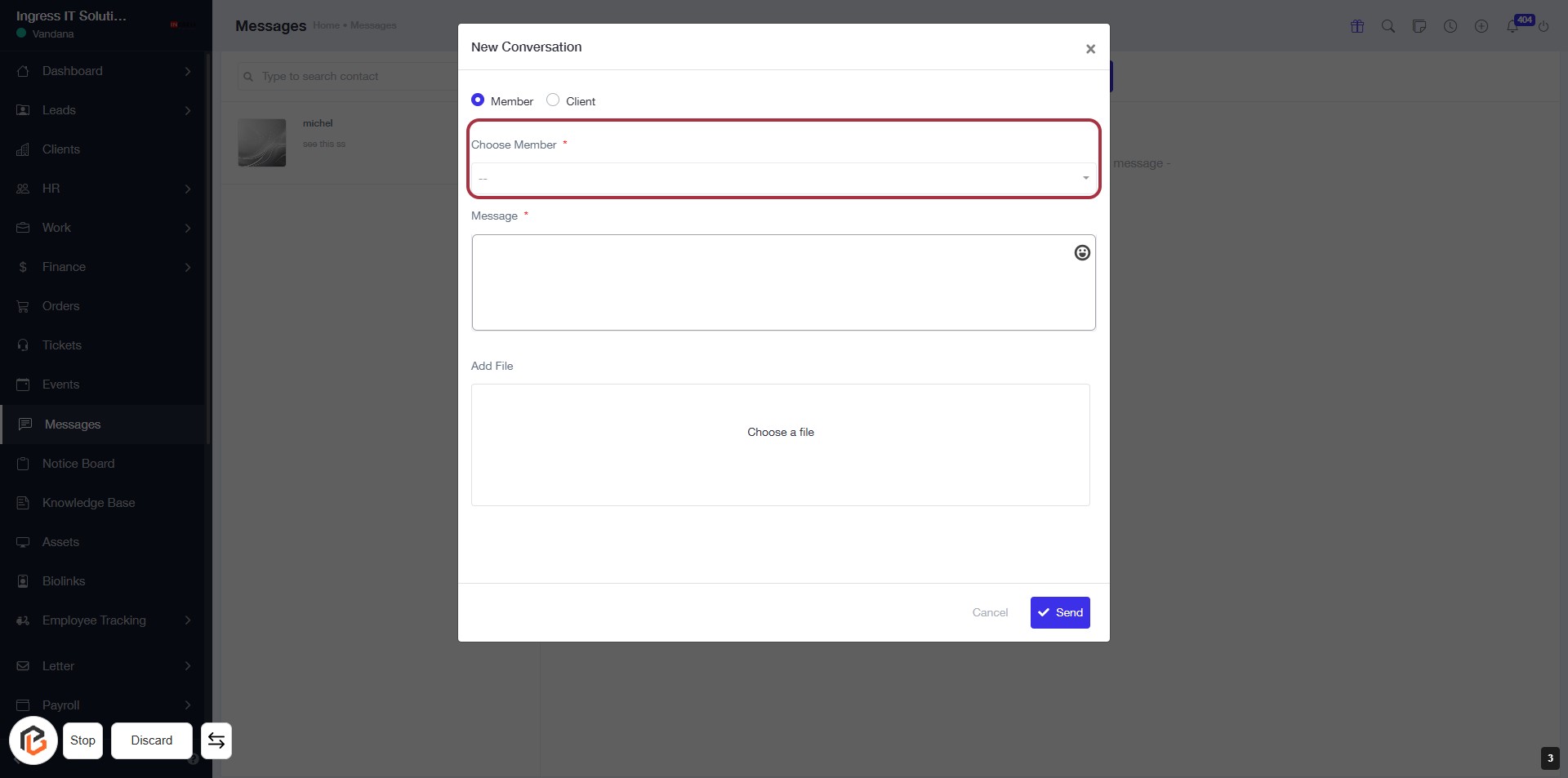
STEP 4: Click on "Choose Member"
- Click on the "Choose Member" dropdown to select a member for the conversation.
- Ensure that the field marked with an asterisk (*) is filled, as it is required.
- After selecting a member, proceed to the next step to write your message.
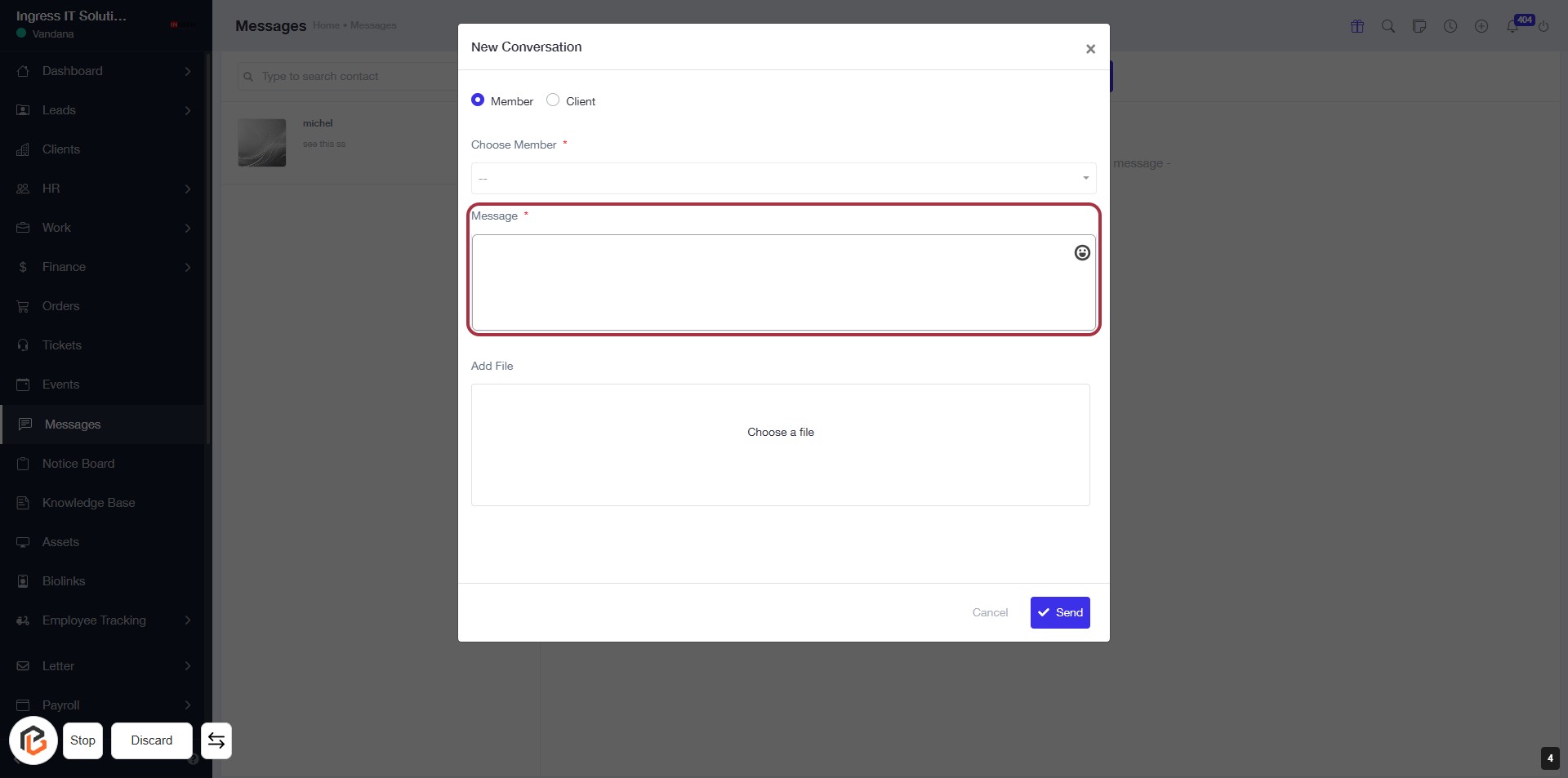
STEP 5: Fill in the "Message" Field
- Click on the highlighted "Message" area to enter your text.
- This field is mandatory (indicated by the asterisk '*').
- Ensure your message is clear and concise.
- After completing this step, proceed to upload any files if necessary.
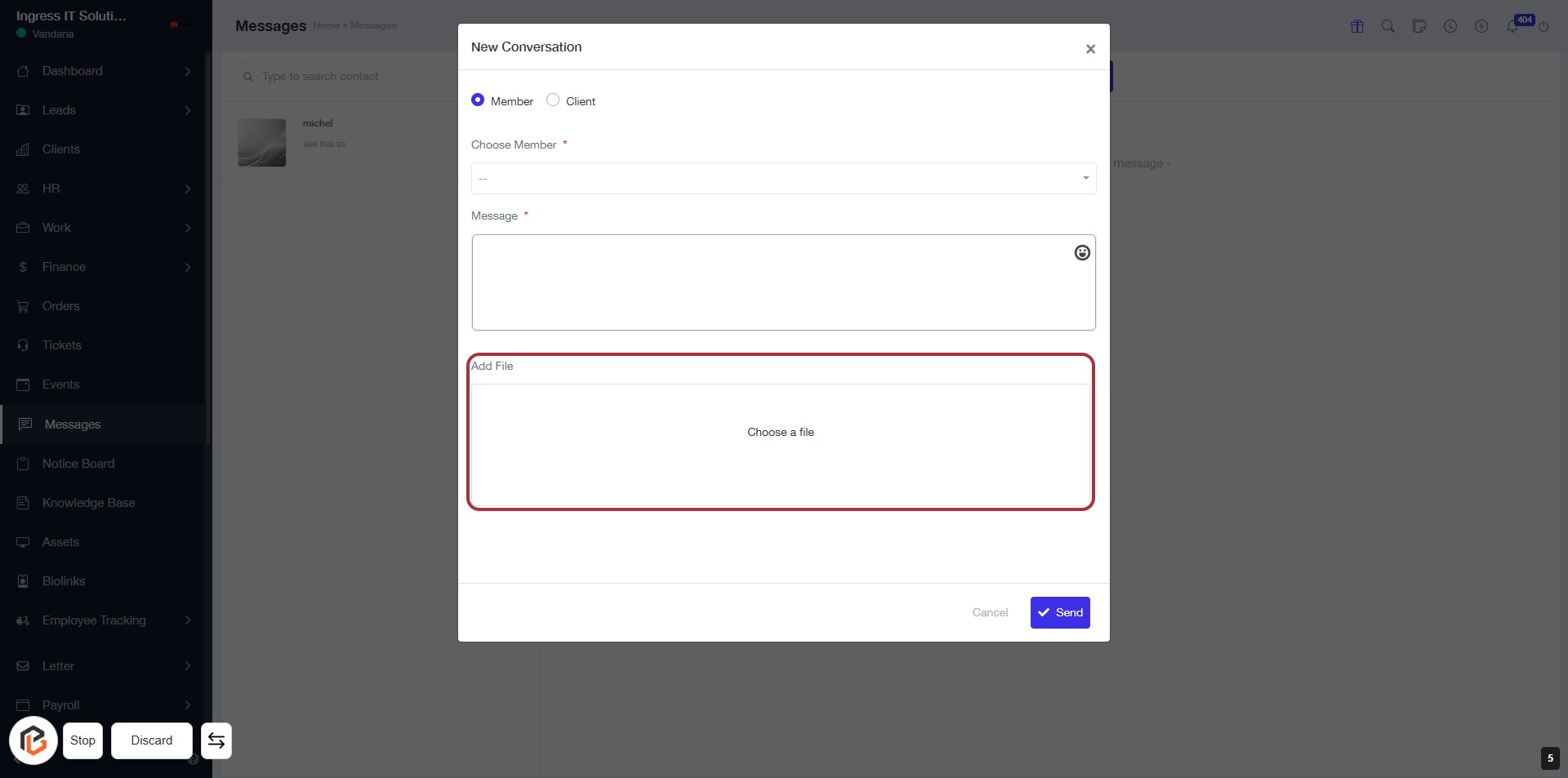
STEP 6: Click "Add File" to Upload a Document
- Navigate to the "Add File" section in the form.
- Click on the highlighted area to open the file selection dialog.
- Choose the file you wish to upload.
- Ensure all required fields are filled before proceeding to the next step.
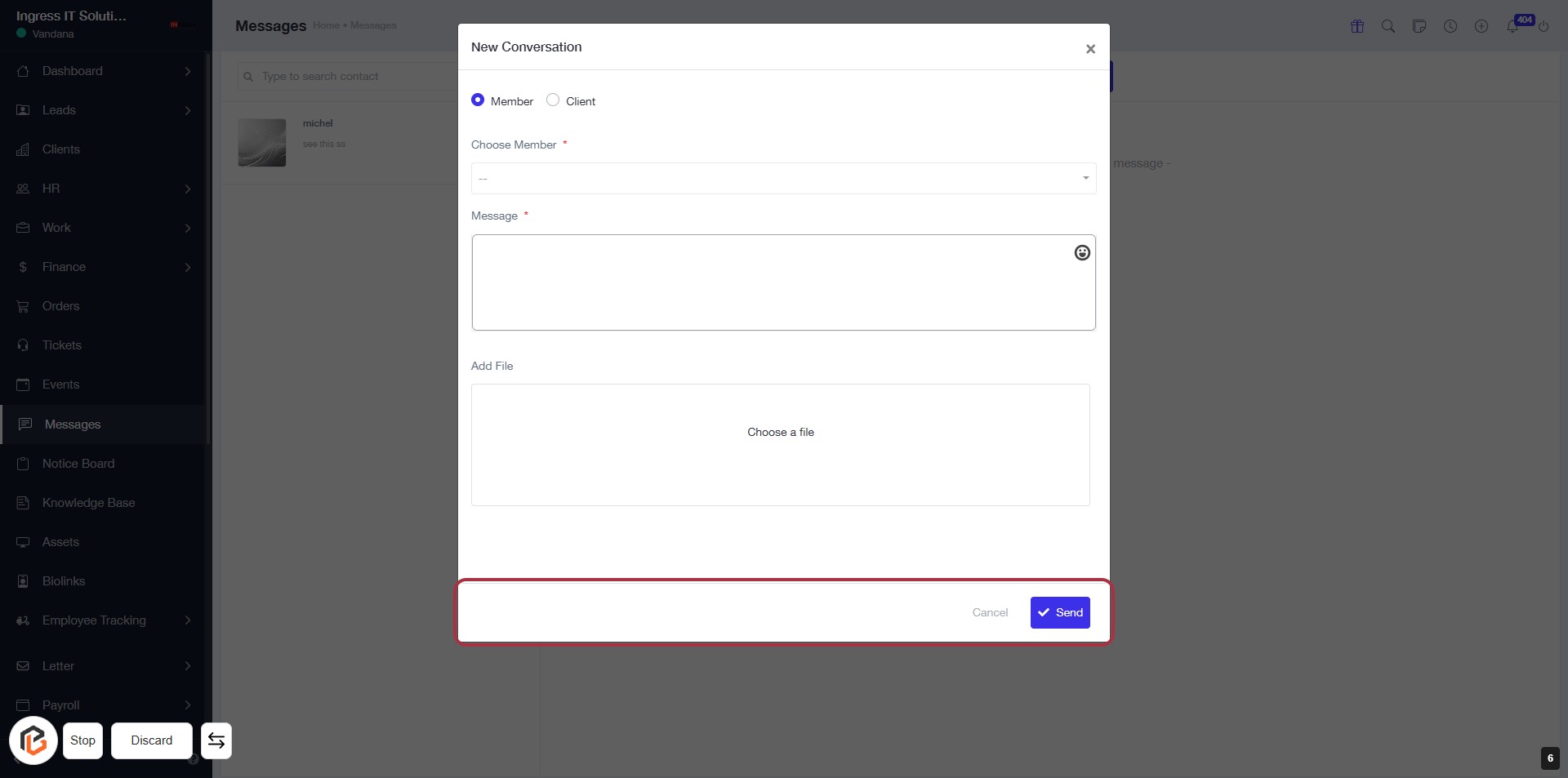
STEP 7: Click "Send" to Submit Your Message
- Ensure all required fields are filled: "Choose Member" and "Message" (marked with *).
- Review your message and any attached files.
- Click the Send button located at the bottom right of the dialog box to submit your message.
- If you wish to cancel, click the Cancel button next to Send.