Step-by-Step Guide to Generating, Managing, and Downloading Letters on BizCRM App
11 mins read · Updated 29 Sep, 2025
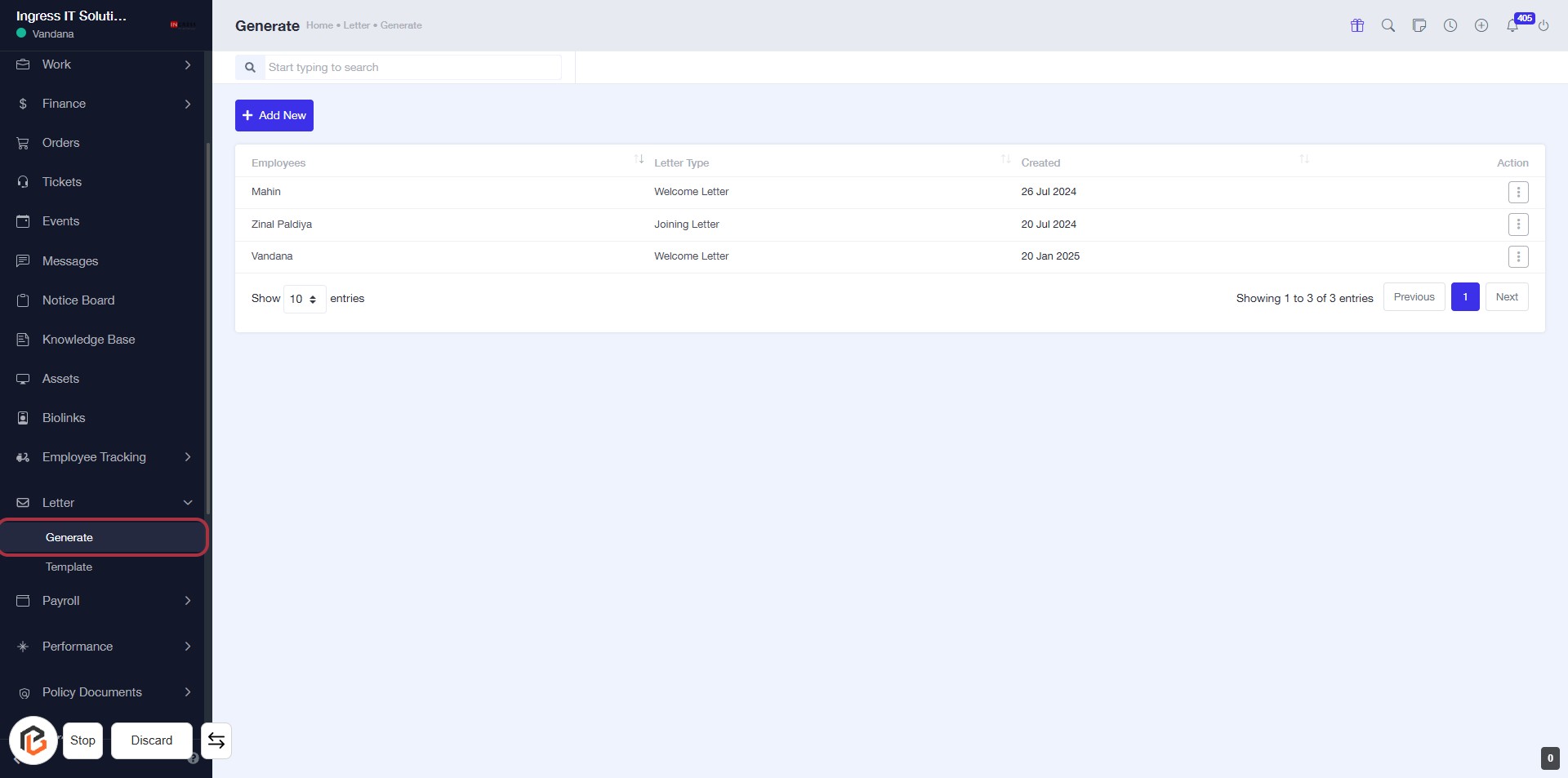
STEP 1: Click on "Generate" to Access Letter Options
- Navigate to the URL: bizcrmapp.com.
- Locate and click on the "Generate" link in the sidebar.
- This will direct you to the letter generation interface.
- You will see a list of letters with options to add new entries or manage existing ones.
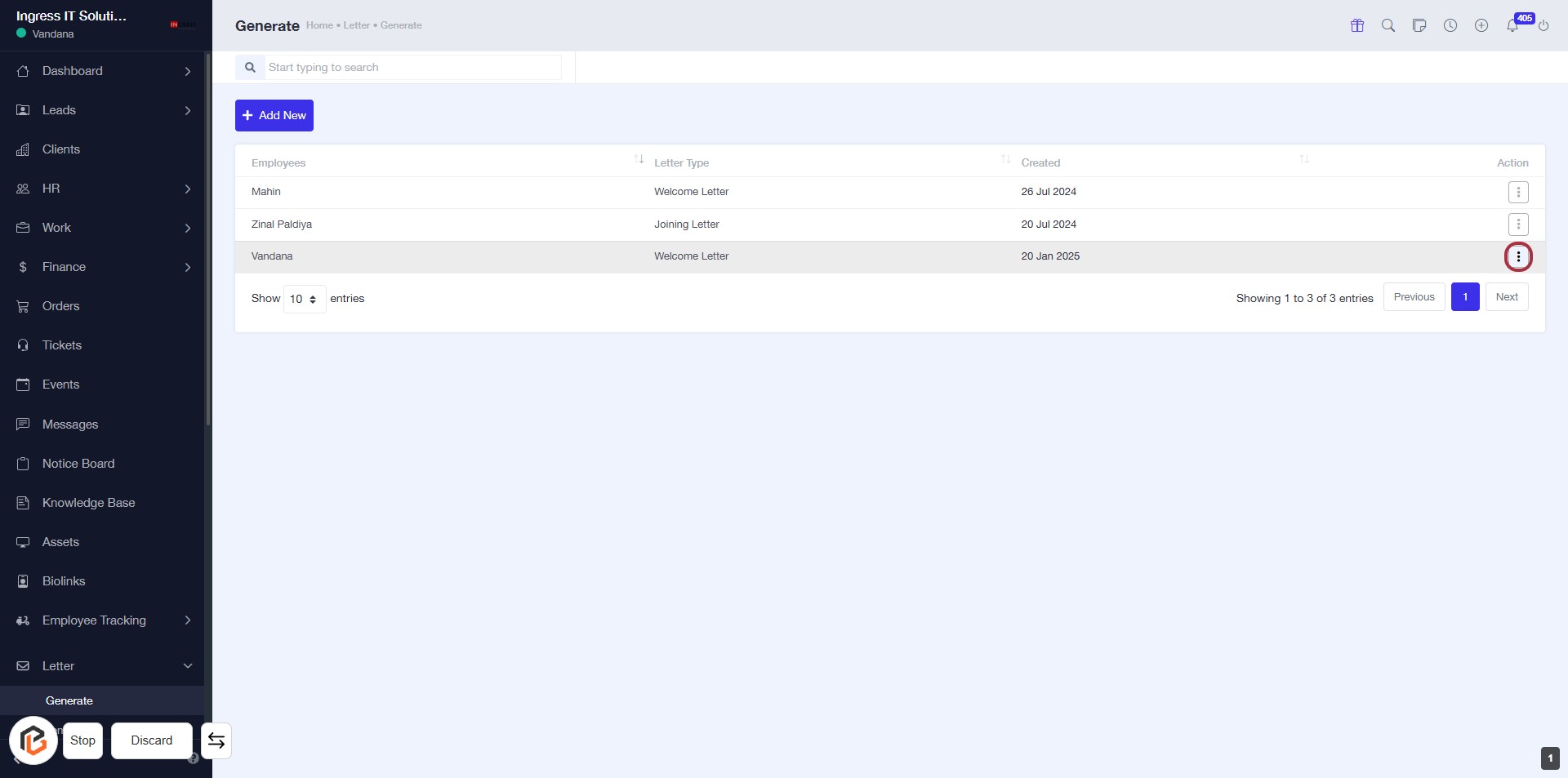
STEP 2: Click on "Option Menu"
- Navigate to the highlighted area on the screen.
- Click on the "Option Menu" link to access additional options.
- Ensure to review any dropdown selections that may appear.
- Look for any required fields marked with an asterisk (*) for completion.
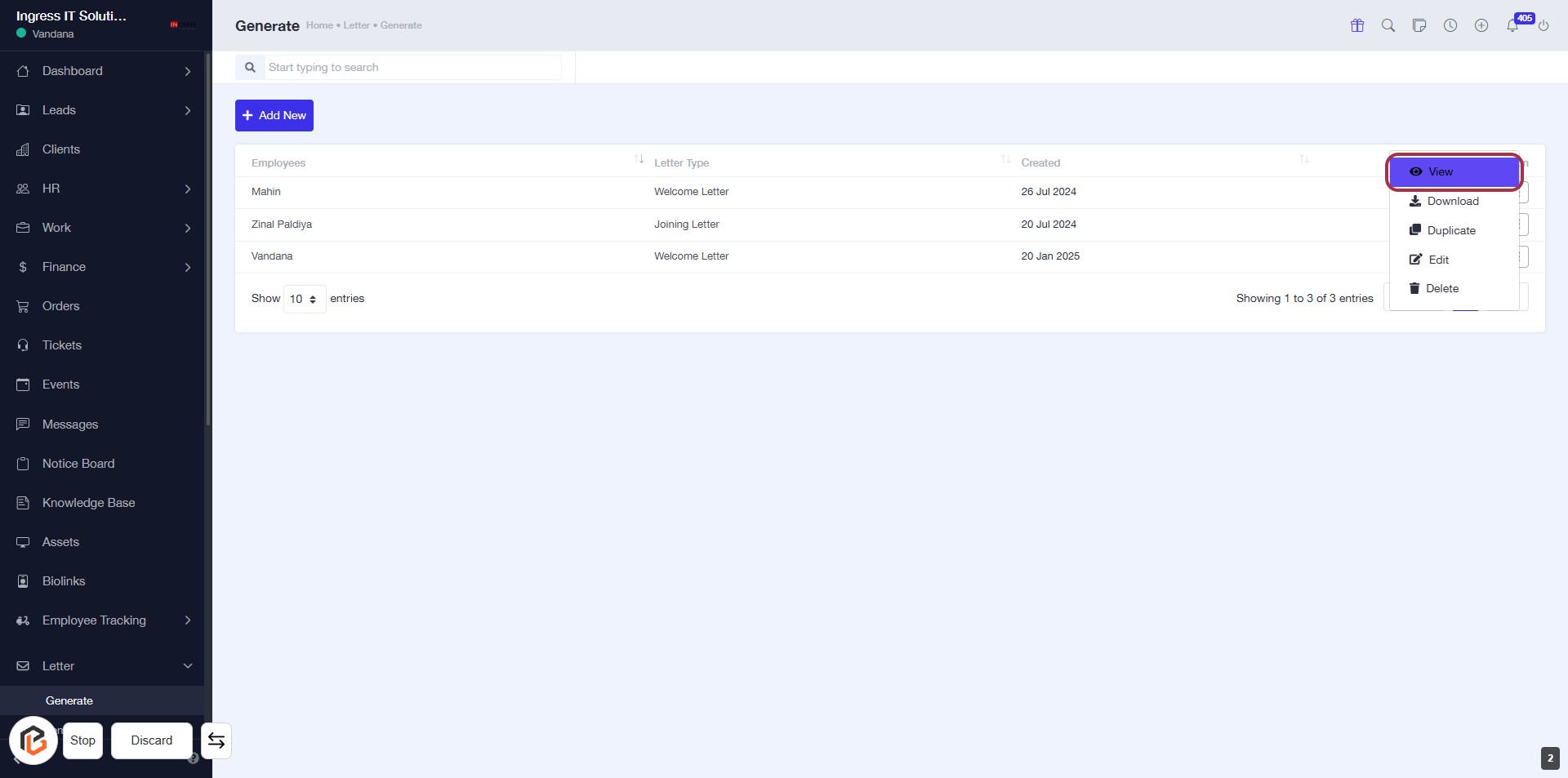
STEP 3: Click on "View" to Access Letter Details
- Locate the "View" option in the highlighted area.
- Click on "View" to open the details of the selected letter.
- Ensure you have the correct letter selected before clicking.
- Review the information displayed after clicking to ensure it meets your needs.
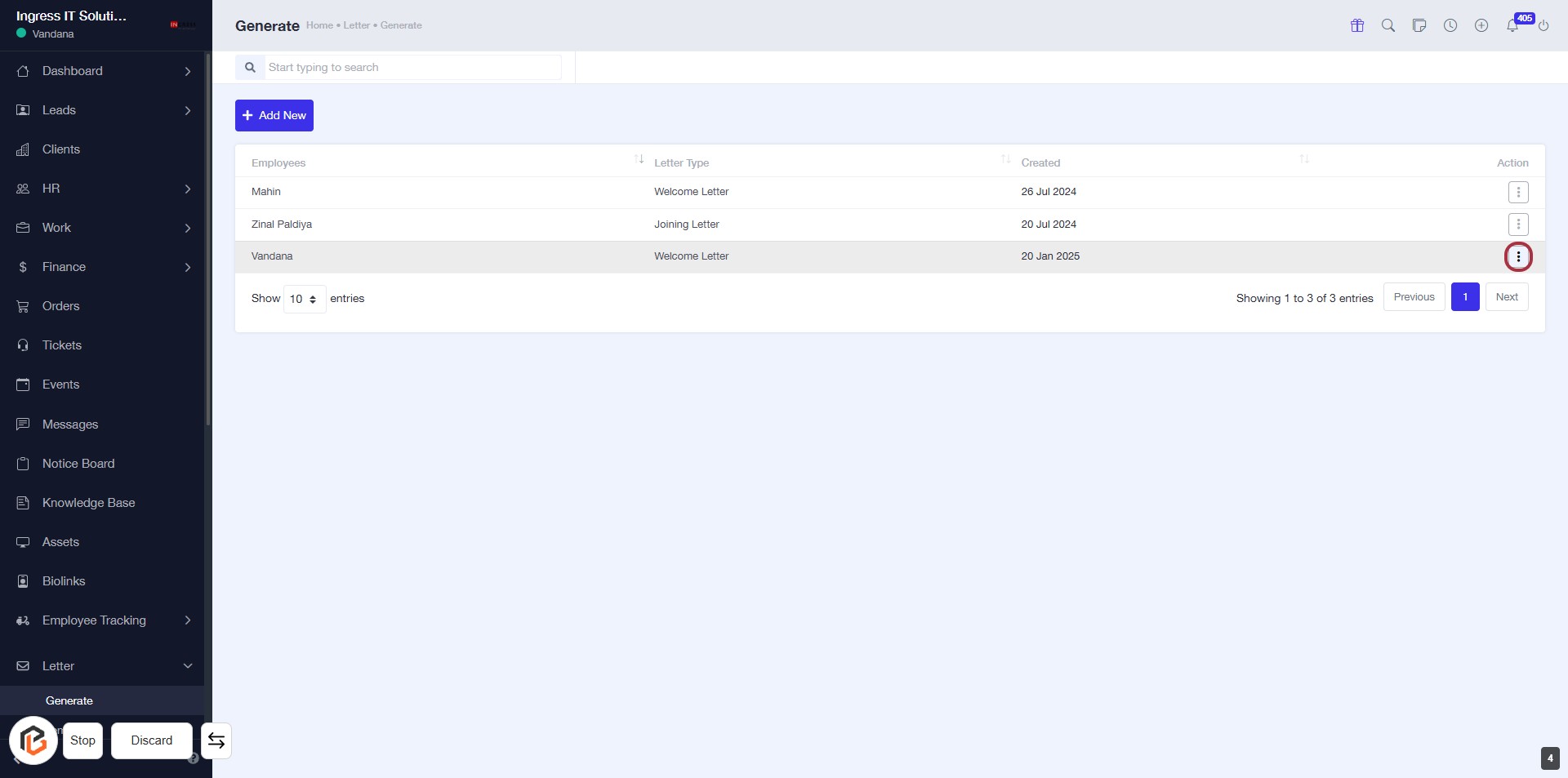
STEP 4: Click on "Option Menu" to Access Further Actions
- Locate the highlighted area in the table under the "Actions" column.
- Click on the three-dot menu icon to reveal additional options.
- Review the available actions for the selected letter.
- Ensure you have the necessary permissions to perform the desired action.
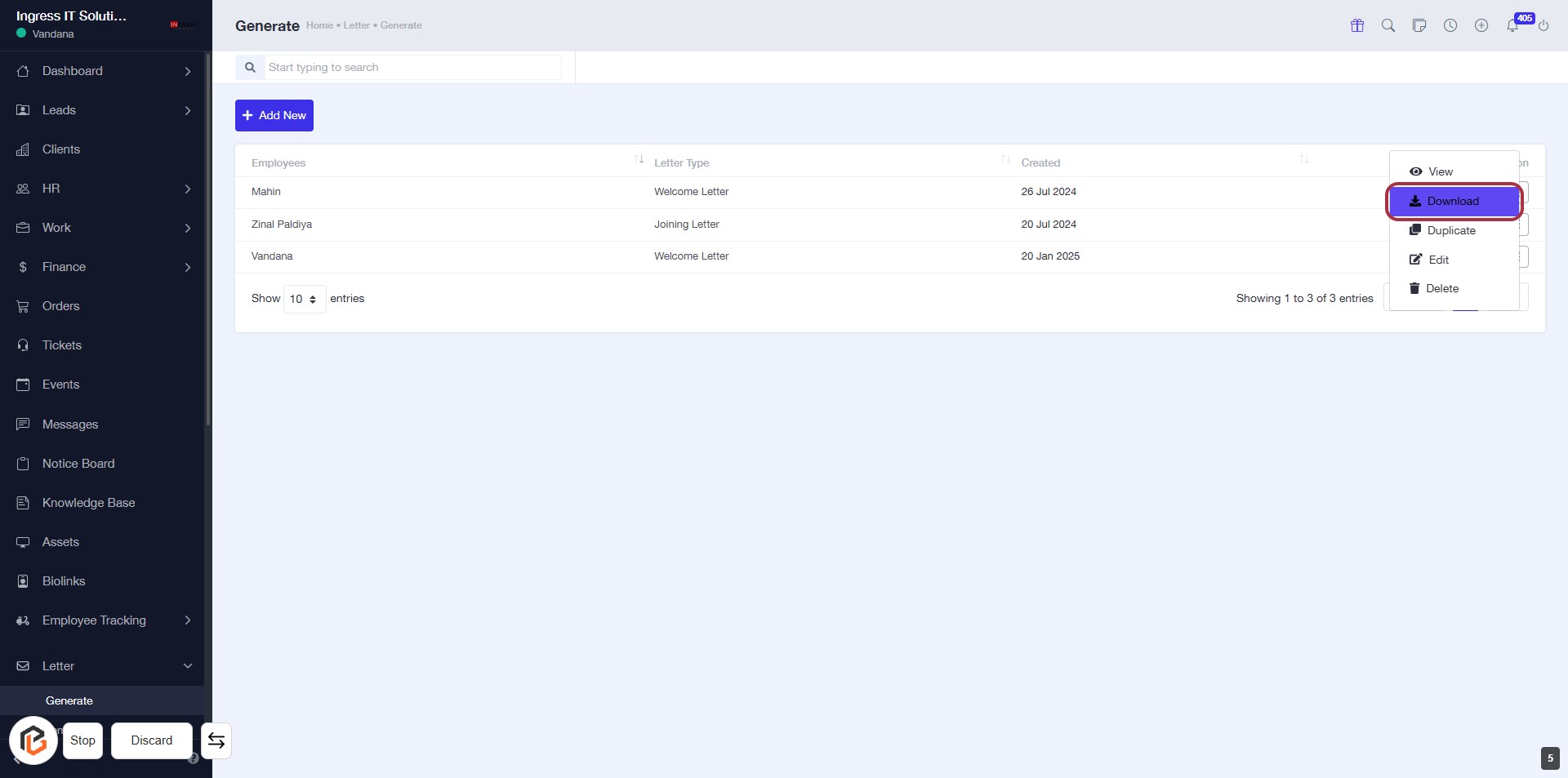
STEP 5: CLICK on "Download"
- Locate the "Download" option in the highlighted area.
- Click on the "Download" link to initiate the download process.
- Ensure that you have the necessary permissions to download the document.
- Follow any prompts that may appear to complete the download.
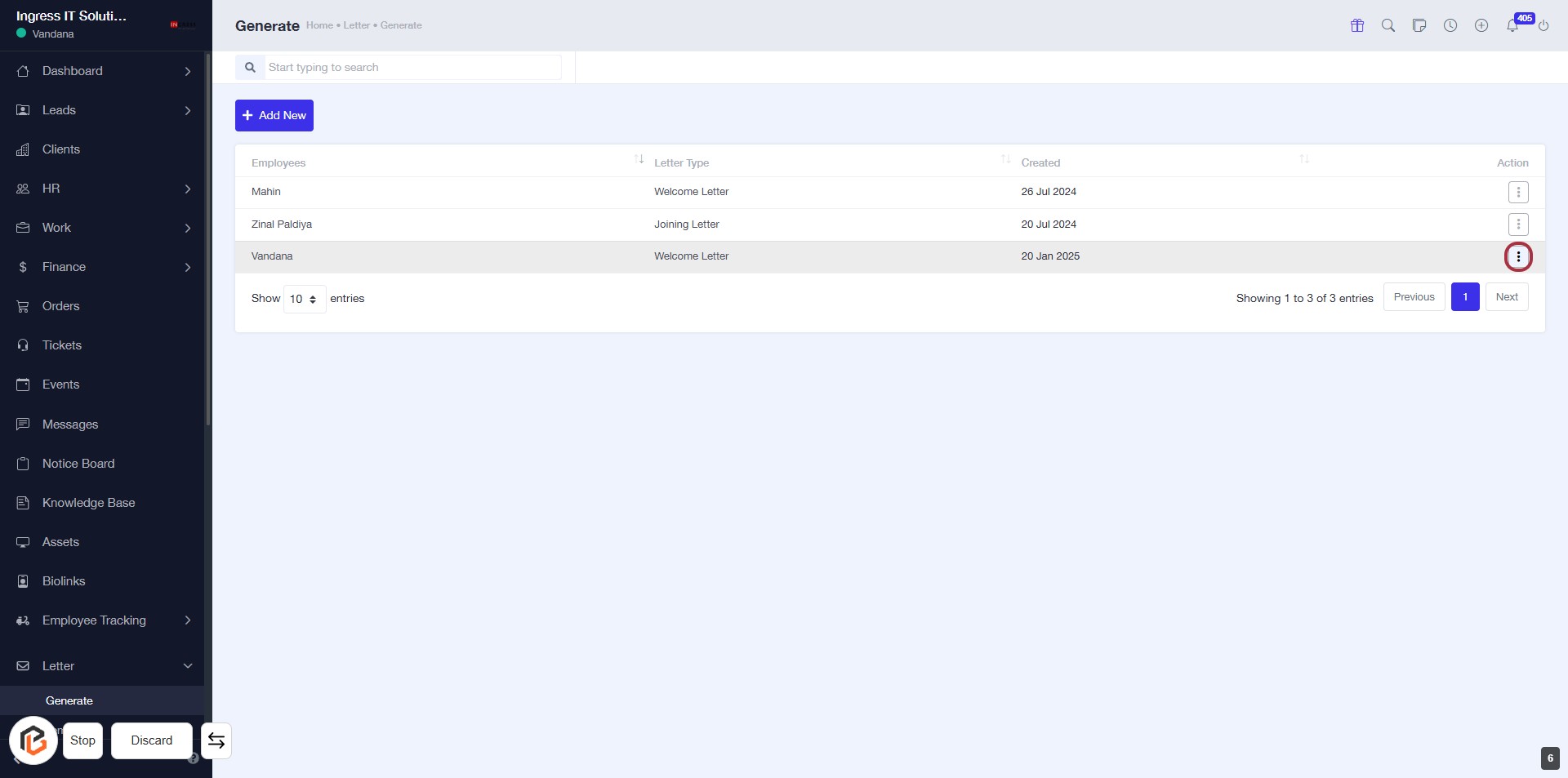
STEP 6: CLICK on "Option Menu"
- Navigate to the highlighted area in the table.
- Click on the three-dot menu icon to access additional options.
- Review available actions for the selected letter.
- Ensure to select the desired option for further actions.
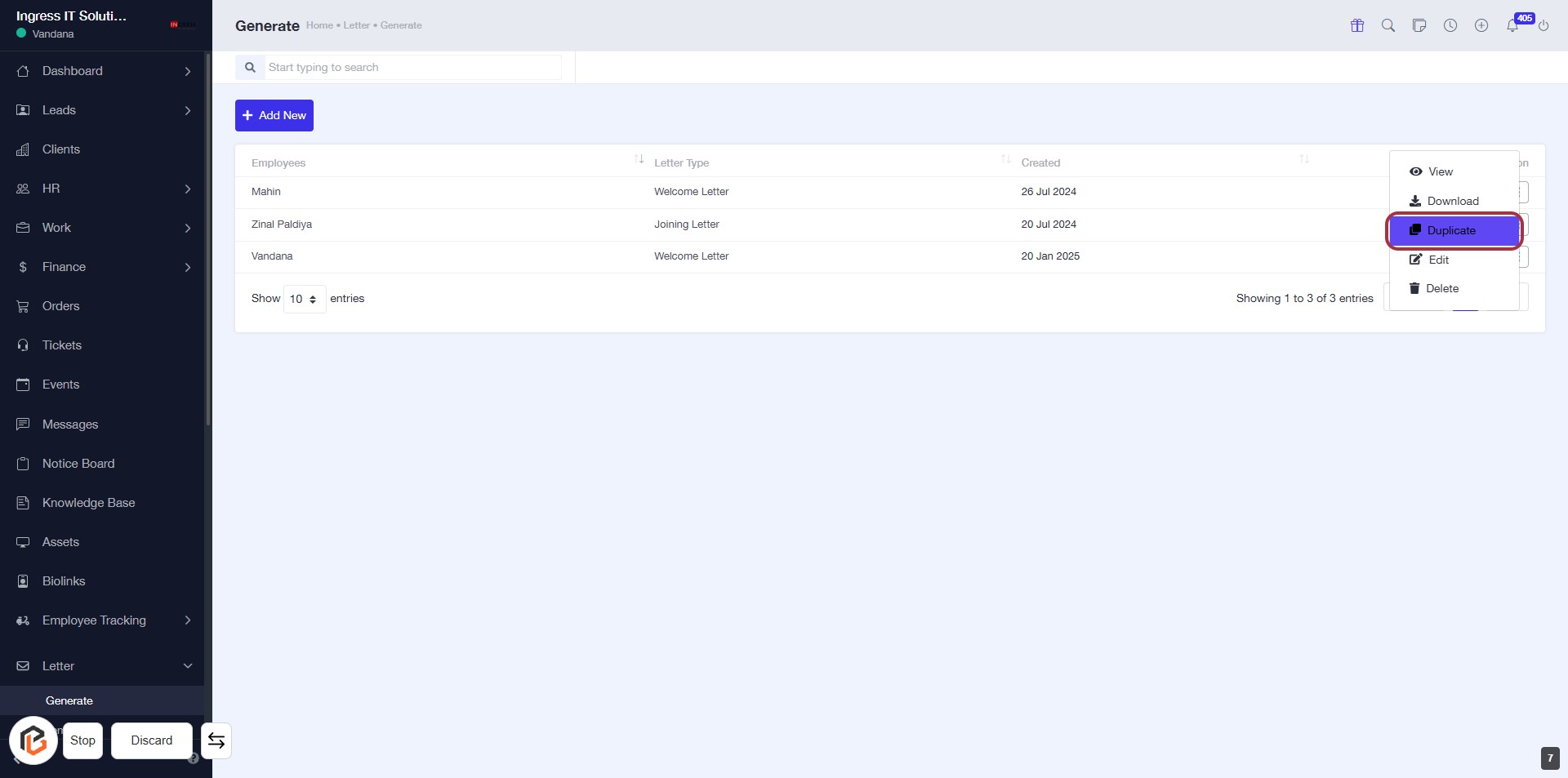
STEP 7: CLICK on "Duplicate"
- Navigate to the highlighted area in the options menu.
- Click on the "Duplicate" link to create a copy of the selected item.
- Ensure you have selected the correct item before duplicating.
- Review any prompts or confirmations that may appear after clicking.
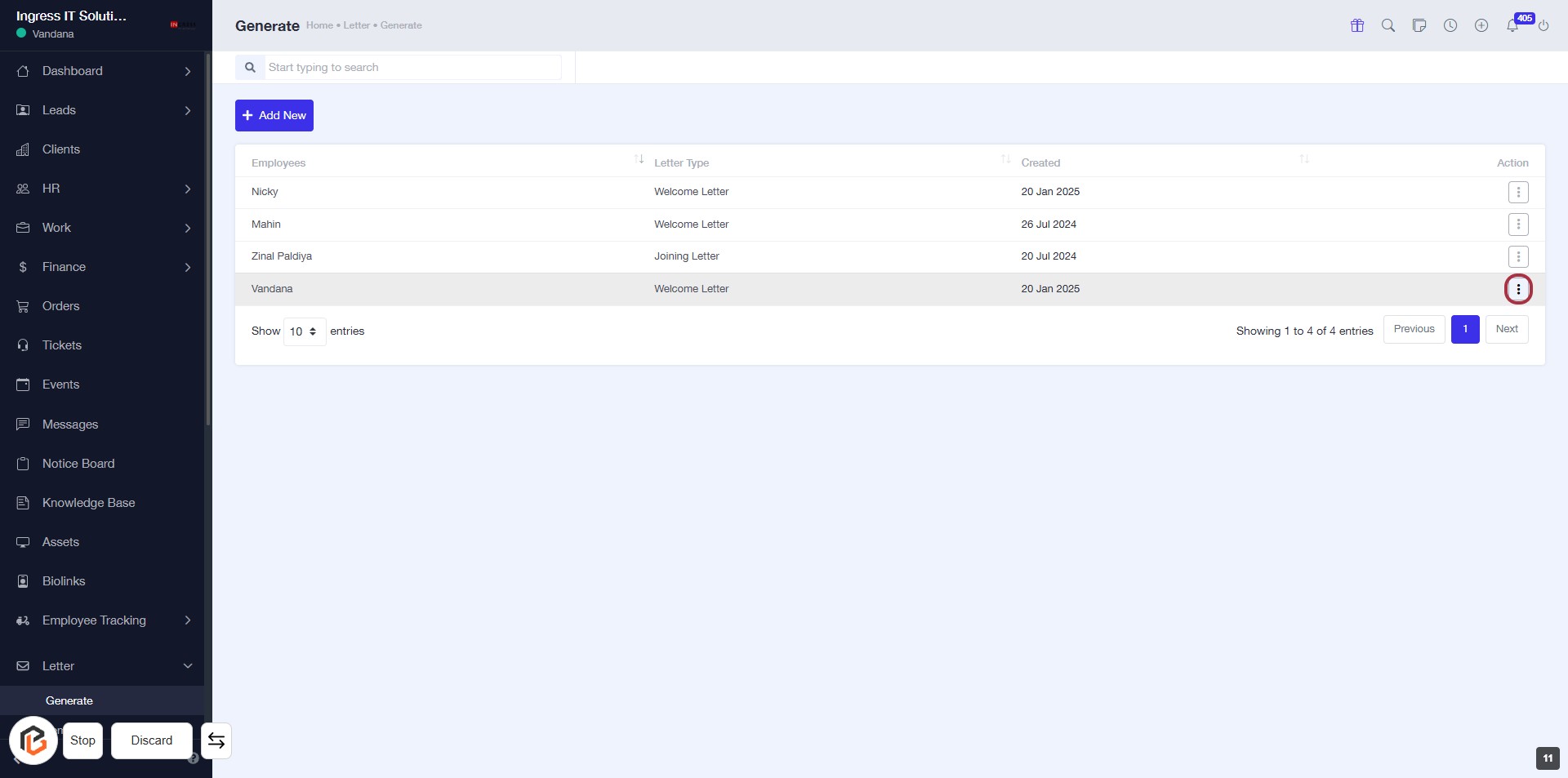
STEP 8: CLICK on "Option Menu"
- Navigate to the highlighted area in the table.
- Click on the three-dot menu icon to access additional options.
- Ensure you have selected the correct entry before proceeding.
- This action allows you to view options like "Edit" for further modifications.
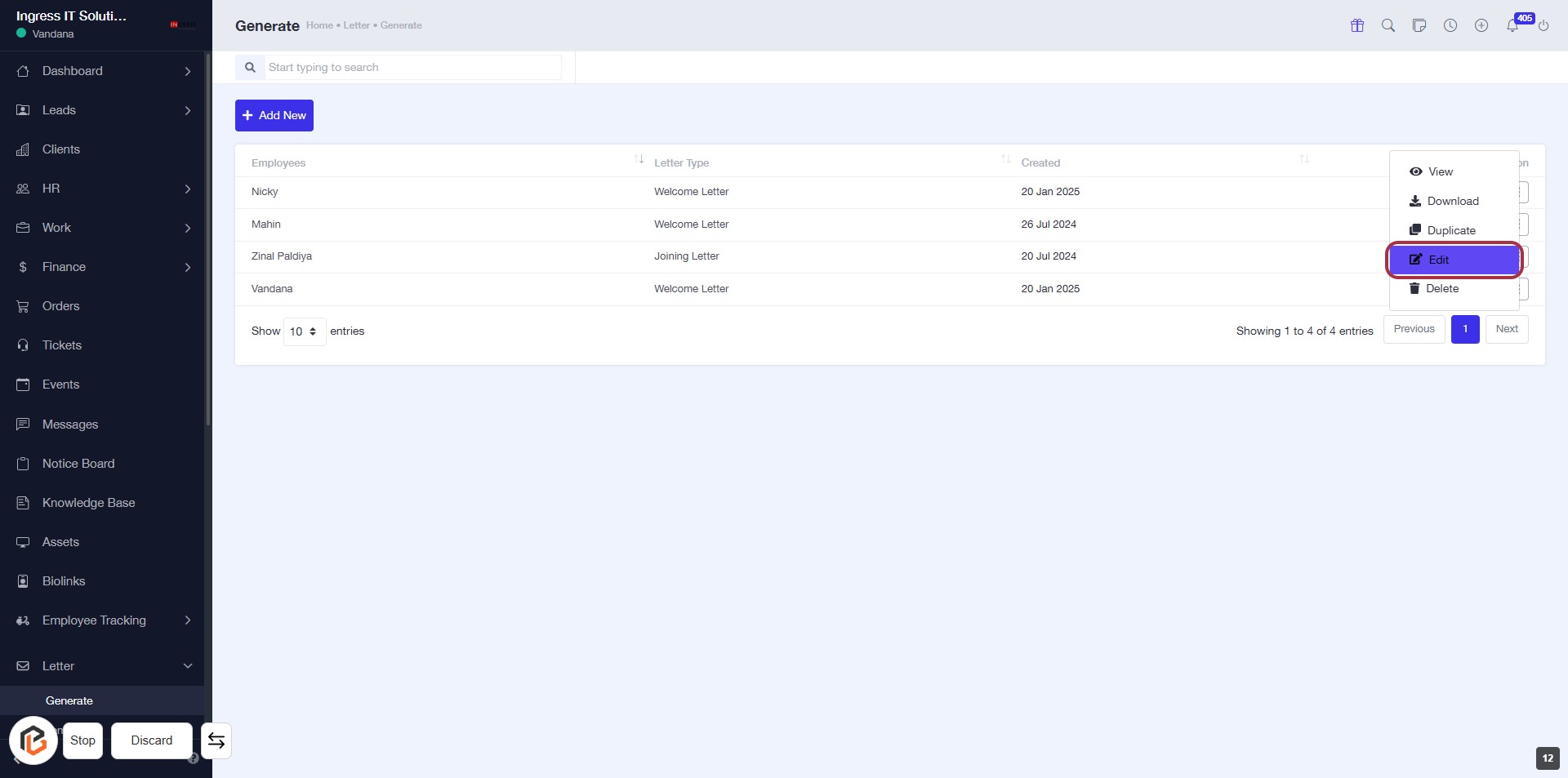
STEP 9: Click on "Edit" to Modify Letter Details
- Locate the "Edit" option highlighted in red.
- Click on "Edit" to proceed with modifying the selected letter.
- Ensure you have the necessary details ready for editing.
- Follow any prompts that appear after clicking to complete the editing process.
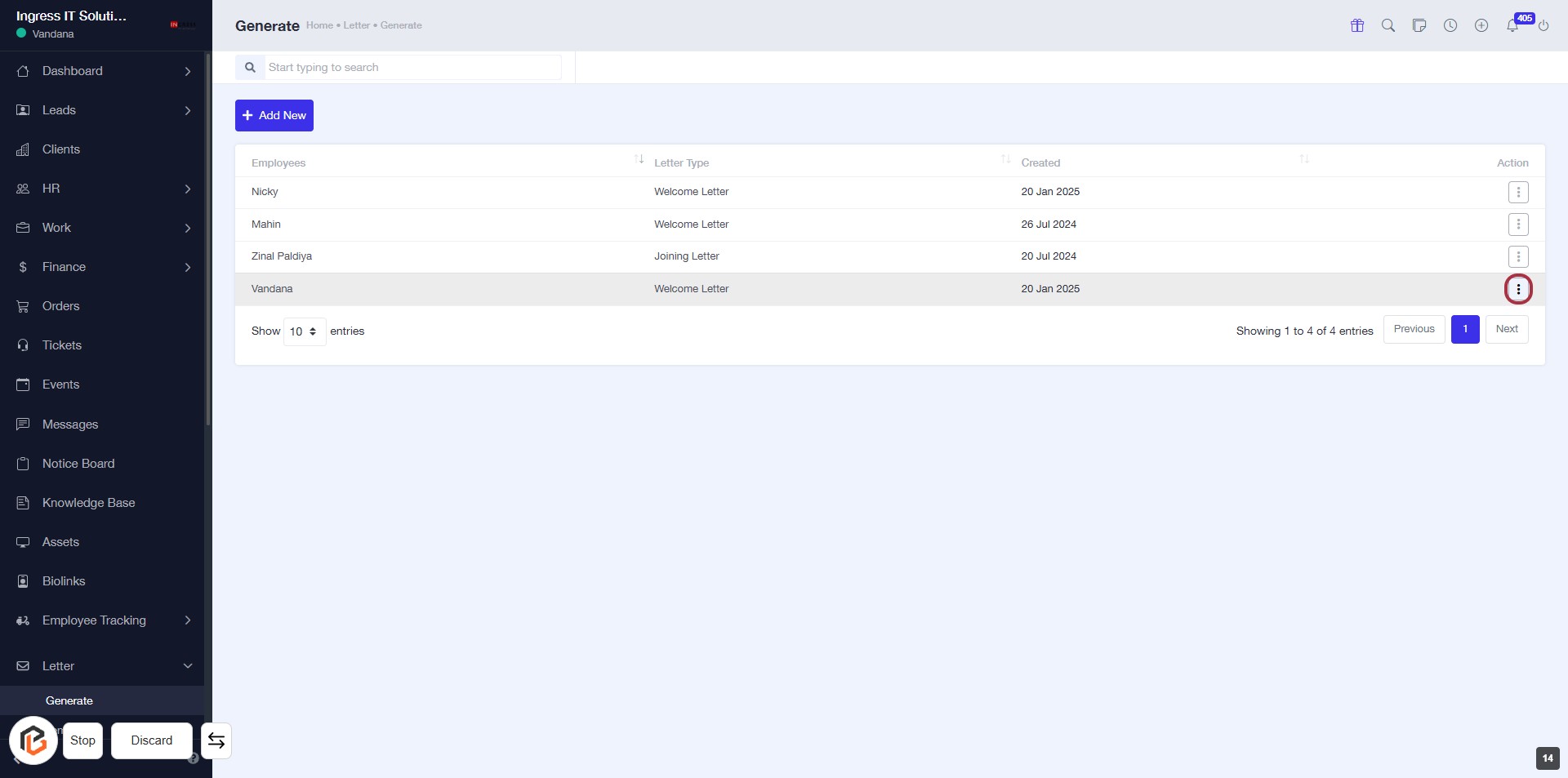
STEP 10: Click on "Option Menu" to Access Further Actions
- Locate the "Option Menu" in the highlighted area.
- Click on the menu icon (three dots) to reveal additional options.
- Review available actions such as "Delete" or others related to the selected letter.
- Ensure you have the correct letter selected before proceeding with any action.
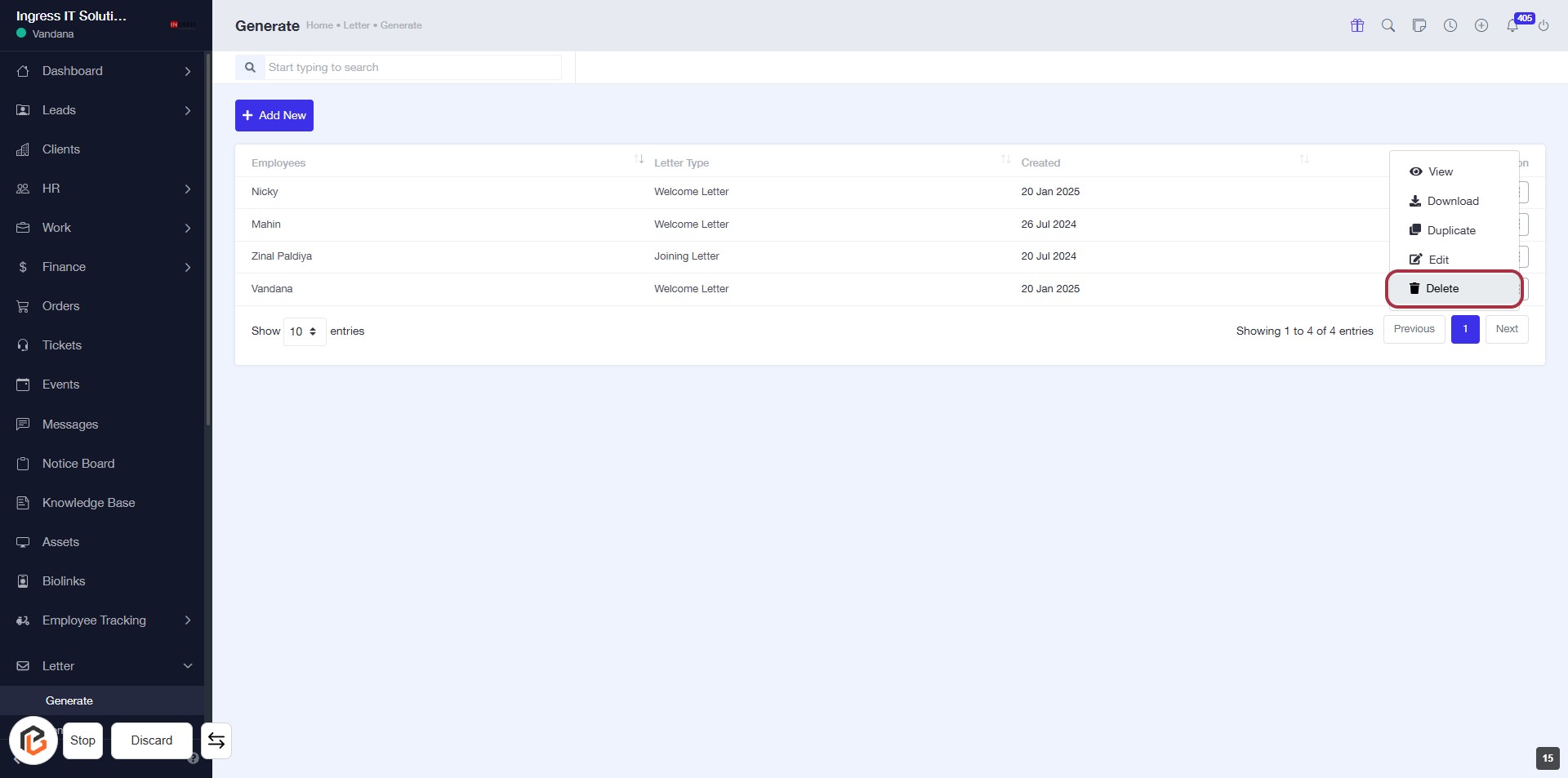
STEP 11: Click on "Delete" to Remove an Entry
- Navigate to the highlighted "Delete" option in the action menu.
- Confirm the deletion when prompted to ensure the entry is removed.
- Ensure you have selected the correct entry before proceeding with the deletion.