Step-by-Step Guide to Managing Credit Notes in Your Finance Dashboard
7 mins read · Updated 29 Sep, 2025
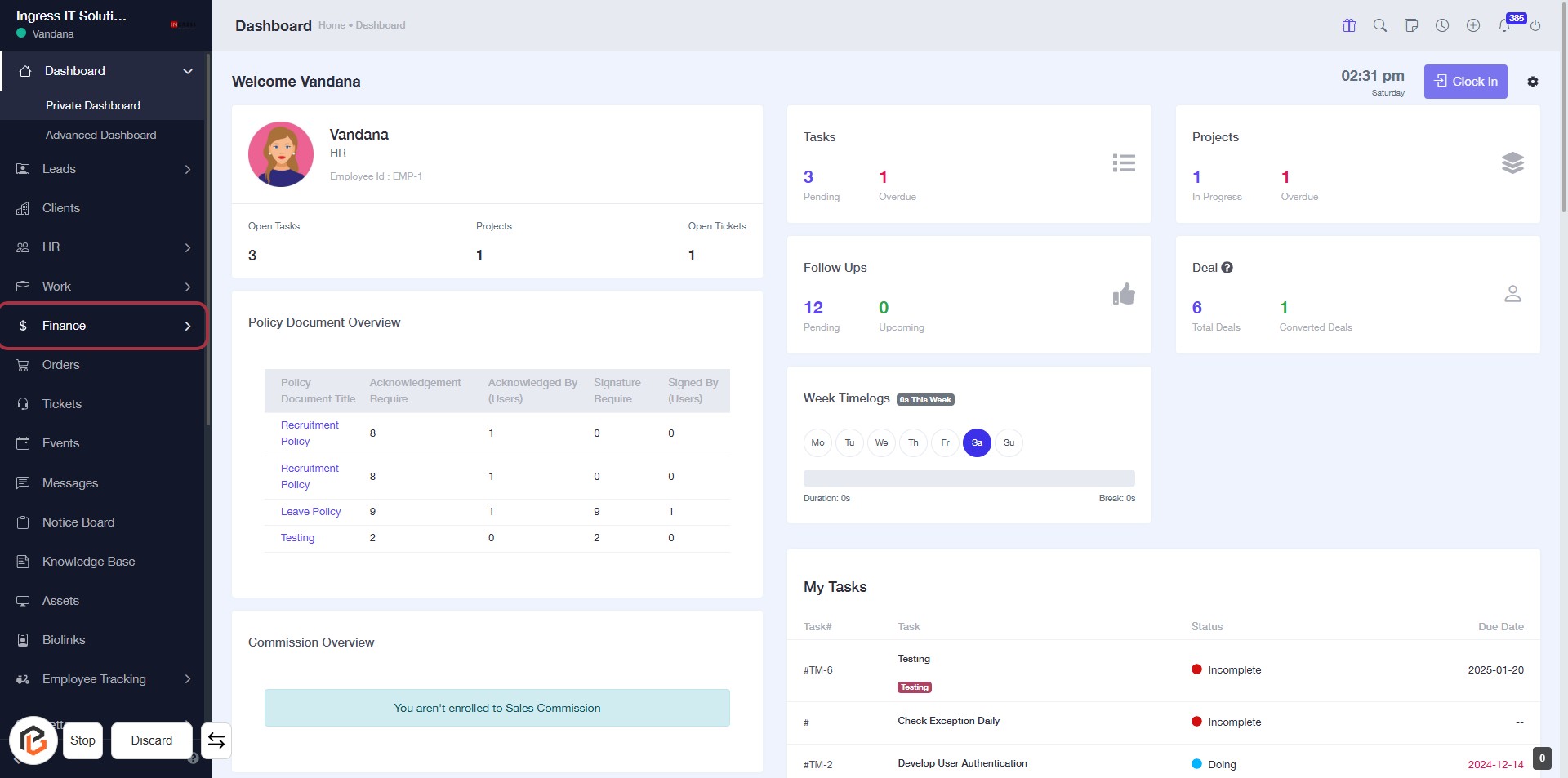
STEP 1: Click on "Finance" to Access Financial Overview
- Navigate to the sidebar menu.
- Click on the Finance link highlighted in the red border.
- This will direct you to the financial overview section.
- Ensure to review the Policy Document Overview and Commission Overview for relevant information.
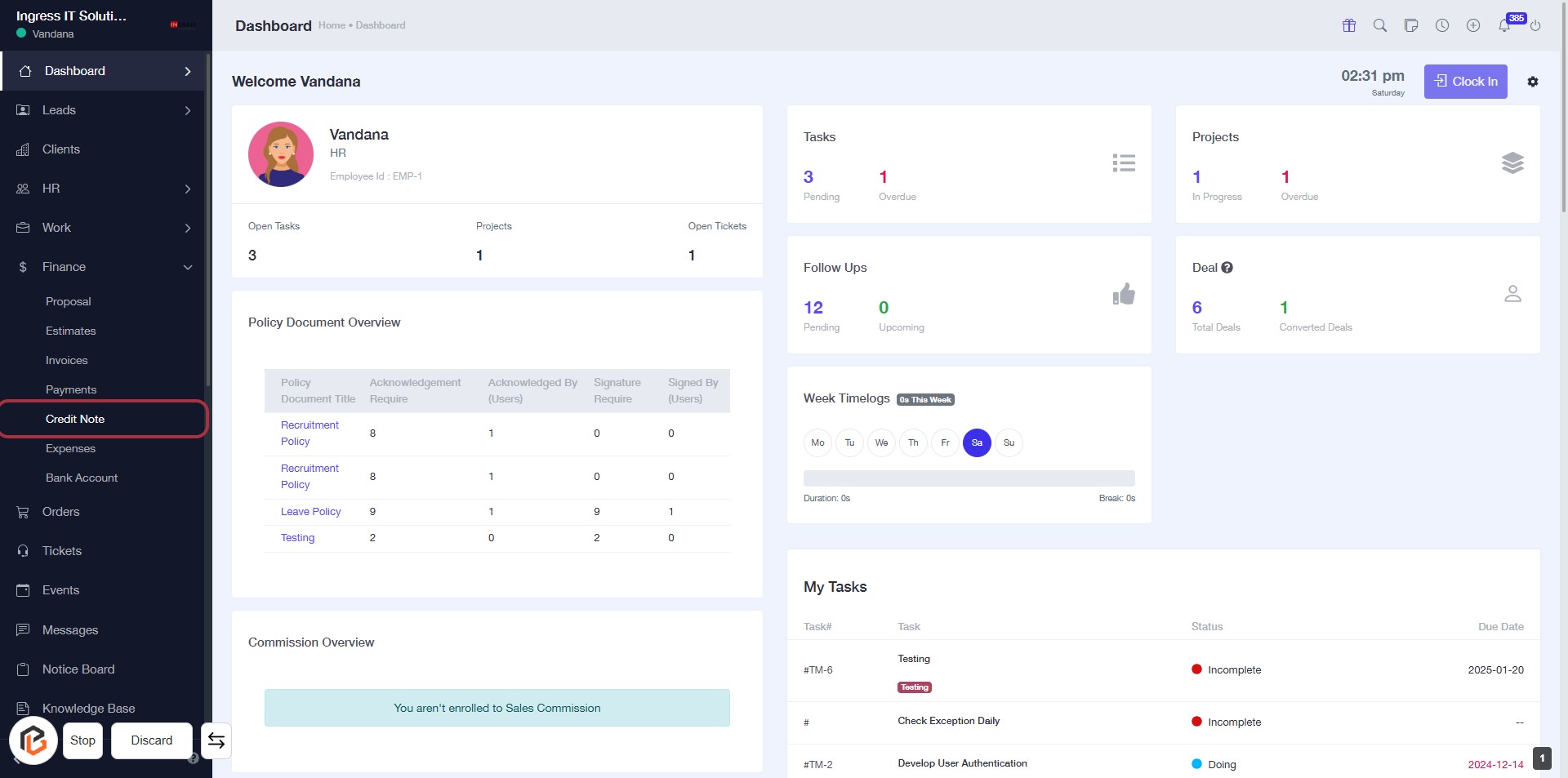
STEP 2: Click on "Credit Note" to Access Credit Note Section
- Locate the "Credit Note" option in the sidebar menu.
- Click on the "Credit Note" link to navigate to the Credit Note section.
- Ensure you are on the dashboard page before proceeding.
- This action will allow you to manage and view credit notes effectively.
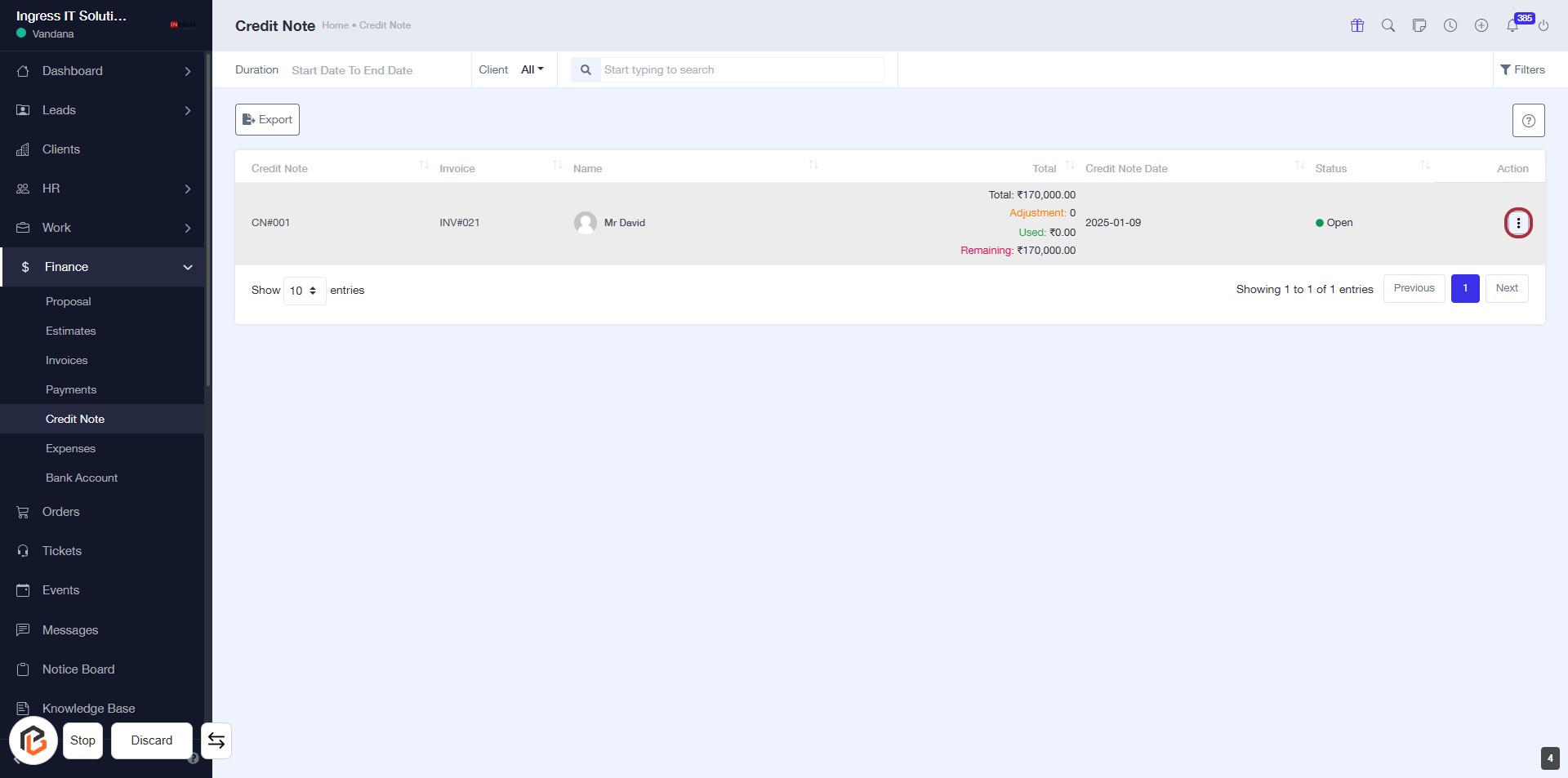
STEP 3: Click on "Option Menu" to Access More Actions
- Locate the highlighted area with the red border.
- Click on the "..." icon to open the options menu.
- Review available actions related to the selected credit note.
- Ensure to check for any additional prompts or confirmations that may appear.
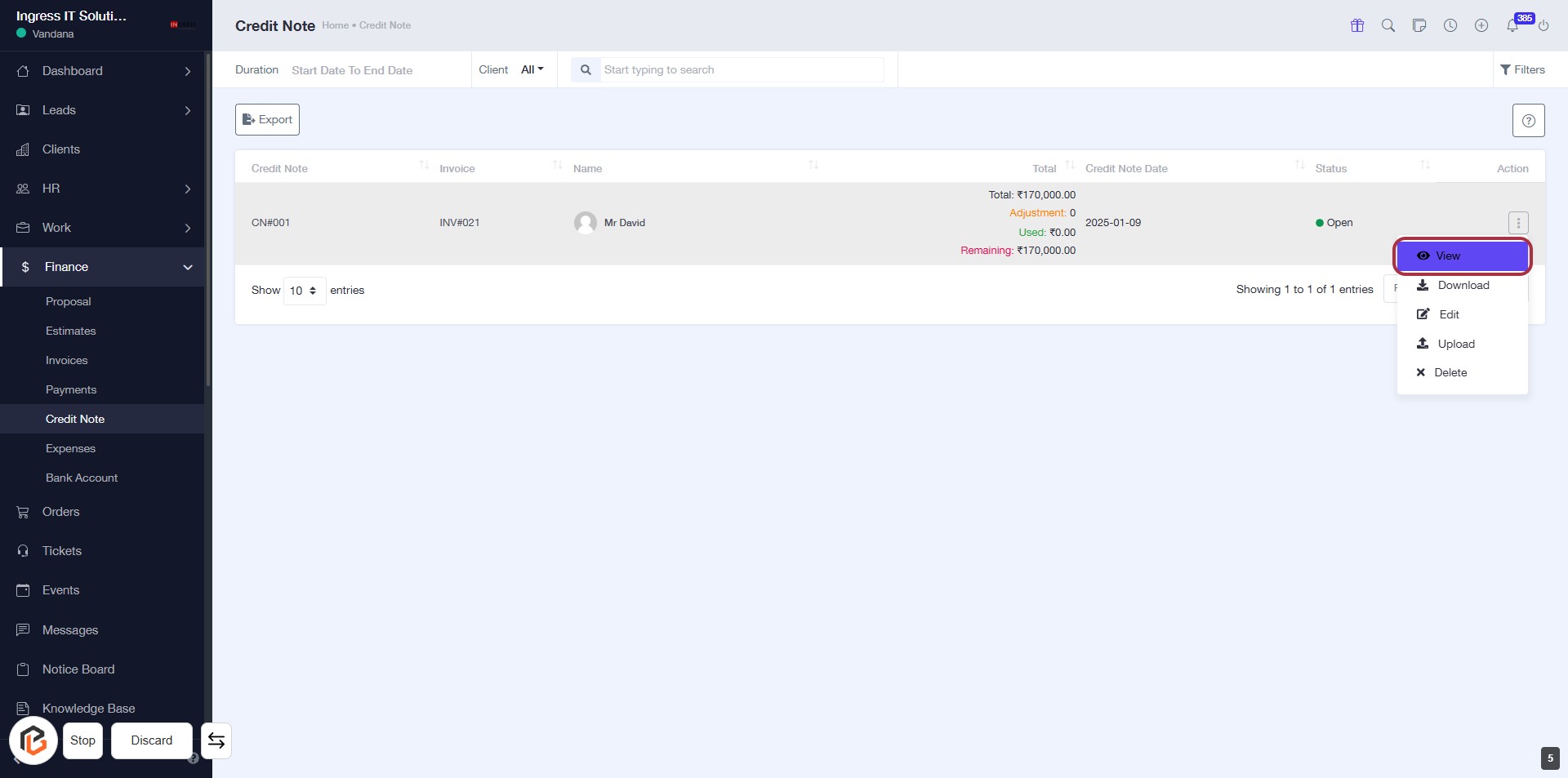
STEP 4: CLICK on "View" to Access Credit Note Details
- Navigate to the "Credit Note" section.
- Locate the "View" link in the highlighted area.
- Click on "View" to open the details of the selected credit note.
- Ensure you have the necessary permissions to view the details.
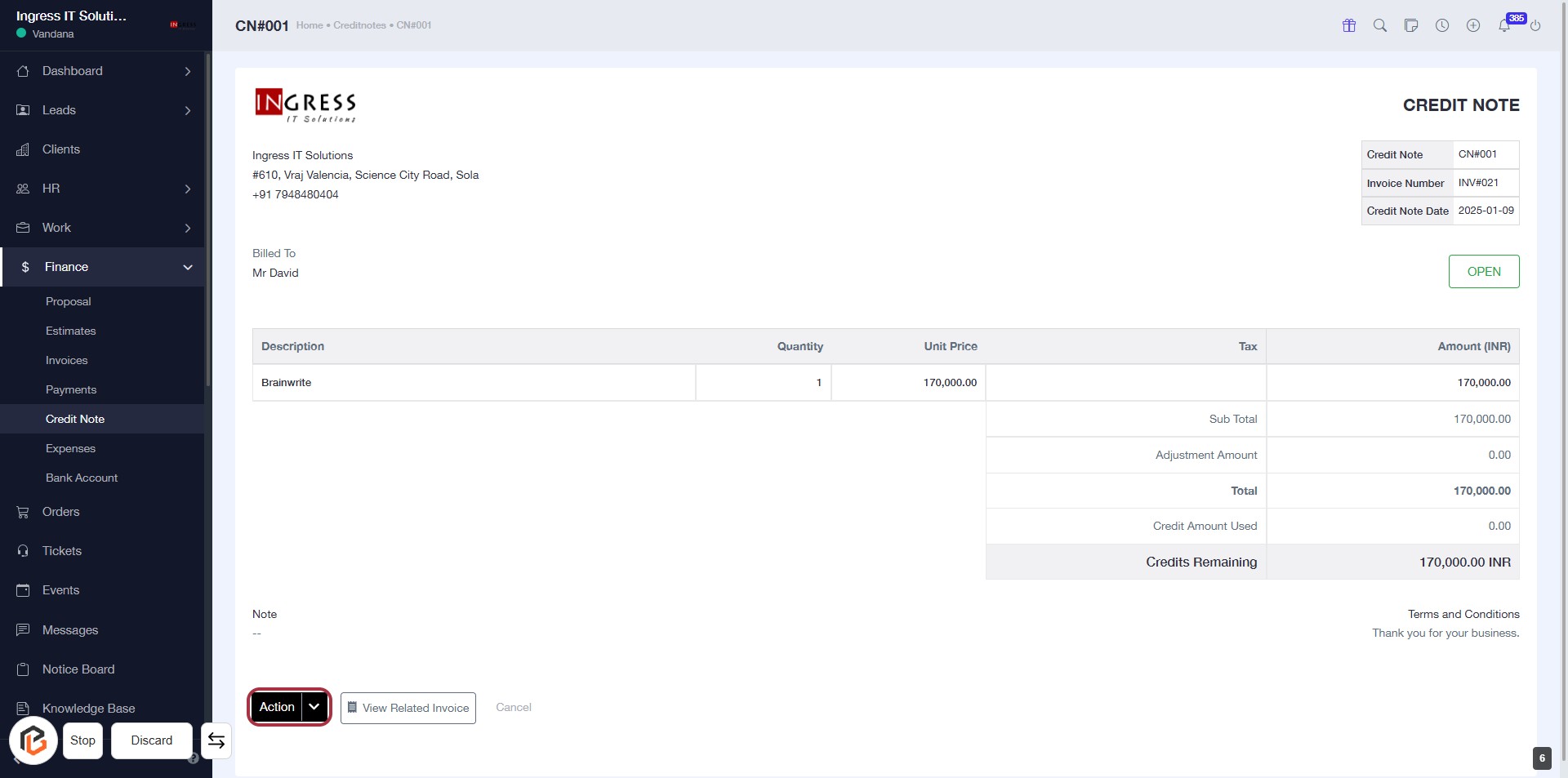
STEP 5: CLICK on "Action" to Access Options
- Locate the "Action" button highlighted in red.
- Click on the "Action" button to reveal additional options related to the credit note.
- Ensure you have reviewed the credit note details before proceeding.
- After clicking, you will see options such as "View Related Invoice."
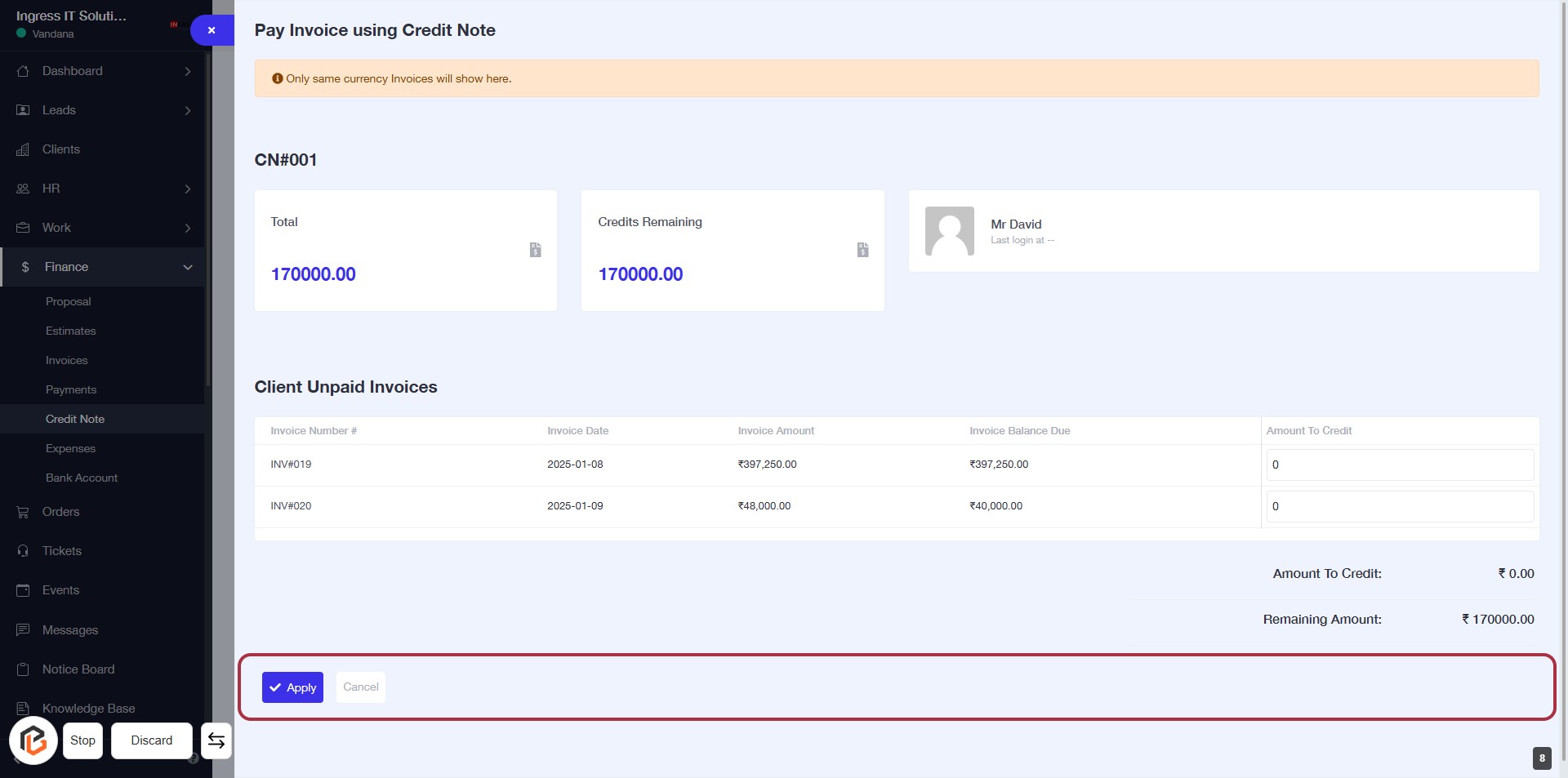
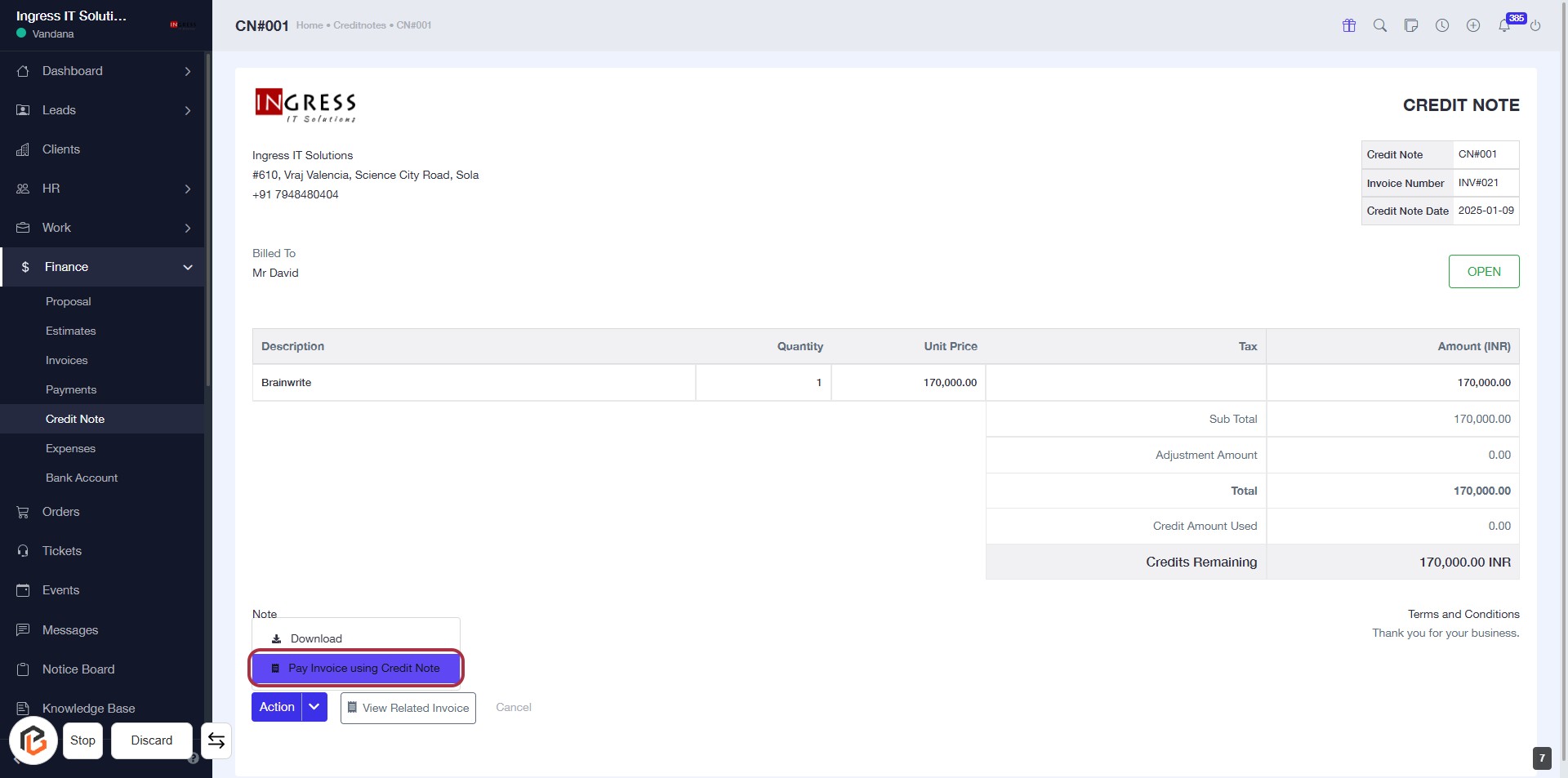
STEP 6: Click on "Pay Invoice using Credit Note"
- Locate the highlighted option "Pay Invoice using Credit Note" in the Credit Note section.
- Click on this link to initiate the payment process using the credit note.
- Ensure all relevant details are reviewed before proceeding to the next step.
STEP 7: Click on "Apply" to Confirm Credit Note Payment
- Navigate to the highlighted area at the bottom of the screen.
- Click on the Apply button to confirm the payment using the credit note.
- Ensure all required fields are filled out before clicking.
- If needed, click Cancel to abort the action.