Step-by-Step Guide to Creating and Managing Invoices in Your Financial Dashboard
24 mins read · Updated 29 Sep, 2025
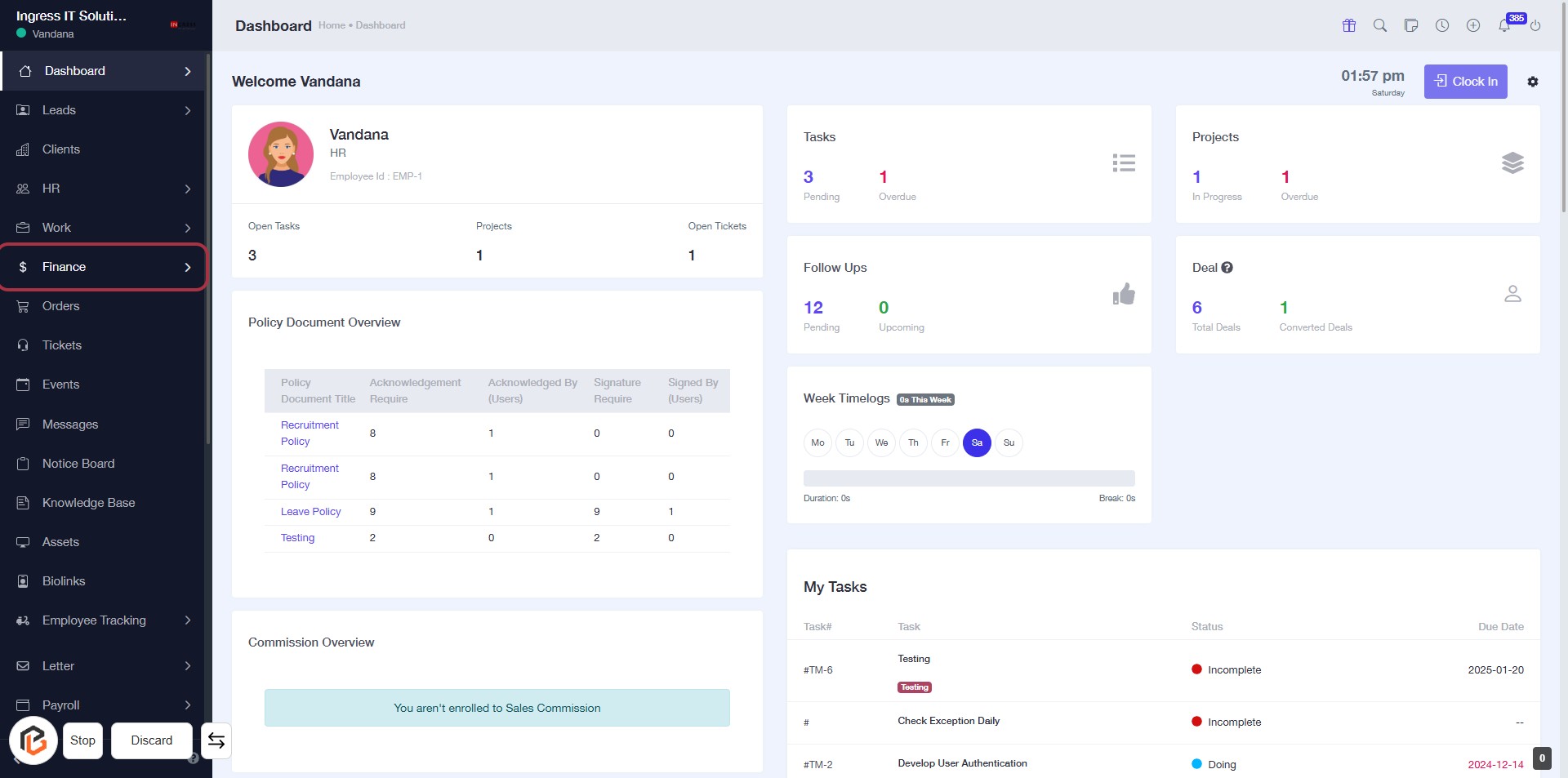
STEP 1: Click on "Finance" to Access Financial Overview
- Navigate to the left sidebar and locate the Finance option.
- Click on the Finance link to access the financial dashboard.
- Review the Policy Document Overview and Commission Overview sections for relevant information.
- Proceed to the next step by going to Invoices.
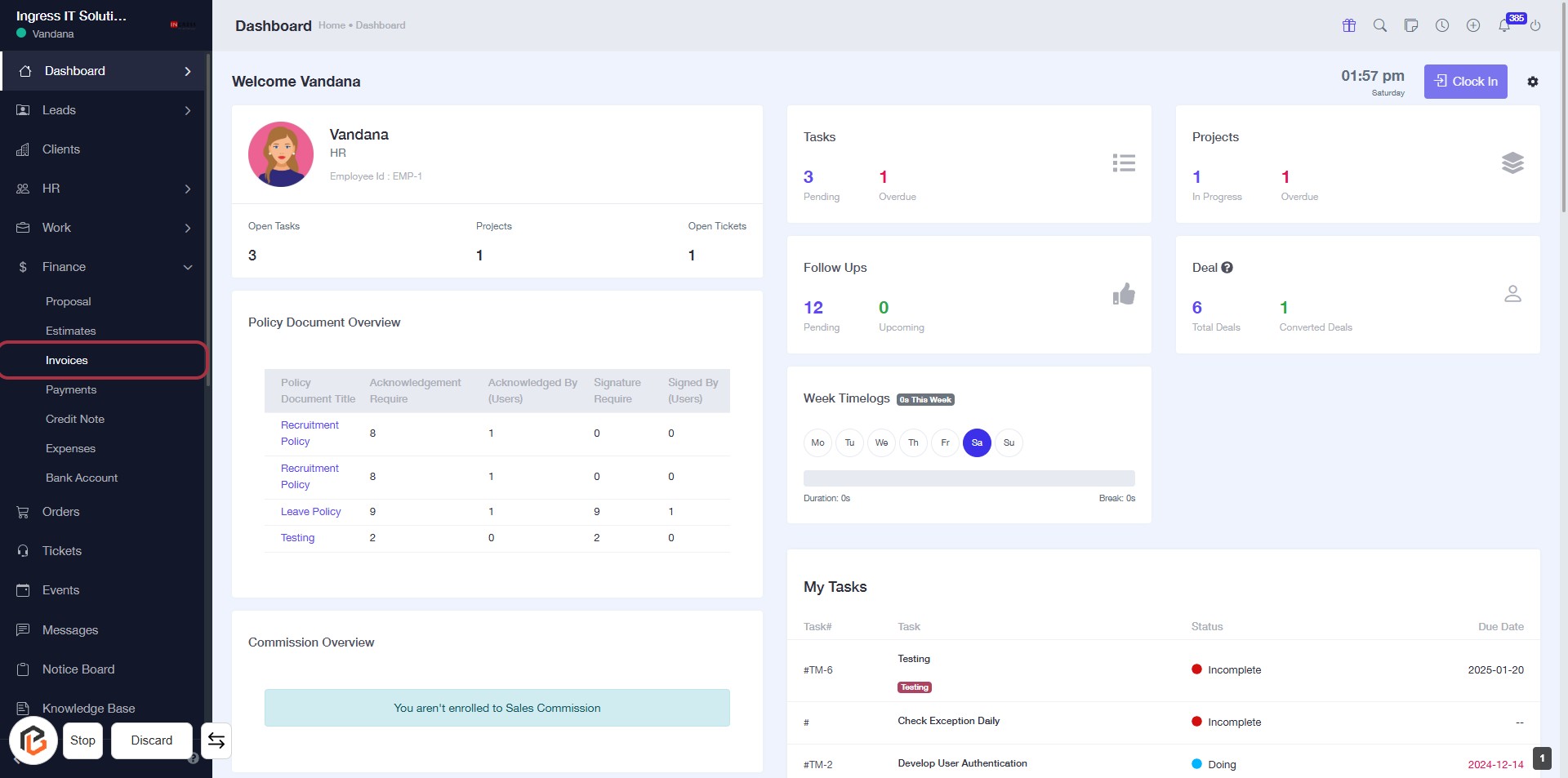
STEP 2: Click on "Invoices" to Access Invoice Section
- Navigate to the left sidebar menu.
- Click on the Invoices link highlighted in red.
- Ensure you are on the Dashboard page.
- This action will lead you to the invoice management area.
- After this, proceed to click on Create Invoice for further actions.
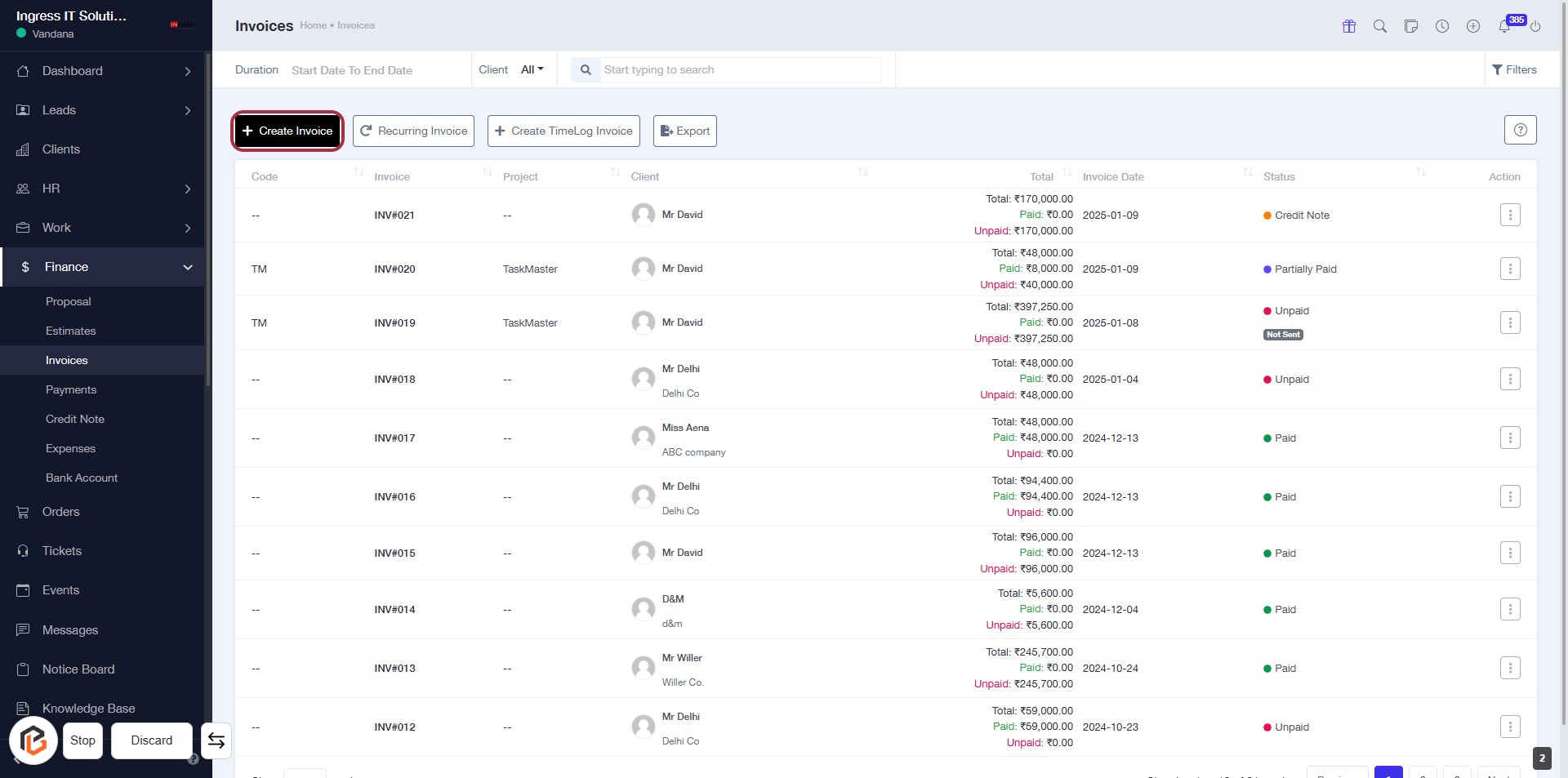
STEP 3: Click on "Create Invoice"
- Navigate to the "Invoices" section.
- Click on the Create Invoice button located at the top right of the invoice list.
- This action will initiate the invoice creation process.
- Ensure to fill in all required fields in the upcoming form, marked with an asterisk (*).
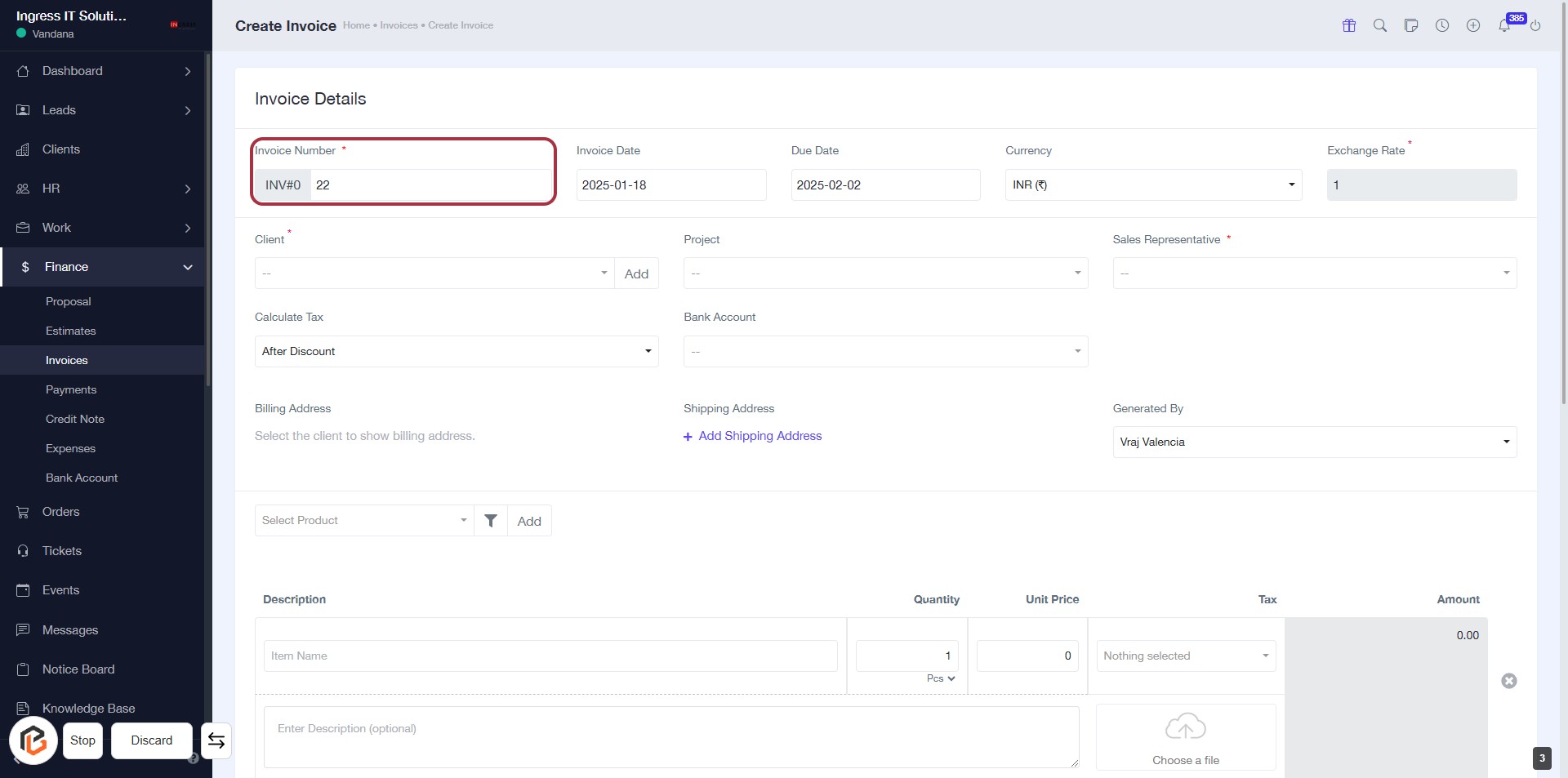
STEP 4: Enter Invoice Number
- Click on the highlighted area labeled "Invoice Number" to input the invoice details.
- Ensure to fill in the required field marked with an asterisk (*).
- After entering the invoice number, proceed to the next step to select the "Invoice Date".
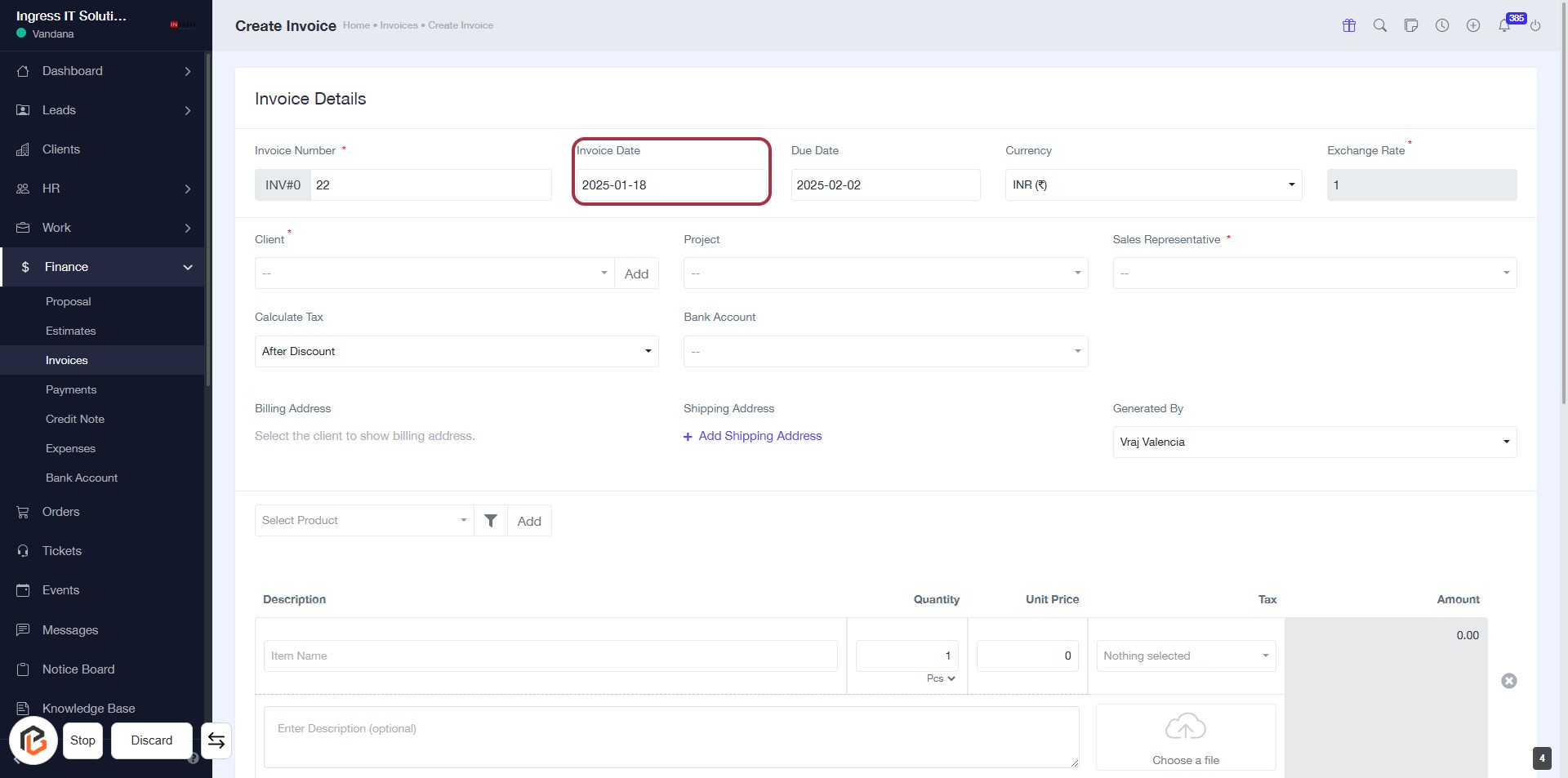
STEP 5: Select Invoice Date
- Click on the "Invoice Date" field to set the date for the invoice.
- Ensure the date format is correct (YYYY-MM-DD).
- This field is mandatory, indicated by the asterisk (*).
- After entering the date, proceed to the next step to select the "Due Date."
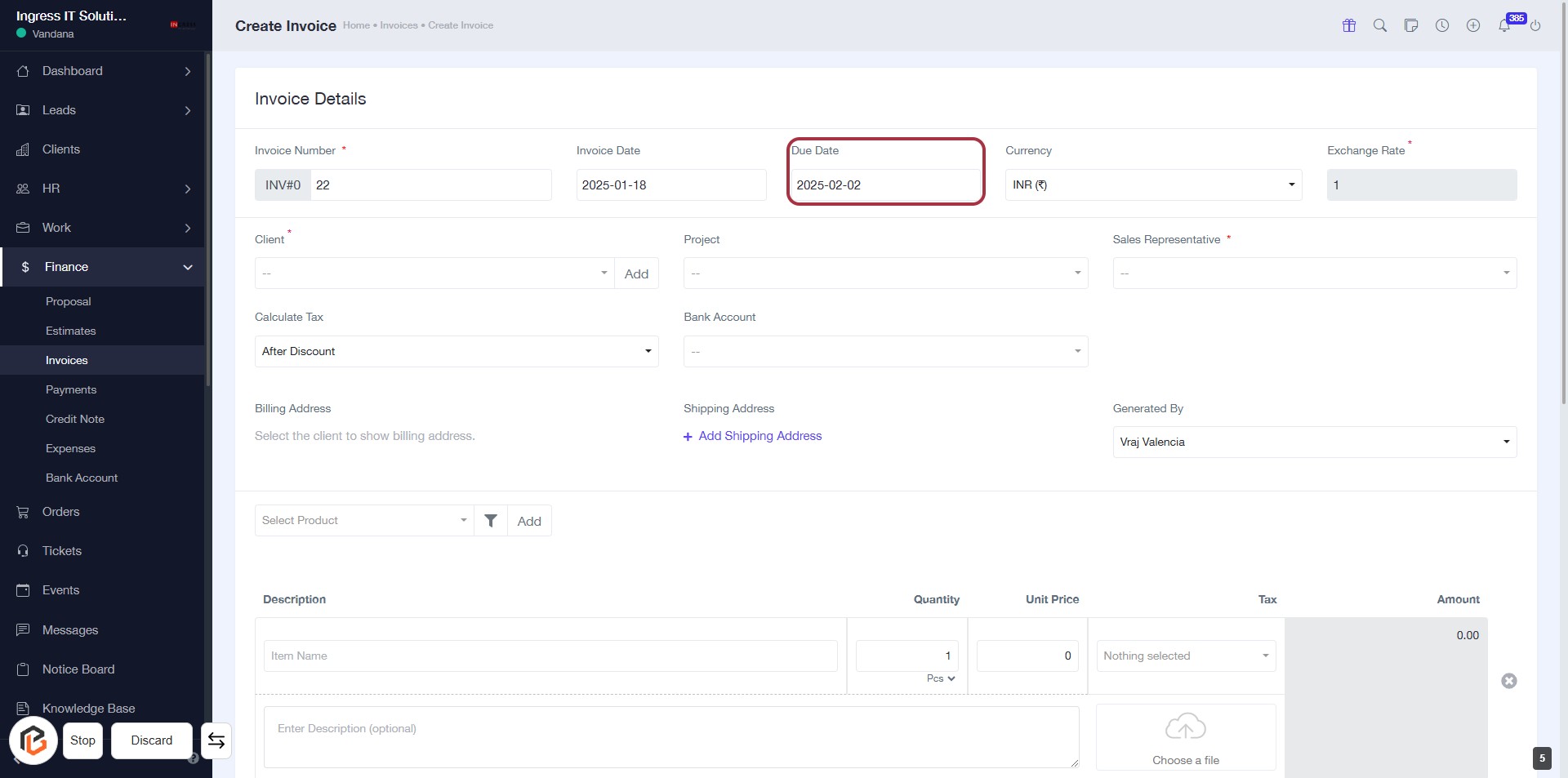
STEP 6: Select Due Date
- Click on the Due Date field highlighted in red.
- Ensure the date format is correct (YYYY-MM-DD).
- Review other fields for completeness: Invoice Number, Invoice Date, Currency, etc.
- Proceed to the next step by clicking on the Currency field.
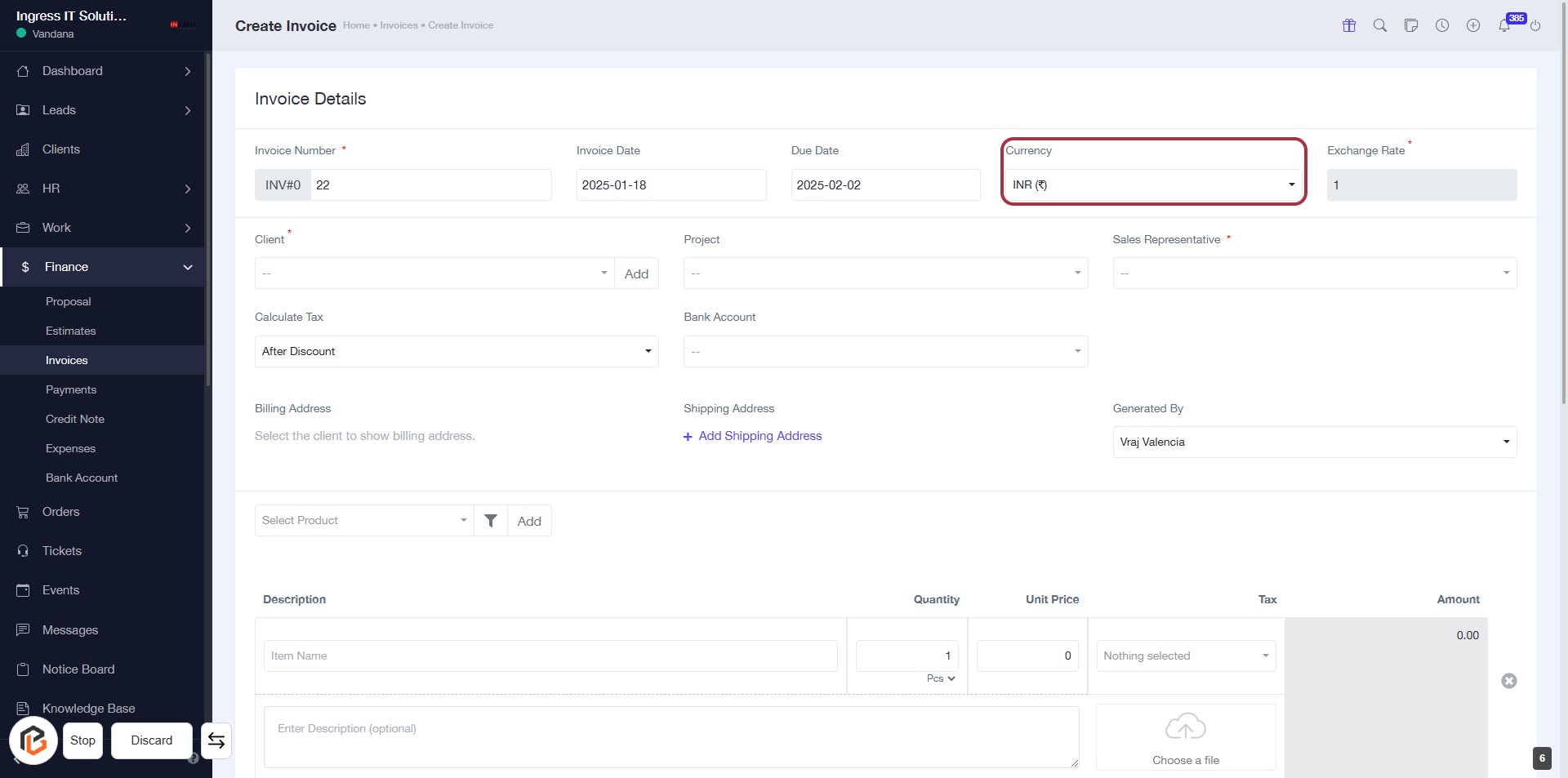
STEP 7: Select "Currency"
- Navigate to the "Currency" field in the Invoice Details section.
- Click on the "Currency" dropdown to select the desired currency for the invoice.
- Ensure to check for any required fields marked with an asterisk (*).
- After selecting the currency, proceed to the next step by clicking on "Client *".
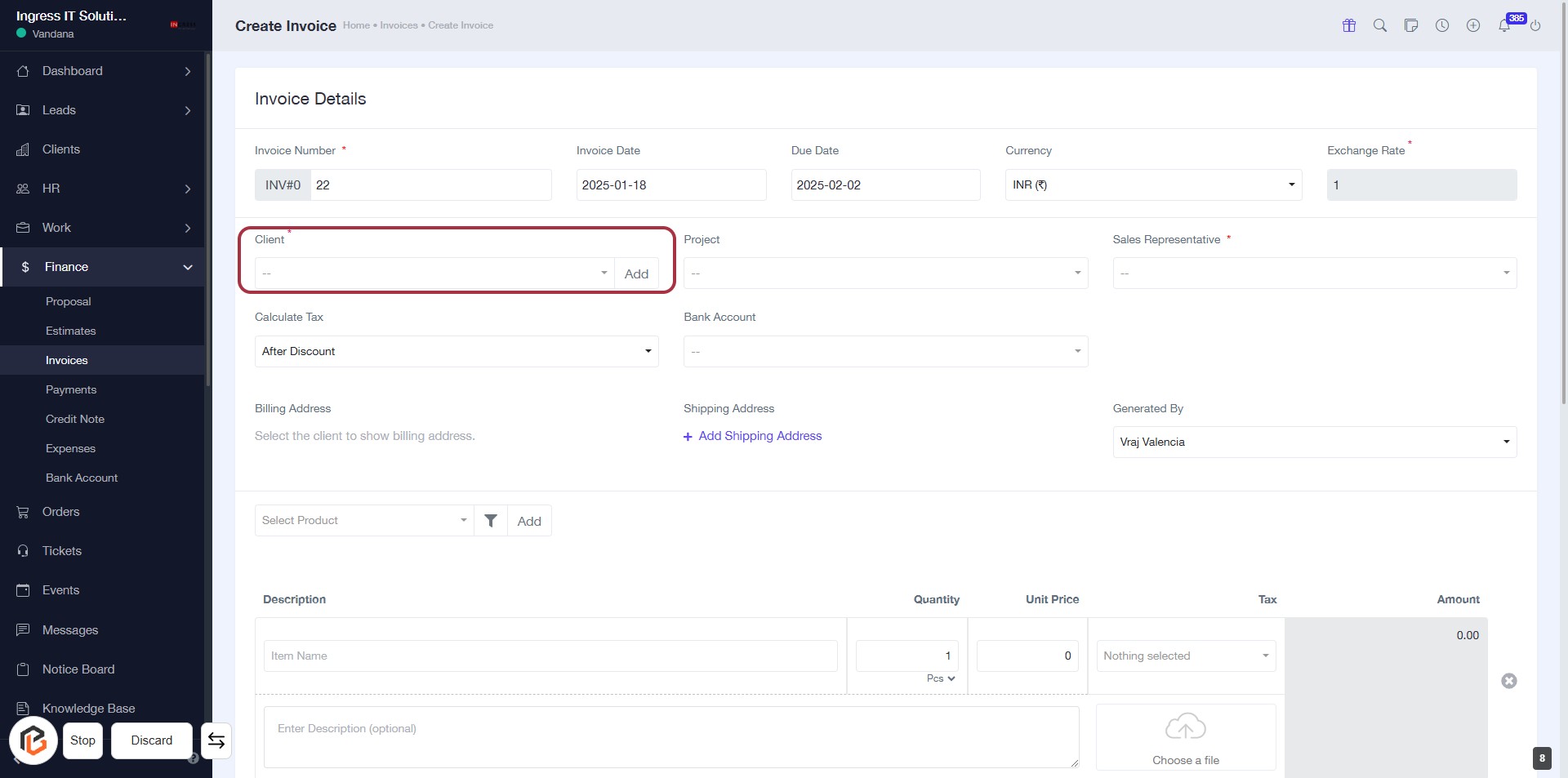
STEP 8: Add "Client "
- Navigate to the "Invoice Details" section.
- Locate the "Client *" field highlighted in red.
- Click on the field to select or add a client.
- Ensure to fill in any required information marked with an asterisk (*).
- Proceed to the next step by clicking on "Project" after selecting the client.
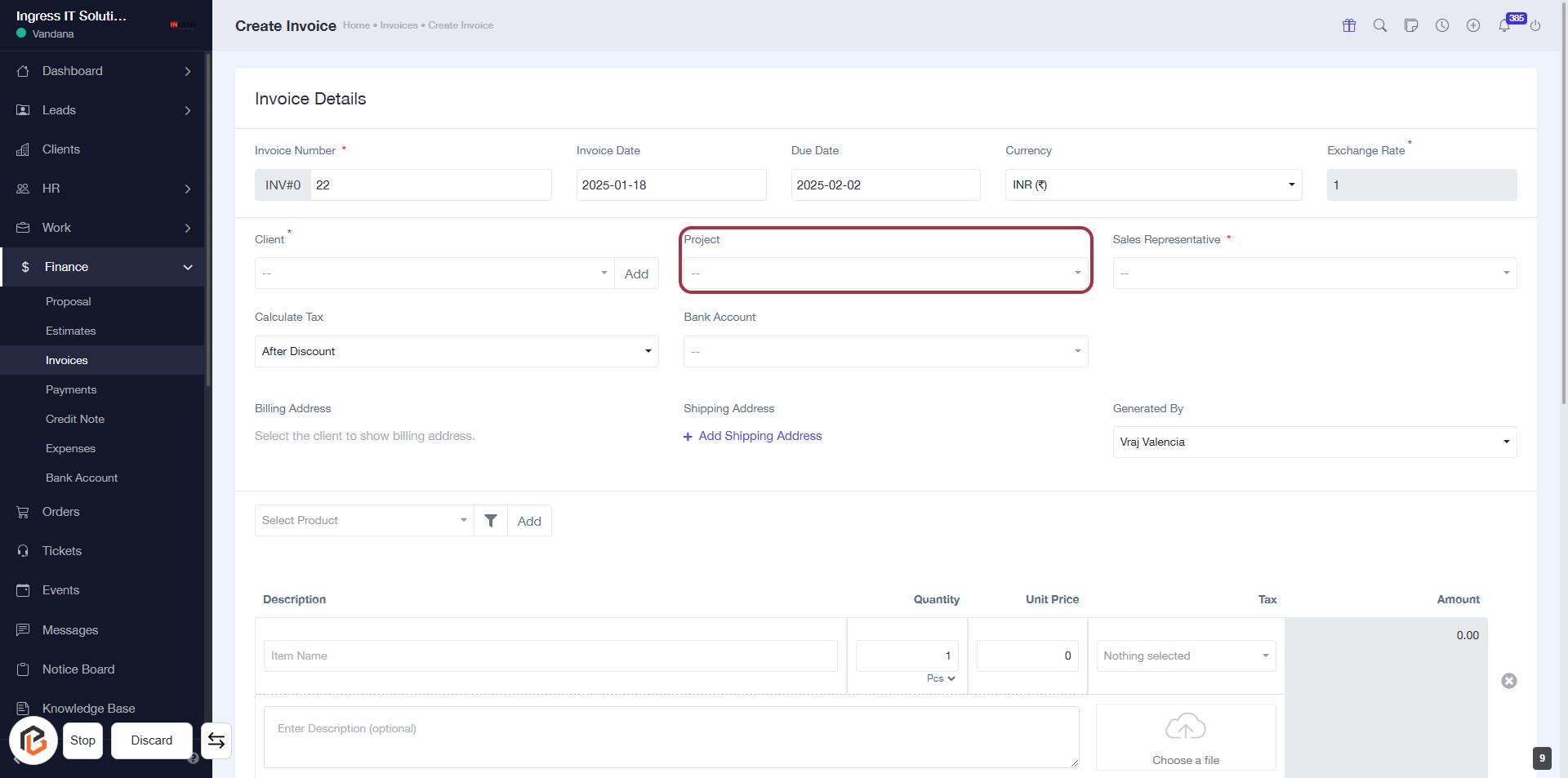
STEP 9: Select "Project"
- Navigate to the "Project" field in the Invoice Details section.
- Click on the "Project" dropdown to select a project.
- Ensure that the field is filled as it is marked with an asterisk (*), indicating it's required.
- After selecting, proceed to the next step by clicking on "Sales Representative *".
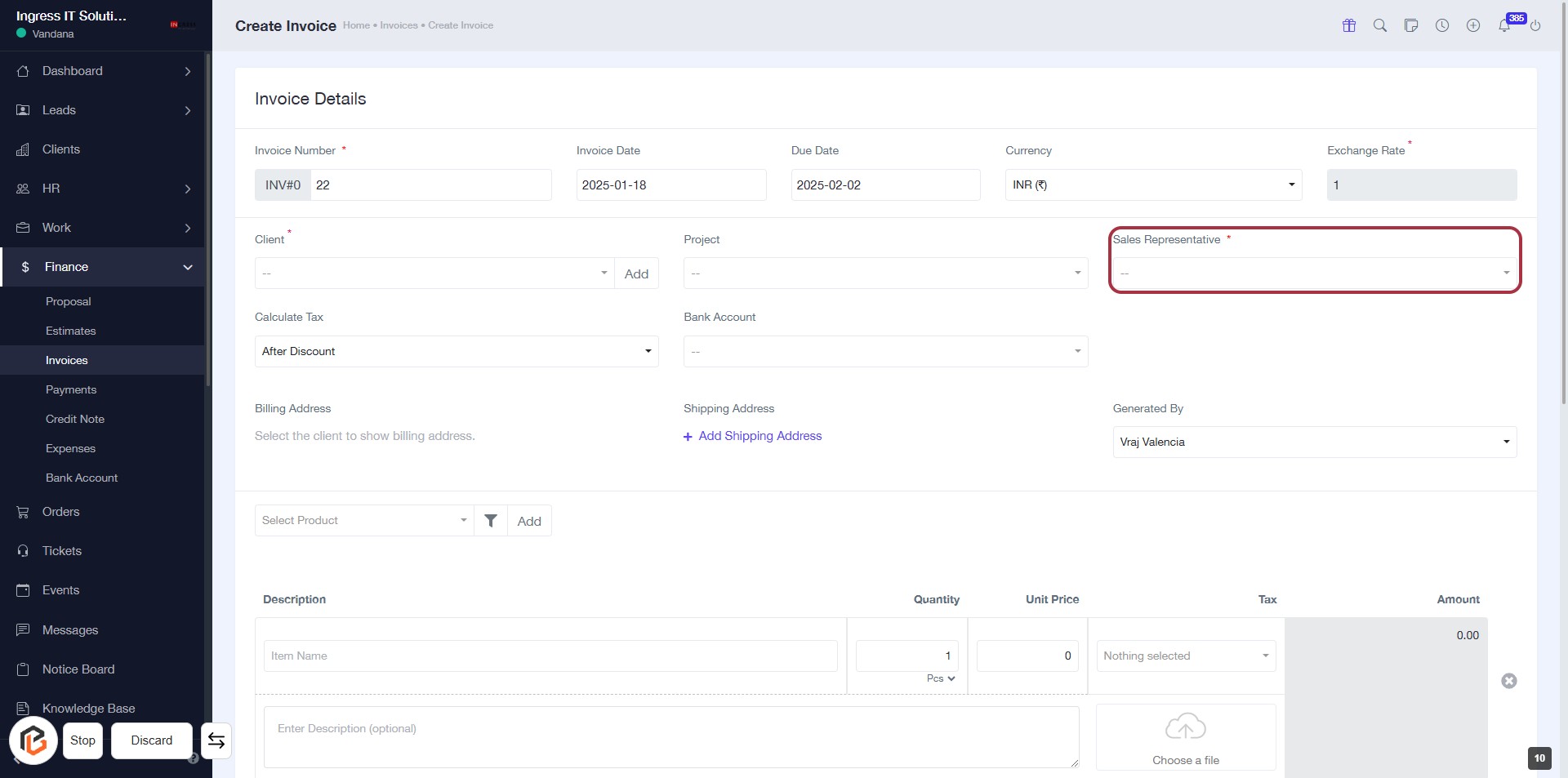
STEP 10: Select "Sales Representative"
- Locate the "Sales Representative" field highlighted in red.
- Click on the dropdown to view available options.
- Select the appropriate sales representative from the list.
- Ensure the field marked with an asterisk (*) is filled, as it is required.
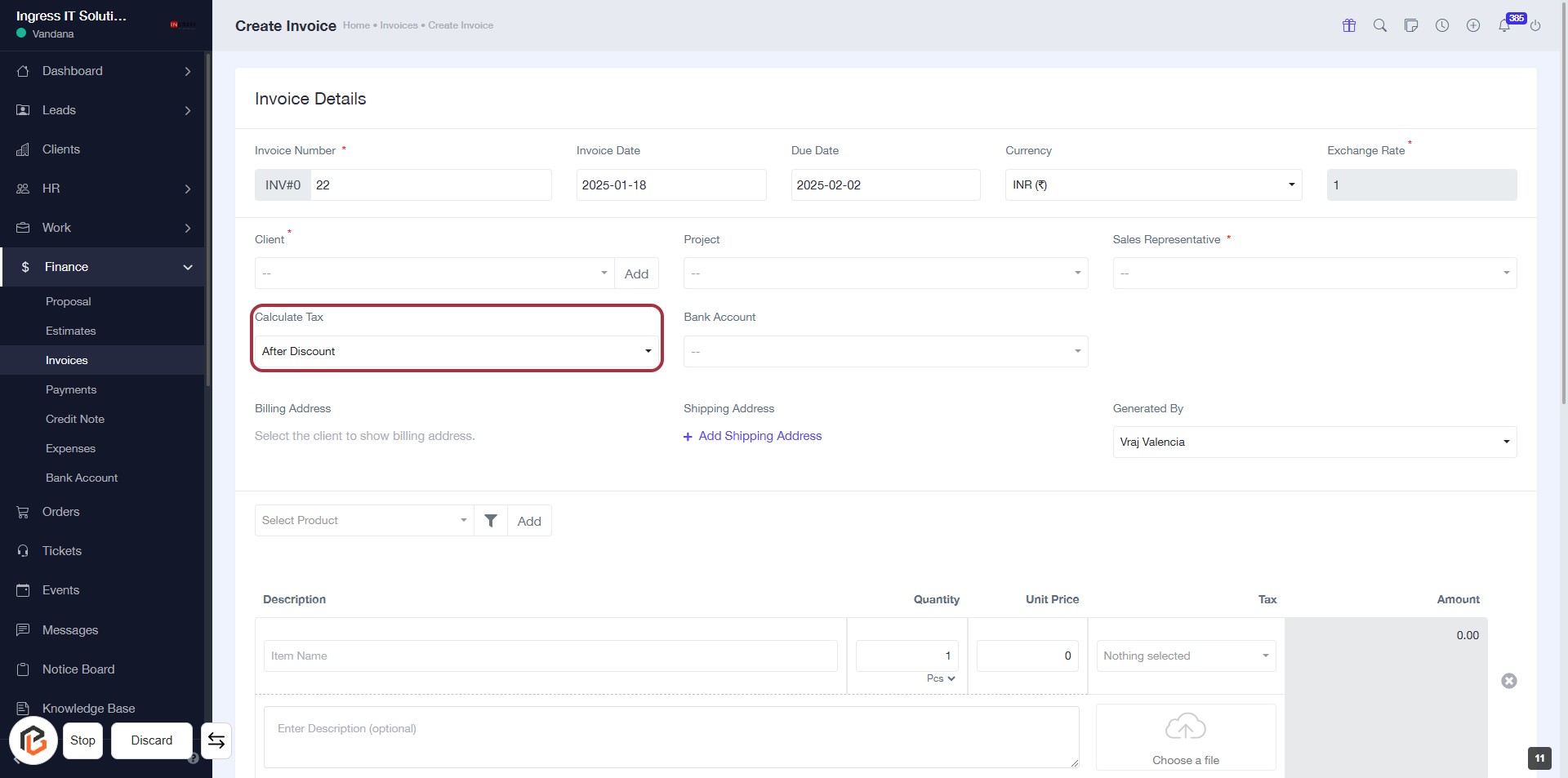
STEP 11: Select "Calculate Tax"
- Navigate to the "Invoice Details" section.
- Locate the "Calculate Tax" dropdown.
- Click on the "Calculate Tax" option to select your preferred tax calculation method.
- Ensure all required fields marked with an asterisk (*) are filled out before proceeding.
- After selecting, continue by clicking on "Bank Account" for the next step.
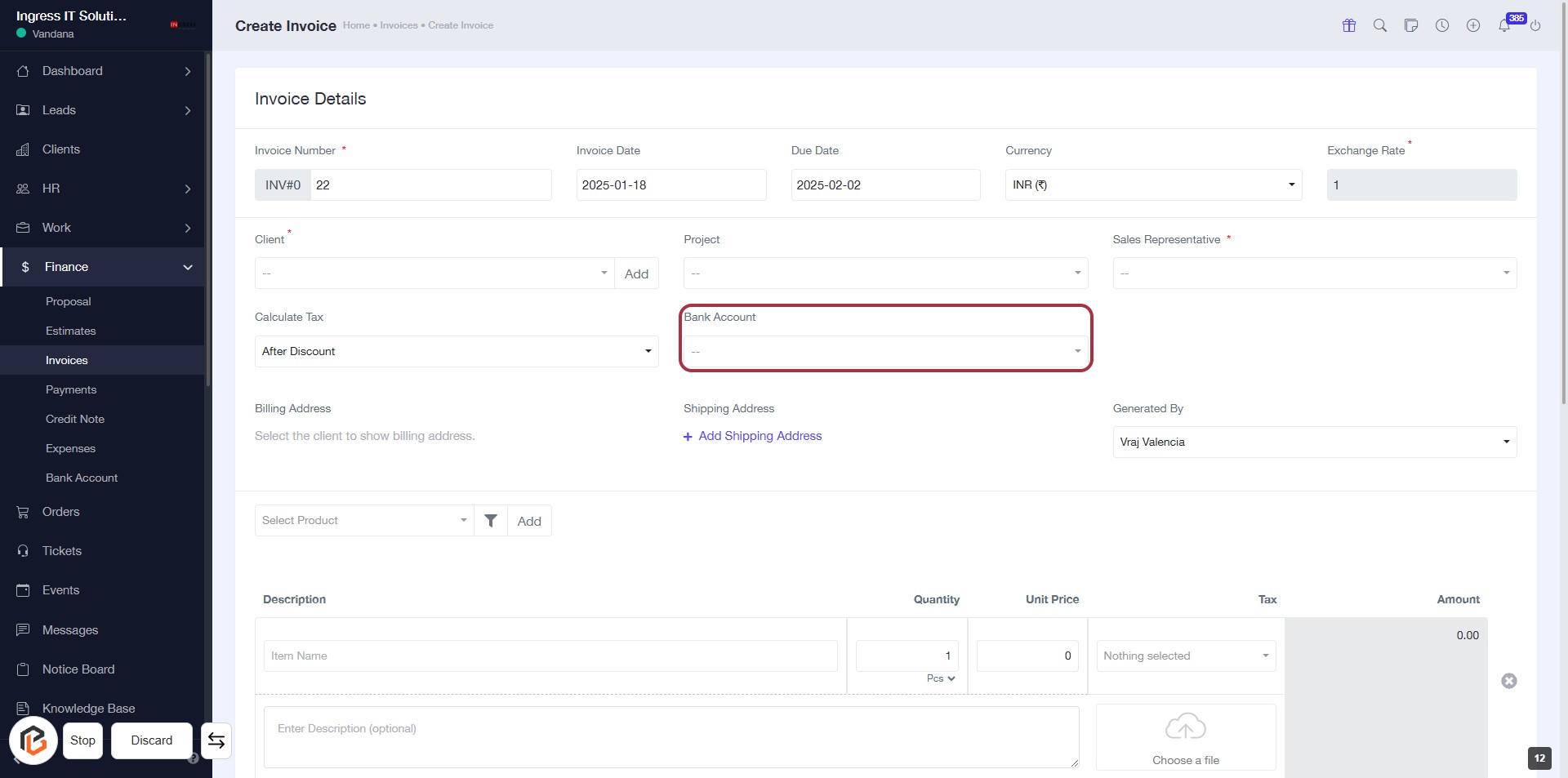
STEP 12: Add "Bank Account"
- Click on the "Bank Account" field to select an account from the dropdown.
- Ensure to fill in any required fields marked with an asterisk (*).
- Review other fields in the invoice form for completeness.
- Proceed to the next step by clicking on "Shipping Address".
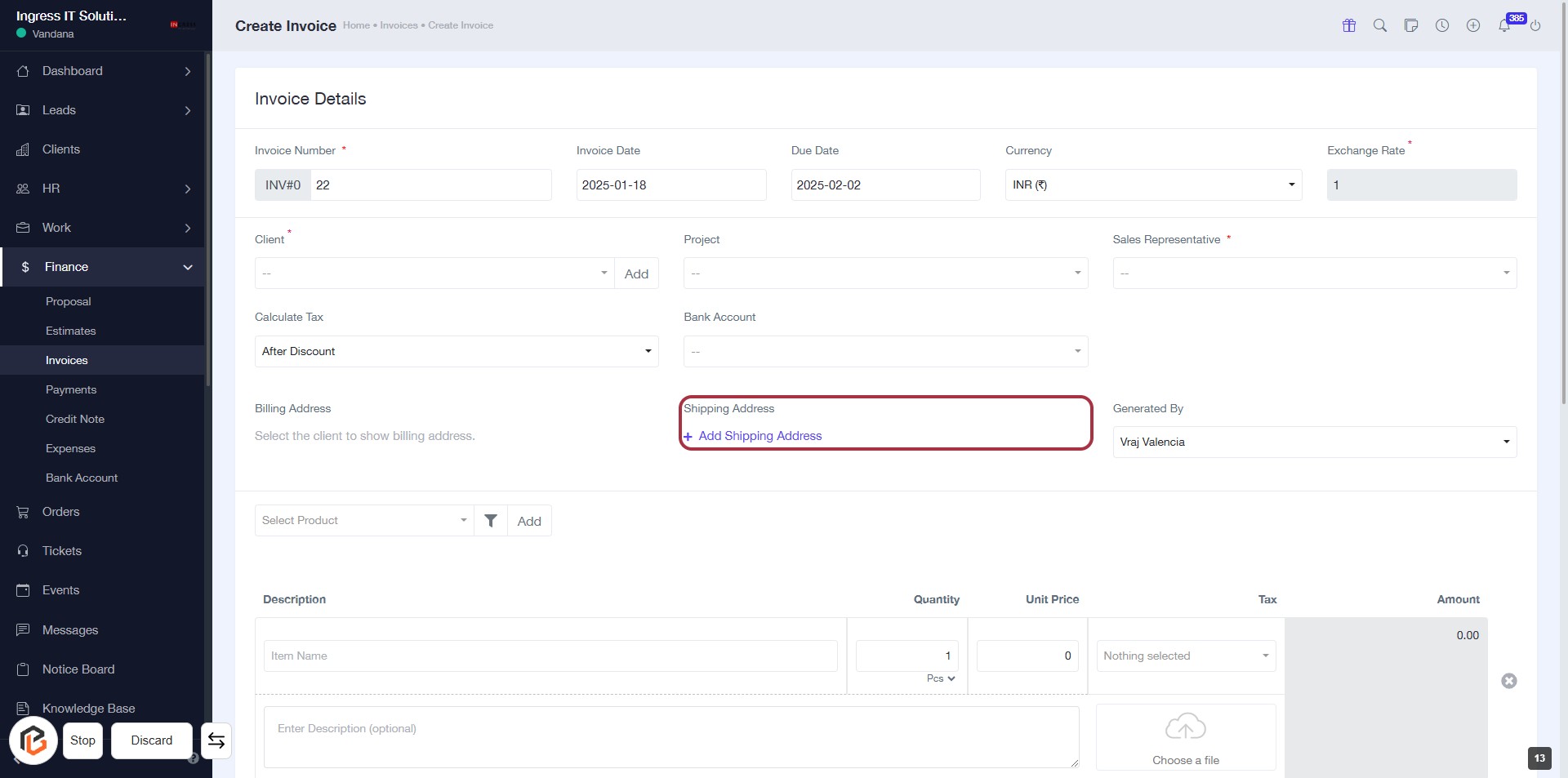
STEP 13: Click on "Add Shipping Address"
- Navigate to the Shipping Address section in the invoice form.
- Click on Add Shipping Address to input the shipping details.
- Ensure all required fields marked with an asterisk (*) are filled out.
- Review the information before proceeding to the next step.
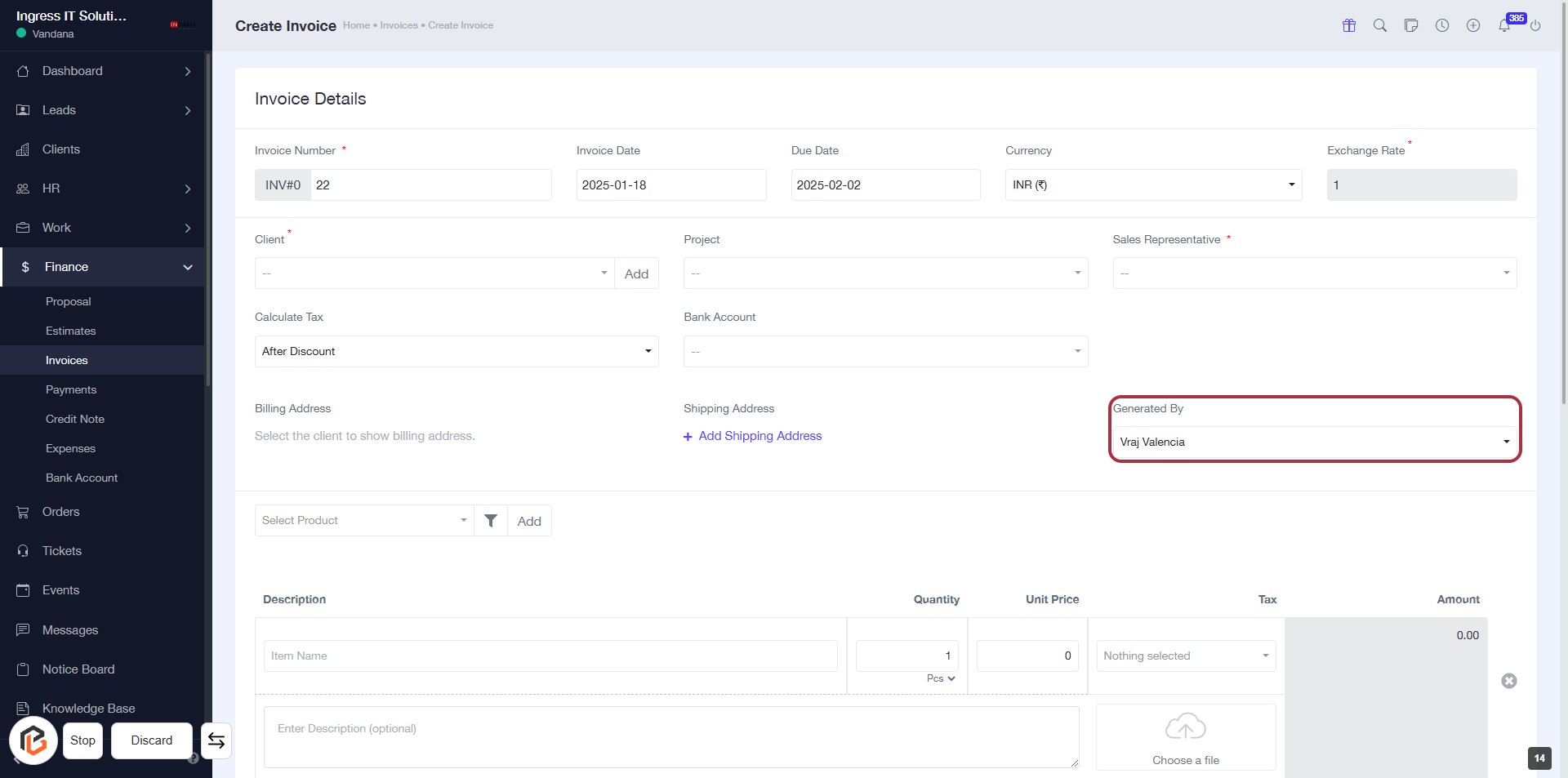
STEP 14: Click on "Generated By" to Select the User
- Navigate to the "Generated By" section in the invoice form.
- Click on the dropdown to view the list of users.
- Select the appropriate user from the list to assign them as the one who generated the invoice.
- Ensure all other required fields are filled before proceeding.
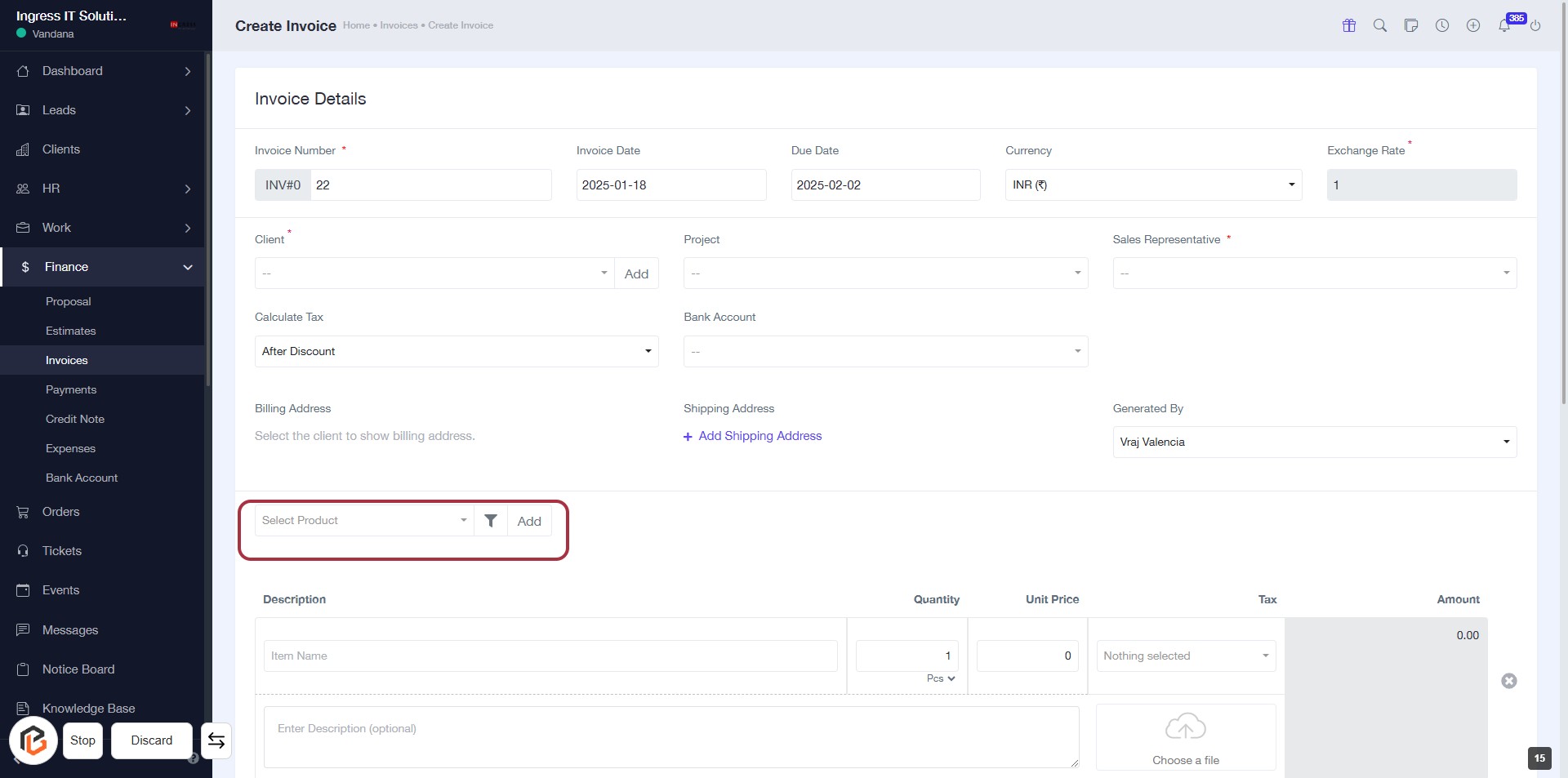
STEP 15: Click on "Select Product" to Select Product
- Navigate to the "Select Product" dropdown.
- Click on the "Brainwrite" option to choose the product.
- Ensure all required fields marked with an asterisk (*) are filled out.
- Proceed to the next step by clicking on "Quantity" after selection.
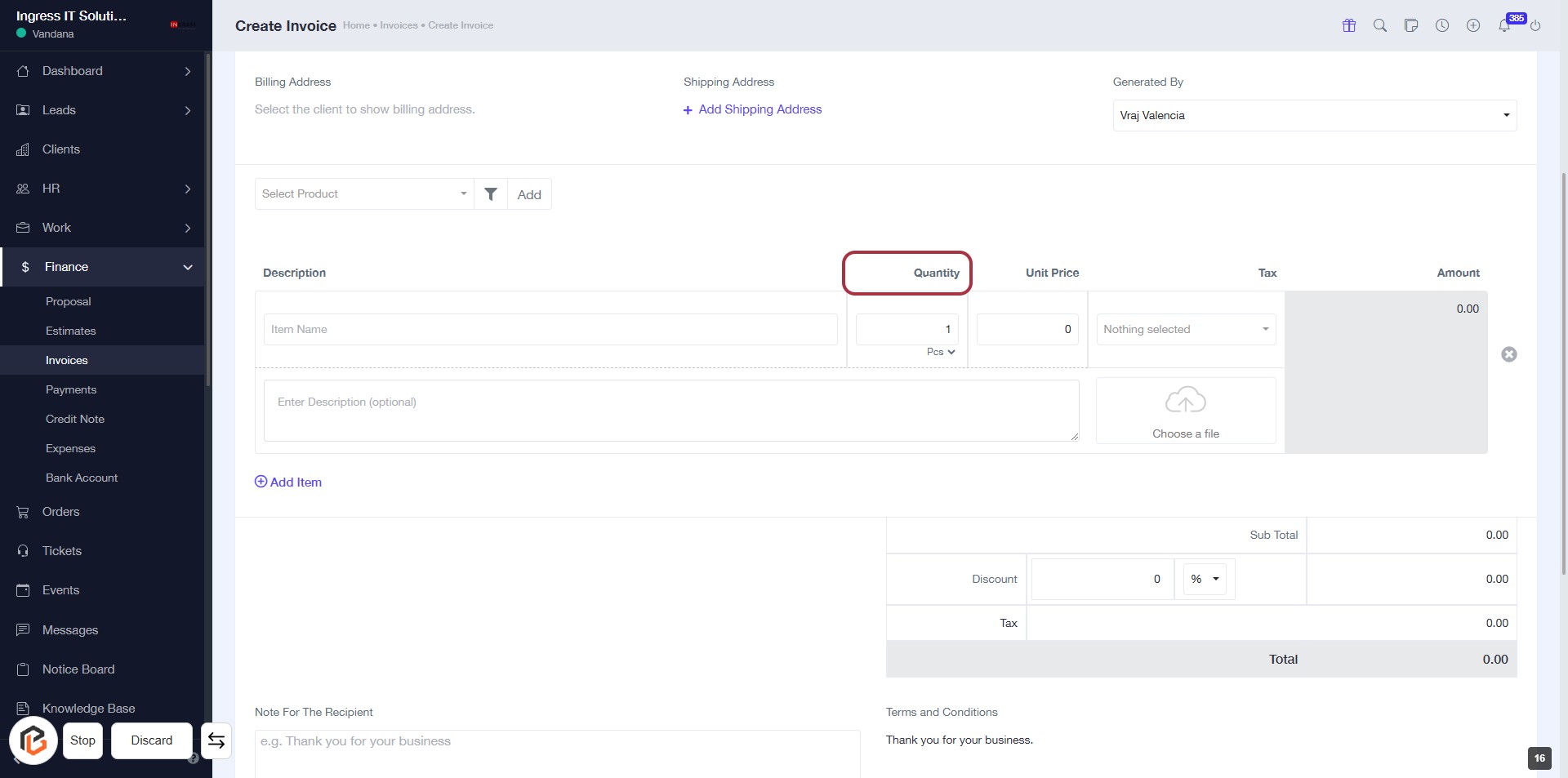
STEP 16: Enter "Quantity" to Enter Invoice Details
- Click on the "Quantity" field to specify the number of items.
- Ensure to enter a numeric value as required.
- The field is mandatory, indicated by the absence of an asterisk (*).
- After entering the quantity, proceed to the next step by clicking on "Unit Price."
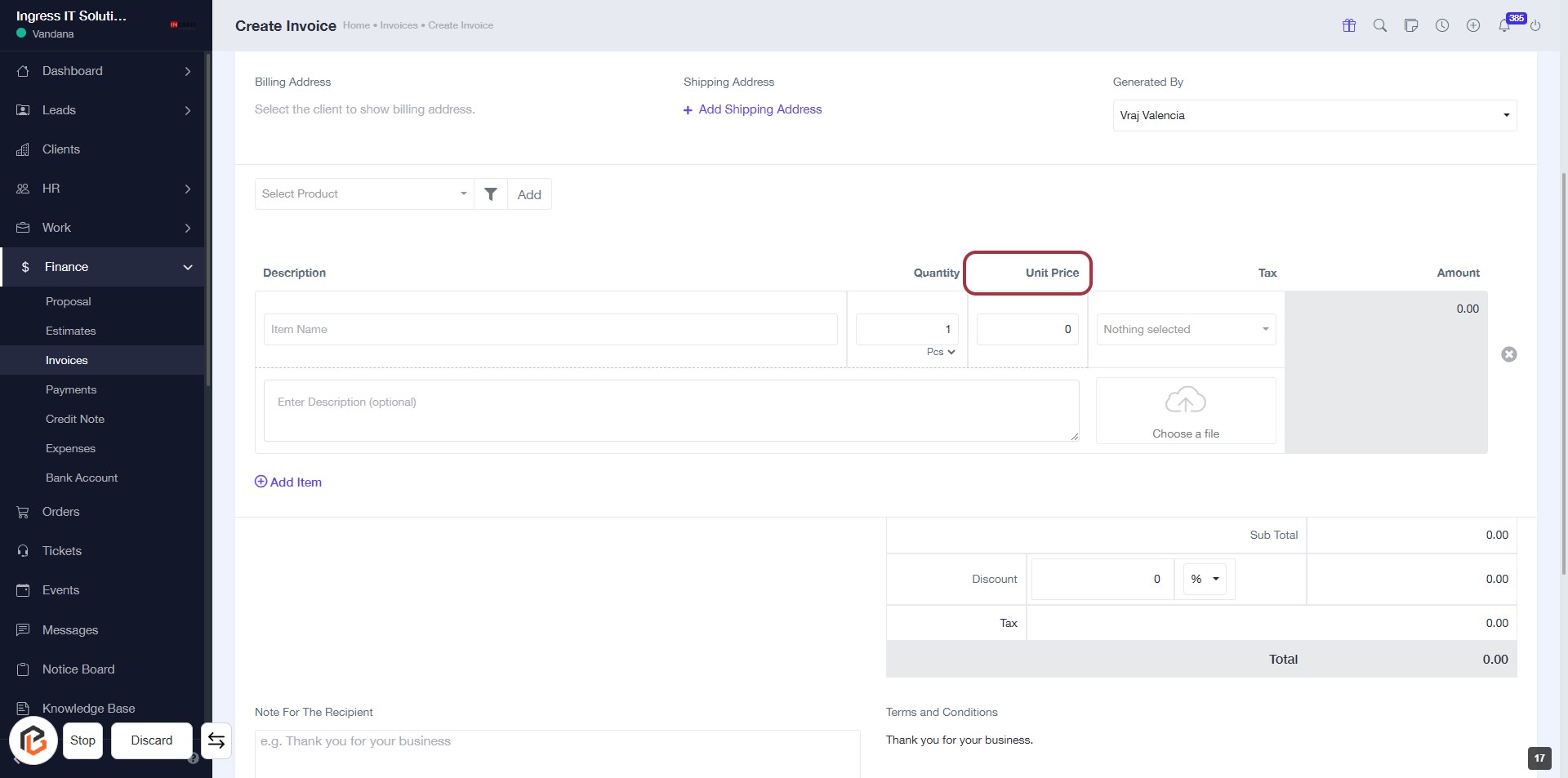
STEP 17: Enter "Unit Price"
- Navigate to the "Unit Price" column in the invoice form.
- Click on the "Unit Price" cell to enter the price for the item.
- Ensure to fill in any required fields marked with an asterisk (*).
- Review the information before proceeding to the next step.
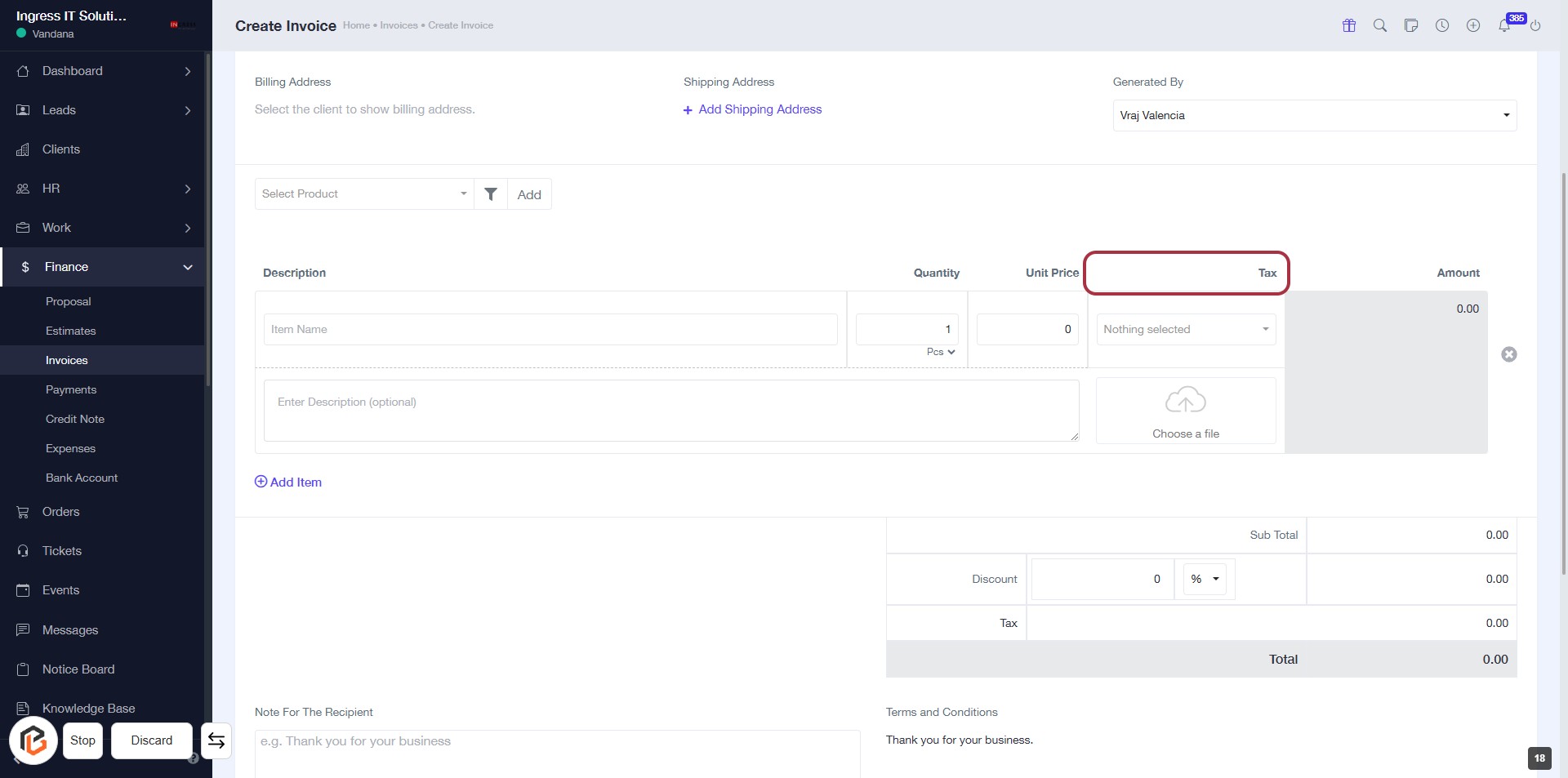
STEP 18: Select "Tax" to Set Tax Amount
- Navigate to the invoice creation form.
- Locate the "Tax" field highlighted in red.
- Click on the "Tax" field to enter the applicable tax amount.
- Ensure all required fields are filled out before proceeding to the next step.
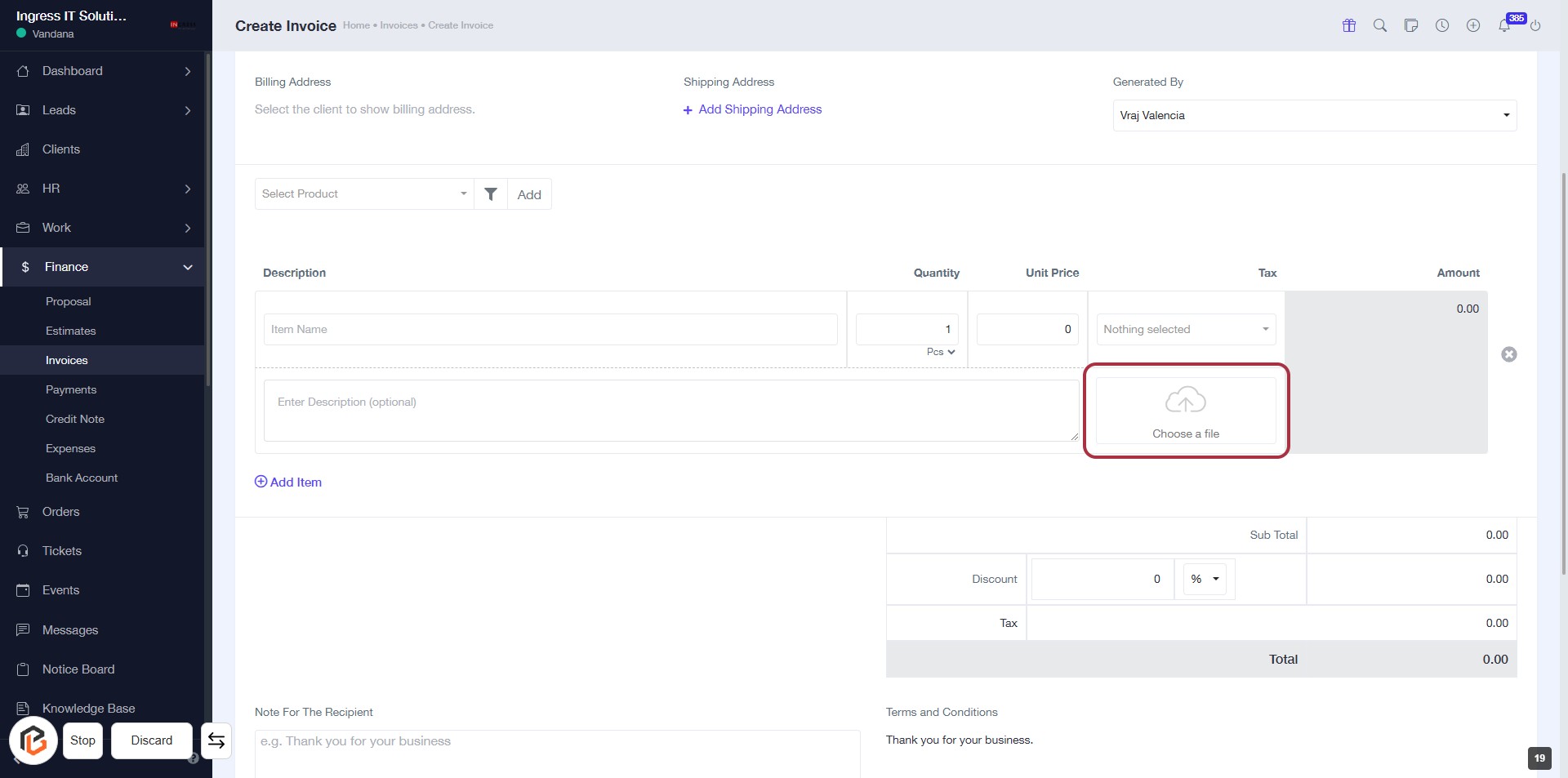
STEP 19: Click on "Choose a file" to Upload Document
- Locate the "Choose a file" button highlighted in red.
- Click on the button to open the file selection dialog.
- Select the desired file from your device to upload.
- Ensure that any required fields marked with an asterisk (*) are filled out before proceeding.
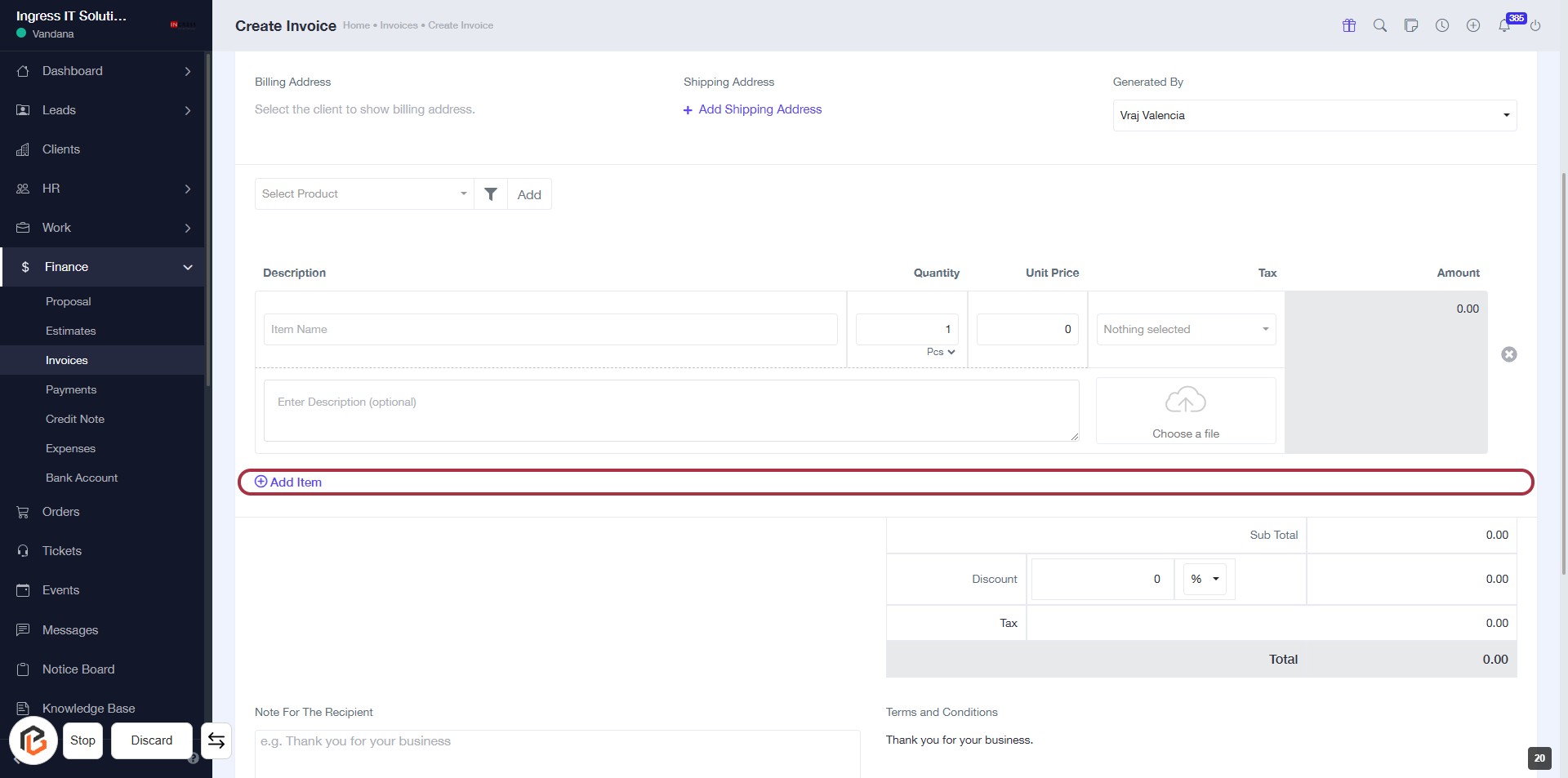
STEP 20: Click on "Add Item" to Include Invoice Items
- Navigate to the invoice creation form.
- Locate the highlighted area labeled "Add Item."
- Click on "Add Item" to include a new item in the invoice.
- Ensure to fill in the required fields for item details, such as Description, Quantity, and Unit Price, as indicated by the labels.
- Proceed to the next step by clicking on "note for the recipient."
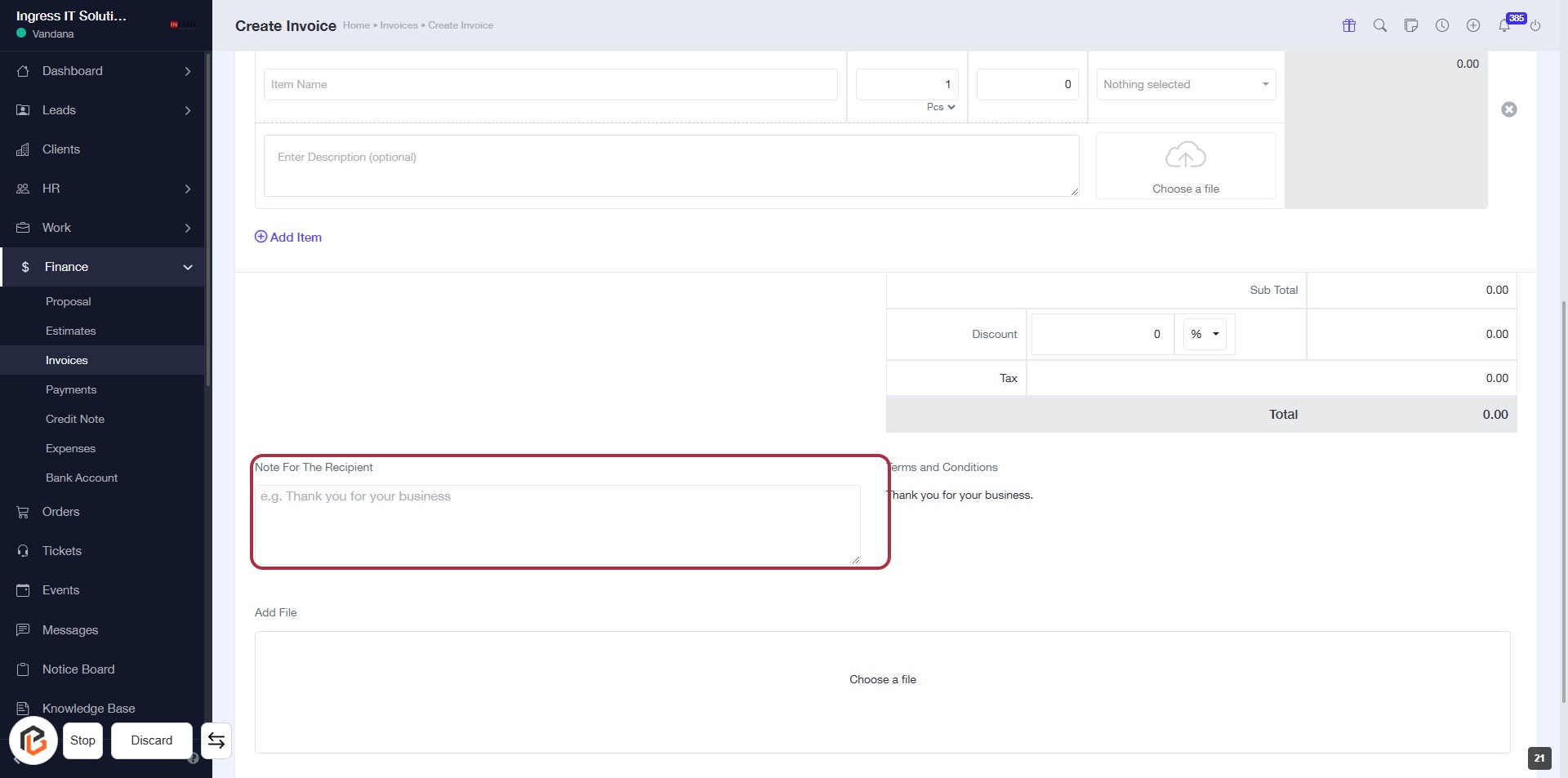
STEP 21: Write "Note for the Recipient"
- Locate the "Note for the Recipient" section highlighted in red.
- Click on the area to enter a personalized message for the recipient.
- Optional: You can use the example provided ("e.g. Thank you for your business") as a guide.
- Ensure all required fields are filled before proceeding to the next step.
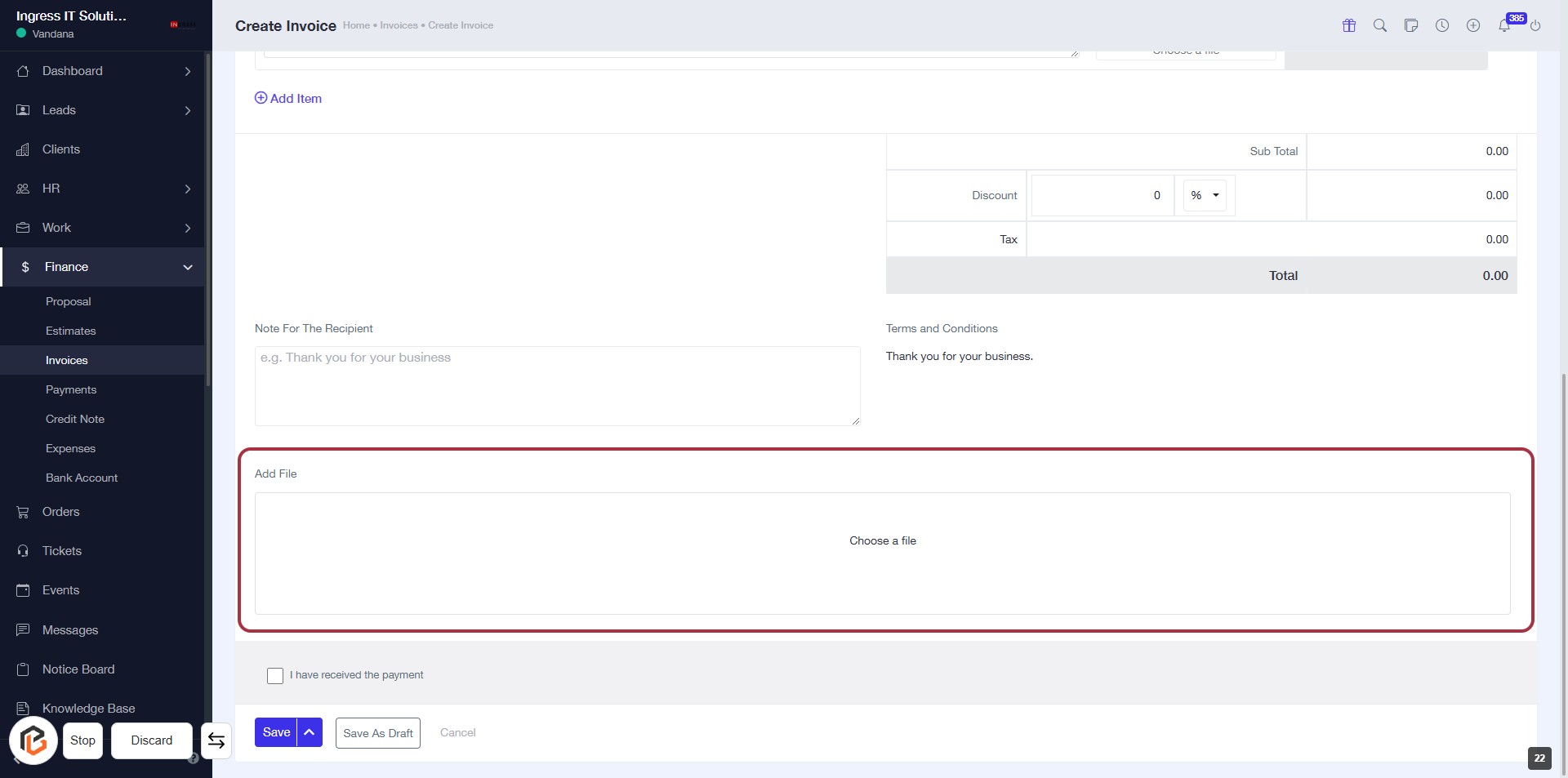
STEP 22: Click on "Add File" to Upload Documents
- Locate the "Add File" section highlighted in red.
- Click on the "Choose a file" button to select a document from your device.
- Ensure any required fields marked with an asterisk (*) are filled out.
- Review your selections before proceeding to the next step.
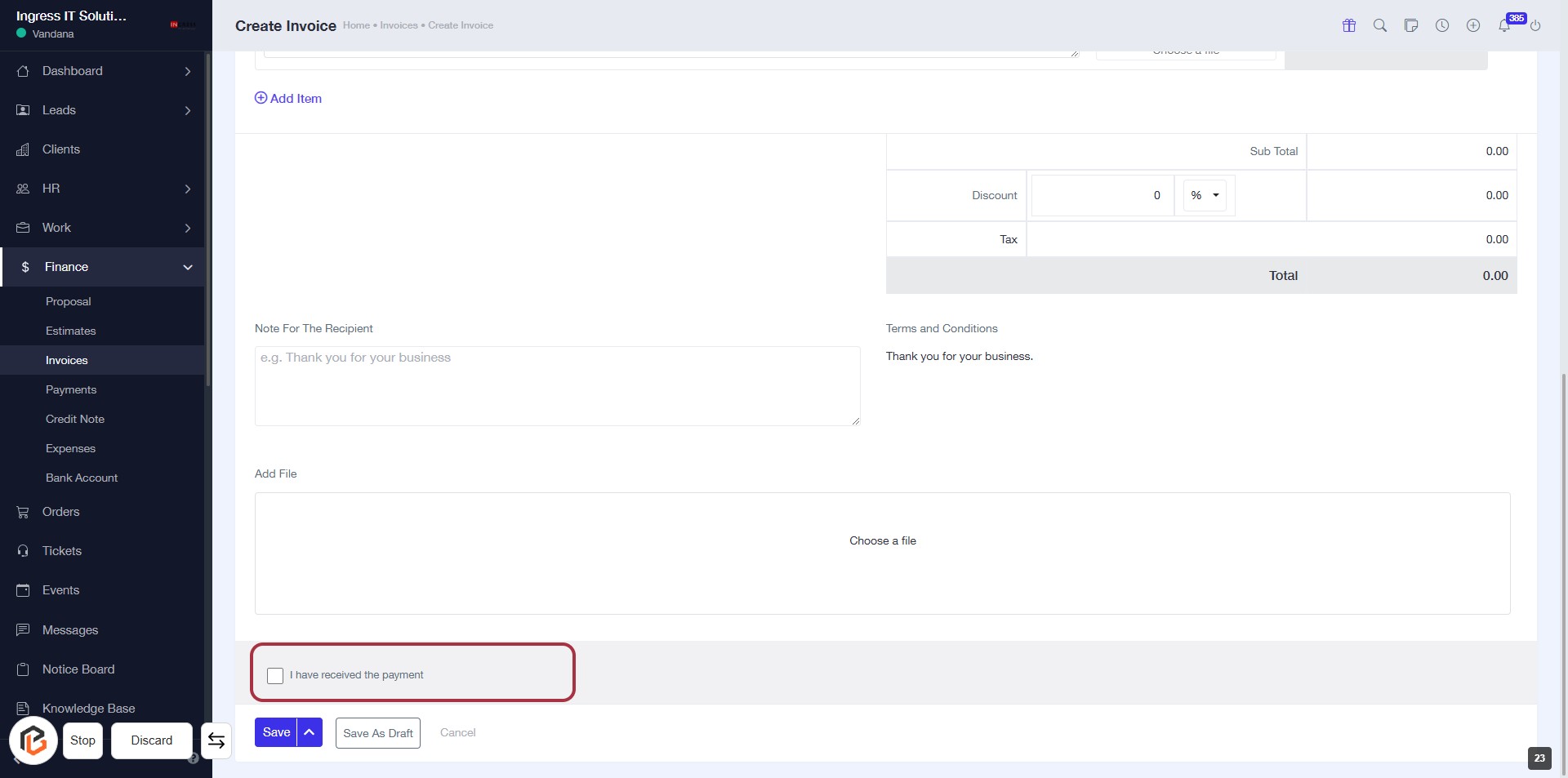
STEP 23: Click on "I have received the payment" if yes
- Locate the checkbox labeled "I have received the payment" at the bottom of the invoice form.
- Click on the checkbox to indicate that you have received the payment.
- Ensure that the checkbox is marked before proceeding to the next step.
- After confirming, you can continue to the next action by clicking "Save."
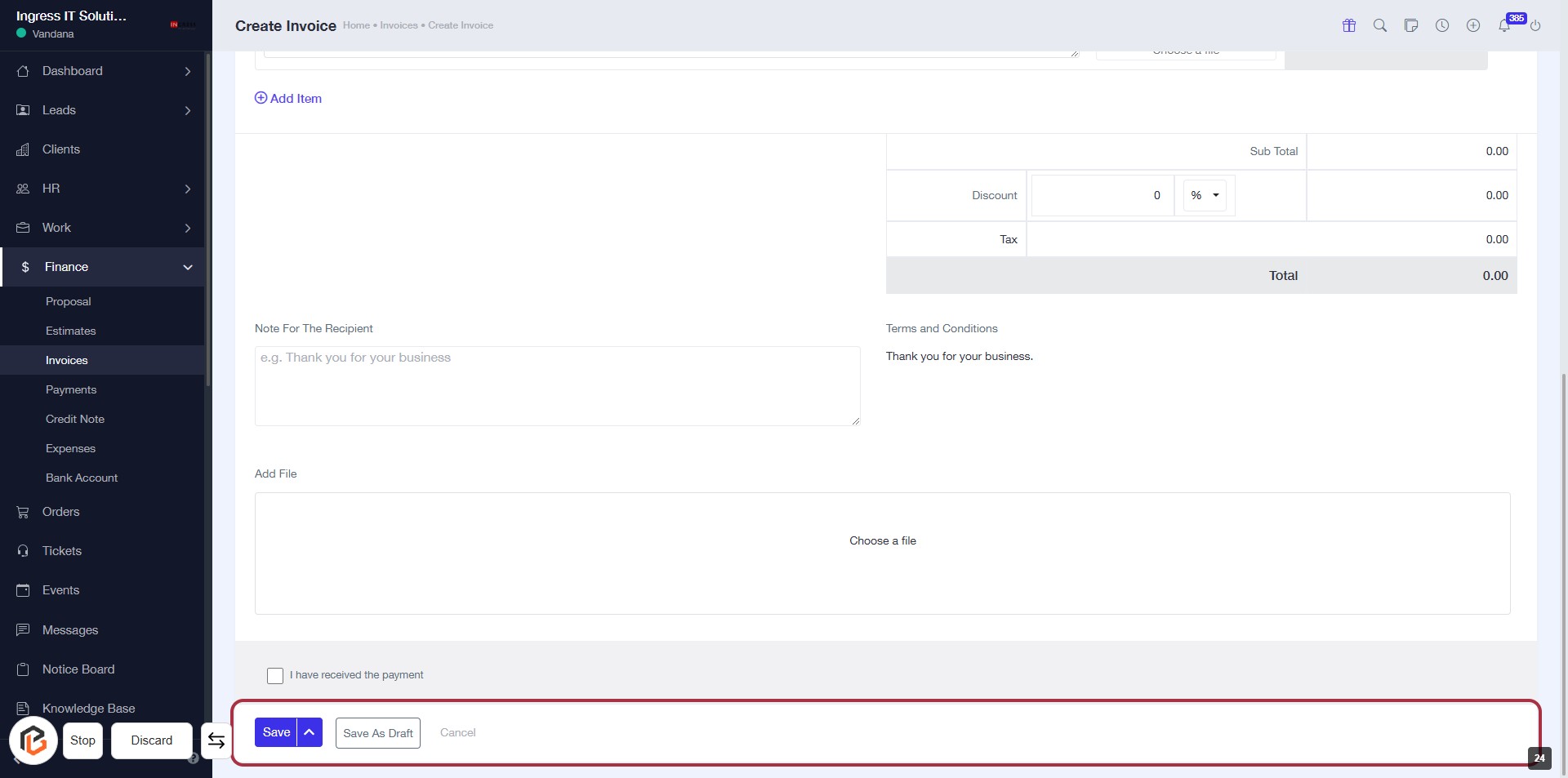
STEP 24: Click on "Save" to Finalize Invoice
- Ensure all required fields are filled out (marked with '*').
- Review the "Note For The Recipient" and "Terms and Conditions" sections.
- Click the "Save" button to finalize the invoice.
- If needed, you can also choose "Save As Draft" or "Cancel" if you wish to exit without saving.