Step-by-Step Guide to Adding Payments in Your Dashboard: A Comprehensive Walkthrough
14 mins read · Updated 29 Sep, 2025
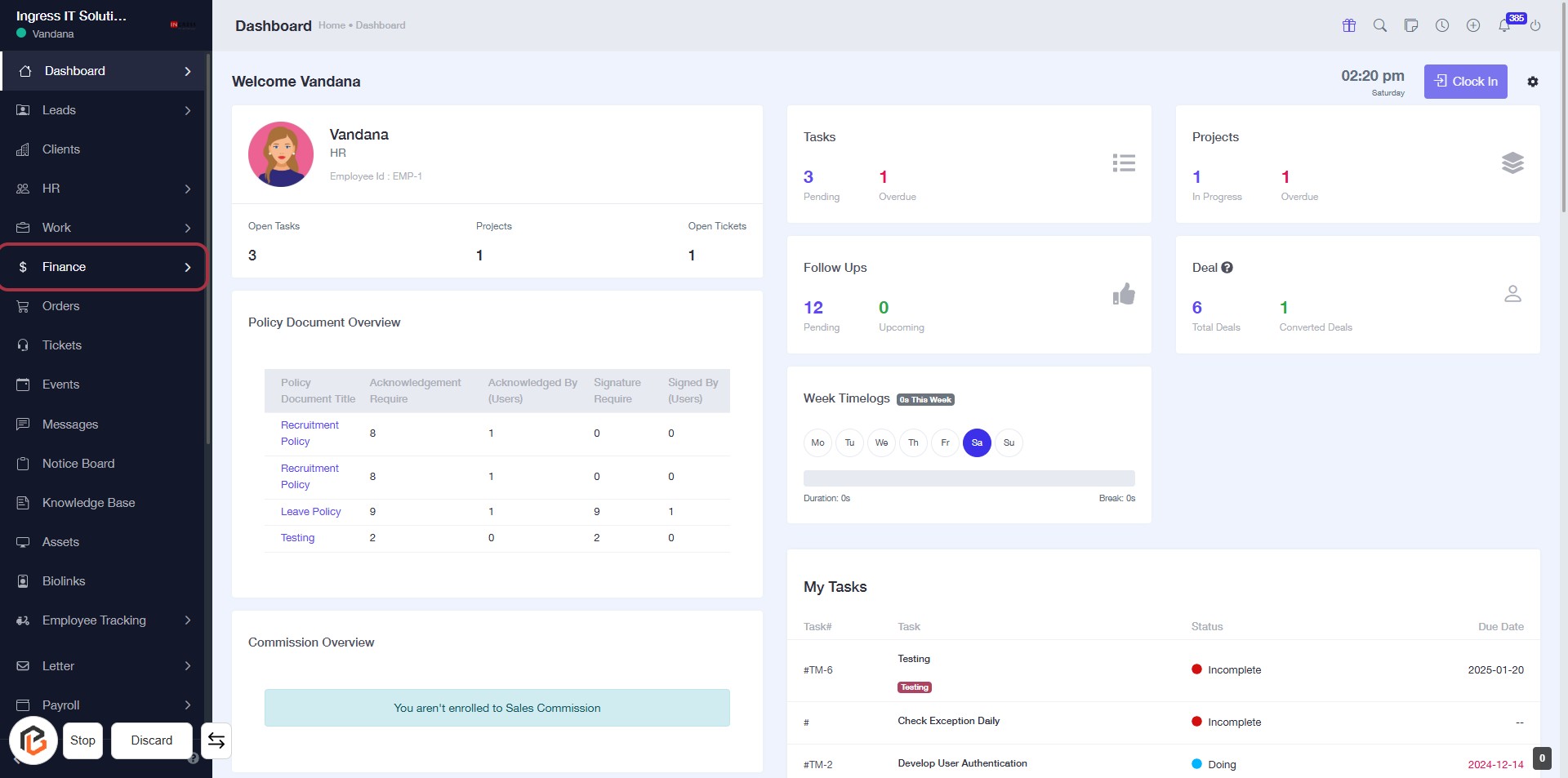
STEP 1: Click on "Finance" in the Dashboard
- Navigate to the left sidebar of the dashboard.
- Click on the Finance link to access financial information.
- Ensure you are on the Dashboard page before proceeding.
- This action will lead you to the Finance section for further tasks.
STEP 2: Click on "Payments" in the Dashboard
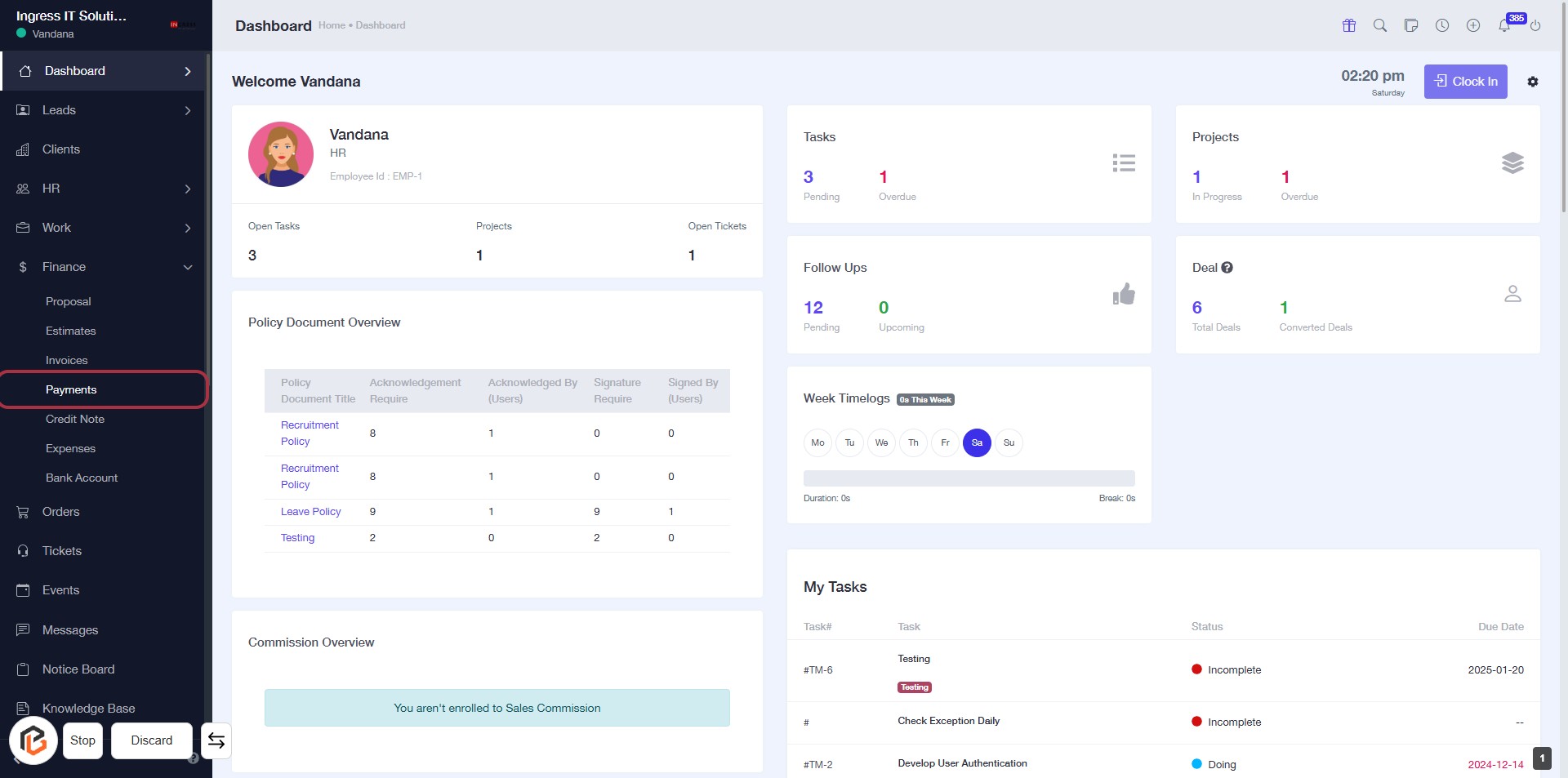
- Navigate to the "Payments" section in the sidebar.
- Click on the highlighted "Payments" link to access payment options.
- Ensure you are on the correct page by checking the heading and content displayed.
- Proceed to the next step by clicking on "Add Payment" after accessing the Payments section.
STEP 3: Click on "Add Payment"
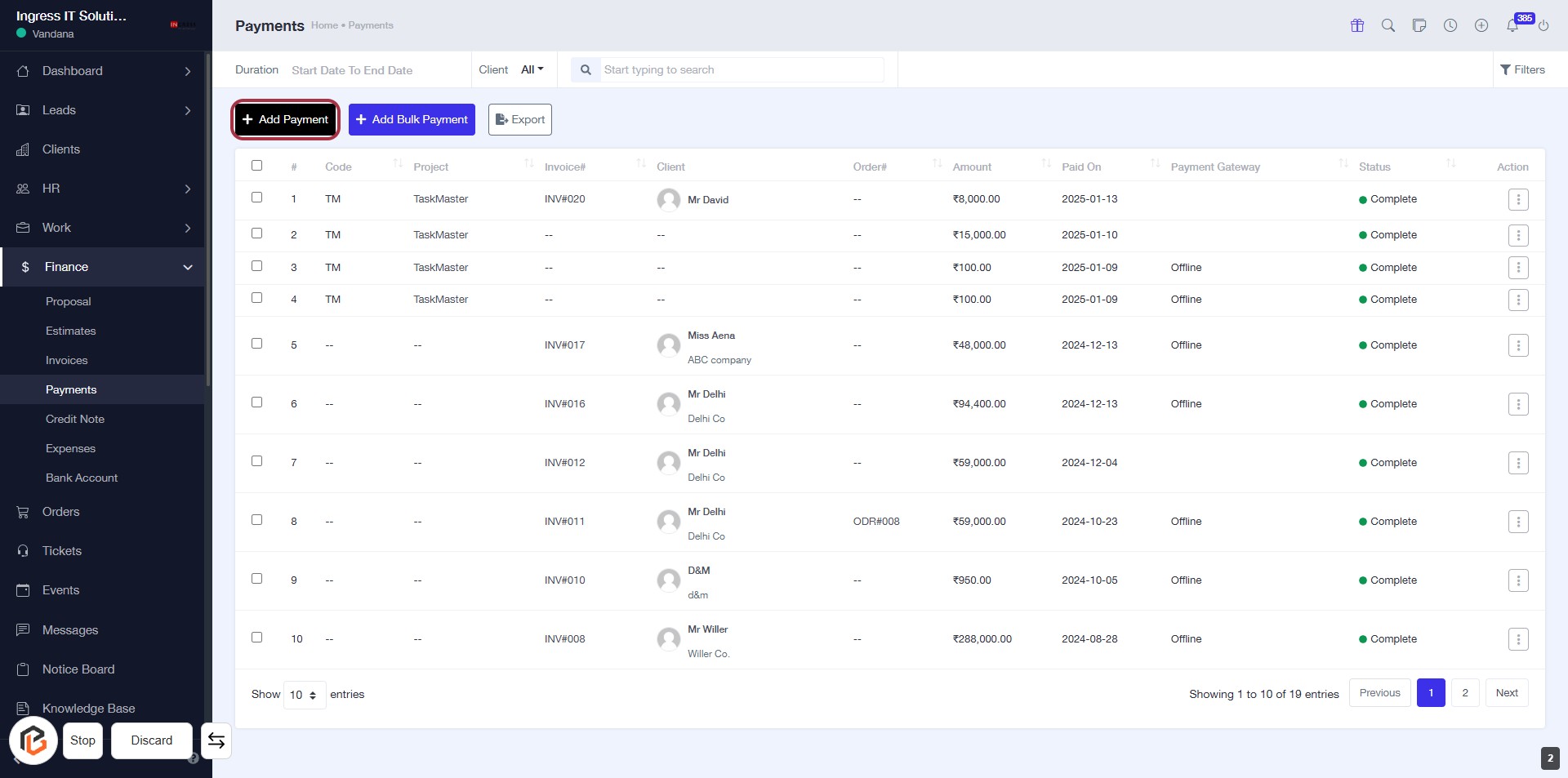
- Navigate to the Payments section.
- Click on the Add Payment button located at the top left of the payment table.
- Ensure all required fields marked with an asterisk (*) are filled out in the subsequent form.
- Review the information before proceeding to the next step.
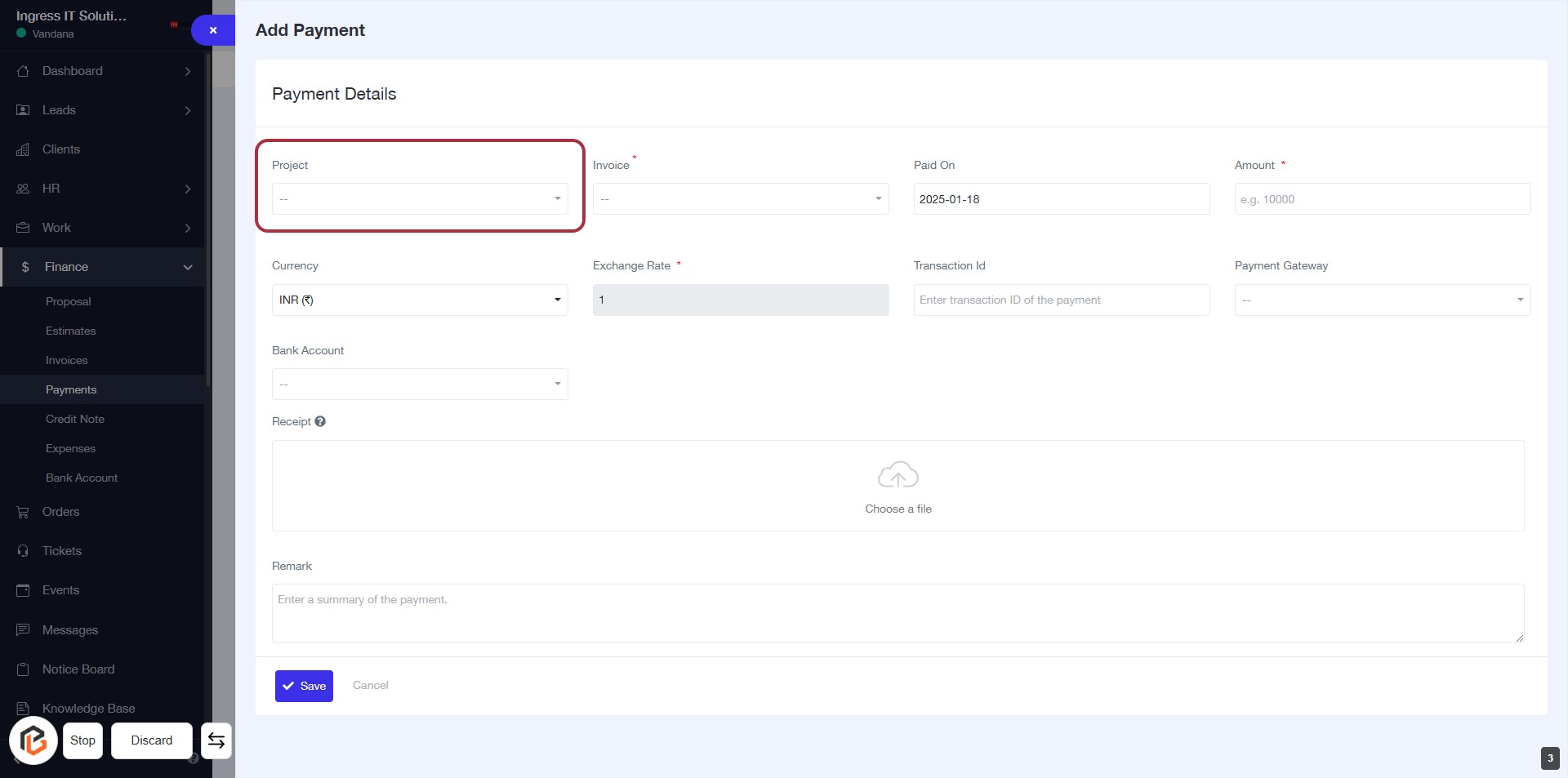
STEP 4: Select "Project"
- Click on the "Project" dropdown in the Payment Details section.
- Choose the relevant project from the list that appears.
- Ensure that the selected project aligns with the payment being processed.
- Proceed to the next step by selecting "Invoice."
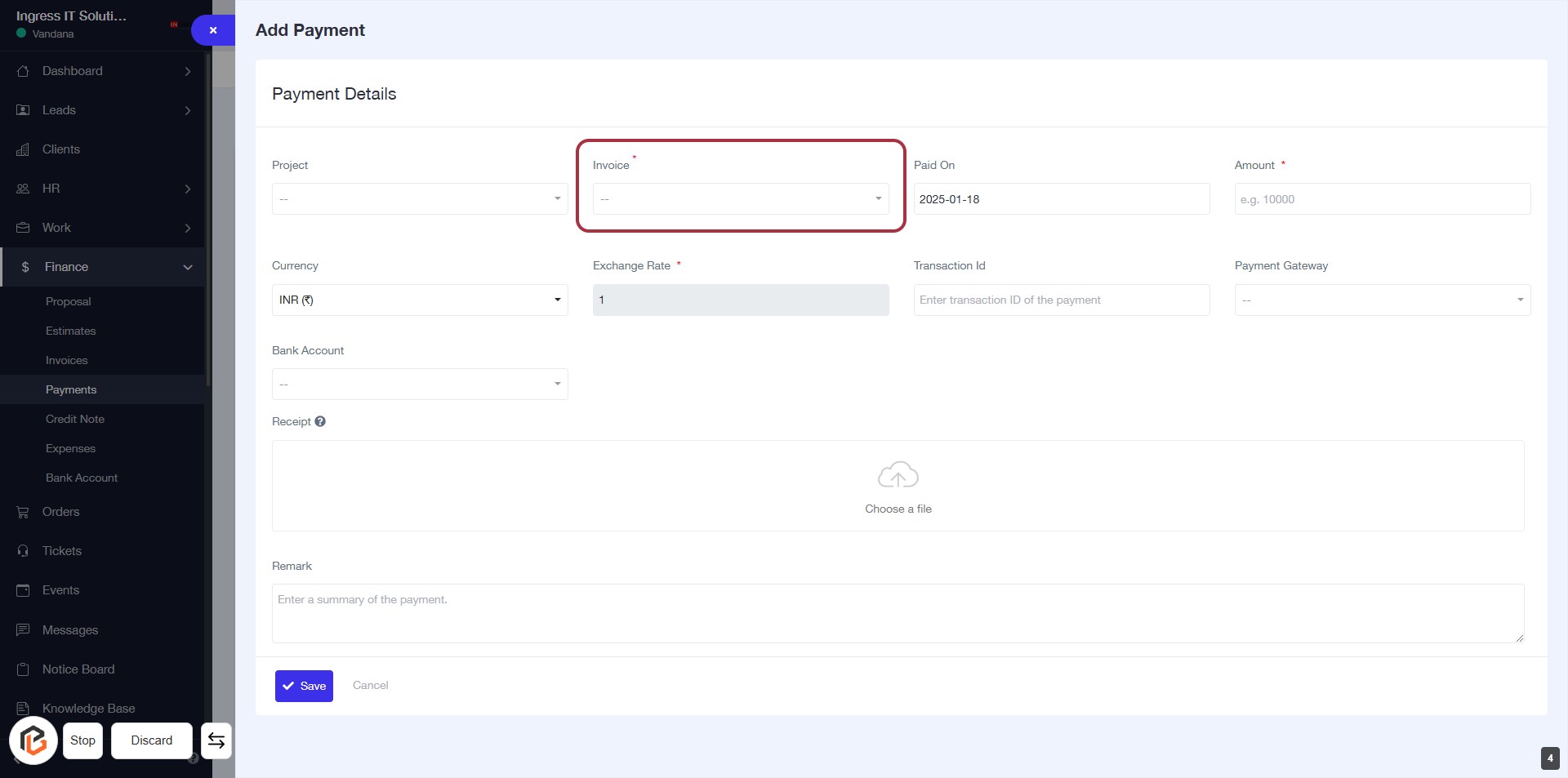
STEP 5: Select "Invoice"
- Click on the "Invoice" field to choose an invoice from the dropdown.
- Ensure the field marked with an asterisk (*) is filled, as it is required.
- After selecting, proceed to the next step by selecting "Paid On".
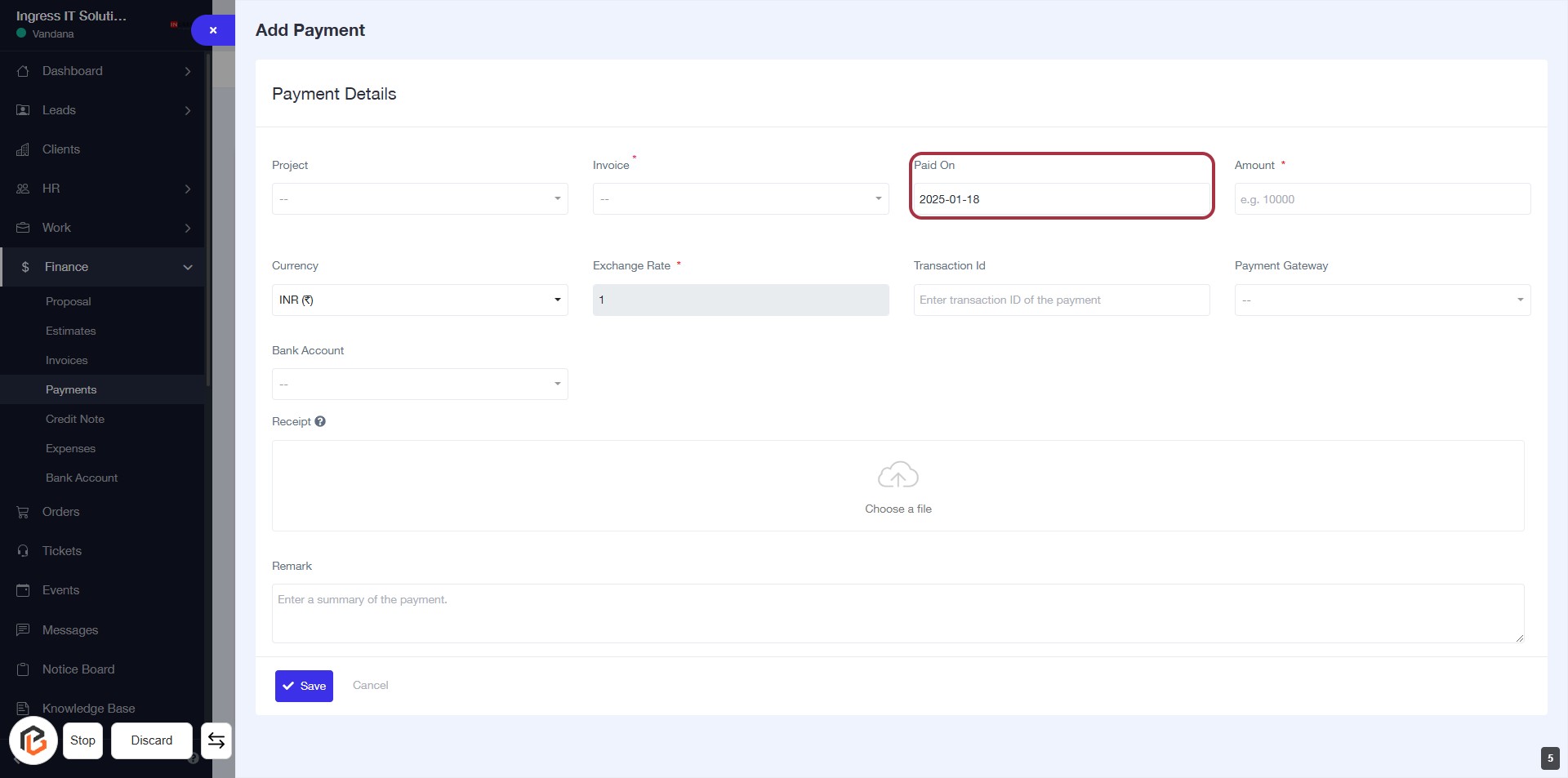
STEP 6: Select "Paid On" Date
- Click on the "Paid On" field to select the date.
- Ensure the date format is correct (YYYY-MM-DD).
- This field is required; make sure to fill it before proceeding.
- After selecting the date, continue to the next step to enter the "Amount".
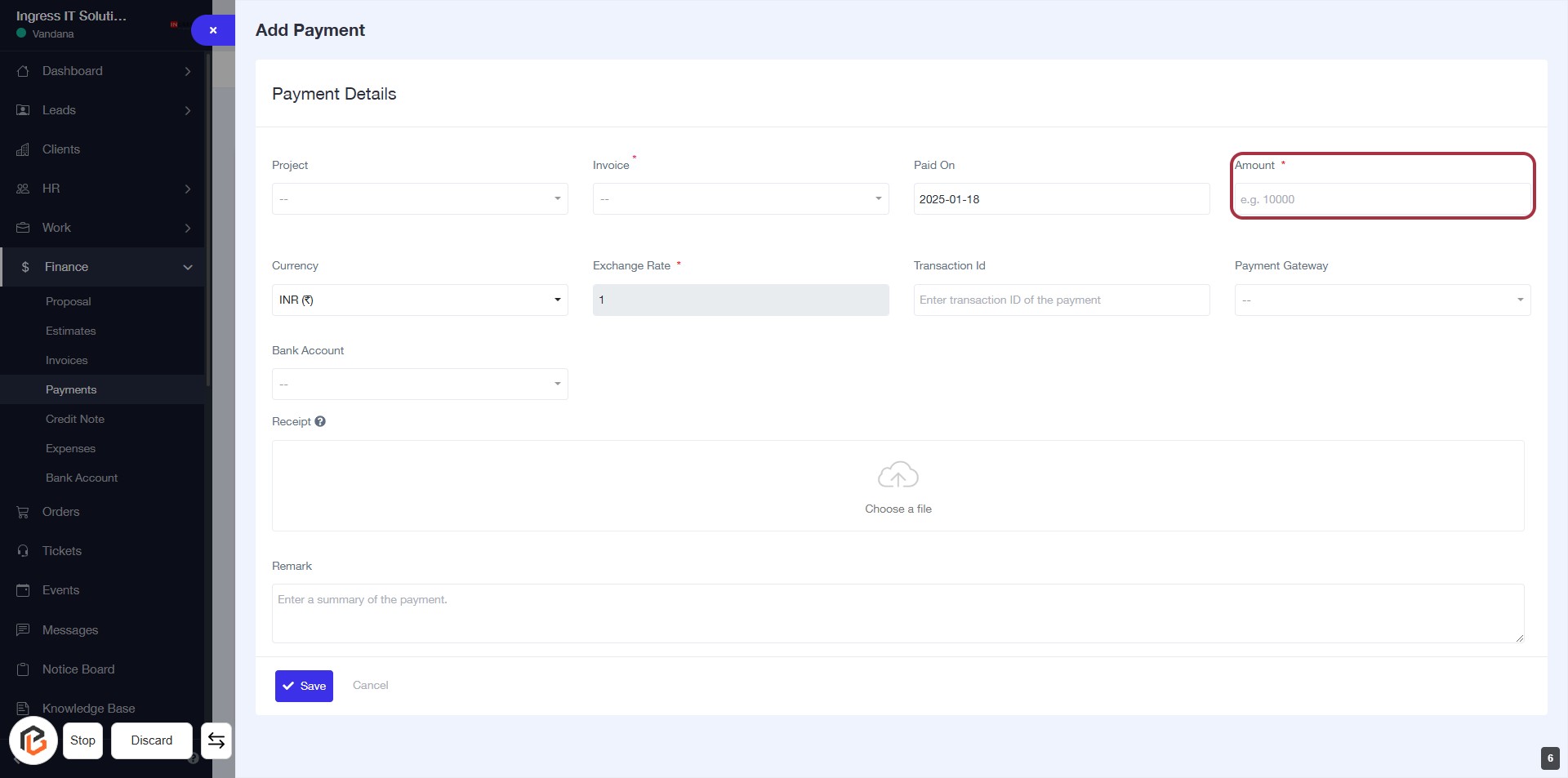
STEP 7: Enter "Amount"
- Click on the "Amount" field (marked with an asterisk) to input the payment amount.
- Ensure the amount is entered in the correct format (e.g., 10000).
- This field is mandatory, so do not leave it blank.
- Proceed to the next step by selecting the "Currency" option.
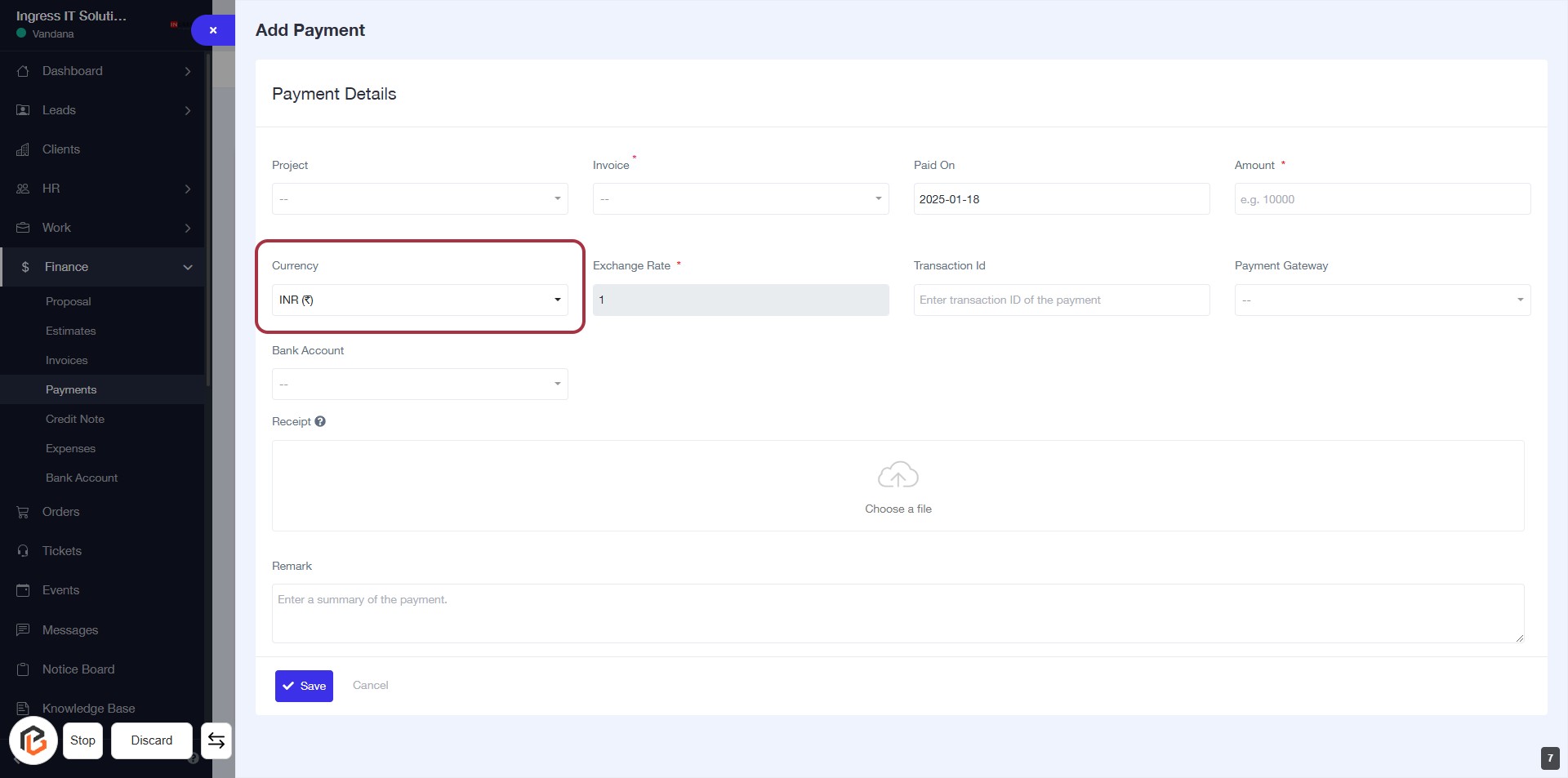
STEP 8: Select "Currency"
- Click on the "Currency" dropdown to choose your desired currency.
- Ensure that the currency selection is relevant to your payment.
- Look for any required fields marked with an asterisk (*) to complete the form accurately.
- Proceed to the next step by entering the "Transaction Id."
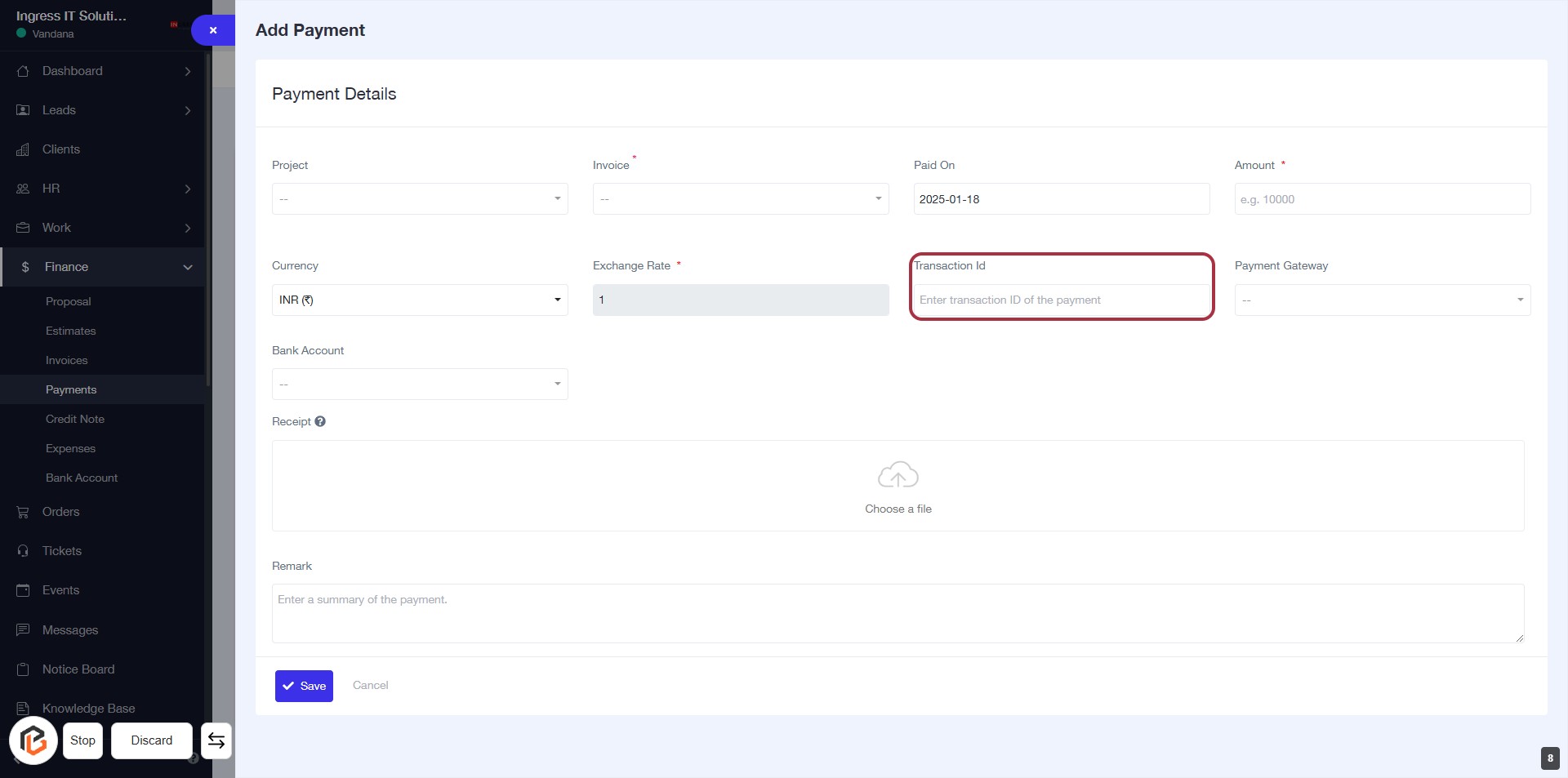
STEP 9: Enter "Transaction Id"
- Click on the "Transaction Id" field highlighted in red.
- Enter the transaction ID of the payment in the provided input box.
- Ensure that all required fields marked with an asterisk (*) are filled out before proceeding.
- After entering the transaction ID, you can move to the next step by selecting the "Payment Gateway."
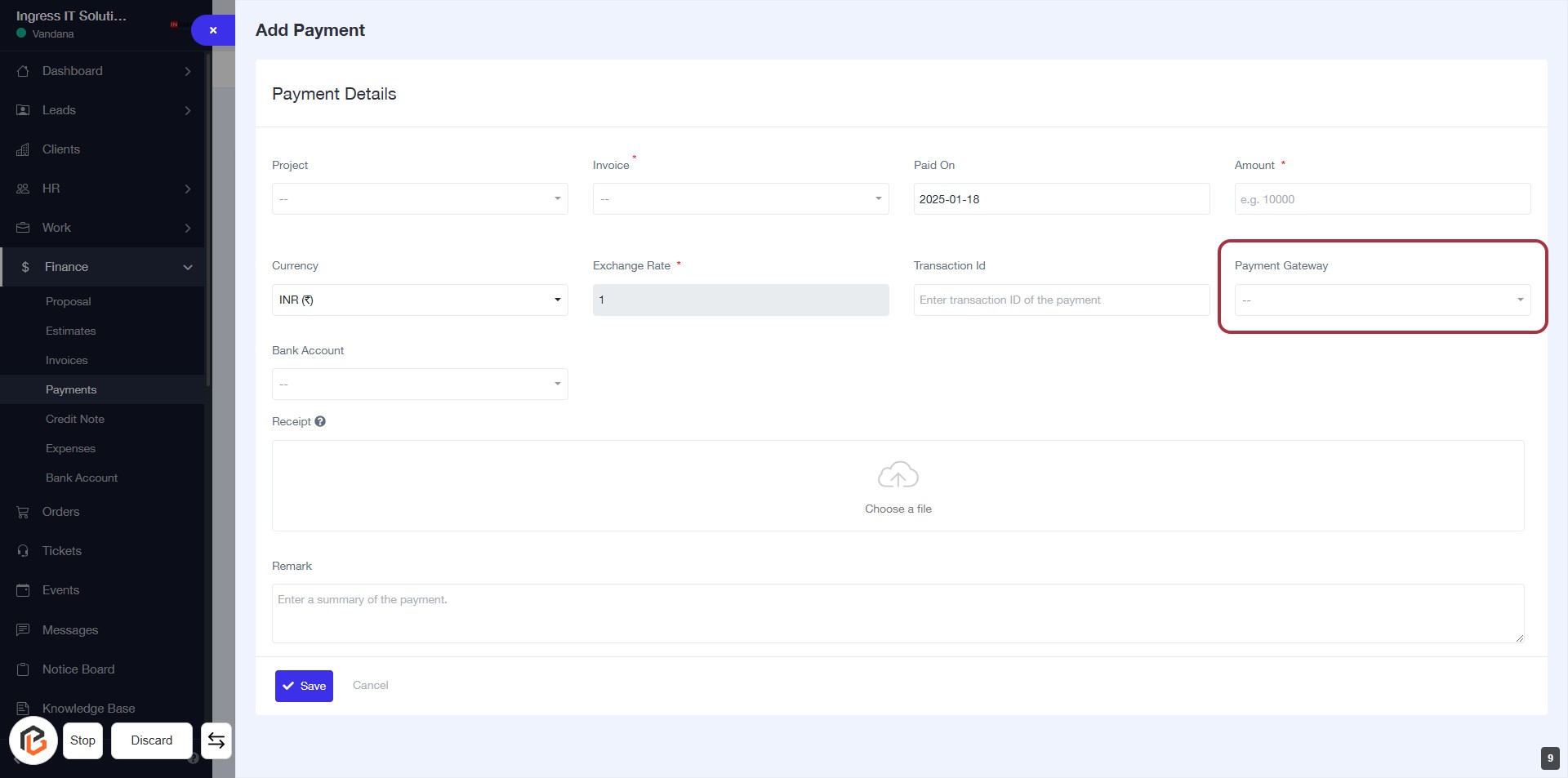
STEP 10: Select "Payment Gateway"
- Click on the "Payment Gateway" dropdown in the form.
- Choose the appropriate payment gateway from the list.
- Ensure all required fields marked with an asterisk (*) are filled out before proceeding.
- Review your selections before moving to the next step.
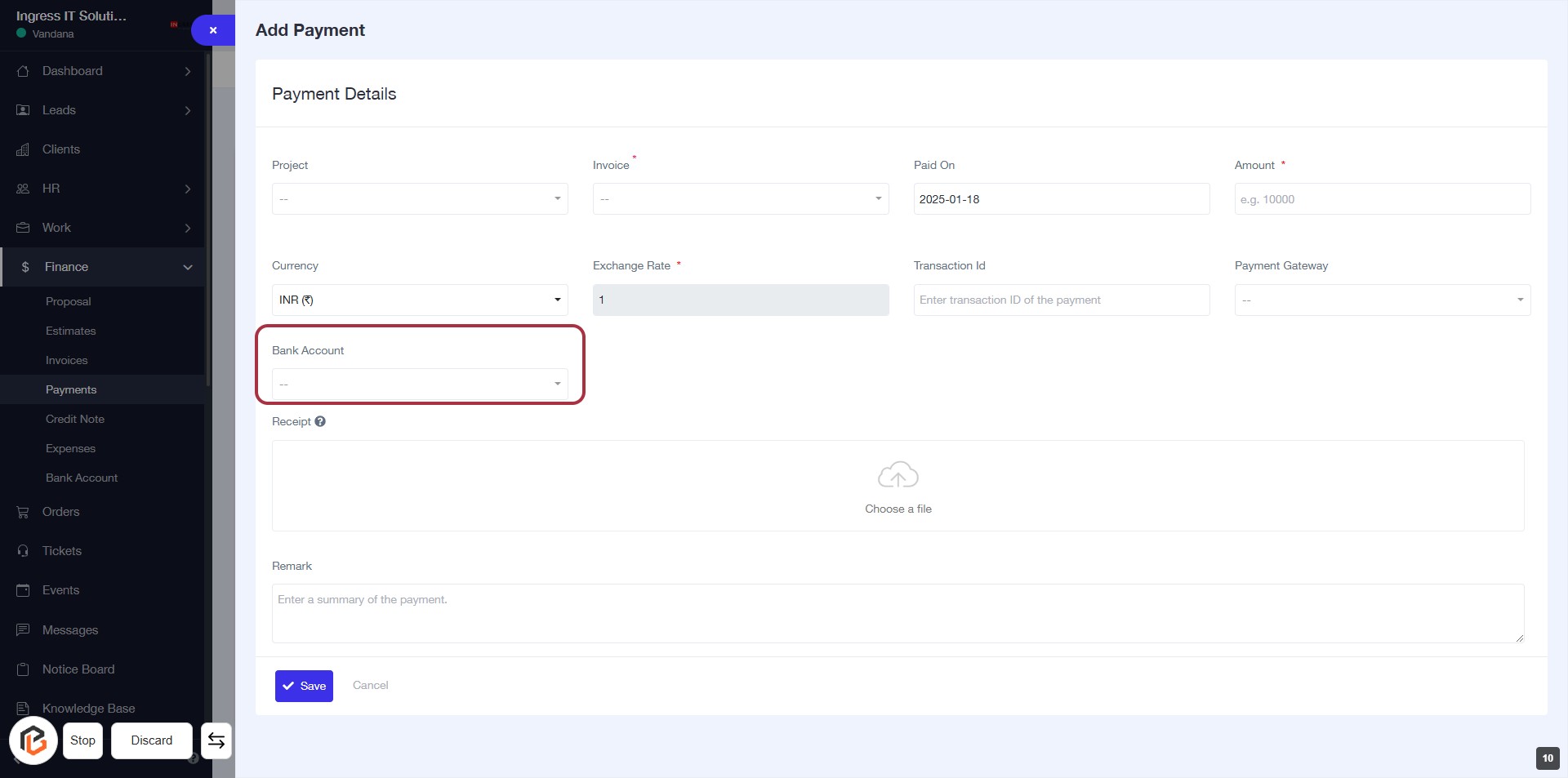
STEP 11: Click "Bank Account" to Select Payment Method
- Navigate to the Payment Details section.
- Click on the Bank Account dropdown.
- Select your desired bank account from the list.
- Ensure all required fields marked with an asterisk (*) are filled out.
- Proceed to the next step by adding the Receipt.
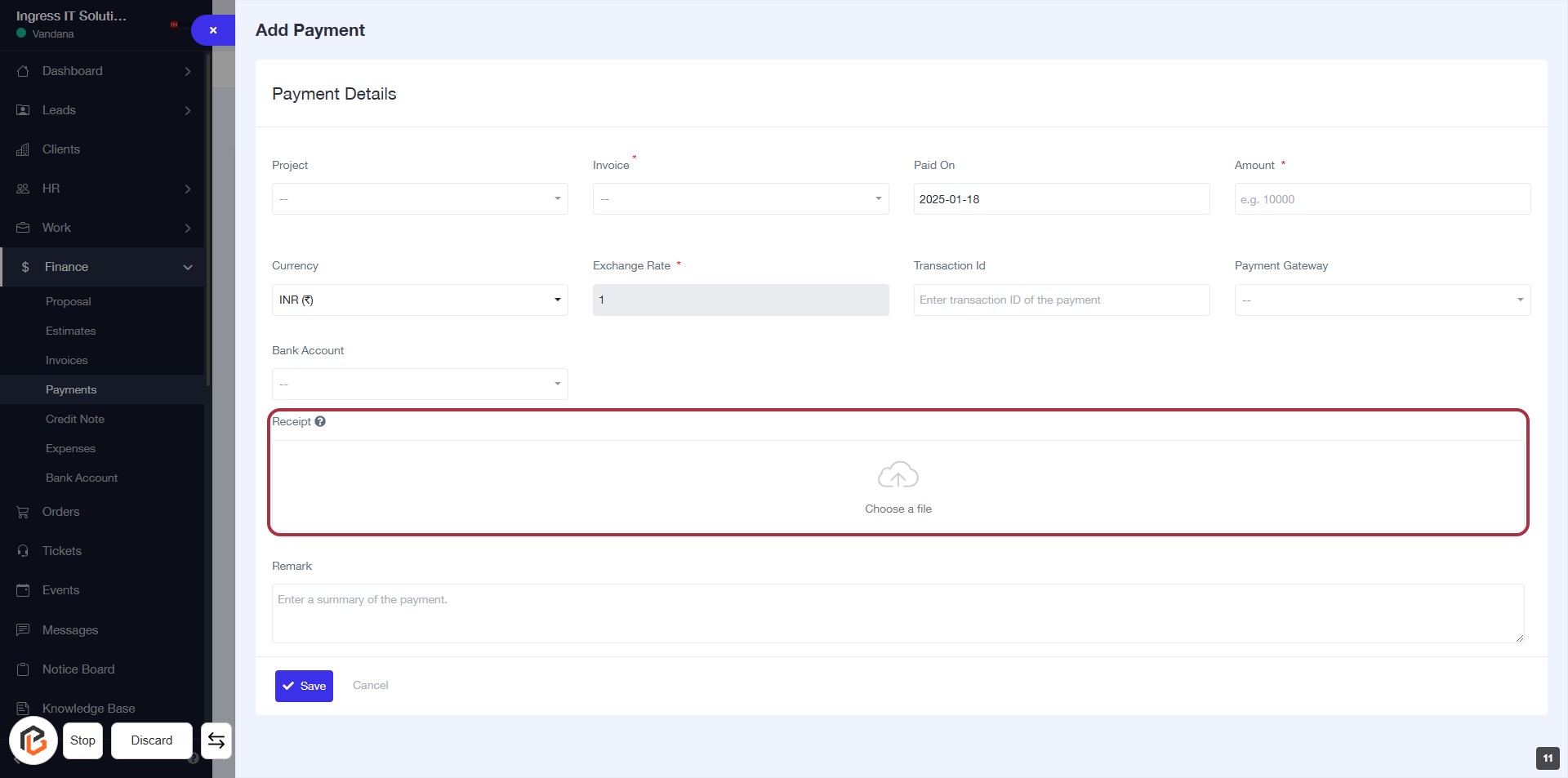
STEP 12: Click to Upload Receipt
- Click on the highlighted area labeled "Receipt" to upload your file.
- Ensure the file you choose is relevant to the payment.
- This field may be required based on your organization's policy.
- After uploading, proceed to the next step to add a "Remark."
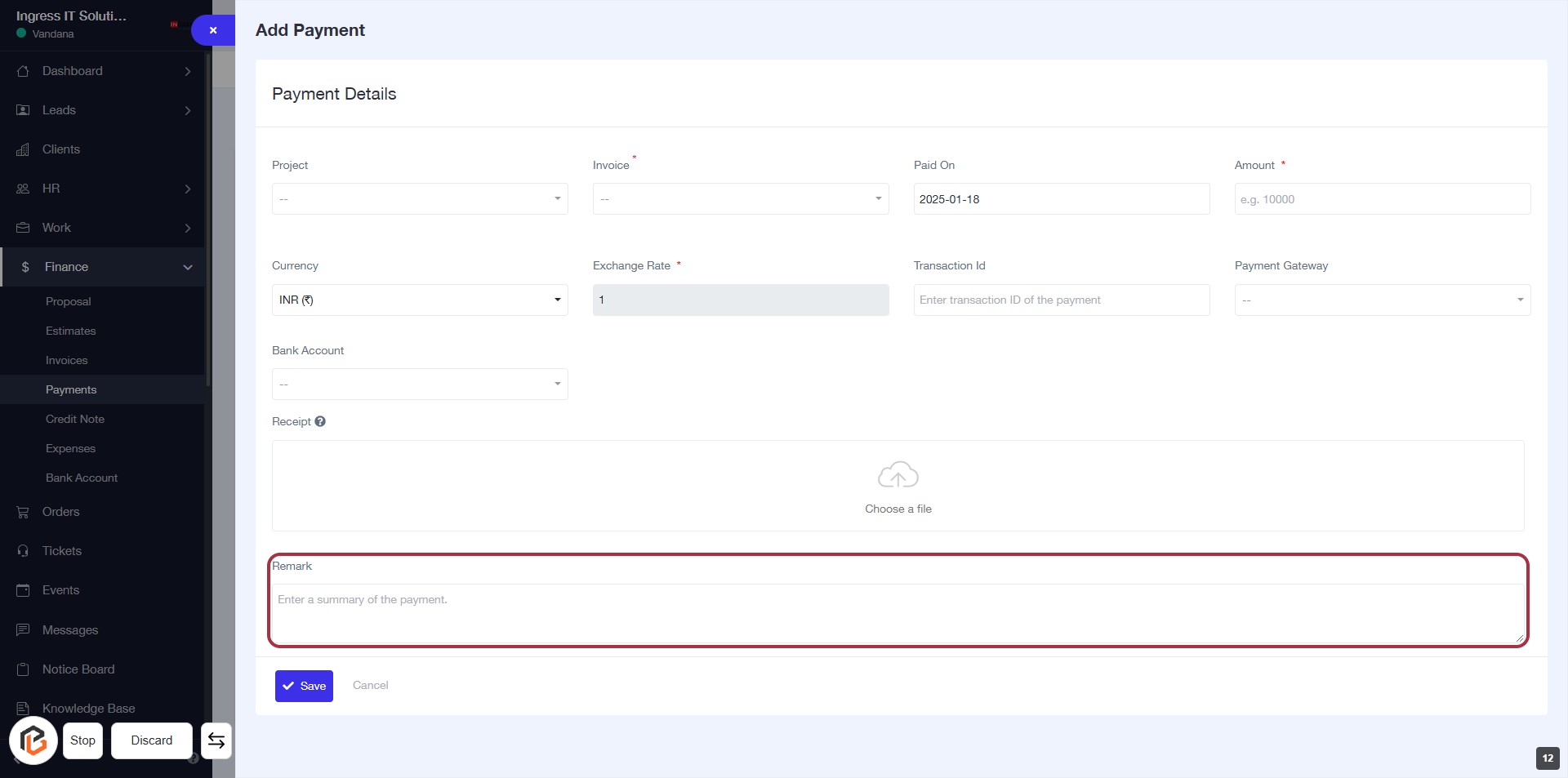
STEP 13: Add "Remark" for Context
- Click on the "Remark" field to enter additional context about the payment.
- This field is optional; you can summarize the payment details here.
- Ensure all mandatory fields marked with an asterisk (*) are filled before proceeding.
- After entering the remark, continue to the next step by clicking the "Save" button.
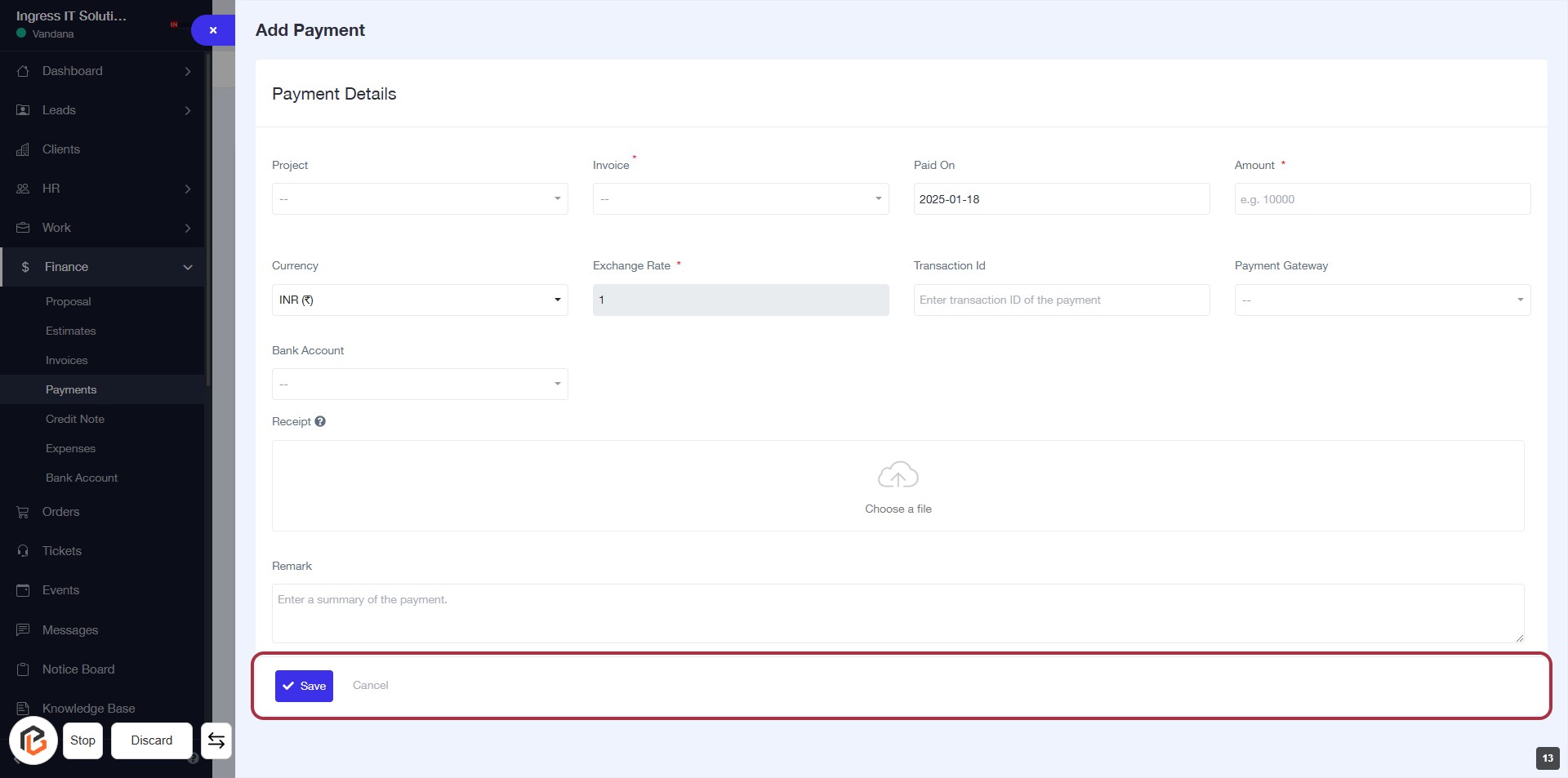
STEP 14: Click on "Save" to Finalize Payment Details
- Ensure all required fields are filled out, marked with an asterisk (*).
- Review the "Remark" section for any additional notes.
- Click the Save button at the bottom of the form to submit your payment details.
- If needed, use the Cancel button to discard changes.