Step-by-Step Guide to Adding Expenses on Your Dashboard: From Navigation to Submission
15 mins read · Updated 29 Sep, 2025
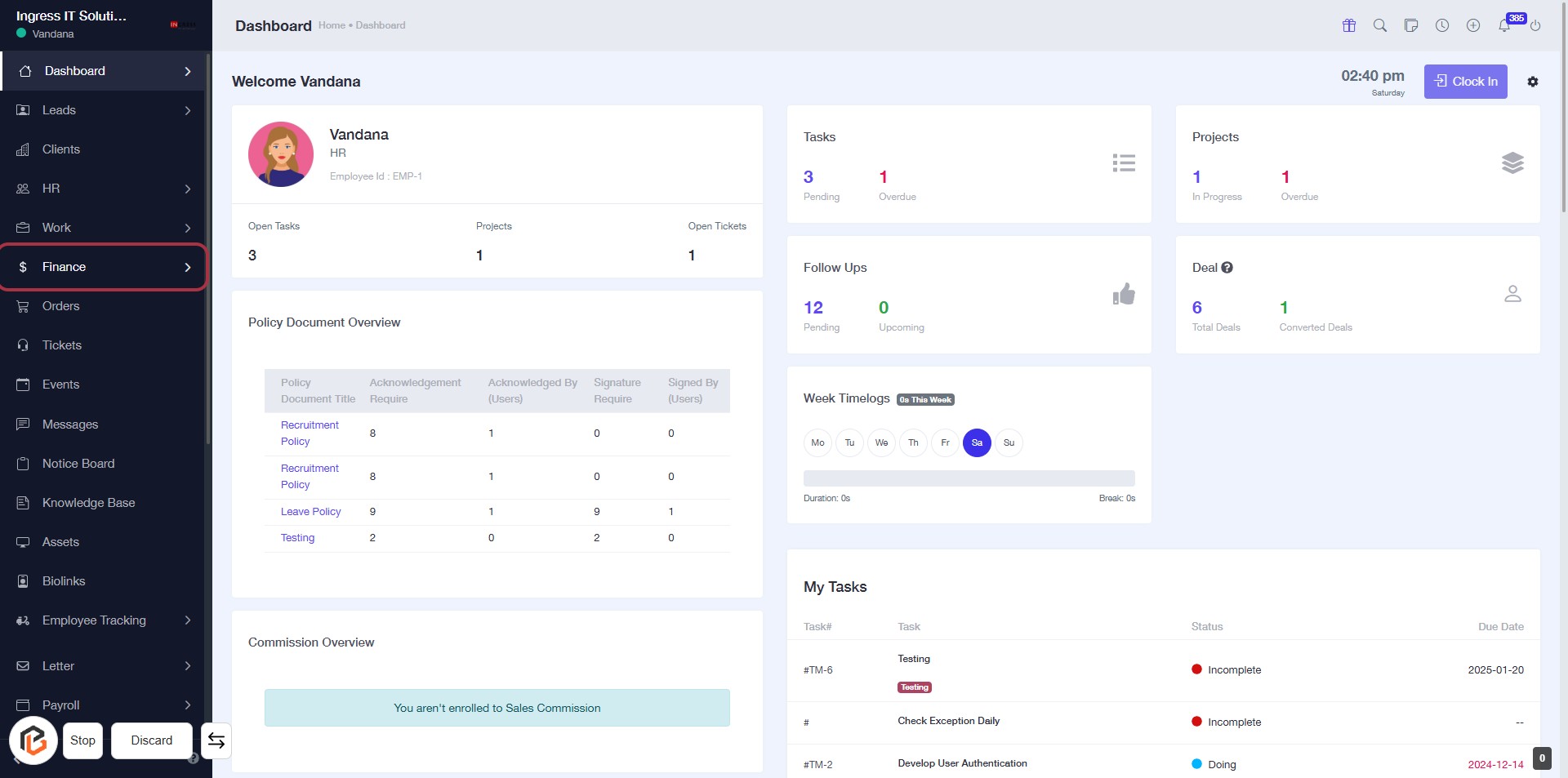
STEP 1: Click on "Finance" to Access Financial Overview
- Navigate to the left sidebar of the dashboard.
- Click on the Finance link to view financial details.
- Ensure you are on the Dashboard page for context.
- This action will lead you to the financial overview section, where you can manage related tasks.
STEP 2: Click on "Expenses" to Access Expense Overview
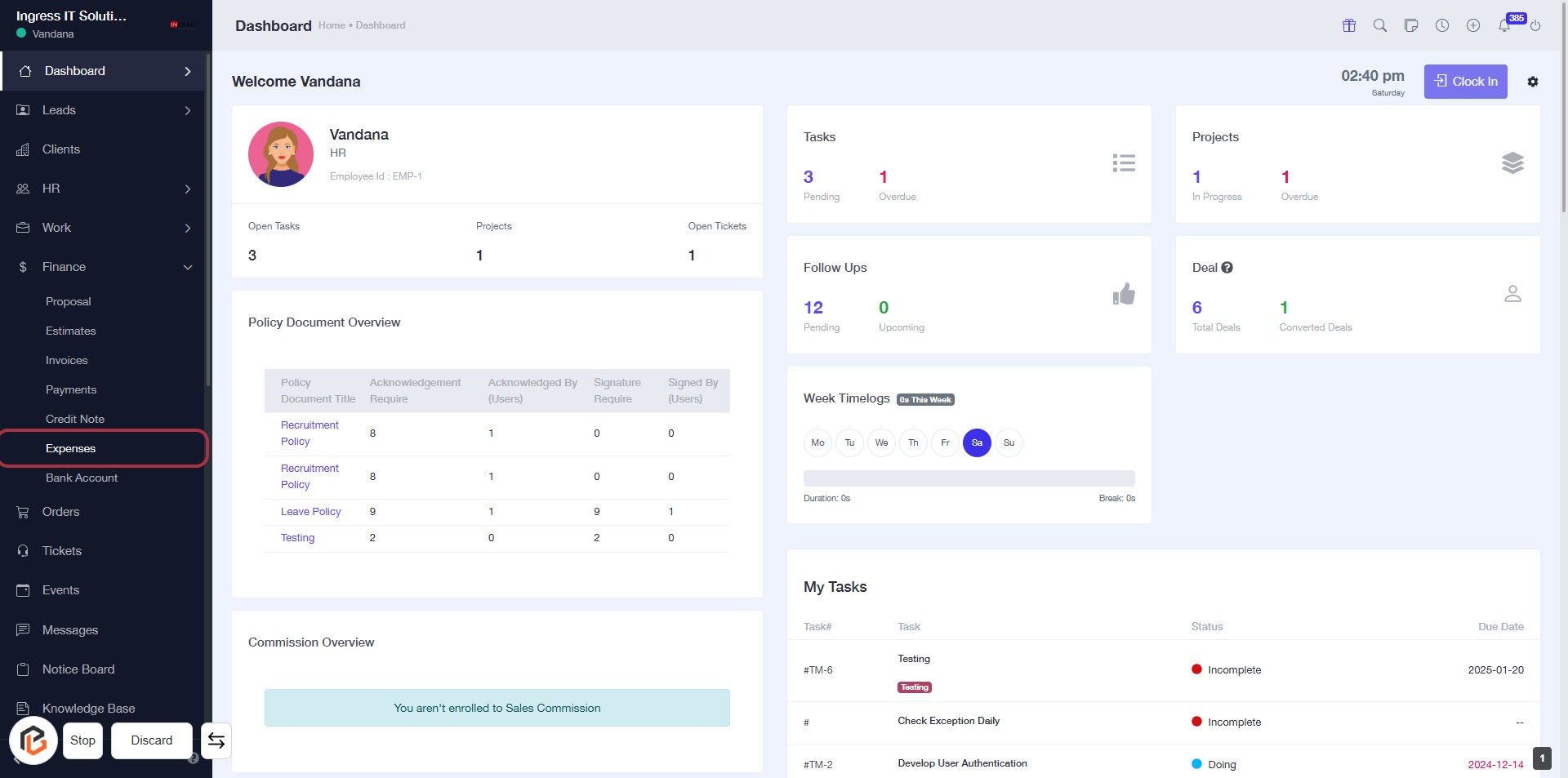
- Click on the "Expenses" link in the sidebar to view the expense details.
- Ensure you are on the dashboard page.
- Look for the highlighted area to confirm your selection.
- After accessing, proceed to click on "Add Expense" for further actions.
STEP 3: Click on "Add Expense"
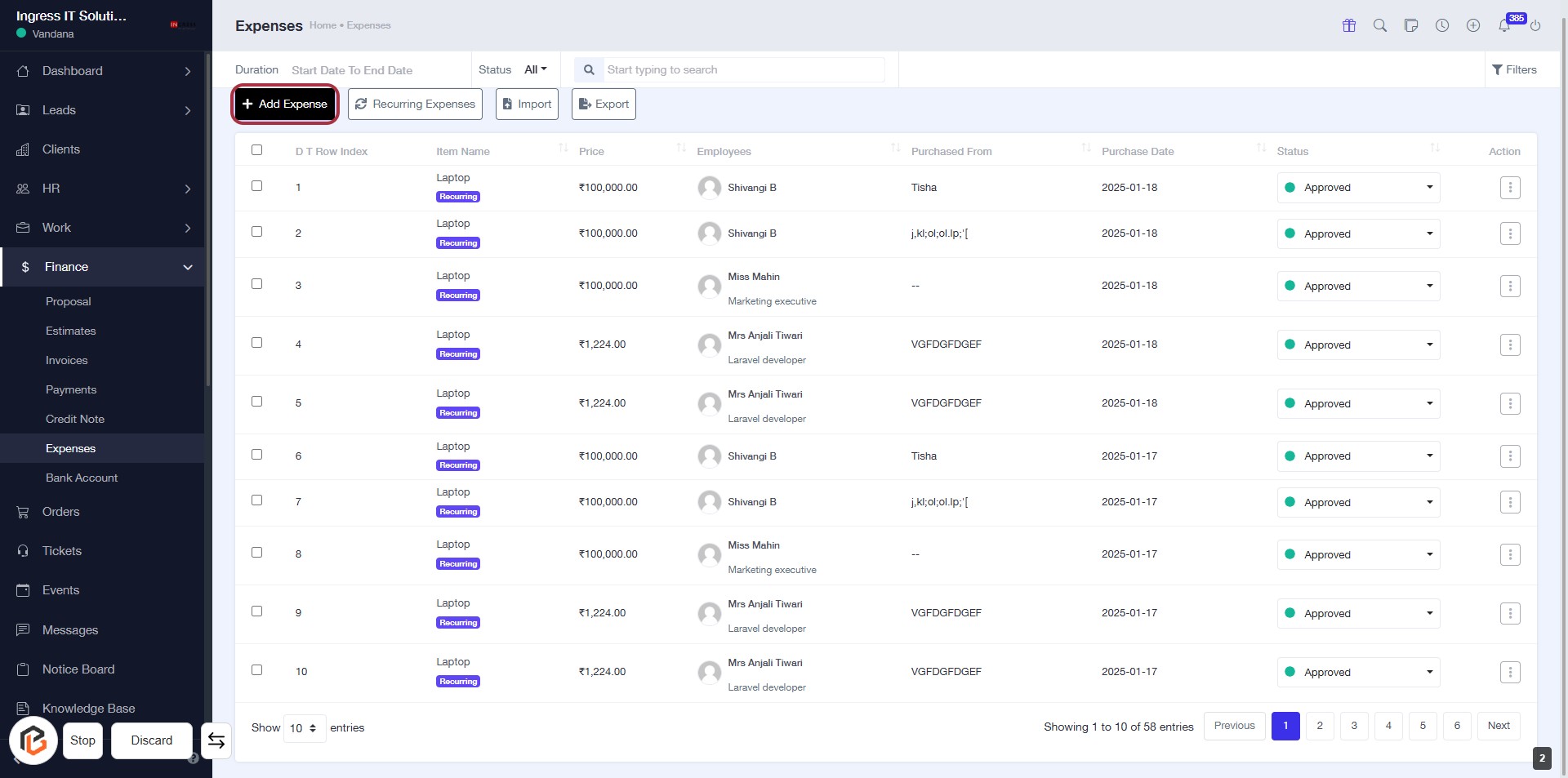
- Navigate to the Expenses section.
- Click on the Add Expense button located at the top left of the expense overview.
- Ensure you are ready to enter details for the new expense in the upcoming form.
- Look for any required fields marked with an asterisk (*) in the next step.
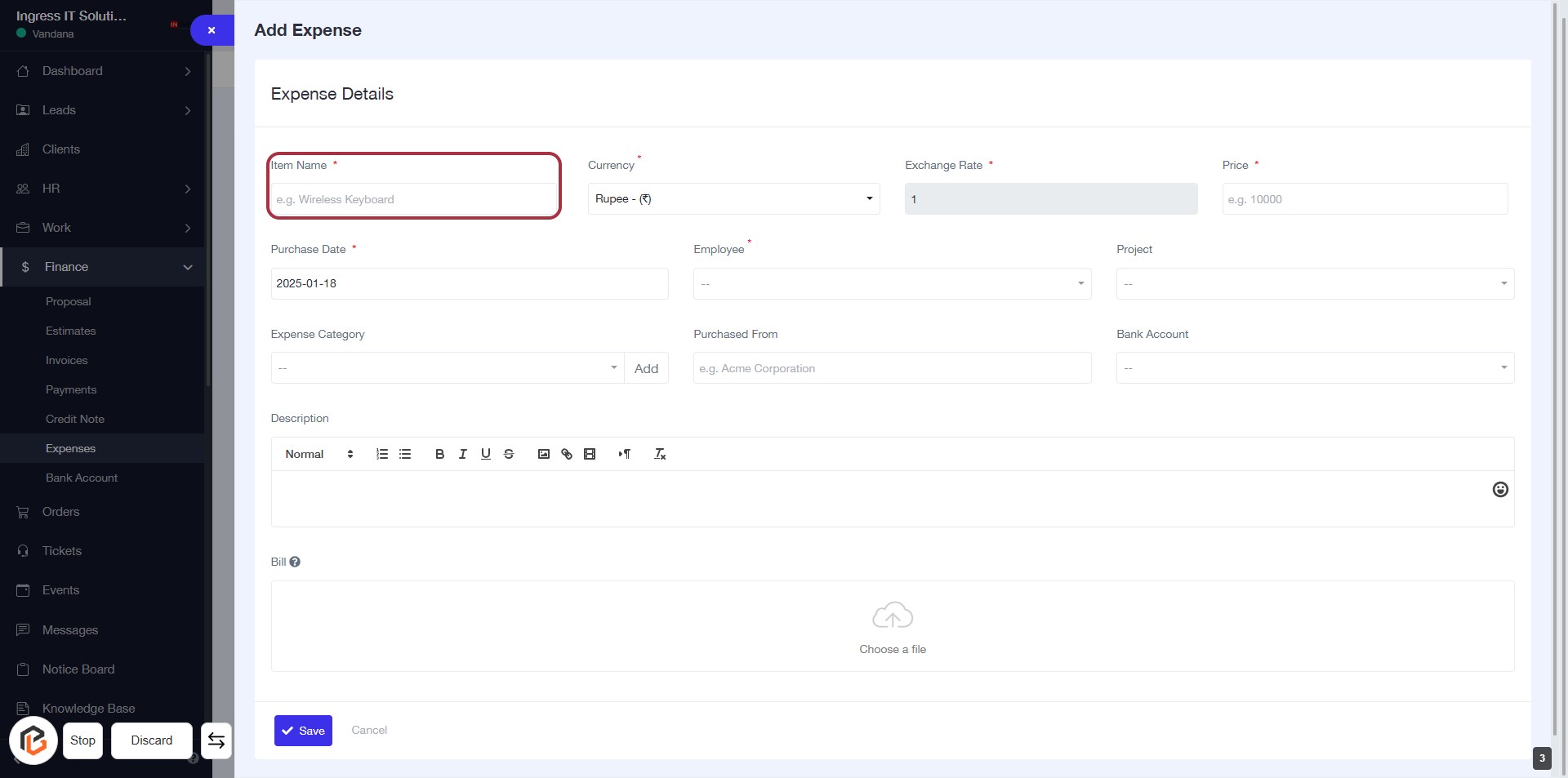
STEP 4: Enter Item Name
- Click on the "Item Name" field (marked with a red border).
- Input the name of the item you are adding as an expense (required field).
- Ensure to follow the example format provided (e.g., Wireless Keyboard).
- Proceed to the next step by selecting "Currency."
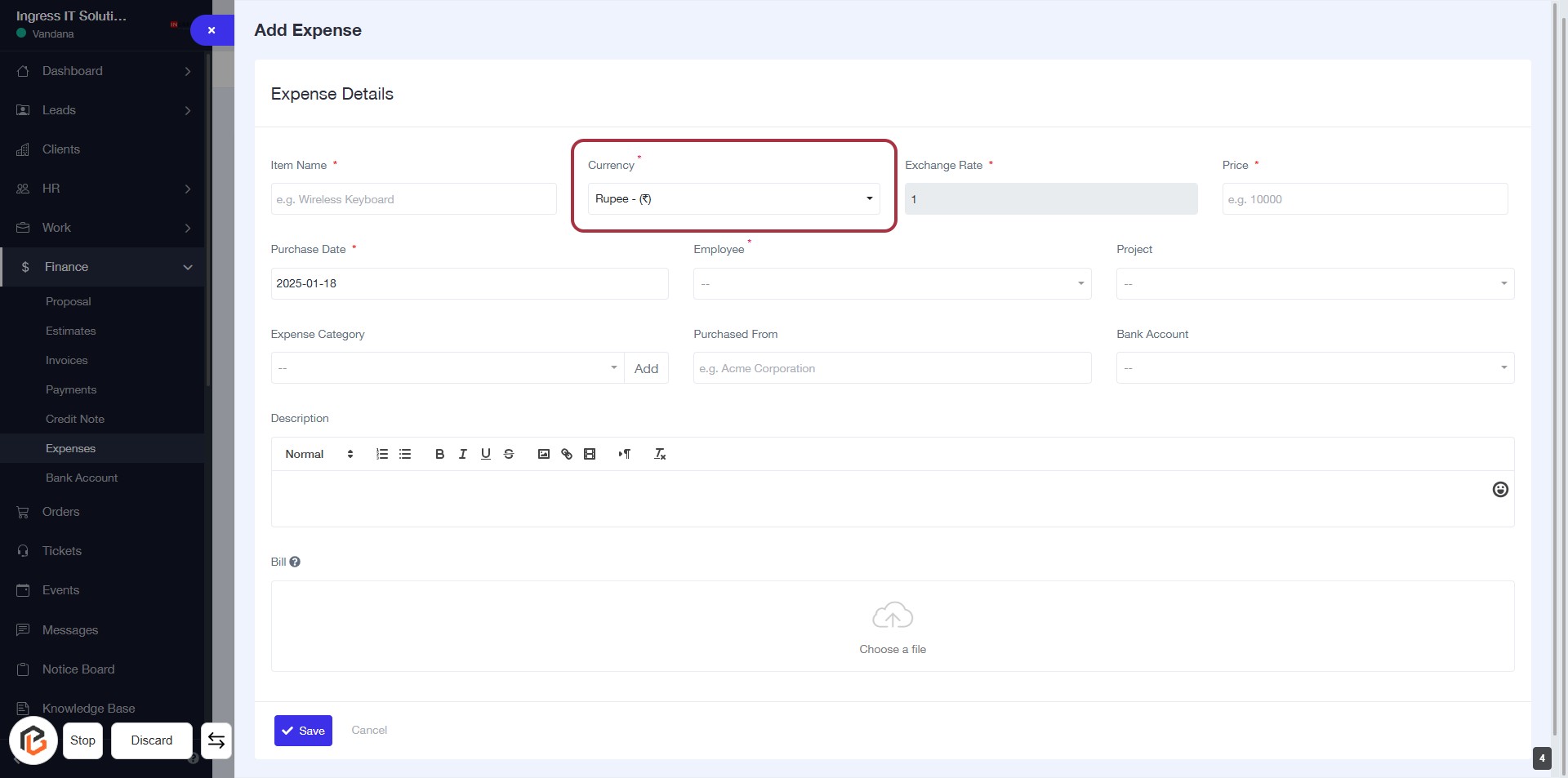
STEP 5: Select Currency
- Click on the "Currency" dropdown to choose the appropriate currency for your expense.
- Ensure that the field marked with an asterisk (*) is filled, as it is required.
- After selecting the currency, proceed to the next step to enter the "Price."
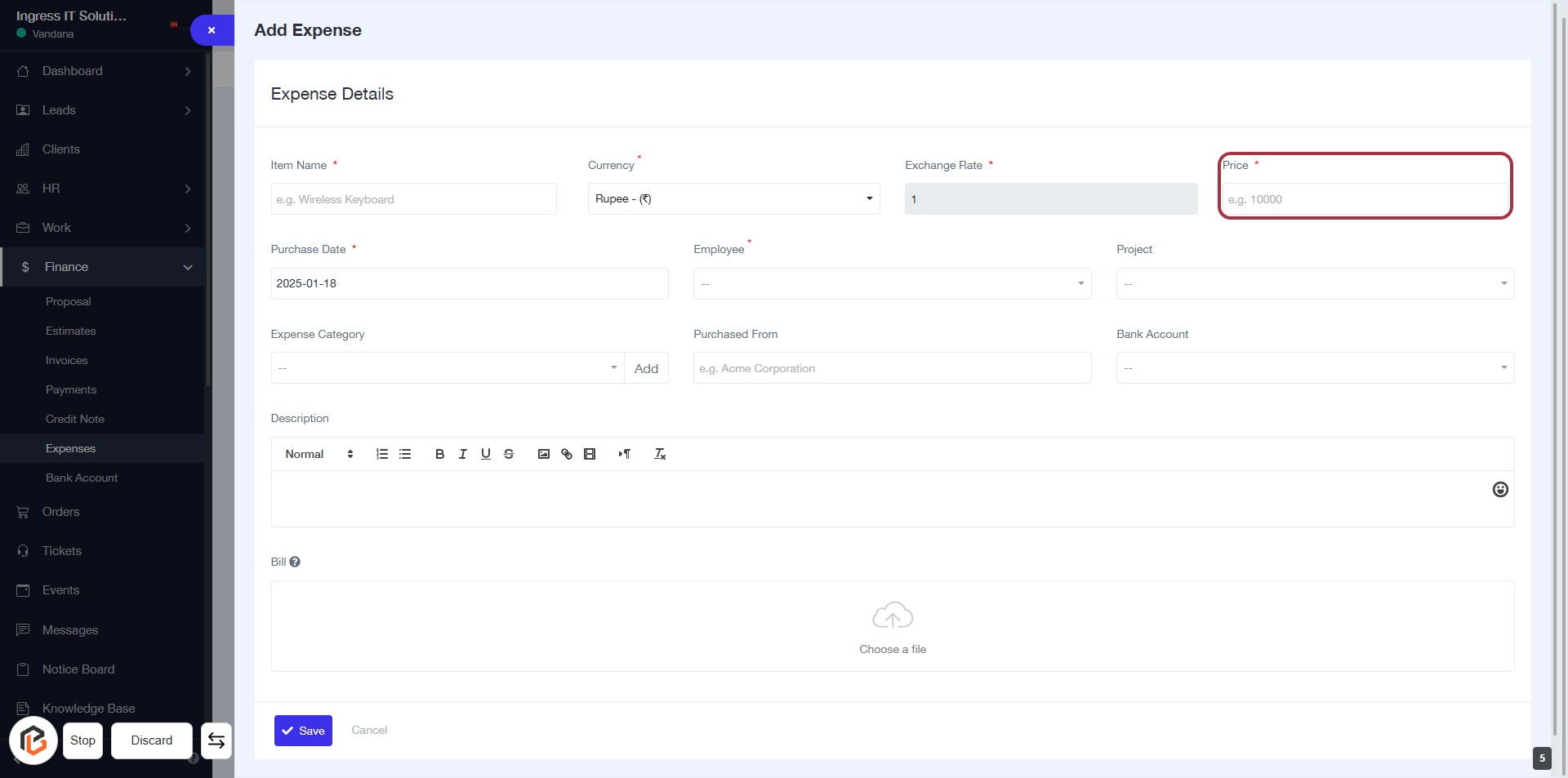
STEP 6: Enter Price for Expense
- Click on the "Price" field (marked with a red border).
- Ensure to enter the amount, as this field is mandatory (indicated by the asterisk *).
- Follow the format provided (e.g., 10000).
- Proceed to the next step by selecting "Purchase Date".
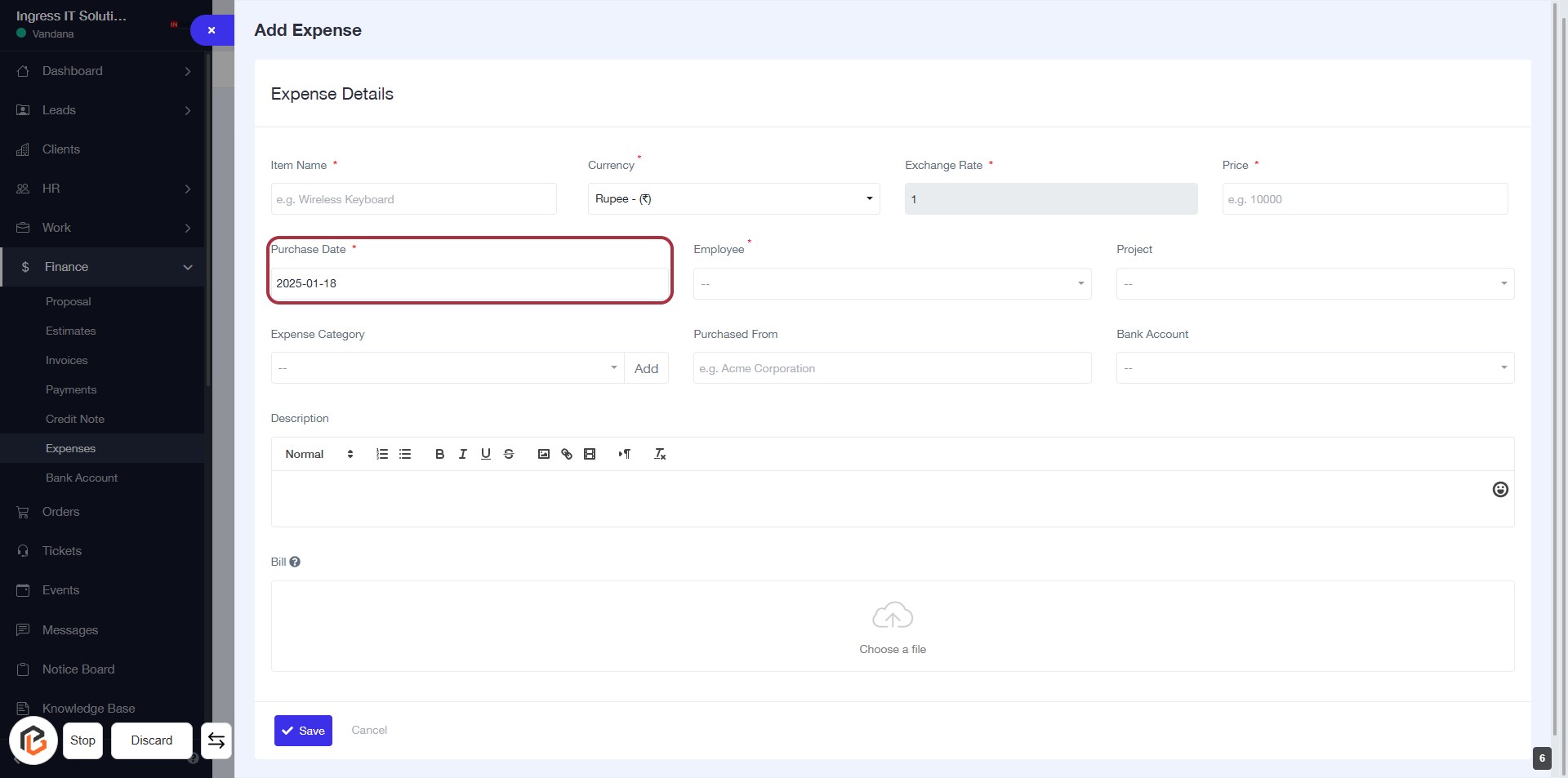
STEP 7: Select "Purchase Date"
- Click on the "Purchase Date" field (marked with an asterisk * for required input).
- Ensure to enter the date in the correct format (YYYY-MM-DD).
- Review other required fields: Item Name, Currency, Exchange Rate, Price, and Employee.
- Proceed to the next step by selecting "Employee".
STEP 8: Select "Employee"
- Click on the "Employee" field highlighted in red.
- Choose the appropriate employee from the dropdown list.
- Ensure the field is marked with an asterisk (*) indicating it is required.
- Proceed to the next step by selecting "Project."
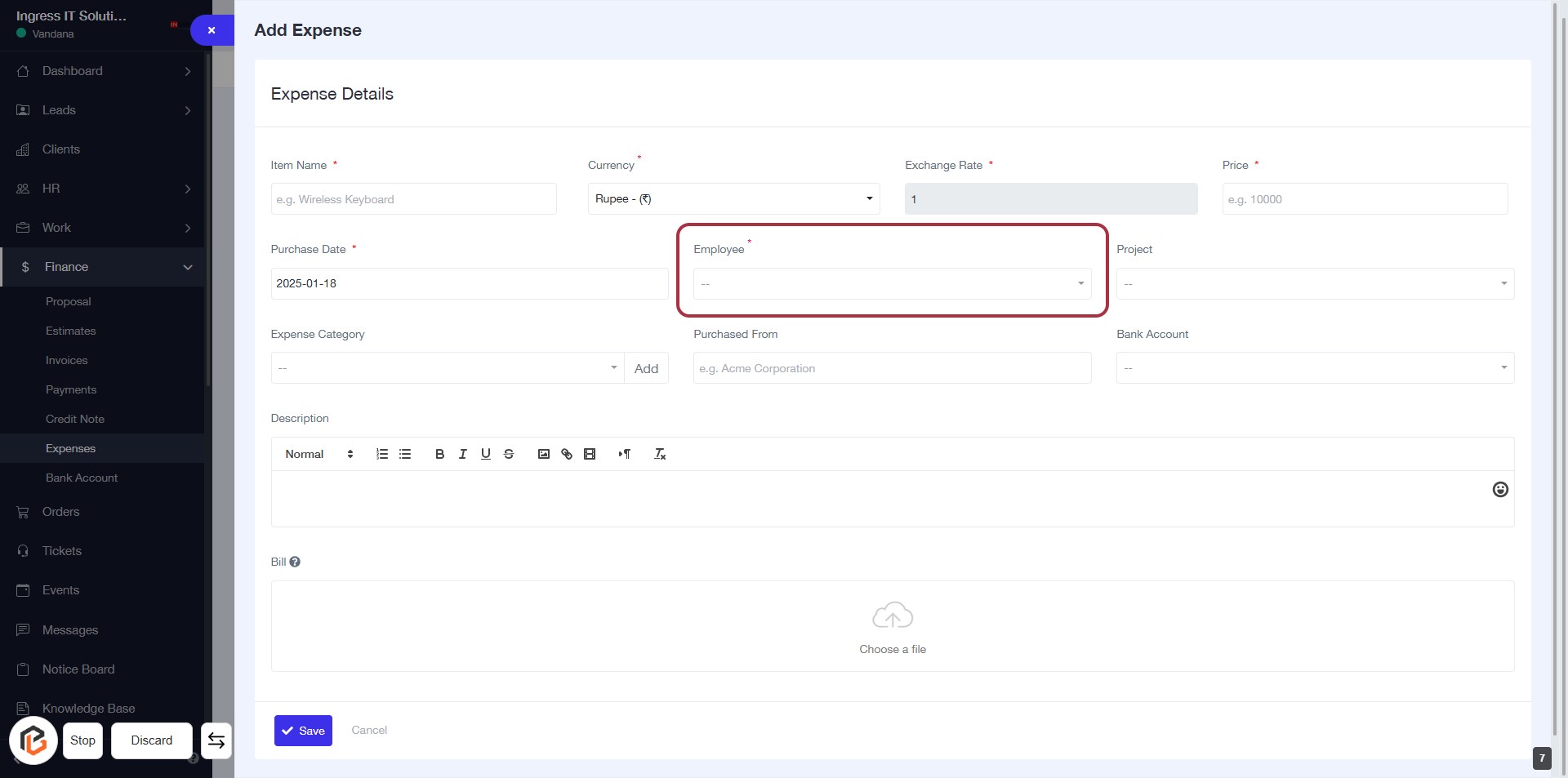
STEP 9: Select "Project"
- Click on the "Project" dropdown in the Expense Details section.
- Choose the appropriate project from the list.
- Ensure all required fields marked with an asterisk (*) are filled out.
- Proceed to the next step by adding the "Expense Category."
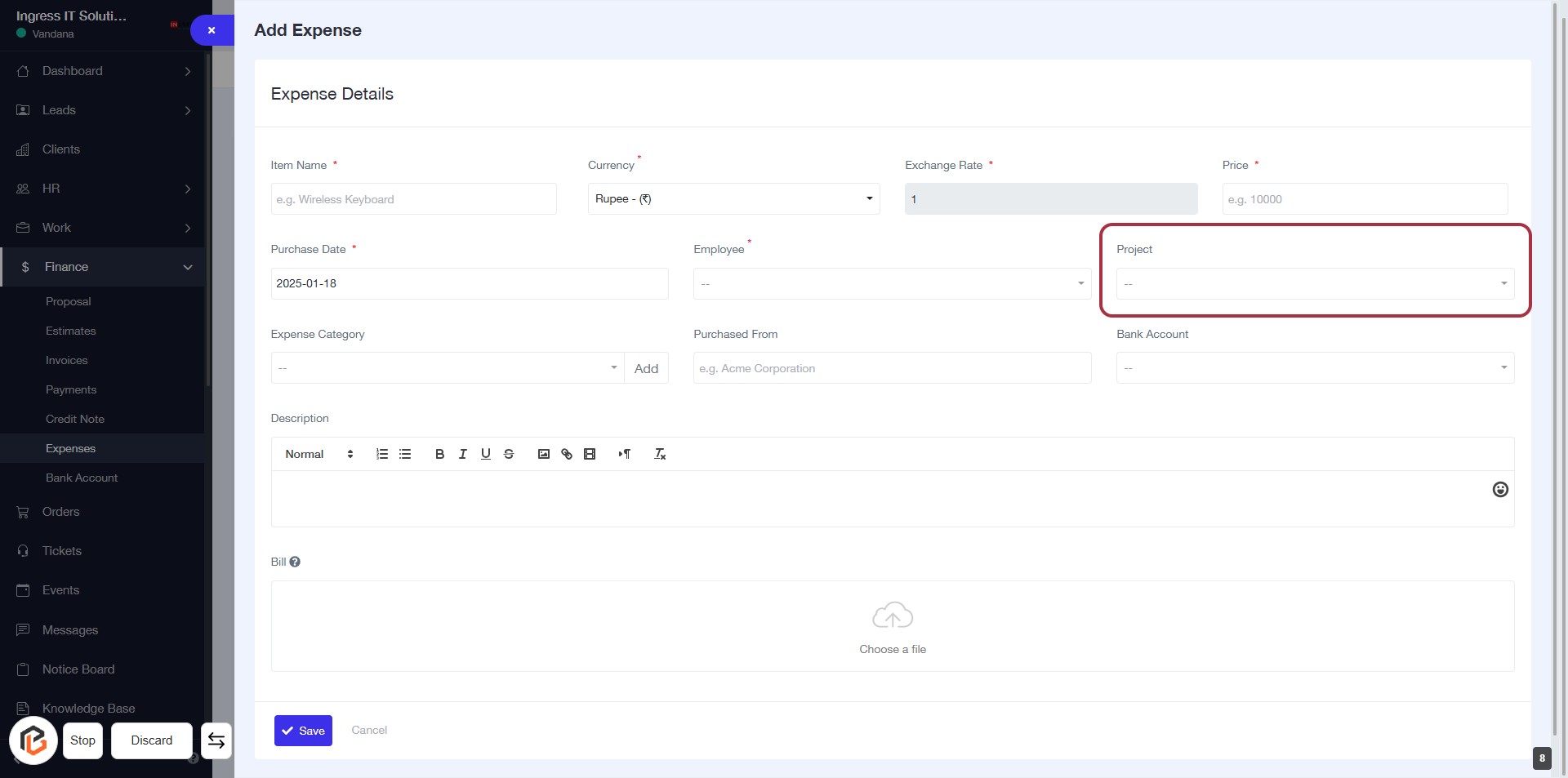
STEP 10: Click "Expense Category" to Add
- Navigate to the Expense Category section in the form.
- Click on the Expense Category field to select or add a category.
- Ensure to fill in any required fields marked with an asterisk (*).
- Proceed to the next step by entering details in the Purchased From field.
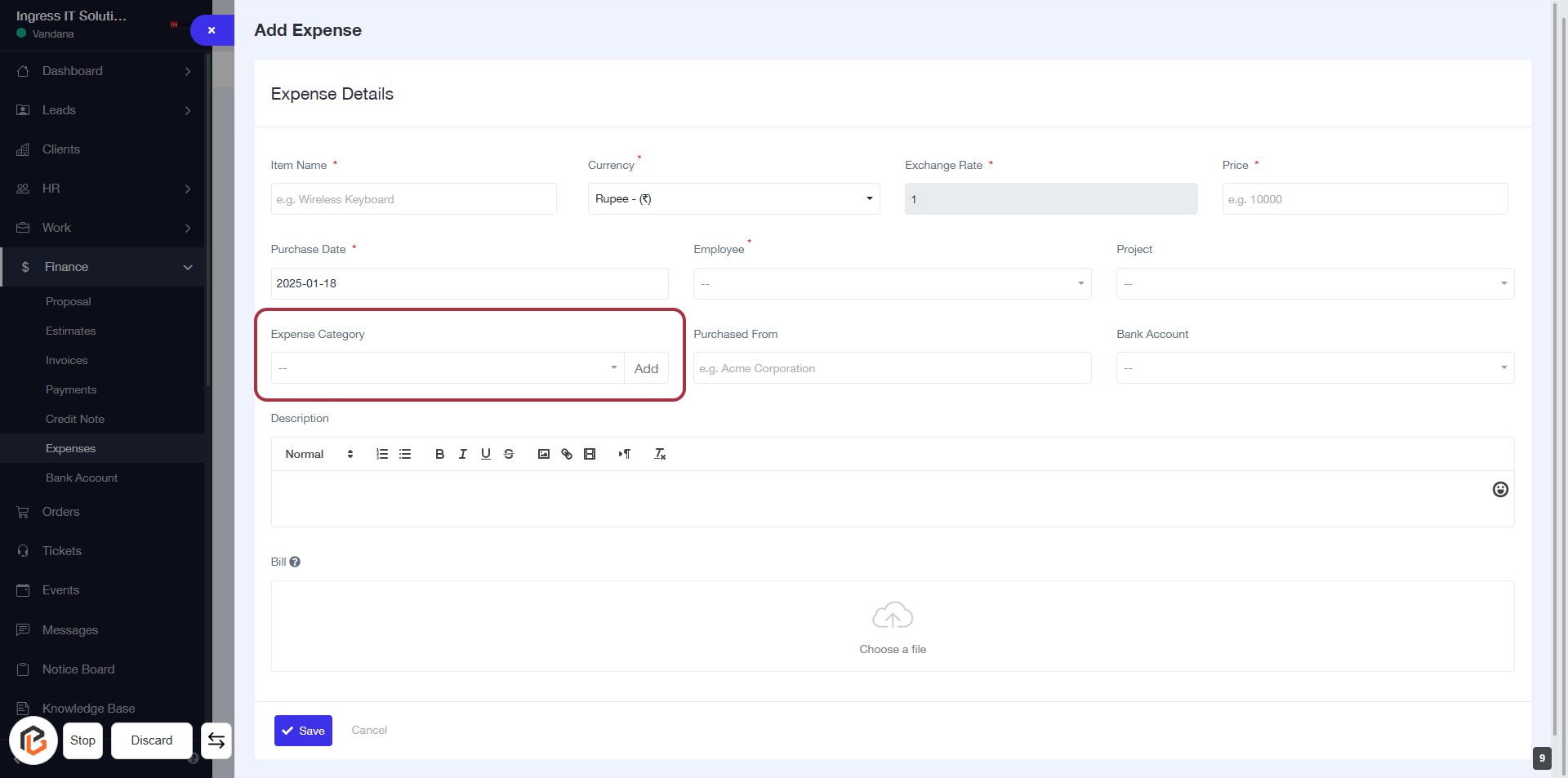
STEP 11: Enter "Purchased From"
- Click on the "Purchased From" field to input the vendor or company name from which the item was purchased.
- Ensure to provide accurate details as this information is essential for expense tracking.
- Look for any optional fields marked with an asterisk (*) for additional details.
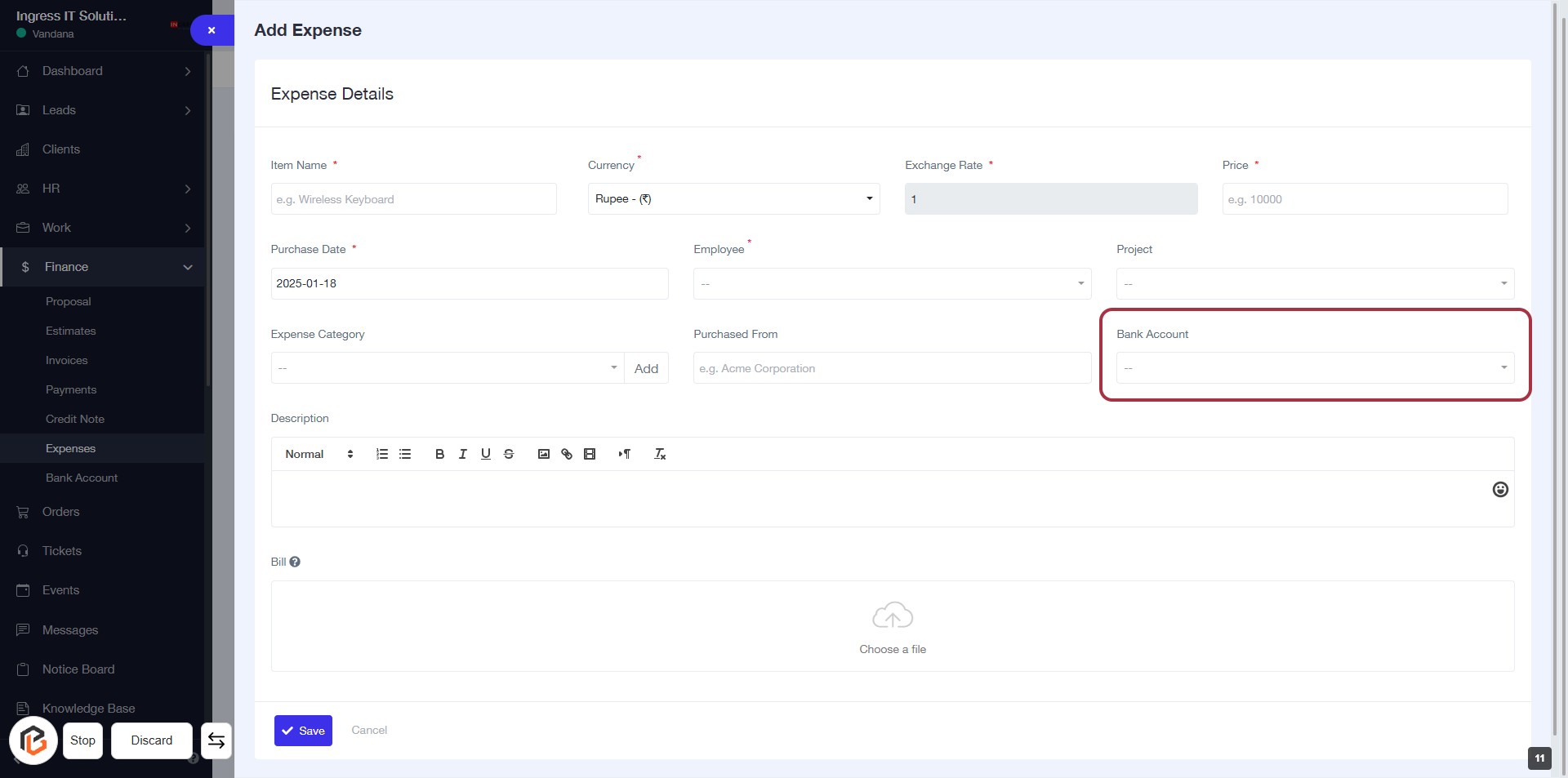
STEP 12: Click "Bank Account"
- Navigate to the "Bank Account" field in the expense form.
- Click on the dropdown to select your desired bank account.
- Ensure all required fields marked with an asterisk (*) are filled out before proceeding.
- After selecting, continue to the next step to write the description.
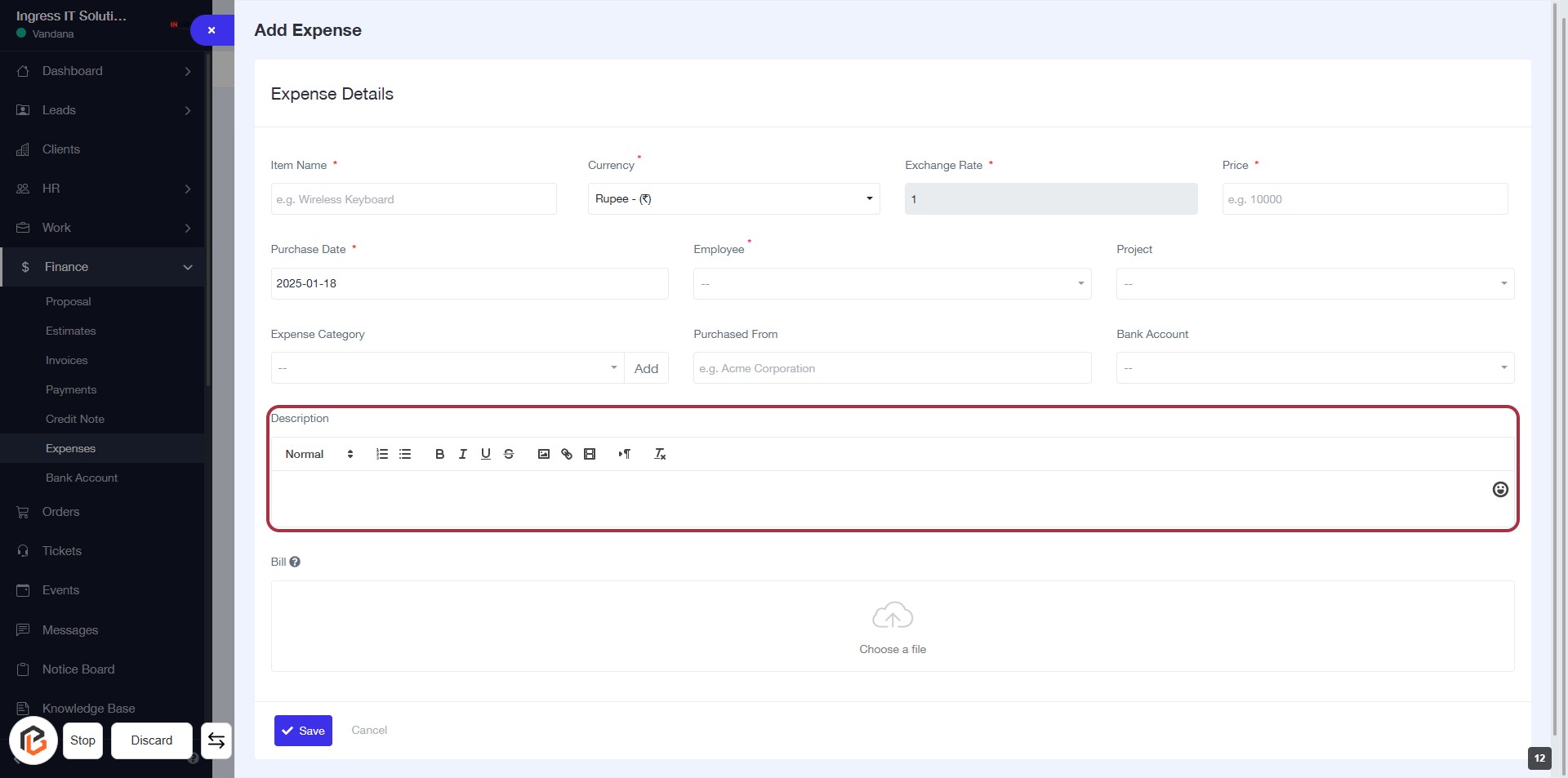
STEP 13: Click "Description" to Add Expense Details
- Navigate to the "Description" field in the expense form.
- Click on the highlighted area to enter details about the expense.
- Ensure to provide a clear and concise description.
- Use formatting options available in the toolbar for better presentation.
- Proceed to the next step to upload a file in the "Bill" section.
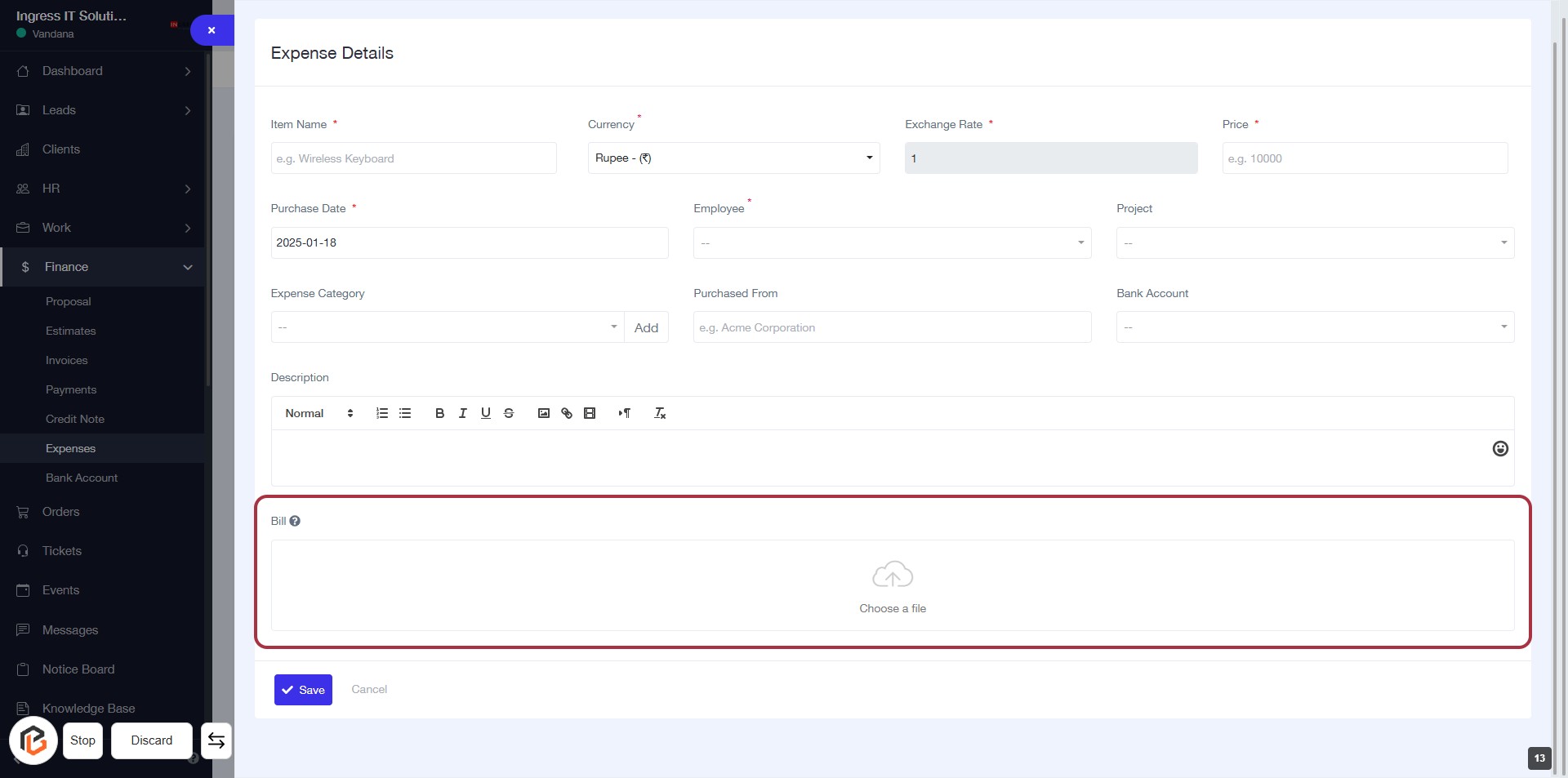
STEP 14: Click to Upload File in "Bill"
- Navigate to the "Bill" section in the Expense Details form.
- Click on the highlighted area labeled "Choose a file" to upload your bill.
- Ensure that the file you wish to upload is ready and accessible.
- After uploading, proceed to the next step by clicking the "Save" button.
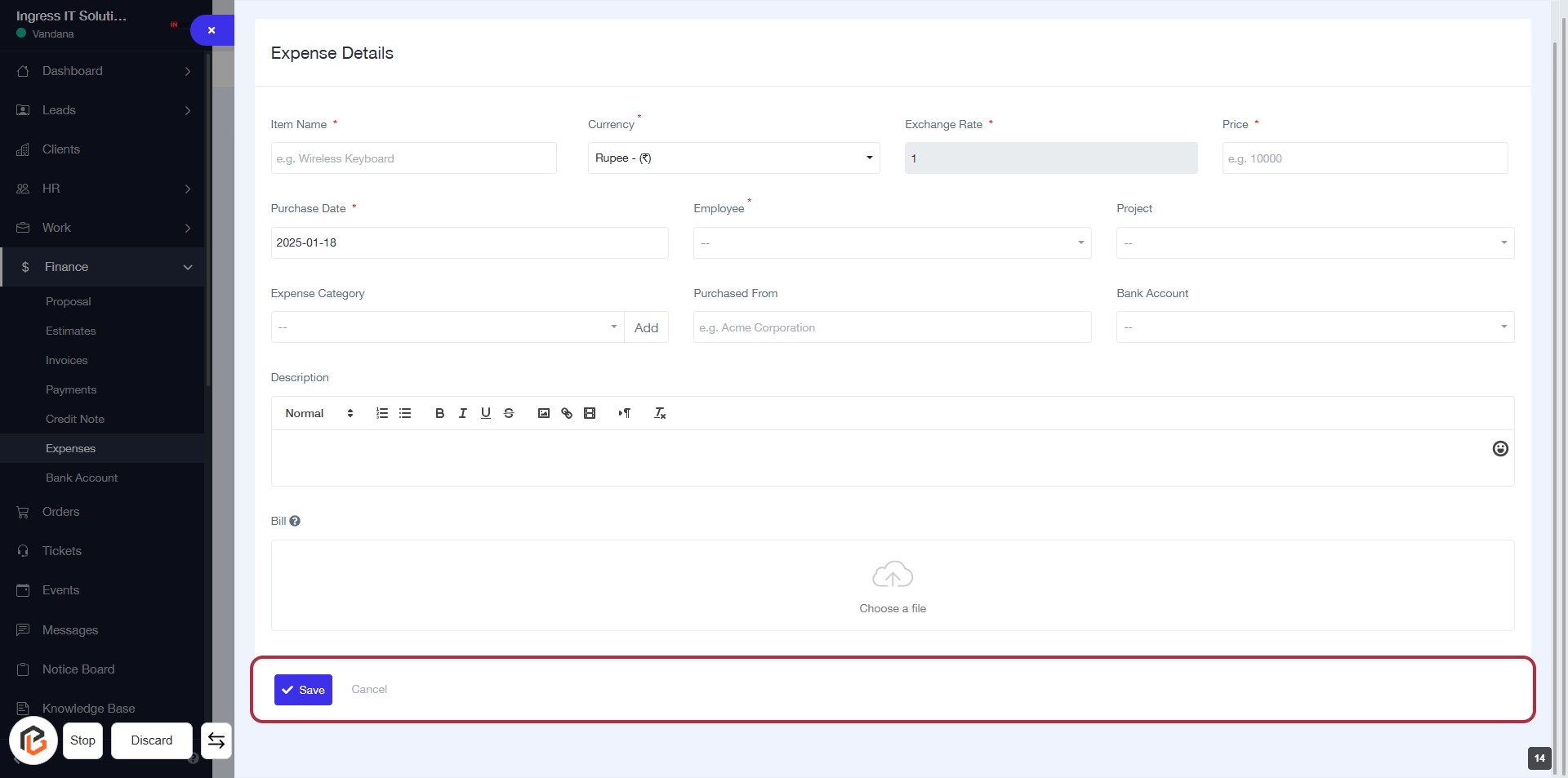
STEP 15: Click on "Save" to Finalize Expense Entry
- Ensure all required fields marked with * are filled out.
- Review the entered information for accuracy.
- Click the Save button at the bottom of the form to submit your expense details.
- If you wish to cancel, click the Cancel button instead.